What's new in Koha?
Aleisha Amohia and Alex Buckley
July 2022
Agenda
- Who are we?
- The Koha story: Collaboration and development
- A brief introduction
- Whats new in Koha 21.11?
- Whats new in Koha 22.05?
- Koha integration and extension examples
Who are we?
Aleisha Amohia
- Koha Developer at Catalyst since 2014
- Development, mentoring, communications
Alex Buckley
- Koha Developer at Catalyst since 2015
- Based in Nelson
- Data migrations, new implementations, integrations, training

The Koha story
- 1999
- Koha was born as a defense to the Y2K bug for Horowhenua Libraries in New Zealand
- Funded Katipo Communications to develop a new open source library system
- Koha went live 3 Jan 2000
Collaboration and development
As an open source project, Koha depends on a community to maintain it.
Every six months the Koha community releases a new version of Koha with fixes, features and enhancements.
Catalyst is a regular contributor to the Koha community, in different ways.
Catalyst Open Source Academy
More information: https://www.catalyst.net.nz/academy
Contributing to Koha
A brief introduction to Koha
- fully-featured, integrated, scalable library system
- multilingual and translatable
- platform-independent due to being web-based
- compliant with library standards and protocols
- hundreds of system preferences that allow the library full control of its system appearance and behaviour
- the ability to share data with, and view data from, other Koha libraries
- powerful full text searching, and enhanced catalogue display, which can pull content from external sources such as Amazon and Google
circulation (reserves, recalls, interlibrary loans, offline circulation, and more), tabbed and inline cataloguing interfaces, tools (inventory, stocktake, biblio and authority record and member import and export, batch modification and deletion) OPAC customisation, reporting, acquisitions, serials, point of sale
Test sites for today's training
Koha 21.11
https://train.test.mykoha.co.nz/
https://train-admin.test.mykoha.co.nz/
Username: staff Password: staff1
Koha 22.05
https://demo-intra.mykoha.co.nz/
Username: staff Password: staff1
Koha 21.11
- 4 new features
- 196 enhancements
- 388 bug and security fixes
- Write protecting MARC fields based on source of import
- Add option for using a MARC modification template on a single record from the details page
- Allow bibs to be added to course without items
- Make note fields from orders searchable
- Cancel holds in bulk
- Add ability to preserve patron field from being overwritten by import
- Add 'Hold reminder' messaging preferences
Write protecting MARC fields based on source of import
What are MARC overlay rules?
Rules to lock, overwrite, or delete specific MARC fields when records are imported or edited in Koha
Where can overlay rules apply?
These rules can apply when doing any task except creating a new record. So they can be applied when editing, batch modifying or importing records.
MARC overlay rules are not framework-specific. They can apply for all records.
1. Go to: 'Administration' > 'Catalog' > 'Record overlay rules'
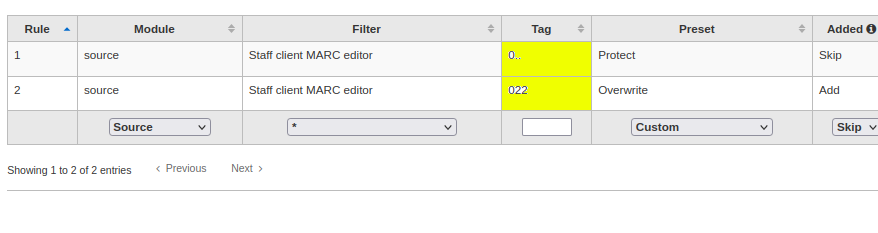
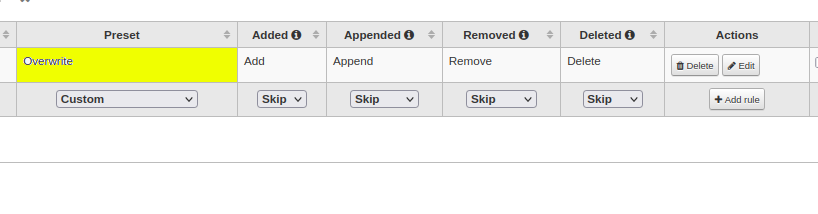
2. You'll see a table of rules:
- Module, Filter and tag define when our rule is going to be applied (highlighted yellow)
- Preset, added, appended, removed, deleted define what our rule is going to do (highlighted green)
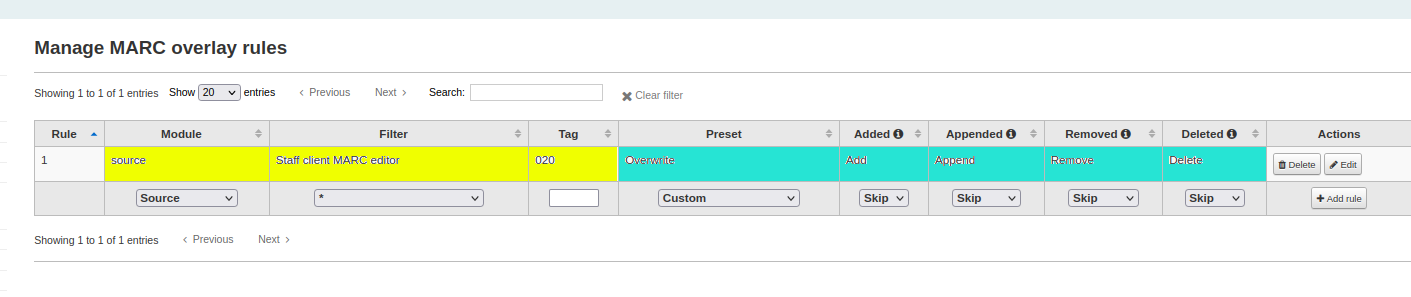
When a rule will apply
Module and filter:
- Source: Rules apply based on which Koha tool the record is being edited/imported in.
- User category: Rules apply based on the patron category making the change. e.g. let library volunteers only edit specific MARC fields.
- Userid: Control the changes specific patrons can make to specific MARC fields
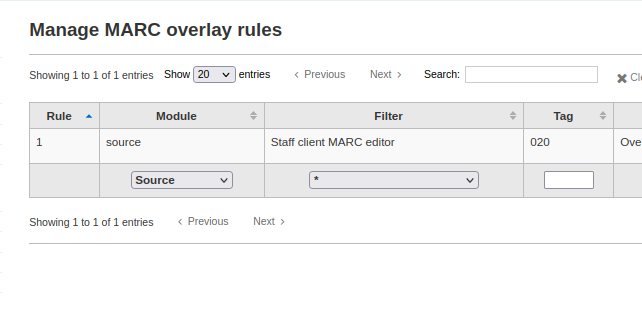
What a rule will affect
Tag:
Defines which tag the rule affects.
You can define tags with wildcards by adding a full-stop or asterix
0.. -> This defines all 0XX fields
02. -> This defines all 02X fields, such as 020, 022, 023, 024
* -> Apply to all fields
For every rule we define 4 actions: added, appended, removed, delete.
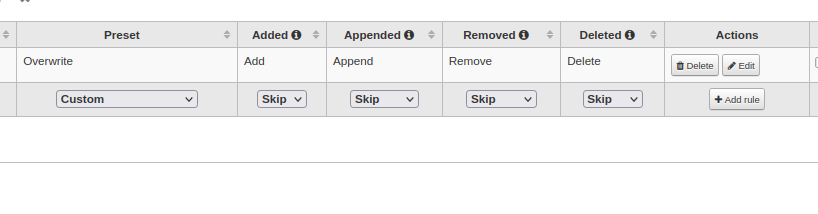
Control what the rule does
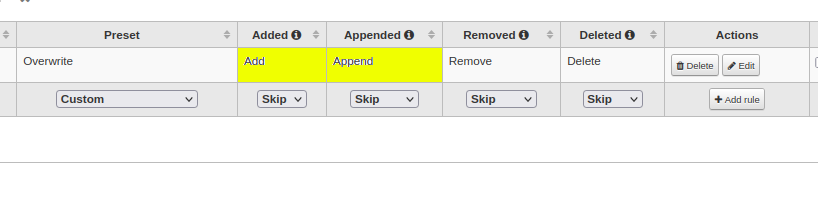
Add new data to the record
- Add: Add an entirely new tag in my overlay, if that tag did NOT already exist in the record.
- Append: Add an additional tag in my overlay, if that tag DID already exist in the record.
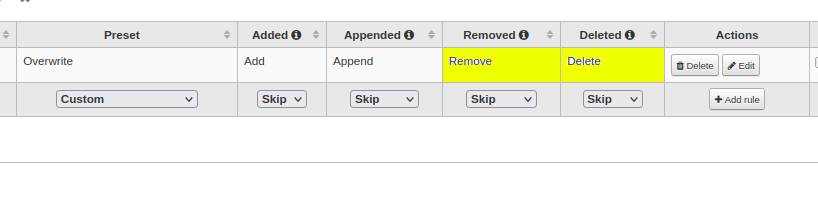
Remove data from the record
- Remove: This will take away a tag, if there is MORE than one instance of the tag in the record.
- Delete: This will take away a tag, if it is the LAST instance of that tag in the record.
Prebuilt action combinations
Preset: Options of pre-build combinations of the add, append, remove and delete actions.
Conflicting rules
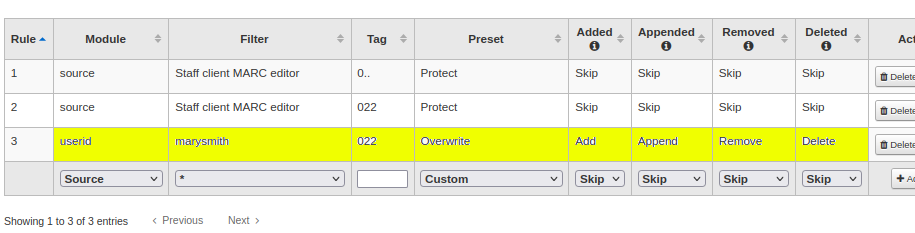
If you have conflicting rules Koha will only apply the most specific rule.
- Rules with a tag not containing a wildcard are more specific
- Rules with module = 'userid' are most specific, then 'user category', then 'source'
The highlighted rule is most specific if marysmith is editing
Important note
The Koha cataloguing editor currently does NOT display when a field will not be saved because there is a MARC overlay rule protecting it.
Thoroughly test MARC overlay rules and ensure your cataloguers are familiar with them. So you don't have cataloguers asking why their biblio edits are not saving!
Add option for using a MARC modification template on a single record from the details page
How to use this shortcut
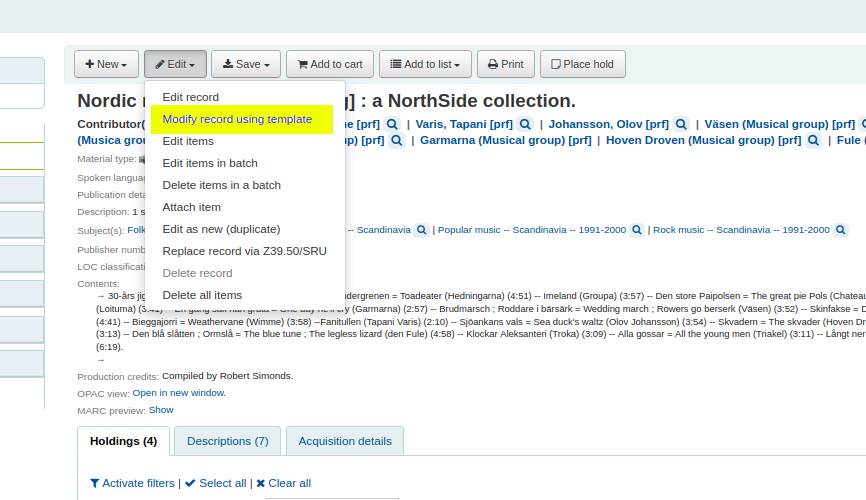
1. Search for and click on a bibliographic record
2. Click: 'Edit' > 'Modify record using template'
3. Choose a template, or make a new one
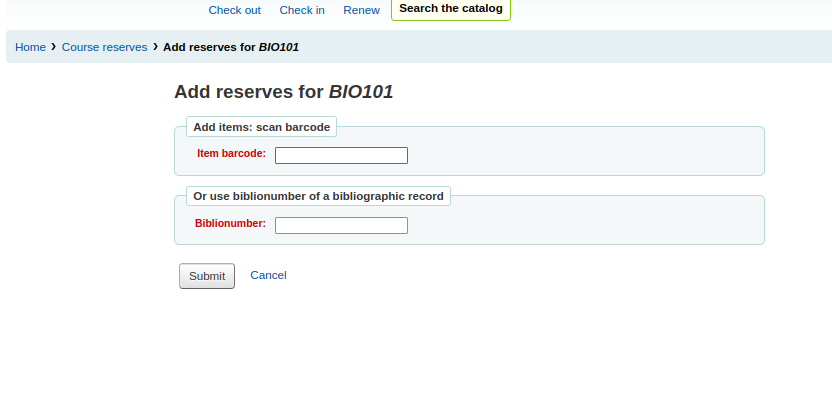
Allow bibs to be added to course without items
1. Enable the 'UseCourseReserves' system preference
2. Create a course
3. Click 'Add reserves'
4. Enter biblionumbers
Make note fields from orders searchable
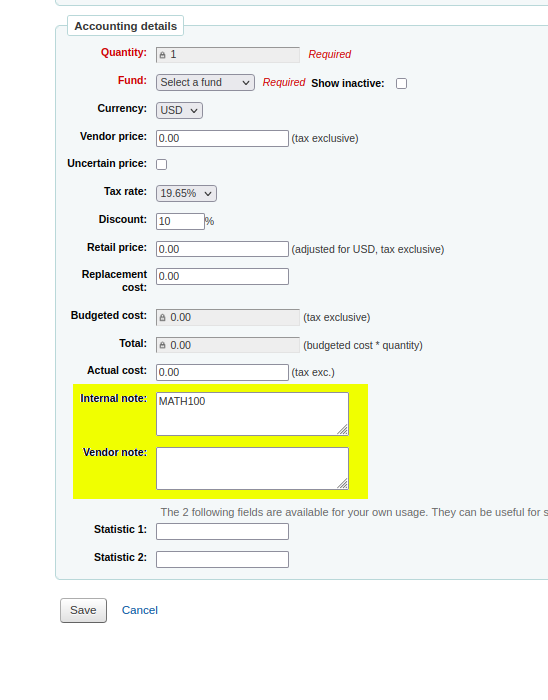
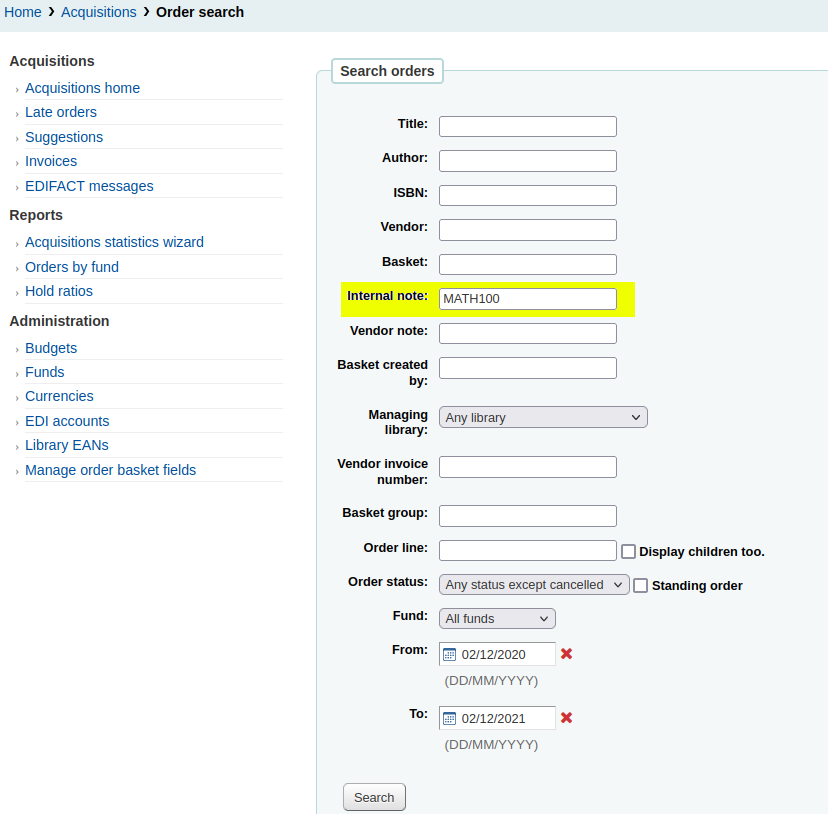
The Internal note and Vendor notes fields can now be searched.
You can save values in these fields when adding items to a basket.
How to search these fields?
1. Go to: 'Acquisitions' > 'Orders search' > 'Advanced search' >
2. Enter a value into the 'Internal note' and 'Vendor note' fields
3. Perform a search
Cancel holds in bulk
Cancel multiple holds on a biblio
1. Visit a biblio record from the search results page
2. Click the 'Holds' tab
- Cancel all holds by clicking the first checkbox then 'Cancel selected'
- Cancel some holds by clicking the checkbox beside the hold and then 'Cancel selected'
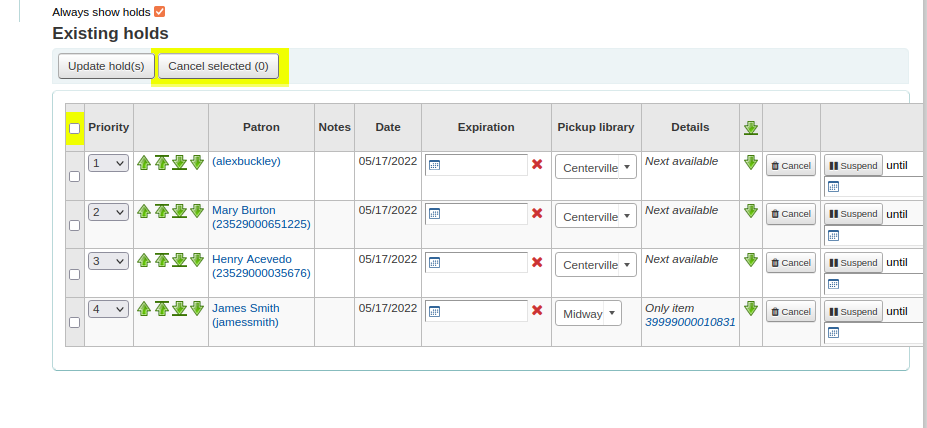
You can also set more cancellation reasons by adding new reasons to the HOLD_CANCELLATION authorised value
Add ability to preserve patron field from being overwritten by import
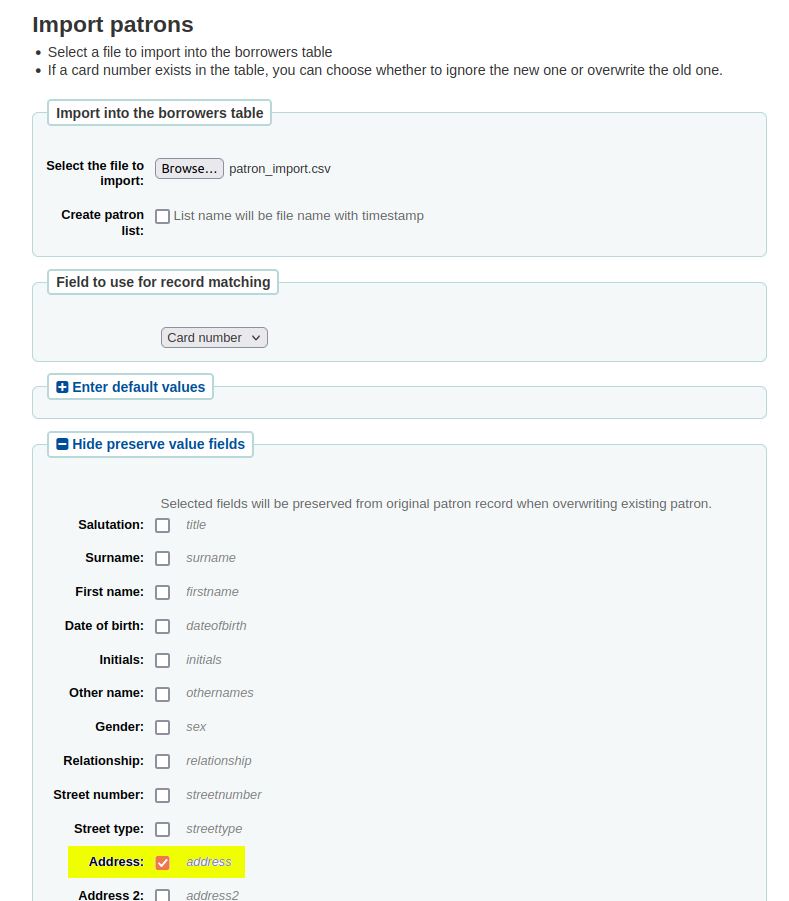
Lock patron fields from being overwritten when replacing existing patron accounts:
1. Go to: 'Tools' > 'Import patrons'
2. Choose a field from 'Field to use for record matching'
3. Expand the 'Preserve existing values' box
4. Tick the field names you want to stay unchanged
Add 'hold reminder' messaging preference
Patrons can control if they receive the holds reminder notice
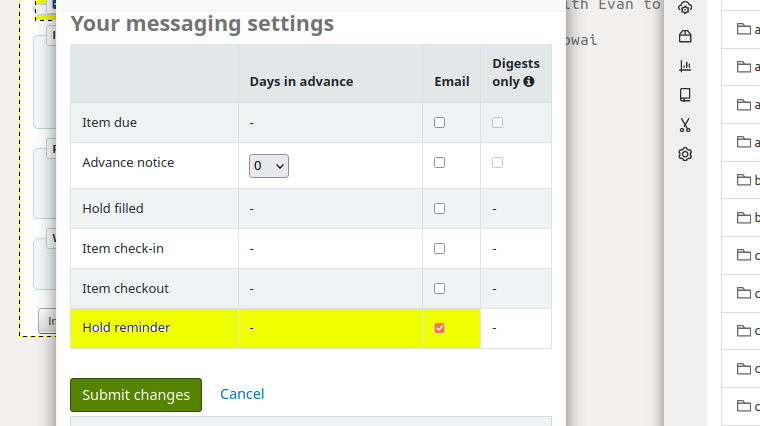
1. When patrons log into the OPAC they can click on their account
2. Click on the 'Your messaging' tab
3. Tick the 'email' checkbox for 'Hold reminder' or not
Set up the holds reminder notice
The holds reminder notice informs patrons they have reserved items that have been awaiting pickup for X days.
- Decide the number of days delay for the notice to be sent
- Decide if you want the notice to be triggered only on the delay day or delay day and every day thereafter
- Ask your vendor to setup the 'holds_reminder.pl' cronjob on the Koha server
Short break
Koha 22.05
- 5 new features
- 231 enhancements
- 328 bug and security fixes
- Recalls
- Import and export of authority types
- Add option to make a public list editable by library staff
- Add option to trigger 'Welcome mail' manually
- Introduce password expiration to patron categories
- Show authority heading use in search results
Recalls
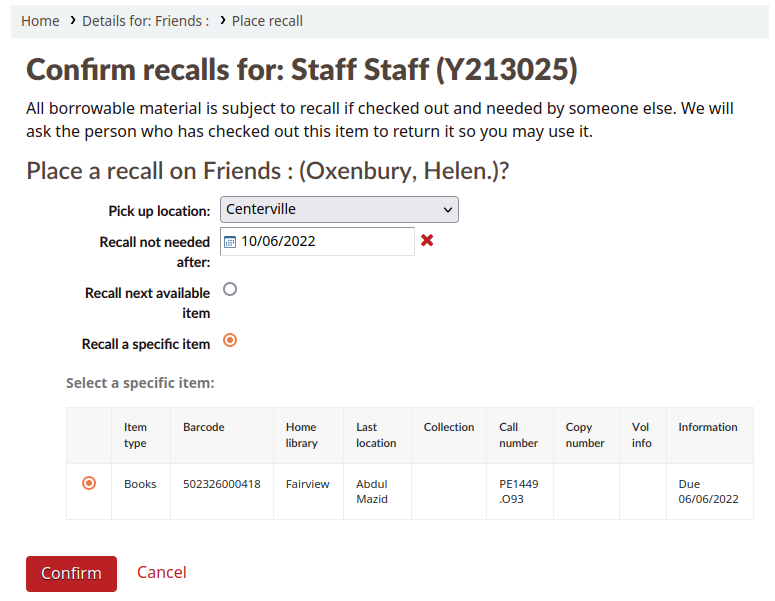
Recalls can be thought of as high-priority holds, with a few more conditions. Members can recall items or records that they need urgently, but are currently checked out or awaiting pickup. A recall will shorten the loan period for the member who currently has the item checked out. Recalls are prioritised over holds.
We at Catalyst are very proud of having written most of the recalls feature - the work was largely sponsored by Toi Ohomai Institute of Technology, Waikato Institute of Technology, and Auckland University of Technology.
Recalls
- When an item is recalled, the member who currently has the item checked out will be notified that their due date has been adjusted and they need to return their item.
- Once a recalled item is returned, the patron who placed the recall will be notified that their item is awaiting pickup at their chosen pickup location.
Recalls configuration
System preferences
- UseRecalls
- RecallsMaxPickUpDelay
- RecallsLog
User permissions
- manage_recalls
Cronjobs
- expire recalls
- overdue recalls
Circulation rules
- Recalls allowed
- Recalls per record
- On shelf recalls allowed
- Recall due date interval
- Recall overdue fine amount
- Recall pickup period
Notices
- RETURN_RECALLED_ITEM
- PICKUP_RECALLED_ITEM
- RECALL_REQUESTER_DET
Import and export of authority types
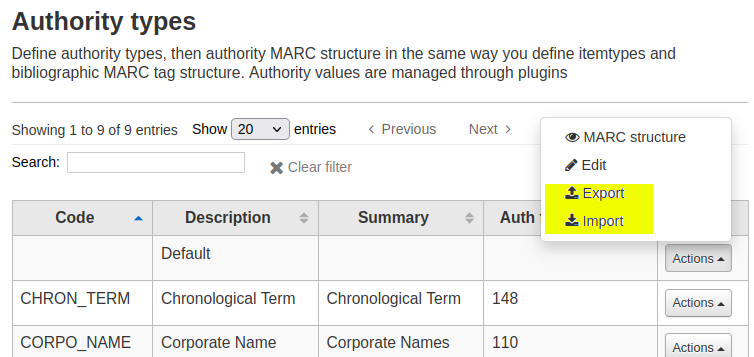
You can now import and export authority types like you can with bibliographic frameworks
Exporting authority types
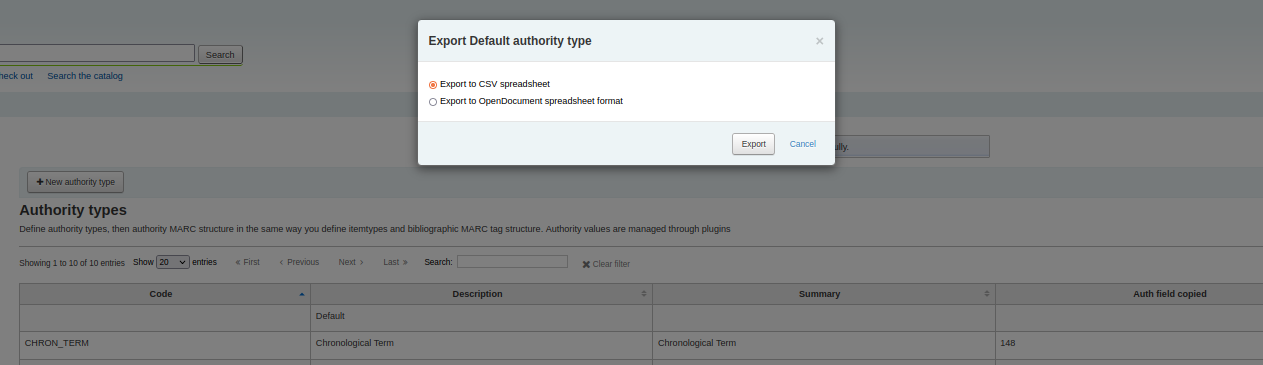
- Go to: Administration > Authority types
- Click 'Actions' > 'Export' to export an existing authority type
- Choose to export in CSV or OpenDocument spreadsheet format
- Click 'Export'
Importing authority types
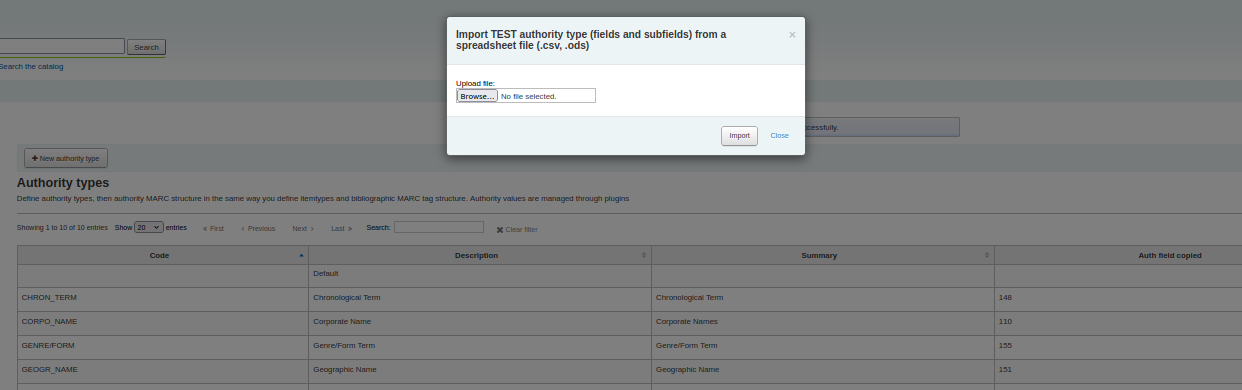
- Go to: Administration: Authority types
- Create a new authority type
- Click 'Actions' > 'Import'
- Browse to upload a file from your computer
- Click 'Import'
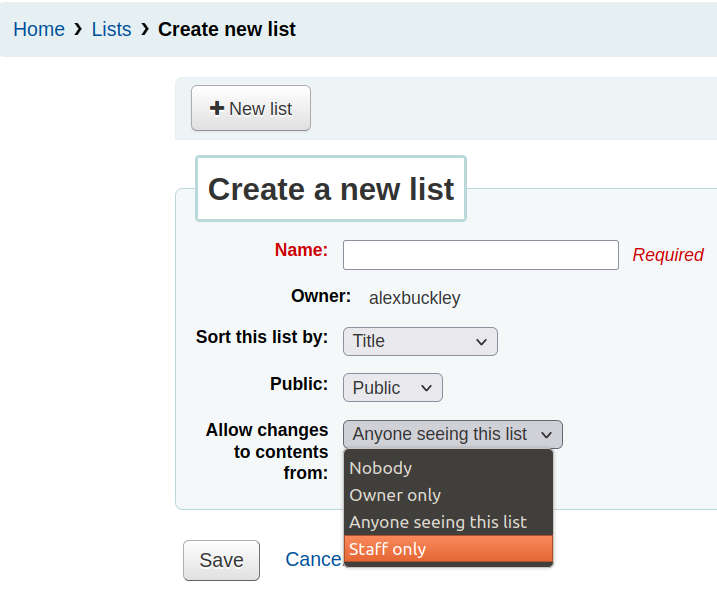
Add option to make a public list editable by library staff only
When creating new public lists
- Choose 'Staff only' in the 'Allow changes to contents from' input
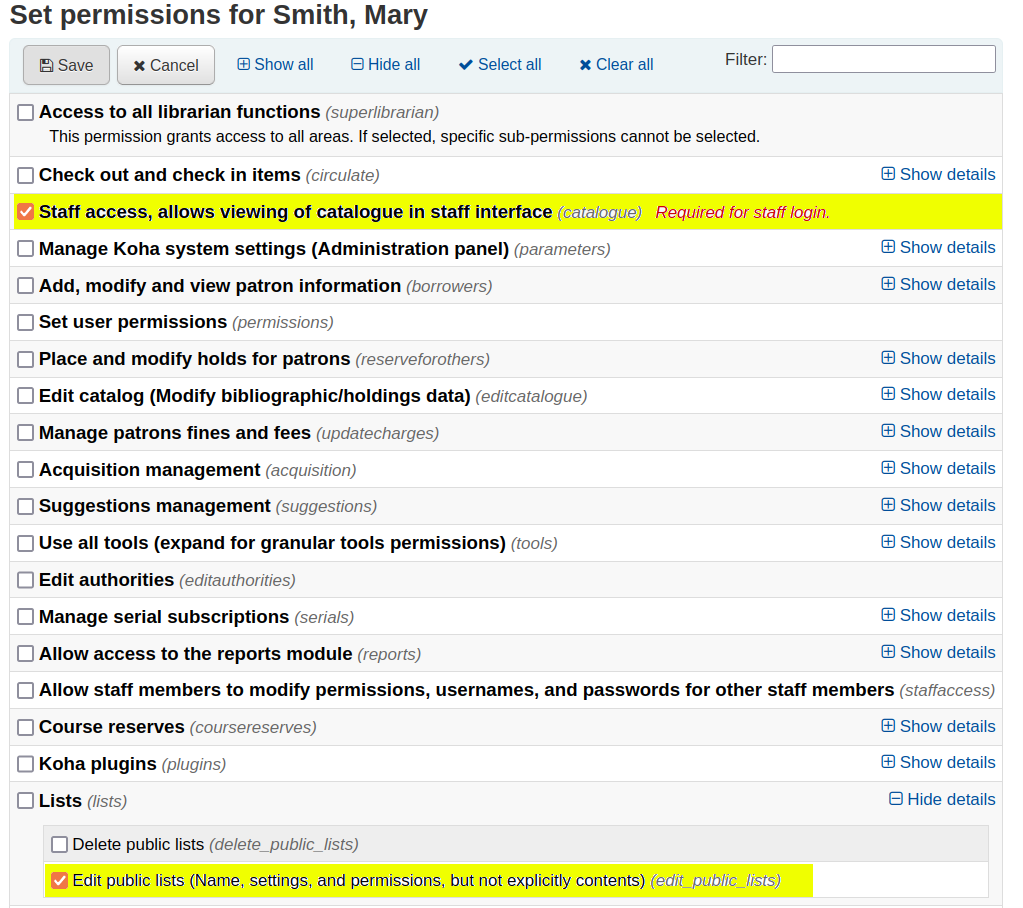
What is a staff user?
Any Koha patron who can log into the staff client.
To log into the staff client a patron must have the 'catalogue' permission selected
Make existing 'owner only' public lists editable by staff:
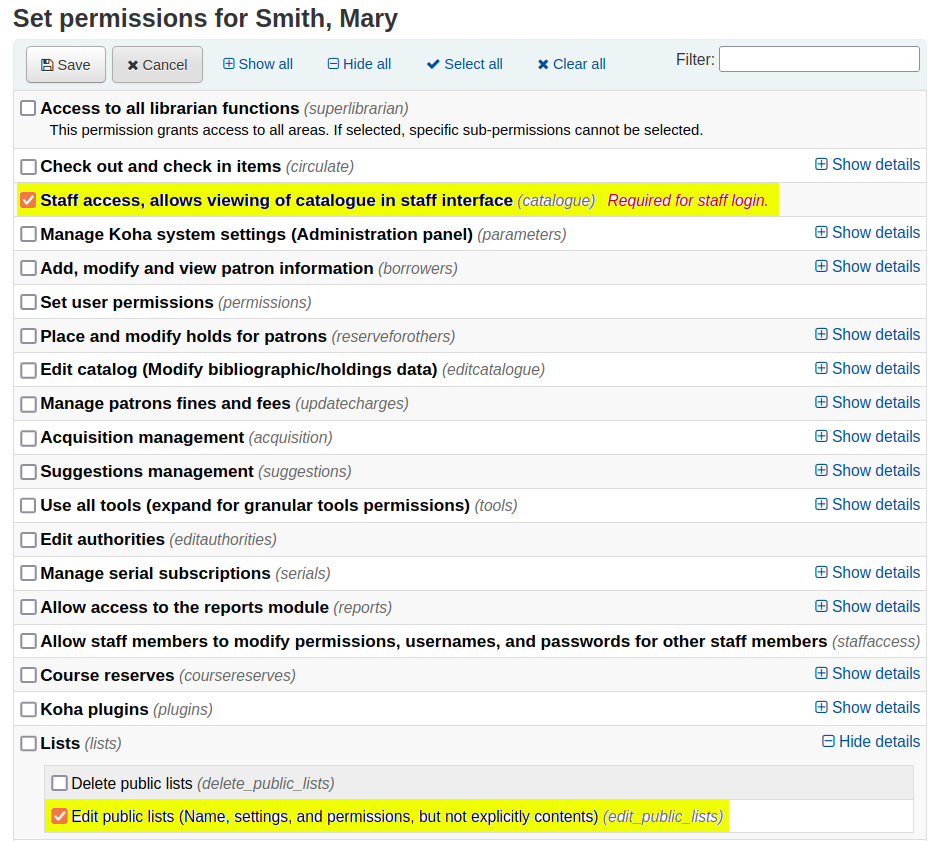
- Ask a superlibrarian patron or a staff patron with the 'edit_public_lists' sub-permission to edit the existing public list
- Set the 'Allow changes to contents from' input to 'Staff only'
Add option to trigger 'Welcome mail' manually
Customising the welcome email
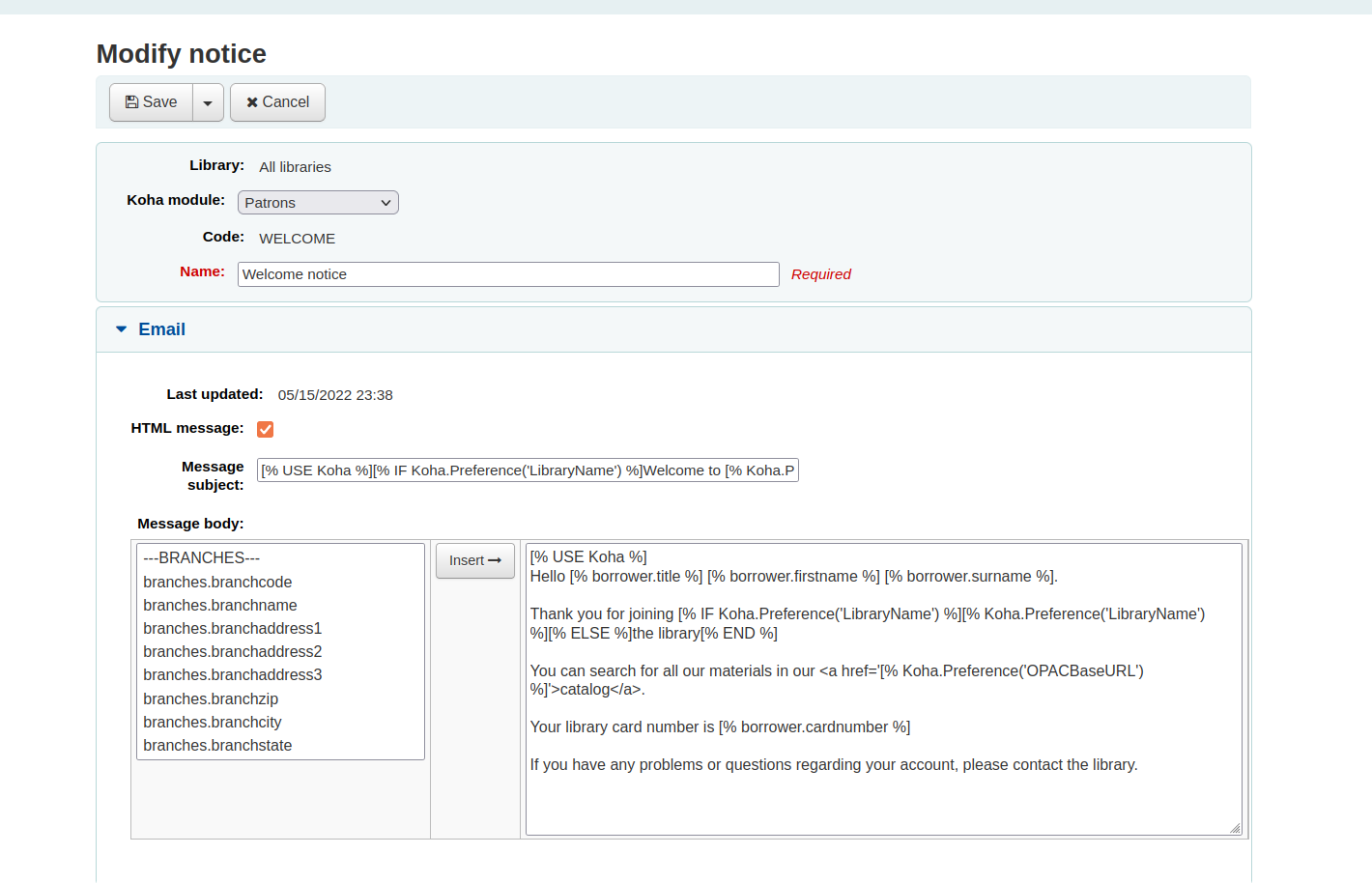
- Go to: 'Tools' > 'Notices & slips'
- Search for 'WELCOME'
- Click 'Edit' and change the default notice content
Send the welcome email
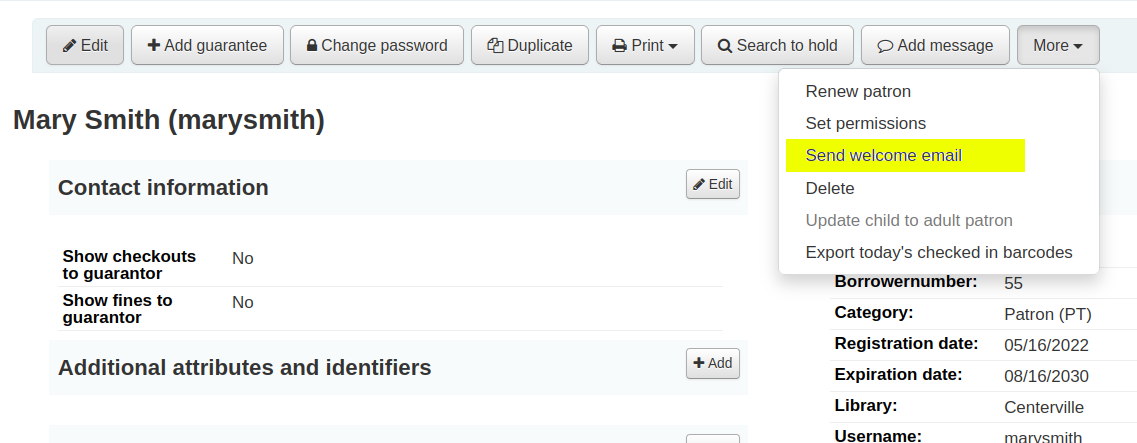
- Navigate to the patron's detail page
- Click 'More' > 'Send welcome email'
- This will queue an email to send to the patron
Introduce password expiration to patron categories
Add password expiration to patron categories
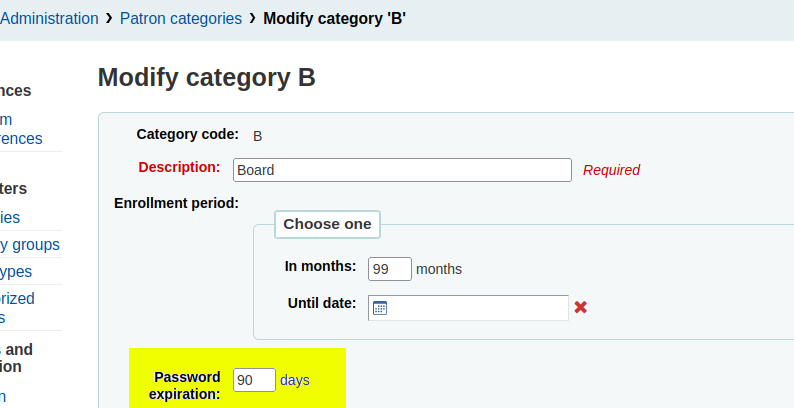
1. Go to: 'Administration' > 'Patron categories'
2. Edit a patron category
3. Set value in the 'Password expiration' input
By default what happens when a patron's password expires?
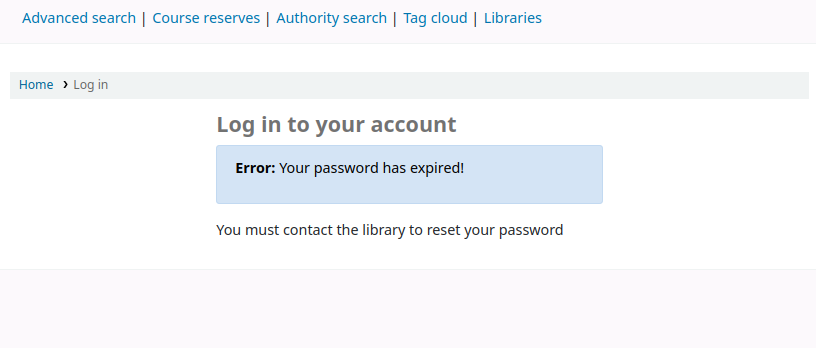
Upon attempting to log into the OPAC or staff client the patron will see a password expiry error
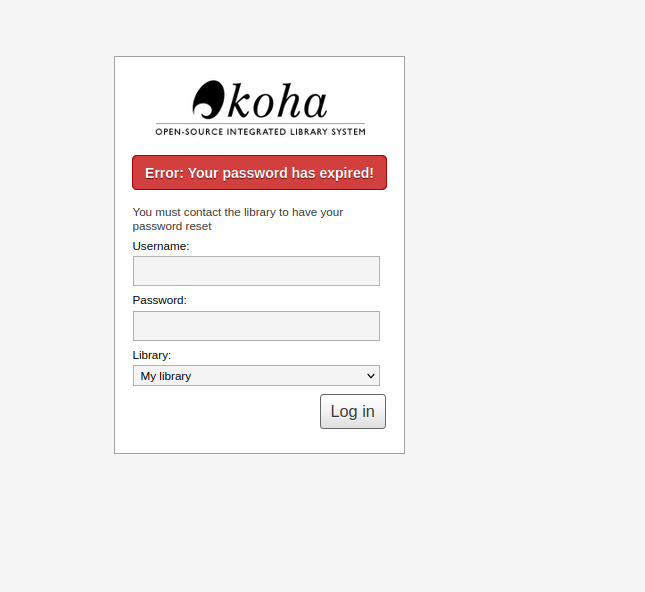
OPAC
Staff client
Let patron categories reset their own password in the OPAC
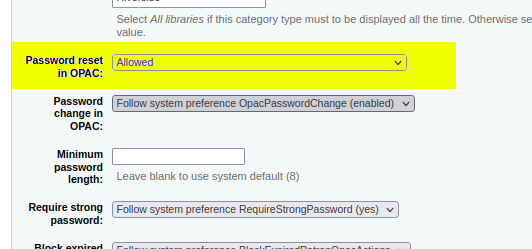
1. Go to: 'Administration' > 'Patron categories'
2. Edit a patron category
3. Set patron category 'Password reset in OPAC' input to 'Allowed'
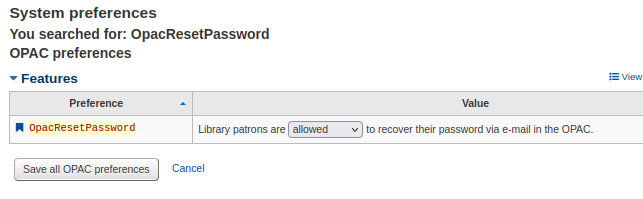
Allow all OPAC patrons reset their password: Set the 'OpacResetPassword' system preference to 'allowed'
Let ALL patrons reset their own password in the OPAC
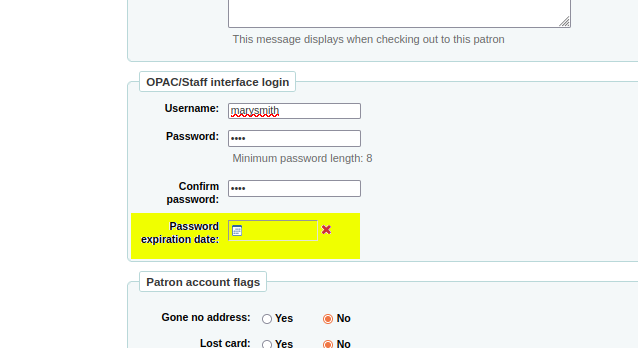
Setting a password expiry in a patron category does not affect existing patrons
You must edit existing patron accounts and set a date in the 'Password expiration date' input
Automatic item modifications by age: Add age dependency on other field(s) than dateaccessioned
- The "Automatic item modifications by age" tool enables libraries to modify items when they are X days beyond being added to the catalogue.
- Previously you could only automatically modify items based on their items.dateaccessioned (date they were added to Koha)
- You can now modify items based on other datetime fields
- Existing automatic item modification rules will continue to use the items.dateaccessioned as the age field
How to choose an age field for automatically modifying items
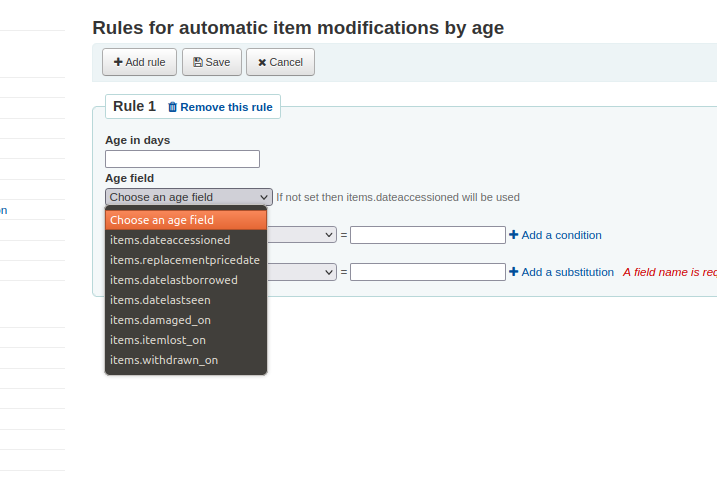
1. Go to: 'Tools' > 'Automatic item modifications by age' > 'Add rule'
2. Choose a item database field from the 'Age field' input
Show authority heading use in search results
In MARC authority records the 008/14-16 indicate what the authority record can be used for
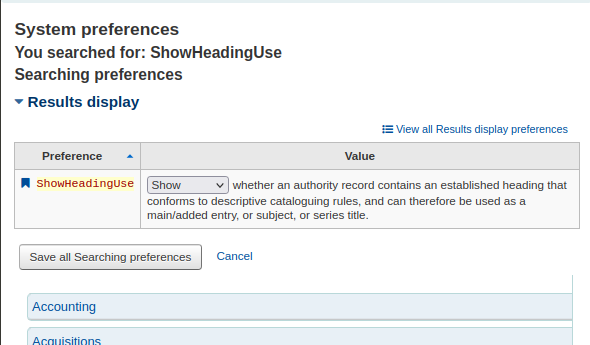
Now if you enable the 'ShowHeadingUse' system preference you can how an authority record can be used
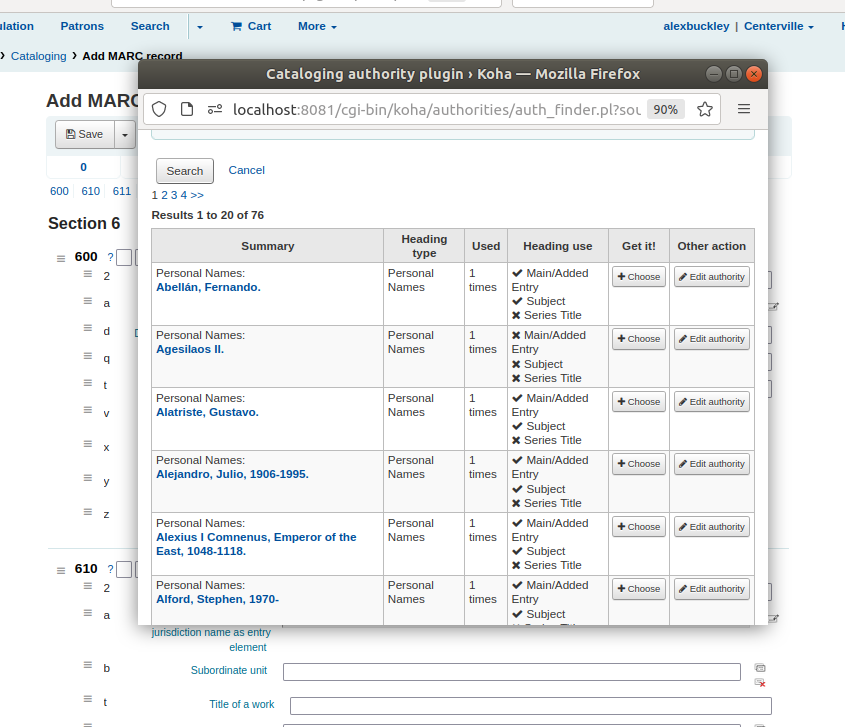
View how an authority record can be used
1. Edit a bibliographic record
2. Go to a biblio heading field (1XX, 6XX or 7XX)
3. Launch the authority finder plugin
4. Do an authority search
5. The 'Heading use' column lists how each authority record should be used
Koha integration and extension examples
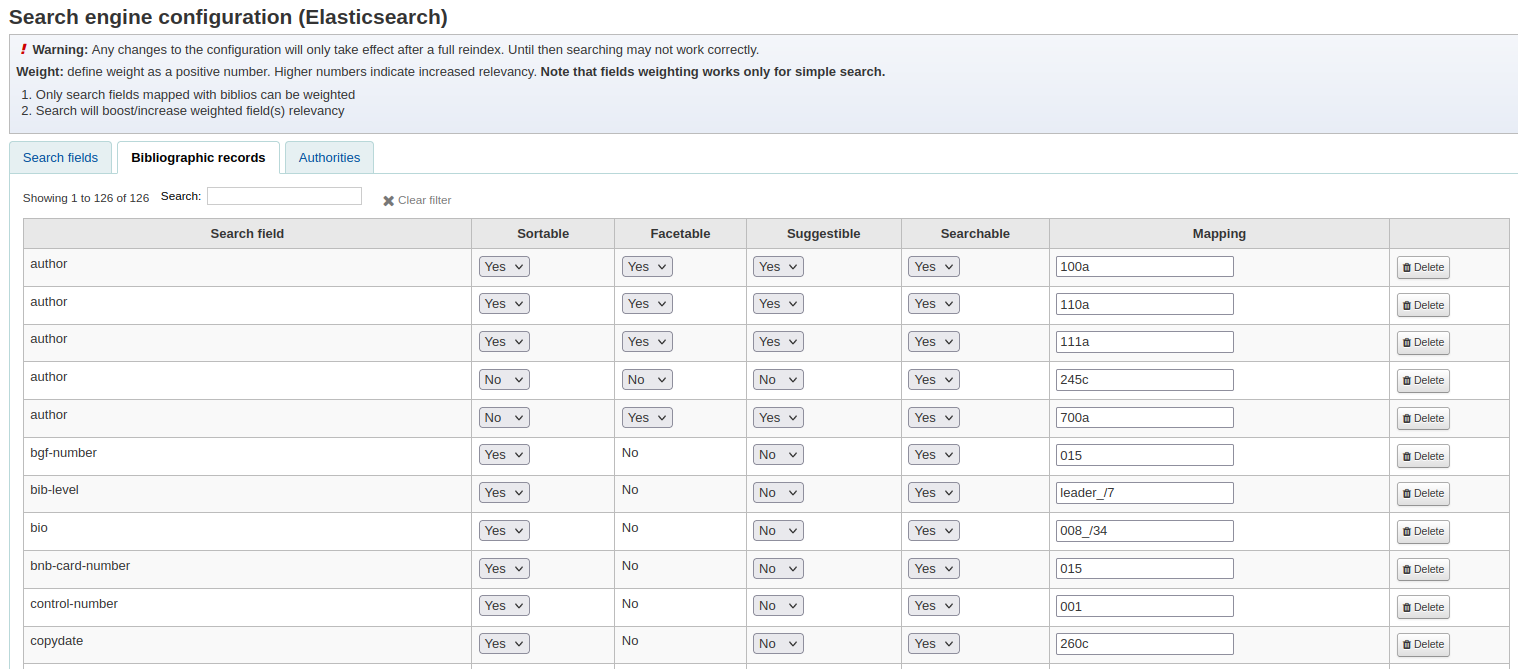
Elasticsearch
- a super fast, super powerful search engine
- better monitoring capabilities
- on a server external to your Koha, so shouldn't be affected by Koha outages
- an interface for libraries to add and control search indexes
Searching with ES
- specify an index
title:digital author:andrew
- boolean operators
batman OR robin
design AND standard
- wildcards and truncation
super*
d?g
- negating and requiring search terms
design -standard
More search examples: https://bywatersolutions.com/education/elastic-searching
Try Elasticsearch on a Koha library: https://toiohomai.mykoha.co.nz/cgi-bin/koha/opac-search.pl
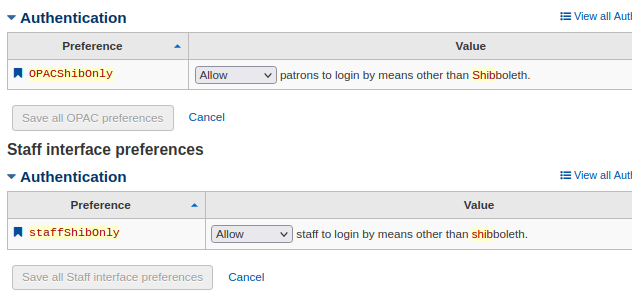
Shibboleth
What is Shibboleth?
- A way of implementing Single Sign On (SSO)
- SSO is an authentication method that only requires users to login once to access multiple different systems
-
Some of our libraries use self-checkin and self-checkout integrated with Shibboleth. This removes the need to enter their username and password.
Discovery platform
VuFind
- Open source alternative to Koha OPAC
- Does API calls to Koha to fetch information
- Example: AUT https://librarysearch.aut.ac.nz

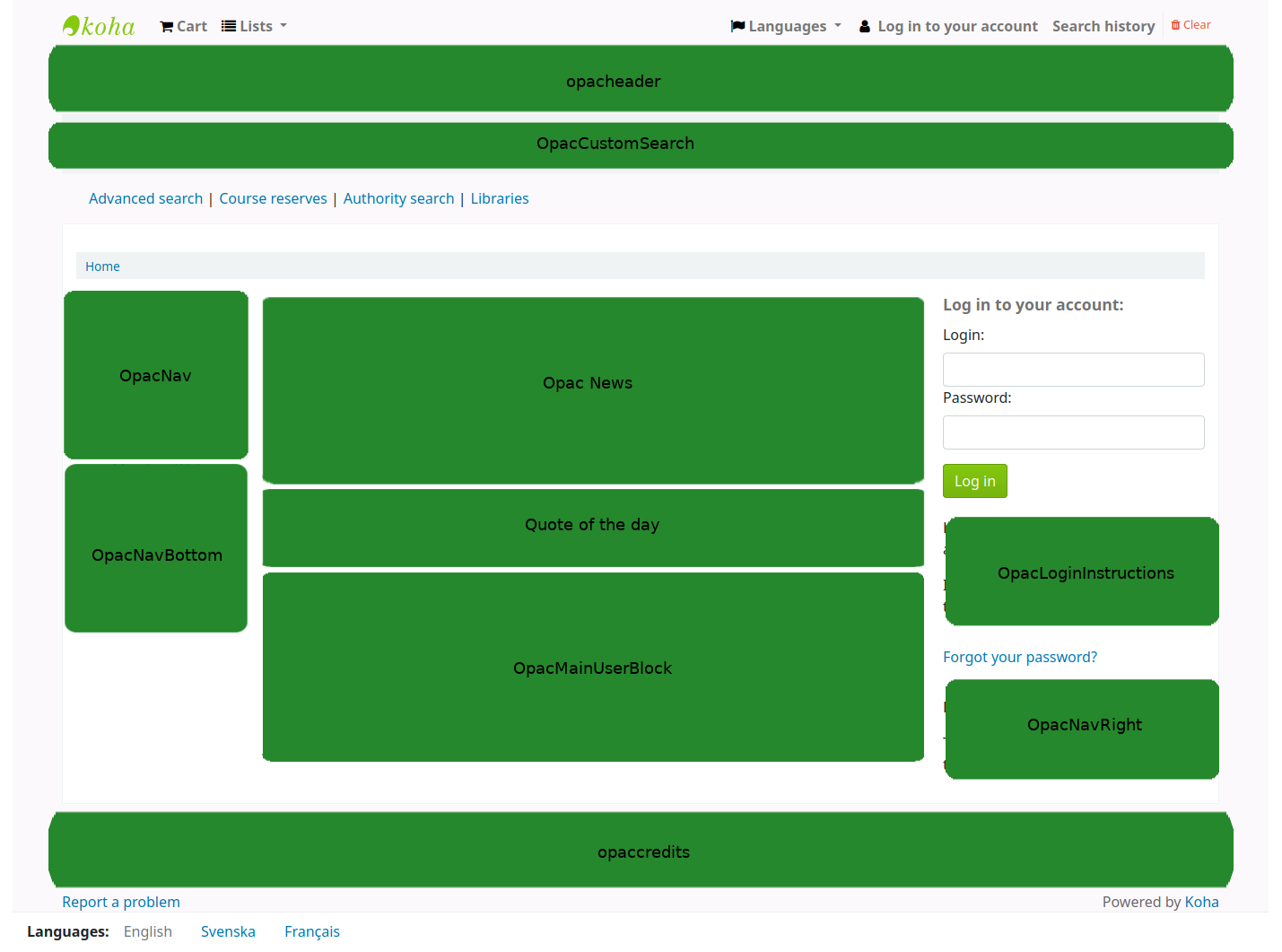
HTML customisations
- The OPAC is divided into sections which can hold custom content in any of the languages installed for your Koha
- In Koha 21.11 and above: Tools -> HTML customisations
- Use a text editor if you know HTML, or you can use a WYSIWYG editor
You can also use the following to style your OPAC
- System preferences
- OPACUserCSS and OPACUserJS
- Additional stylesheets
Make your OPAC accessible
- Use headings well
- If patrons can view the OPAC in different languages, translate your custom content
- Avoid including images of text, just use text
- Images that add information must have alt text