Perform Advanced Windows Tasks And Linux System Interaction

Business Scenario
Welcome!
You are working as a Security Analyst at SecureOps Systems, where your role is to monitor and manage Windows system security. You control background services, automate tasks using Task Scheduler, analyze registry entries for persistence mechanisms, and investigate system activities through Event Viewer logs. Through this hands-on lab, you ensure system stability, detect suspicious behavior, and maintain overall security of the organization’s systems.


Pre-Lab Preparation
Topic : Operating System Fundamentals
1) Basics of Operating Systems.
2) Windows OS fundamentals.
Task 1: Windows Security Monitoring & System Management
1
Services Management
Perform:
a
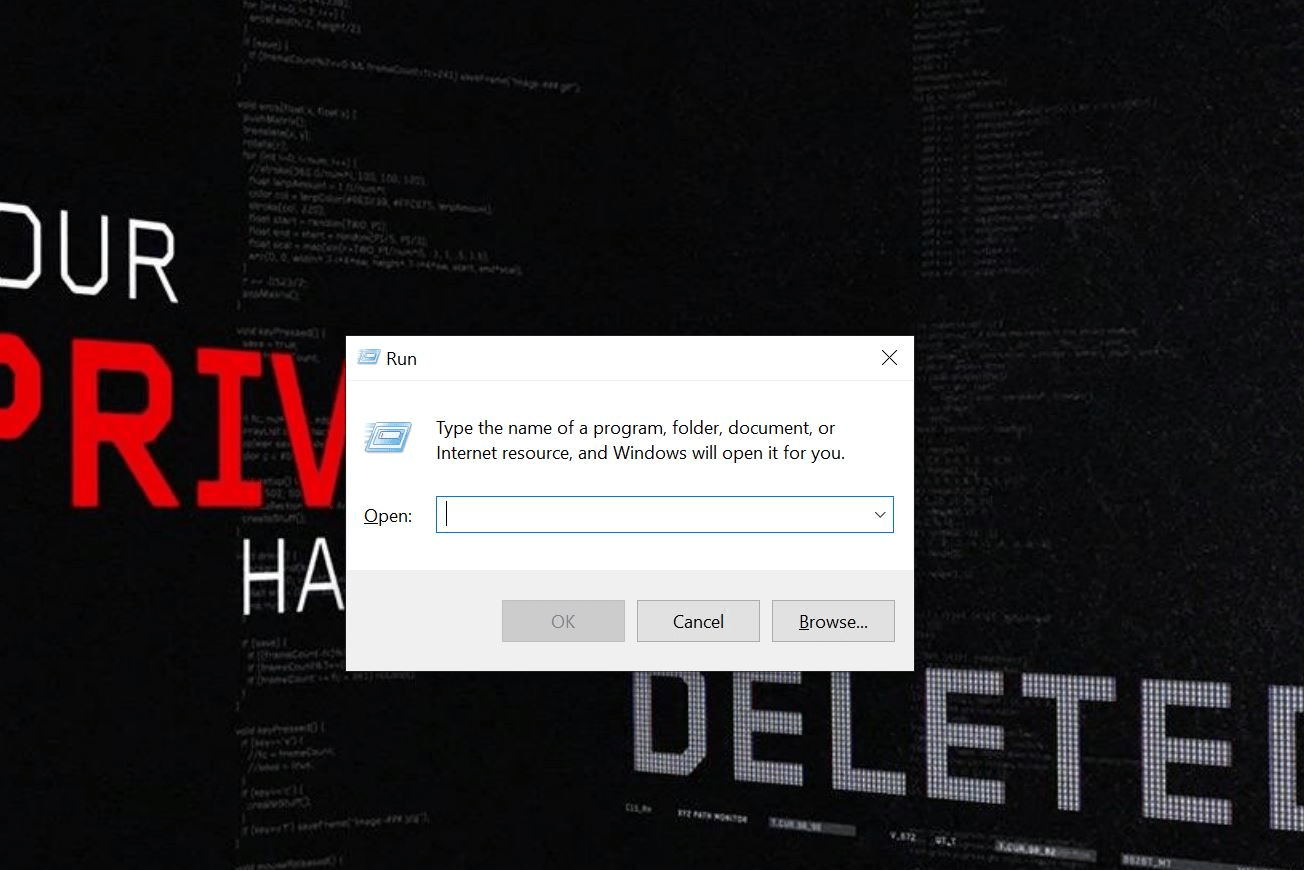
Open (perform windows+R)
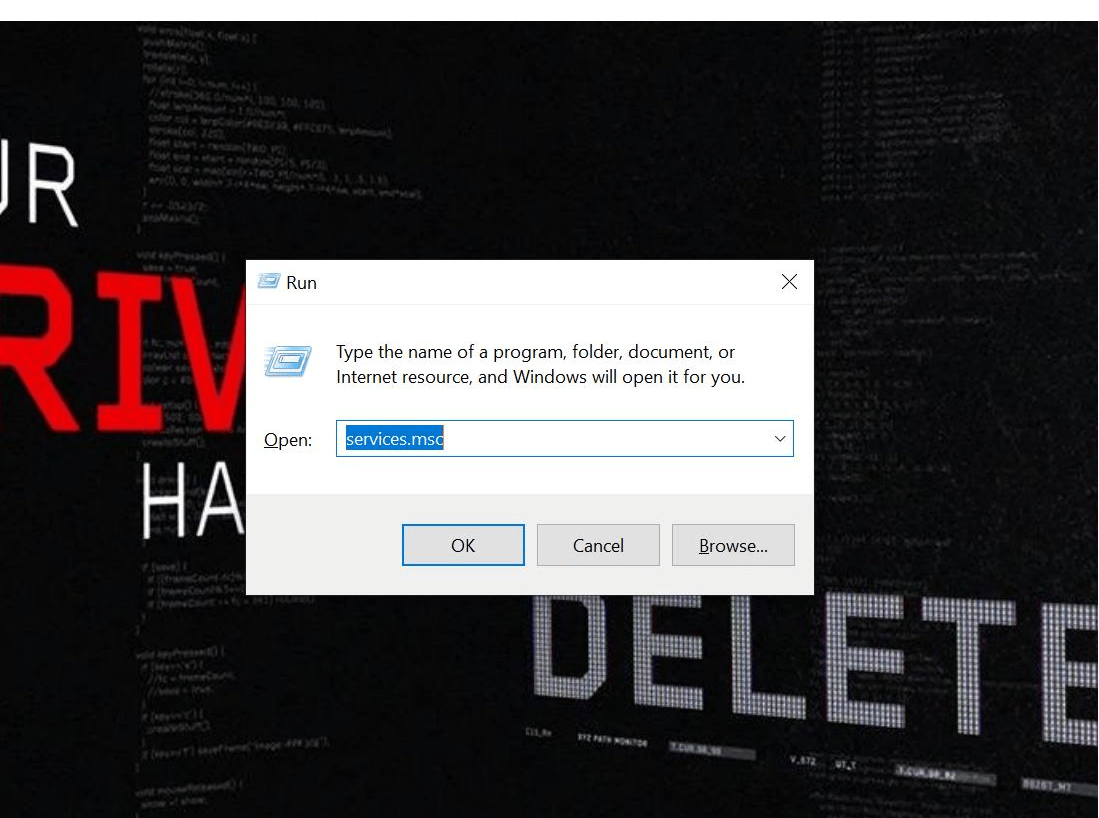
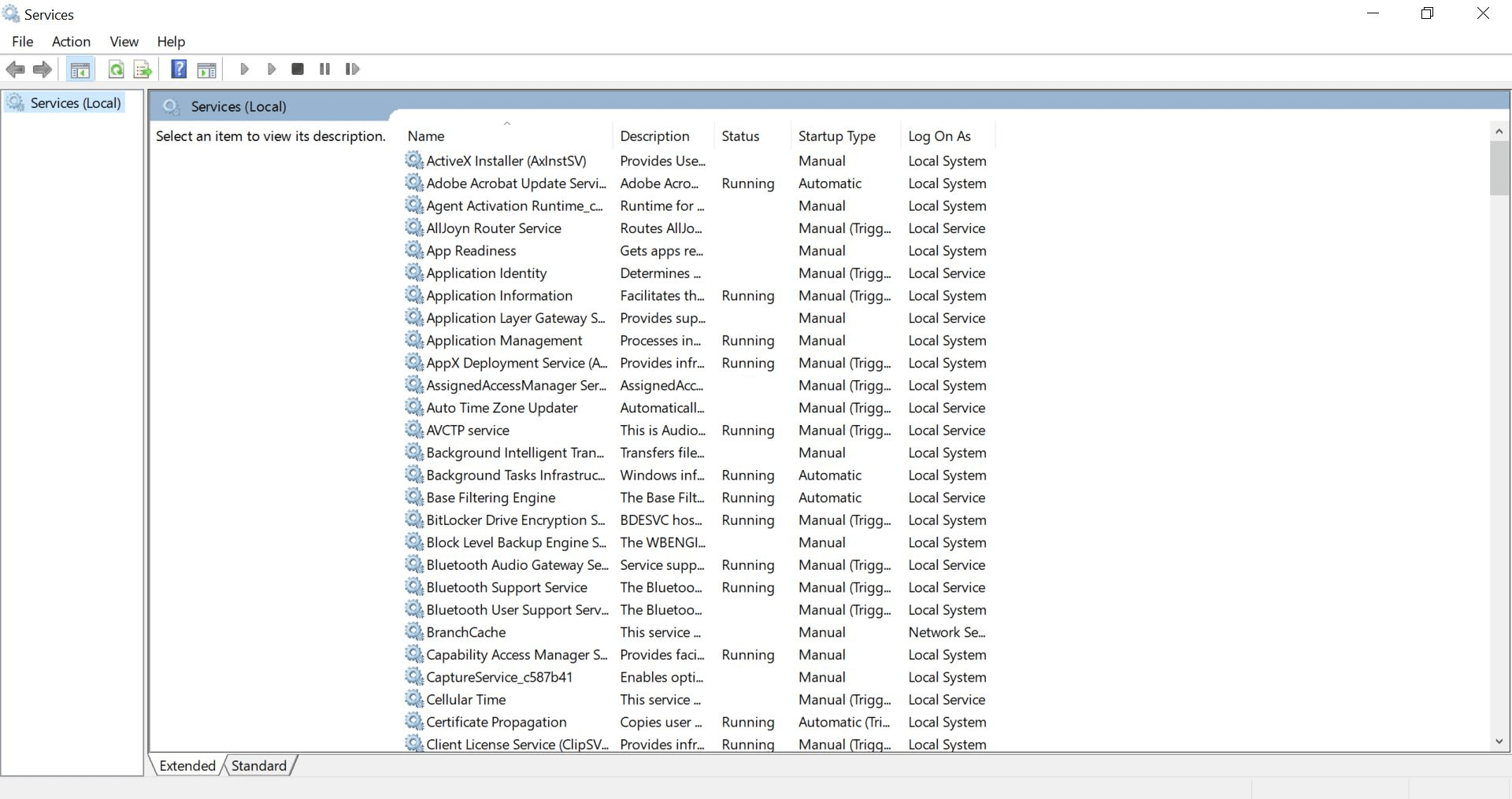
Select a service (e.g., Windows Update)
b
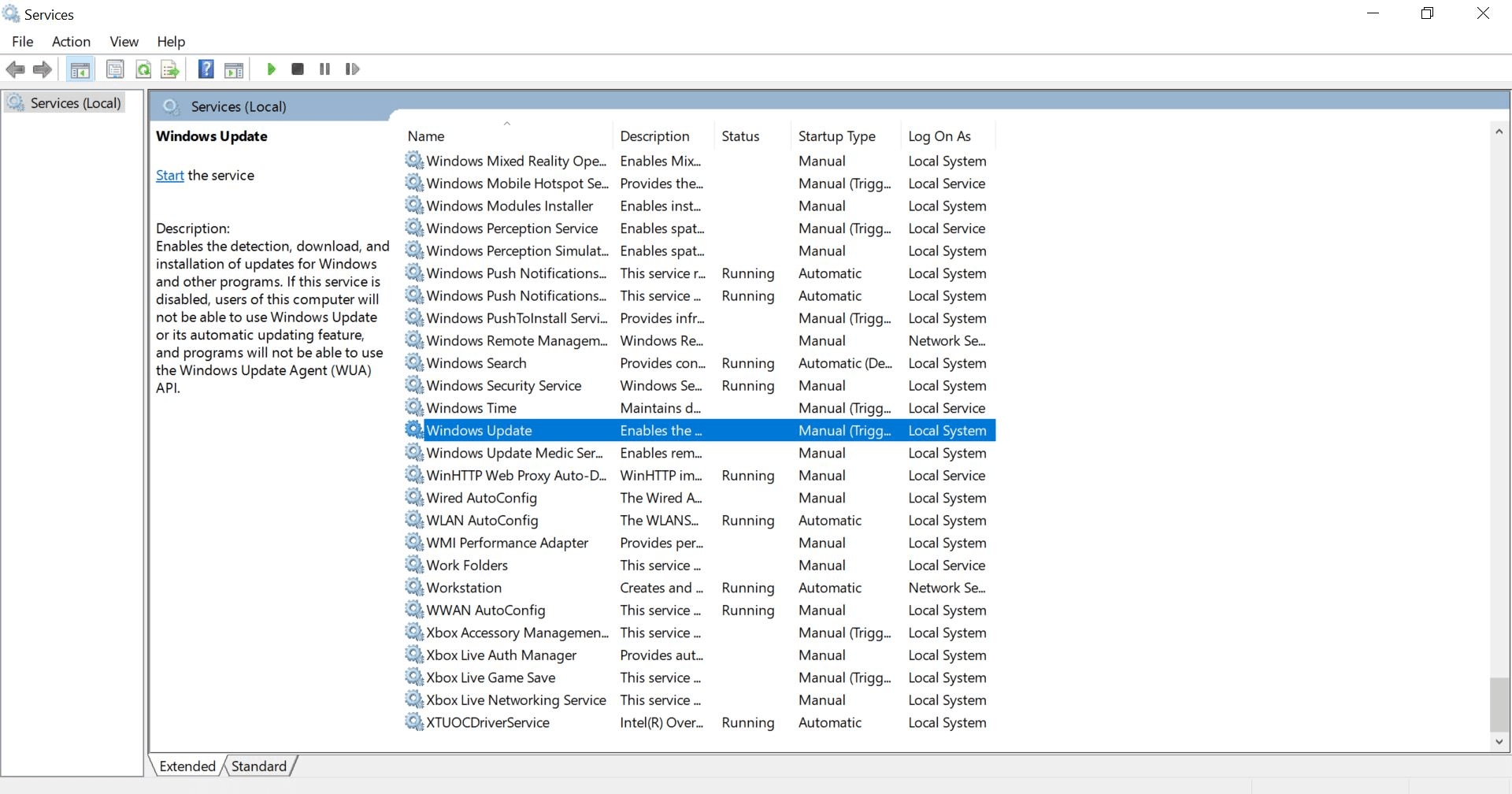
Perform:
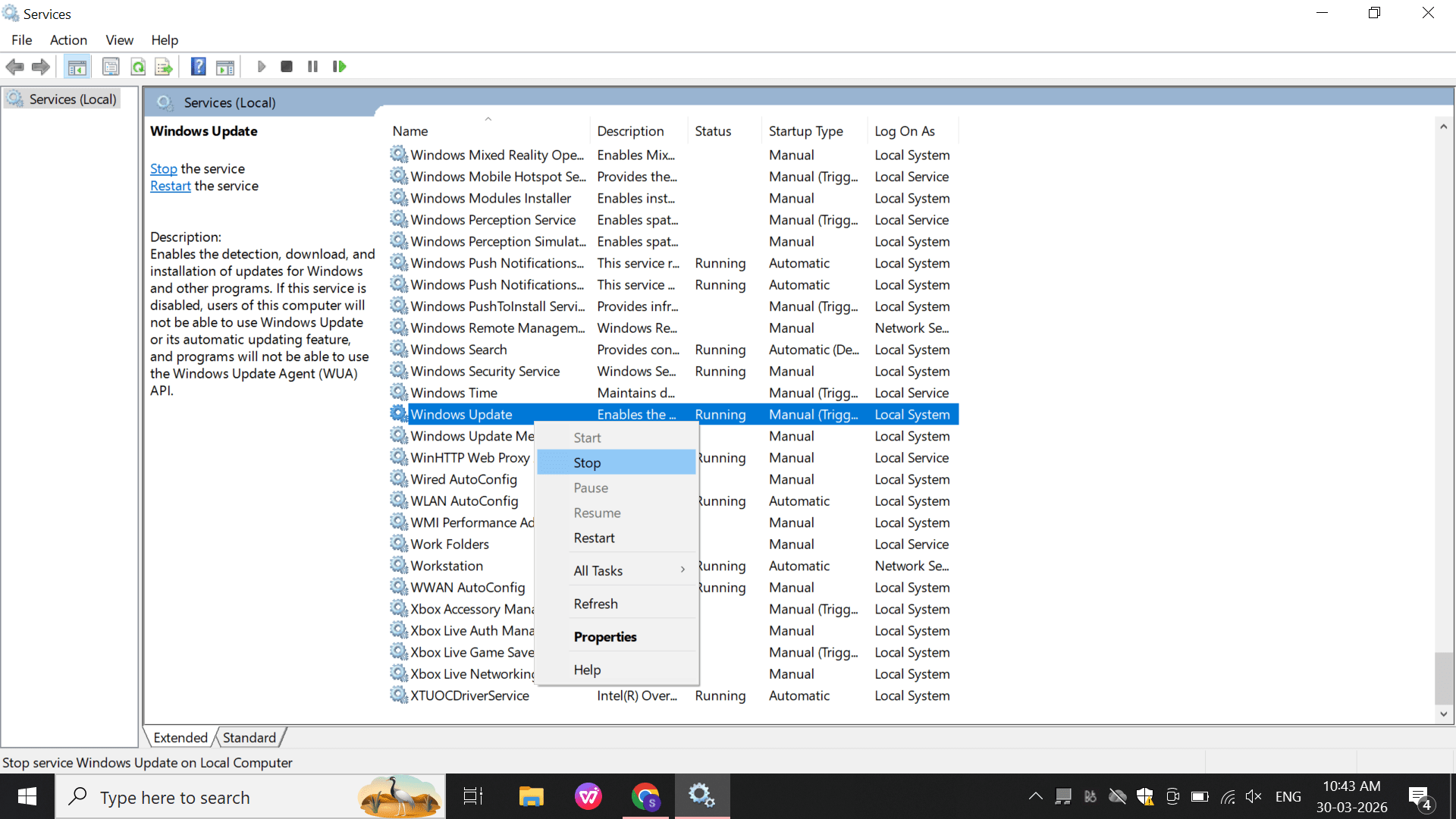
-
Stop
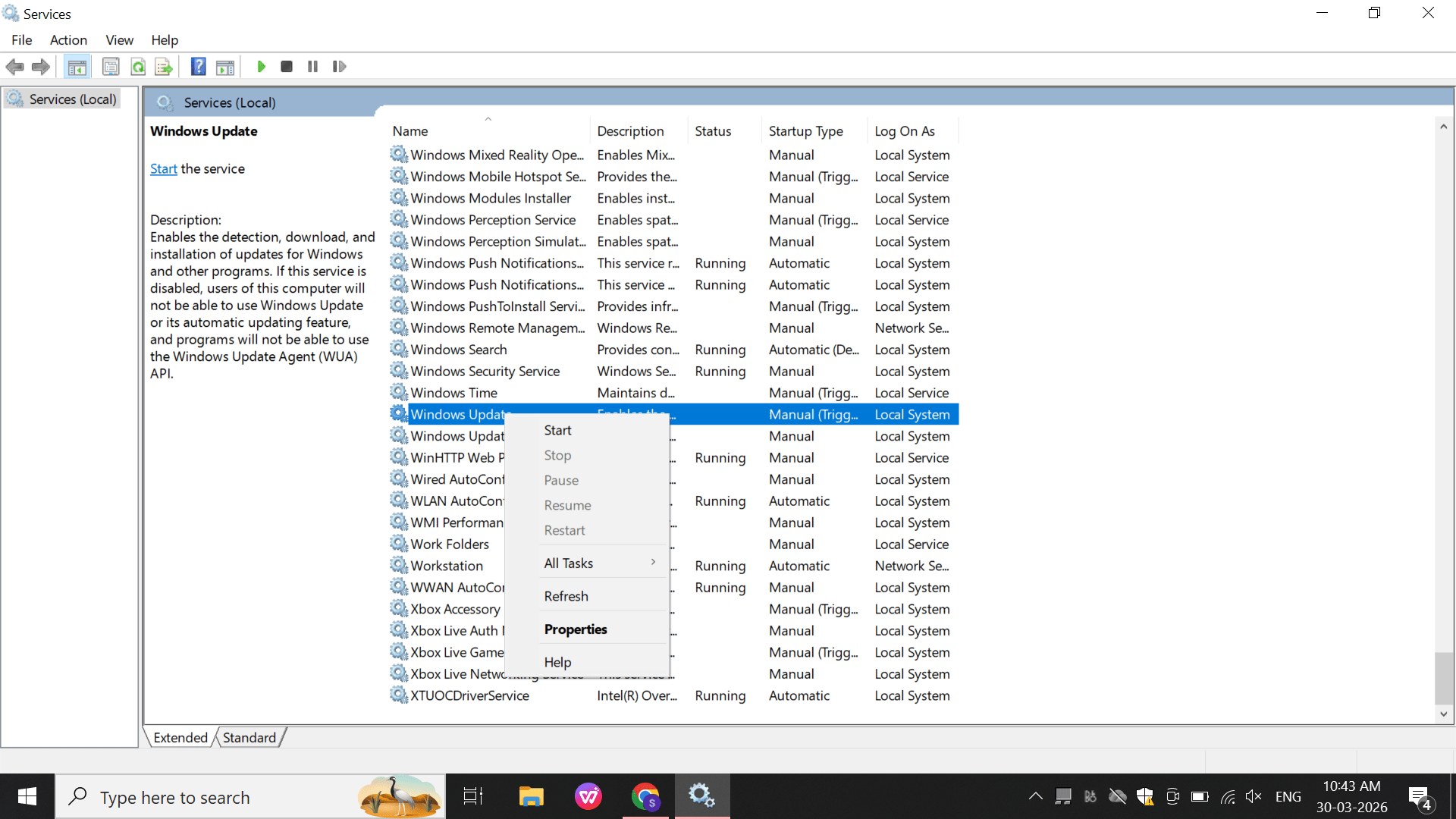
-
Start
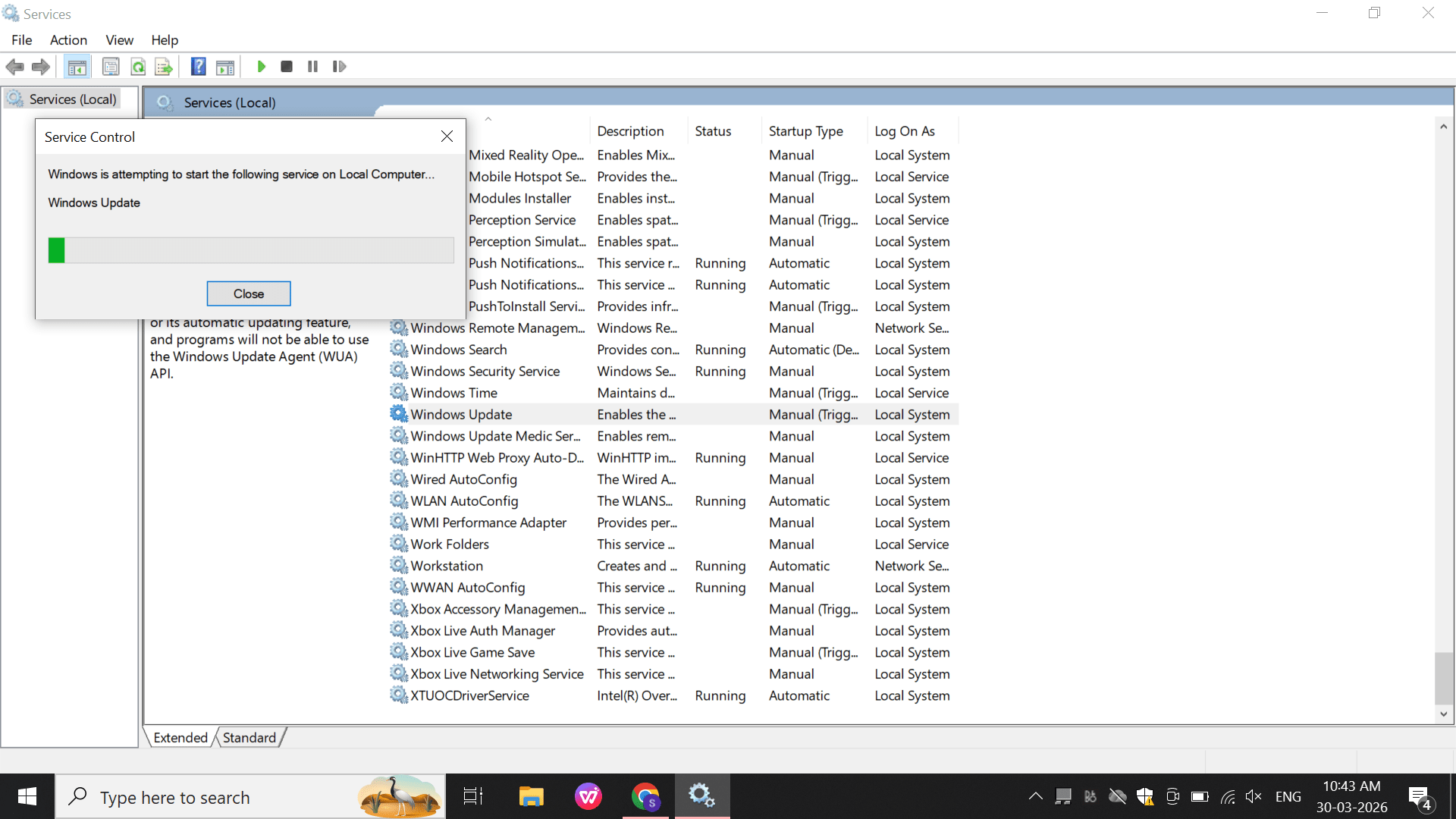
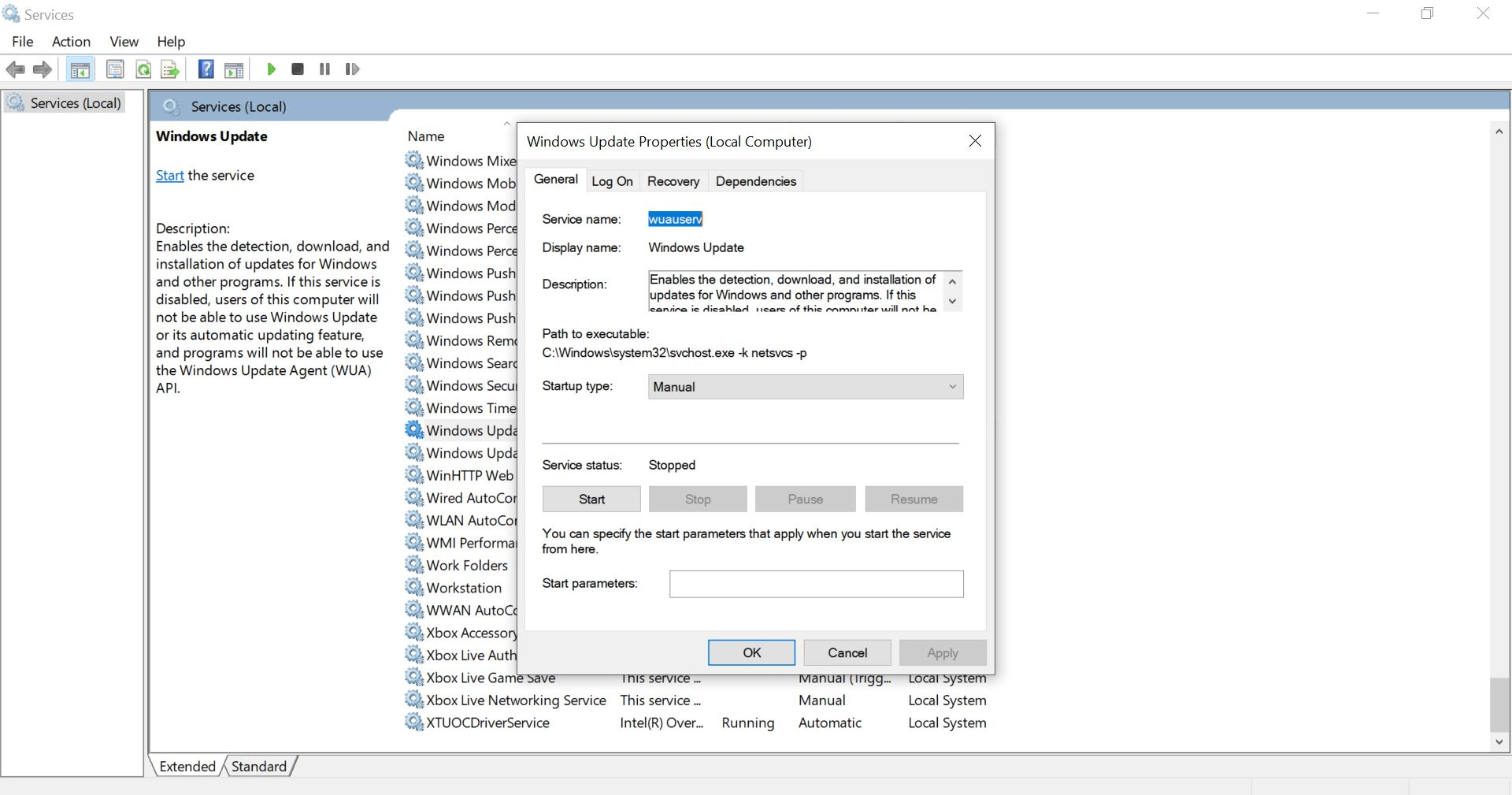
-
Check the property also
2
Task Scheduler (Scheduled Tasks)
Perform:
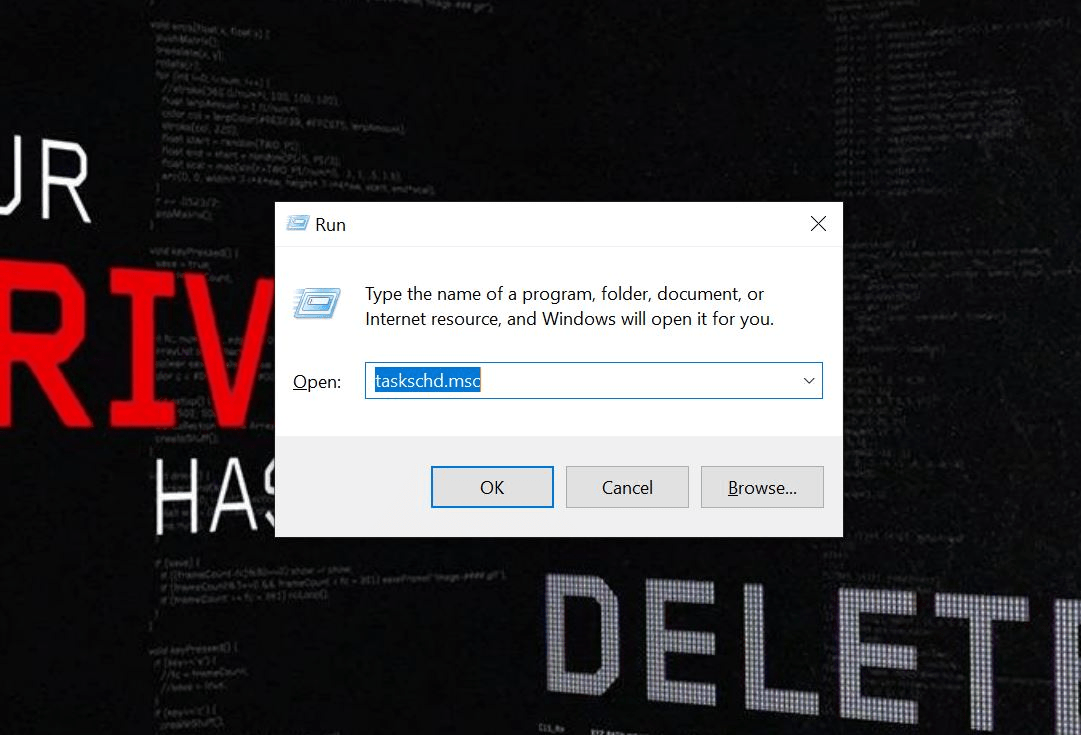
Open: taskschd.msc
a
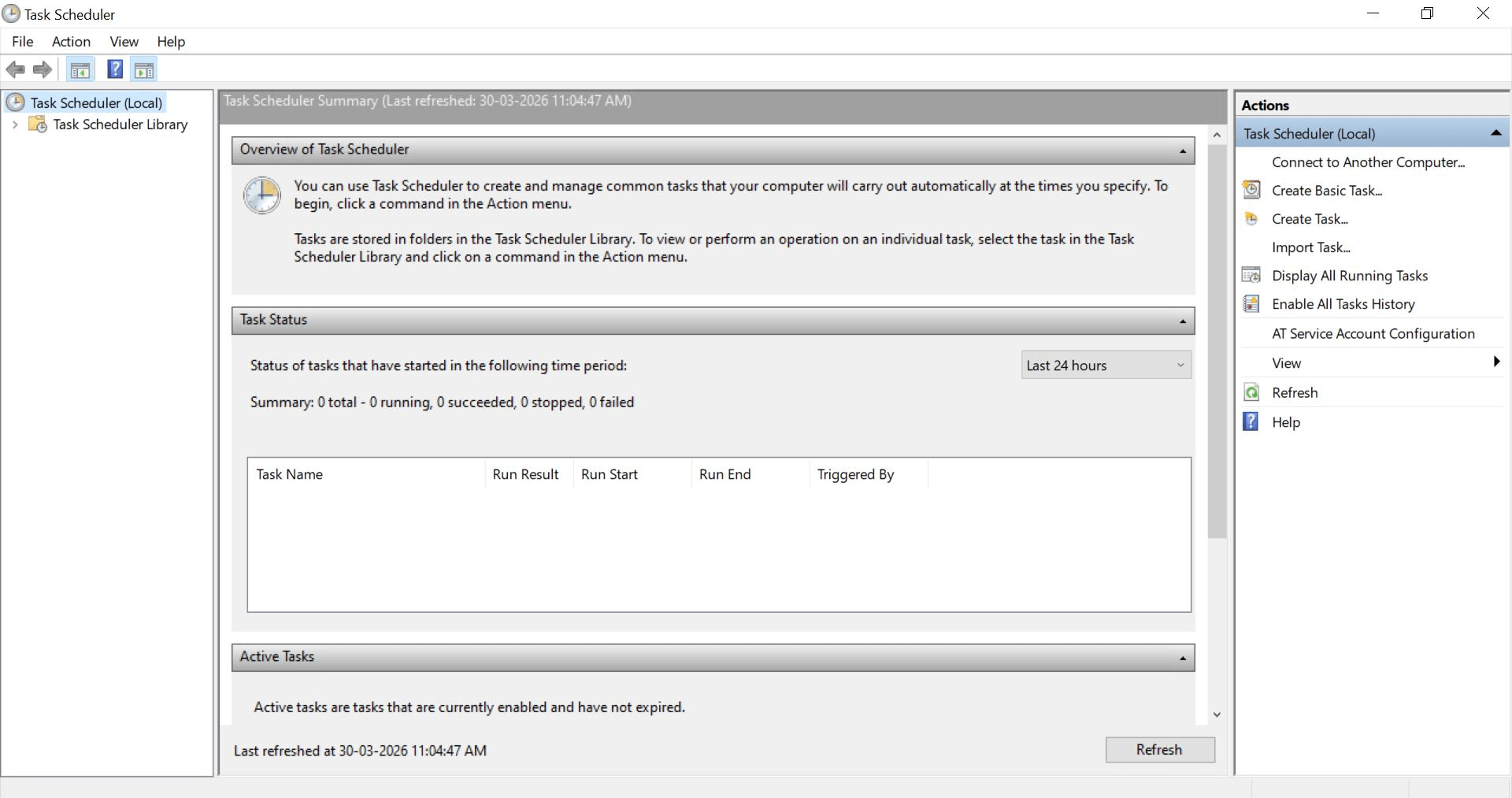
Create a basic task:
b
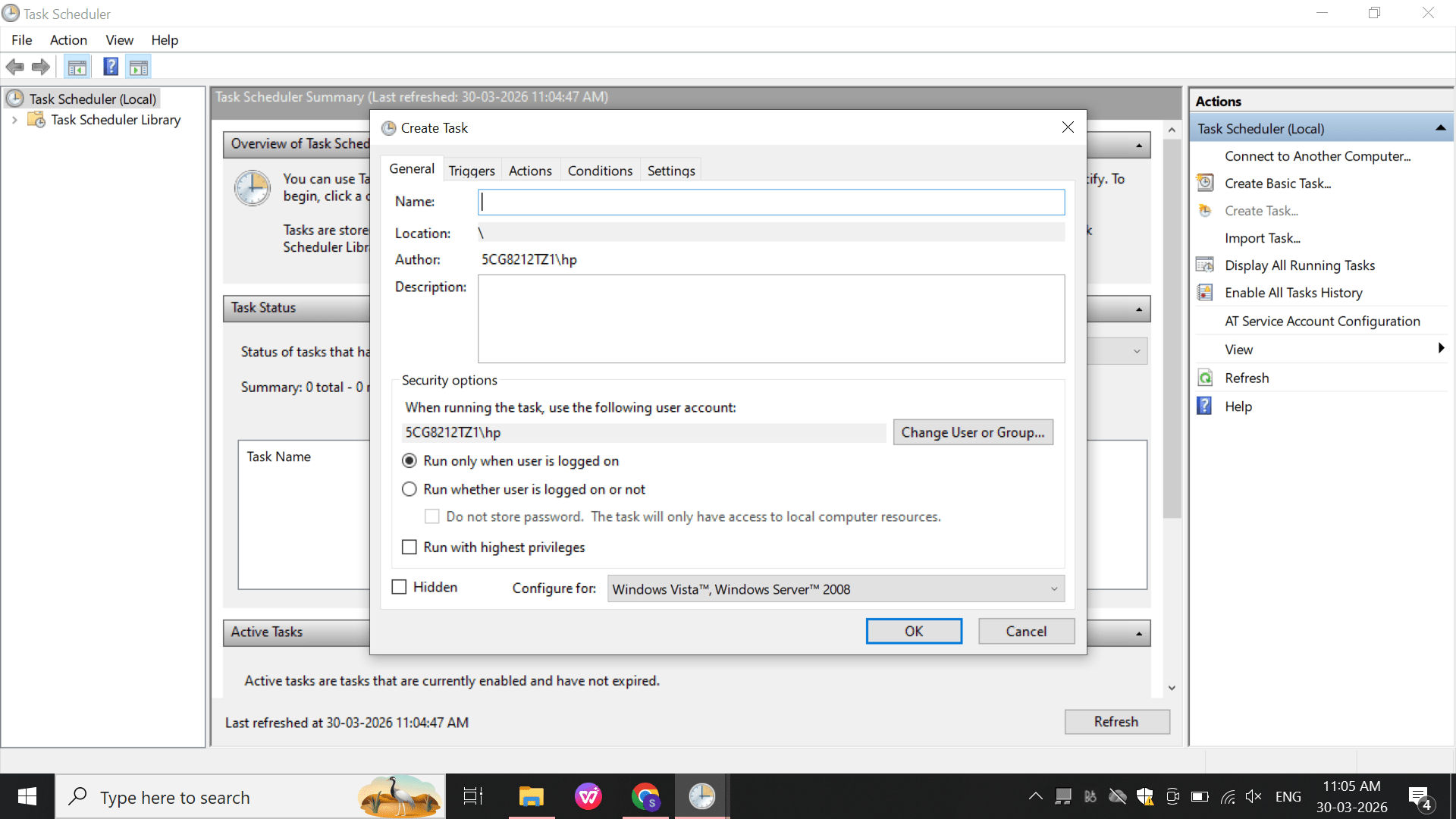
Name: LabTask
c
Trigger: At Logon
d
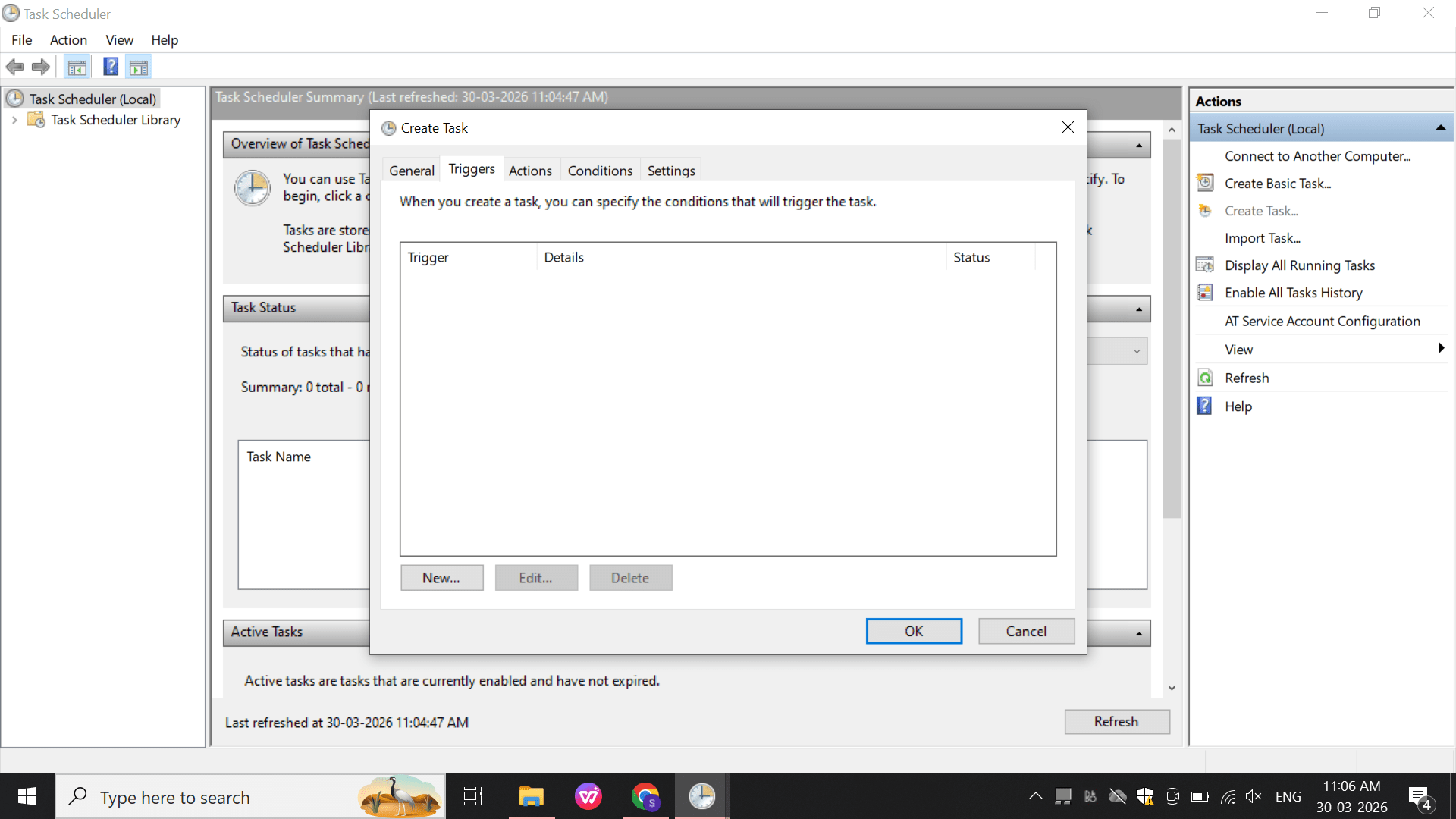
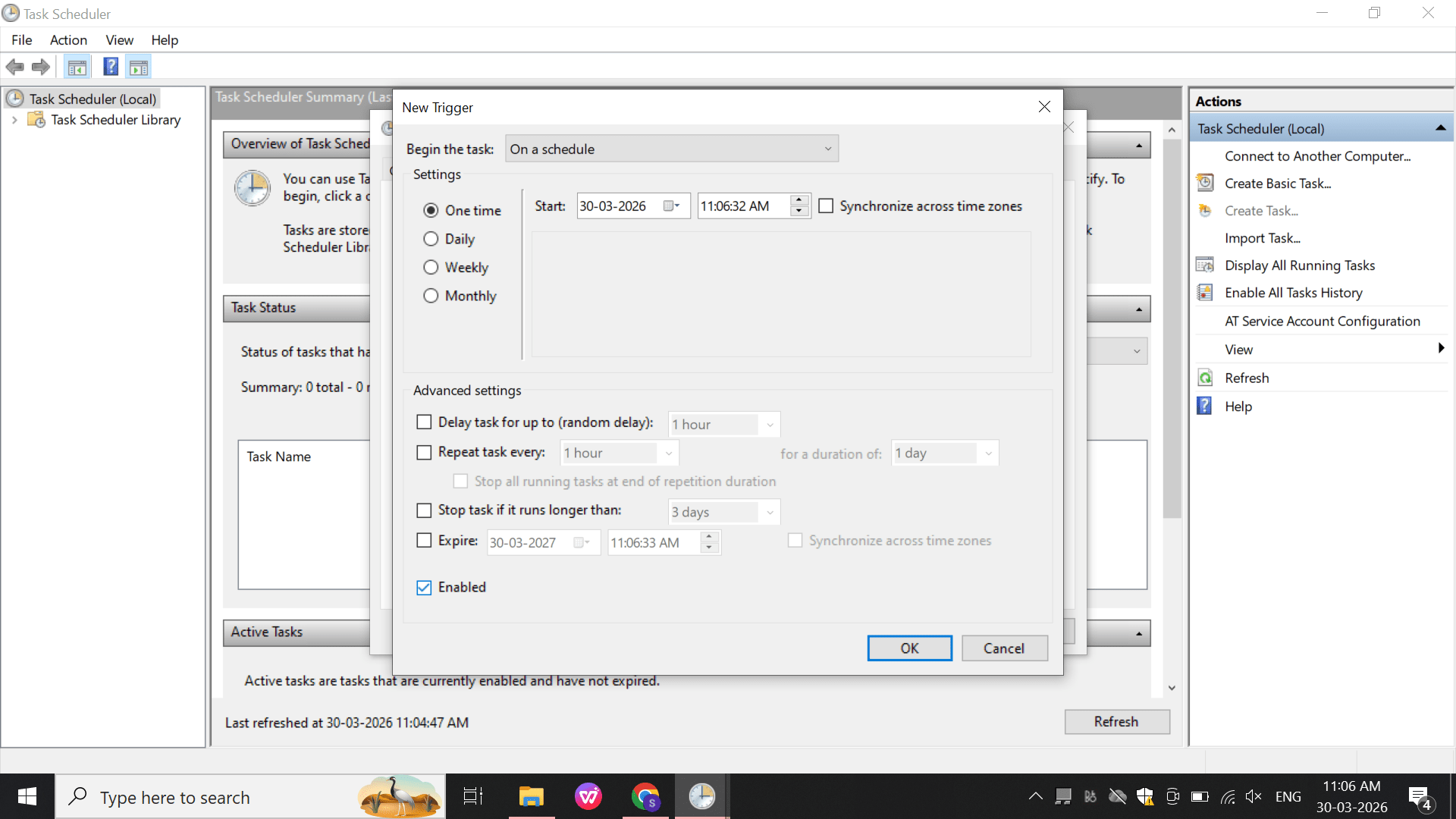
- Open Trigger settings.
- Configure trigger timing.
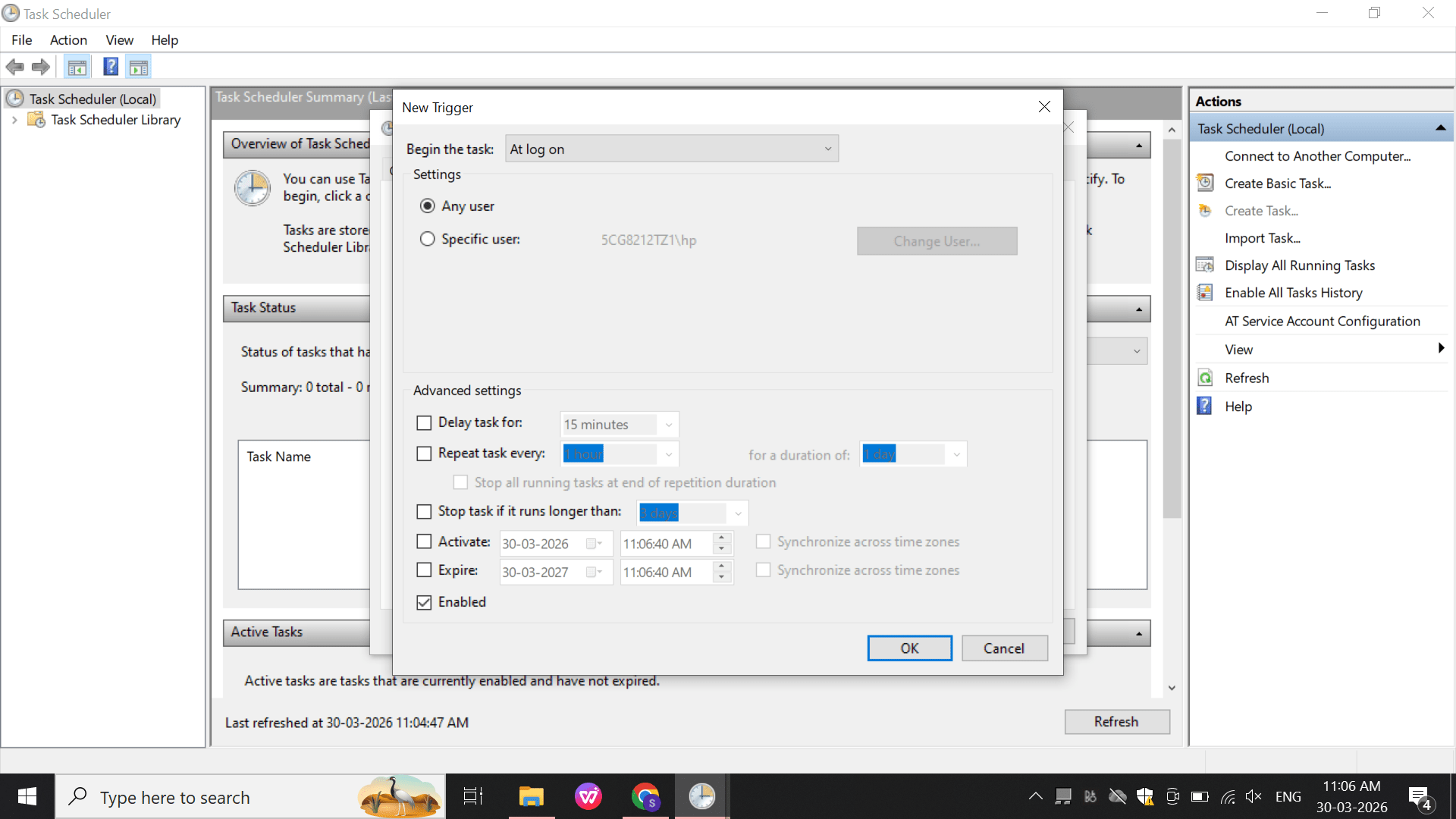
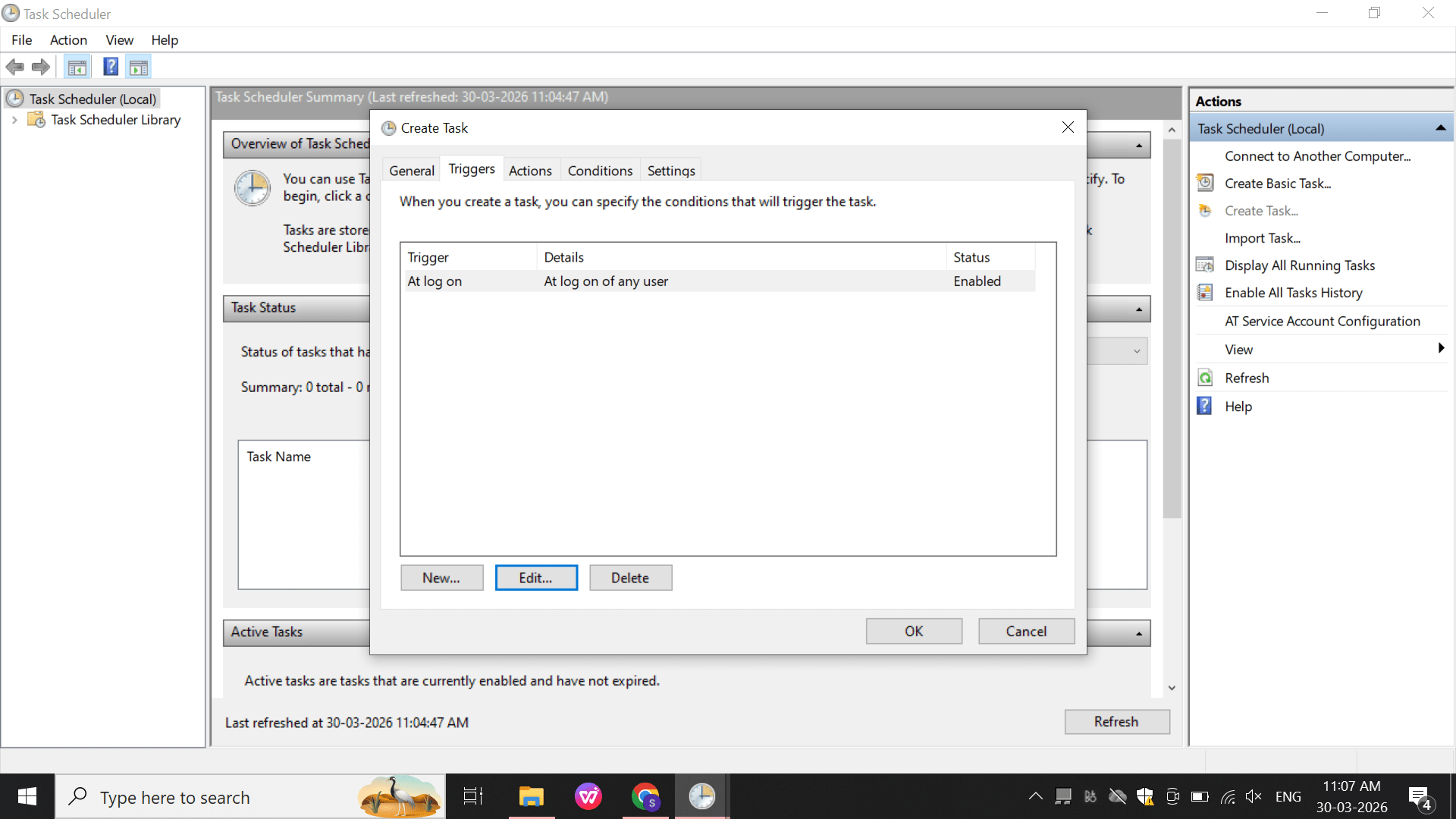
- Select “At log on”.
- Click OK to save.
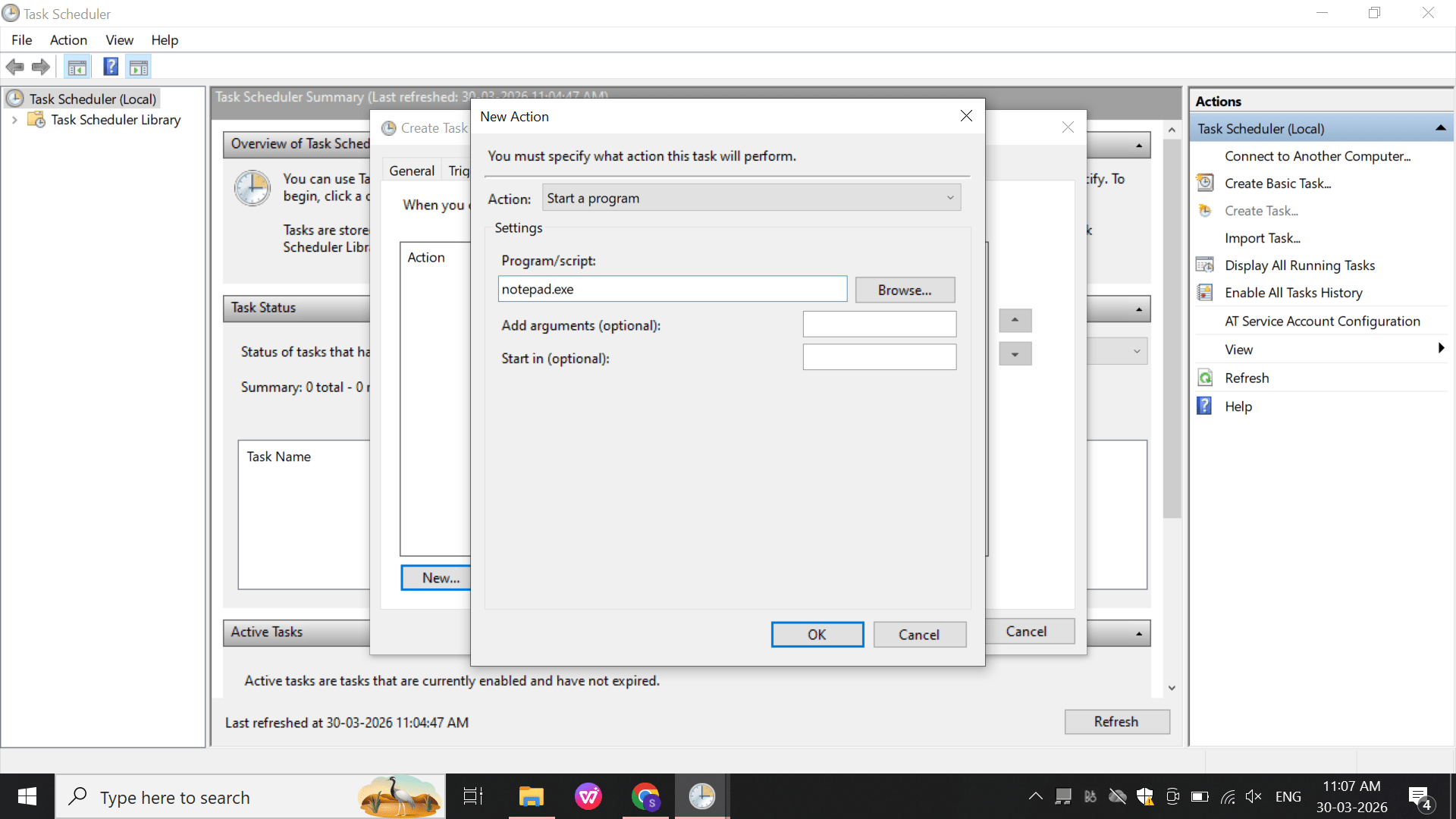
Action: Start Program
e
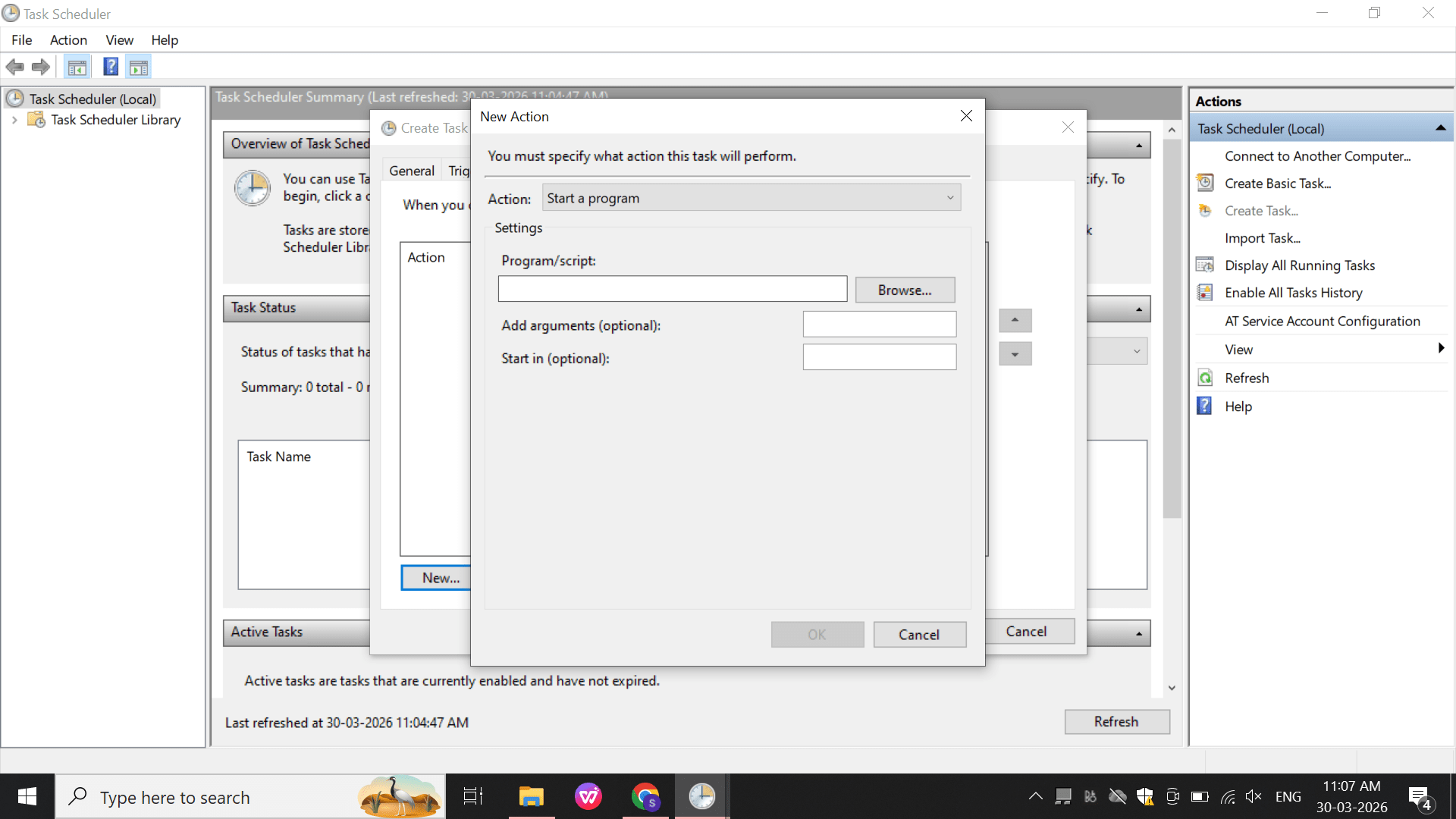
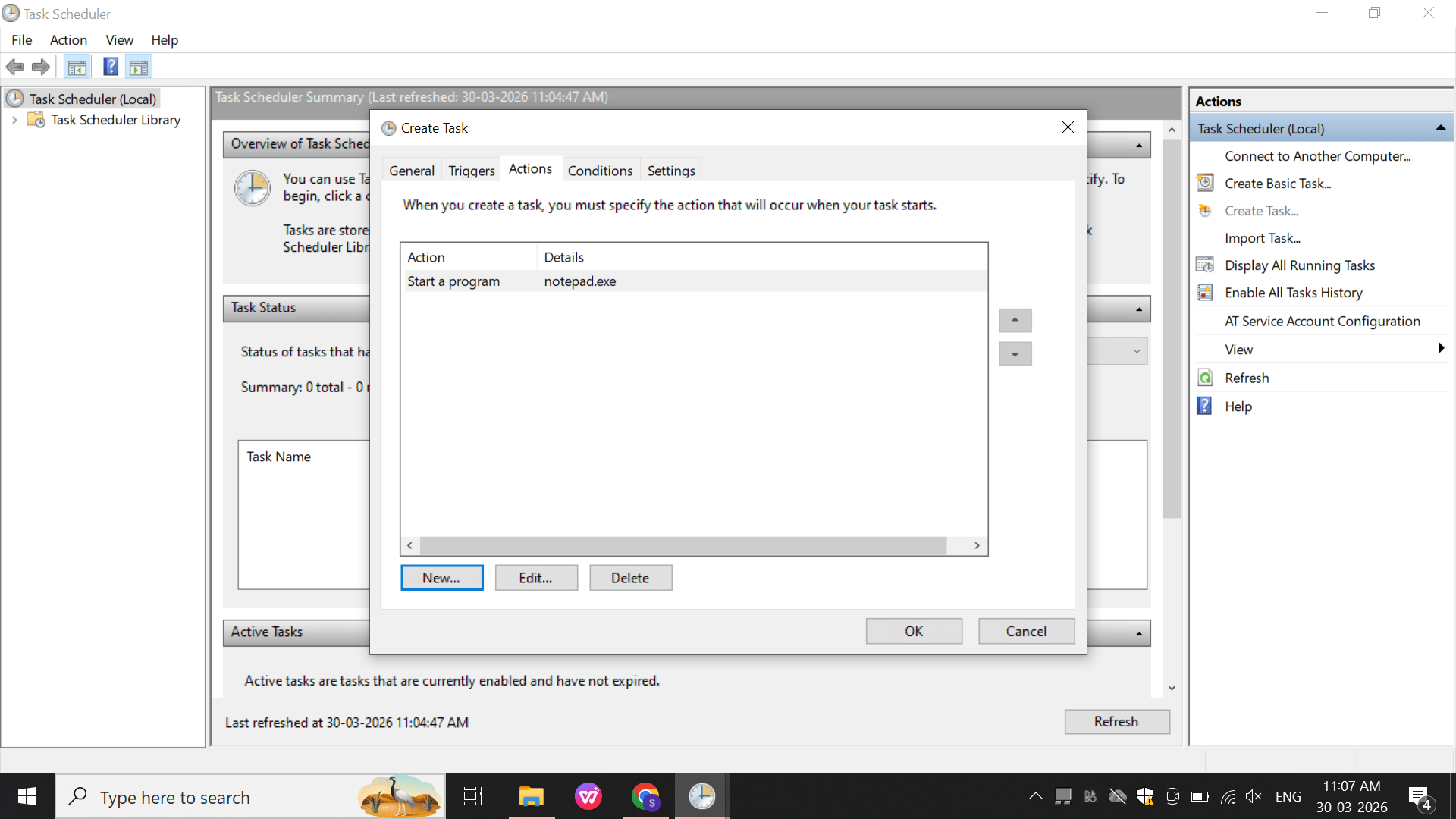
- Add notepad.exe as the program.
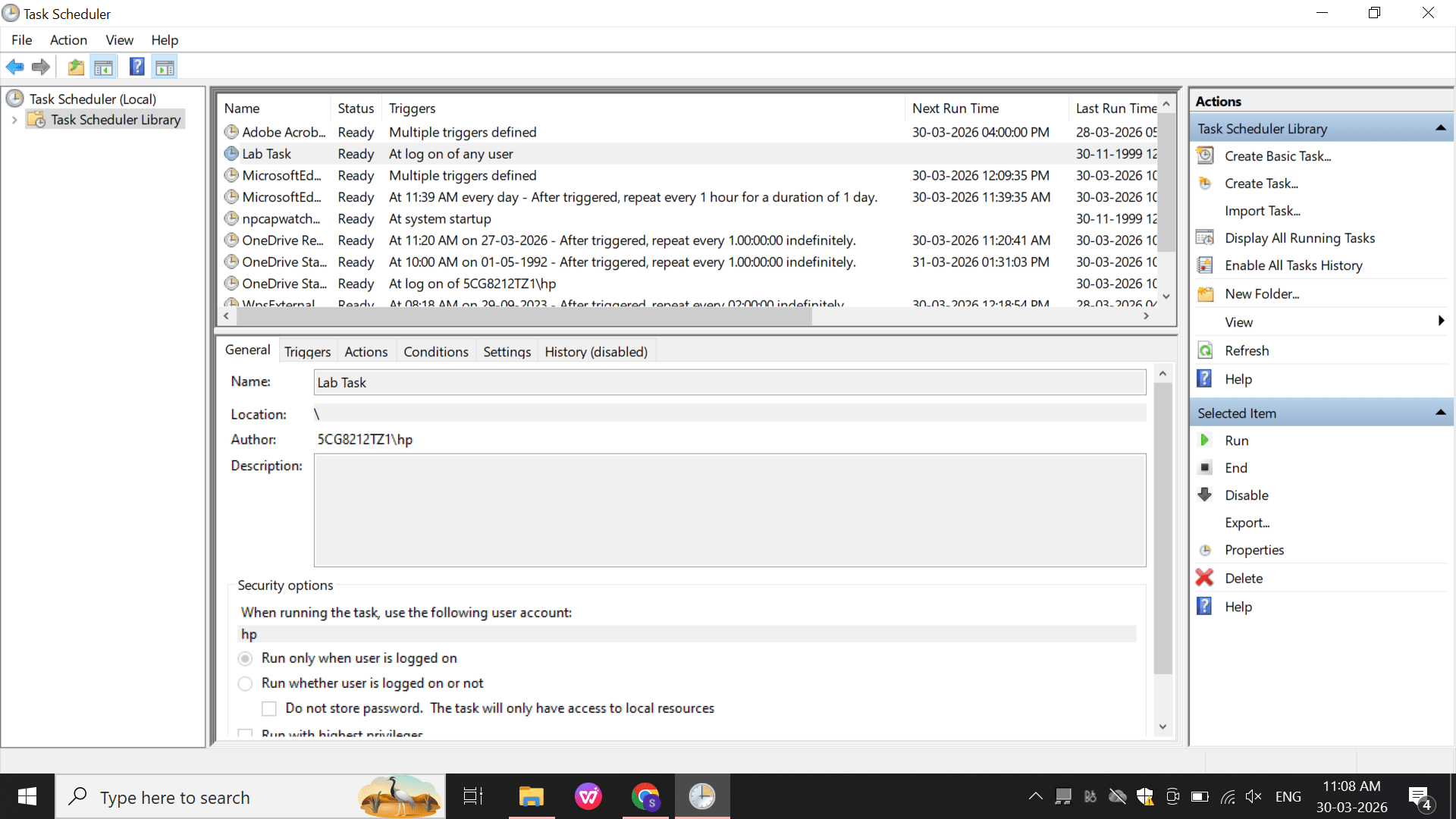
- Verify the task is created successfully.
-
Click OK to save the action.
3
Windows Registry (Persistence Check)
Perform:
Open: regedit
a
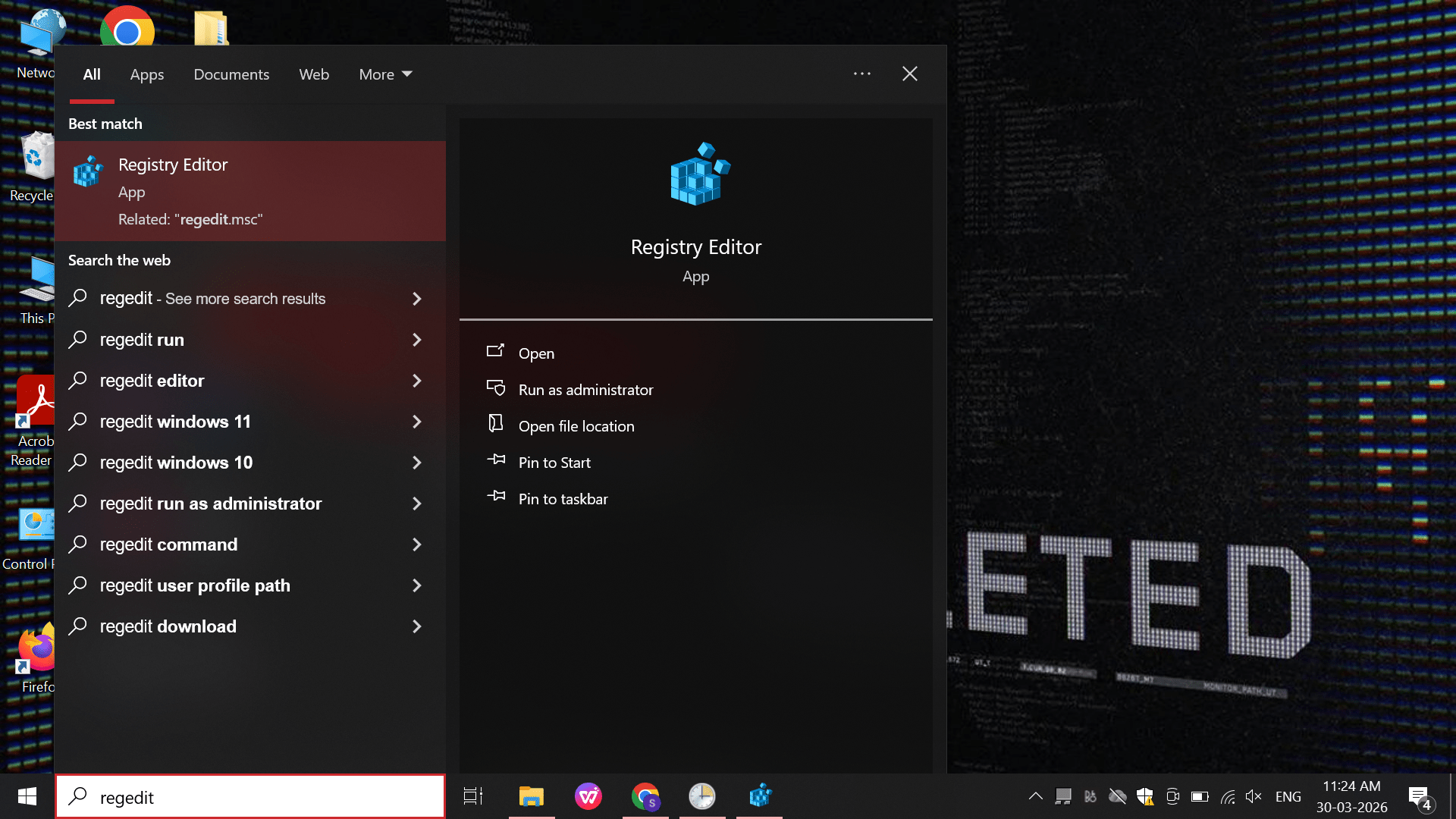
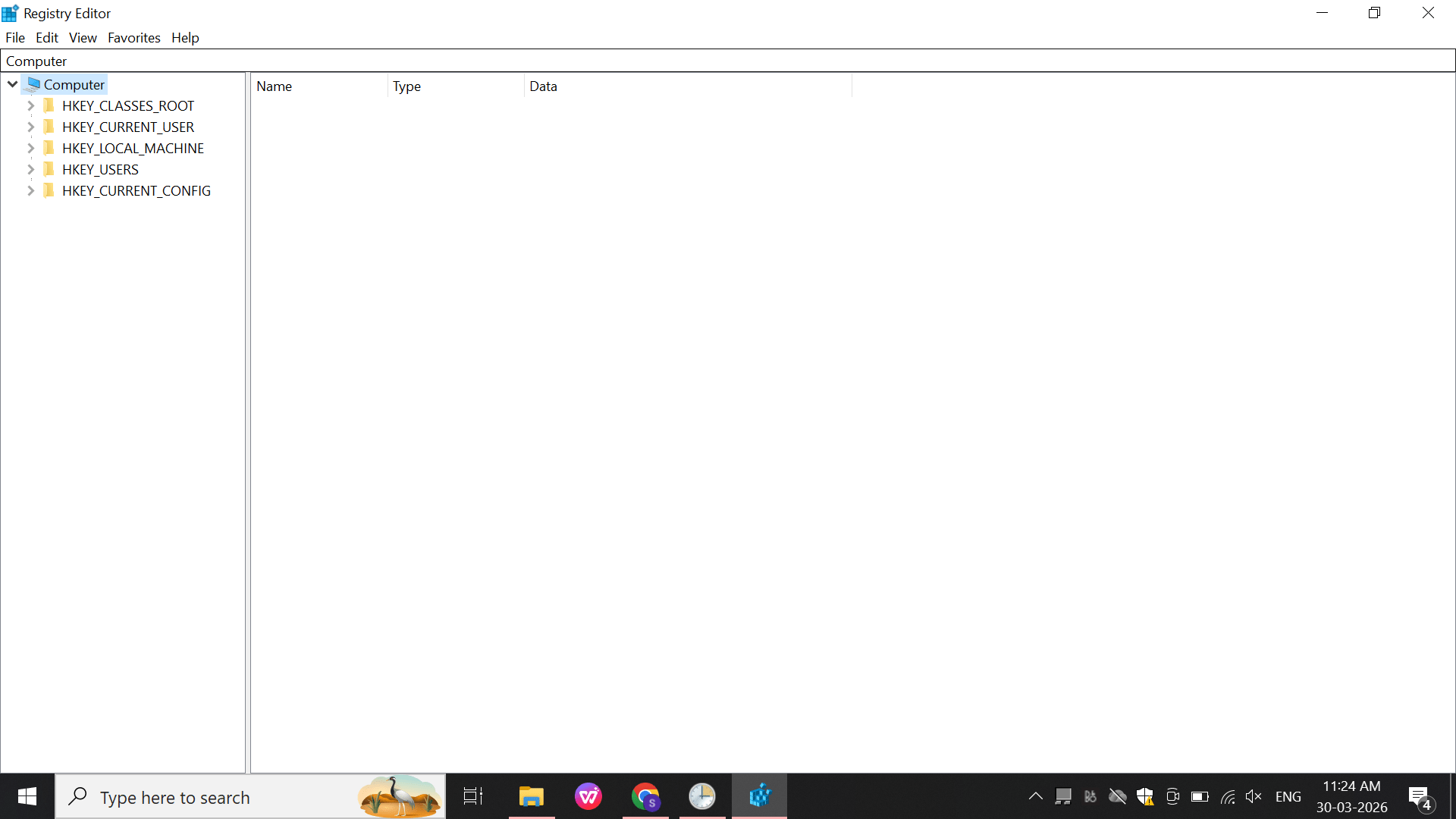
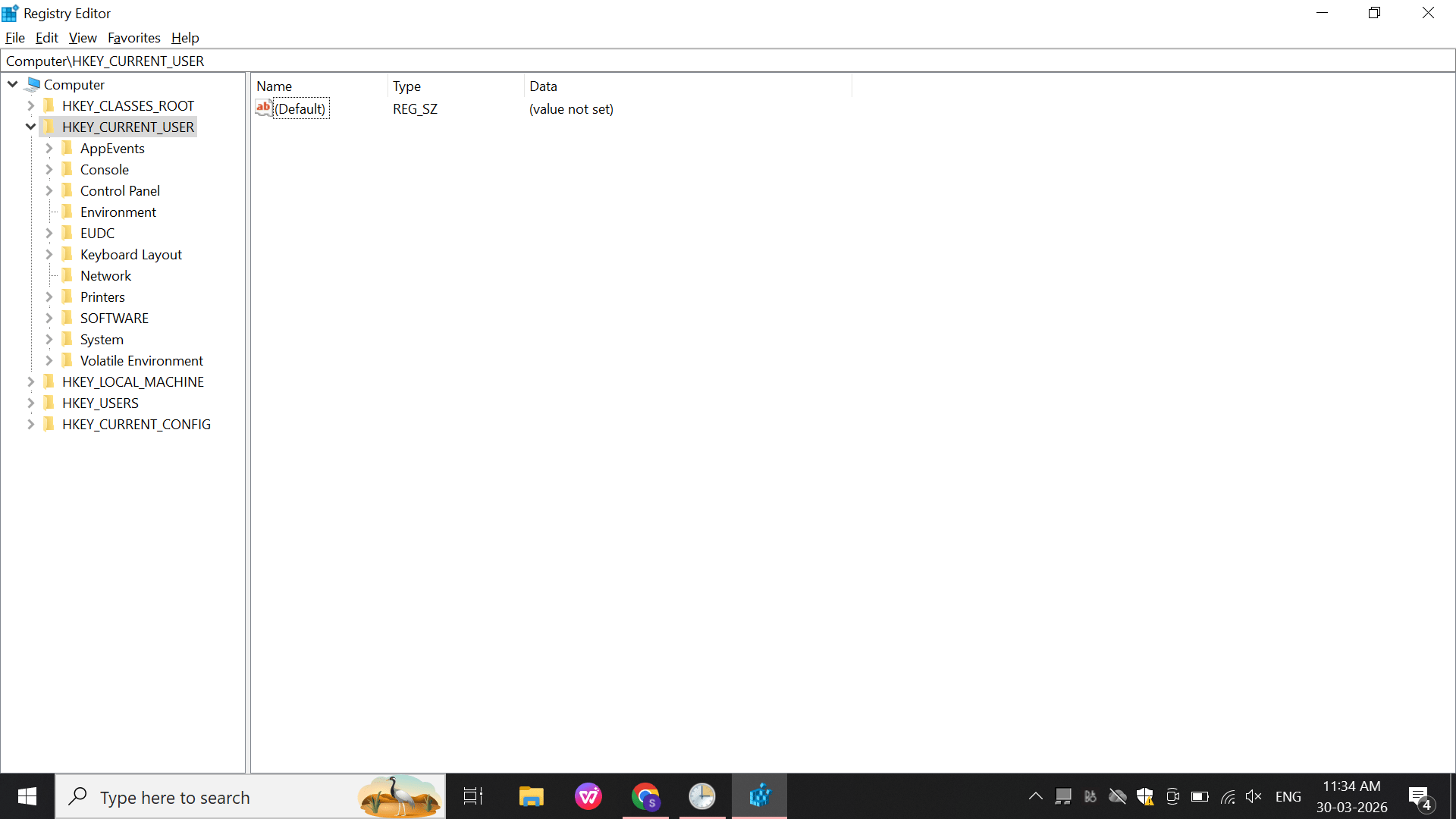
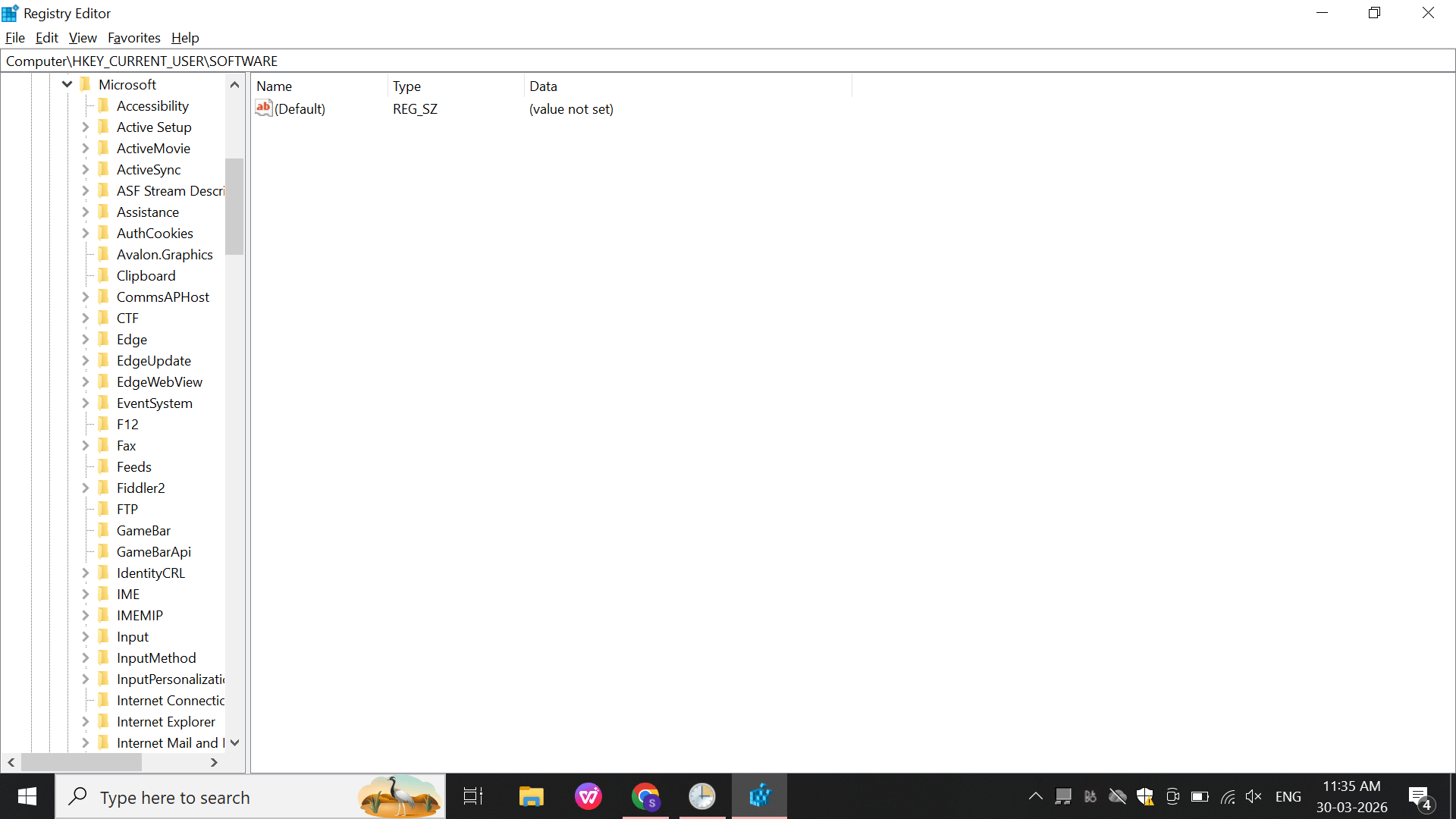
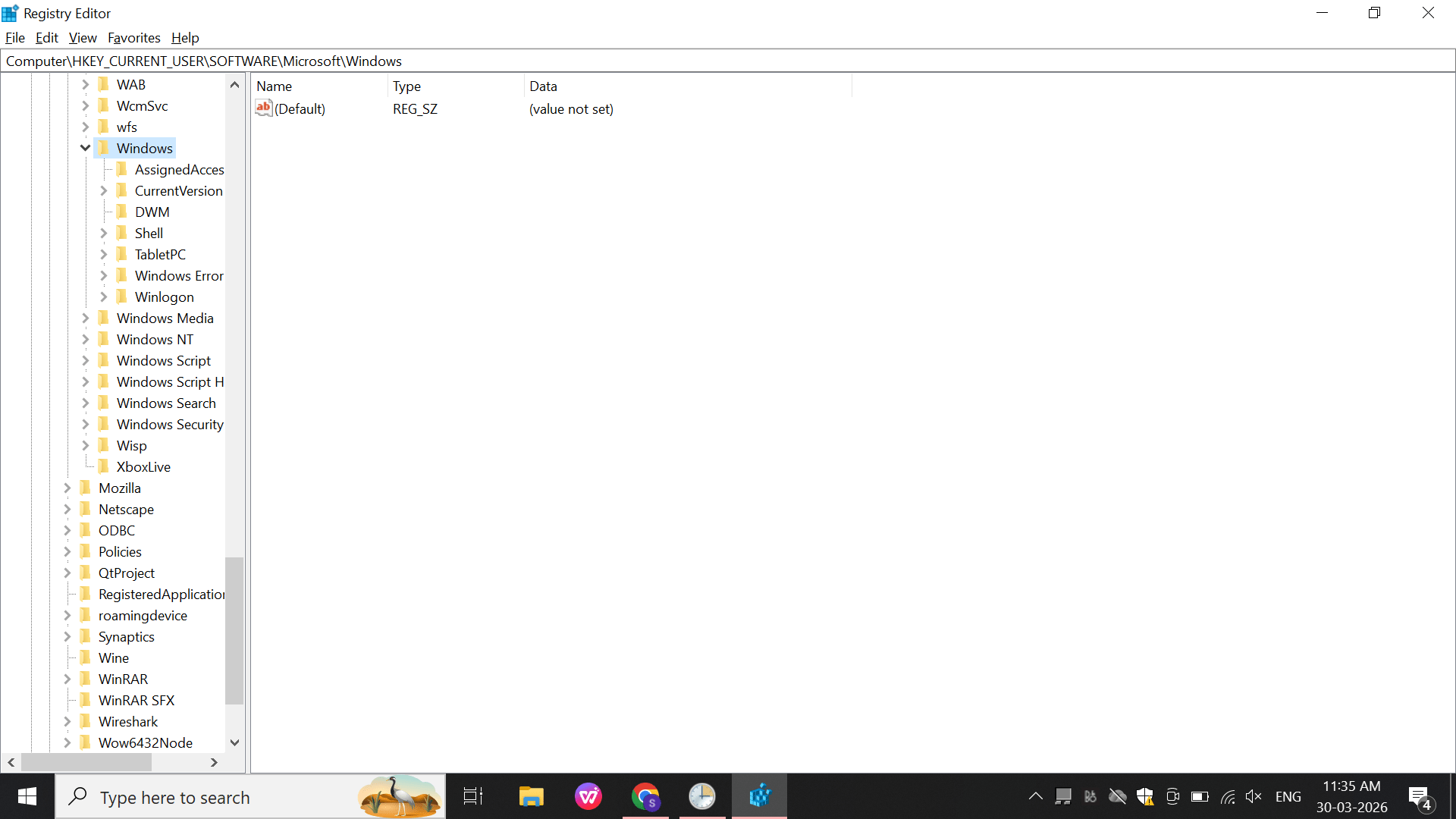
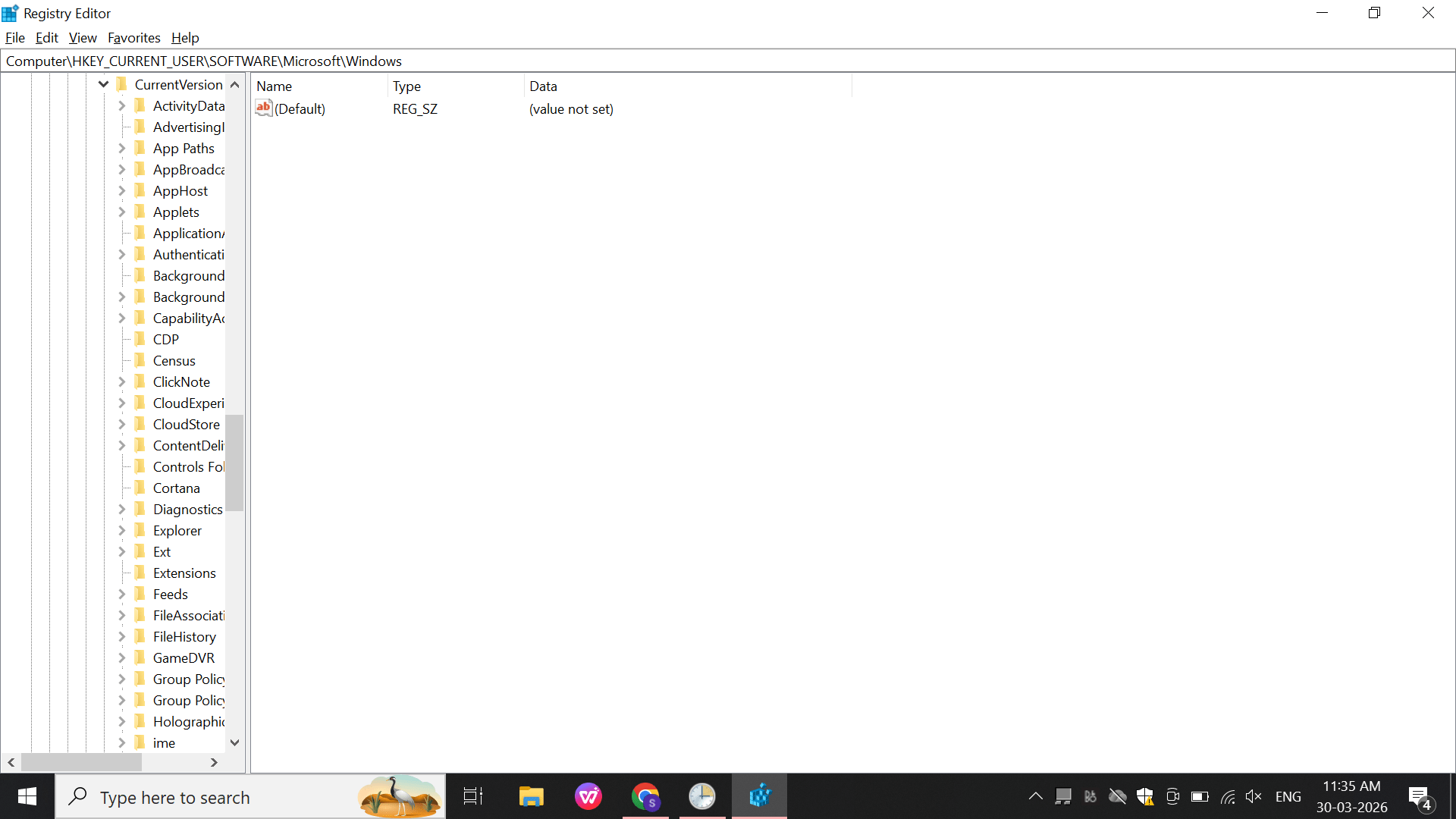
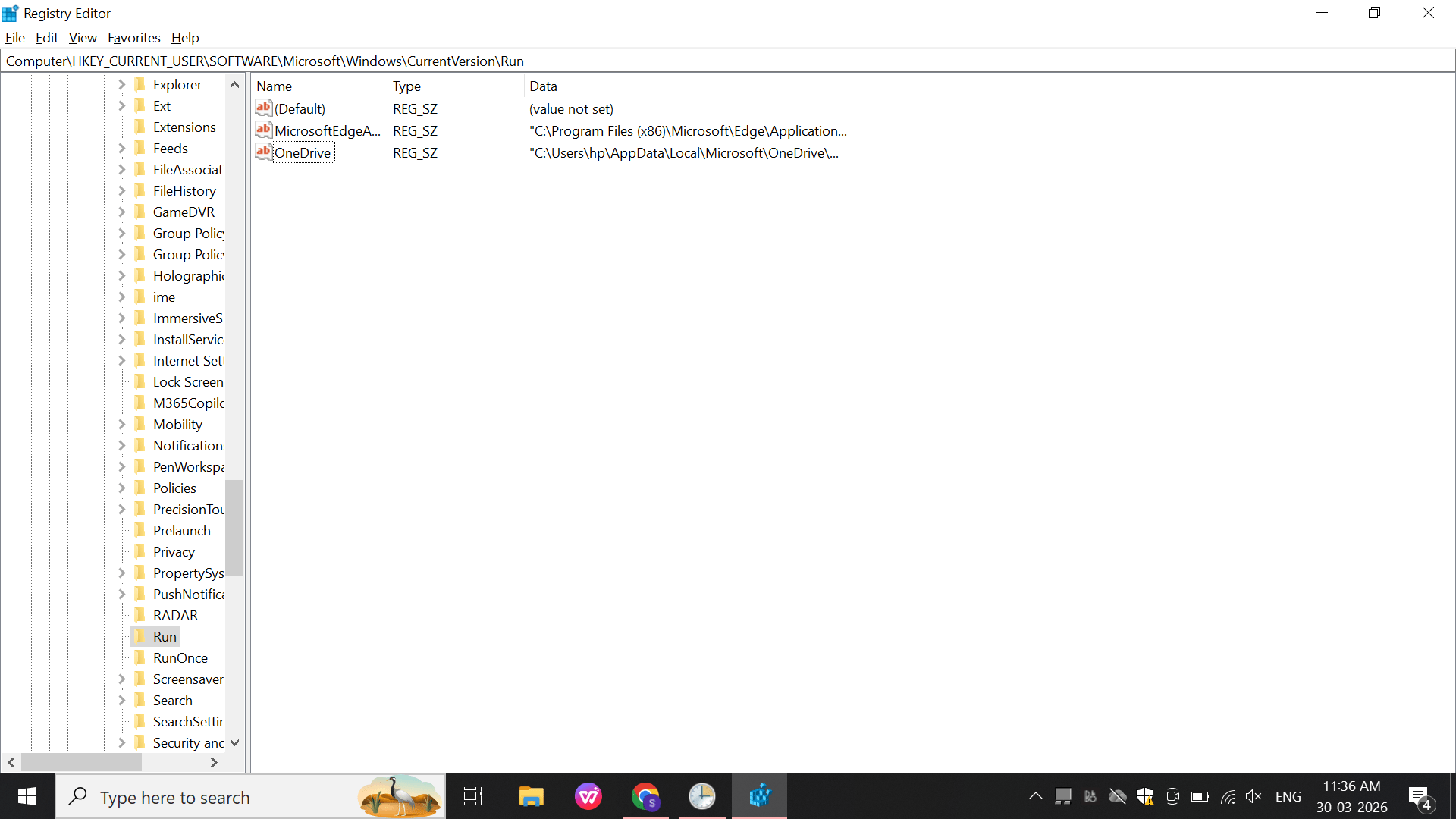
Navigate: HKEY_CURRENT_USER\Software\Microsoft\Windows\CurrentVersion\Run
b
-
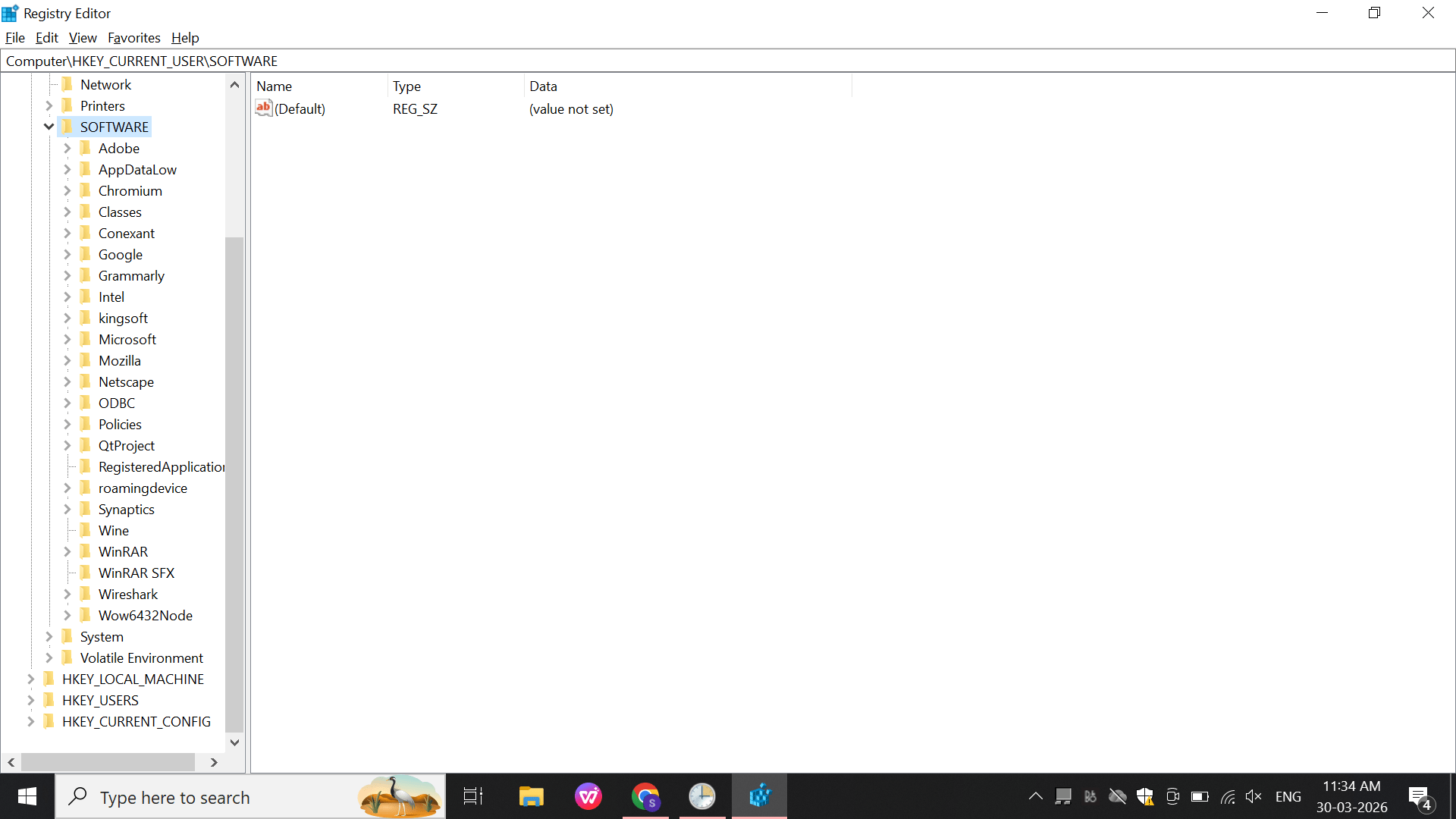
Navigate to the Software folder.
- Open Microsoft
-
Open Microsoft\Windows
-
Open Windows\CurrentVersion.
Create:
Name: TestRun
Value: notepad.exe
c
-
Select the Run registry key.
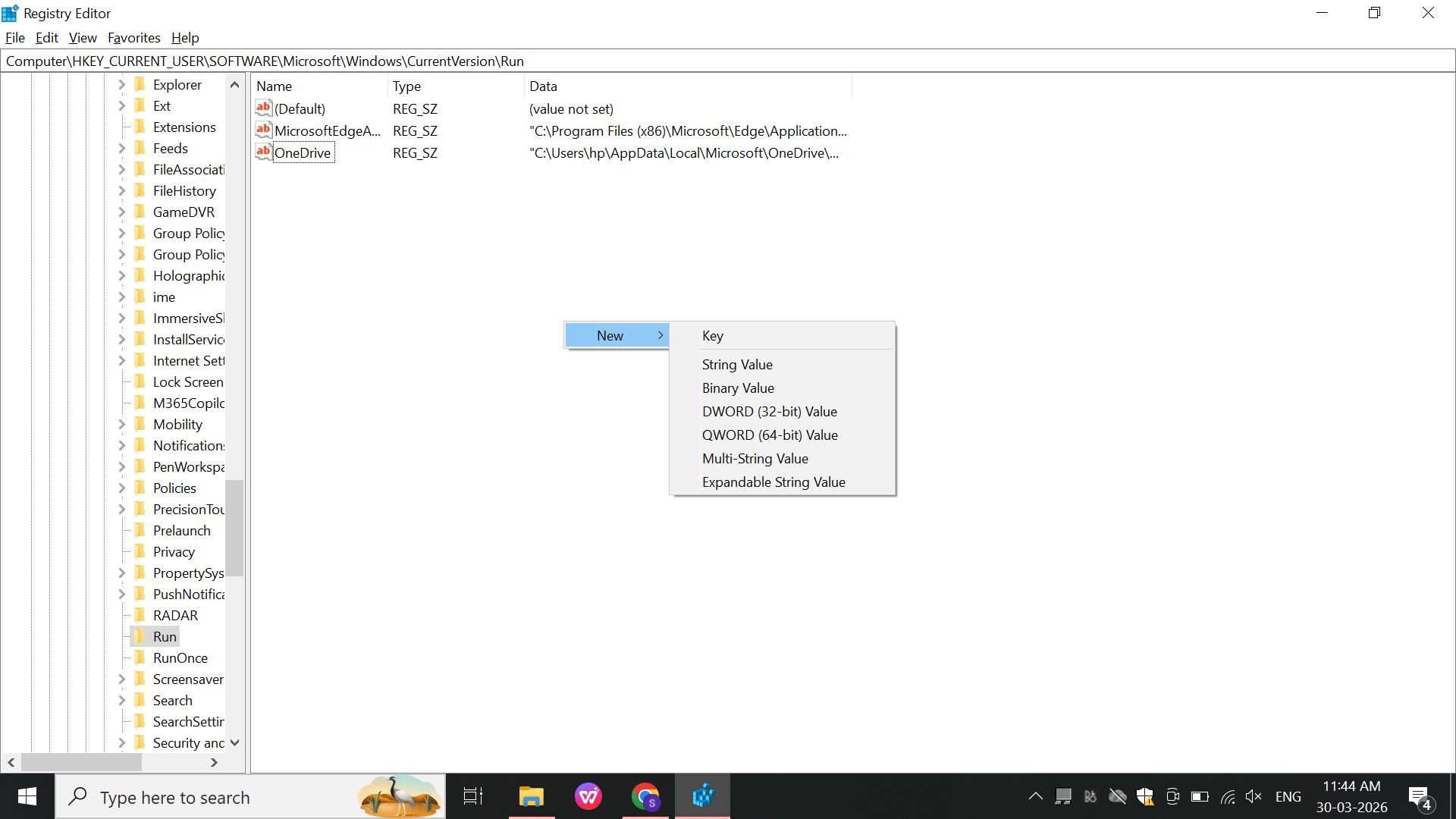
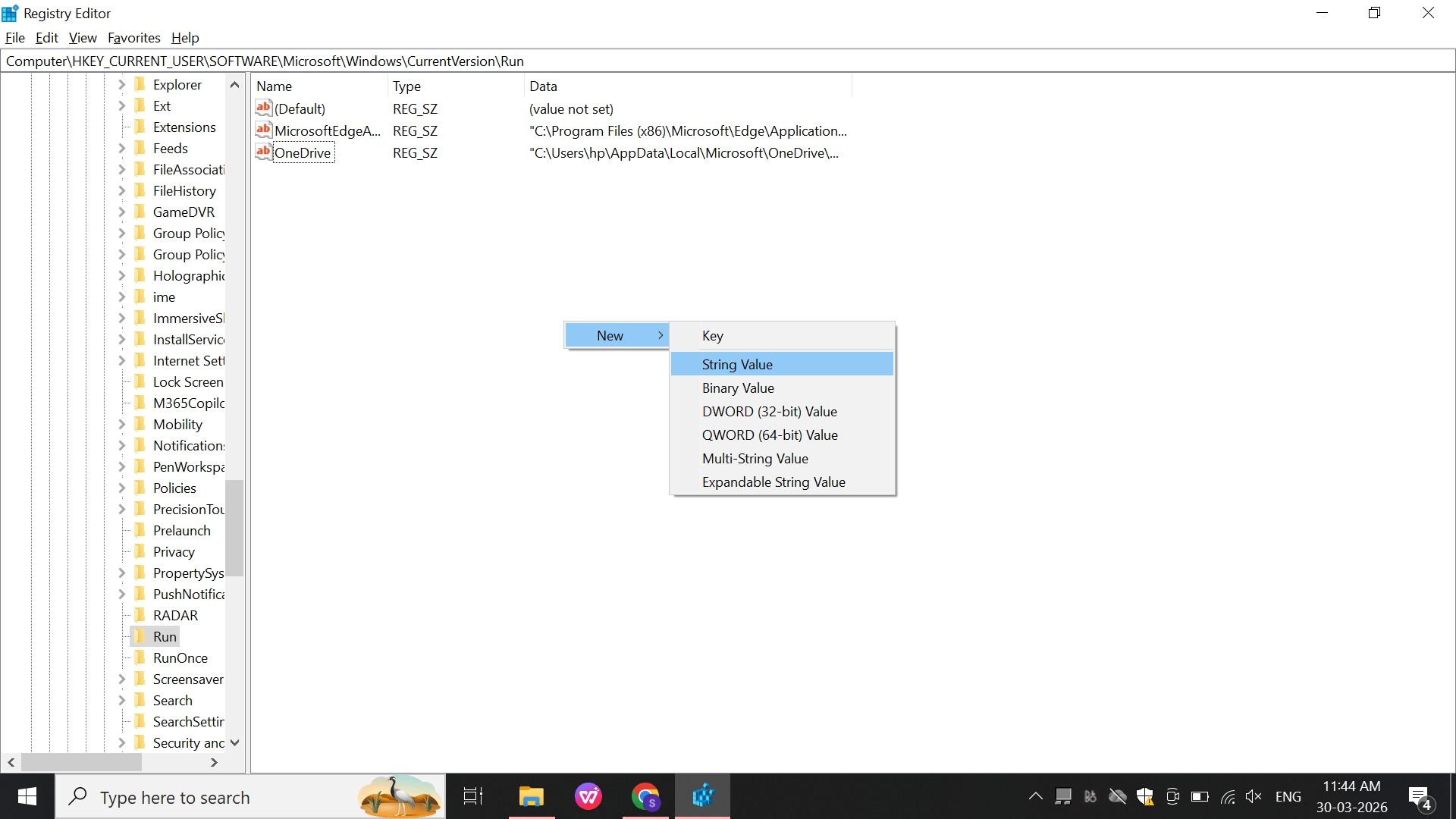
- Right-click inside the Run key.
- Select New
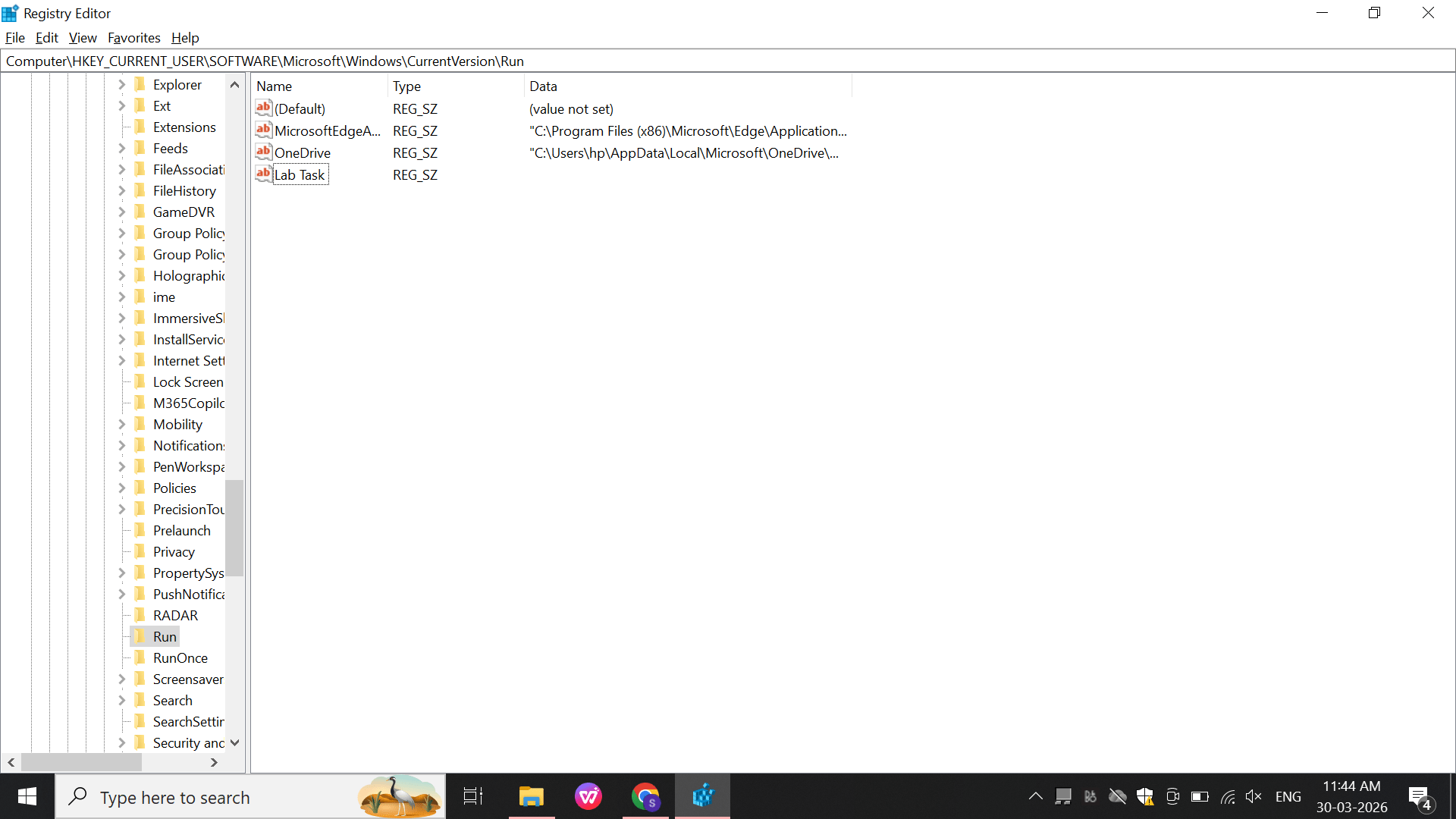
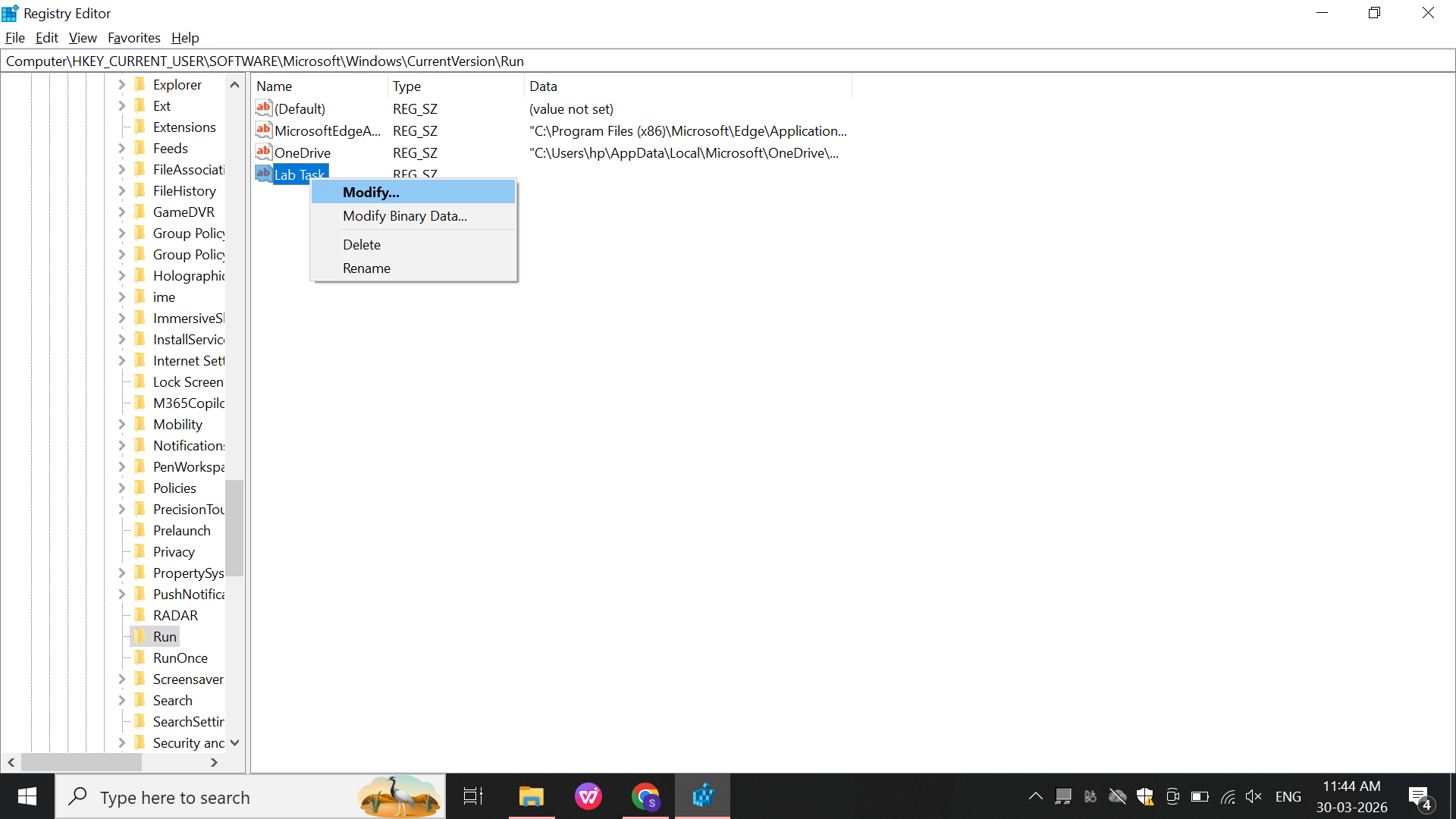
- Create a new registry entry and rename it as Lab Task.
- Open the Modify String option.
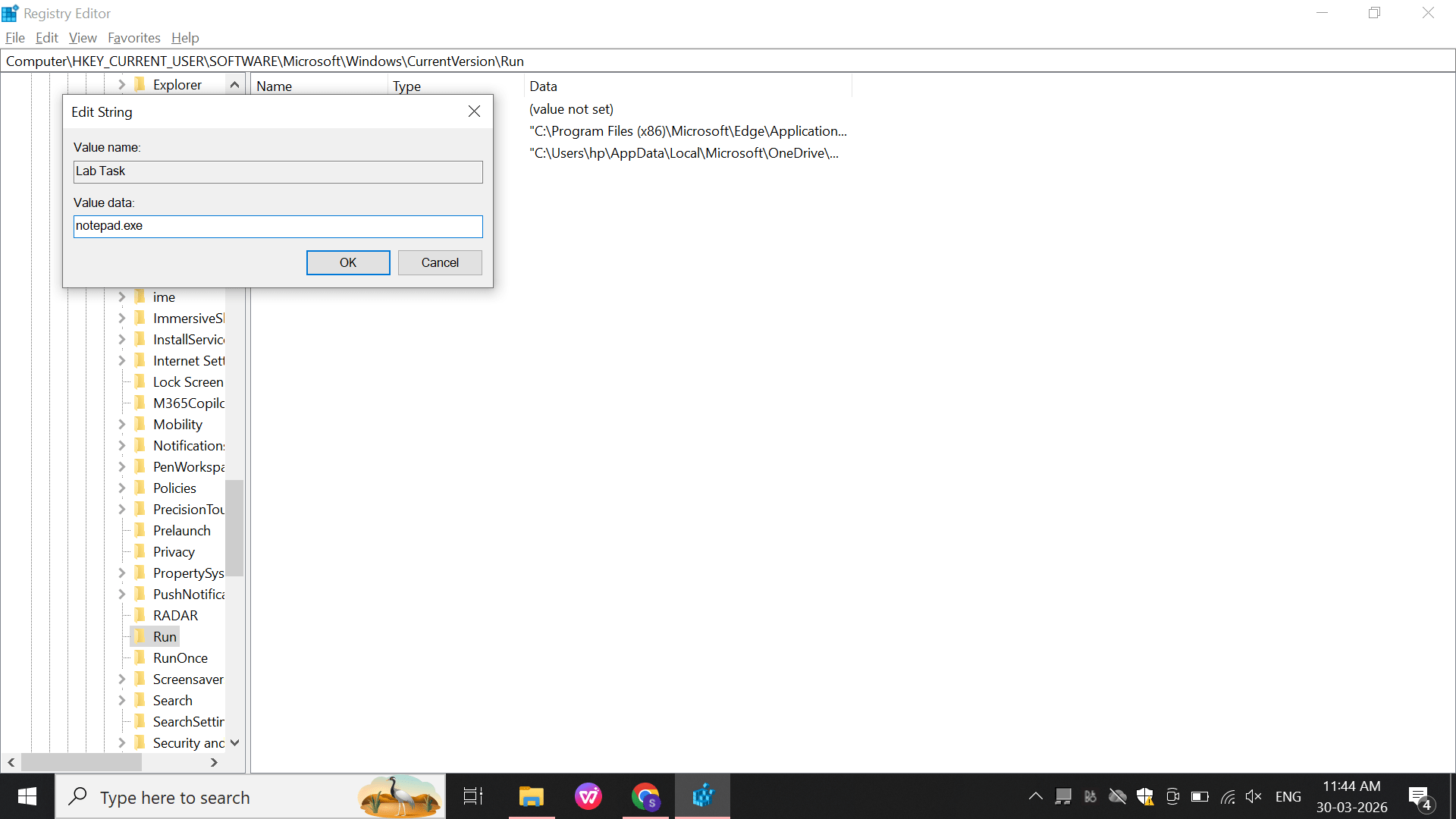
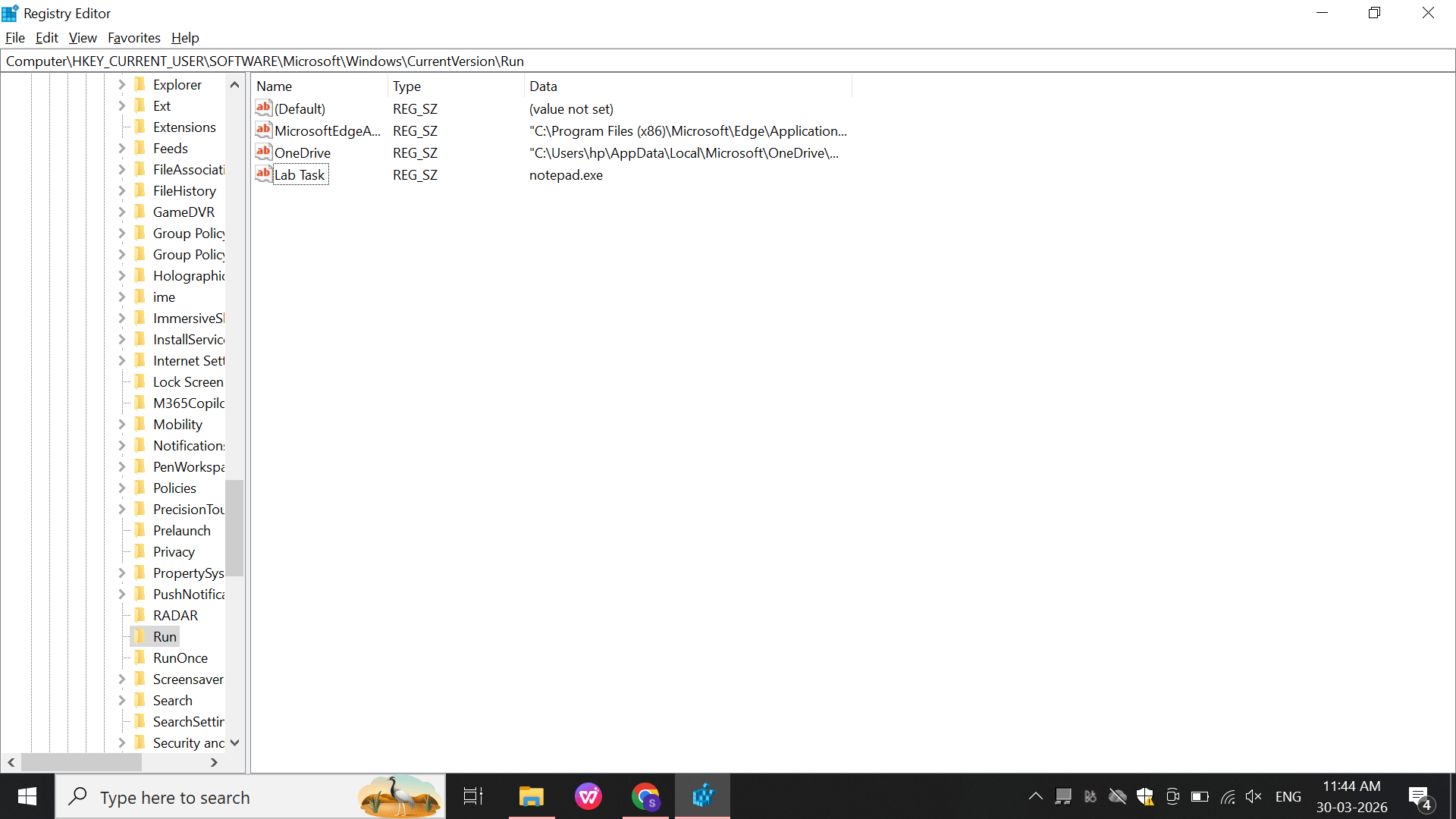
- Set the value to notepad.exe and click OK.
- Verify the new registry entry is created successfully.
Result:
Startup persistence mechanism created
4
Event Logs (Event Viewer Analysis)
Perform:
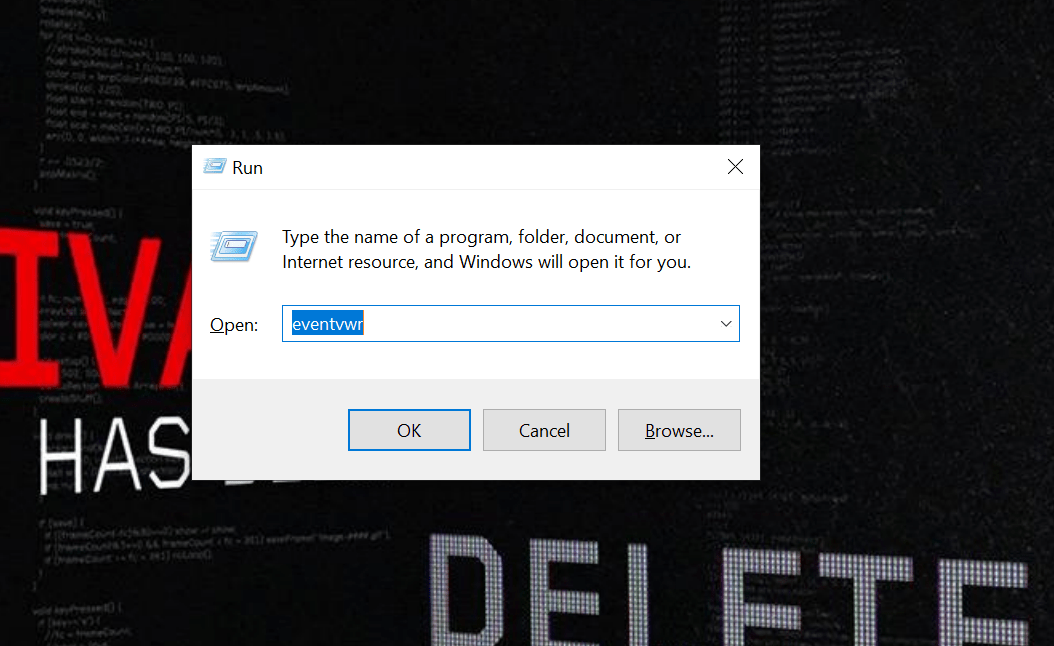
Open: eventvwr
a
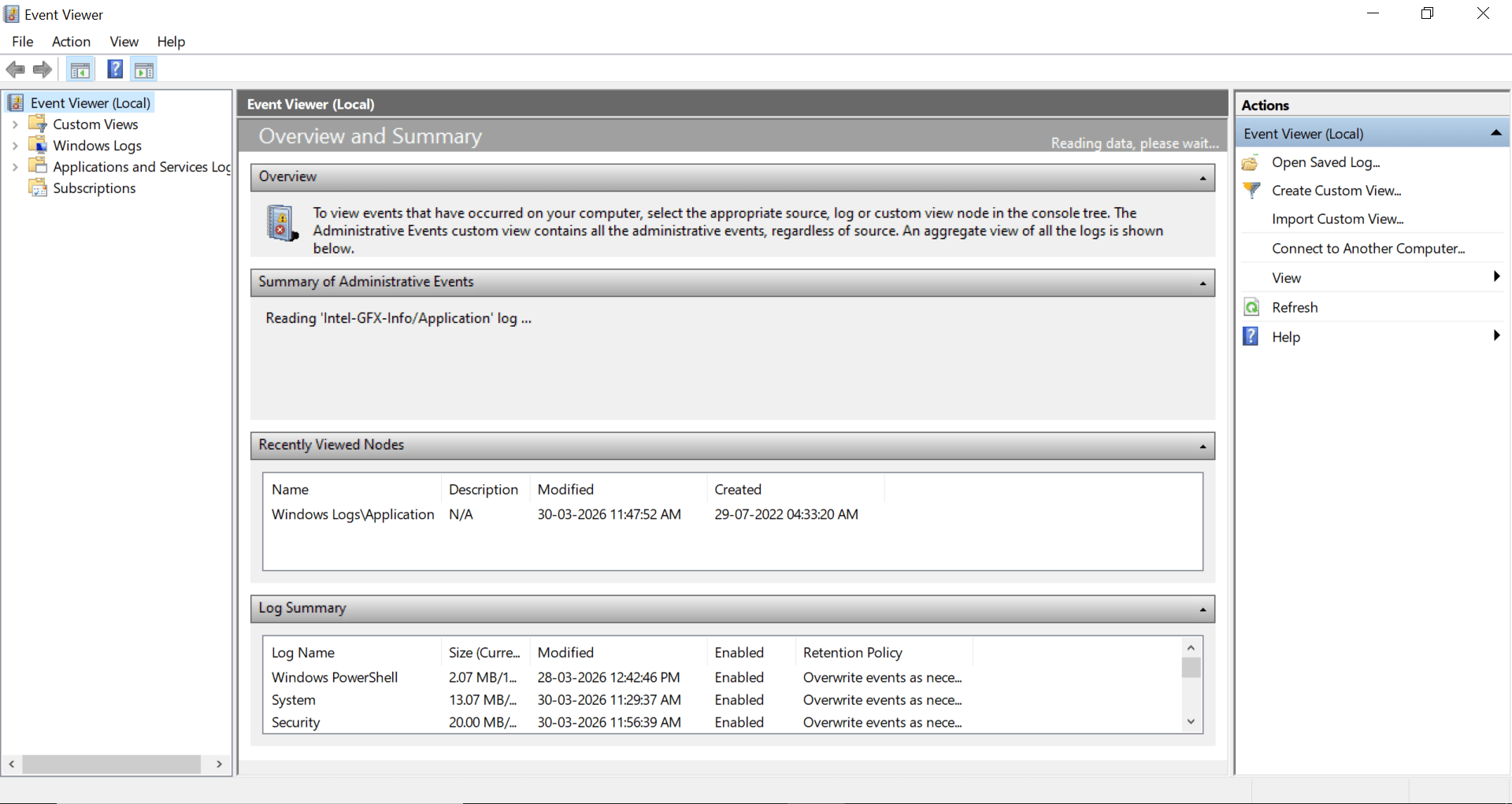
Navigate: Windows logs
b
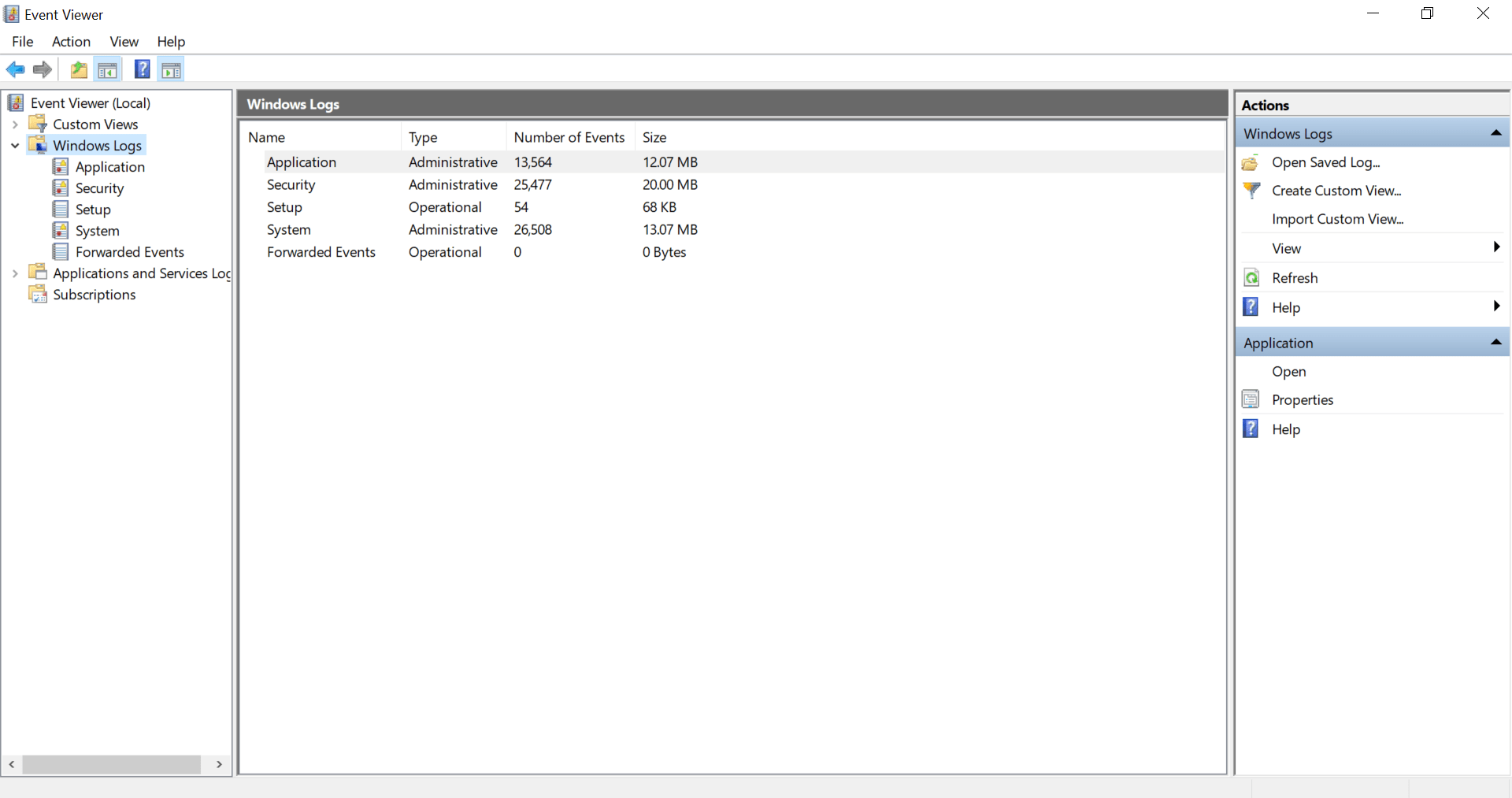
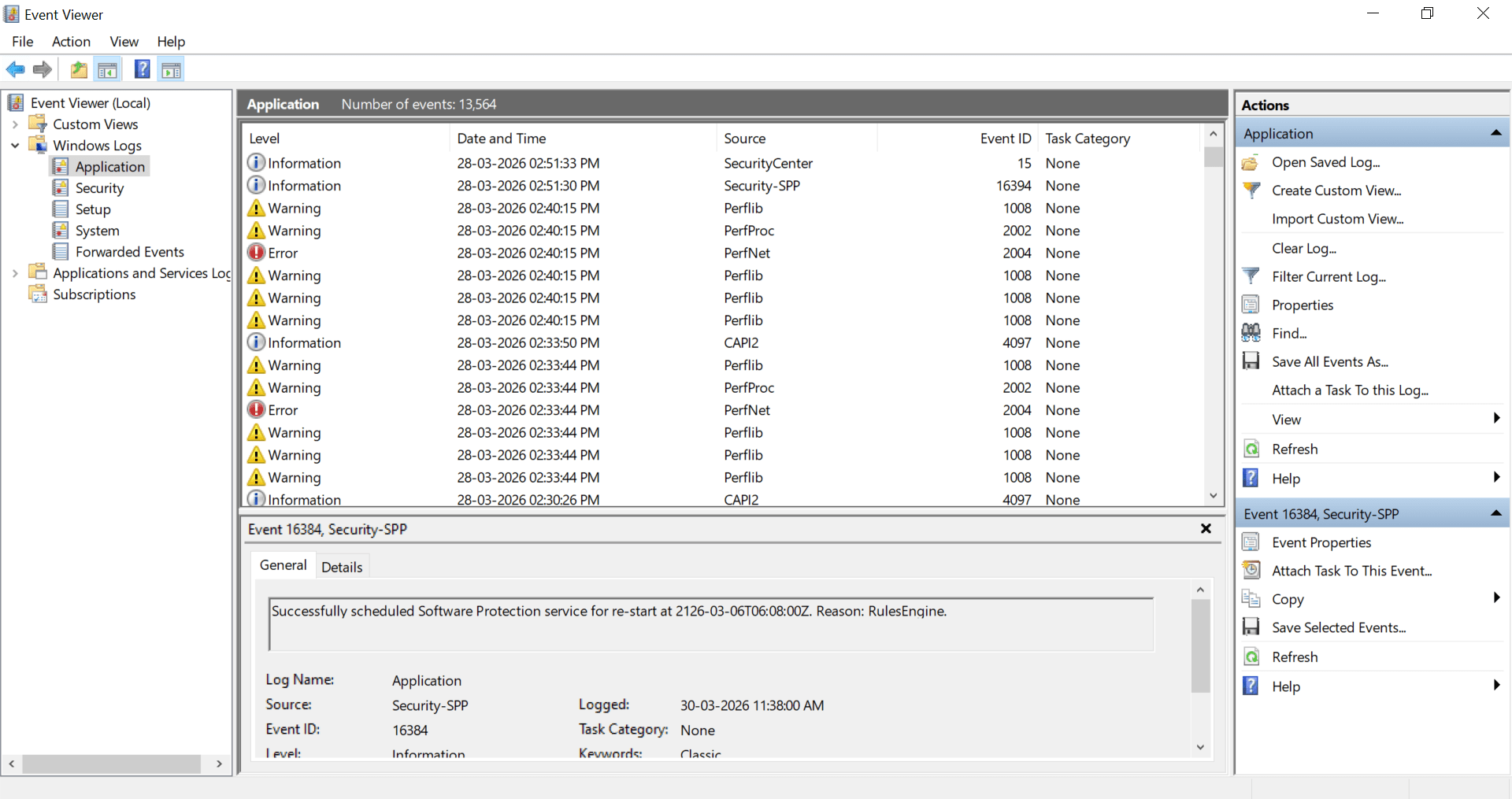
-
This is the Windows Event Viewer showing logs under Windows Logs → Application.
-
It displays events like Information, Warning, and Error with details such as date, source, and Event ID.
-
The bottom pane shows detailed information for a selected event (Event ID 16384 – Security-SPP service).
Now go to Application
Great job!
You have successfully completed your lab on Advanced Windows Tasks and System Security Monitoring.
In this lab, you have: Managed and controlled Windows background services, Automated tasks using Task Scheduler, Created and analyzed Registry persistence mechanisms, Investigated Event Viewer logs, and monitored important Windows security operations.
You are now ready to move to the next stage of Windows administration and security management.
Checkpoint
Next-Lab Preparation
Topic : Linux & Kali Linux Environment
1) Introduction to Kali Linux and Installation using VirtualBox/VMware
2) Understanding the Kali Linux environment
3) Linux file system structure