Fund Operations & NAV Validation

Business Scenario
You have joined ABC Hedge Fund as a Fund Operations Analyst.
Every day after the stock market closes, you must update the fund's investment records by processing the day's buy and sell trades.
After updating the holdings, you will:
-
Calculate the total number of shares held.
-
Calculate the Market Value of each investment.
-
Calculate the fund's Net Asset Value (NAV).
-
Compare your NAV with the NAV calculated by the external Fund Administrator.
-
Identify and investigate any differences before the NAV is released to investors.

Pre-Lab Preparation
You have joined ABC Hedge Fund as a Fund Operations Analyst.
Every day after the stock market closes, you must update the fund's investment records by processing the day's buy and sell trades.
After updating the holdings, you will:
-
Calculate the total number of shares held.
-
Calculate the Market Value of each investment.
-
Calculate the fund's Net Asset Value (NAV).
-
Compare your NAV with the NAV calculated by the external Fund Administrator.
-
Identify and investigate any differences before the NAV is released to investors.
Topic : Fund Operations & NAV
1) Fund trade processing
2) Broker and custodian interaction
3) Income and expense accruals
4) Realised and unrealised P&L
5) NAV validation and tolerance checks
6) Corporate actions processing
Lab File:
Fund_Operations_NAV_Blank.xlsx : Link
Fund_Operations_NAV_Completed.xlsx : Link
Task 1: Review the Fund Data
Before updating the fund's records, review the worksheets in the workbook.
Open Fund_Operations_NAV_Blank.xlsx
1
Open the Trade Blotter worksheet
2
Review the following columns:
-
Trade Date
-
Ticker
-
Trade Type
-
Quantity
This worksheet contains all the trades executed today.
Review the following columns:
-
Trade Date
-
Ticker
-
Trade Type
-
Quantity
This worksheet contains all the trades executed today.
Open the Position Ledger & P&L worksheet
3
This worksheet contains the fund's existing investment positions.
Open the NAV Validation worksheet
4
You will complete this worksheet after updating the positions.
Task 2: Update Today's Trading Activity
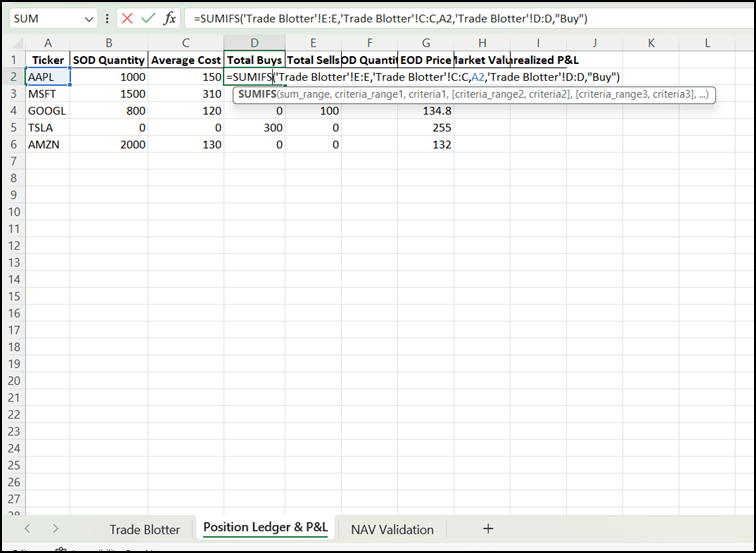
Calculate Total Buy Quantity
1
Your first task is to update today's buy and sell transactions.
1. Open the Position Ledger & P&L worksheet.
2. Click Cell D2 under Total Buys.
3. Enter the following formula:
=SUMIFS('Trade Blotter'!E:E,'Trade Blotter'!C:C,A2,'Trade Blotter'!D:D,"Buy")
4. Press Enter.
5. Copy the formula down for all securities.
Calculate Total Sell Quantity
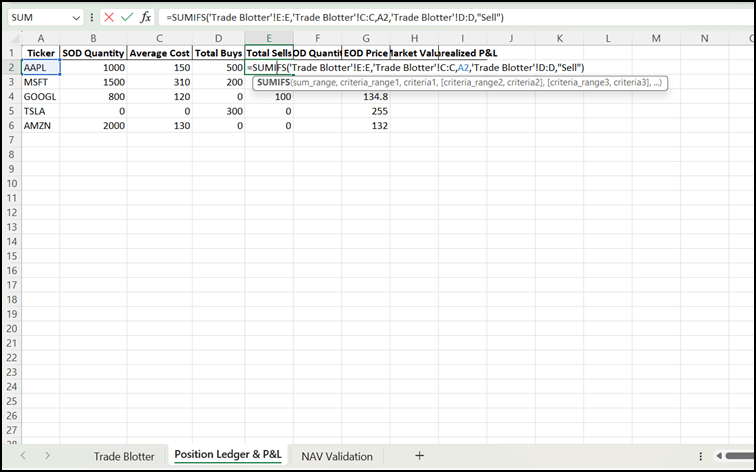
2
1. Click Cell E2 under Total Sells.
2. Enter: =SUMIFS('Trade Blotter'!E:E,'Trade Blotter'!C:C,A2,'Trade Blotter'!D:D,"Sell")
3. Press Enter.
4. Copy the formula down.
How the Formula Works
The formula adds together all Buy or Sell transactions for each security.
| Trade Type | Result |
|---|---|
| Buy | Total Buy Quantity |
| Sell | Total Sell Quantity |
Task 3: Calculate End of Day Holdings
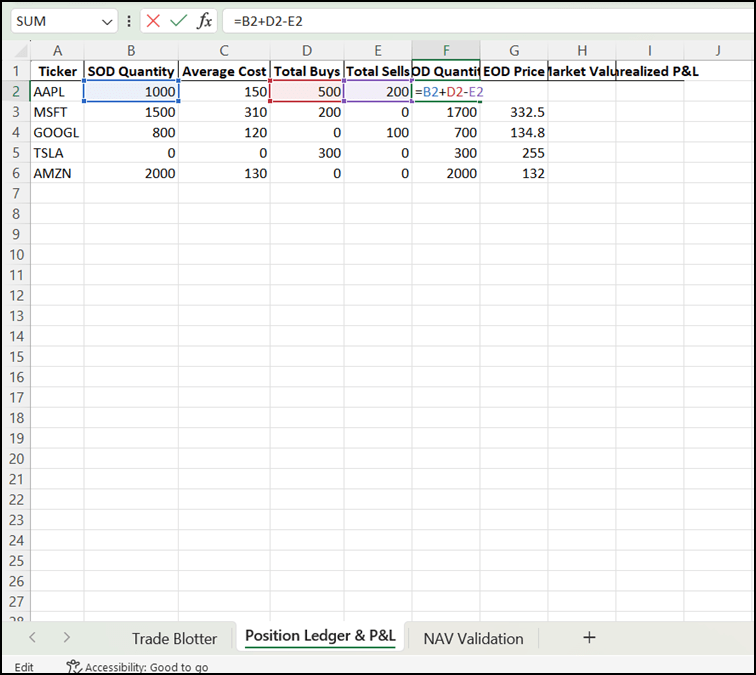
Click Cell F2 under EOD Quantity
1
After processing today's trades, calculate the number of shares held at the end of the day.
1. Enter: =B2+D2-E2
2. Press Enter.
3. Copy the formula down.
How the Formula Works
End of Day Quantity =Starting Quantity
-
Today's Buys
− Today's Sells
Task 4: Calculate Market Value and Unrealized Profit/Loss
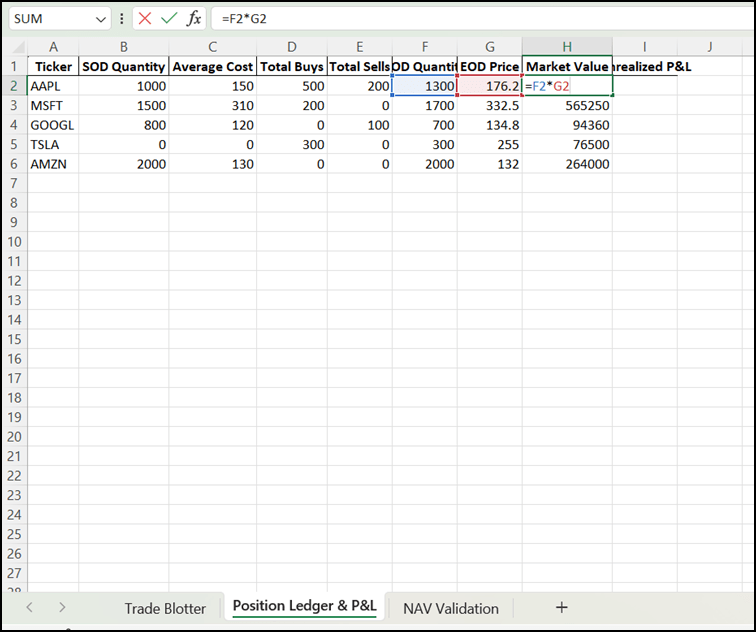
Now calculate the value of each investment.
Calculate Market Value
1
1. Click Cell H2.
2. Enter:=F2*G2
3. Press Enter.
4. Copy the formula down.
Calculate Unrealized Profit/Loss
2
1. Click Cell I2.
2. Enter: =(G2-C2)*F2
3. Press Enter.
4. Copy the formula down.
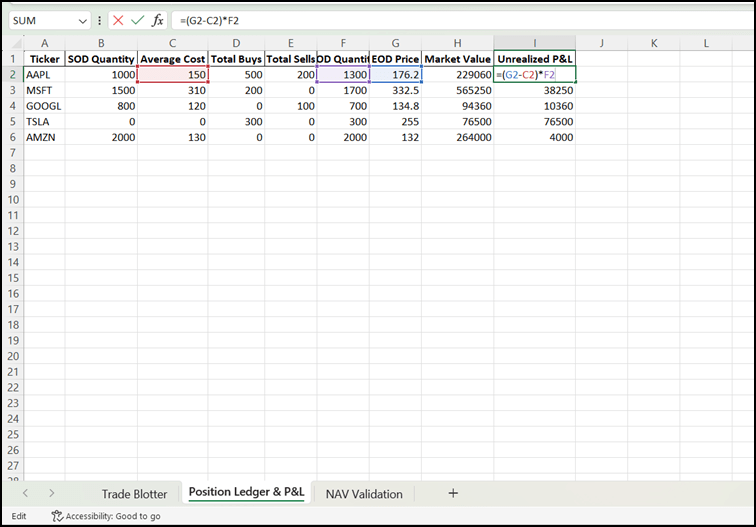
How the Formula Works
Market Value : = End of Day Quantity × Market Price
Unrealized Profit/Loss : = (Current Price − Average Cost) × Quantity Held
Task 5: Calculate the Fund NAV
Now calculate the fund's Net Asset Value.
Open the NAV Validation worksheet
1
Click Cell B2
2
1. Calculate the Gross Market Value by adding all Market Values from the Position Ledger.
2. Enter: =SUM('Position Ledger & P&L'!H:H)
3. Press Enter.
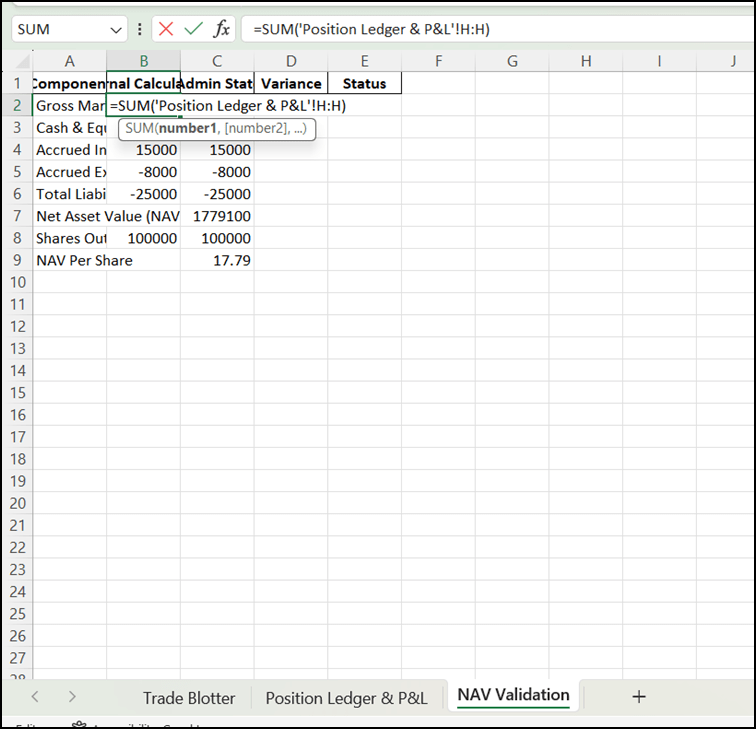
Review these values
3
Rows 3 to 6 already contain:
-
Cash
-
Accrued Income
-
Expenses
-
Liabilities
Rows 3 to 6 already contain:
-
Cash
-
Accrued Income
-
Expenses
-
Liabilities
Click Cell B7 under Net Asset Value (NAV)
4
1. Enter:=SUM(B2:B6)
2. Press Enter.
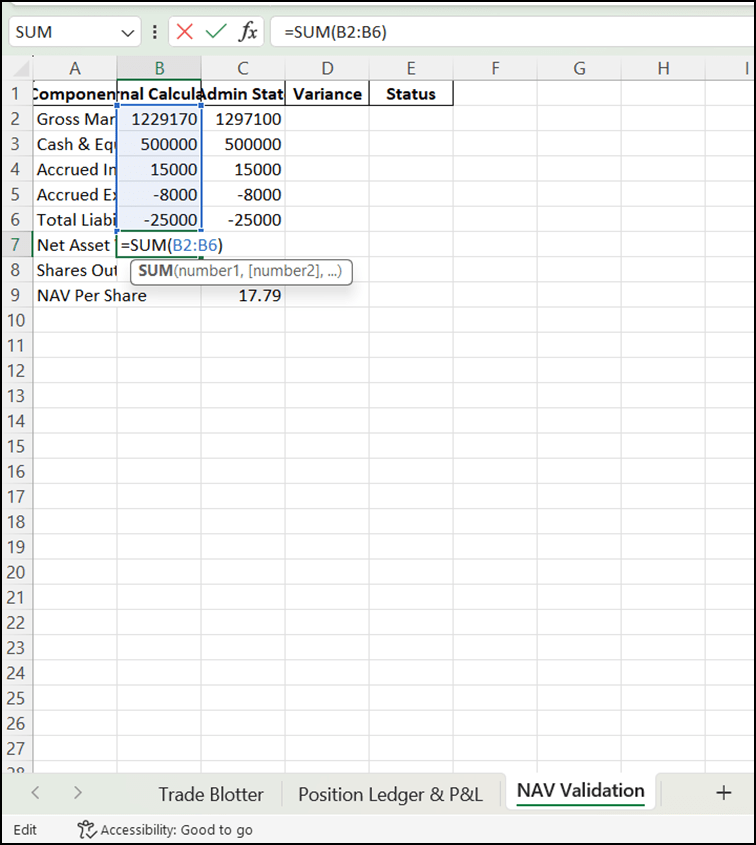
Click Cell B9 under NAV Per Share
5
1. Enter: =B7/B8
2. Press Enter.
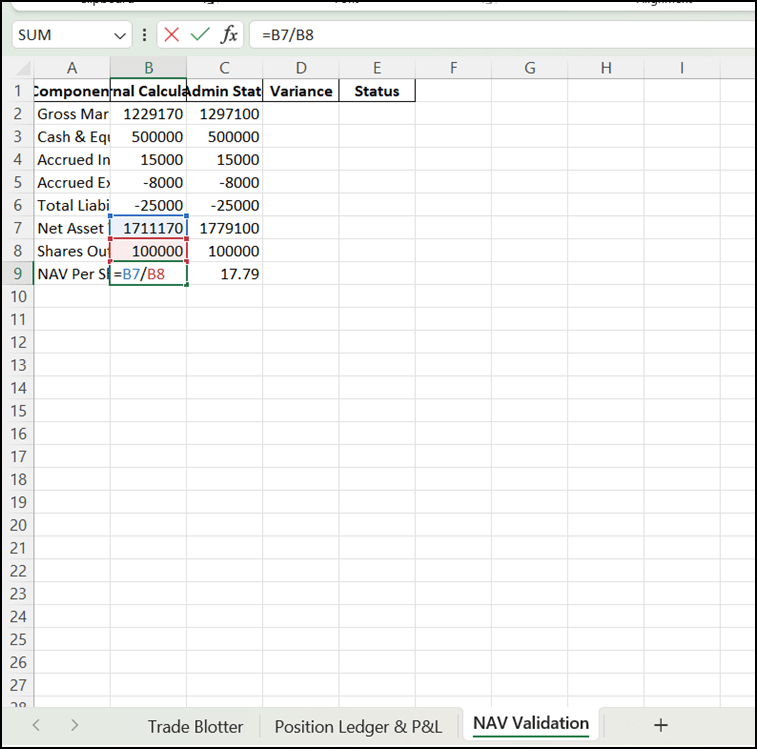
How the Formula Works
| Calculation | Formula |
|---|---|
| NAV | Total Assets − Total Liabilities |
| NAV Per Share | NAV ÷ Shares Outstanding |
Task 6: Compare Your NAV with the Fund Administrator
Compare your internal NAV calculations with the NAV provided by the Fund Administrator to identify any differences.
Open the NAV Validation worksheet
1
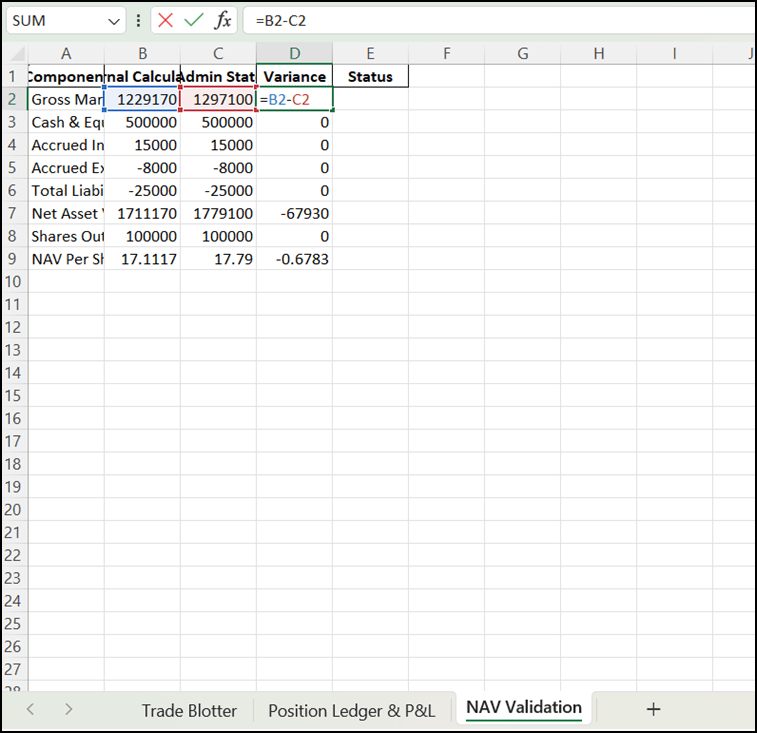
1. Click Cell D2 under Variance.
2. Enter the following formula: =B2-C2
3. Press Enter.
4. Copy the formula down to all remaining rows.
How the Formula Works
The formula calculates the difference between:
Internal Calculation − Fund Administrator Calculation
-
Variance = 0 → Both values match exactly.
-
Variance ≠ 0 → There is a difference that needs to be investigated.
Example:
How the Formula Works
The formula calculates the difference between:
Internal Calculation − Fund Administrator Calculation
-
Variance = 0 → Both values match exactly.
-
Variance ≠ 0 → There is a difference that needs to be investigated.
Example:
| Internal Calculation | Fund Administrator | Variance | Result |
|---|---|---|---|
| ₹500,000 | ₹500,000 | 0 | Match |
| ₹1,250,000 | ₹1,248,500 | ₹1,500 | Difference Found |
A variance of 0 means your calculation matches the Fund Administrator's records, so no further investigation is required for that item. Any value other than 0 indicates an exception that should be reviewed.
Task 7: Identify NAV Exceptions
After calculating the variance, identify whether each component matches the Fund Administrator's records.
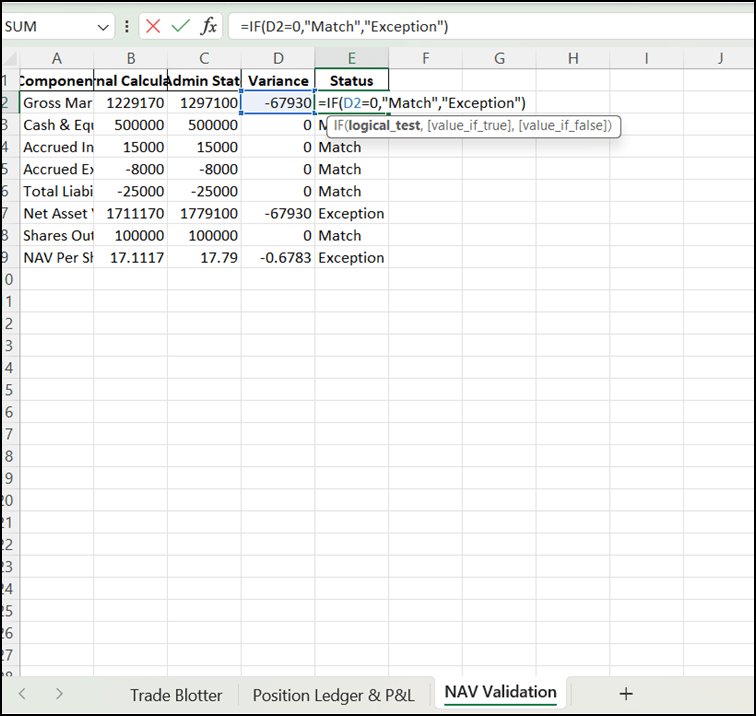
Click Cell E2 under Status
1
Enter the following formula:
2
=IF(D2=0,"Match","Exception")
Press Enter.
Copy the formula down to all remaining rows.
How the Formula Works
The formula checks the value in the Variance column.
-
If Variance = 0, Excel displays "Match" because both values are the same.
-
If Variance is not 0, Excel displays "Exception" because there is a difference that needs to be investigated.
Example
| Variance | Status | Status |
|---|---|---|
| 0 | Match | Internal calculation matches the Fund Administrator's record. |
| -67,930 | Exception | Difference found. Review this item before publishing the NAV. |
| 1,500 | Exception0 | Difference found. Investigation is required. |
Why Is This Important?
The Status column helps analysts quickly identify which NAV components need attention.
-
Match → No action is required because both records are the same.
-
Exception → The values are different and must be investigated before the fund's NAV is finalized and released to investors.
This allows the Fund Operations Analyst to focus only on the components with Exceptions, making the reconciliation process faster and more efficient.
Next-Lab Preparation
Topic : Client Onboarding & AML
1) Client onboarding workflow
2) KYC documentation
3) Beneficial ownership
4) AML typologies
5) Transaction monitoring alerts
6) Escalation and reporting
Topic : Client Onboarding & AML
1) Client onboarding workflow
2) KYC documentation
3) Beneficial ownership
4) AML typologies
5) Transaction monitoring alerts
6) Escalation and reporting