Middle Office Control and Risk Monitoring

Business Scenario
You have joined ABC Investment Bank as a Middle Office Analyst.
Every day, traders execute buy and sell transactions in the financial market. Before these trades are completed, the Middle Office must verify that the bank's trade details match the broker's records and that both parties have confirmed the trade.
If any differences or missing confirmations are found, they must be reported and resolved before the trade is settled.

Pre-Lab Preparation
Topic : Middle Office Controls
1) Economic and booking validation
2) Confirmation status checks
3) Operational risk events
4) Preventive and detective controls
5) Audit and regulatory interaction
6) MIS reporting
In this lab, you will compare trade records, identify trade issues, assess the level of risk, and recommend the appropriate action.
Lab File
Middle_Office_Control_Blank.xlsx : Link
Middle_Office_Control_Completed.xlsx : Link
Task 1: Understand Your Spreadsheets
Before checking today's trades, understand the purpose of each worksheet.
Open Middle_Office_Control_Lab.xlsx
1
Open the Trade Validation worksheet
2
Review the following information:
-
Trade ID
-
Quantity booked by the Trader
-
Quantity received from the Broker
-
Trade Price
-
Broker Price
This worksheet is used to compare the bank's trade details with the broker's records.
Open the Trade Confirmations worksheet
3
This worksheet shows whether each trade has been confirmed by the broker.
Open the MIS Risk Report worksheet
4
You will complete this worksheet during the lab.
Task 2: Check Whether Trade Details Match
You will now compare the bank's internal trade records with the broker's external records to find any discrepancies.
Navigate to the Workspace
1
Open the MIS Risk Report worksheet. This is where you will type all of your formulas for the remainder of the lab.
Check Quantity
2
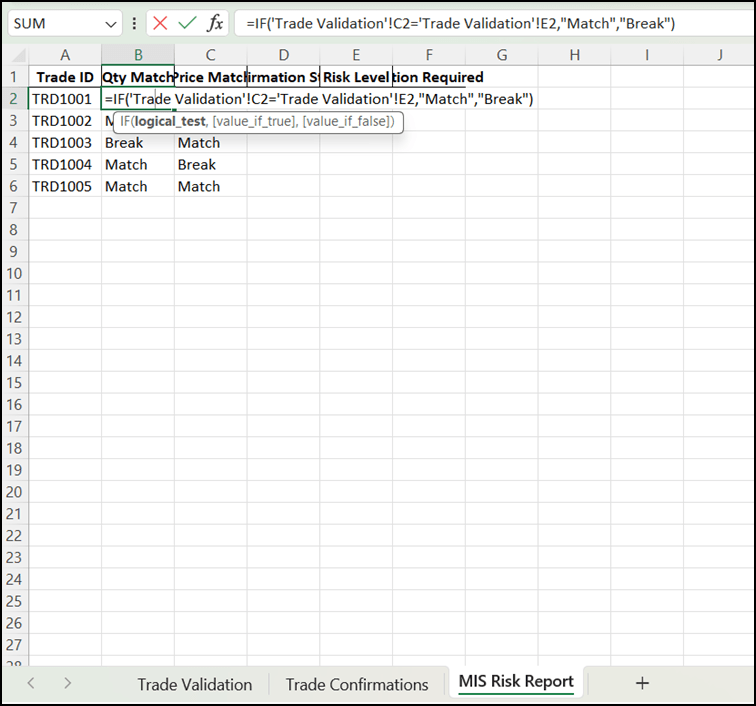
Click Cell B2 under Quantity Match.
Enter: =IF('Trade Validation'!C2='Trade Validation'!E2,"Match","Break")
Press Enter.
Copy the formula down.
Check Price
3
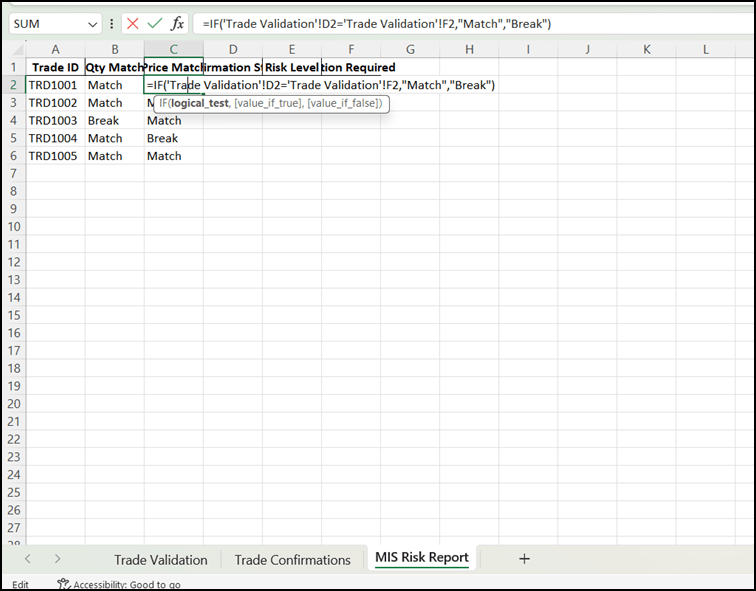
Click Cell C2 under Price Match.
Enter: =IF('Trade Validation'!D2='Trade Validation'!F2,"Match","Break")
Press Enter.
Copy the formula down.
How the Formula Works
| If... | Excel Displays |
|---|---|
| Values are the same | Match |
| Values are different | Break |
Task 3: Retrieve Trade Confirmation Status
Now check whether each trade has been confirmed by the broker.
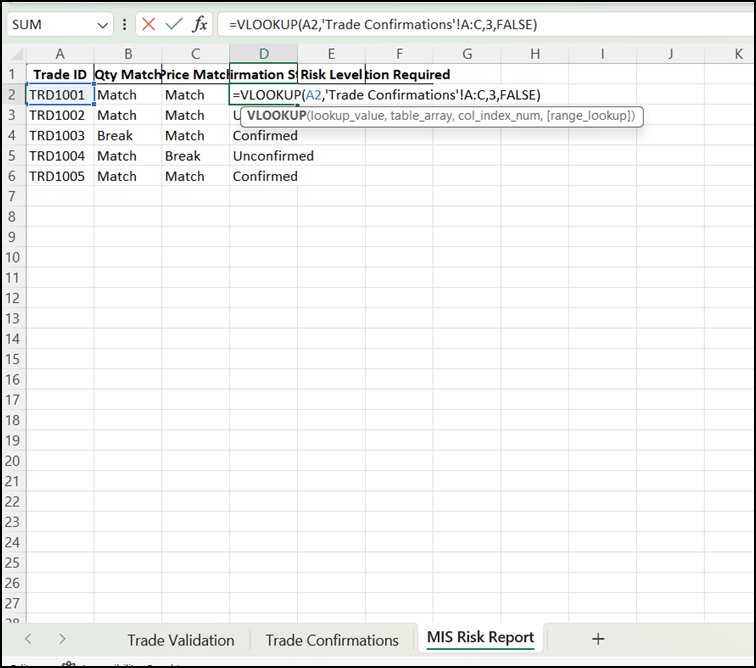
Click Cell D2 under Confirmation Status
1
Enter the Formula
2
Enter: =VLOOKUP(A2,'Trade Confirmations'!A:C,3,FALSE)
Press Enter.
Copy the formula down.
How the Formula Works
The formula searches for the Trade ID in the Trade Confirmations worksheet and returns the confirmation status.
| Confirmation Status | Meaning |
|---|---|
| Confirmed | Trade has been confirmed by the broker. |
| Unconfirmed | Trade is still waiting for confirmation. |
Task 4: Assess the Trade Risk
Based on the trade comparison and confirmation status, determine the risk level.
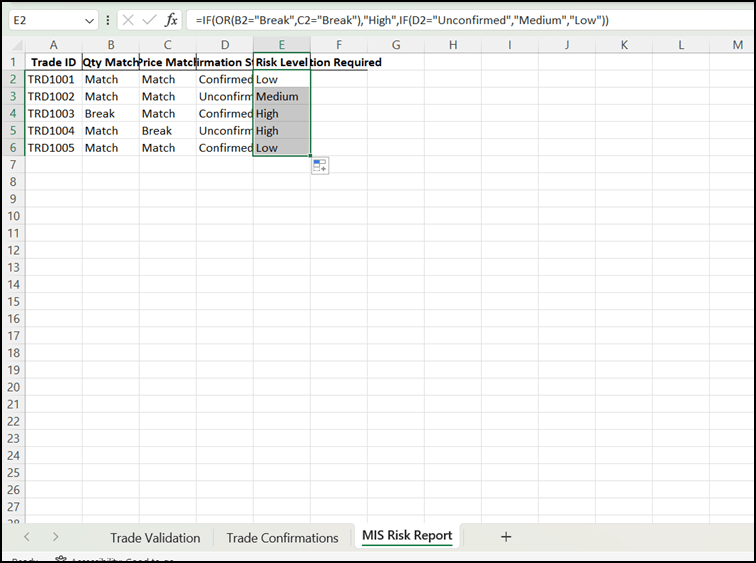
Click Cell E2 under Risk Level.
1
Enter the Formula
2
Enter: =IF(OR(B2="Break",C2="Break"),"High",IF(D2="Unconfirmed","Medium","Low"))
Press Enter.
Copy the formula down.
How the Formula Works
| Condition | Risk Level |
|---|---|
| Quantity or Price Break | High |
| Trade Matches but Confirmation Pending | Medium |
| Trade Matches and Confirmed | Low |
Task 5: Recommend the Required Action
Based on the risk level, determine the next action.
Click Cell F2 under Action Required
1
Enter the Formula
2
Enter:
=IF(E2="High","Investigate Trade Break",IF(E2="Medium","Follow Up with Broker","Clear for Settlement"))
Press Enter.
Copy the formula down.
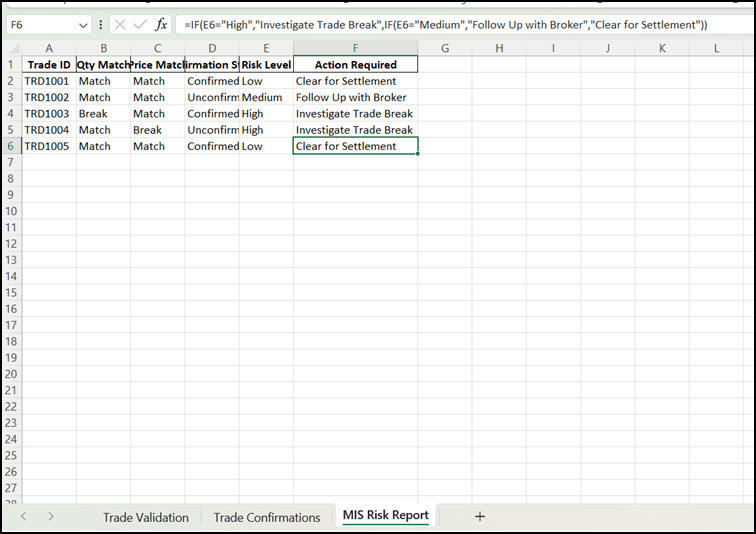
How the Formula Works
| Risk Level | Action Required |
|---|---|
| High | Investigate Trade Break |
| Medium | Follow Up with Broker |
| Low | Clear for Settlement |