FinCheck Java Setup & Programming Fundamentals

Business Scenario
You are joining the FinCheck Project as a QA Tester in a Banking Application System.
After successfully understanding Banking Workflows, Database Validation, and Webpage Inspection, your manager now introduces you to Java Programming Fundamentals used in QA and Automation Environments.
The FinCheck Testing Team works with Transaction Validation

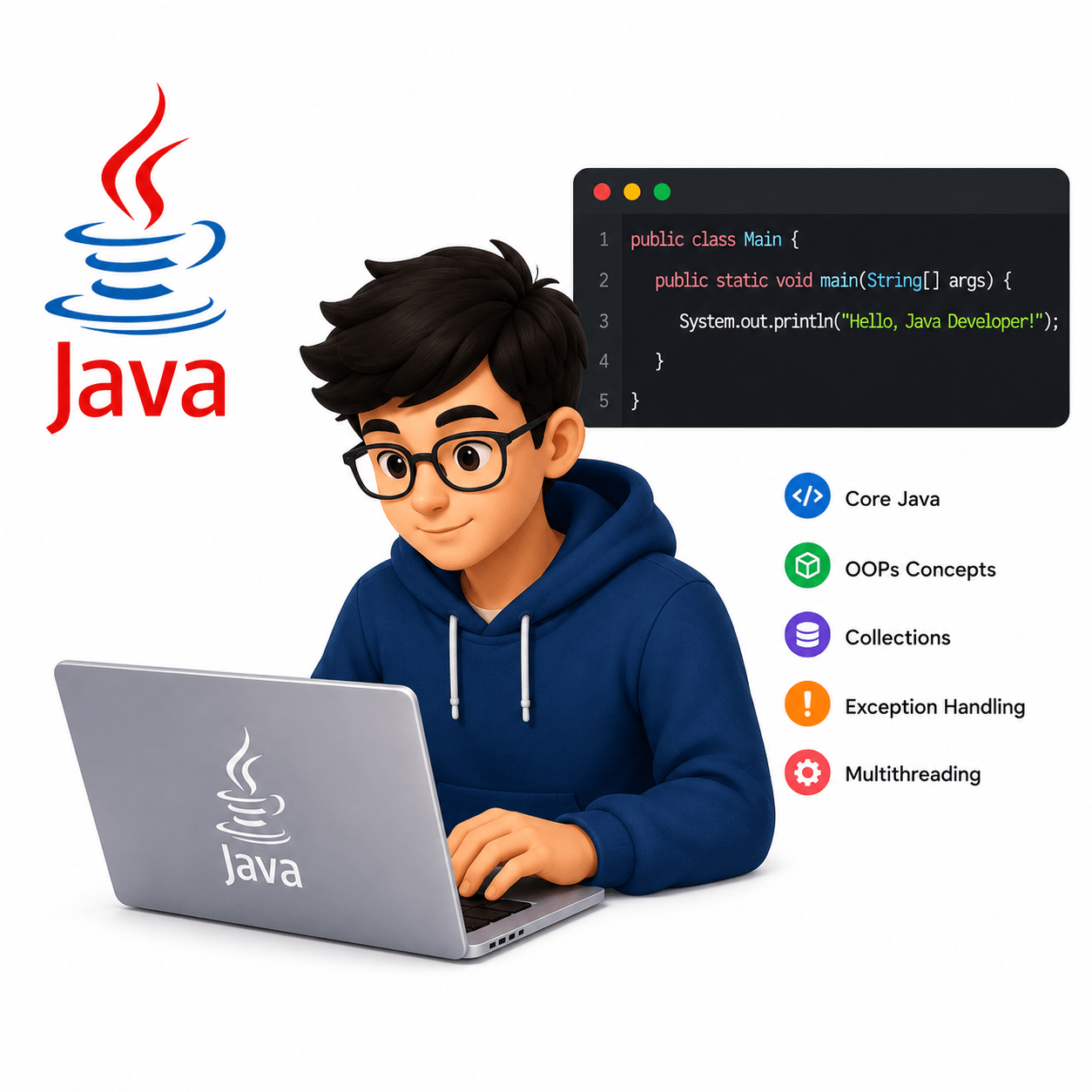
Programs, Simple Automation Scripts, and Reusable Validation Utilities built using Java.
Before starting automation activities, your manager clearly says :-
“A QA Tester must first understand Basic Programming Structure before working with Validation Scripts and Automation Tools. ”
Your responsibility is to understand :-
How Java Programs are Created
How Testers Execute Java Programs
How Java Syntax and Structure Work
How Eclipse IDE is Used during QA Activities
Pre-Lab Preparation
- Install Eclipse
- Write basic Java programs
- Understand syntax and structure
- Execute scripts
Task 1: Install Eclipse
Downloading JDK
1
Go to the Official JDK
Website to download the file.
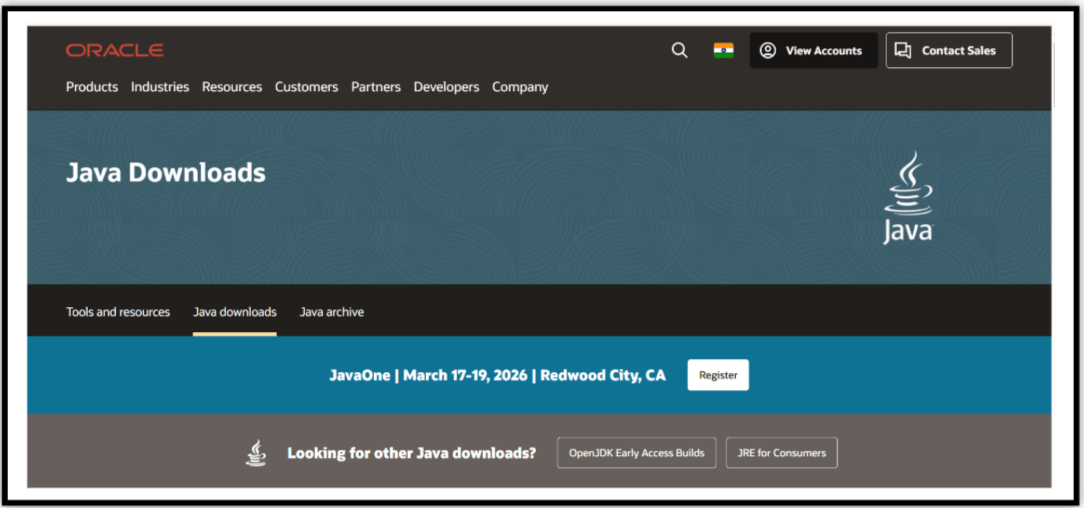
Visit the Official Website
a
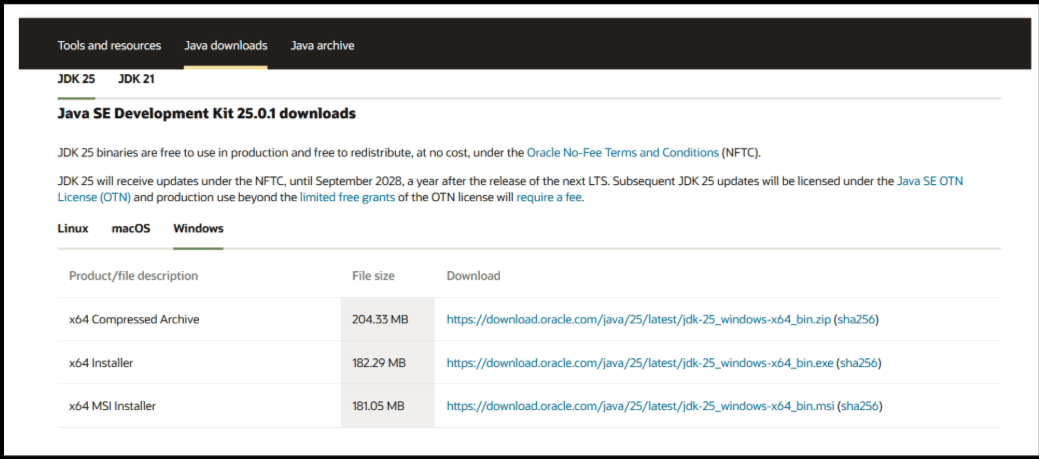
Choose the version that best suits your operating system—Windows, macOS, or Linux (choose the LTS version)
Select the Version
b
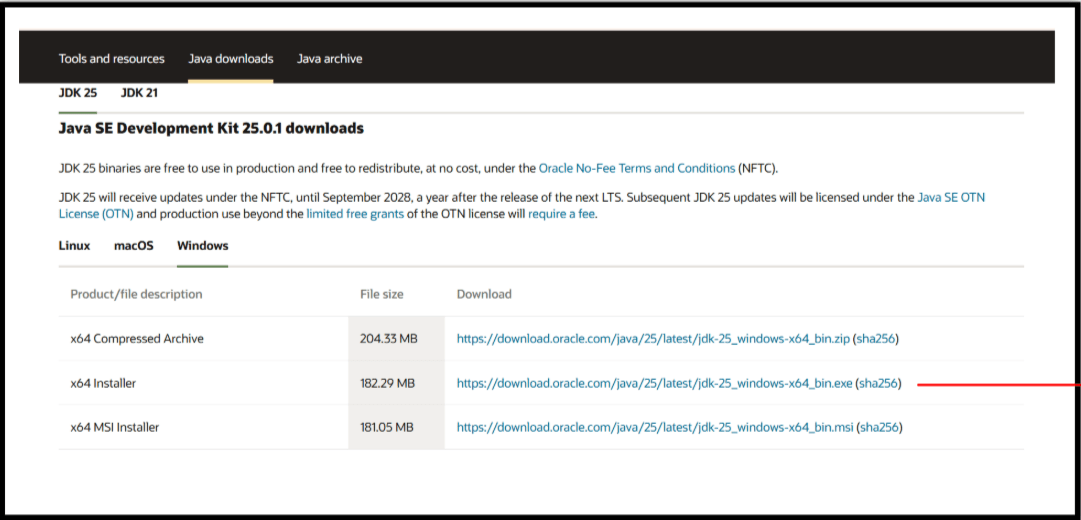
Click on the respective link to download the installer
Select the Version
c
Installation of JDK
2
Locate the .exe file (e.g., jdk-23-windows-x64_bin.exe)
Run the JDK Installer
a
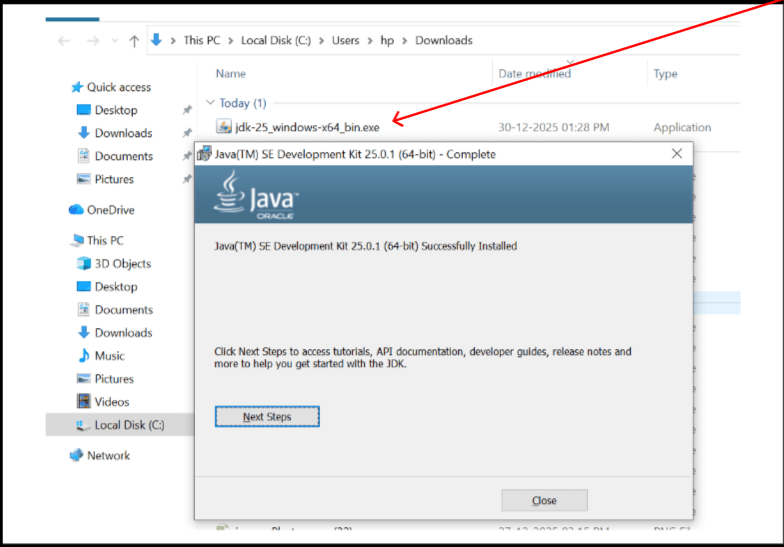
double-click to install.
Follow the setup wizard to finish.
Navigate to C:\Program Files\Java\jdk-{your JDK version}\bin, replacing with your installed version.
Setup Environment Variables
b
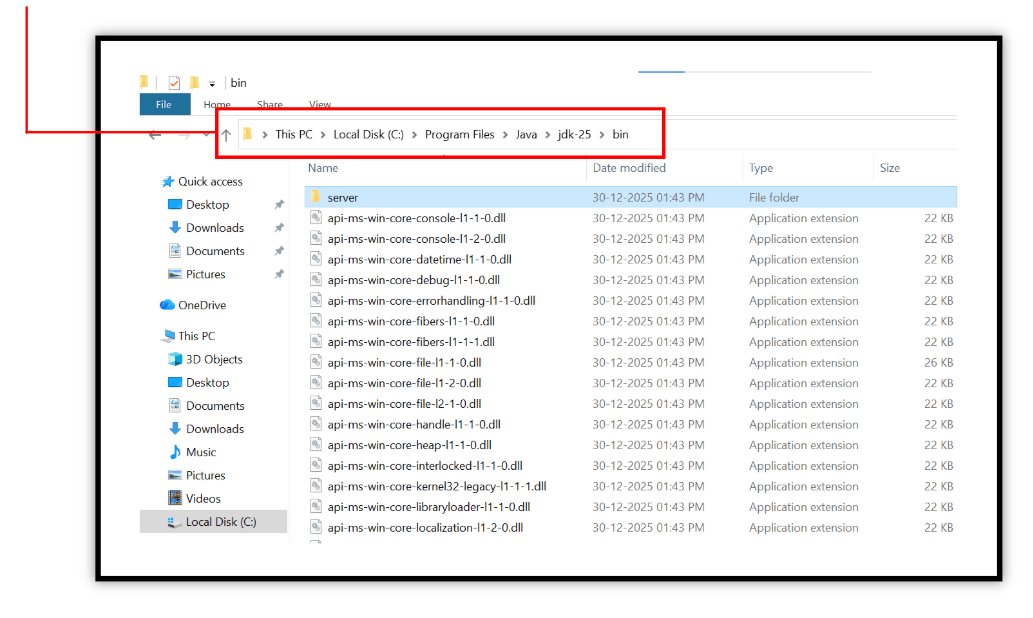
Step 2.1
To set the environment variables, search for “Environment Variables” in the taskbar and click on “Edit the system environment variables.
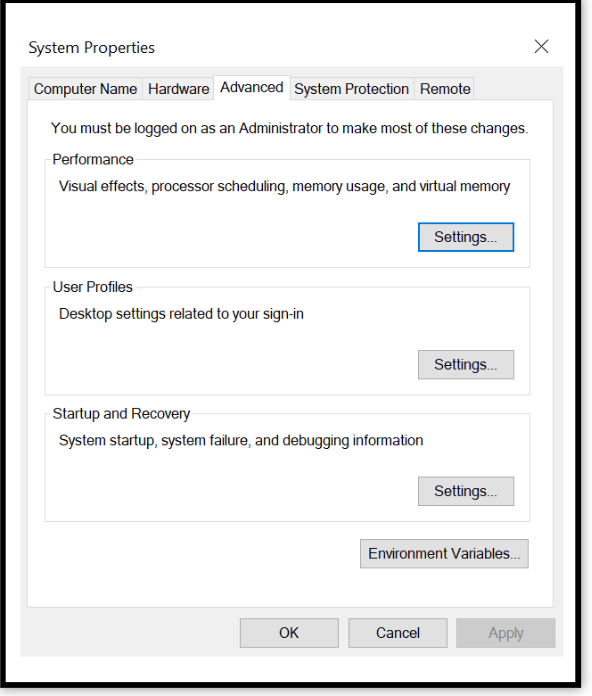
Step 2.2
In the Advanced tab, Click on "Environment Variable"
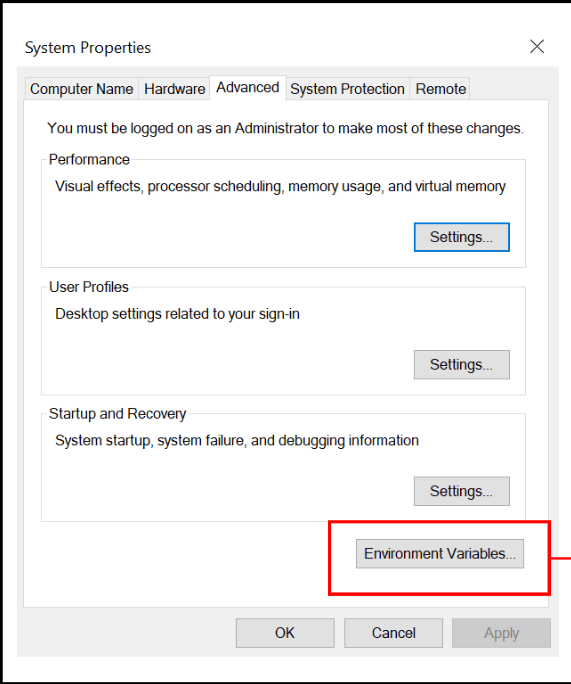
Step 2.3
Under System variables, select Path and click Edit. Click New, paste your bin path and then click OK.
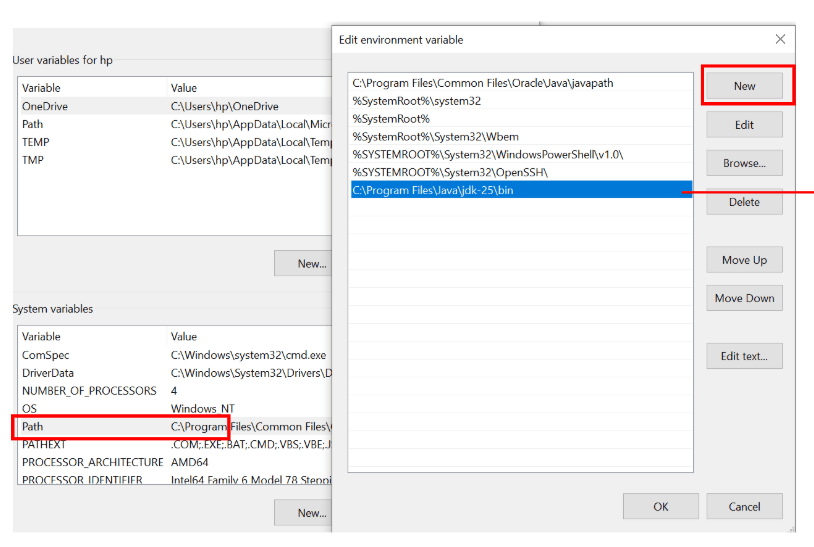
Paste your bin path here
Step 2.4
In the Environment Variables window, under System variables
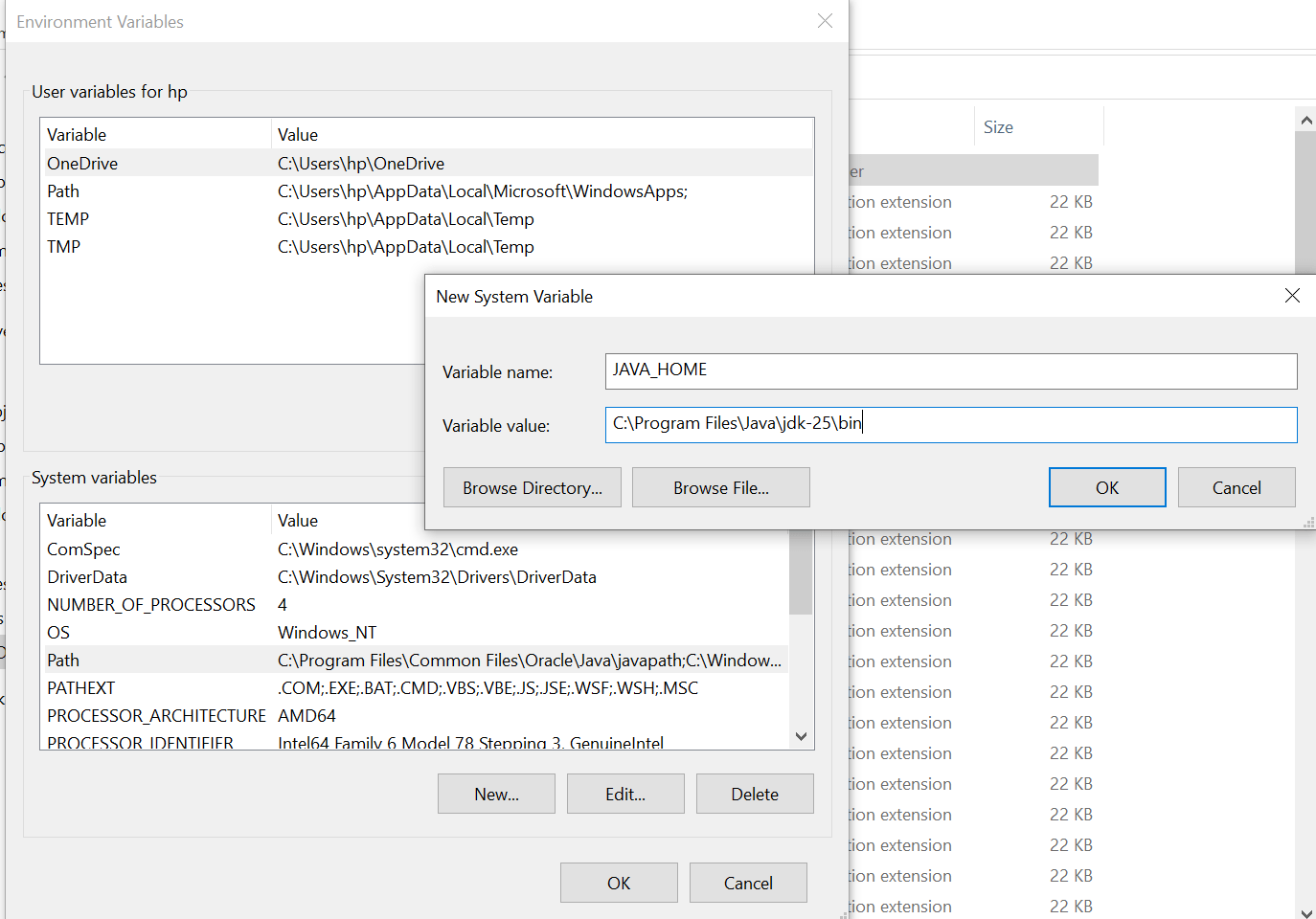
Click on new
Set Variable name as JAVA_HOME and
Variable value as C:\Program Files\Java\jdk-{your JDK version}.
Check the Java Version
C
Open Command Prompt and enter the following commands:
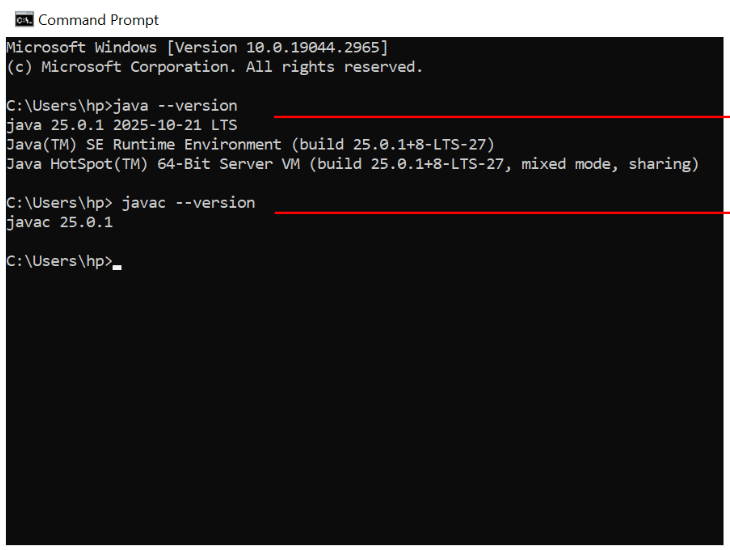
java --version
javac --version
Installation Of Eclipse
3
official Eclipse Downloads page.
Open your web browser and go to the
a

eclipse.org
Open your web browser and go to the
b

Click the Download button to download the Eclipse Installer.
Download EXE
c
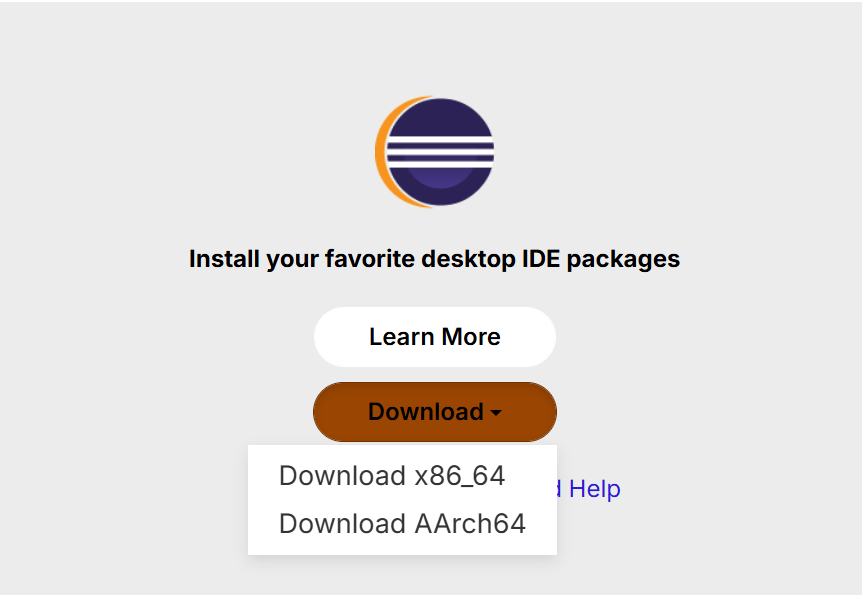
Now, click on the "Download x86_64" button.
Open Download EXE
d
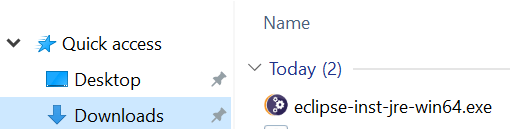
Now go to File Explorer and click on "Downloads" after that click on the "eclipse-inst-jre-win64.exe" file for installing Eclipse IDE.
Install Eclipse
e
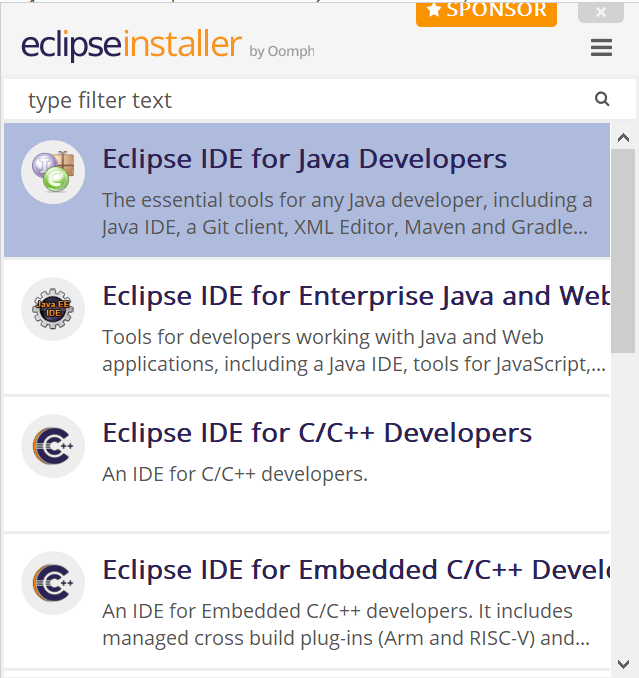
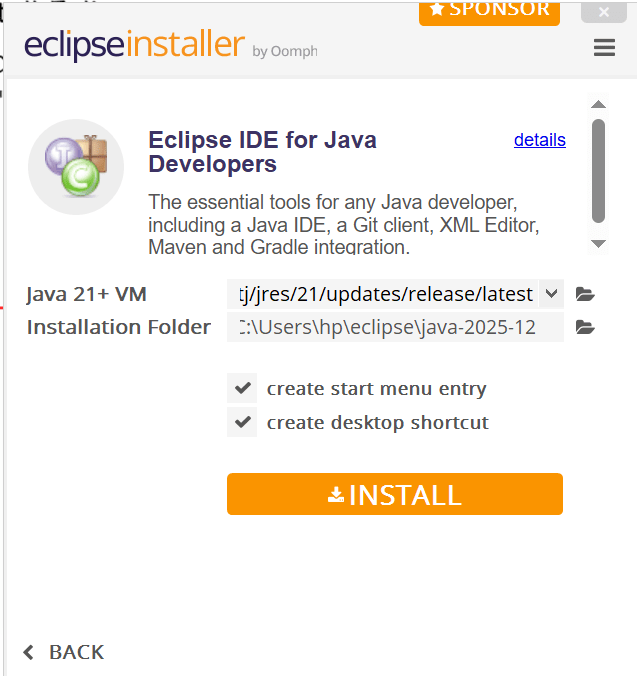
Then click on the Install button
Then, click on "Eclipse IDE for Java Developers".
Create New Project
f
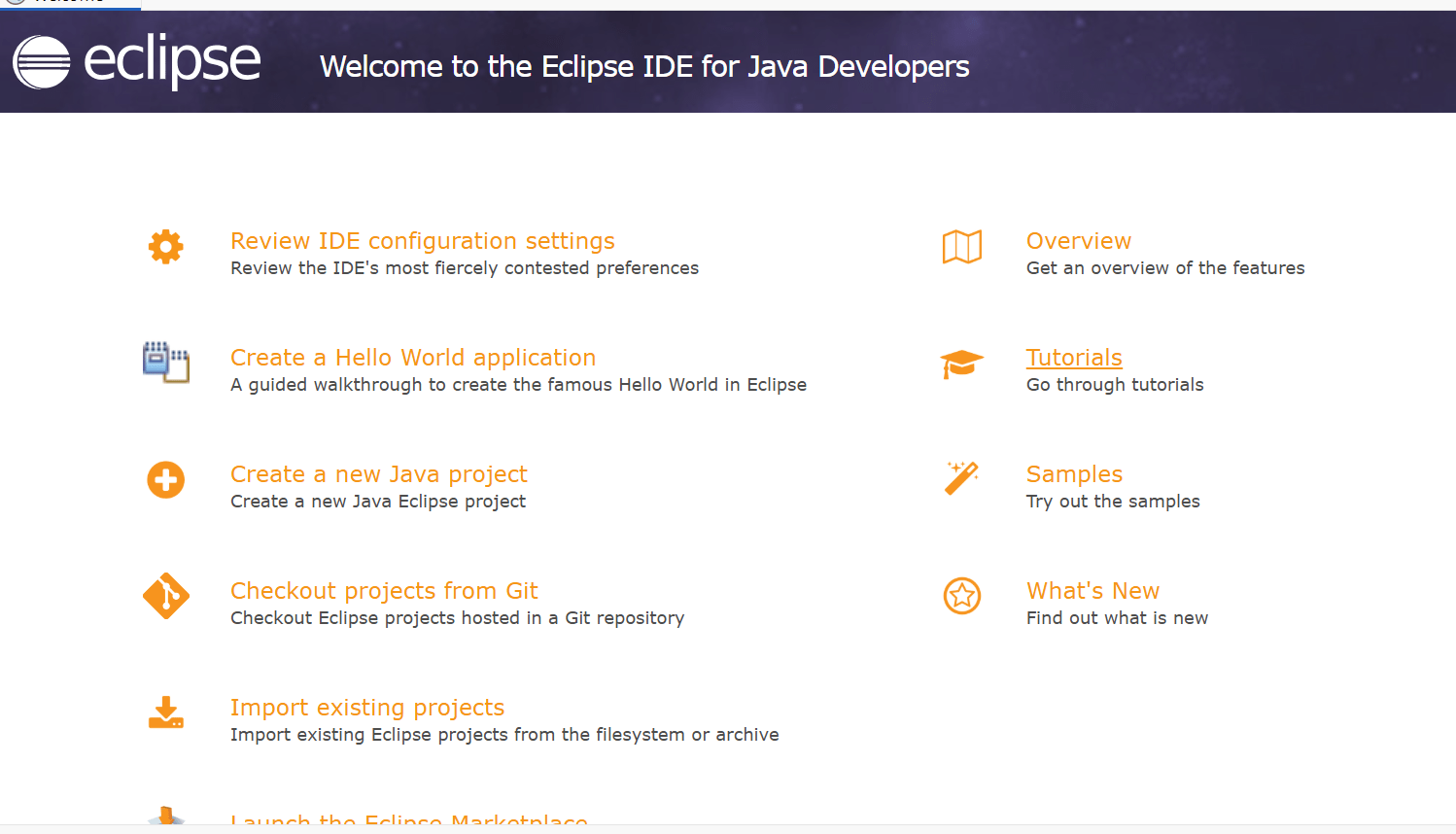
Now click "Create a new java project
Now you’re all set to start creating new Java projects using the Eclipse IDE.
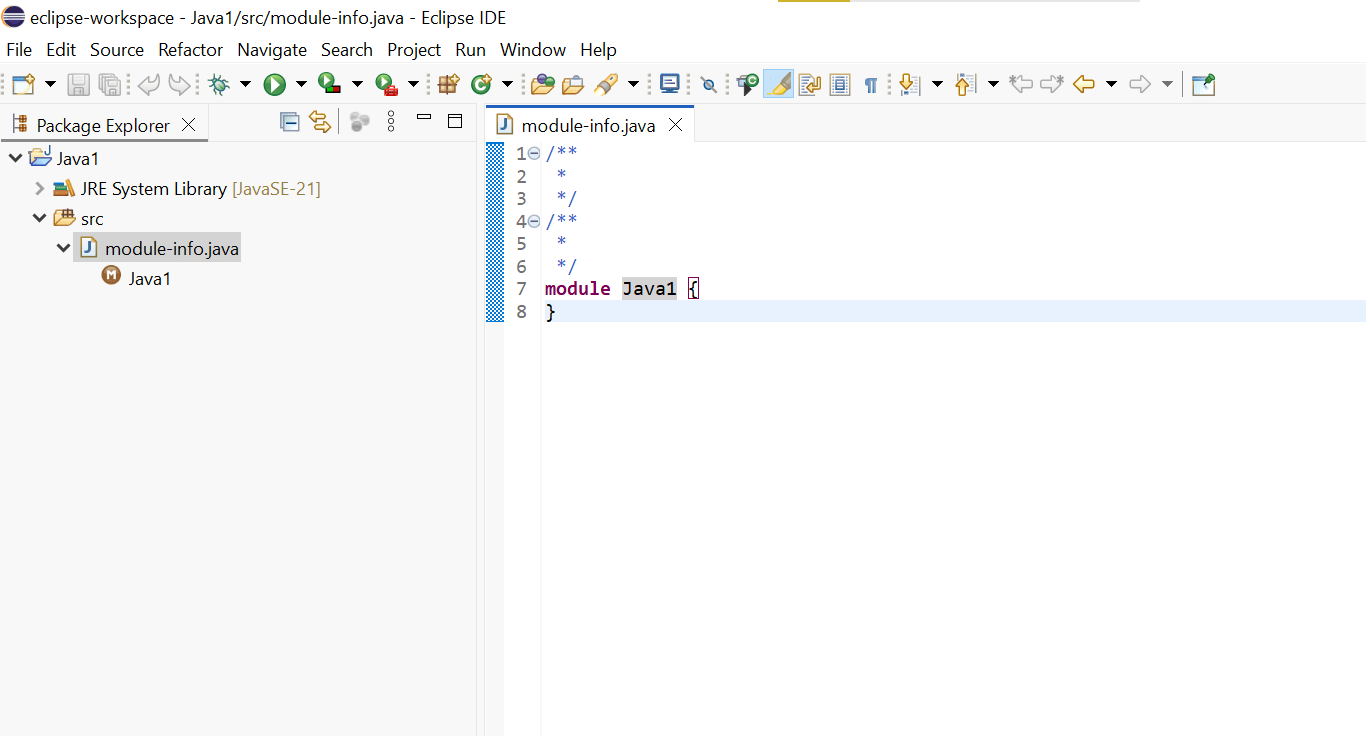
Congratulations!! You have successfully downloaded the Eclipse software for your Windows PC.
Task 2: Understand Java Fundamentals
Understand Java
a
What is Java?
Java is a programming language used to create applications, automation scripts, validation utilities, and testing frameworks.
QA testers use Java in automation testing, validation scripts, data processing, and testing utilities.
Types of Java Usage in QA
-
Test Data Handling
Used to store and display testing data.
-
Validation Logic
Used to validate transaction values and application behavior.
-
Console Output Verification
Used to print and verify testing results.
How Java Works
-
Tester writes Java code.
-
Java compiler converts code into executable format.
-
Program runs inside Java Virtual Machine (JVM).
-
Output displays inside console window.
Real Life Example
QA tester creates Java program to display :-
-
customer name
-
account number
-
transaction amount
inside console output.
Understand Java Program Structure
b
What is Java Program Structure?
Java program structure represents organized arrangement of Java code.
Every Java program contains :-
-
class
-
main method
-
statements
-
output instructions
Syntax
public class Fincheck{

}
Class Syntax
Main method Syntax
public static void main(String[] arg){

}
public class WelcomeFincheck {
public static void main(String[] args) {
System.out.println("Welcome to FinCheck");
}
}Basic Java Structure
Task 3: Understand Eclipse IDE Interface
Understand Eclipse IDE
a
What is Eclipse IDE?
Eclipse IDE is a software application used to write, execute, and manage Java programs.
QA testers use Eclipse to create automation scripts and validation programs.
Types of Activities Performed in Eclipse
-
Write Java Code
Create Java programs.
-
Execute Programs
Run Java applications.
-
Modify Programs
Update validation logic.
-
Debug Programs
Identify coding issues.
Real Life Example
Tester creates transaction validation program using Eclipse IDE.
Understand Eclipse Workspace
b
What is Workspace?
Workspace is the main working area where Java projects and files are stored.
Every Java project created inside Eclipse is saved inside workspace location.
Eclipse Interface Components
-
Package Explorer
Displays project files and folders.
-
Editor Window
Used to write Java code.
-
Console Window
Displays program output.
-
Run Button
Executes Java program
Create First Java Program
What is Java Project?
Java project is a container that stores Java program files and resources.
QA testers create projects for :-
- validation programs
-
practice activities
Perform Activity
-
Open Eclipse IDE
-
Click File → New → Java Project
-
Enter Project Name :- FinCheckProject
-
Click Finish
Create Java Class
c
What is Java Class?
Java class contains program logic and executable code.
Every Java program is written inside a class.
Perform Activity
-
Right click src folder
-
Click New → Class
-
Enter Class Name :- FinCheckDemo
-
Select public static void main option
-
Click Finish
Task 4: Understand Console Output
Understand Java Program Execution
a
What is Java Program Execution?
Java program execution means running Java code and observing generated output inside console window.
When tester executes Java program :-
-
Java compiler checks code syntax
-
program gets processed
-
output displays inside console area
QA testers execute Java programs to verify :-
-
printed messages
- validation results
-
transaction information
-
application logic behavior
How Java Execution Works
-
Tester writes Java code.
-
Tester clicks Run button inside Eclipse IDE.
-
Java compiler checks program syntax.
-
Program executes successfully.
-
Console window displays output.
Real Life Example
1. customer name
2. account number
3. transaction amount
-
After execution, all information displays inside console output window.
Print basic output
b
What is Console Output?
Console output displays program results inside terminal or console window.
QA testers use console output to verify :-
-
transaction values
-
validation results
-
test execution messages
Types of Console Messages
-
Transaction Details
Displays transaction information.
-
Validation Messages
Displays valid or invalid status.
-
User Information
Displays customer details.
Real Life Example
Tester prints :-
-
customer name
-
transaction amount
-
account number
inside console output.
Syntax
System.out.println("Welcome to FinCheck");Print with new line
System.out.print("Welcome to FinCheck");Print without new line
System.out.print("VariableName");Print a variable
System.out.print("Welcome to FinCheck"+ VariableName);Print text + variable together
Activity
-
Write Java program
-
Use System.out.println()
-
Execute Java program
-
Observe console output
Good Job!!
In this lab, you learned the Fundamentals of Java Programming, Java Program Structure, Eclipse IDE, Java Execution Flow, and Printing Output using Java.
You also practiced Creating Java Projects, Writing Java Syntax, Executing Java Code, and Verifying Console Output successfully.
By completing this lab, you now understand how QA Testers Create, Execute, and Validate Java Programs using Java Development Environments.
Checkpoint

Next-Lab Preparation
Git Push
git push origin branchName- Declare variables
- Use data types (int, double, String)
- Perform calculations
- Store transaction values