FinCheck Looping for Bulk Data Processing

Business Scenario
After successfully learning basic Webpage Inspection inside the FinCheck Banking Portal, your manager now assigns you advanced inspection activities on Dynamic Banking Webpages.
Recently, QA Testers reported multiple inspection problems inside the FinCheck Transaction Dashboard :-
Transaction Rows Change after Filtering
Pagination Buttons Rebuild Dynamically
Dashboard Counters Update Automatically

Pre-Lab Preparation
Some Webpage Elements Disappear after Search
Testers Cannot Track Changing HTML Elements Properly
Before starting testing activities, your manager clearly says :-
“”A QA Tester must understand how Webpage Elements change dynamically during real application usage. “”
Your responsibility is to understand : -
How Dynamic Transaction Tables Behave
How Filters Update Webpage Records
How Pagination Changes Dynamically
How Testers Inspect Changing HTML Elements
How Hidden Elements Exist inside Webpage Structure
How DevTools Helps Testers Inspect Dynamic Webpages
Topic : HTML Basics
- HTML Tags, Forms, Input Fields, Tables
- Understanding Webpage UI Testing
git pull origin branchName
Git Pull
Task 1: Understand Dynamic Webpage Behavior
Understand Dynamic Webpages
1
What are Dynamic Webpages?
A dynamic webpage is a webpage that changes automatically based on user activity.
Unlike static webpages, dynamic webpages update records, counters, tables, and filters without reloading the complete page.
Modern banking applications use dynamic webpages to display real-time customer and transaction information.
Types of Dynamic Changes
-
Search Updates
Transaction records update after user search.
-
Filter Updates
Only matching records display after filters are applied.
-
Pagination Updates
Page buttons change dynamically based on record count.
-
Counter Updates
Dashboard totals refresh automatically.
How Dynamic Webpages Work
-
User performs activity on webpage.
-
Application processes request.
-
Browser updates specific webpage sections dynamically.
-
HTML structure changes automatically inside browser DOM.
Real Life Example
Customer searches :-
Customer ID = C004
The webpage updates transaction table dynamically and displays only matching records.
What is DOM?
DOM (Document Object Model) represents webpage structure inside browser.
Every webpage element becomes part of DOM structure.
QA testers inspect DOM to understand webpage behavior and identify elements properly.
Understand DOM Updates
2
Types of DOM Elements
-
Input Elements
Textbox fields for search or filters.
-
Button Elements
Search, Next, Previous, Download buttons.
-
Table Elements
Transaction rows and columns.
-
Hidden Elements
Invisible elements existing inside webpage structure.
How DOM Updates Work
When webpage changes dynamically :-
-
old HTML elements may disappear
-
new HTML elements may appear
-
attributes may change automatically
Real Life Example
Before Search :-
10 transaction rows visible
After Search :-
1 matching transaction row visible
DOM structure updates automatically.
Open FinCheck Dashboard
1
What is Transaction Table Inspection?
Transaction table inspection helps QA testers understand how banking records are displayed inside webpage tables.
Testers inspect rows , columns , headers , dynamic records updates
Task 2: Inspect Dynamic Transaction Rows
Click to view : finCheck
Activity
Open FinCheck transaction dashboard
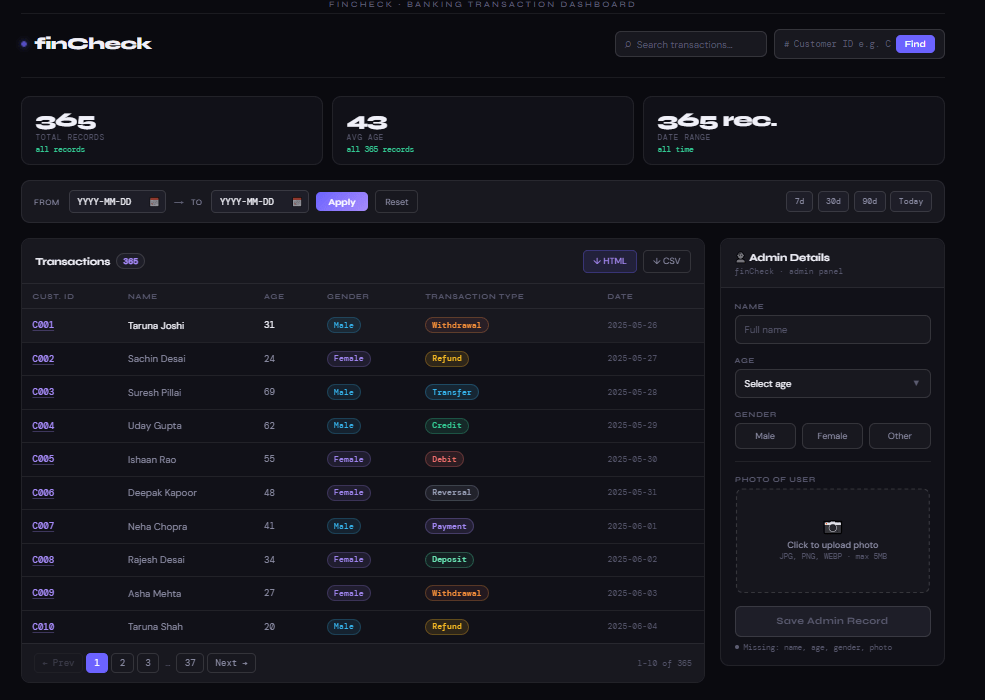
Observe transaction table
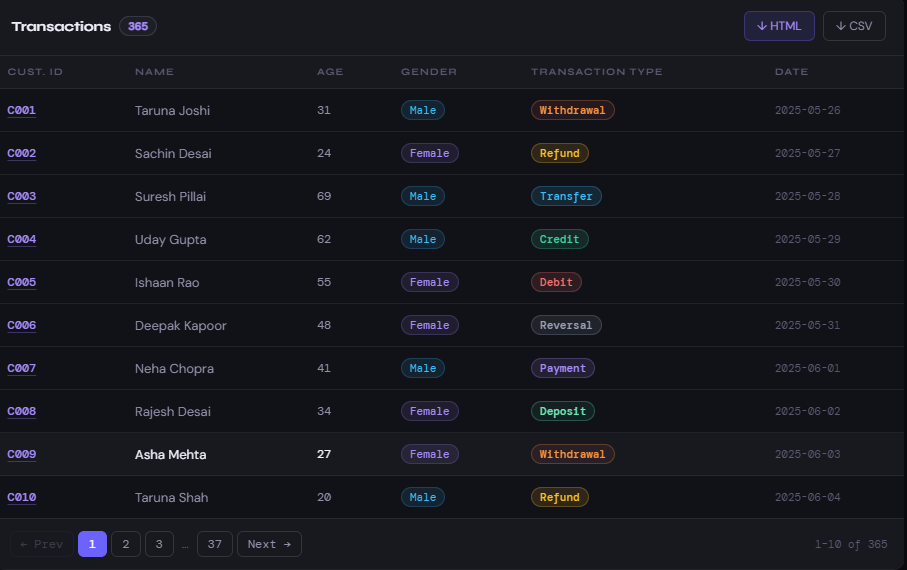
Observe multiple transaction rows displayed on webpage
Observe multiple transaction rows displayed on webpage
Transaction Table Representation
| txn_id | customer_id | txn_type | amount |
|---|---|---|---|
| TXN1001 | C001 | Debit | 2000 |
| TXN1002 | C004 | Credit | 5000 |
| TXN1003 | C007 | Debit | 1000 |
Inspect Transaction Table Using DevTools
2
What is Table Inspection?
Table inspection allows testers to view actual HTML structure of transaction records.
QA testers inspect tables to understand :-
-
table structure
-
row arrangement
-
dynamic row generation
Activity
Right click transaction table
Browser opens DevTools
Observe highlighted HTML structure
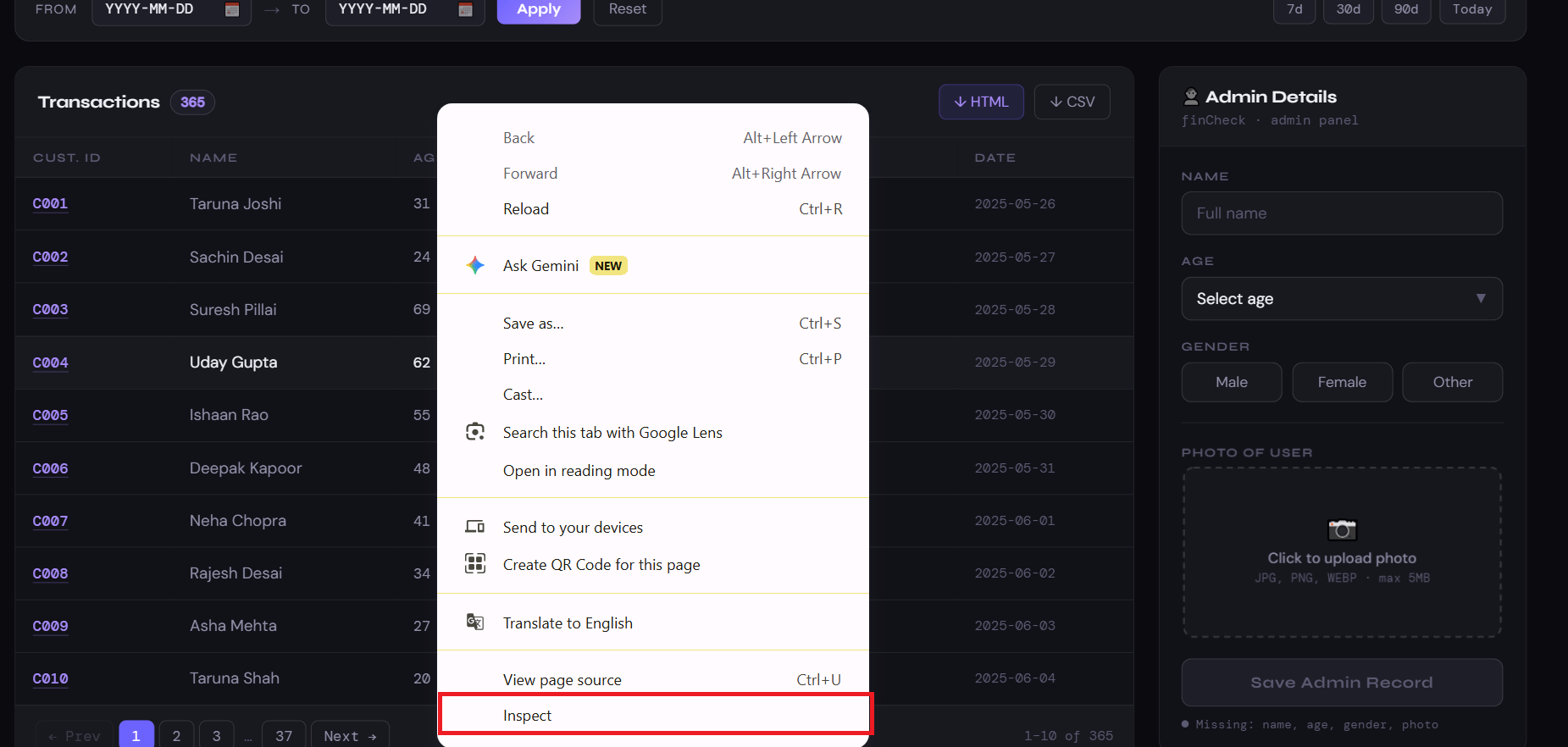
Browser opens DevTools
Observe highlighted HTML structure
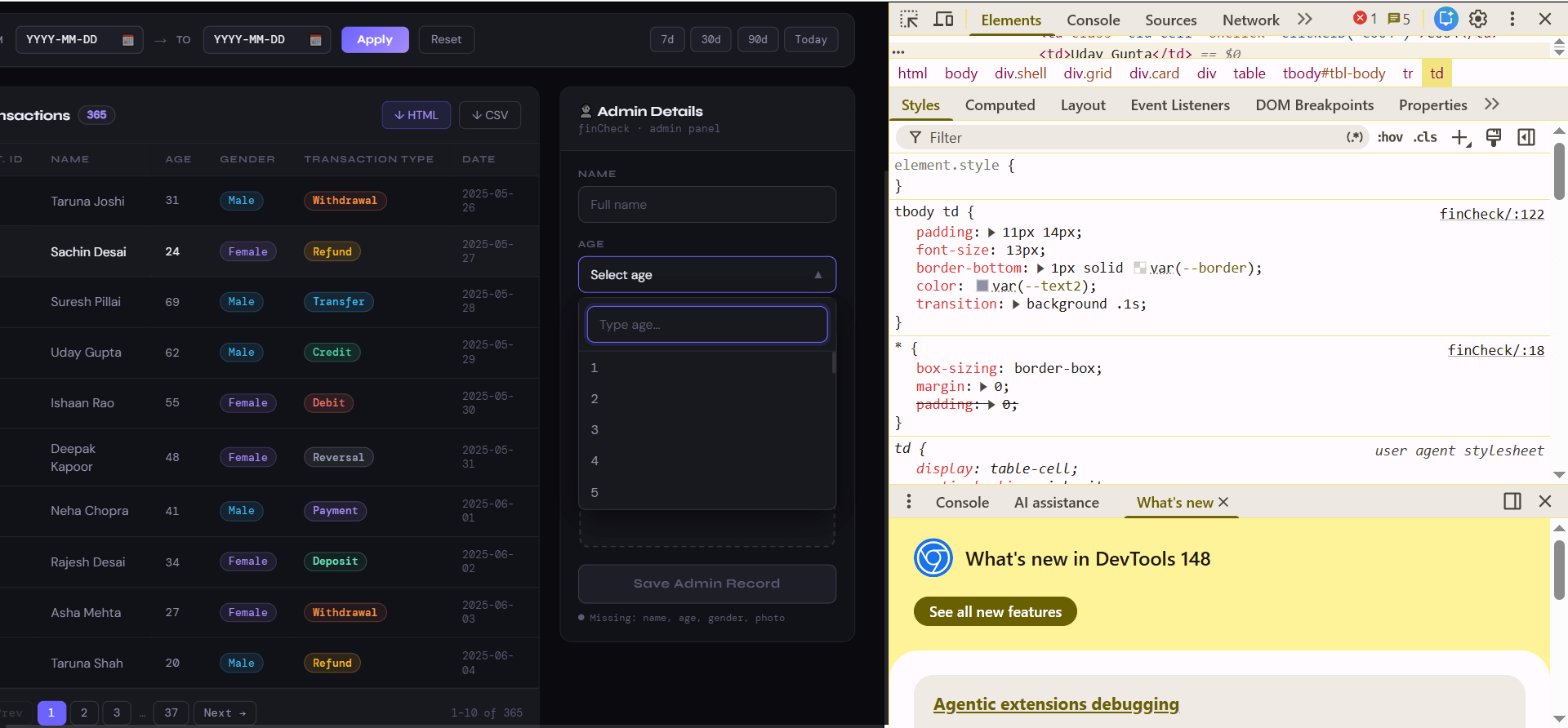
HTML Representation
<table id="txn-table">

<tr>
<th>txn_id</th>
<th>customer_id</th>
<th>txn_type</th>
<th>amount</th>
</tr>

<tr>
<td>TXN1001</td>
<td>C001</td>
<td>Debit</td>
<td>2000</td>
</tr>

</table>
Inspect Dynamic Row Changes
3
What are Dynamic Rows?
Dynamic rows are transaction records that change automatically after search, filtering, or pagination.
These rows are generated dynamically by application logic.
How Dynamic Rows Work
When user performs :-
-
Search
-
Filter
-
Pagination
old rows disappear and new matching rows appear automatically.
Activity
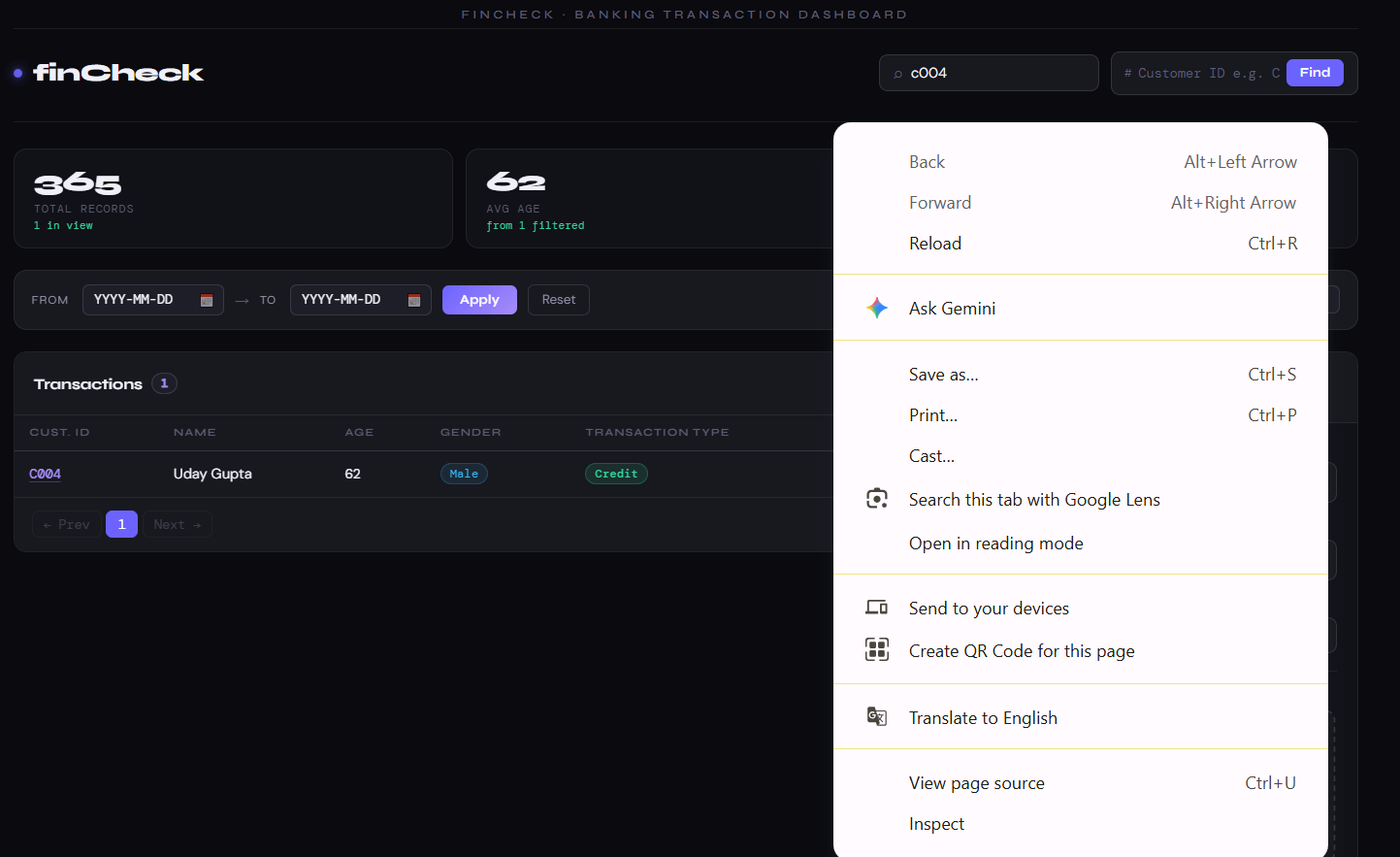
Search customer ID :- C004
Click Find button
Observe updated transaction table
Inspect updated HTML rows
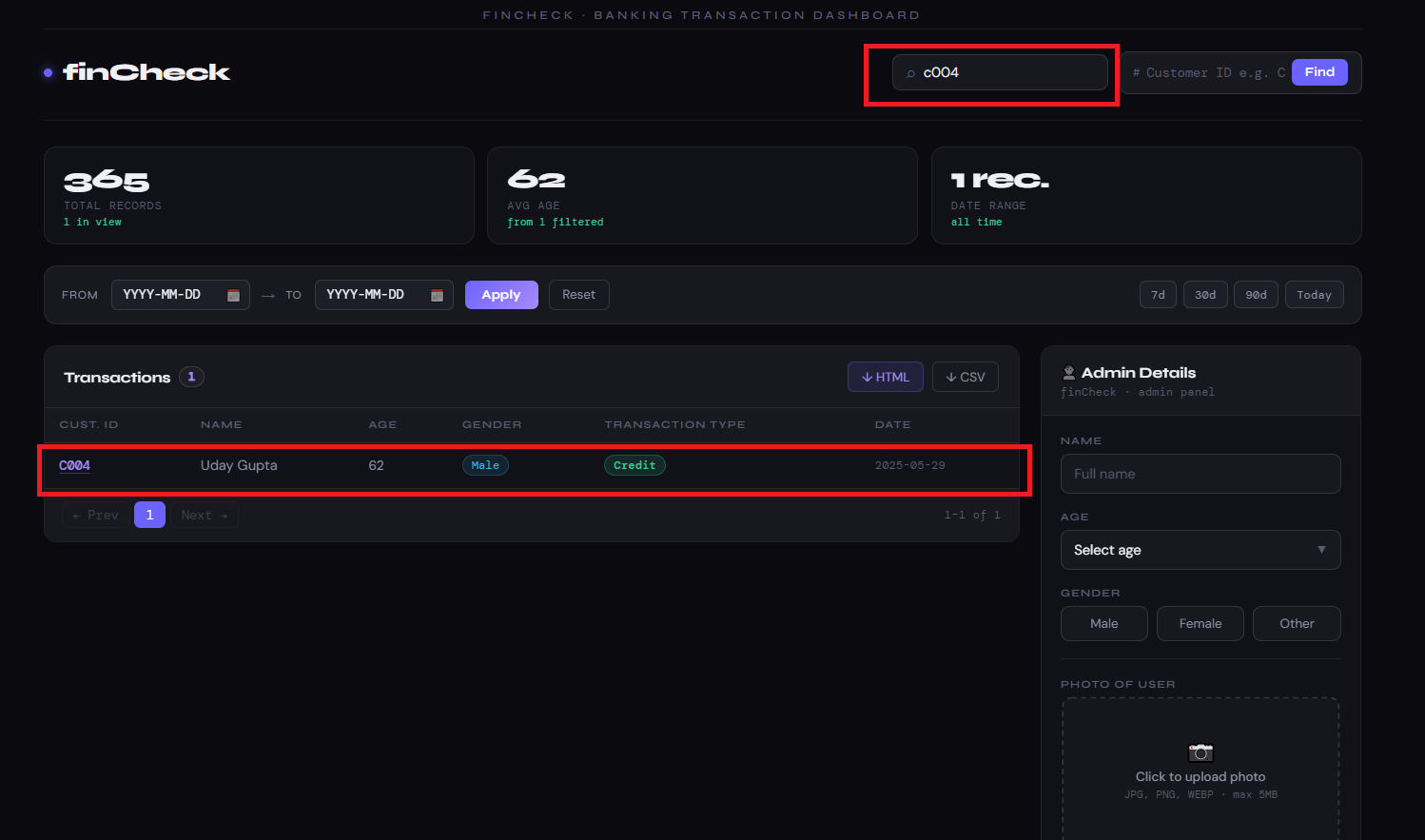
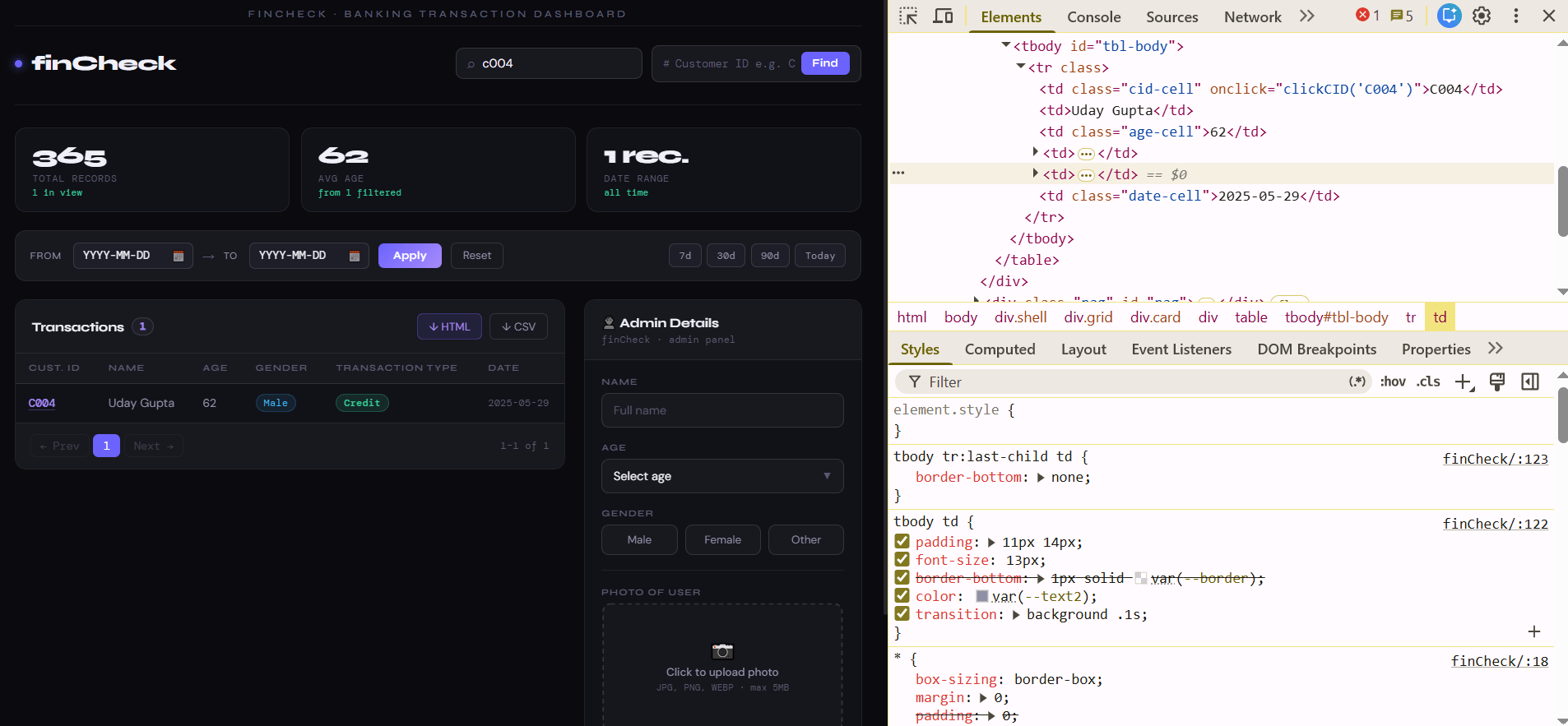
Before Search:-
Transaction Table Representation
| txn_id | customer_id | txn_type | amount |
|---|---|---|---|
| TXN1001 | C001 | Debit | 2000 |
| TXN1002 | C004 | Credit | 5000 |
| TXN1003 | C007 | Debit | 1000 |
After Search:-
| txn_id | customer_id | txn_type | amount |
|---|---|---|---|
| TXN1002 | C001 | Debit | 2000 |
Task 2: Inspect Dynamic Transaction Rows
Open FinCheck Dashboard
1
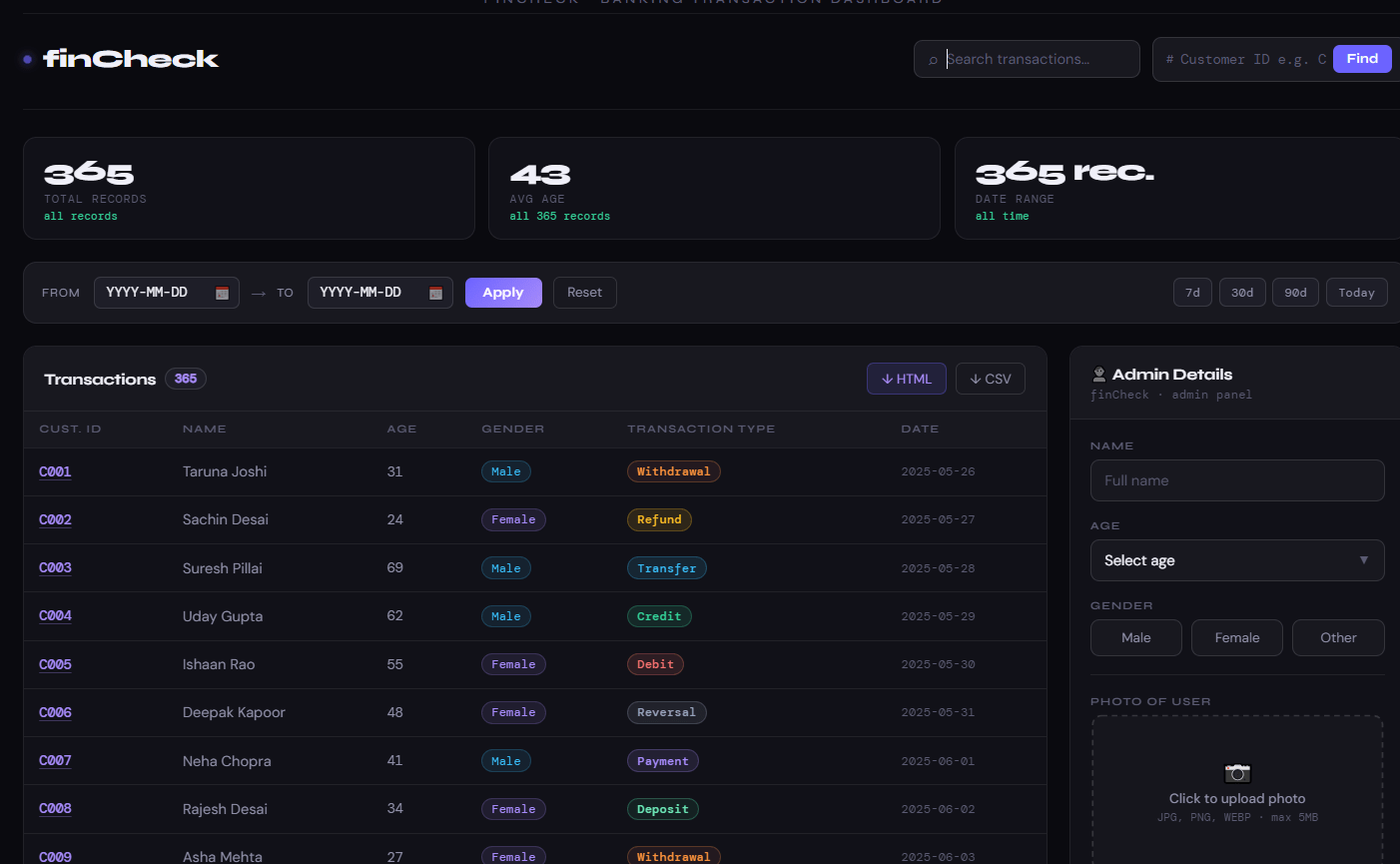
What is Search Inspection?
Search inspection helps testers understand how webpage records change after user input.
Testers inspect must search textbox, Update records and Dynamic HTML changes.
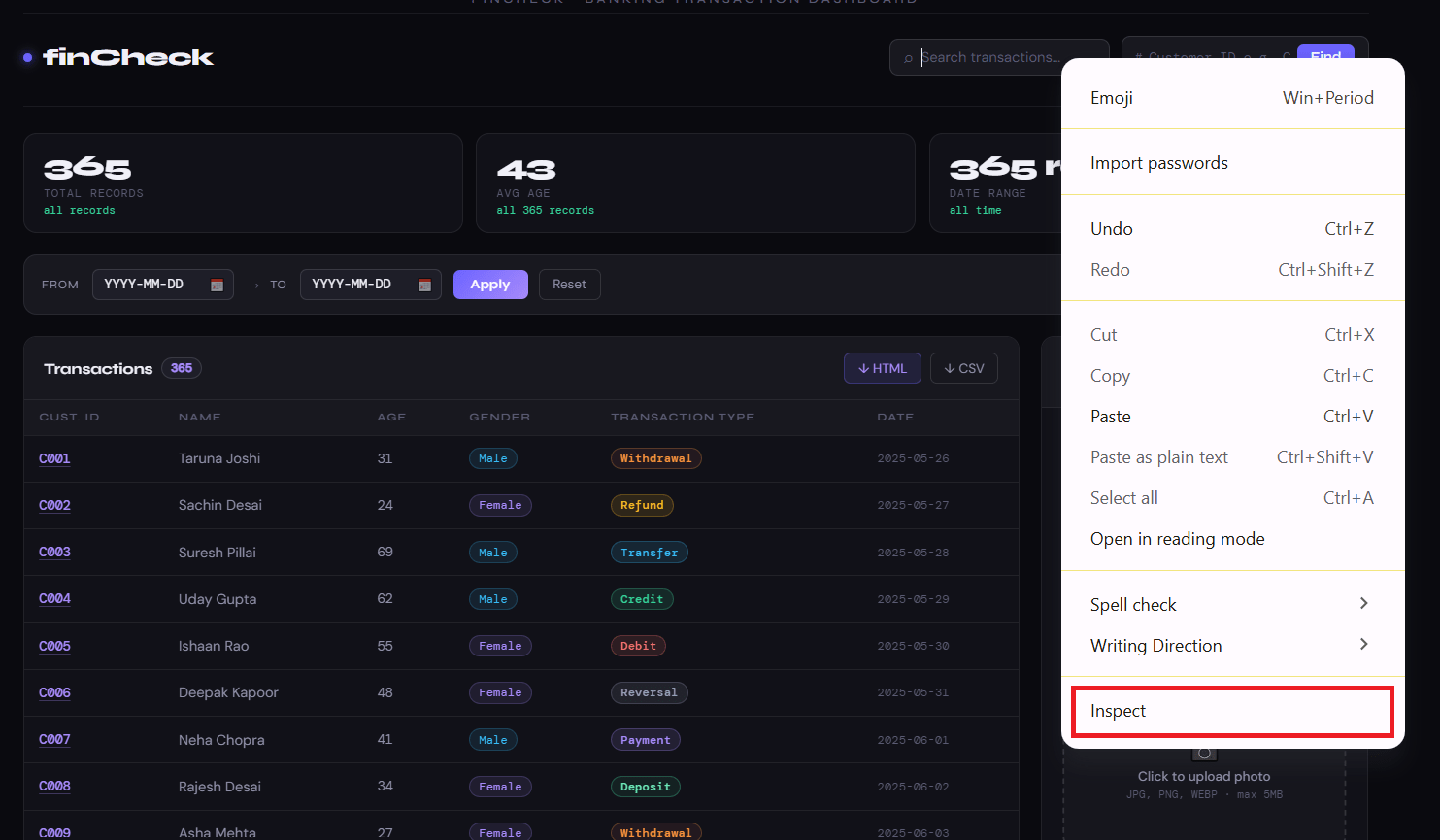
Activity
Right click search textbox
Click Inspect
Observe highlighted input element
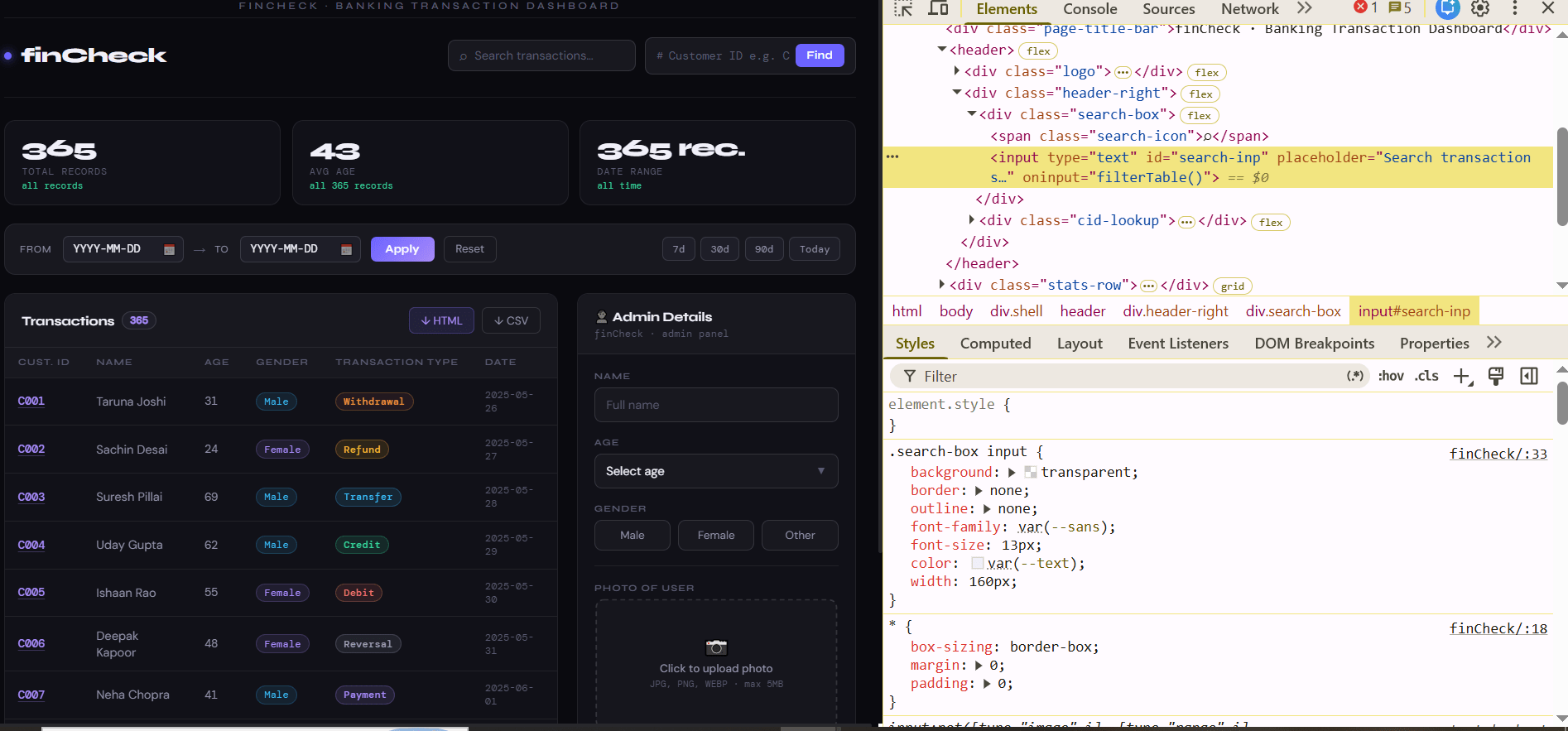
HTML Representation
<input
type="text"
id="search-inp"
placeholder="Search transactions">
Inspect Filter Changes
2
What is Filter Inspection?
Filter inspection means observing how webpage data changes after filters are applied.
Filters help users view only matching transaction records.
Types of Filters
-
Credit Filter
Displays only credit transactions.
-
Debit Filter
Displays only debit transactions.
-
Date Filter
Displays transactions from selected dates.
How Filter Works
-
User applies filter.
-
System refreshes matching transaction records dynamically.
-
Old rows disappear and filtered rows appear automatically.
Activity
Apply Credit filter
Observe transaction table updates
Inspect updated rows using DevTools
-
Date Filter
Displays transactions from selected dates.
How Filter Works
-
User applies filter.
-
System refreshes matching transaction records dynamically.
-
Old rows disappear and filtered rows appear automatically.
Transaction Table Representation
Before Filter
| txn_id | amount |
|---|---|
| Debit | 2000 |
| Credit | 5000 |
| Debit | 1000 |
After filter
| txn_id | amount |
|---|---|
| Credit | 5000 |
Task 4: Inspect Dynamic Pagination
Understand Pagination
1
What is Pagination?
Pagination divides large transaction records into multiple pages.
Banking applications use pagination to improve webpage readability and performance.
Types of Pagination Buttons
-
Next Button
Moves to next records page.
-
Previous Button
Moves to previous records page.
-
Page Numbers
Displays available pages dynamically.
How Pagination Works
-
System displays limited transaction rows per page.
-
Pagination updates dynamically after filtering or searching.
<div id="pagination">

<button class="pag-btn">
Prev
</button>

<button class="pag-btn active">
1
</button>

<button class="pag-btn">
Next
</button>

</div>
Observe Dynamic Pagination Changes
2
What is Dynamic Pagination?
Dynamic pagination updates automatically after filtering or searching.
Page buttons may increase or decrease depending on available transaction records.
How Dynamic Pagination Works
Before filtering :-
5 pages visible
After filtering :-
1 pages visible
Pagination rebuilds automatically based on matching records.
Activity
Search customer ID :- C004
Observe pagination buttons again
Inspect updated pagination HTML
Transaction Table pagination Representation
Before Search
Prev 1 2 3 4 5 Next
After Search
Prev 1 Next
Task 5: Inspect Hidden HTML Elements
Understand Hidden Elements
1
What are Hidden Elements?
Hidden elements are webpage elements that exist inside HTML structure but are not visible on webpage screen.
These elements remain inside browser DOM and can still be inspected using DevTools.
Banking applications often use hidden elements for :-
-
popup handling
-
security-related operations
Types of Hidden Elements
-
Hidden Input Fields
Invisible input fields used for internal processing.
-
Hidden Upload Controls
File upload elements hidden from normal webpage view.
-
Hidden Popup Containers
Popup sections hidden until user action occurs.
-
file upload handling
-
background processing
-
Hidden Dynamic Sections
Sections displayed only after filter or search operations.
- display:none
-
visibility:hidden
-
opacity:0
-
position:absolute with off-screen values
Even though elements are invisible, they still exist inside webpage HTML.
Real Life Example
Banking application hides file upload control until user clicks :-
Upload Statement
The upload input exists inside HTML but remains hidden initially.
Step 2: Search Hidden Elements Using DevTools
How Hidden Elements Work
Webpage hides elements using CSS properties like :-
Search Hidden Elements Using DevTools
2
-
background webpage controls
-
dynamic popup handling
-
hidden upload elements
Activity
-
Open DevTools
-
Open Elements tab
-
Press Ctrl + F
-
Search :- opacity:0
-
Observe highlighted hidden HTML element
-
hidden webpage behavior
What is Hidden Element Inspection?
Hidden element inspection helps testers identify invisible webpage components inside browser HTML structure.
QA testers inspect hidden elements to understand :-
<input
type="file"

style="
opacity:0;
position:absolute;
left:-9999px;
">
Hidden Element Representation
Inspect Hidden CSS Properties
3
What are Hidden CSS Properties?
Hidden CSS properties are styling rules used to hide webpage elements visually.
These properties affect webpage visibility without removing elements from DOM.
Types of Hidden CSS Properties
-
opacity:0
Makes element invisible.
-
display:none
Hides element completely from webpage view.
-
visibility:hidden
Element space remains reserved but element becomes invisible.
-
left:-9999px
Moves element outside visible screen area.
Activity
-
Expand hidden input tag
-
Observe CSS style section
-
Identify hidden properties
Inspect Dynamic Hidden Sections
4
What are Dynamic Hidden Sections?
Some webpage sections remain hidden until specific user activity occurs.
Examples :-
-
popup windows
-
transaction details
-
advanced filters
-
error messages
How Dynamic Hidden Sections Work
User performs activity :-
-
click button
-
apply filter
-
open popup
Webpage changes hidden section visibility dynamically.
Activity
-
Click Advanced Filter button
-
Observe newly displayed filter section
- Inspect newly visible HTML structure
Task 6: Inspect Disabled and Enabled Button Behavior
Understand Disabled Buttons
1
What is Disabled Button?
A disabled button is a button that exists on webpage but cannot be clicked by user until specific conditions are completed.
Banking applications use disabled buttons to prevent invalid actions before required data is entered.
Types of Disabled Button Usage
-
File Upload Validation
Upload button remains disabled until file is selected.
-
Form Validation
Submit button remains disabled until mandatory fields are completed.
-
Transaction Validation
Payment button remains disabled until transaction details are valid.
-
Login Validation
Login button remains disabled until username and password are entered.
How Disabled Buttons Work
-
Initially :-
1. button remains disabled
2. user cannot click button
- After valid activity :-
1.button becomes enabled
2. user can perform action
Real Life Example
Customer uploads bank statement image.
Before upload :-
Submit button disabled
After image upload :-
Submit button enabled automatically
Inspect Disabled Upload Button
2
What is Disabled Attribute?
The disabled attribute prevents user interaction with webpage buttons or input fields.
QA testers inspect disabled buttons to understand webpage validation behavior.
Activity
-
Open FinCheck webpage
-
Observe Upload button
-
Right click Upload button
-
Click Inspect
Disabled Button Representation
<button id="uploadBtn" disabled>
Upload Statement
</button>
Fill Complete Form and Observe Button Changes
3
What is Form Validation?
Form validation checks whether all required customer details are completed correctly before allowing submission.
Banking applications validate :-
-
customer name
-
age selection
-
gender selection
-
document upload
before enabling Submit button.
How Form Validation Works
-
Initially :-
Submit button disabled
-
User completes :-
1. name field
2. age selection
3. gender selection
4. image upload
-
System validates all fields automatically.
-
After successful validation :-
Submit button becomes enabled.
Activity
-
Enter Admin Name
-
Select Age from dropdown
-
Select Gender
-
Upload Admin image
-
Observe Submit button state
-
Inspect updated button HTML using DevTools
Understand Validation-Based Enablement
4
Why Applications Disable Buttons?
Applications disable buttons to prevent incomplete or invalid actions.
This improves :-
-
data validation
-
security
-
form accuracy
-
user experience
Real Life Example
Customer tries to submit KYC form without uploading image or selecting gender.
Submit button remains disabled.
After entering :-
-
customer name
-
age
-
gender
-
image upload
Submit button becomes enabled automatically.
Good Job!!
In this lab, you learned about Dynamic Webpage Behavior, DOM Updates, Filters, Pagination, Hidden HTML Elements, and Validation-Based UI Changes.
You also practiced Inspecting Transaction Tables, tracking Live Webpage Updates, analyzing Search & Filter Behavior, and validating Disabled Buttons & Dynamic Forms using DevTools.
By completing this lab, you now understand how QA Testers Inspect, Track, and Validate Real-Time UI Changes inside Banking Applications.
Checkpoint
Next-Lab Preparation
Git Push
git push origin branchNameTopic : Java Basics
• Install Eclipse
• Write basic Java programs
• Understand syntax and structure
• Execute scripts