Cursor

AI Assistant



Learning Outcome
5
4
3
2
1
What is Cursor AI?
Core Features of Cursor AI
1
2
3
4
5
What is Cursor AI?
Core Features of Cursor AI
1
2
3
What is Cursor AI?
Core Features of Cursor AI
6
7
8
Why Frontend Developers Prefer Cursor
Installing and Setting Up Cursor
How Cursor Works
Real-Time Practical Demo
Cursor AI Chat (In-Editor Assistant)
Use Cases in Real Projects
1
What is Cursor AI?
9
Summary
WHAT IS CURSOR AI?
AI-Powered Code Editor

Cursor AI is a full IDE with AI deeply built in — not just an extension.
Built specifically for developers who want to code faster, smarter, and with less friction.
Unlike extensions, Cursor is a full IDE with AI deeply built in.
Full IDE
A complete development environment — not a plugin sitting on top of another editor.
Deep AI Integration
Generate features, fix bugs, and understand complex logic using simple natural language instructions.

KEY FEATURES
What makes Cursor AI stand out from the crowd


AI-Powered Assistant
Cursor acts as a smart assistant that understands your project context.
Use simple instructions to generate features, improve code, or understand complex logic.


Faster Coding
Autocomplete Tool
Cursor’s AI autocomplete predicts your intent.
It provides meaningful suggestions for smoother, more intuitive development.
With real-time suggestions and automated improvements, Cursor reduces repetitive work.
It helps developers build applications faster and more accurately.


FEATURE
OF CURSOR AI


Natural Language Editing
Cursor lets developers edit code using plain English.
Select a block and ask it to improve, refactor, fix errors, or add features.
It rewrites the code automatically as instructed.
Project Aware AI
Cursor understands your entire project, not just one file.
It generates more accurate and consistent code.
It helps prevent breaking existing logic when making changes.


FEATURE
OF CURSOR AI
Multi-File Refactoring
Cursor can update multiple files in one step.
It’s useful for renaming variables or restructuring features.
Saves time by avoiding manual edits in every file.


Built-in AI Chat
Cursor has an AI chat panel for coding support.
Developers can ask questions or request new features.
It understands project files for accurate, relevant answers.


FEATURE
OF CURSOR AI
Built-in AI Chat
While typing, Cursor gives real-time AI suggestions.
It can complete lines, functions, or logic blocks.
Suggestions are context-aware, not just basic autocomplete.

AI Codebase Search
Cursor helps you find code using plain language.
You can describe what you need.
It locates related functions, files, or logic across the project.


How Cursor AI Works

You Write or Select Code

Cursor Understands the Context

AI Generates Smart
Suggestions
You Review the Output


Apply and
Continue Coding

Faster
Development
Continues
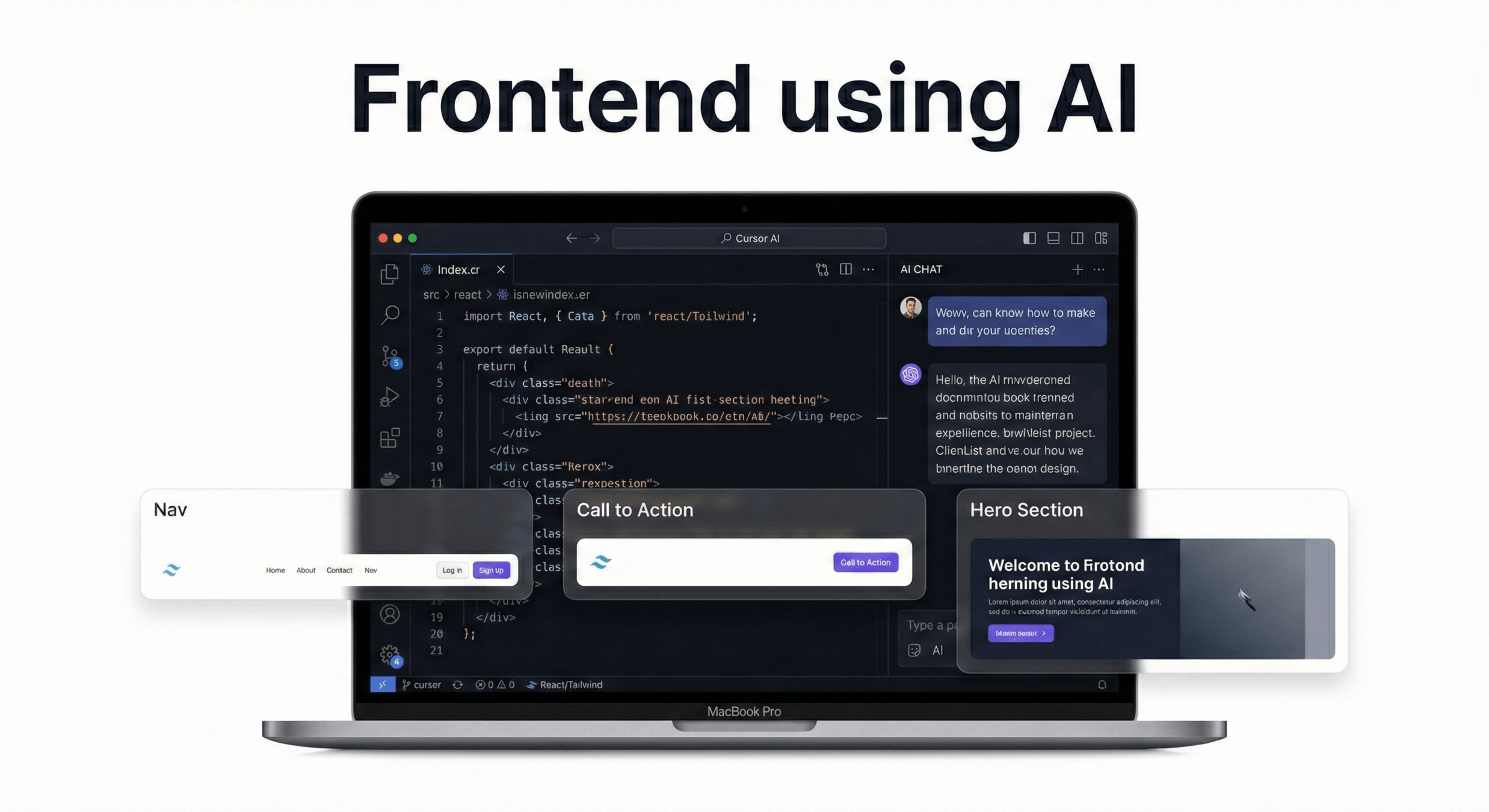
Frontend Using CURSOR AI
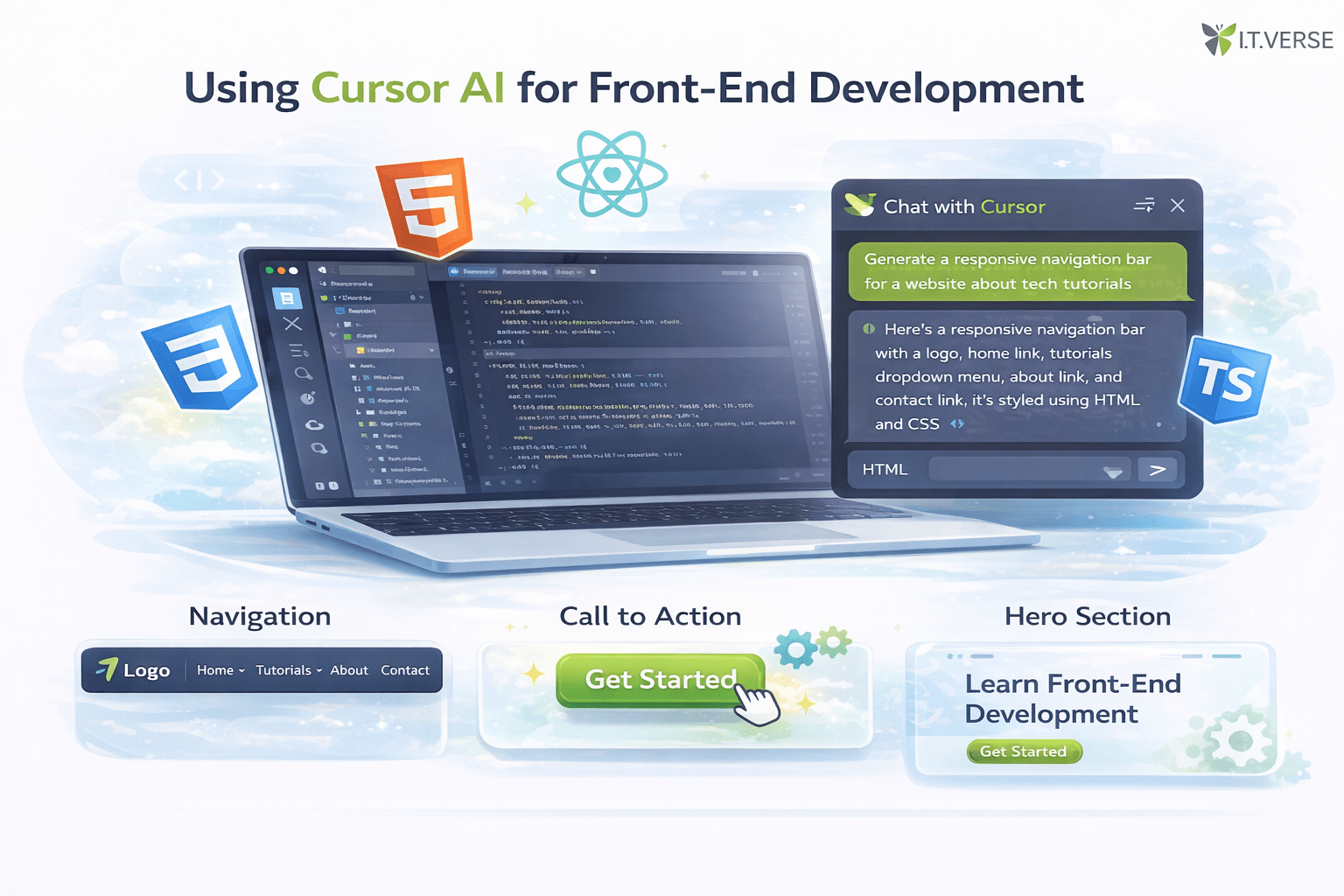
How To Use Cursor AI

Download
and Install Cursor

Sign In

Open Your
Project

Enable
AI Features

Start
Building
Conclusion
Cursor AI is a powerful AI-driven code editor that helps developers build applications faster and more efficiently. By offering intelligent code suggestions, real-time editing assistance, and natural language instructions, Cursor makes coding more intuitive and productive. It helps reduce errors, improves code quality, and supports learning by explaining and generating code instantly. Overall, Cursor AI acts like a smart development partner, simplifying frontend and full-stack development while boosting creativity and speed.
Lab: First Code Suggestion using Cursor
Open Cursor
Click Open Folder → Select any project folder
Create a new file - index.html
Ask Cursor to Build HTML Using a Comment
<!-- Create a responsive navbar with logo on left and links on right -->
<!-- Add a hero section with heading, paragraph, and call-to-action button -->
Cursor will suggest code
Press Tab to accept.

Lab 1: Build a Responsive Card Layout (HTML + CSS)
Step 1: Create File
Step 2: Ask Cursor to Generate Layout
Step 3: Style with Cursor
Step 4: Improve with AI Edit
<!-- Create a responsive grid of 3 product cards with image, title, price and button -->
Press Tab to accept suggestion.
<!-- Create a responsive grid of 3 product cards with image, title, price and button -->
Press Tab to accept suggestion.
Select one card → Press Ctrl + K
Lab 2: Interactive Form with Validation (HTML + JS)
Step 1: Create File form.html
<!-- Create a contact form with name, email, message and submit button -->
Accept suggestion.
Step 2: Add Validation Script
// Validate form so email must be valid and fields cannot be empty. Show error messages.
Accept suggestion.
Step 3: Connect JS to HTML
Select form → Ctrl + K
<!-- Link external JavaScript file -->