Data Preparation for Automation


Spreadsheet Cleaning and Auto-Fill Formulas
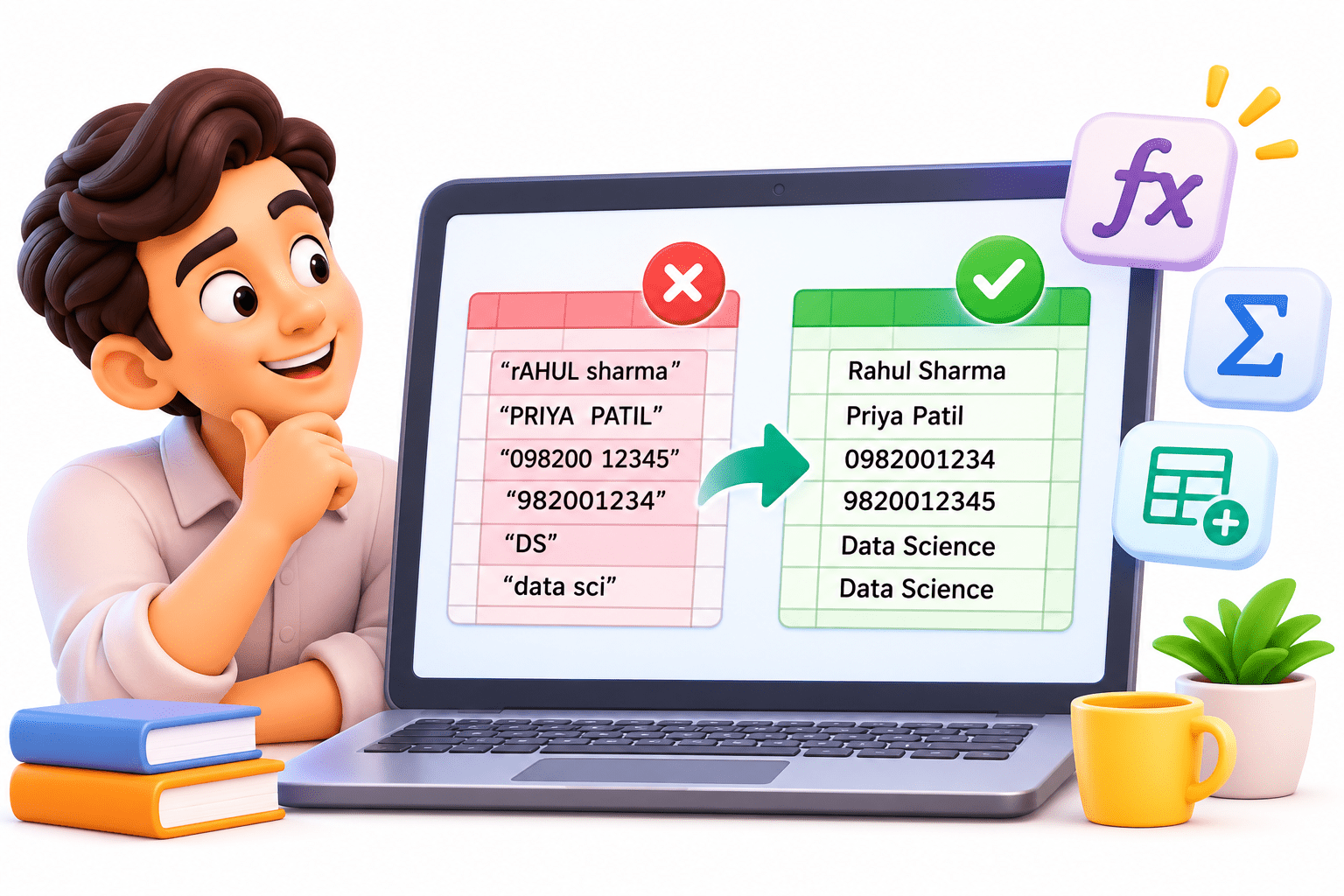

Learning Outcome
5
Connect helper columns to safe cleaning.
4
Apply ARRAYFORMULA to growing sheets
3
Recognize why dragged formulas break Zaps.
2
Identify key spreadsheet cleaning functions
1
Understand what makes a sheet Zap-ready.
Imagine an OMR scanner reading an answer sheet.
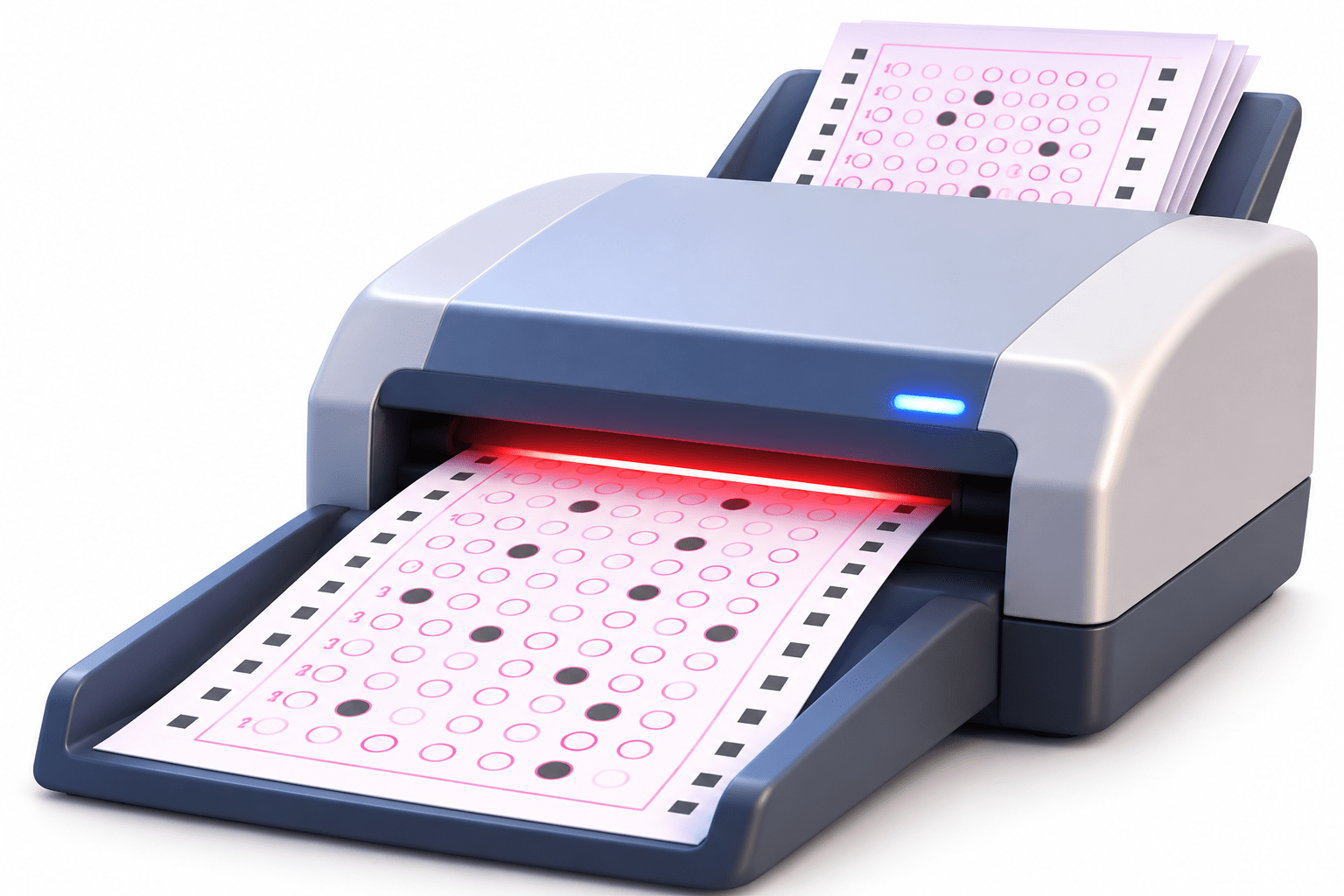
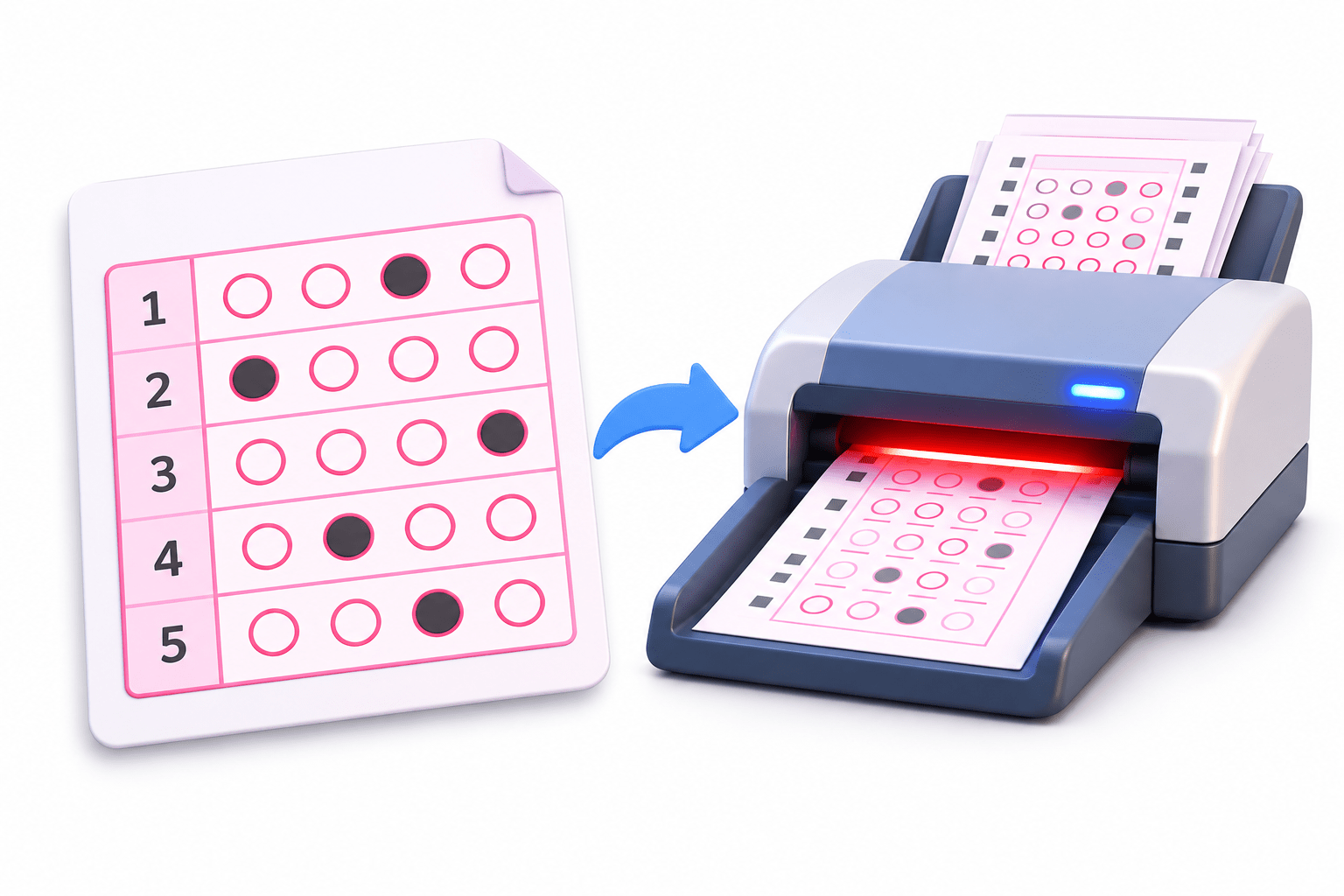
Follow the Expected Format
One row per question and one bubble per answer lets the scanner read everything correctly, just like a Zap expects structured spreadsheet data.
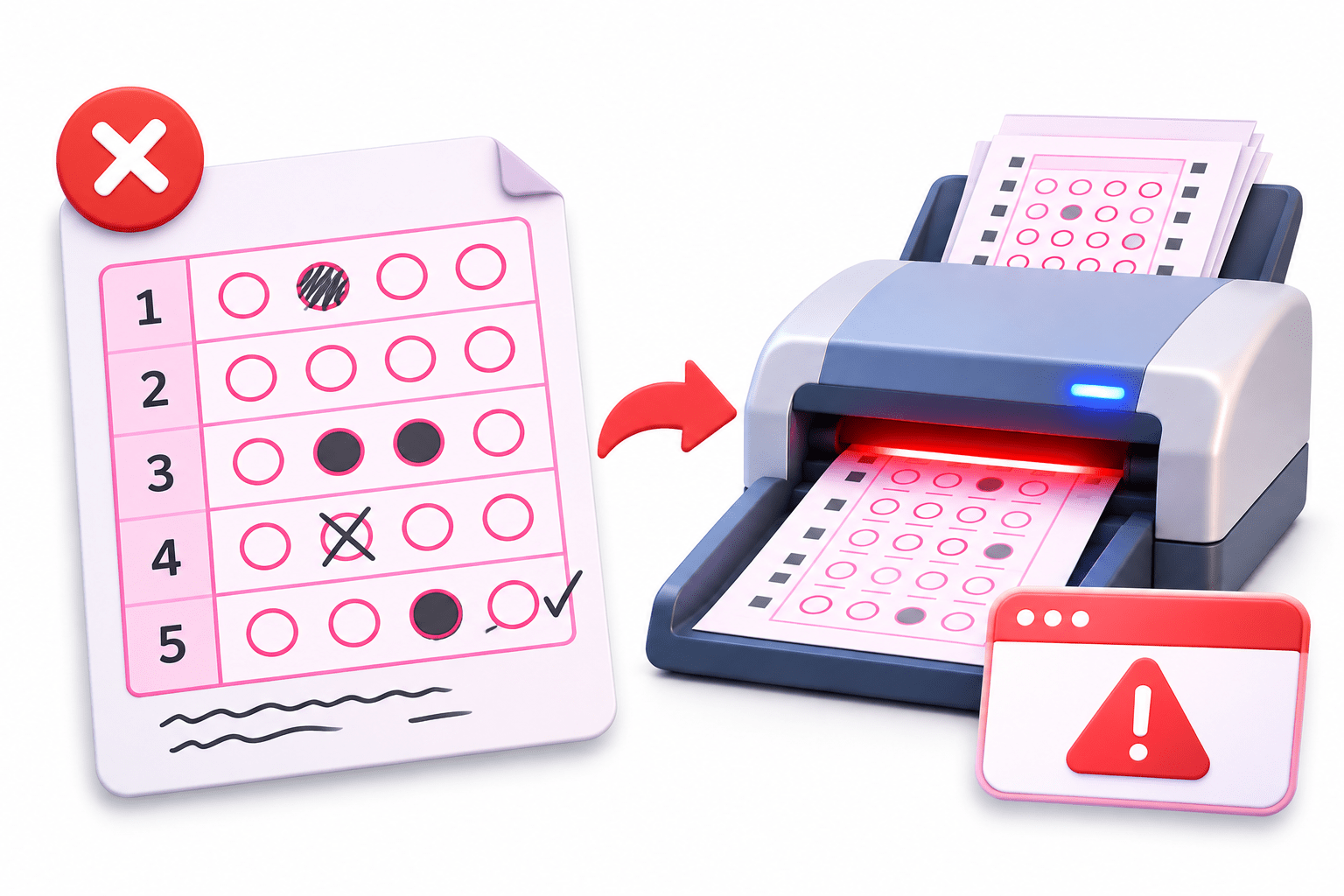
Wrong Format Causes Problems
Notes, missing fields, or inconsistent entries can make the scanner misread or reject the sheet, just like poorly structured spreadsheet data can break a Zap.
Zap Works Like the Scanner
When spreadsheet data follows a consistent structure, Zapier can read and process each row reliably.

Someone adds “Total Leads: 245” below the last lead, and new leads keep coming. What does the Zap see?
Another record. To the Zap, it’s a margin note on the OMR sheet.
Let’s make sheets machine-readable



What is a Zap-Ready Spreadsheet?
Headers in row 1, with the first column header never blank
One record per row
One value per cell: name and phone in separate columns
Nothing extra: no merged cells, blank rows, notes, or totals (summaries go on another tab)
Consistent columns: same type and format throughout





Cleaning Data with Spreadsheet Functions
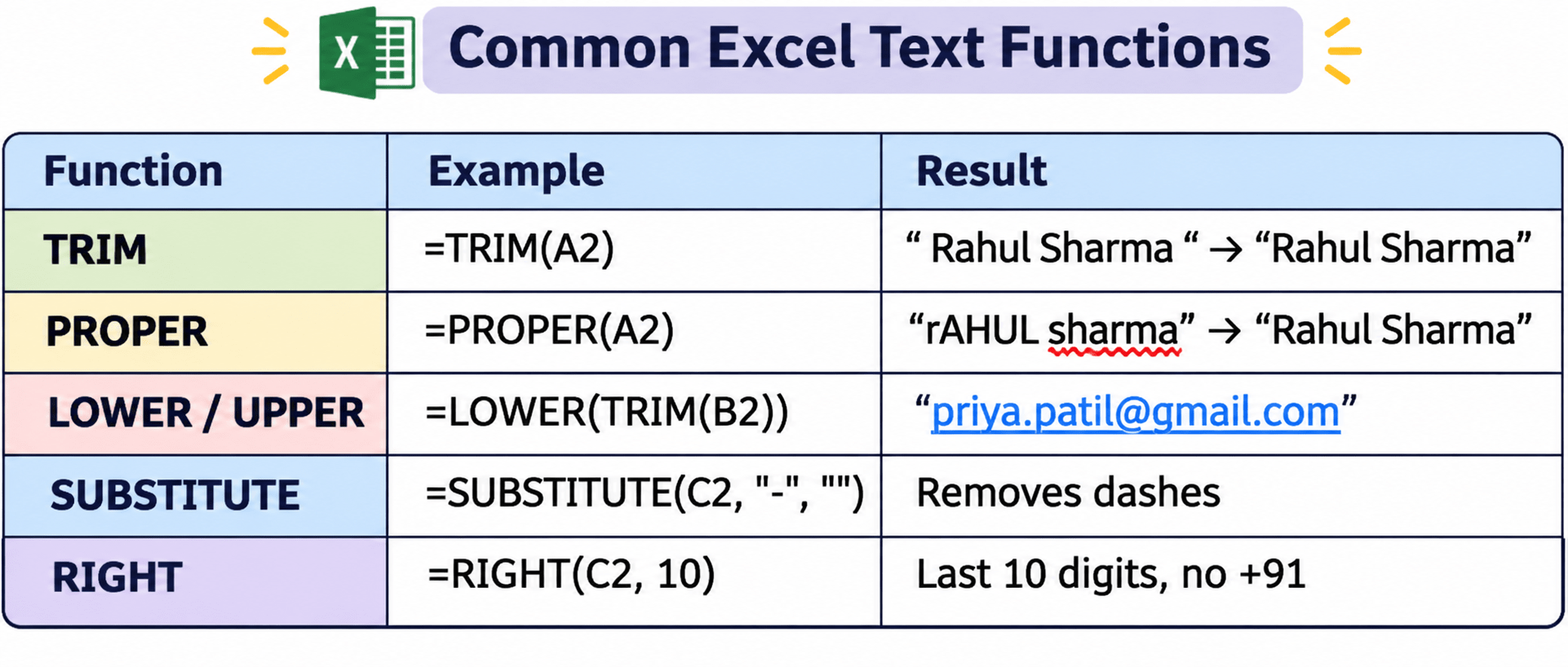
Combine functions: =PROPER(TRIM(A2)). For one-time cleanups, use Data → Data cleanup (Remove duplicates, Trim whitespace) or Split text to columns.

The Helper Column Approach
Helper column: a cleaning formula, e.g. Name (Clean) = =PROPER(TRIM(A2))
Later steps (reports, Zaps, the team) use only the clean column
Raw column: the data exactly as it arrived, e.g. Name (Raw)



Never overwrite raw data. If a formula errs, the original is still there

Auto-Fill Formulas
- Dragging the fill handle copies a formula into existing rows only. New rows miss it.
- ARRAYFORMULA is written once in row 2 and covers every row, now and in the future.

ARRAYFORMULA(IF(A2:A="", "", PROPER(TRIM(A2:A))))The IF part leaves cells blank when there’s no name yet. In Excel, use a formatted Table instead.

Why Dragged Formulas Break Zaps
“Create Spreadsheet Row” writes to the first empty row.
A dragged formula, even one showing nothing, makes a row not empty.
Drag a formula to row 1,000, and new leads land below row 1,000
The Zap’s new rows don’t get the formula.a
Dragged Formula vs ARRAYFORMULA
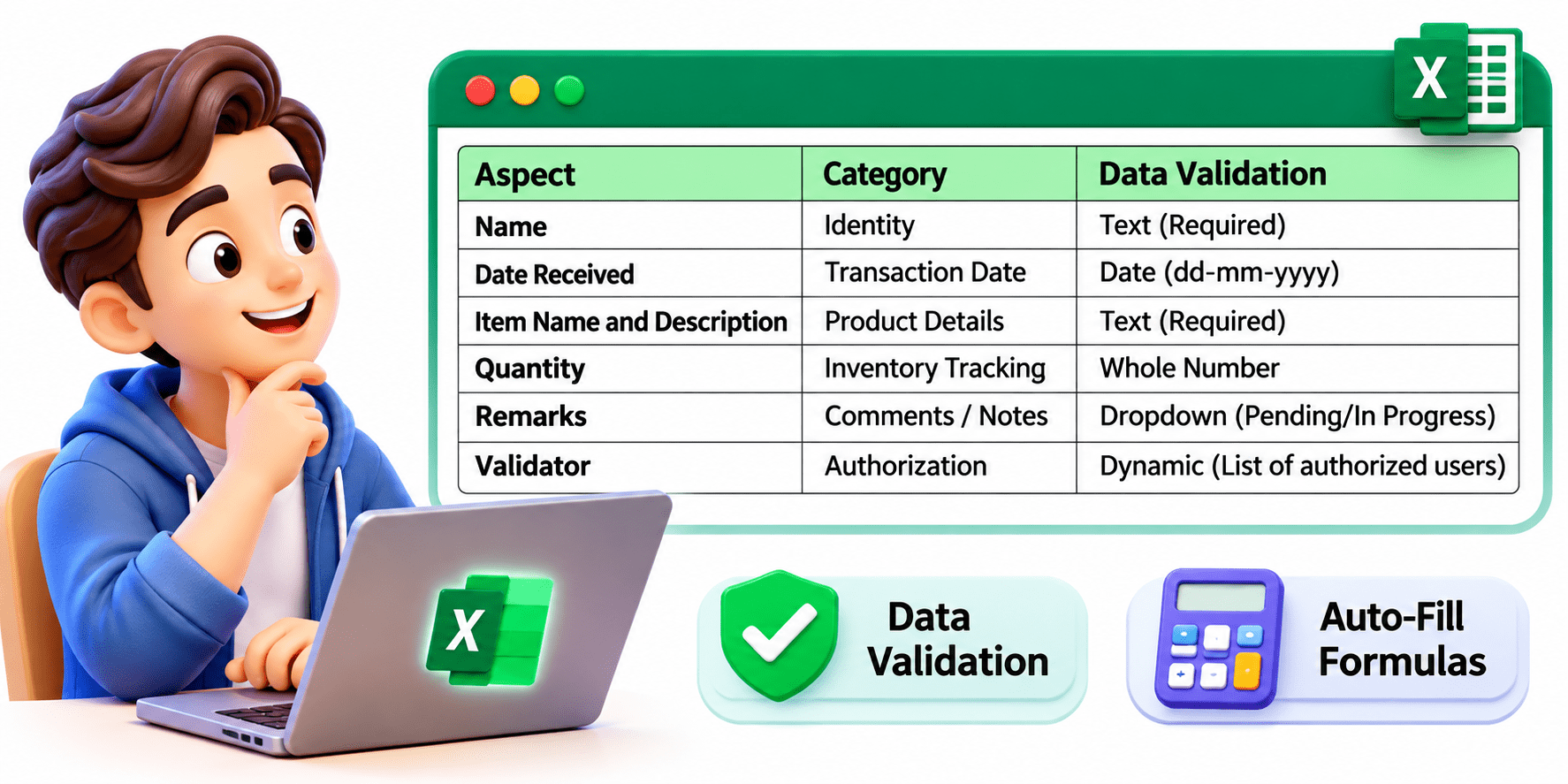
A Simple Way to Remember
Sheet will keep growing? Never drag a formula down. Write it once with ARRAYFORMULA in row 2.
One teammate typing over row 2 silently stops all future cleaning. How would you protect a shared sheet’s formulas?

Real-World Applications: Zap-Ready or Needs Fixing?
Headers in row 1, records from row 2 → Zap-Ready
“Contact” column with “Rahul Sharma - 9820012345” → Needs Fixing (split it)


“Total Leads: 245” row below the data → Needs Fixing (move it to a separate tab)
One ARRAYFORMULA in row 2, nothing below → Zap-Ready


Summary
5
Keep raw data and clean it in helper columns.
4
Use ARRAYFORMULA once in row 2 for growing sheets
3
Dragged formulas push Zap rows out of place.
2
TRIM, PROPER, LOWER, SUBSTITUTE, and RIGHT clean data
1
A Zap-ready sheet has headers in row 1 and one value per cell
Quiz
A Zap adds new leads at row 1,001, far below the data. What is the likely cause?
A. Headers in row 1
B. A formula dragged to row 1,000
C. ARRAYFORMULA in row 2
D. Trigger not tested

A Zap adds new leads at row 1,001, far below the data. What is the likely cause?
A. Headers in row 1
B. A formula dragged to row 1,000
C. ARRAYFORMULA in row 2
D. Trigger not tested

Quiz-Answer