Use OSINT tools to gather and analyze publicly available information.

Business Scenario
Welcome!
You are working as a Cyber Security Analyst at SecureXit, where you need to perform an OSINT assessment to identify publicly available information about a client's organization.
Your task is to use dnsenum, dnsrecon, dnsmap, lbd, theHarvester, Maltego, and Shodan to gather information, discover exposed services, and analyze the organization's external digital footprint for potential security risks.


Pre-Lab Preparation
Topic : Networking Fundamentals
1) Introduction to Networking.
2) IP Addressing.
3) DNS fundamentals.
4) HTTP/HTTPS protocols.
Task 1: Domain and Email Enumeration
1
Perform Domain Enumeration Using dnsenum
Open the Kali Linux terminal and run the following command:
dnsenum itvedant.com2
Enumerate DNS Information Using dnsrecon
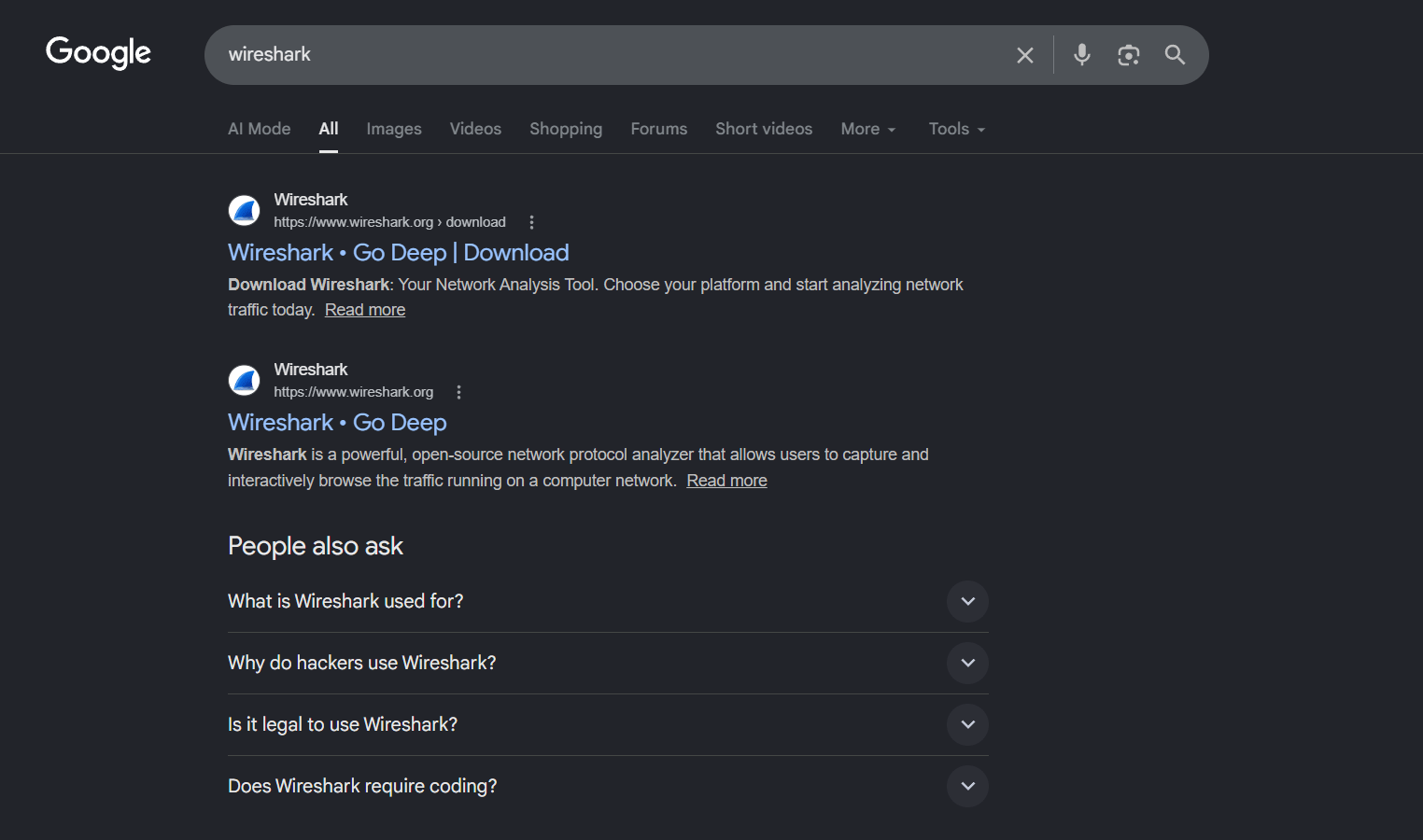
Click on the official Wireshark Download link from the search results.
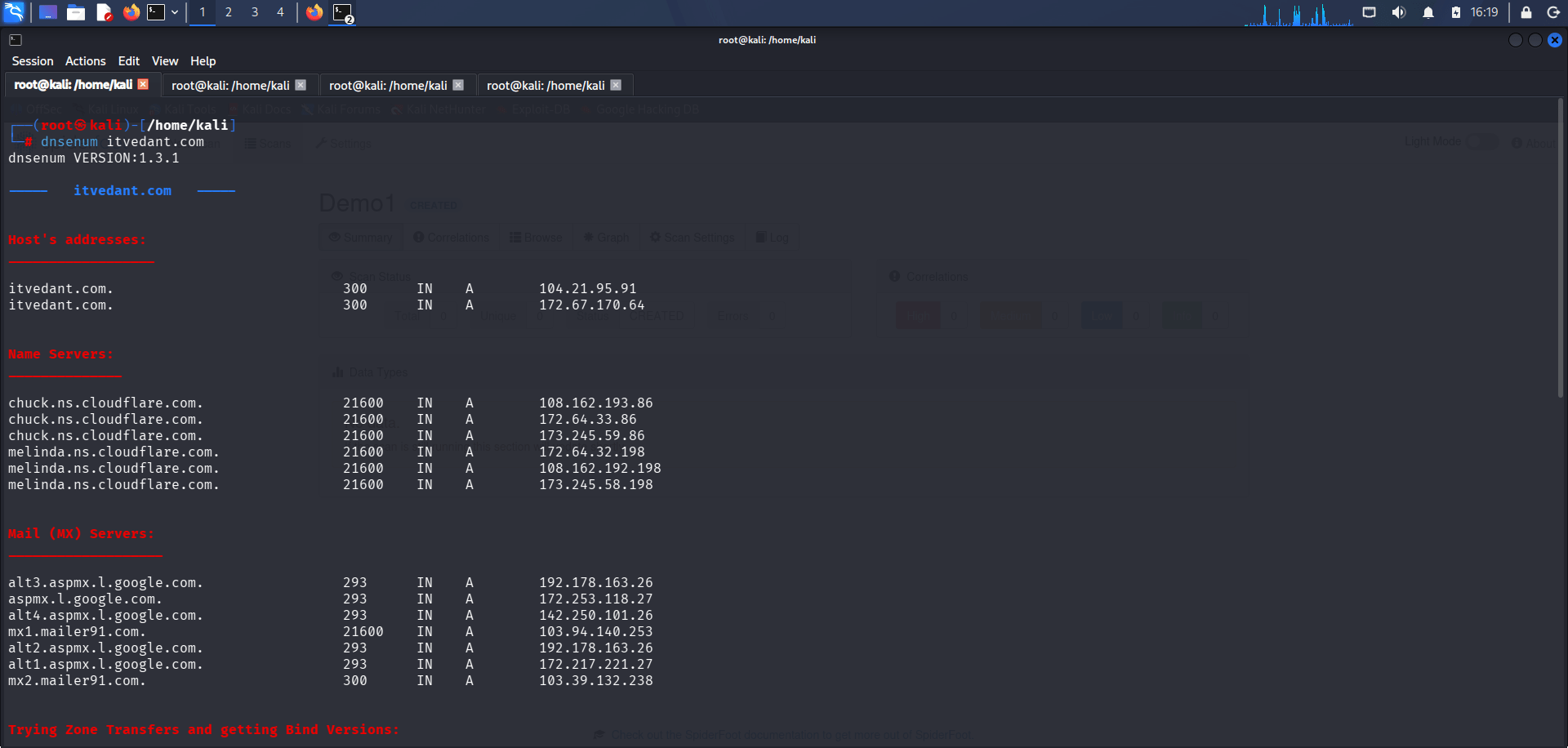
Review the output and identify DNS records, name servers, and discovered subdomains.
3
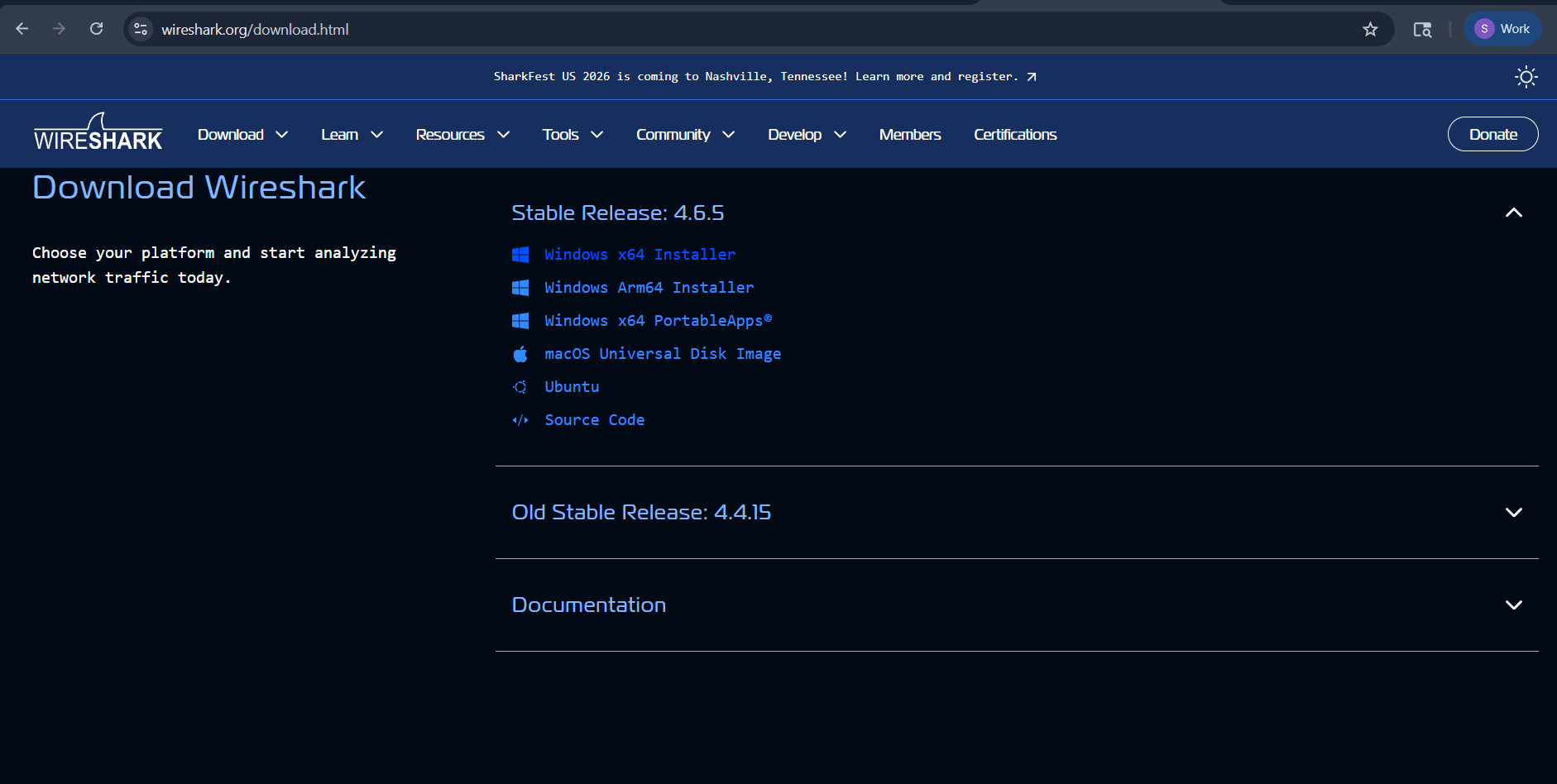
Access the Download Page and Select Windows Installer
Click on Windows x64 Installer to download the latest Windows version of Wireshark.
4
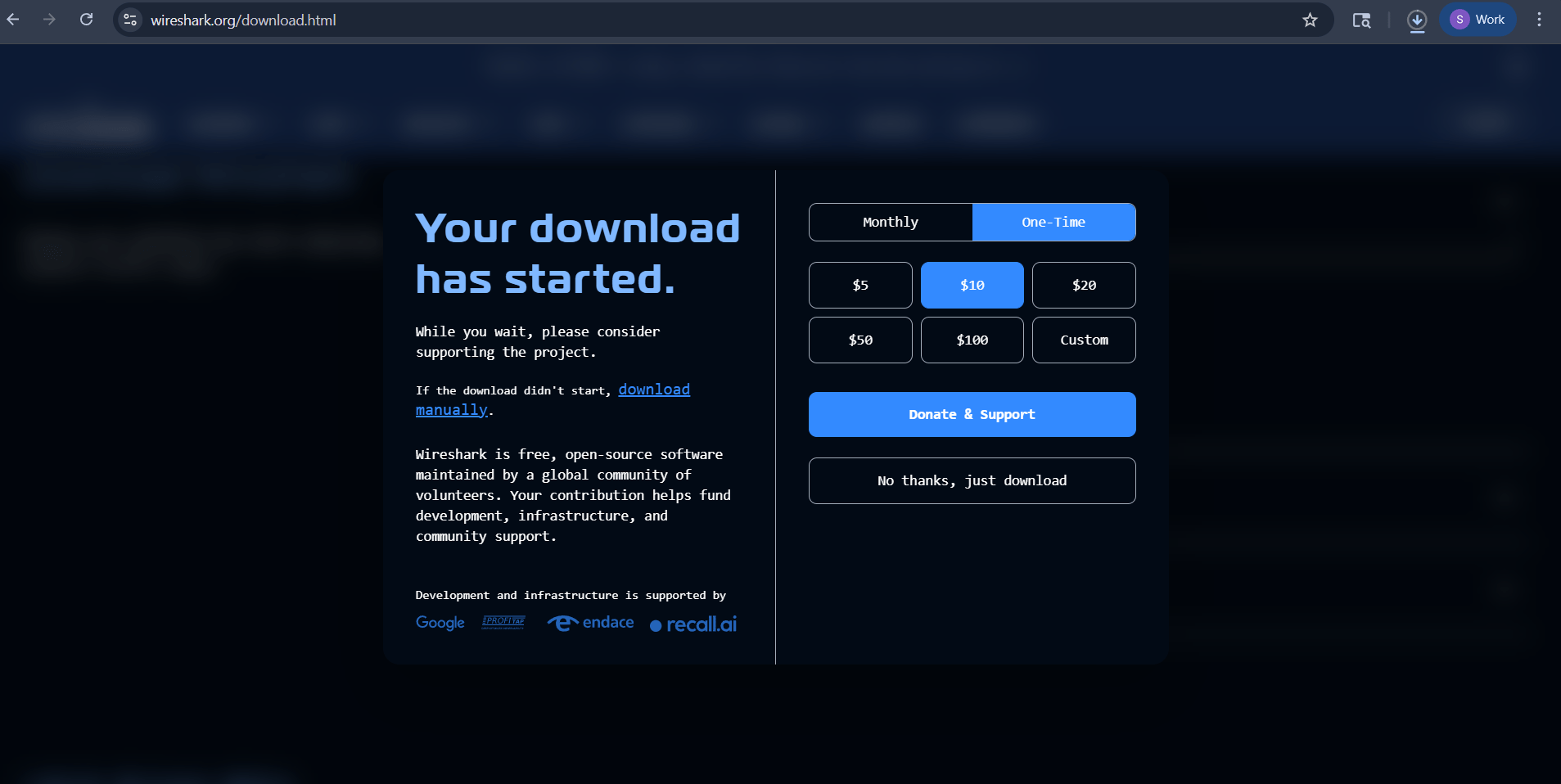
Start the Download
The download begins automatically; click “No thanks, just download” if prompted.
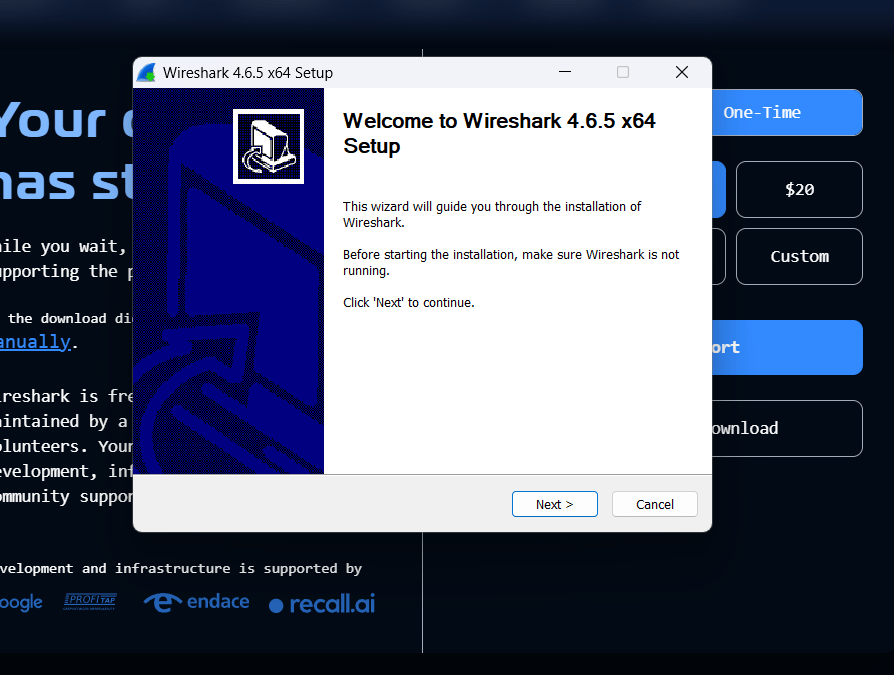
5
Launch the Setup File and Welcome to Setup Wizard
Click Next to continue with the Wireshark installation process.
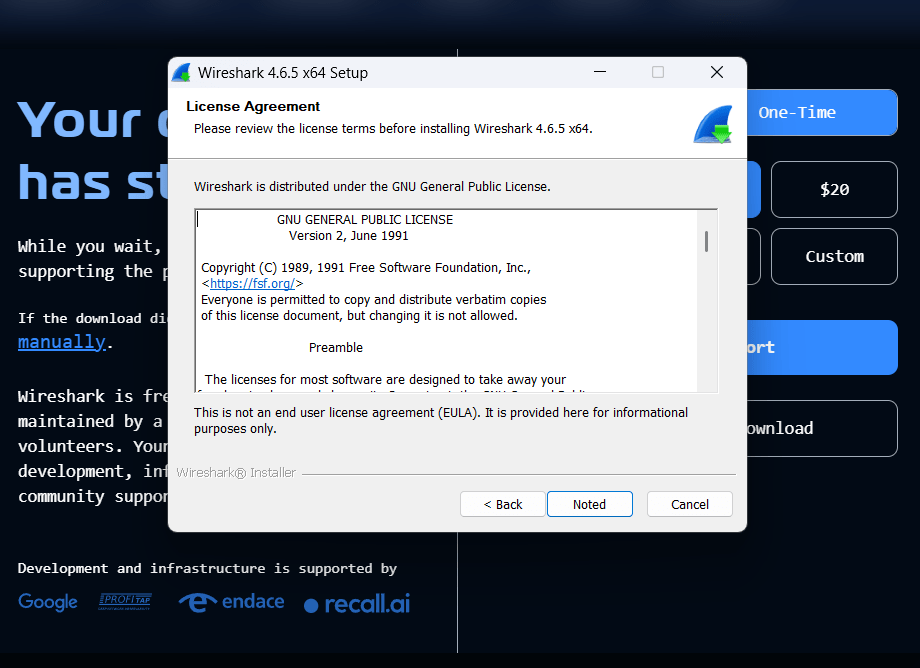
6
Accept the License Agreement
Read the license agreement and click Noted to proceed.
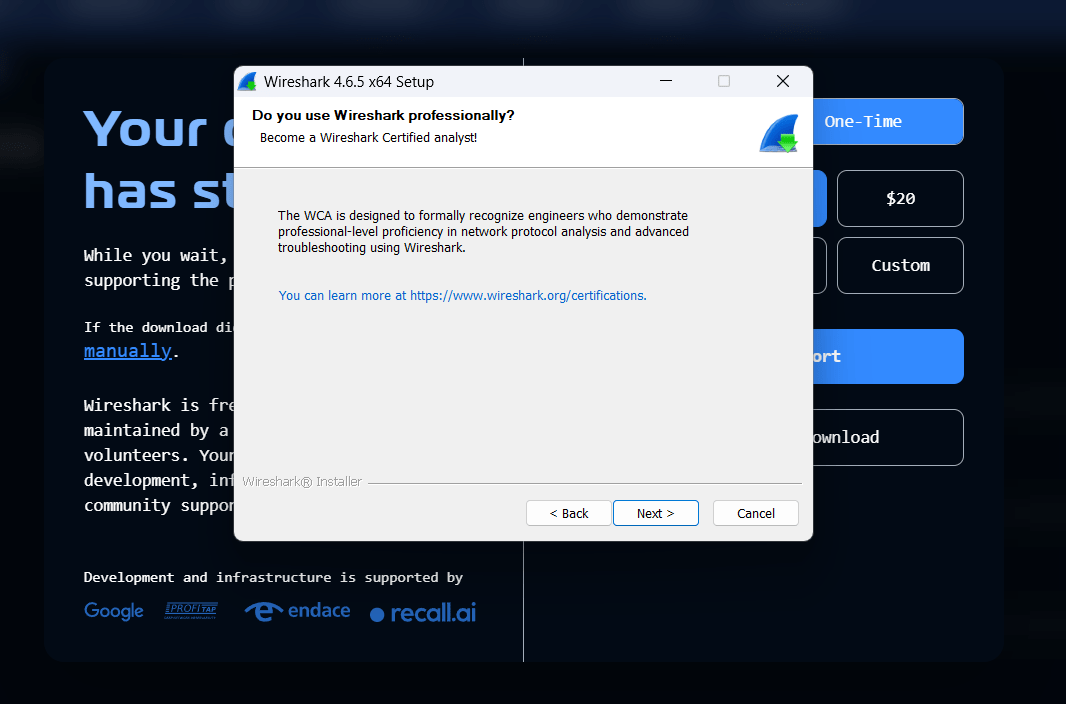
7
Continue Installation Setup
Click Next on the professional usage information screen.
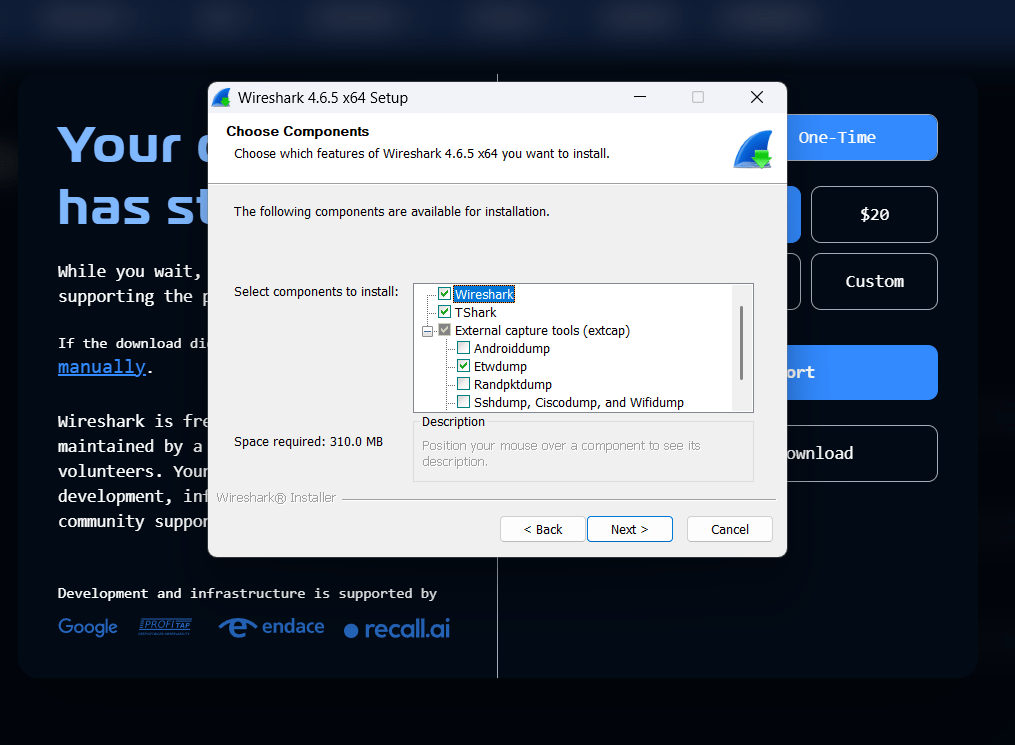
8
Choose Installation Components
Keep the default selected components and click Next.
9
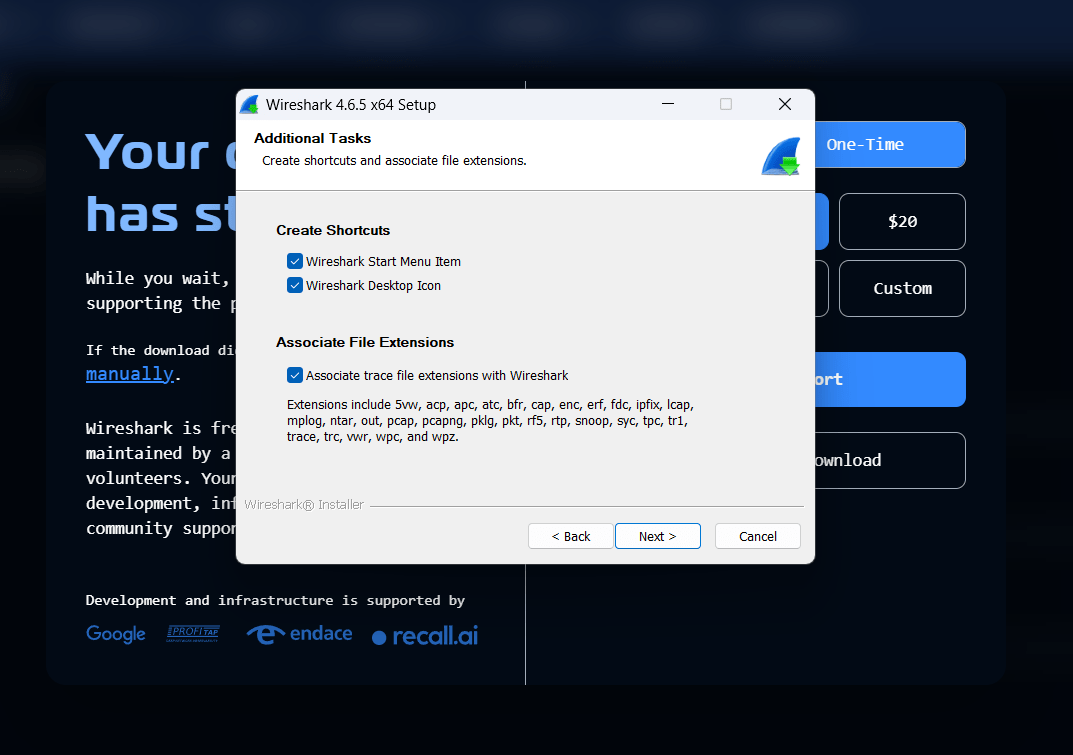
Select Additional Tasks
Choose shortcut and file association options, then click Next.
10
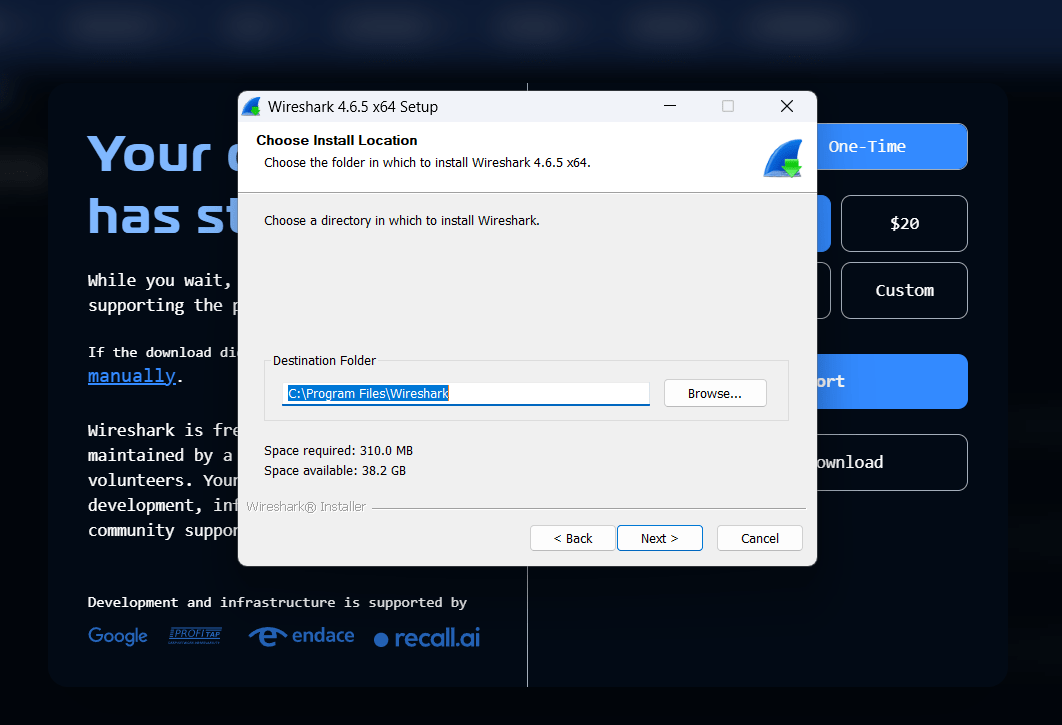
Choose Installation Location
Select the installation folder or keep the default path and click Next.
11
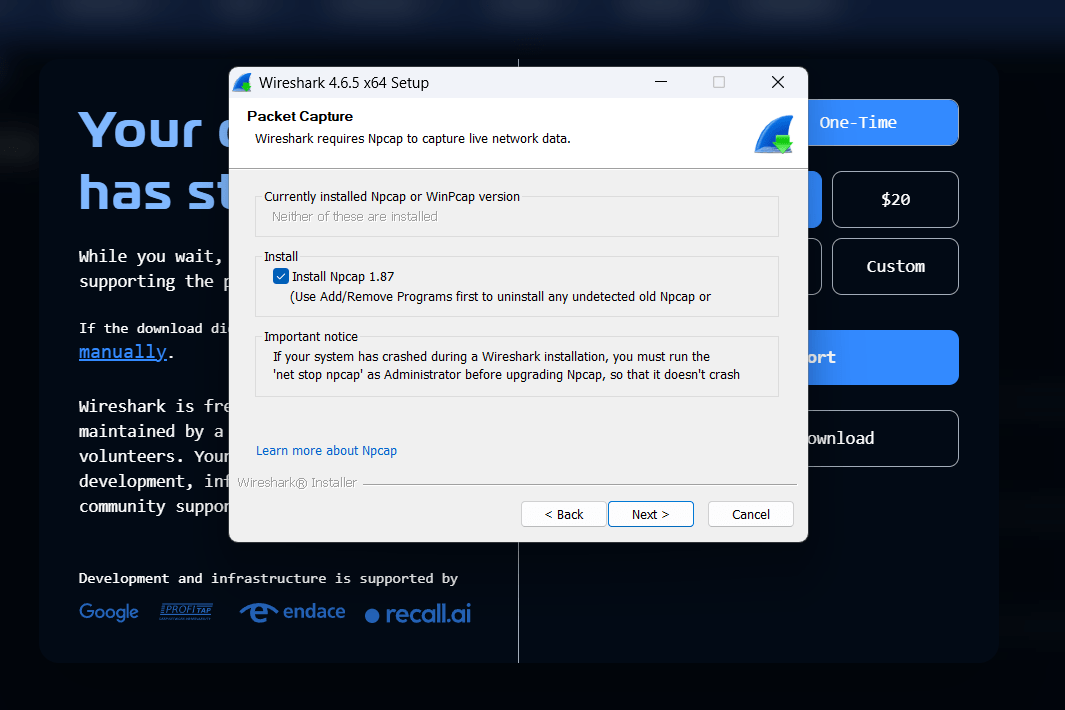
Install Npcap
Keep Install Npcap selected because it is required for packet capturing.
12
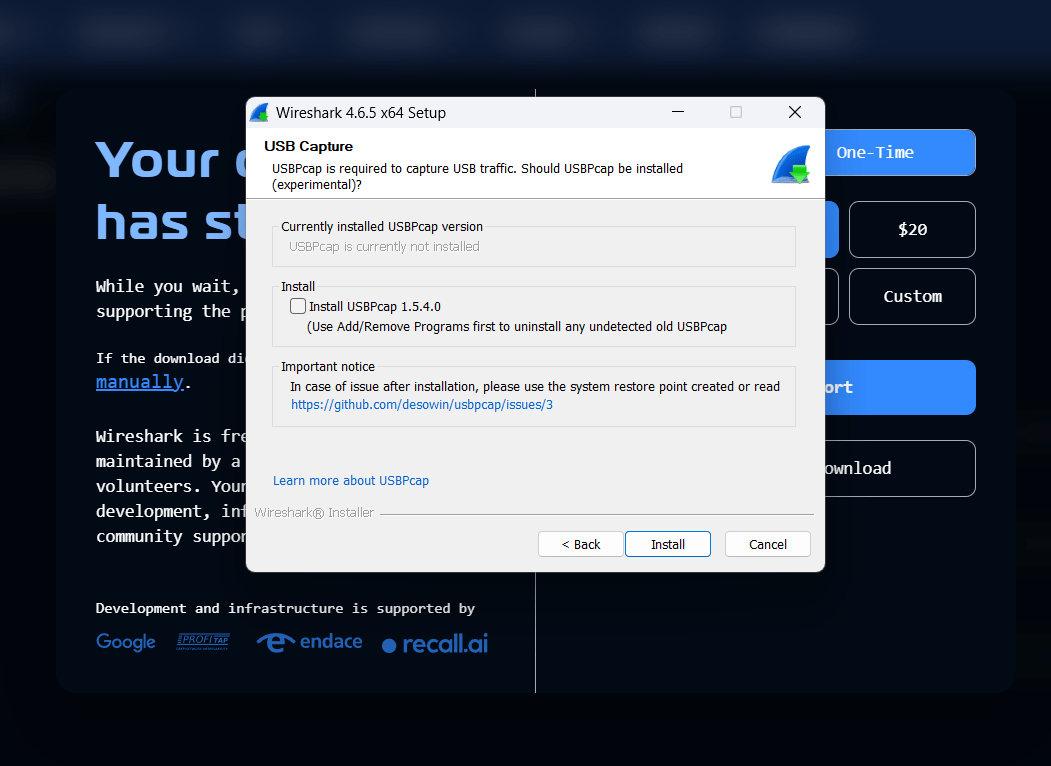
USBPcap Installation Option
Leave USBPcap unchecked unless USB traffic capturing is needed, then click Install.
13
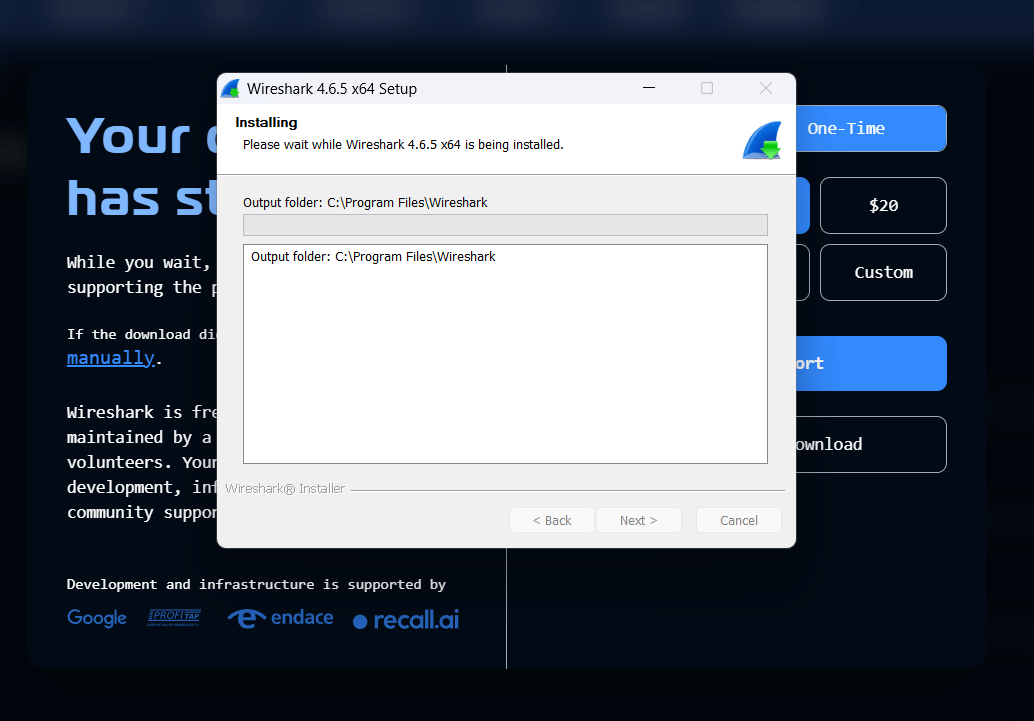
Wireshark Installation Starts
Wait while Wireshark copies files and installs required components.
14
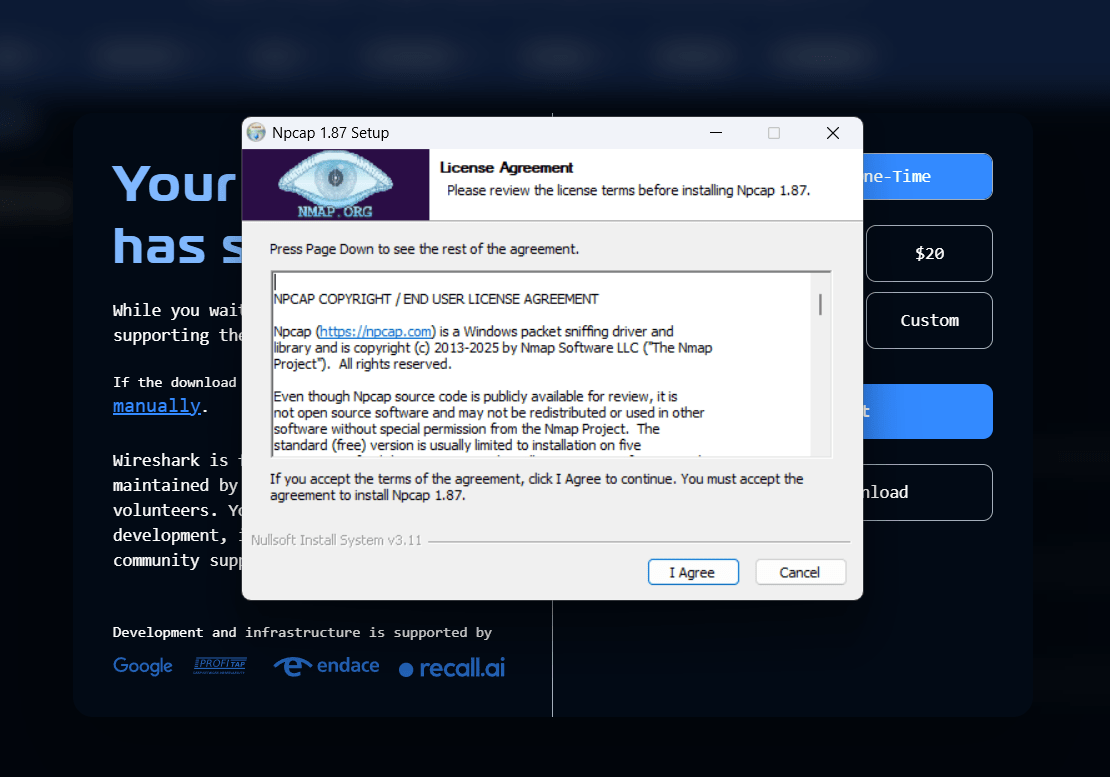
Accept Npcap License Agreement
Click I Agree to continue installing Npcap.
15
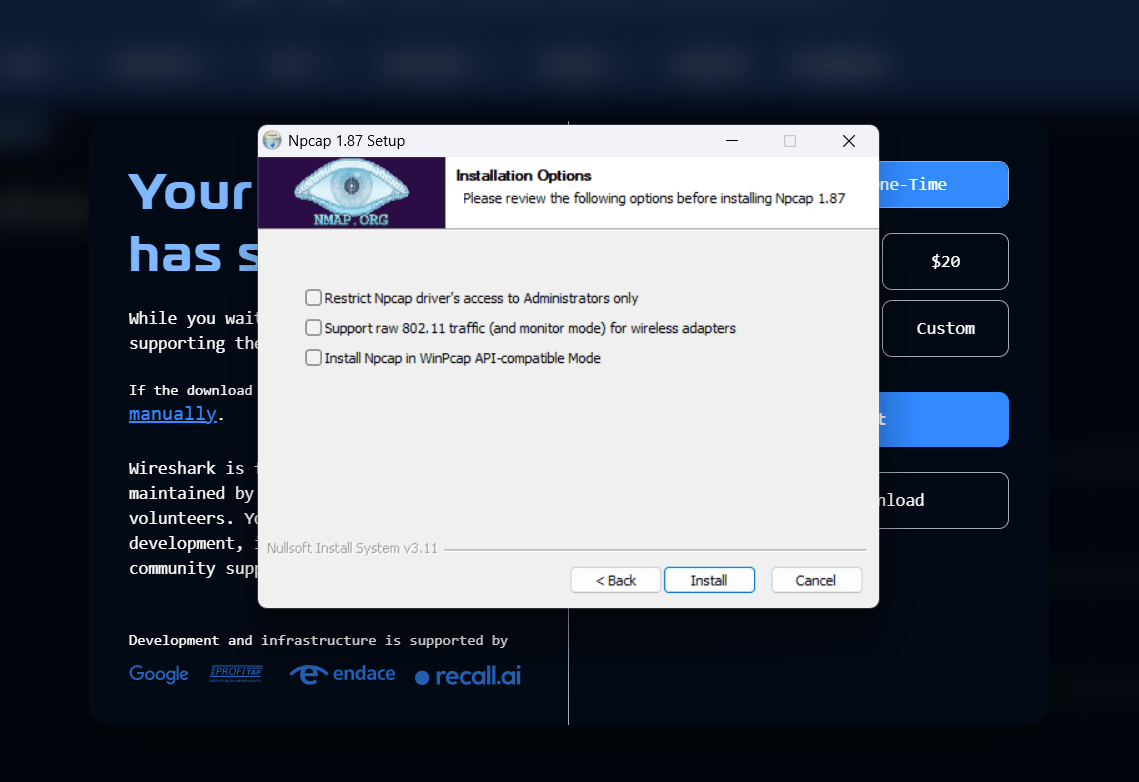
Select Npcap Installation Options
Keep the default Npcap settings and click Install.
16
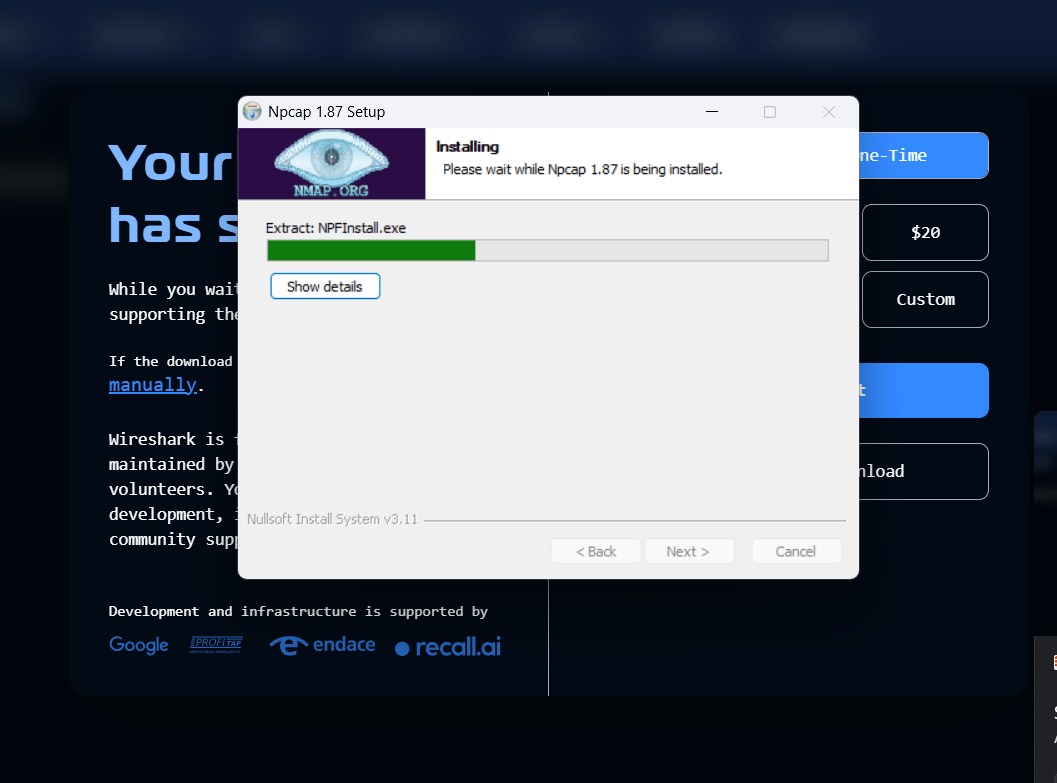
Npcap Installation in Progress
Wait for Npcap installation to complete successfully.
17
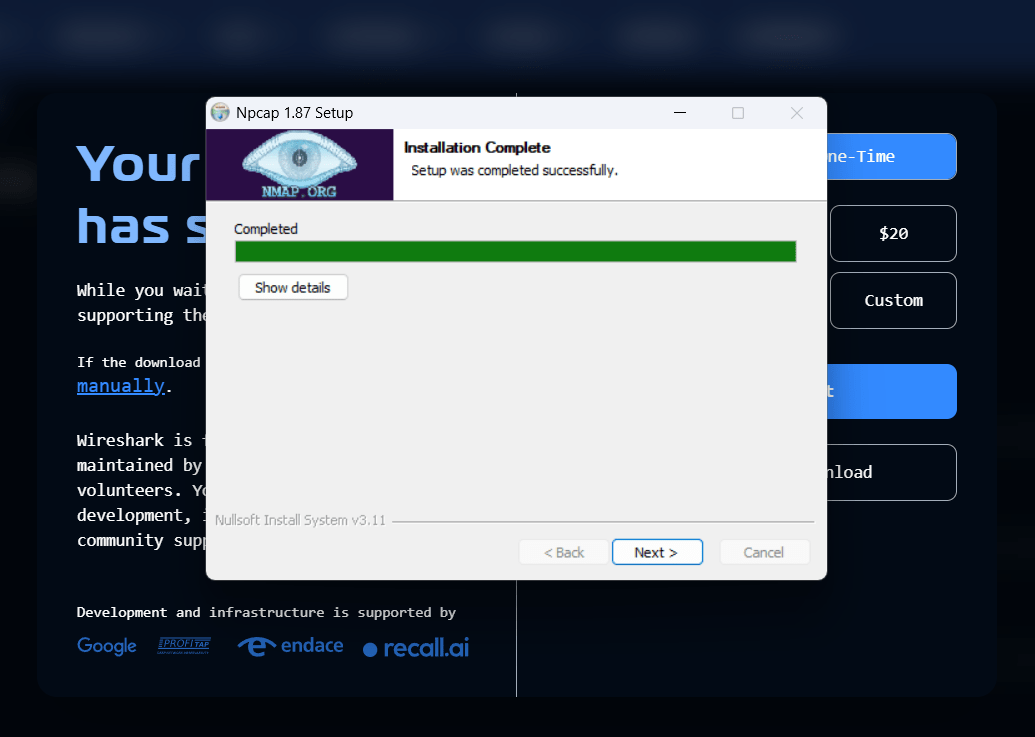
Npcap Installation Complete
Click Next after the Npcap installation finishes.
18
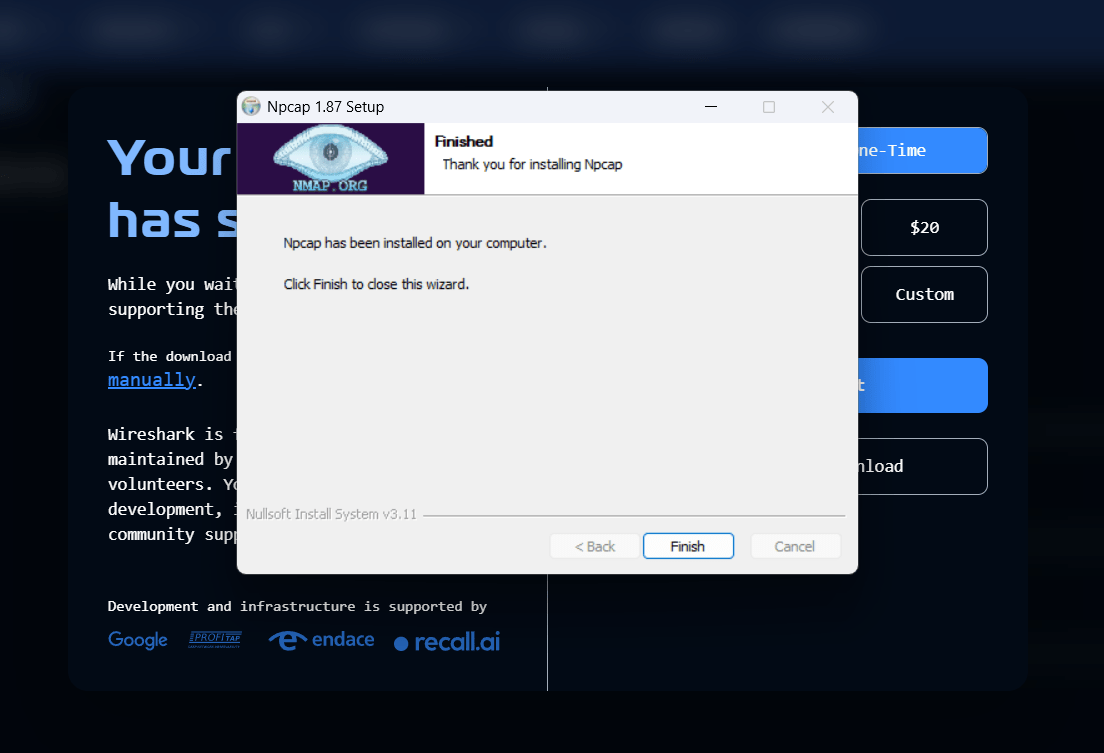
Finish Npcap Setup
Click Finish to close the Npcap installer.
19
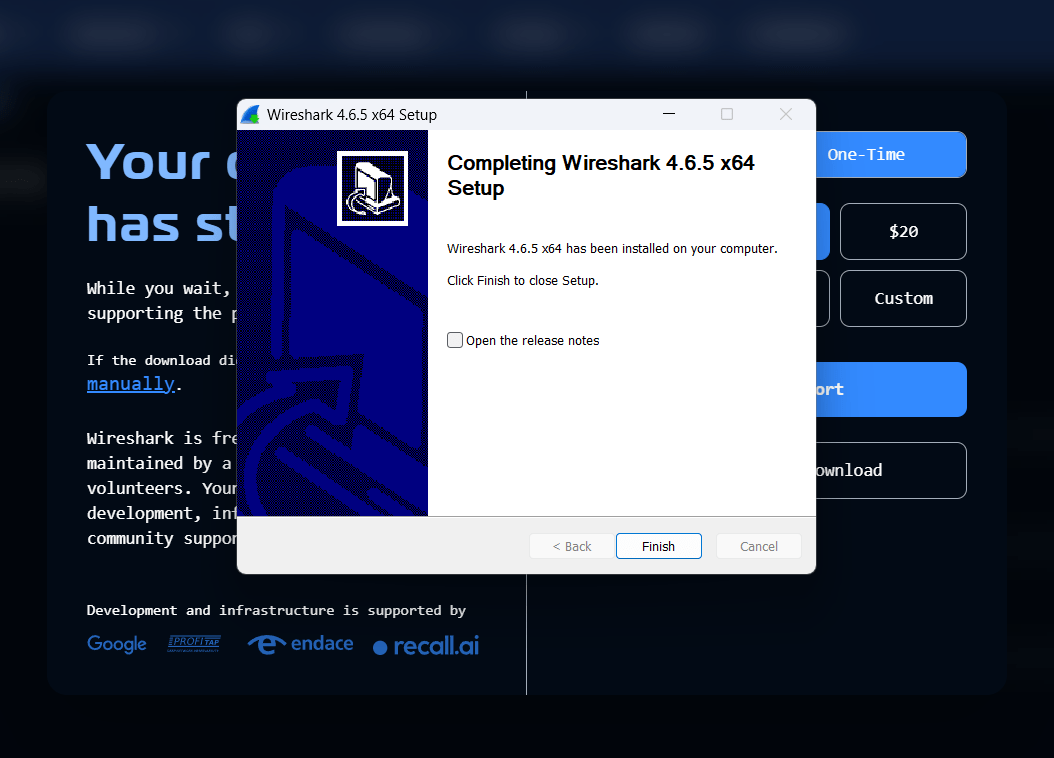
Complete Wireshark Installation
Finish the Wireshark setup and launch the application from the desktop.
Task 2: Understand how DNS converts domain → IP
1
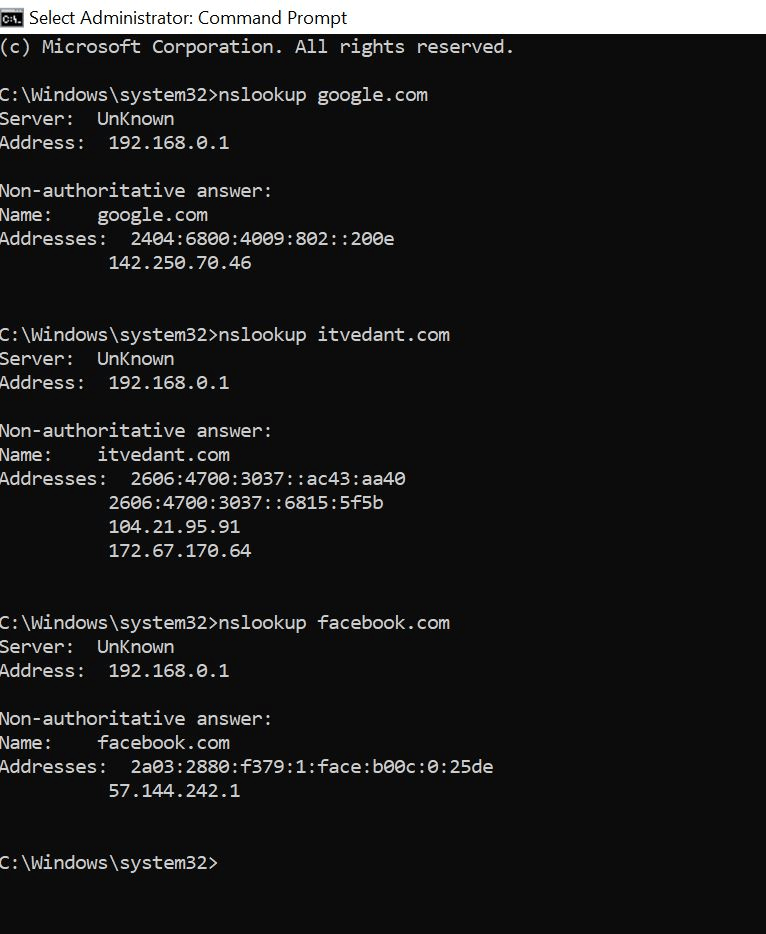
Use nslookup
Open Command Prompt and type:
Observe:
-
DNS Server used
-
IP address of domain
nslookup google.com
nslookup itvedant.com
nslookup facebook.com
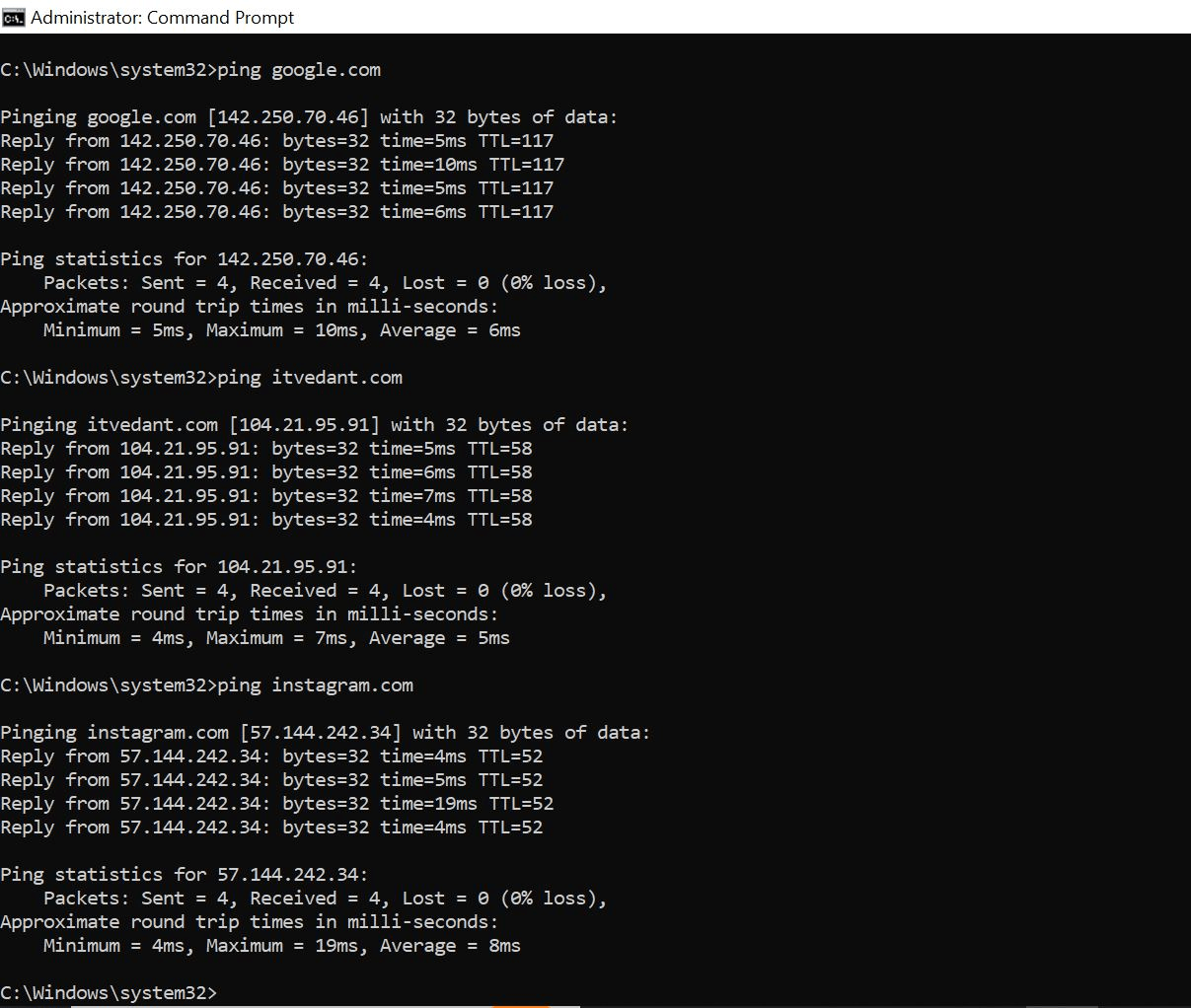
Open Command Prompt and type:
ping google.com
ping itvedant.com
ping instagram.com
Use ping
2
Observe:
-
Domain automatically resolved to IP
-
Response time
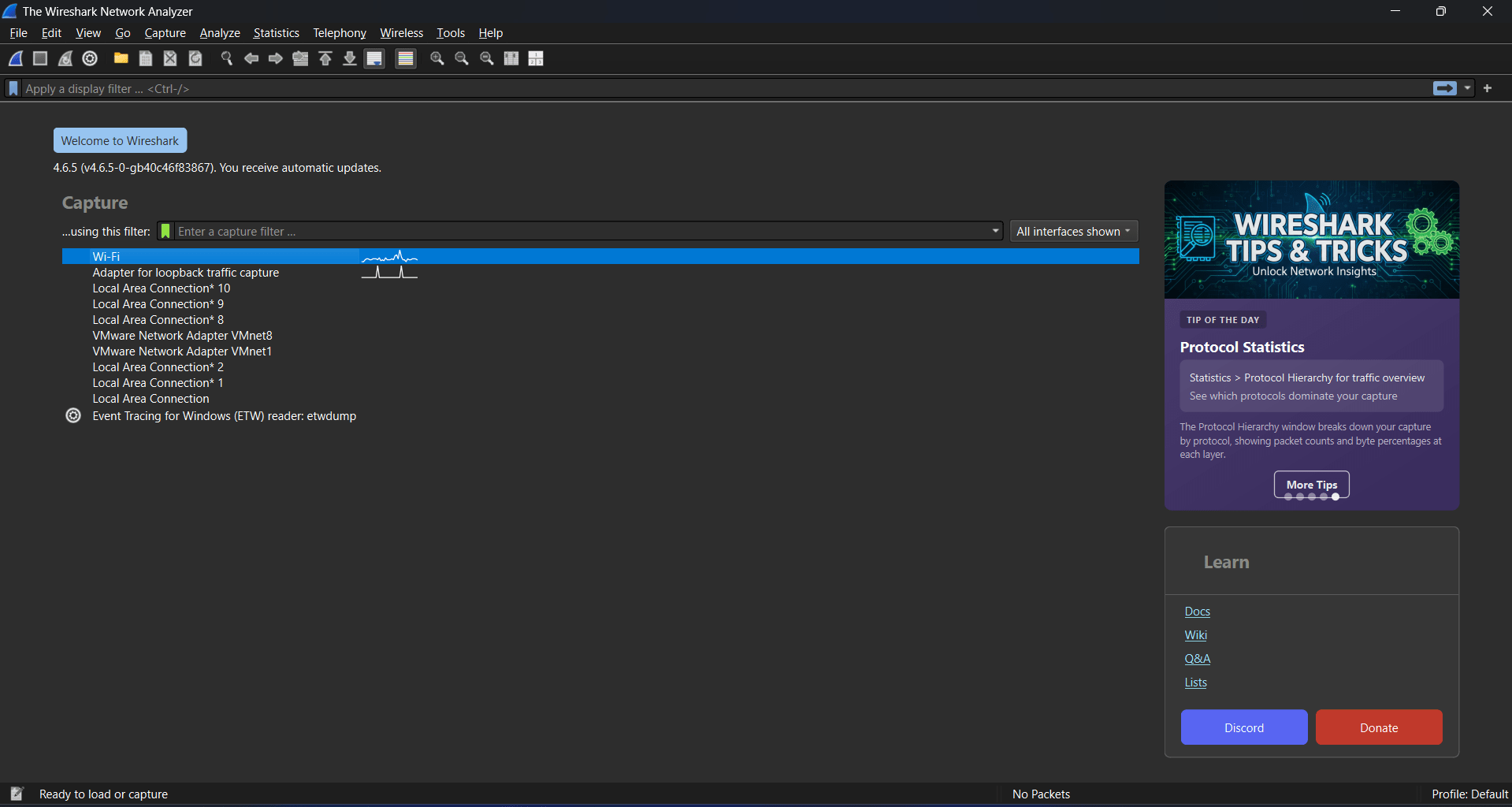
Packet Capture (Wireshark)
3
Start Wireshark → select network interface → Start capture
a
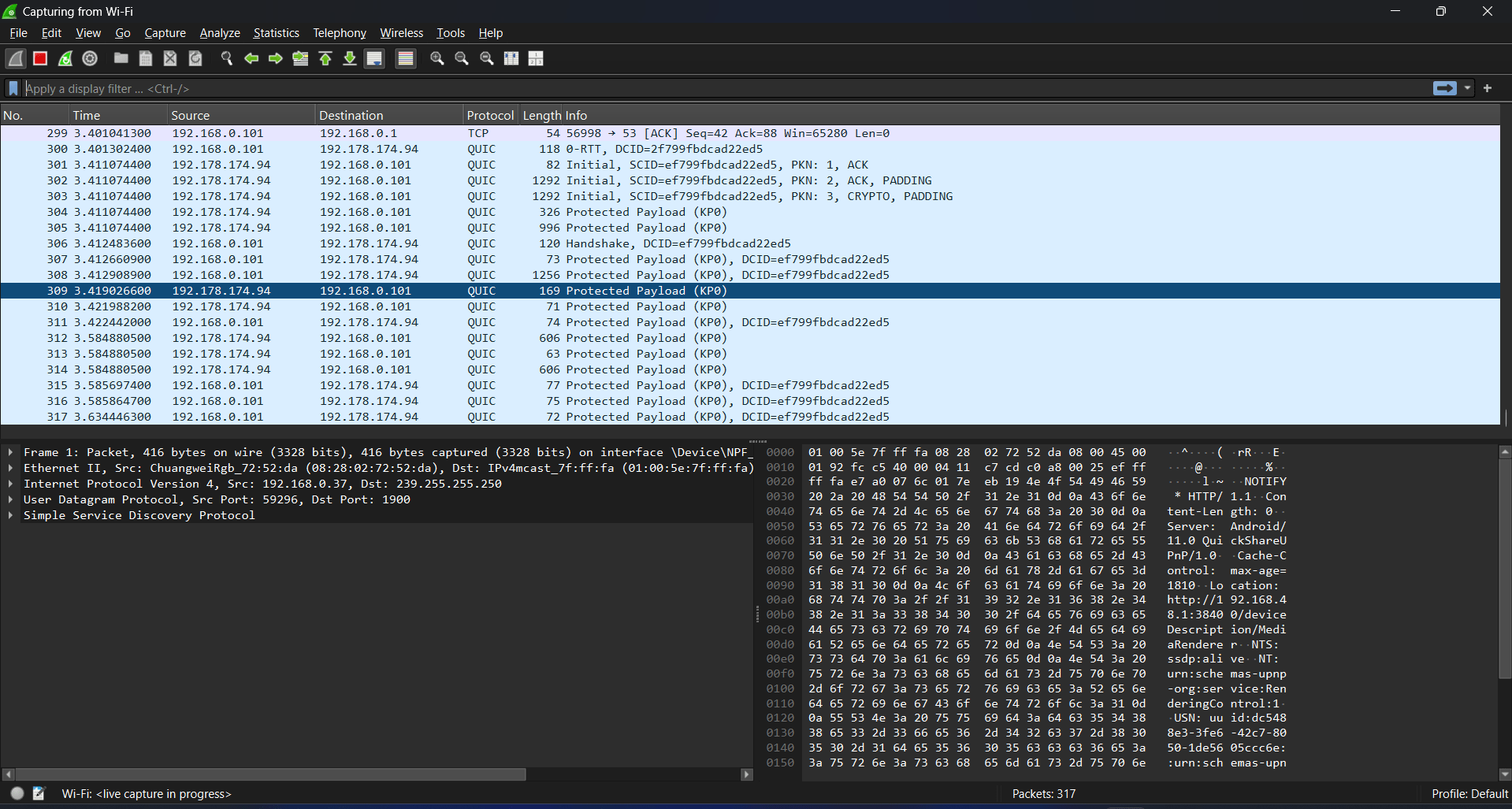
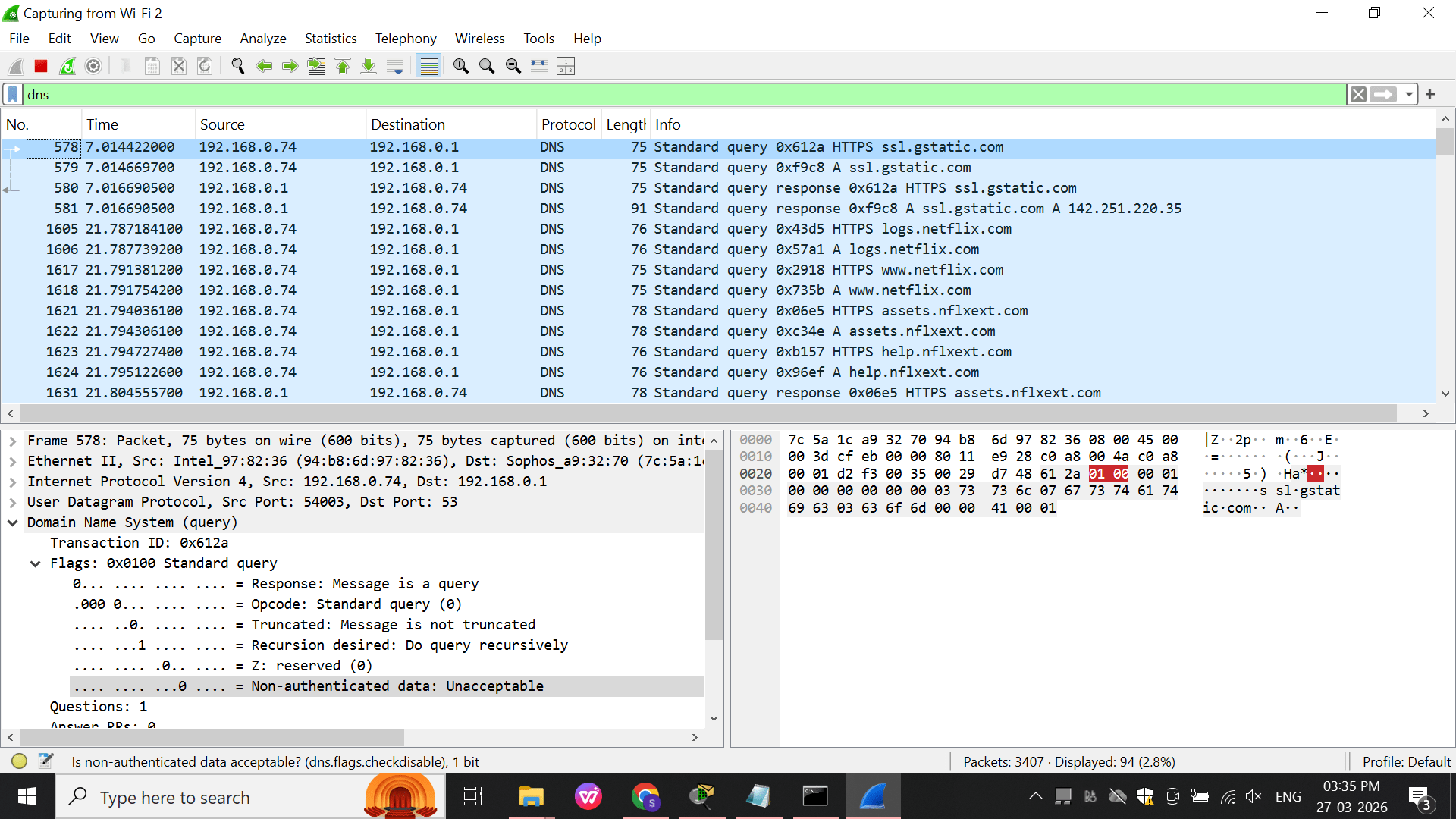
Apply filter: dns
b
Now open browser and visit: any Website
c
Observe:
-
DNS Query (A record request)
-
DNS Response (IP returned)
Task 3: DNS Practical Lab – Understanding DNS Records
- Identify different DNS record types (A, AAAA, MX, NS)
-
Verify IP addresses and services linked to a domain
Open DNS Lookup Tool
1
Open browser (Chrome/Edge)
a
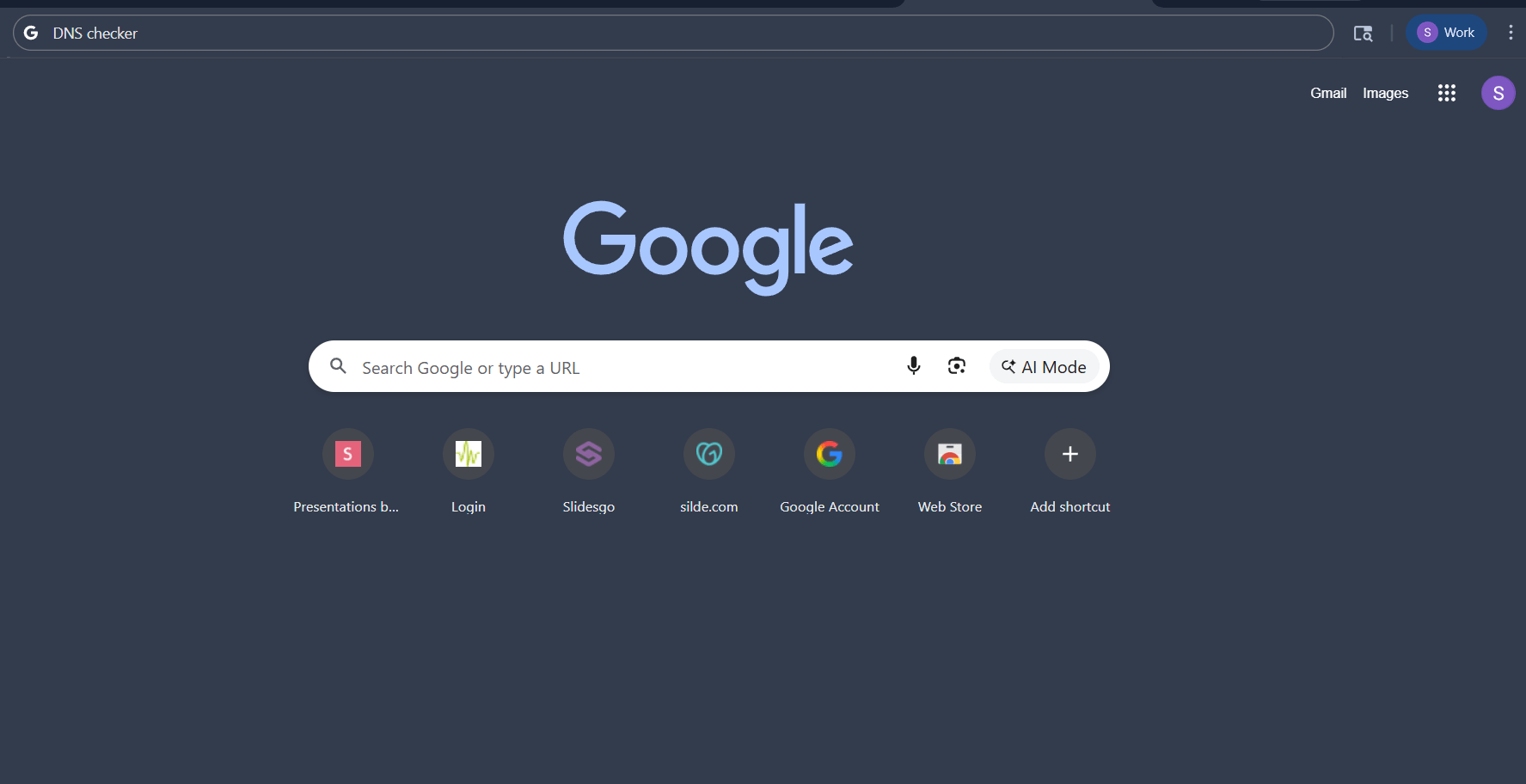
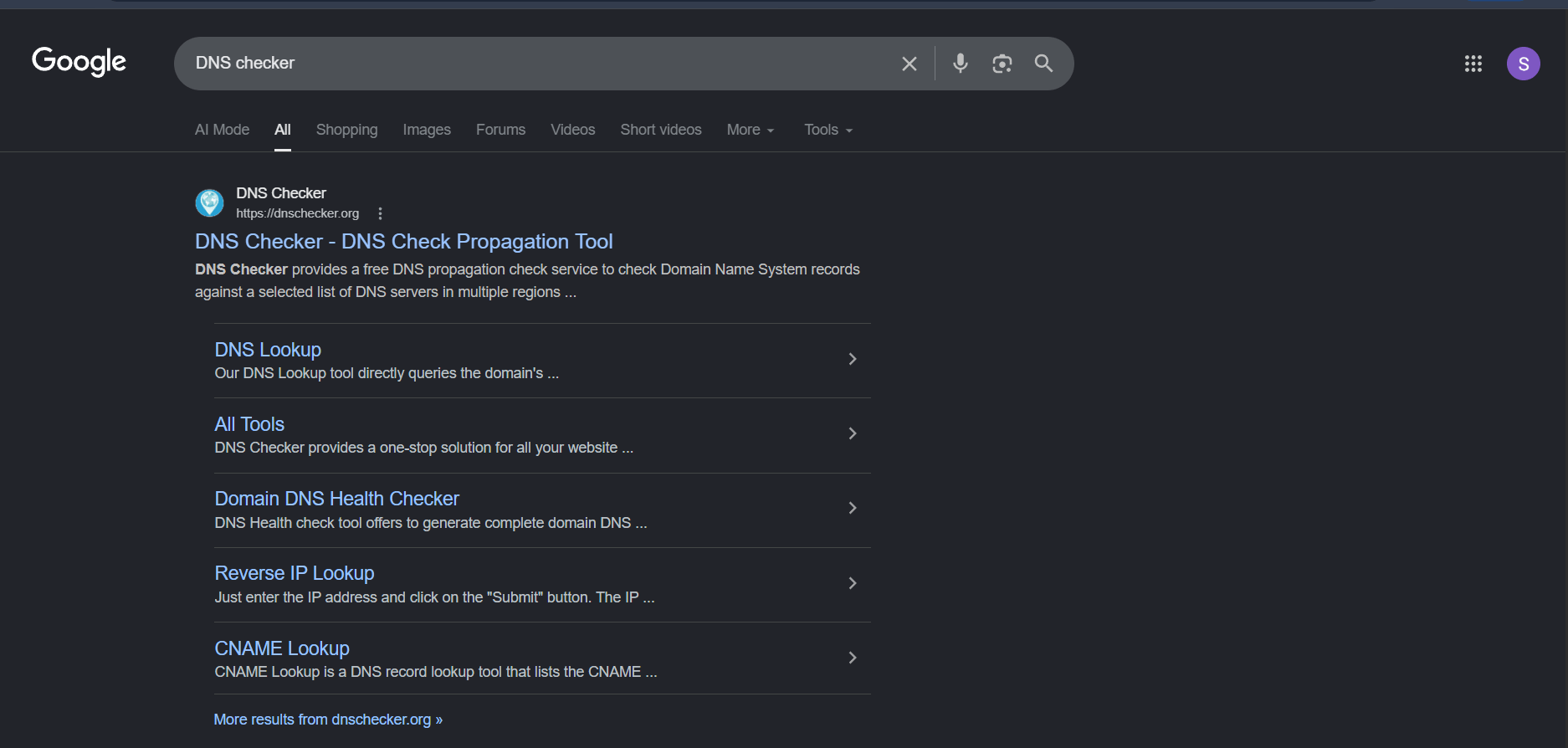
Go to: DNSChecker
b
Enter Domain
2
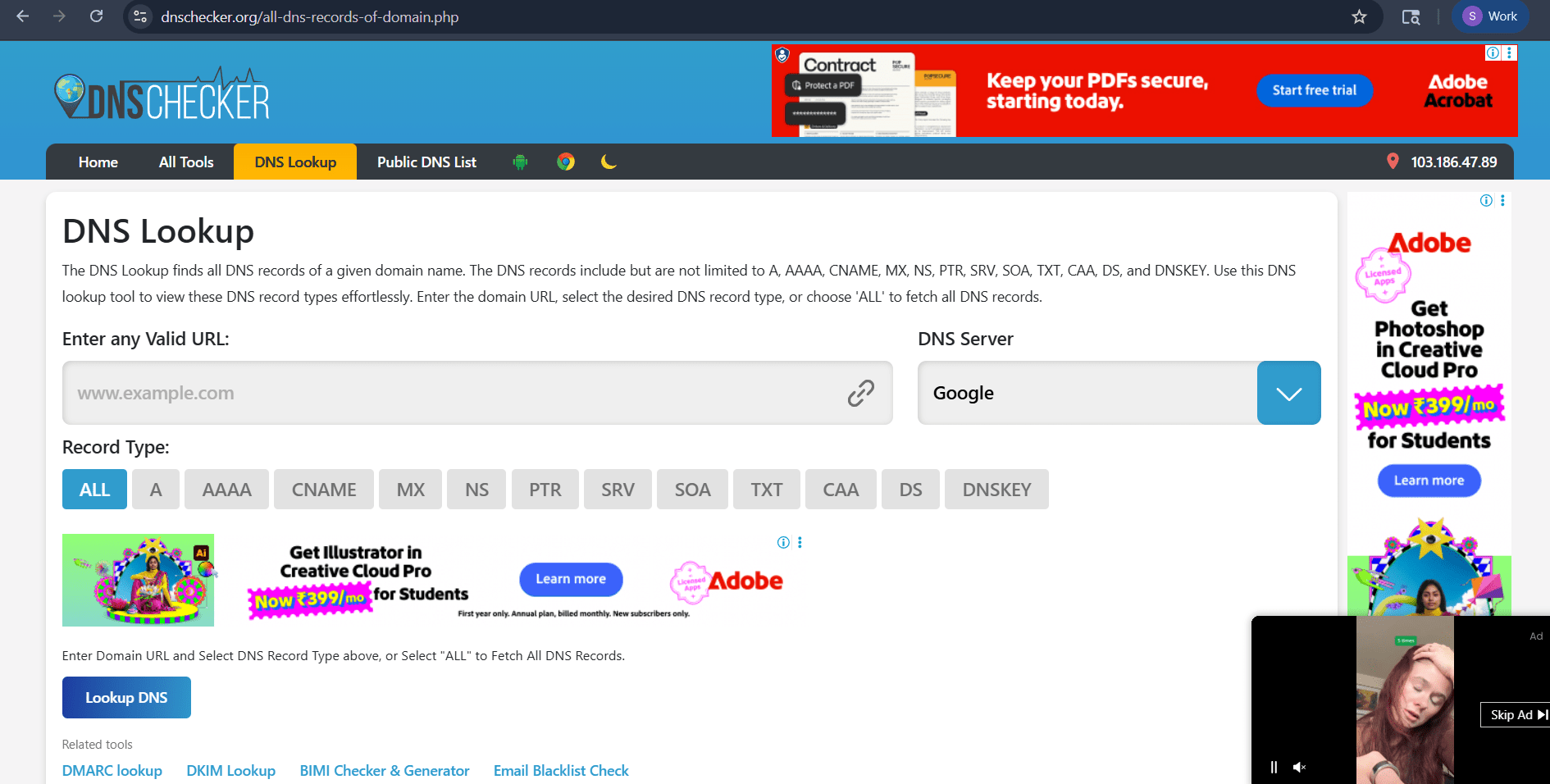
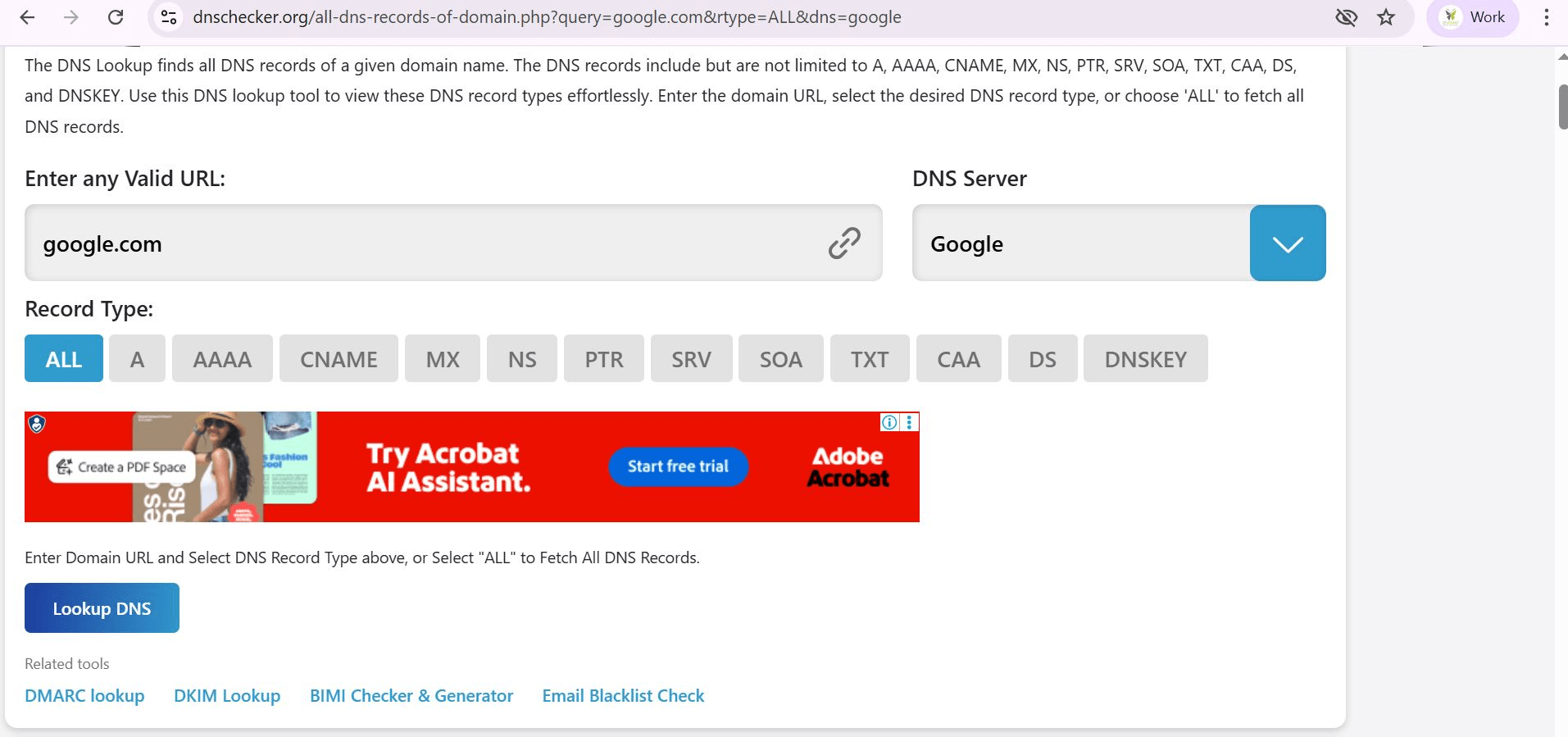
In Enter any Valid URL, type: google.com
a
Select: Record Type = ALL
b
Click: Lookup DNS
c
You will see:
3
Domain input box
a
Record type options (A, AAAA, MX, NS, etc.)
b
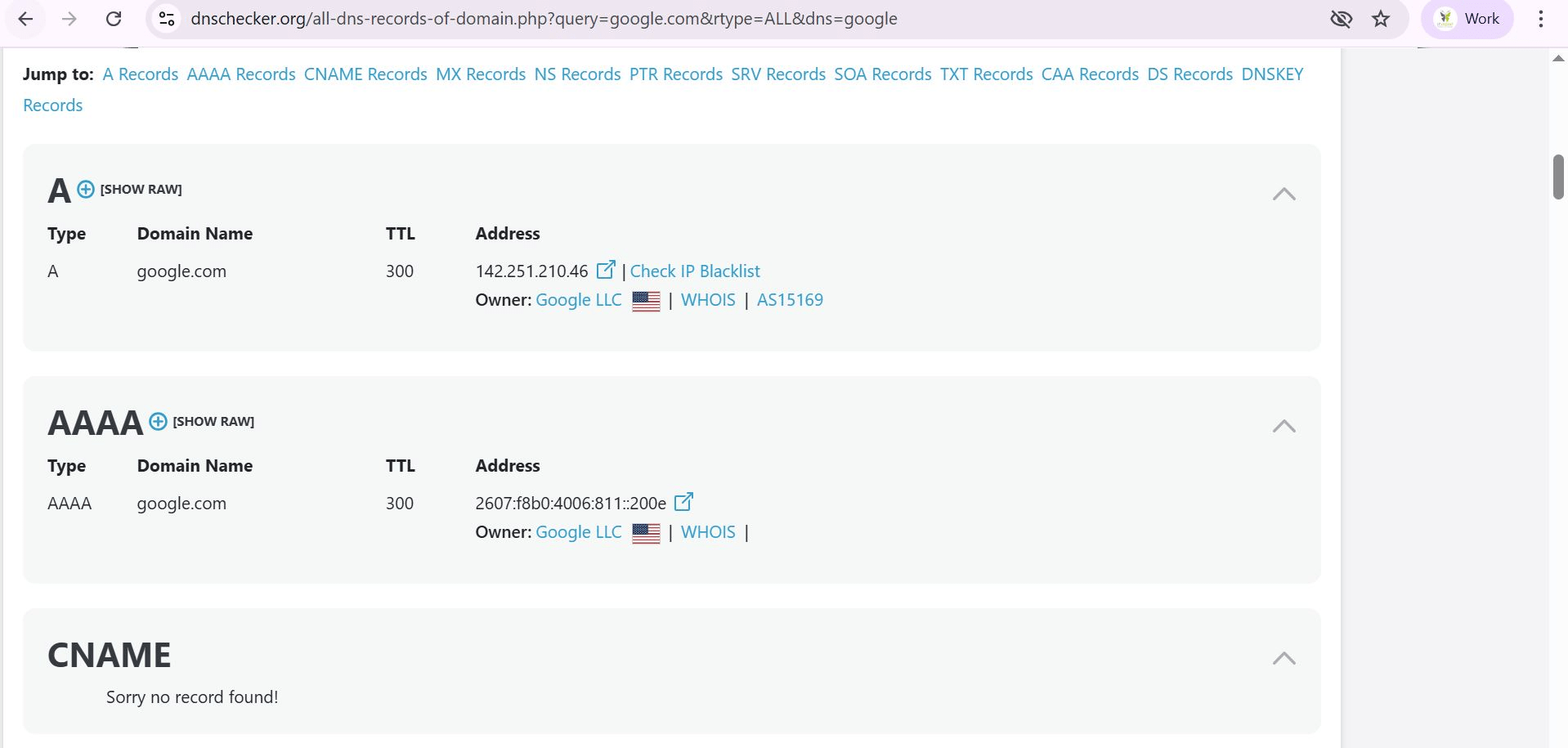
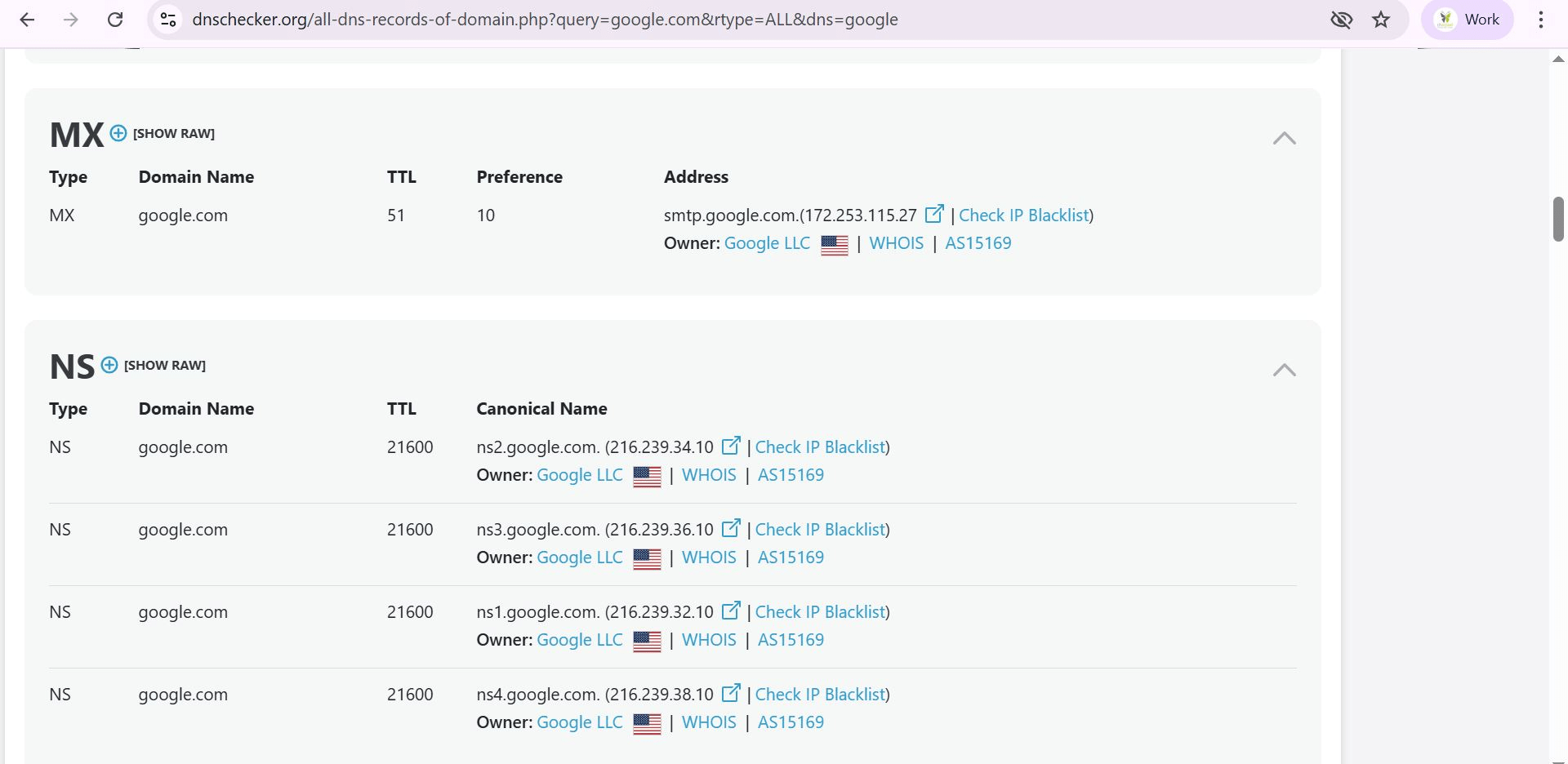
When a user types google.com:
-
DNS query is sent
-
NS server responds
-
A/AAAA record gives IP
-
System connects to server
This is called DNS Resolution Process.
Task 4: Observe HTTP vs HTTPS communication Analyze real web traffic
Visit HTTP Site
1
Open Website : testaspnet.vulnweb.com
a
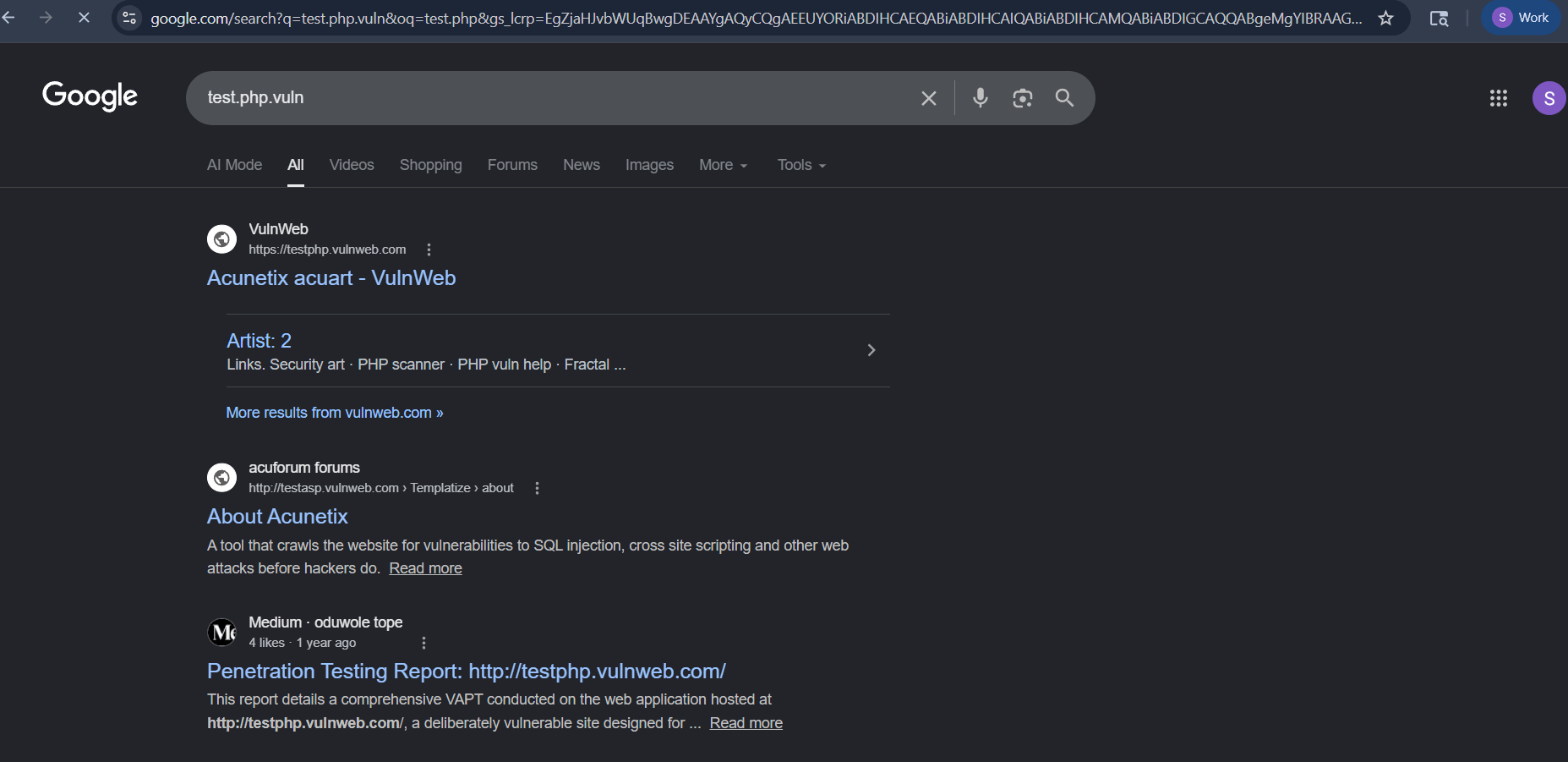
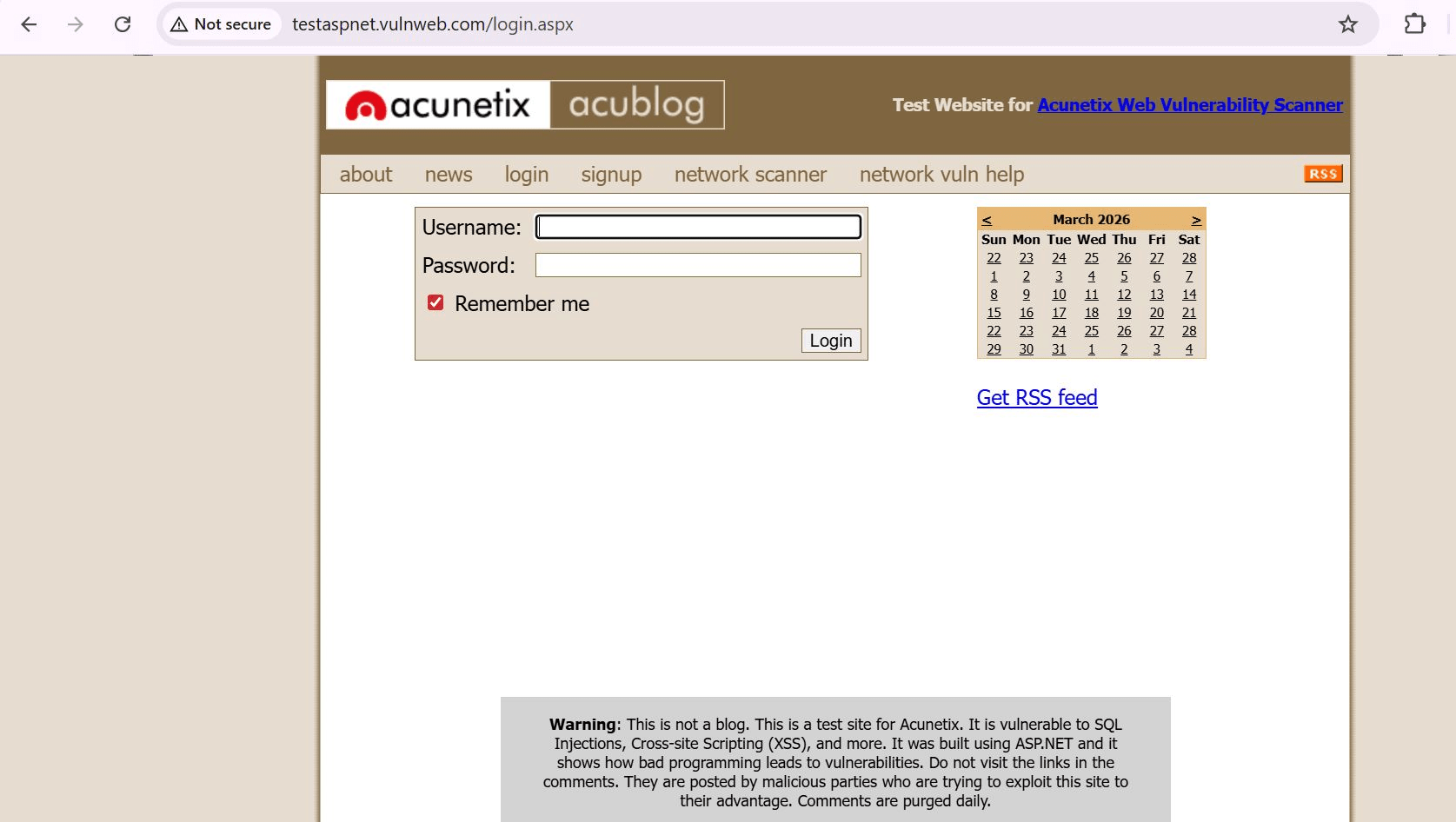
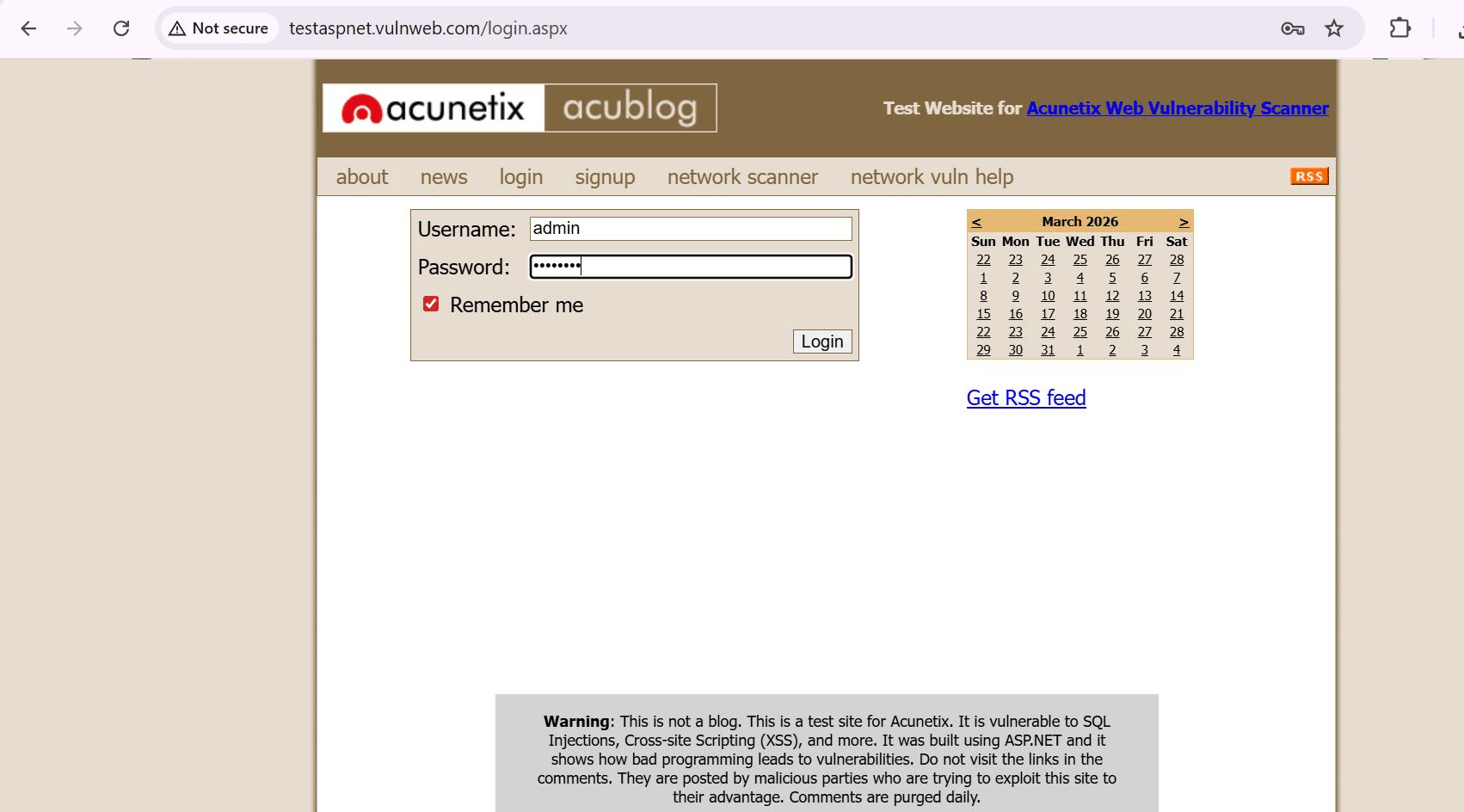
Enter Username and Password
b
Observe:
-
Plain text requests
-
GET request visible
-
No encryption
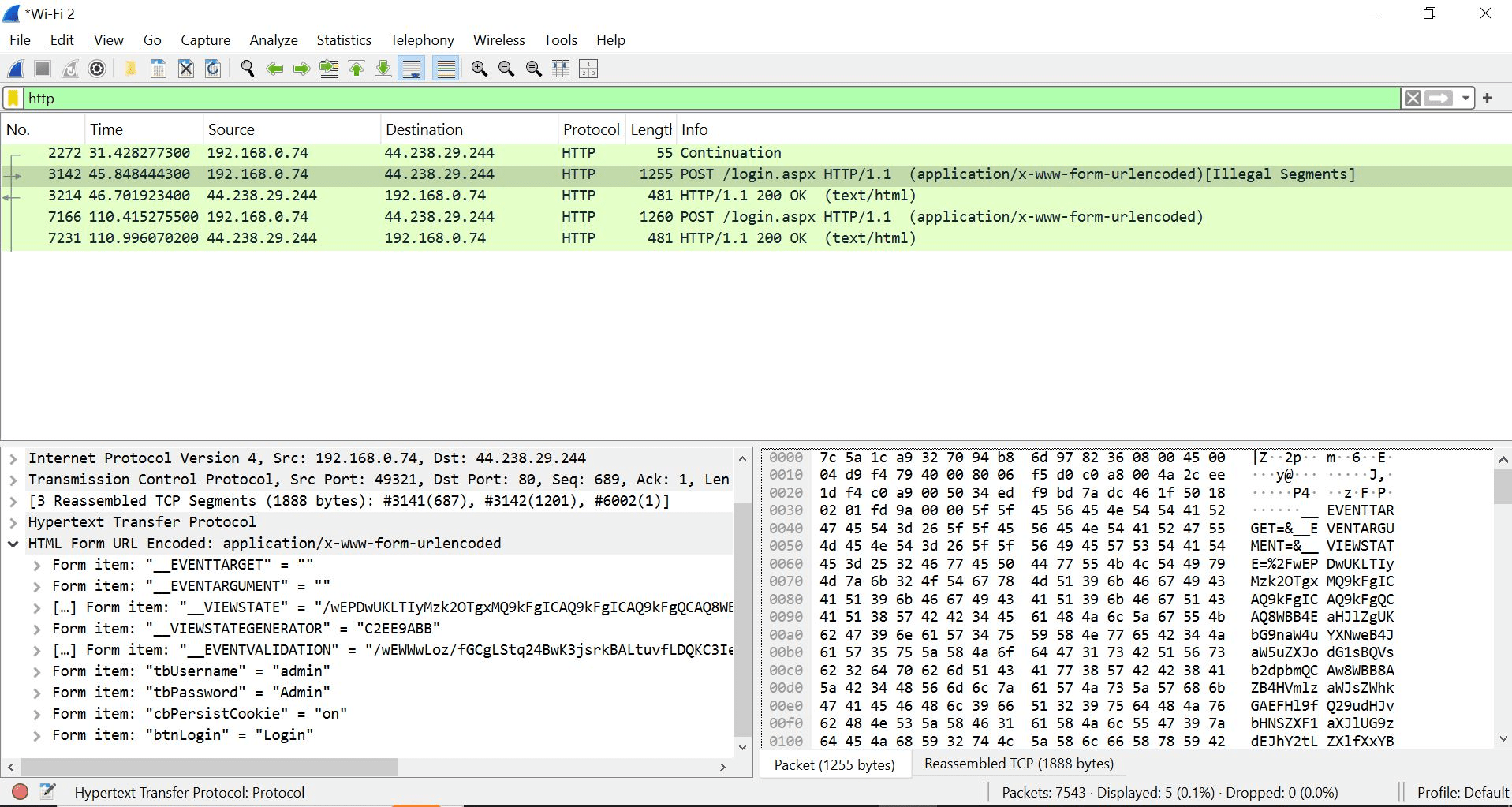
Open the Wireshark In filter search - http
Visit HTTPS Site
2
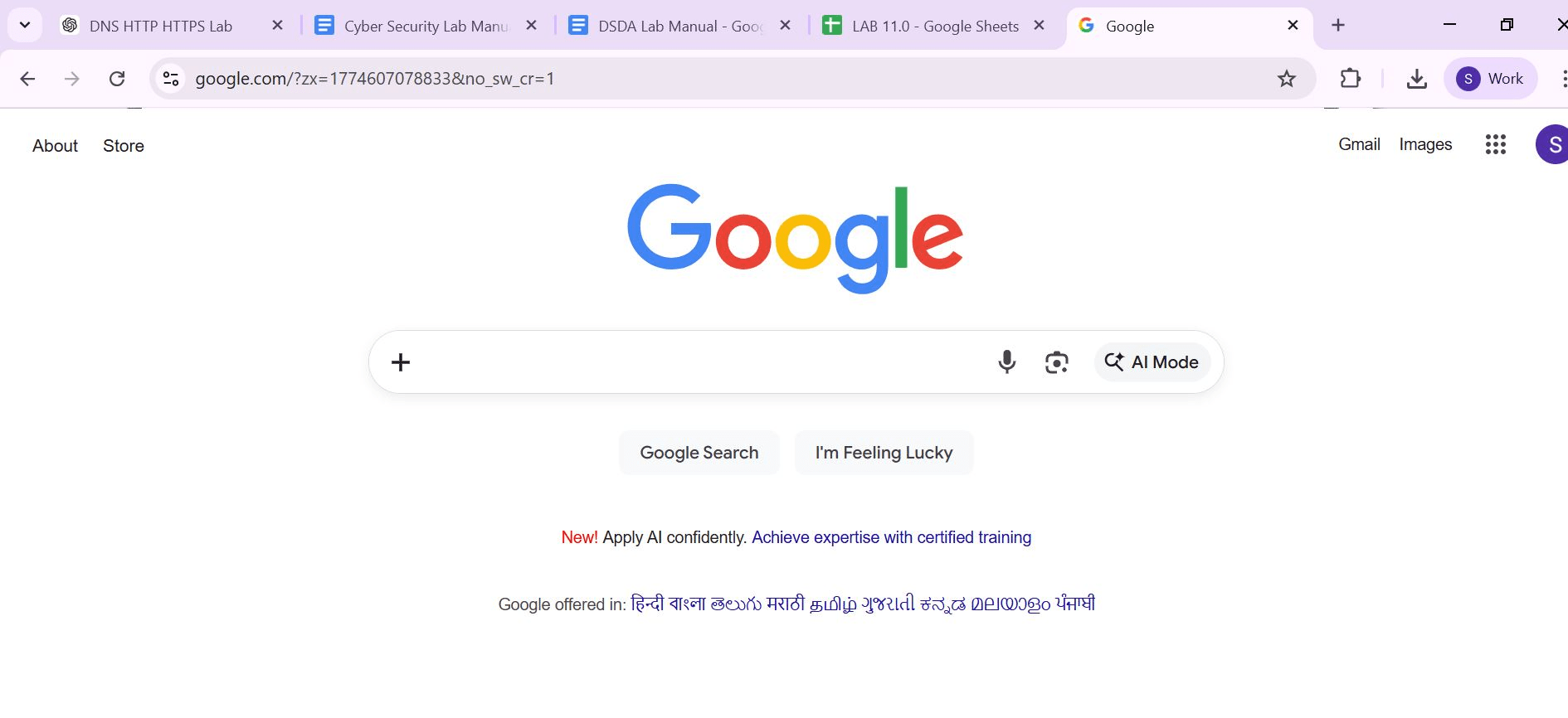
Open Website : https://google.com
a
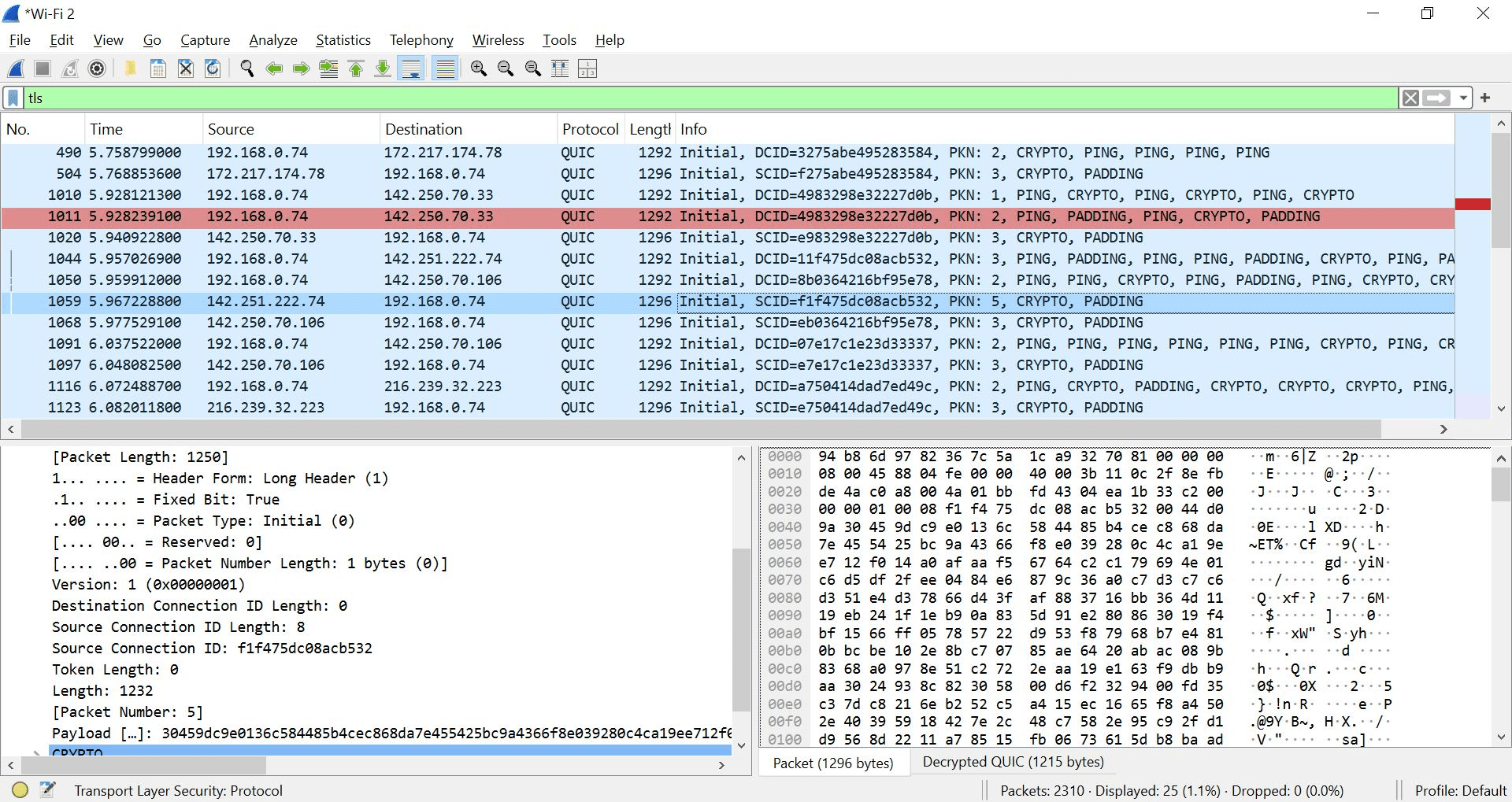
Open the Wireshark and Apply filter: tls
b
Observe:
-
TLS handshake
-
Encrypted packets
-
No readable content
Great job!
You have successfully completed your lab on DNS and Secure Web Communication.
In this lab, you have: Understood DNS Resolution (Domain → IP), Used nslookup and ping tools, Captured traffic using Wireshark, Compared HTTP (Insecure) vs HTTPS (Encrypted) communication
You are now ready to move to the next stage of Network Security Analysis
Checkpoint
Next-Lab Preparation
Topic : Core Internet Technologies
1) TCP/IP And OSI Model
2) Ports and common network protocols