Jenkins CI/CD Environment Setup for CartForge Commerce

Business Scenario
At CartForge, with the cloud infrastructure now secured through VPC, subnets, and route tables, the platform was ready for the next major step—automation.
The manager discovered a growing challenge:
Manual deployment processes were slow, repetitive, and increased the risk of errors, making future updates inefficient for the development team.


He assigned the responsibility to the junior DevOps engineer.
After evaluating the workflow, the DevOps engineer proposed the best solution:
Set up a robust Jenkins CI/CD environment to automate build, test, and deployment pipelines for the CartForge Commerce application.

The DevOps engineer then explained the strategy to the team:
By implementing Jenkins automation, CartForge could achieve faster deployments, continuous integration, reduced manual effort, improved delivery consistency, and a scalable DevOps workflow for long-term growth.

Pre-Lab Preparation
In this lab, you will build a basic CI/CD environment for the CartForge application using Jenkins.
You will:
-
Understand how automated pipelines work using a real-world case study
-
Set up a Jenkins server
-
Configure a pipeline for CartForge
-
Execute an automated build
By the end of this lab, you will have a working CI/CD setup that automates basic tasks.
Task 1: Setup Jenkins Server
1
Connect to Your Server
ssh -i key.pem ubuntu@your-ip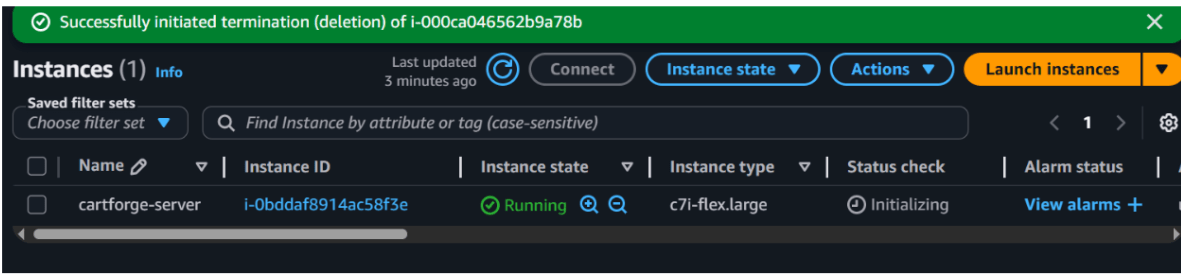
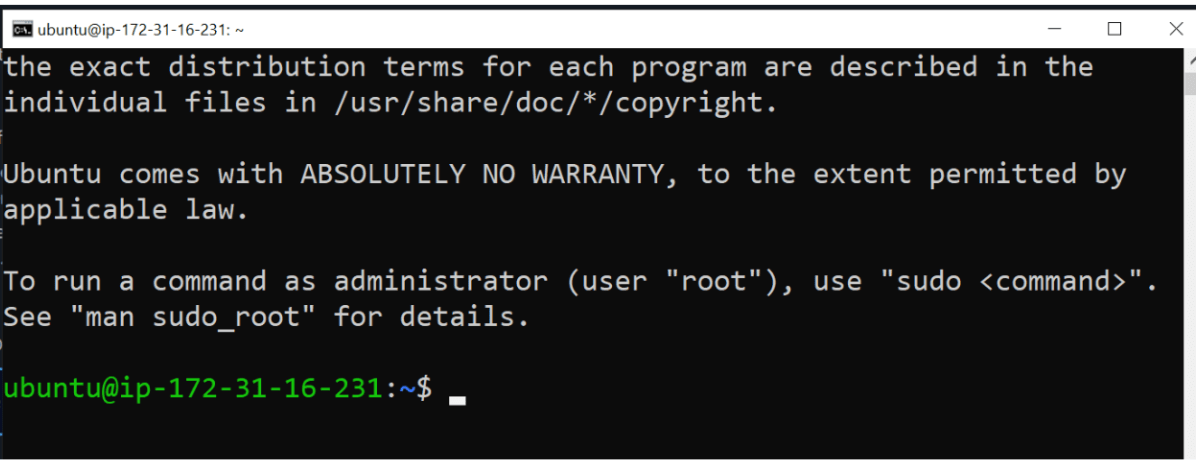
Update System
sudo apt update
sudo apt upgrade -y
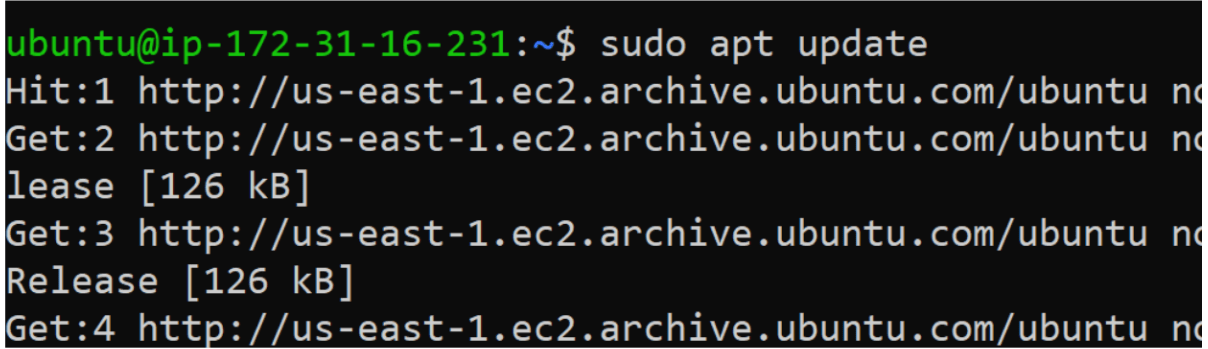
Install Java
sudo apt install openjdk-21-jdk -y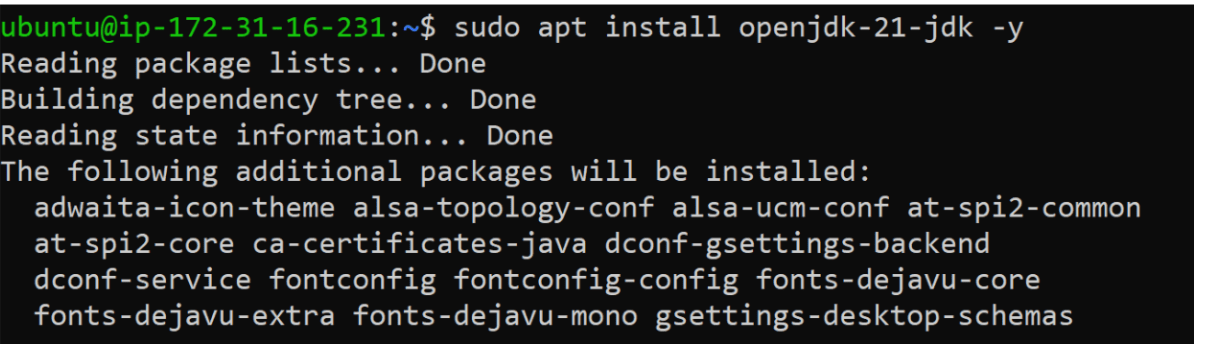
Verify Java
java -version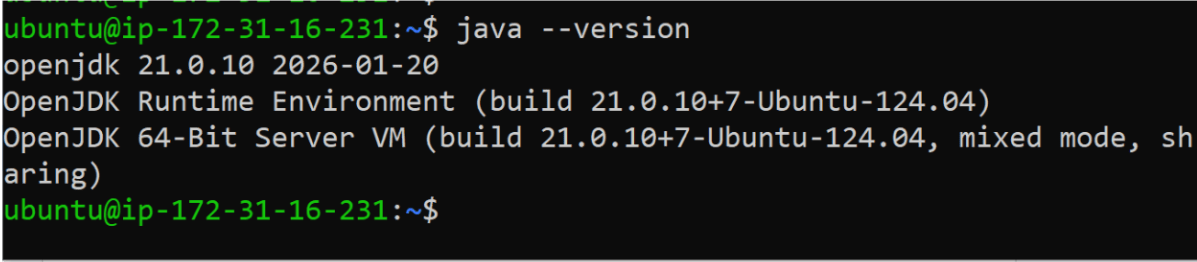
Install Jenkins
curl -fsSL https://pkg.jenkins.io/debian-stable/jenkins.io-2023.key | sudo tee \
/usr/share/keyrings/jenkins-keyring.asc > /dev/null
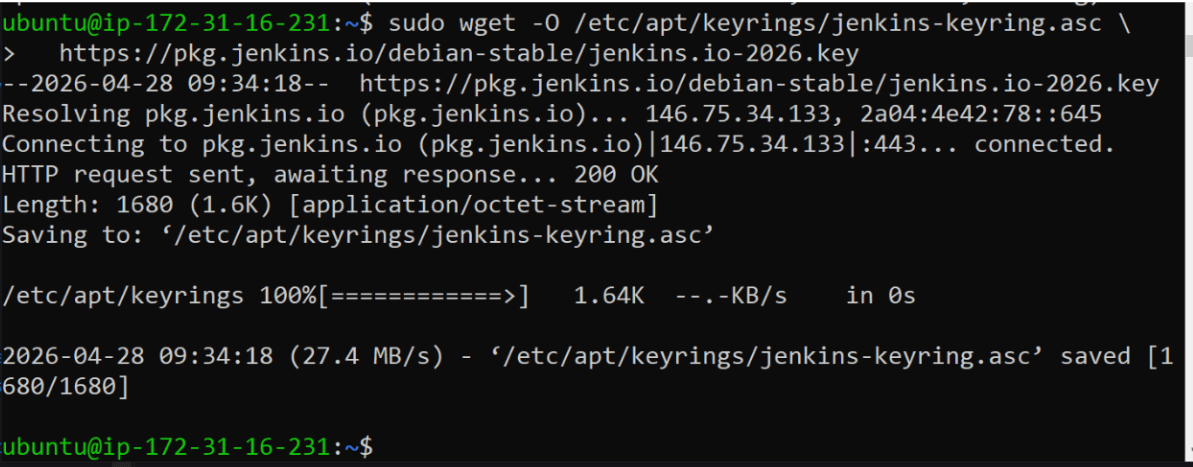
echo deb [signed-by=/usr/share/keyrings/jenkins-keyring.asc] \
https://pkg.jenkins.io/debian-stable binary/ | sudo tee \
/etc/apt/sources.list.d/jenkins.list > /dev/null

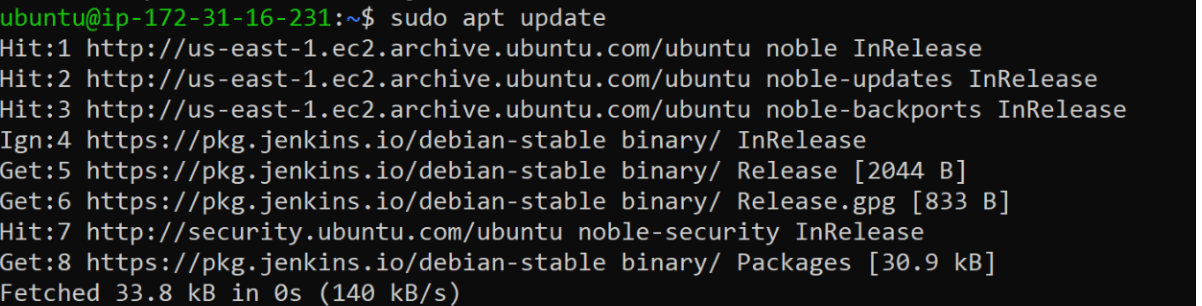
sudo apt update
sudo apt install jenkins -y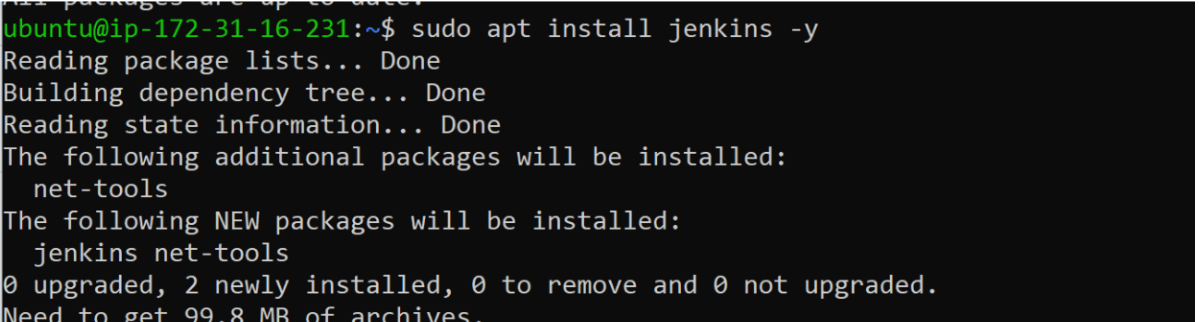
Start Jenkins
sudo systemctl start jenkins
sudo systemctl enable jenkins
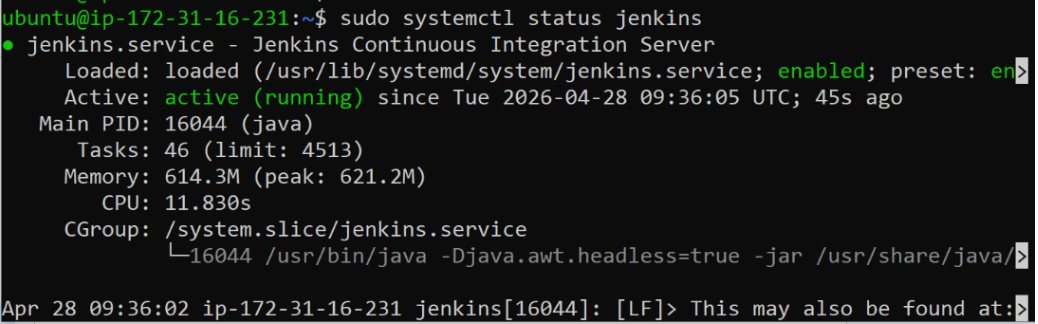
Check Status
sudo systemctl status jenkins
2
Open browser:http://your-public-ip:8080
Access Jenkins Dashboard
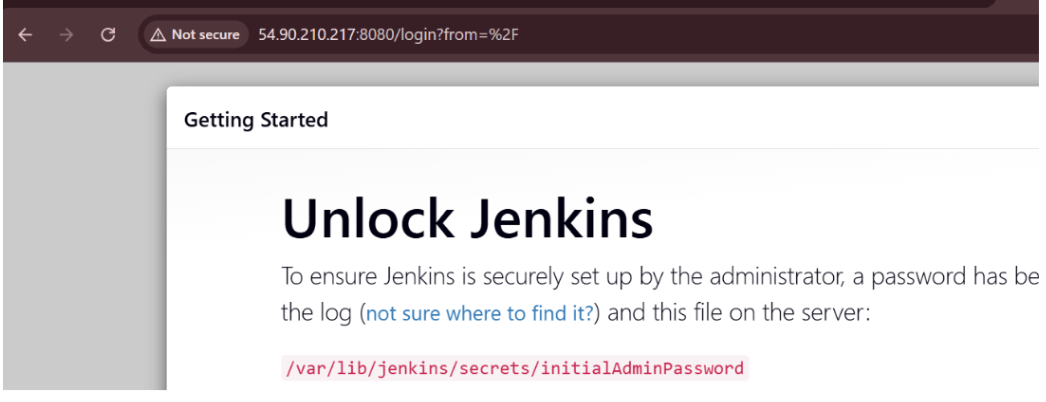
Get Initial Password
sudo cat /var/lib/jenkins/secrets/initialAdminPassword
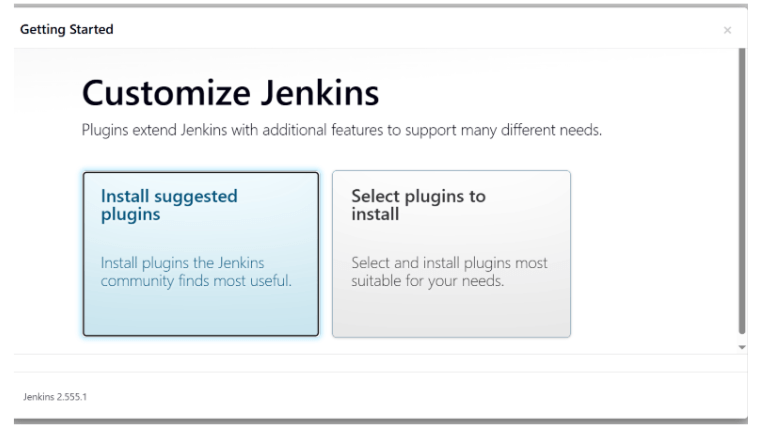
Install suggested plusing
And here is the looks
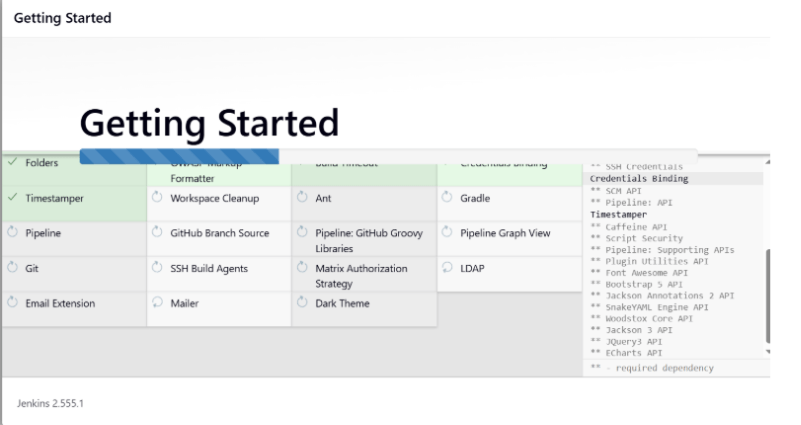
Setup Jenkins
-
Paste password
-
Install suggested plugins
-
Create admin user
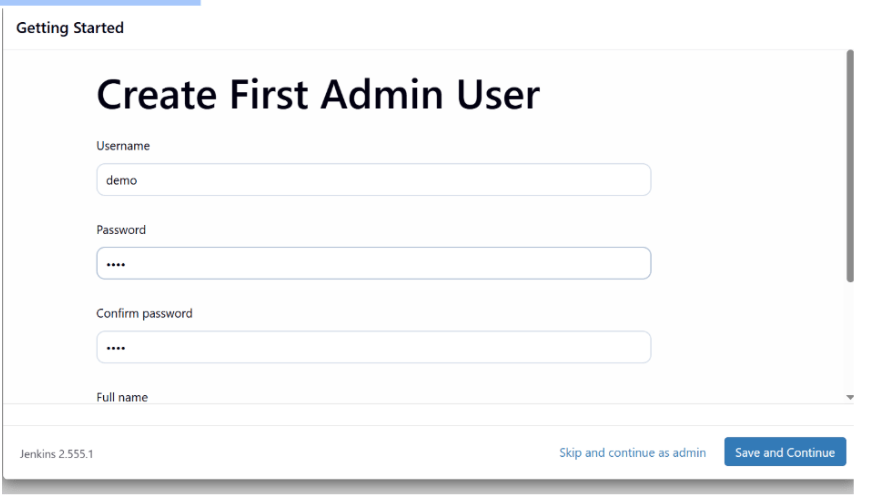
And its done!!
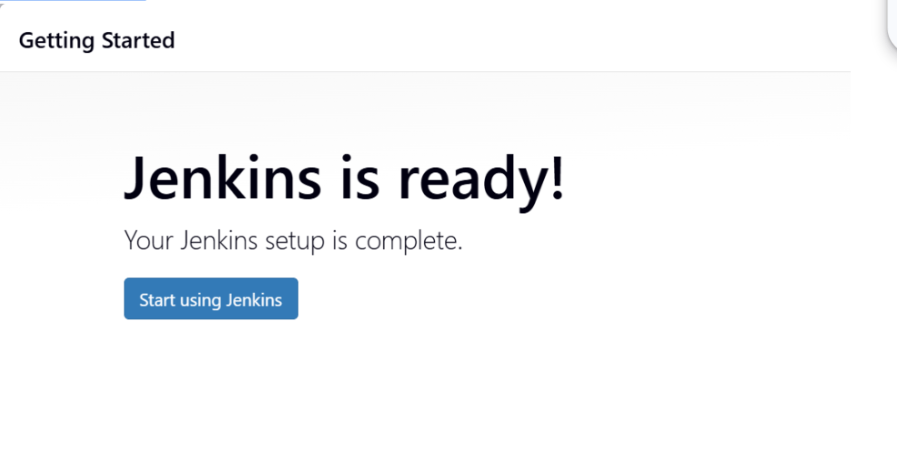
3
Configure CartForge CI/CD Environment
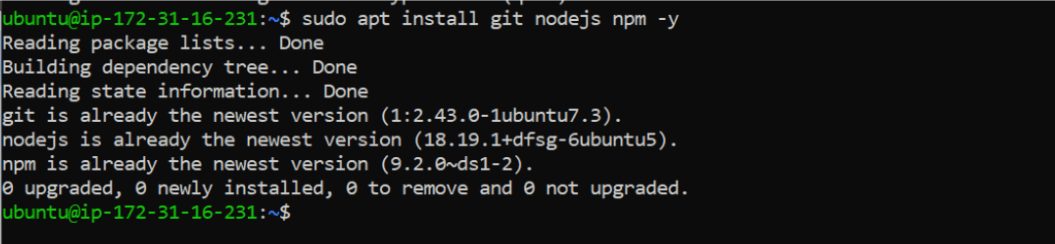
Install Required Tools
sudo apt install git -y
sudo apt install nodejs -y
sudo apt install npm -y
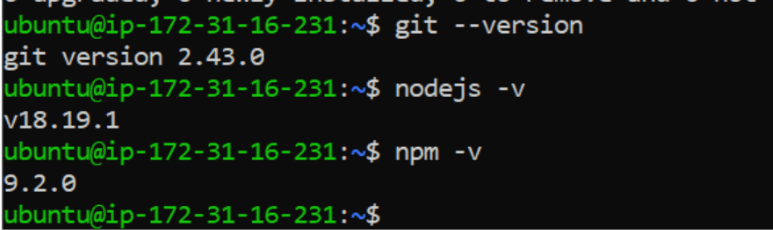
Verify Installation
git --version
node -v
npm -v
4
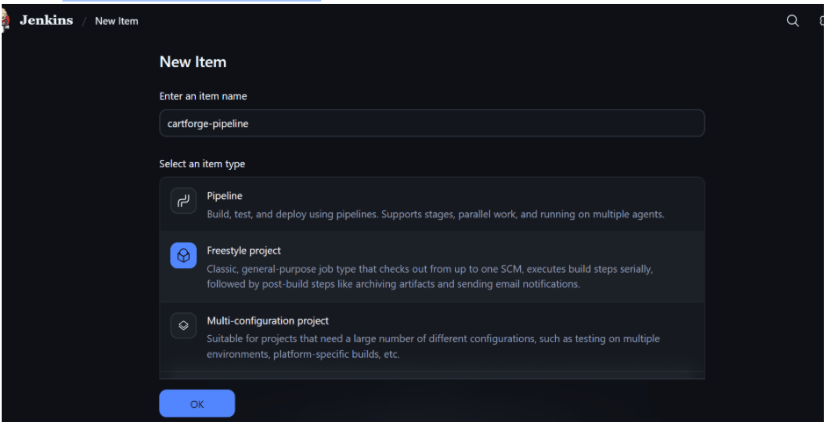
Create Jenkins Job
Steps in Jenkins UI
-
Click New Item
-
Enter name: cartforge-pipeline
-
Select Freestyle Project
Configure Source Code
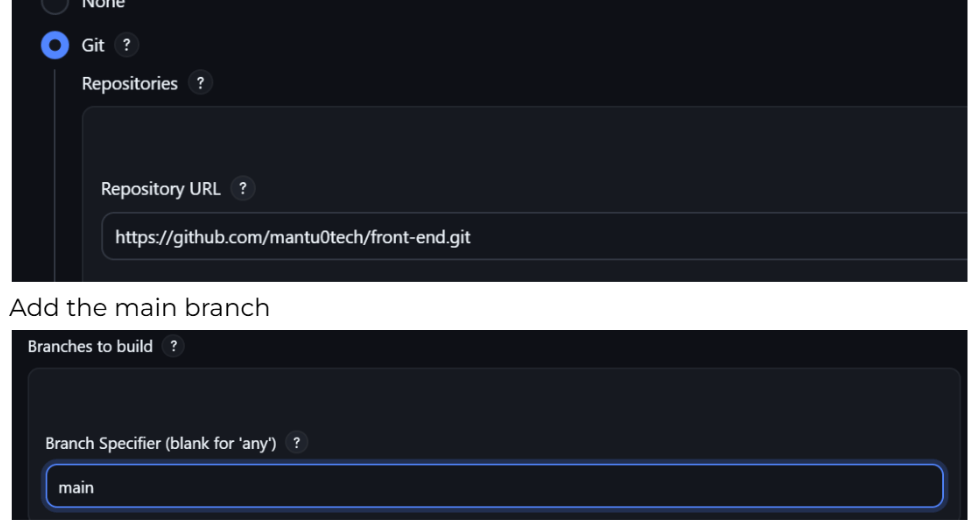
-
Select Git
-
Enter repository URL of CartForge
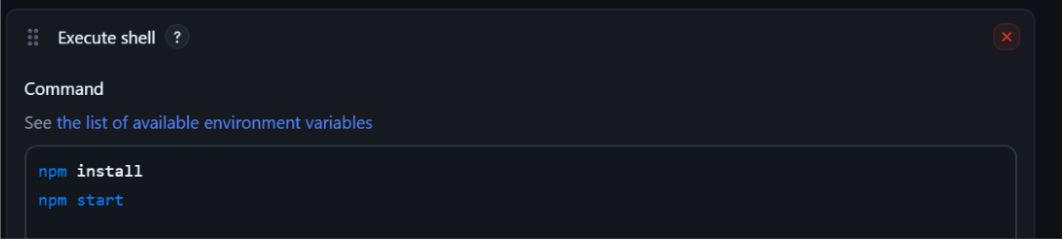
Add Build Step
- Add Execute Shell
- npm install
- npm start
5
Execute Automation
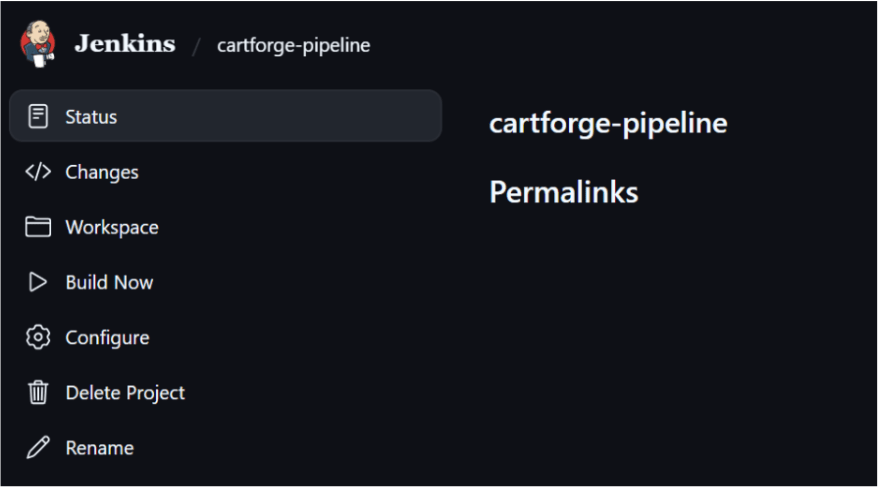
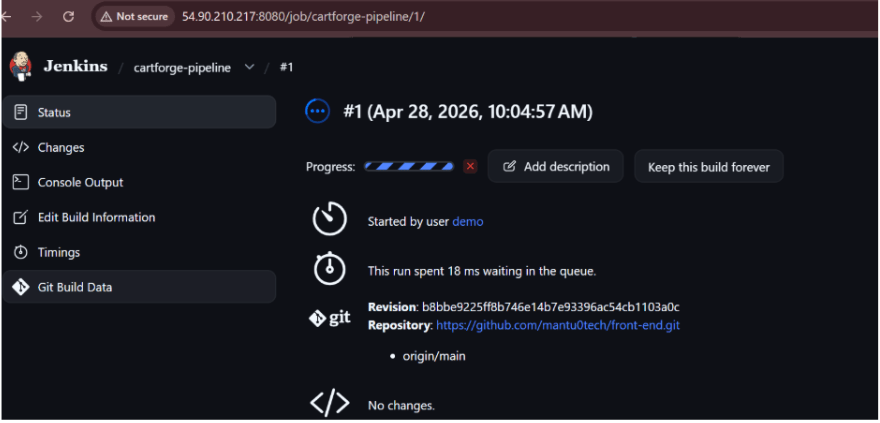
Run Job
Click Build Now
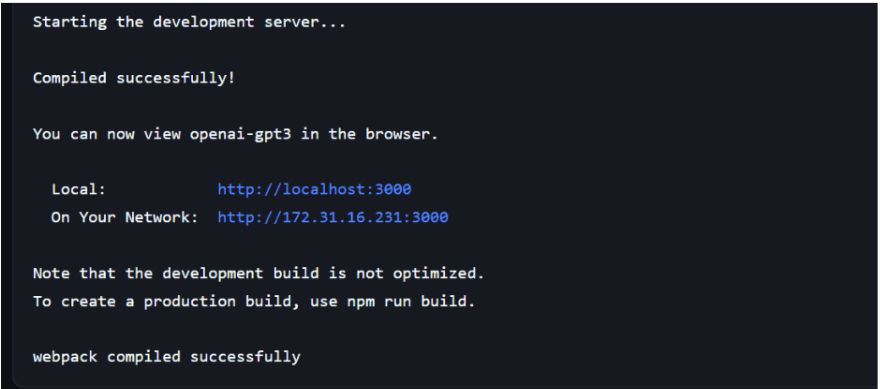
Observe Console Output
You will see:
-
Code is fetched from repository
-
Dependencies are installed
-
Build process runs
Validation
Check:
-
Build status is SUCCESS
-
No errors in console output
Great job!
- Transitioned from manual server management to automated deployment workflows using modern DevOps practices.
- Built a scalable foundation for continuous integration, automated testing, and faster application delivery.
- Prepared the pipeline for future cloud integration and fully automated production deployments.
Checkpoint
Next-Lab Preparation
-
Basic Jenkins setup and access
-
What is CI/CD pipeline
-
Basic Linux commands
-
SSH connectivity
-
What is a server and how services run