Setup Display Ad

Business Scenario
You are working as a Digital Marketing Executive for Spice Garden Restaurant.
The restaurant owner wants to increase brand awareness and attract more local customers using visually appealing banner advertisements across websites, apps, and YouTube.
Your task is to create a Google Display Ads Campaign for Spice Garden using audience targeting, banner creatives, and location targeting.

Pre-Lab Preparation
Topic : Display Ad
1) Responsive Display Ad
2) Audience Targeting
3) Device Targeting
4) Topic and Placement Targeting
5) Ad Optimization
Task 1: Access Google Ads Dashboard
Open Google Chrome Browser
1
-
Launch Google Chrome browser.
-
Ensure internet connectivity is active.
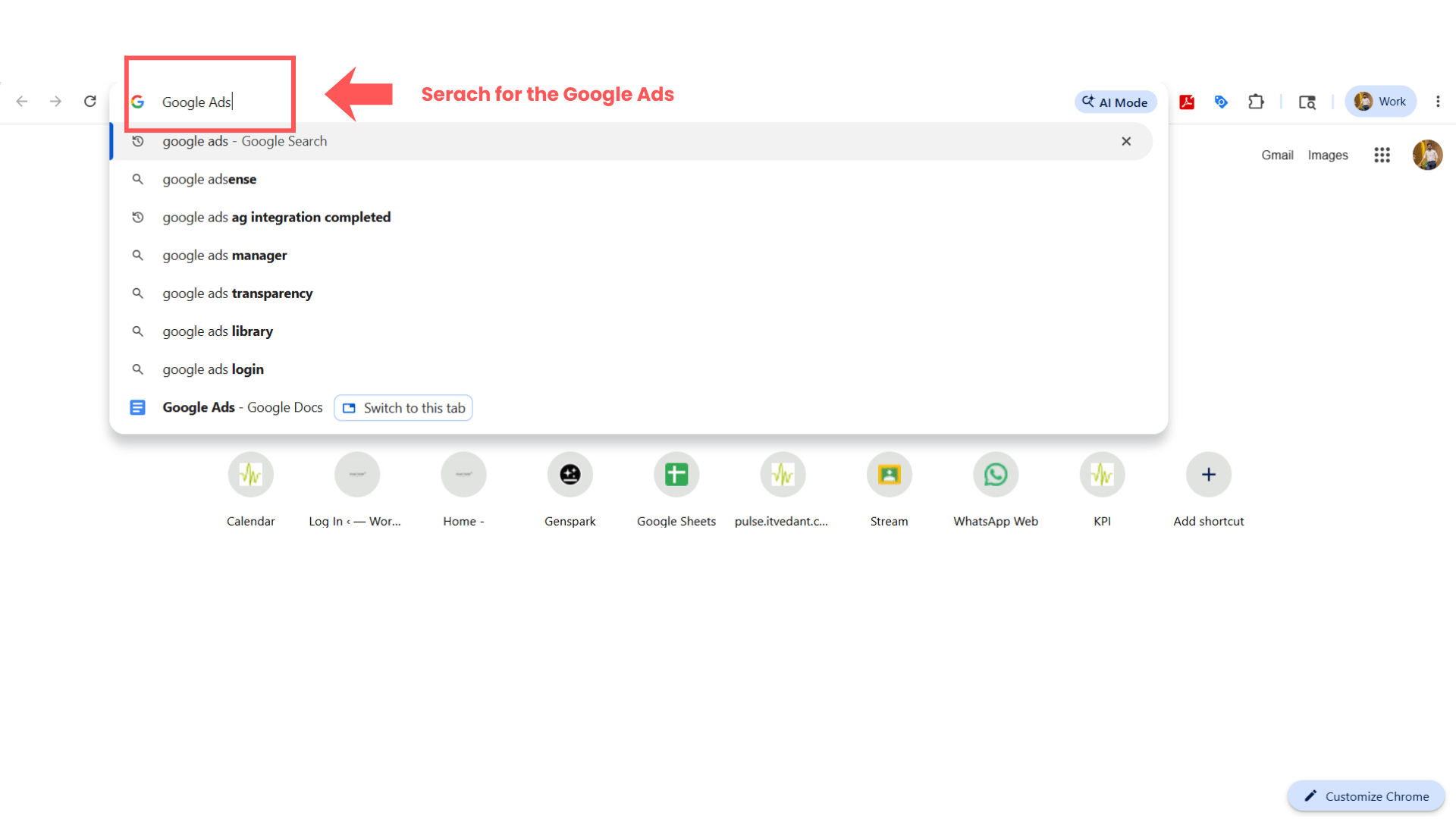
Open Google Ads Platform
2
-
Search:
Google Ads -
Open the official Google Ads website.
-
Click “Sign In”.
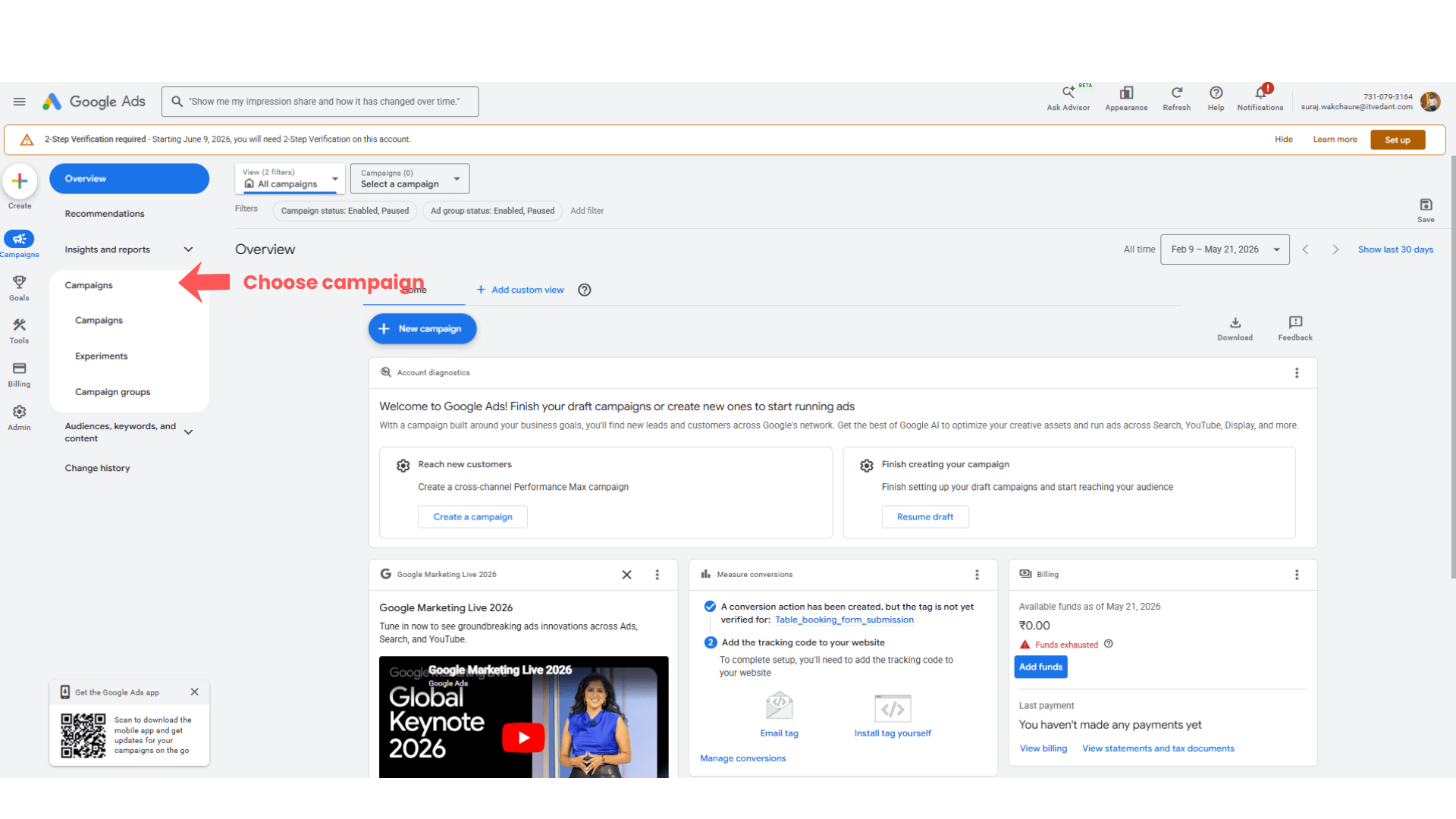
Open Campaign Section
1
Task 2: Create New Display Campaign
-
From the left-side menu, click:
“Campaigns”
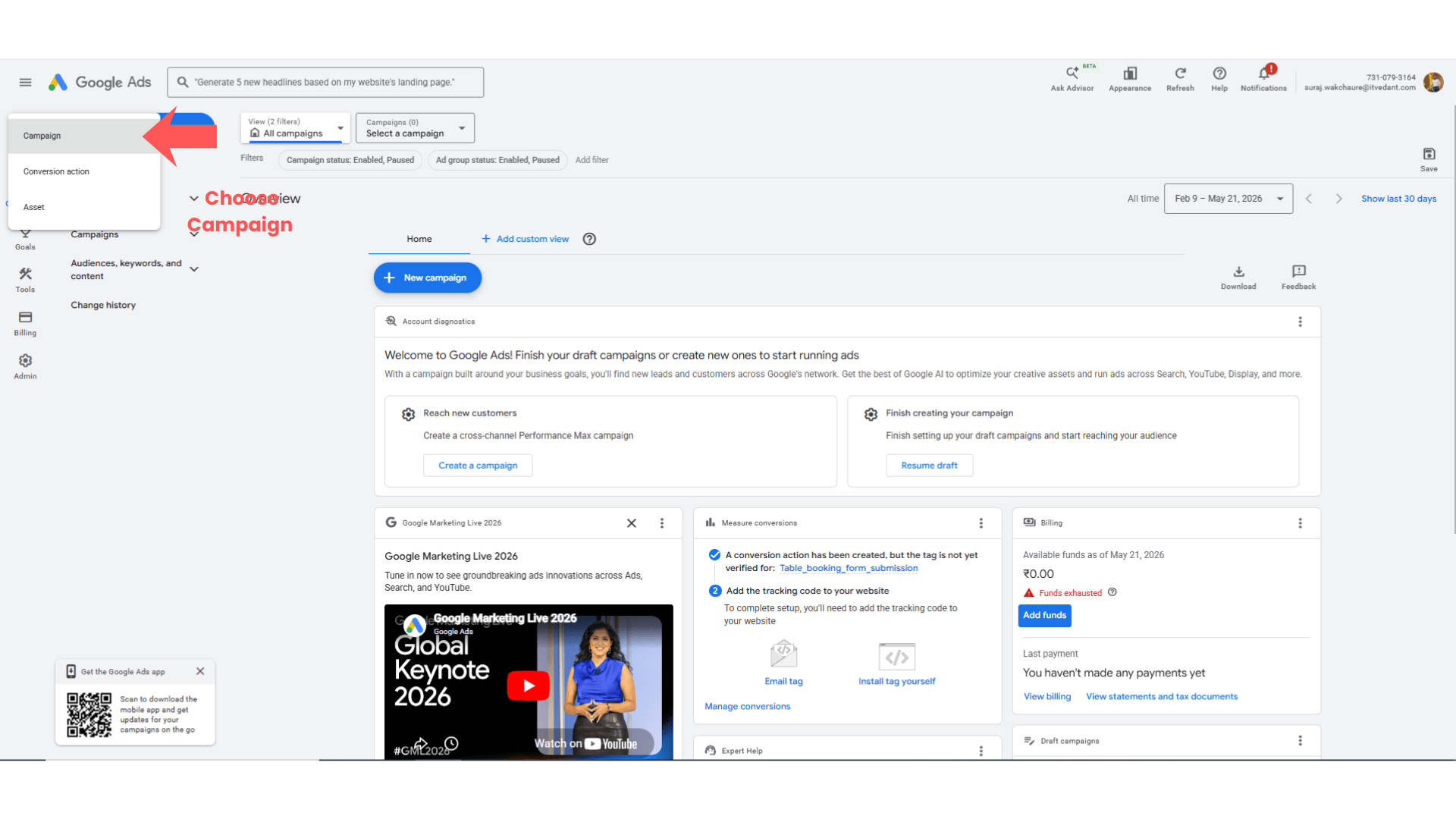
Create New Campaign
2
-
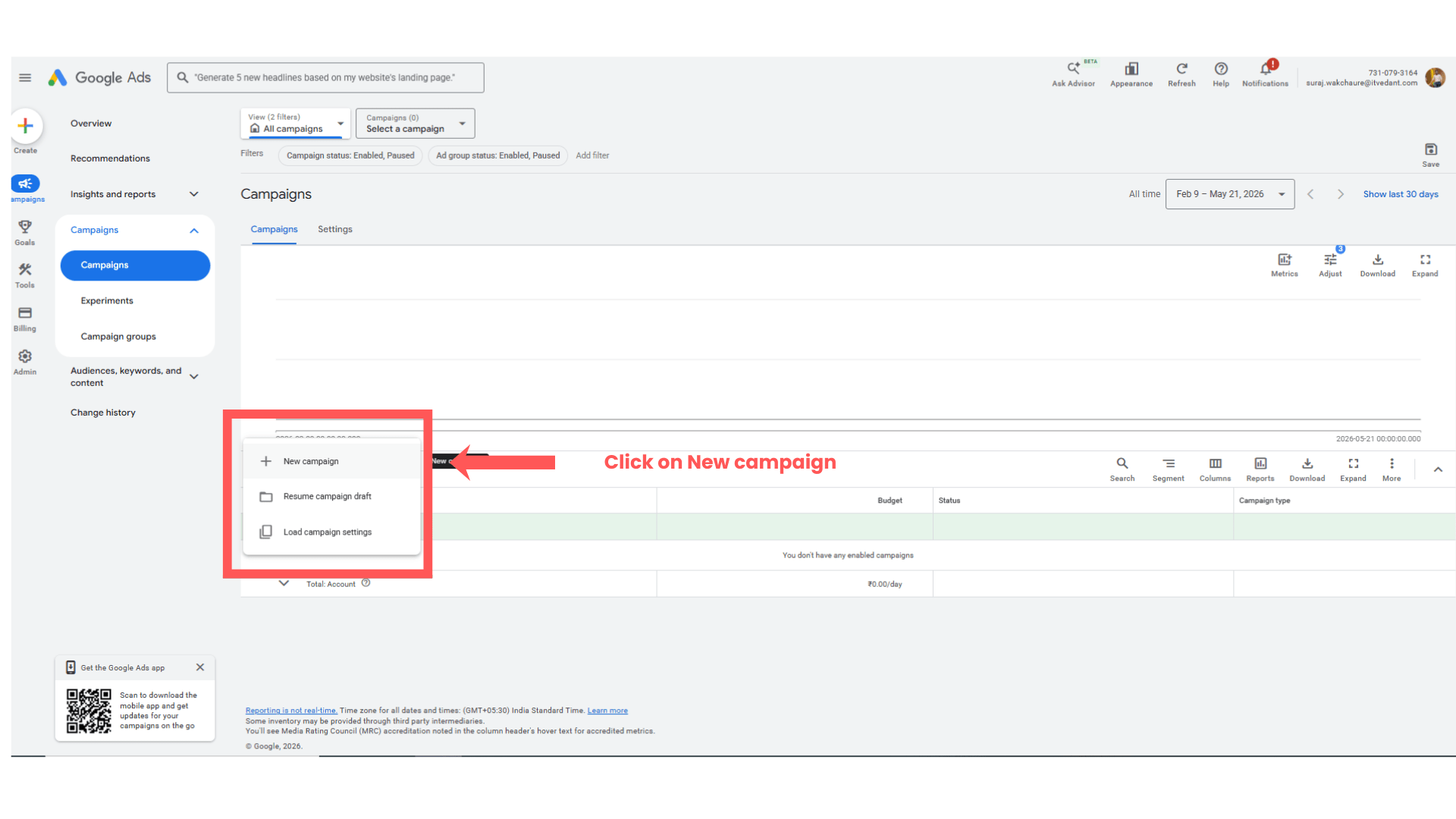
Click the blue “+” button.
-
Select:
“New Campaign”
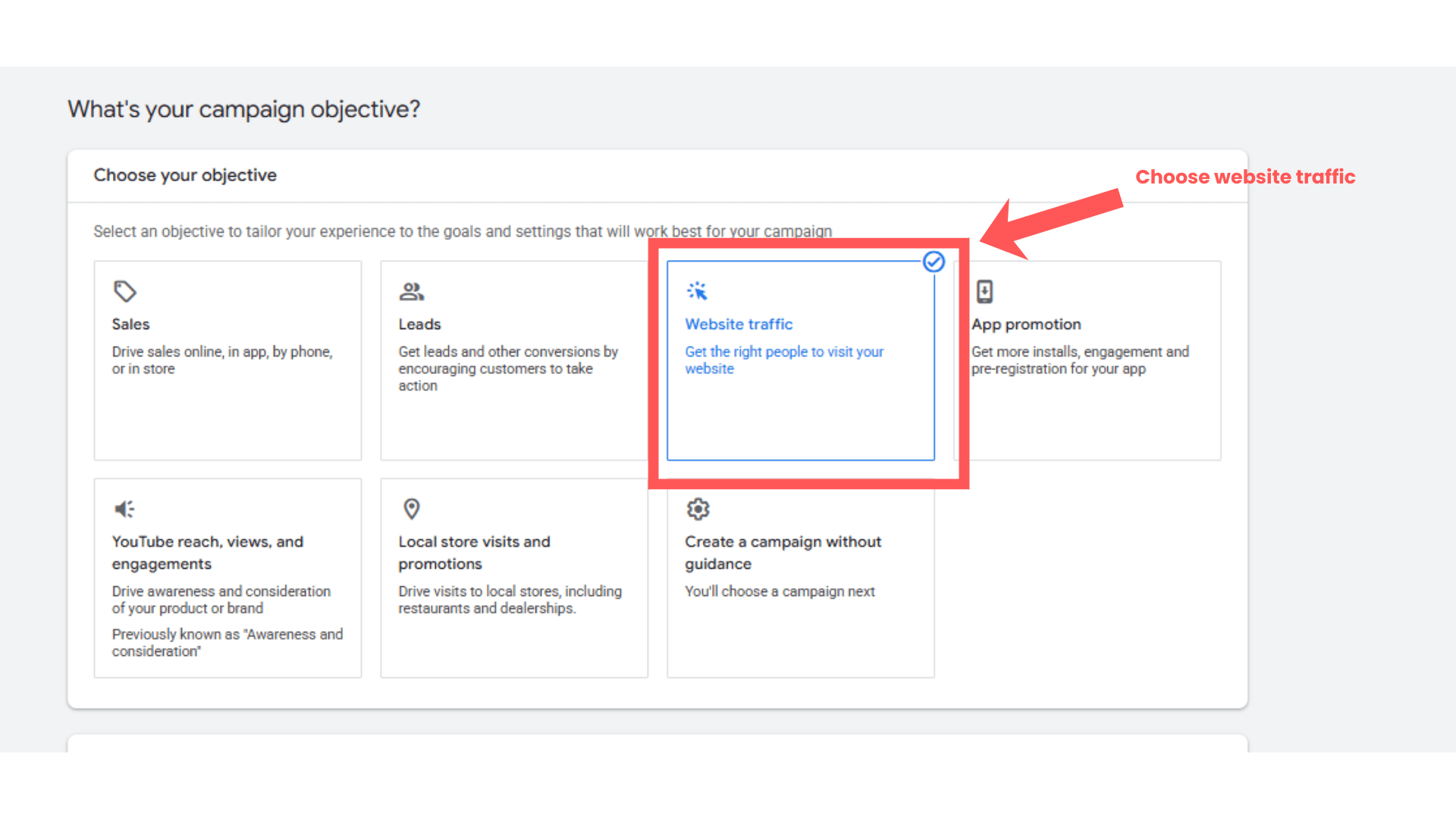
Select Campaign Objective
3
Choose objective such as:
-
Website Traffic
OR -
Brand Awareness & Reach
Then click:
“Continue”
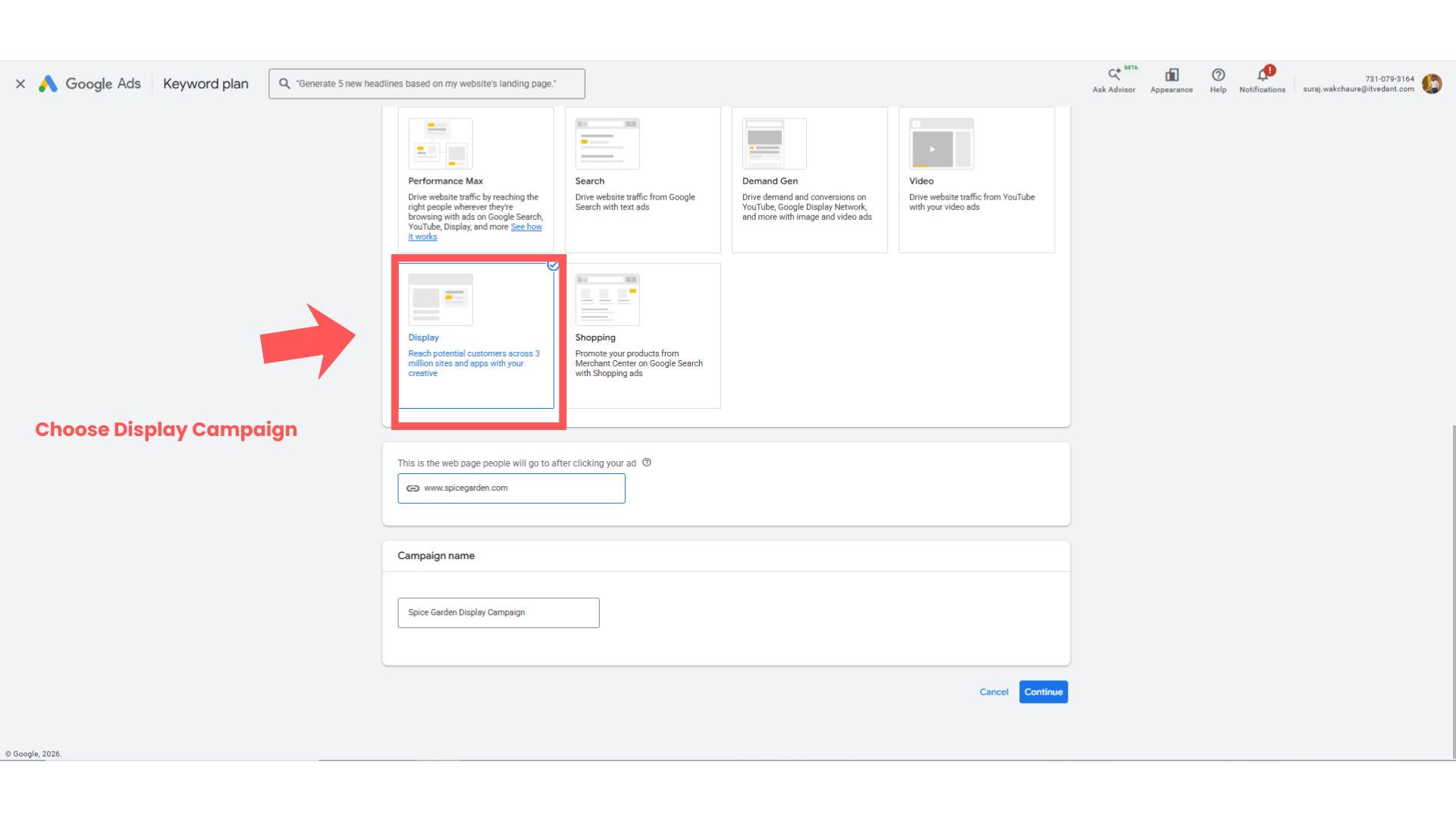
Select Display Campaign
4
-
Choose:
“Display” -
Click:
“Continue”
Task 3: Configure Campaign Settings
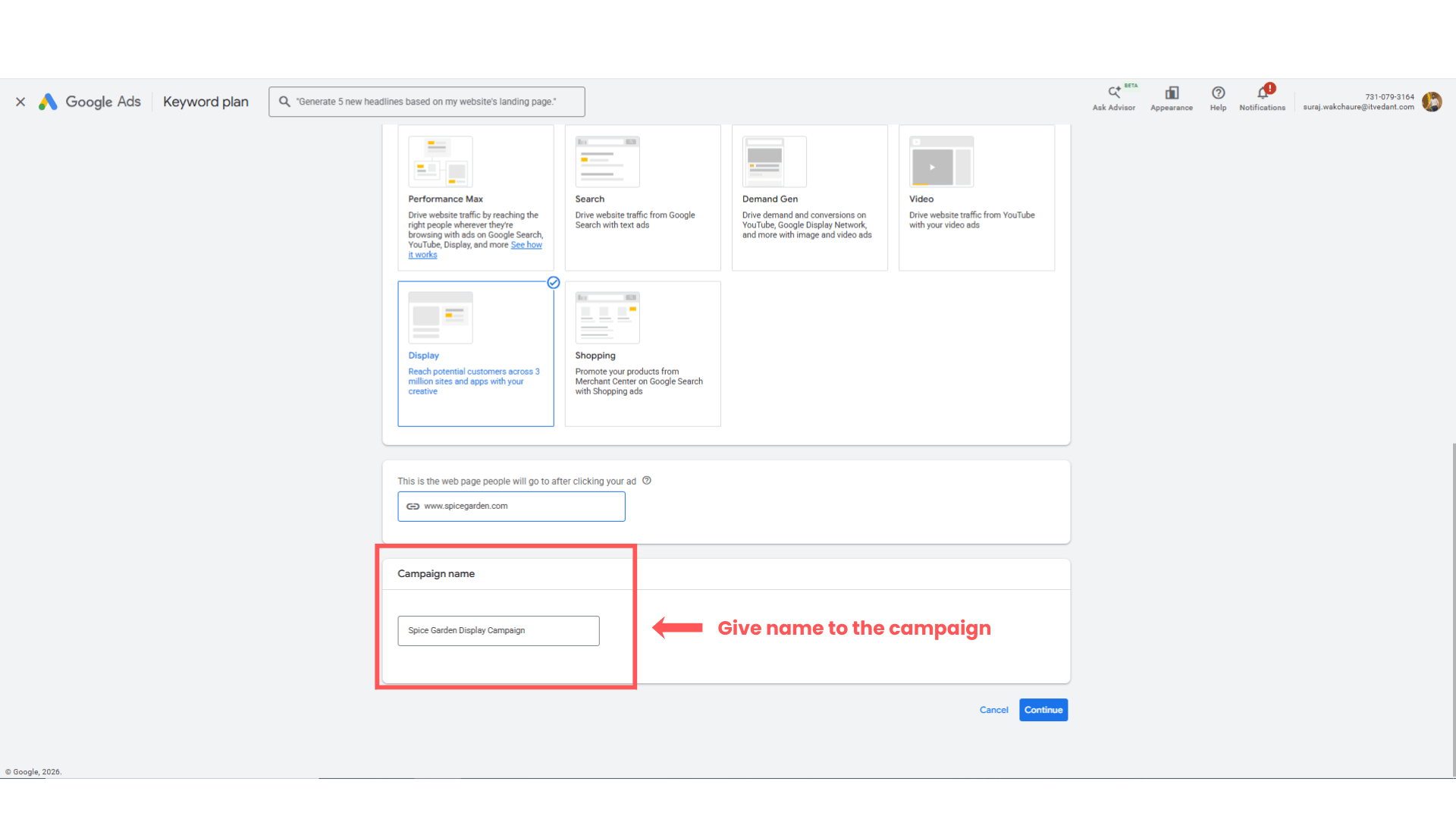
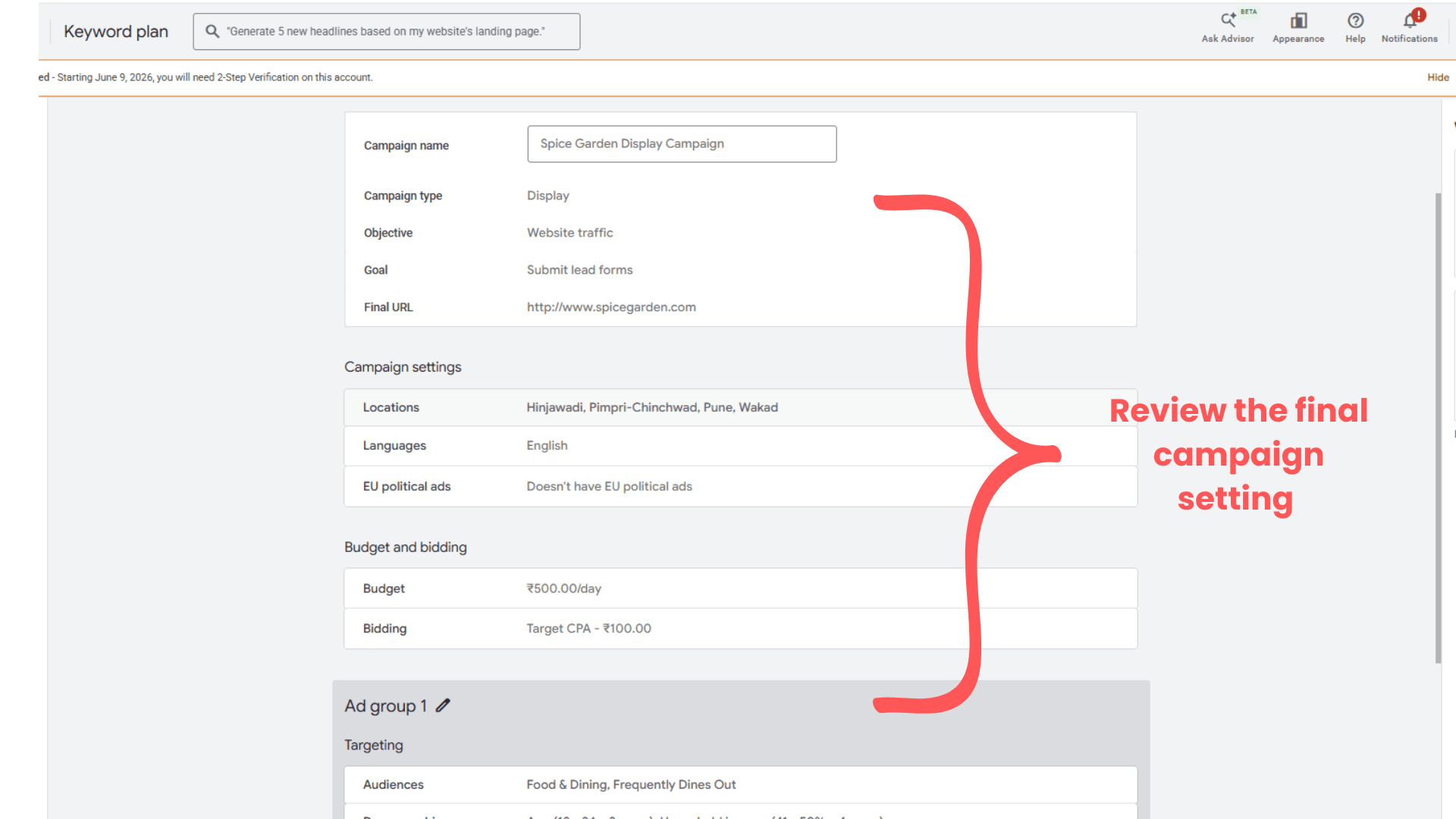
Enter Campaign Name
1
Enter campaign name:
Spice Garden Display Campaign
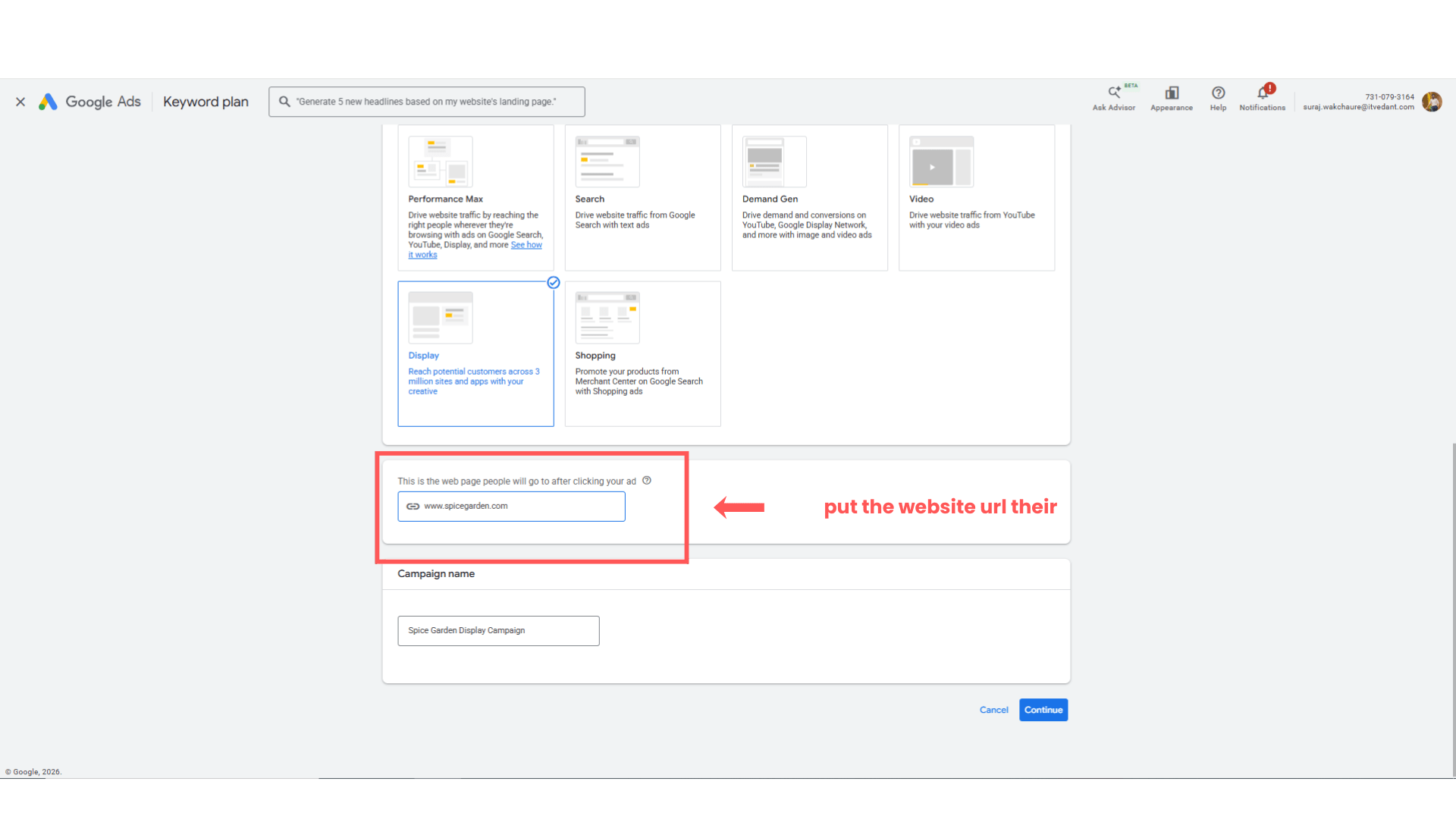
Enter Website URL
2
Enter website URL:
www.spicegarden.com
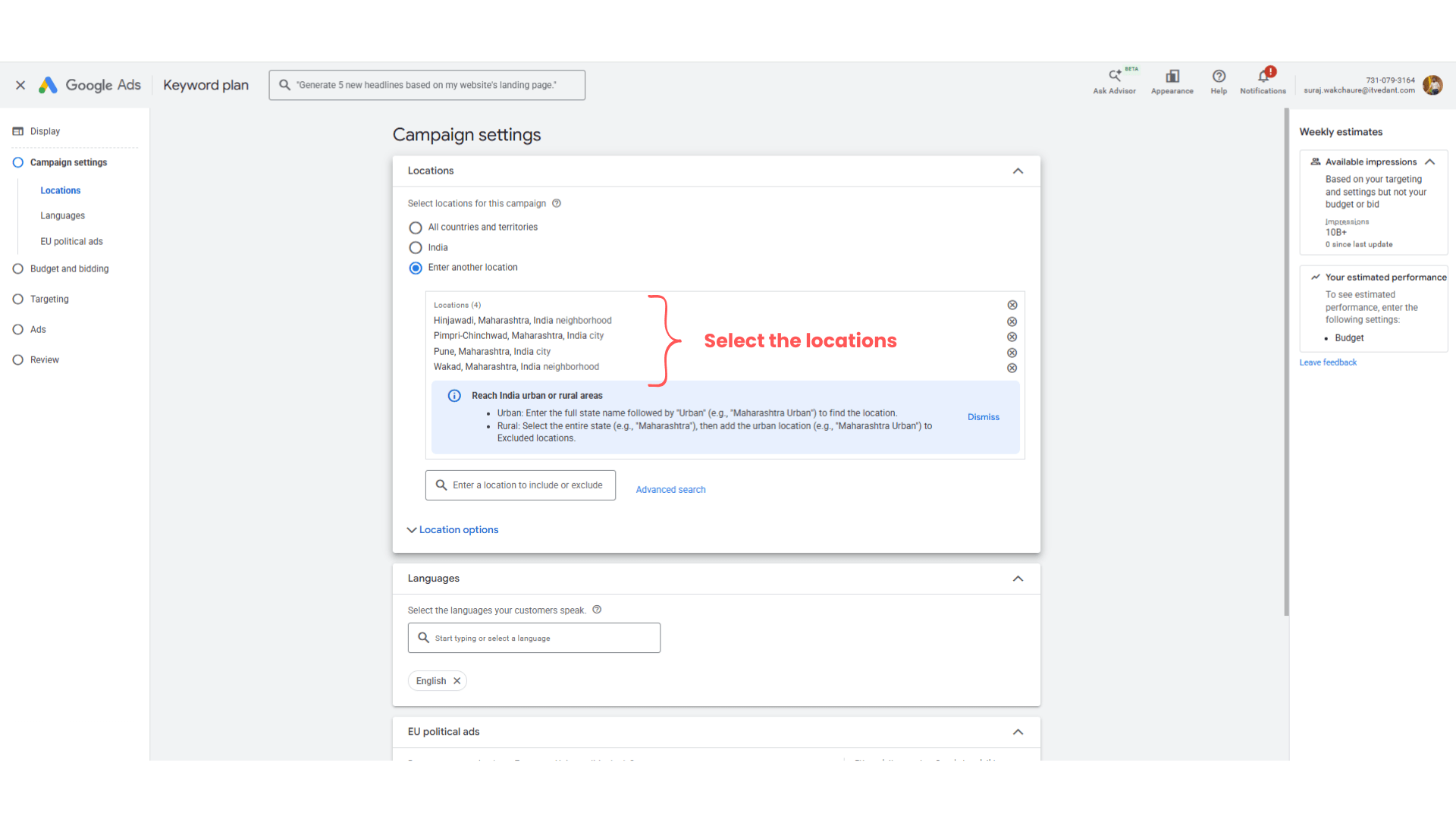
Select Location Targeting
3
Target locations such as:
-
Pune
-
PCMC
-
Wakad
-
Hinjewadi
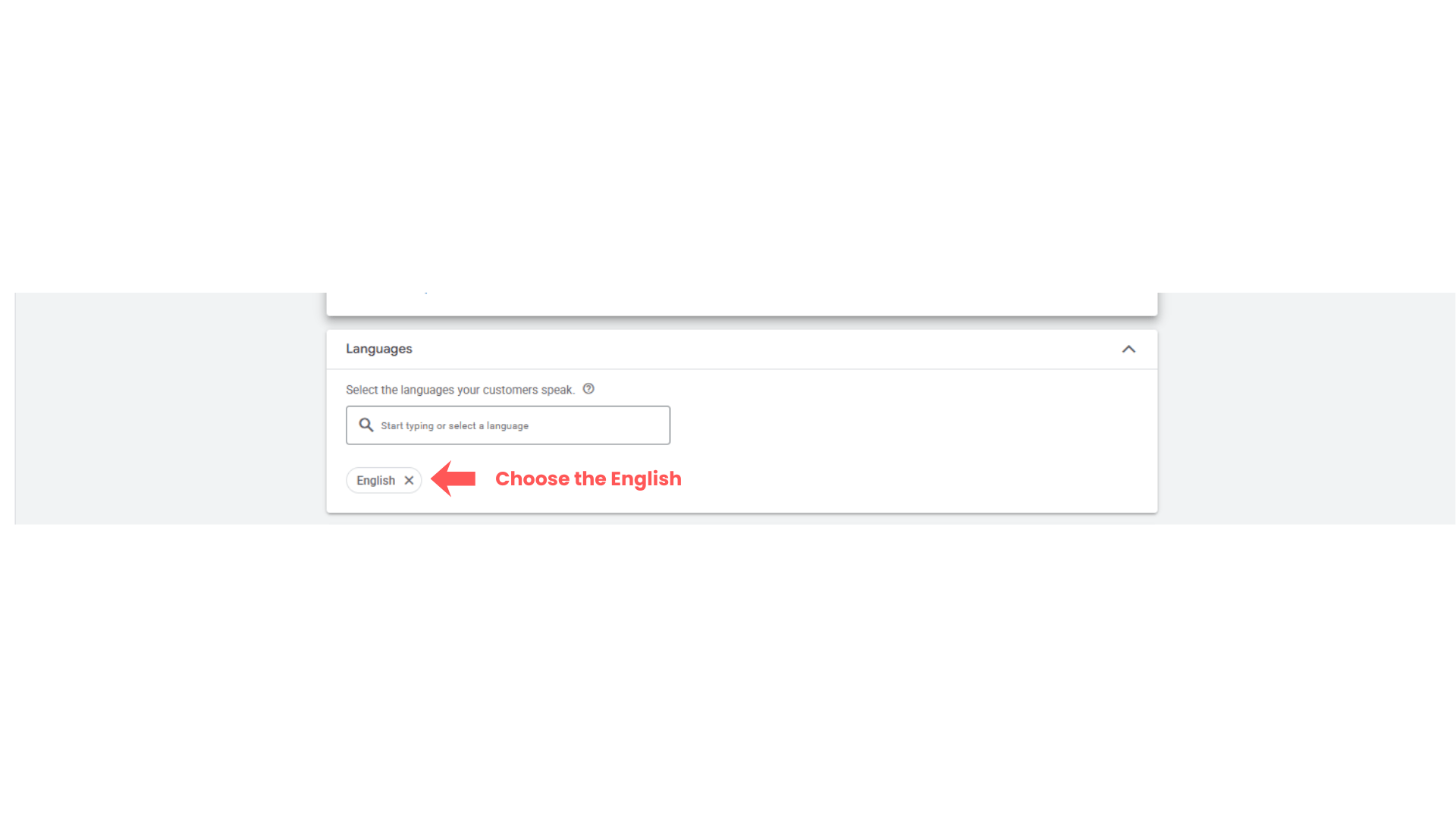
Select Language
4
Choose:
-
English
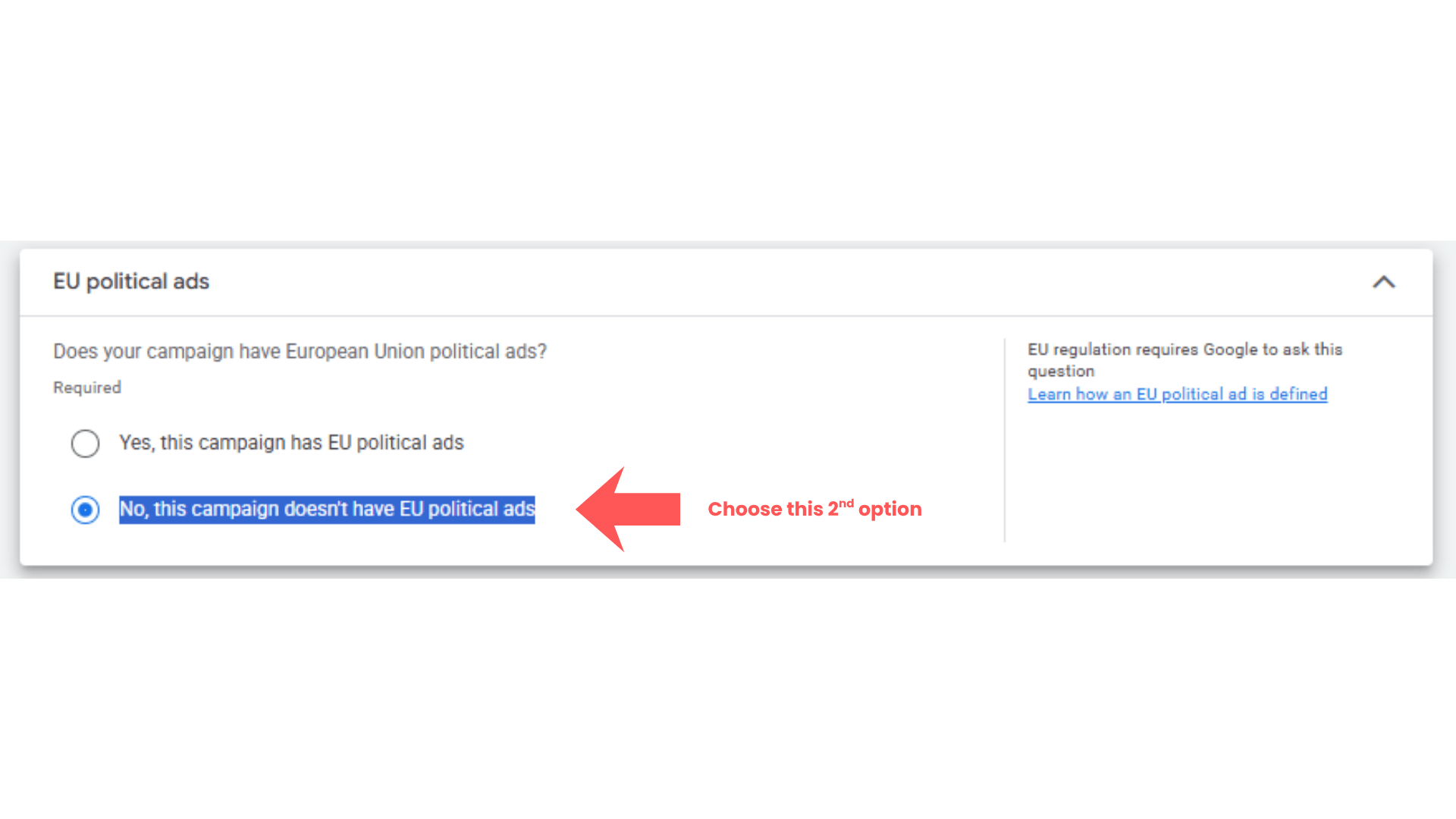
Define EU-political ad
5
Select second option ‘No, this campaign doesn't have EU political ads’
More setting configuration
6
Keep all the default setting as it as mentioned in the screenshot below.
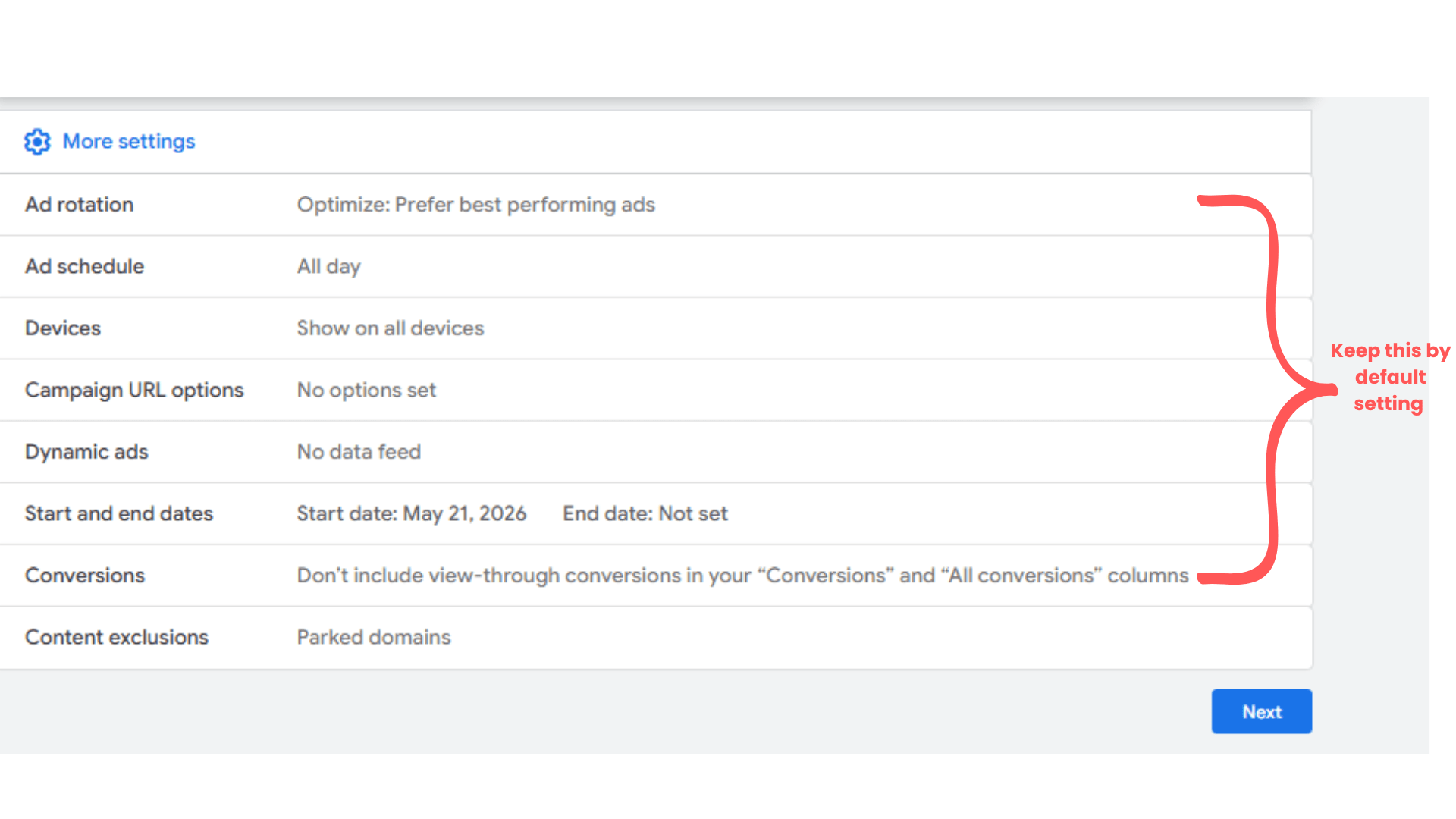
- Ad rotation - Optimize : prefer best performing Ads
-
Ad Schedule : All Day
-
Devices : Show on all devices
-
Campaign url option : No options set
-
Dynamic ads : No data feed
-
Start and end dates : keep the default one
-
Conversions : Don’t include view-through conversions in your “Conversions and “All conversions” columns
-
Content exclusions - parked domain
Click on ‘Next’
Task 4: Configure Budget and Bidding
Set your average daily budget for this campaign = Rs 500
1
set up bidding as per below setting
2
What do you want to focus on?
Conversions
How do you want to get conversions?
Automatically maximize conversions
-
Check the ‘ set a target cost per action’
Then click on ‘Next’
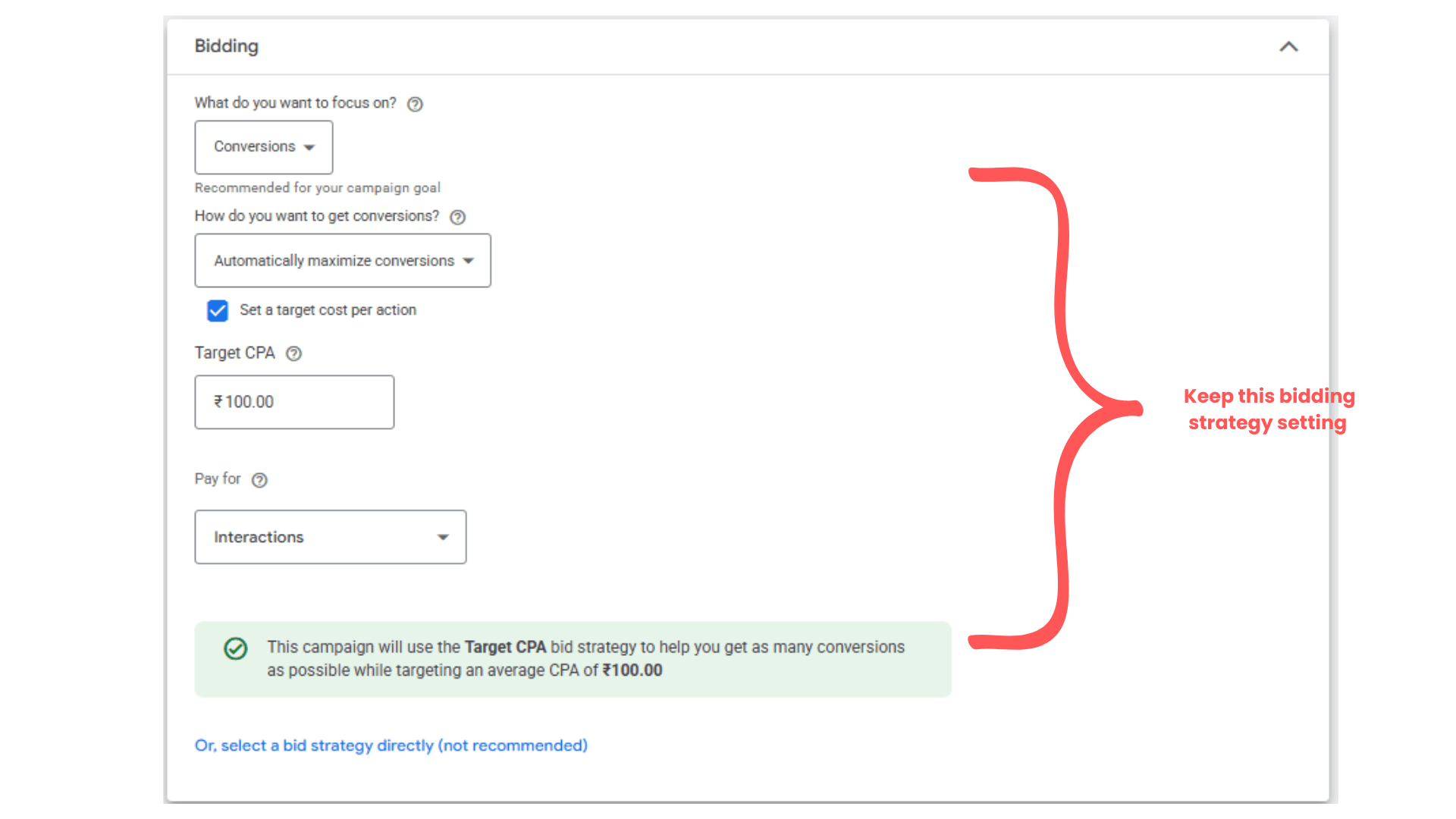
Target CPA - 100 ( it will get vary depending on analysis )
Pay for interaction
Click on Next
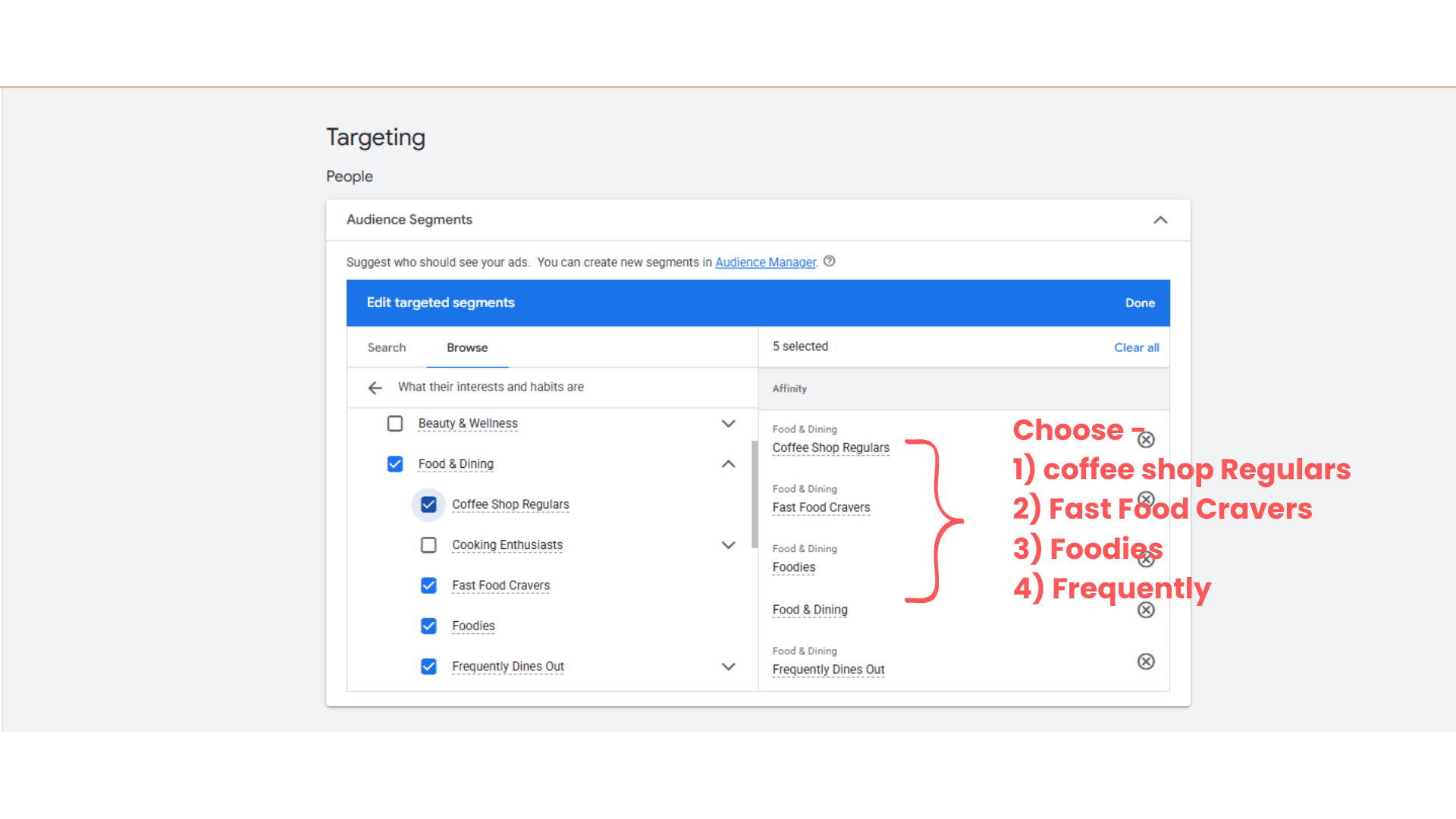
Audience segment setup -
3
-
Coffee Shop Regulars
-
Fast Food Cravers
-
Foodies
-
Frequently Dines Out
Select above option in the Audience segment
Add Demographic Targeting
4
Select:
-
Age Group
-
Gender
-
Household Income
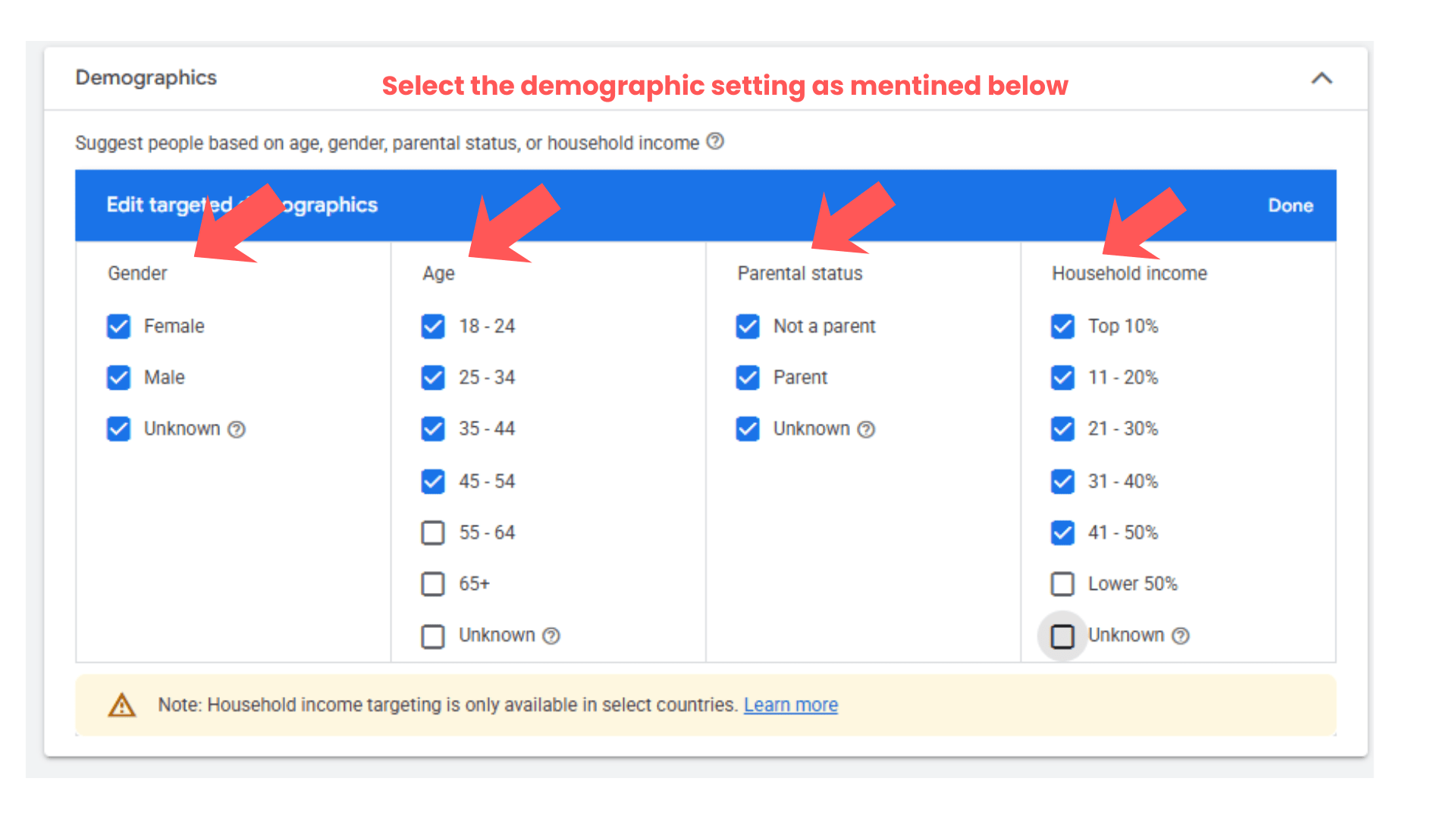
Gender - Male & Female
-
Age - 18-54
Parental status -
-
Parent
-
Not a parent
Household income
Top 10% to top 50%
Configuring the keyword optimization
5
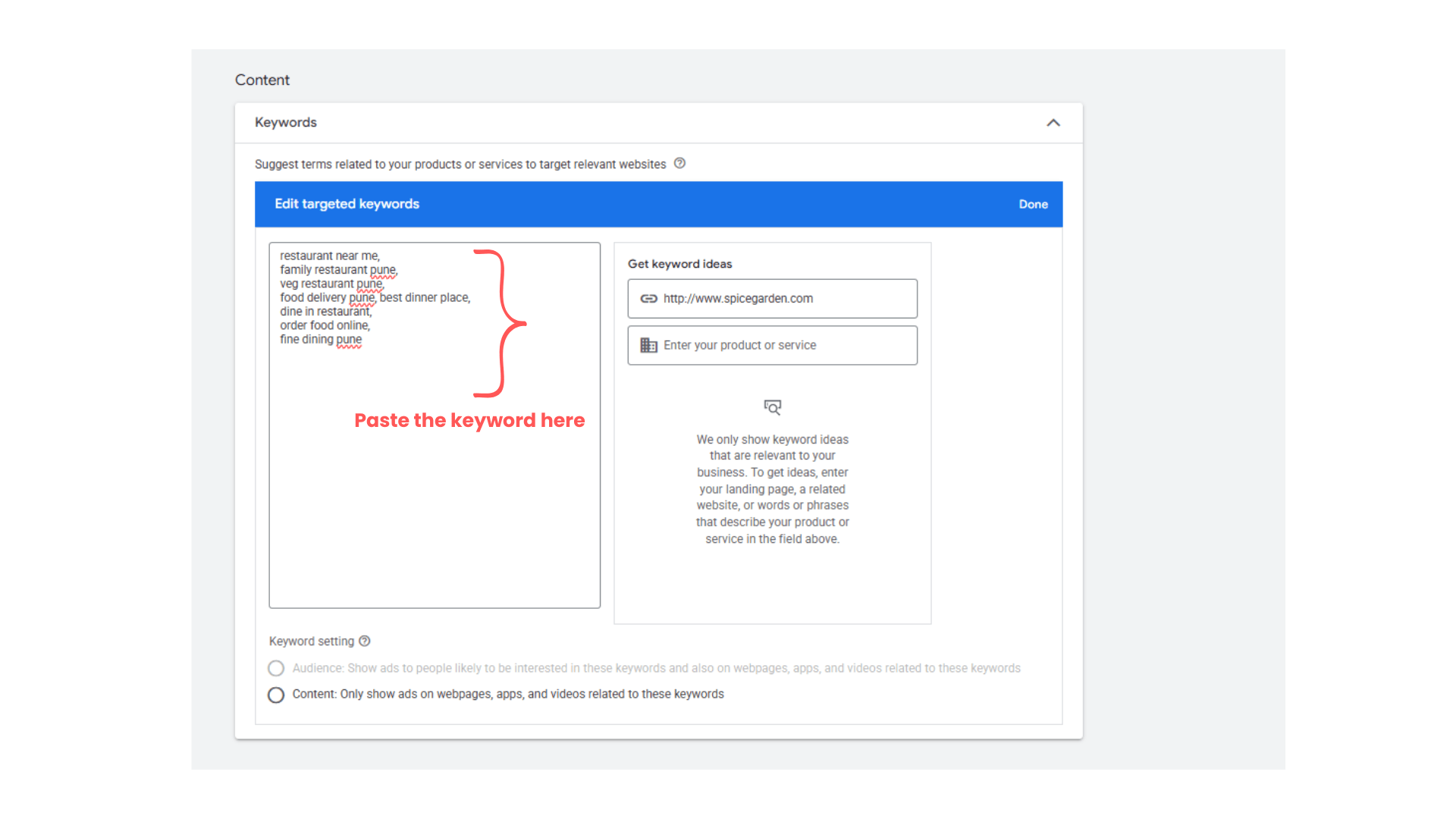
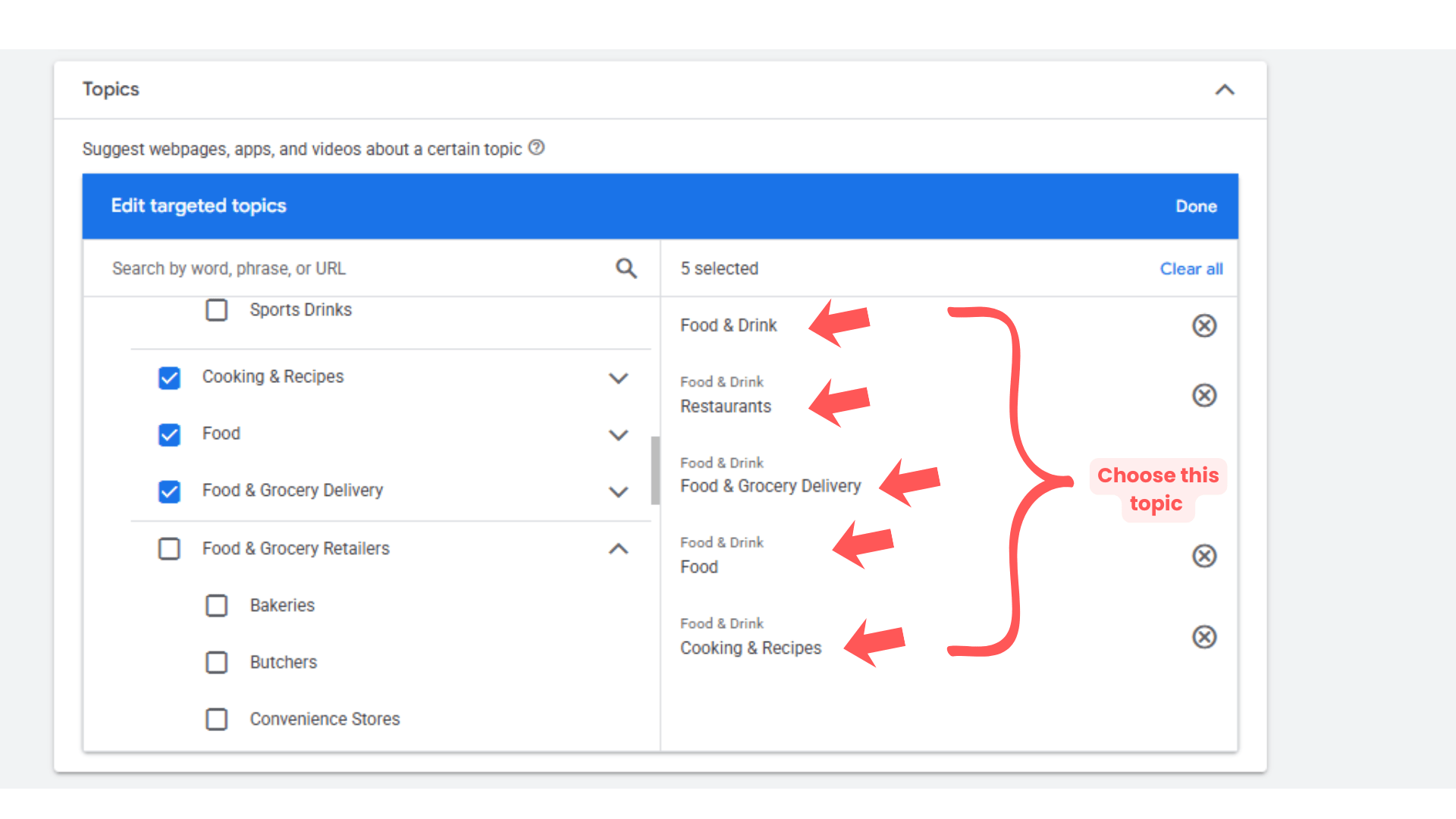
Configuring the Topics -
6
Configuring the placements
7
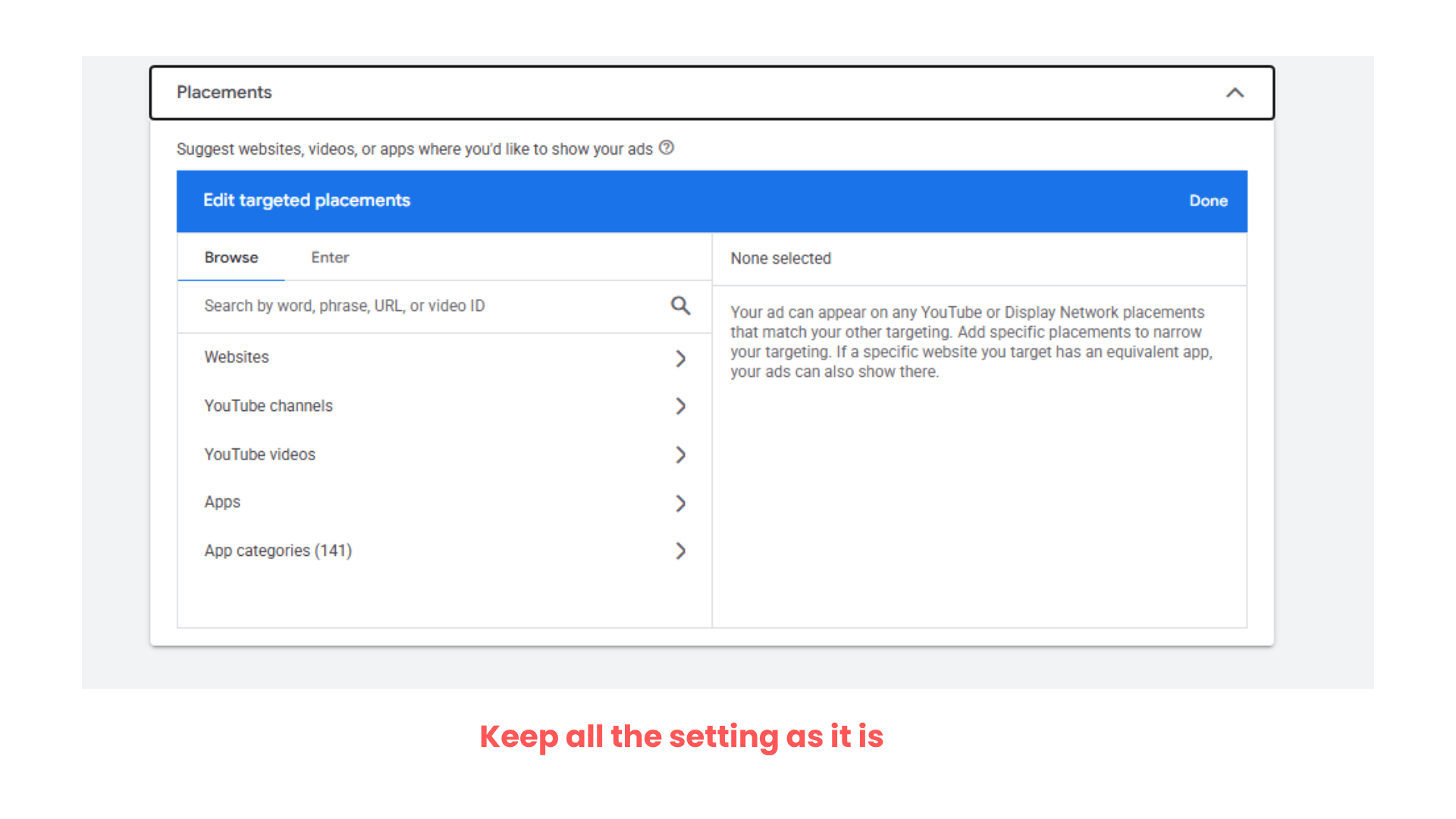
Keep placements setting as it is
Then click on ‘Next’
Task 5: Create Display Advertisement
Upload the final url - www.spicegarden.com
1
Fill the Business Name - Spice Garden
Images - Upload the images of spice garden hotels with some offer poster
Add Logo
2
Upload Spice Garden logo.
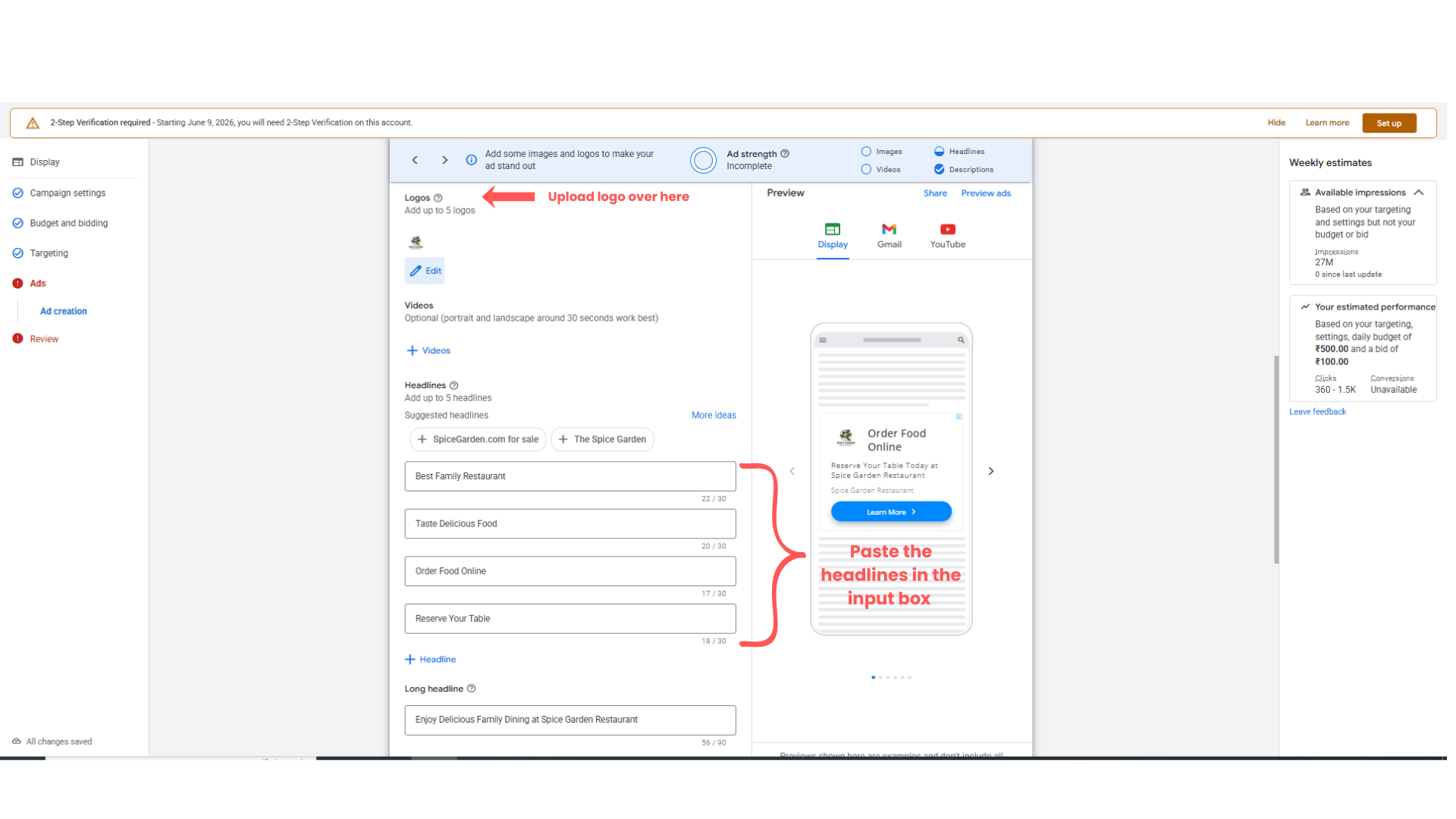
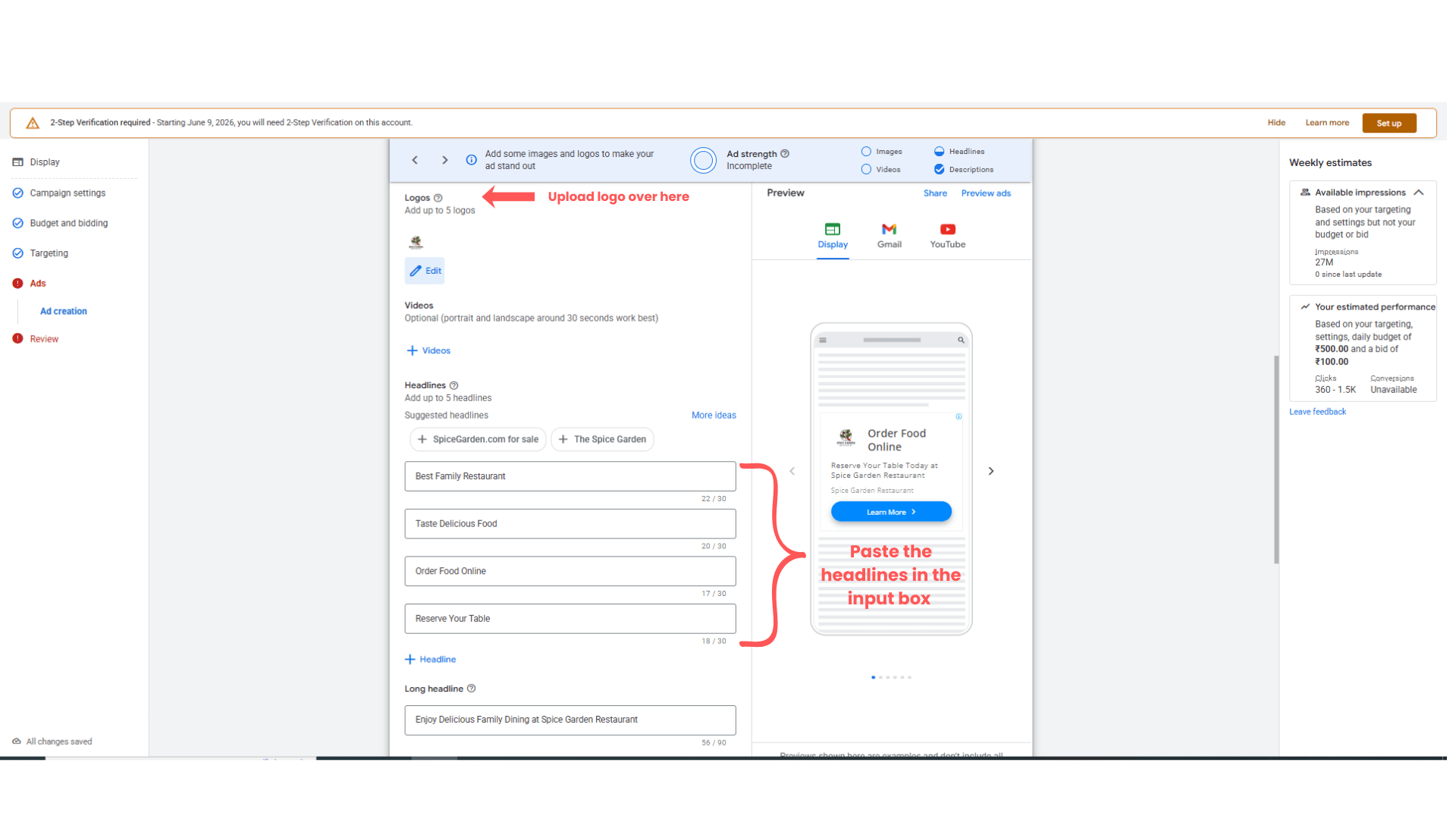
Enter Headlines
3
Sample headlines:
- Best Family Restaurant
- Taste Delicious Food
- Order Food Online
- Reserve Your Table
Add Descriptions
4
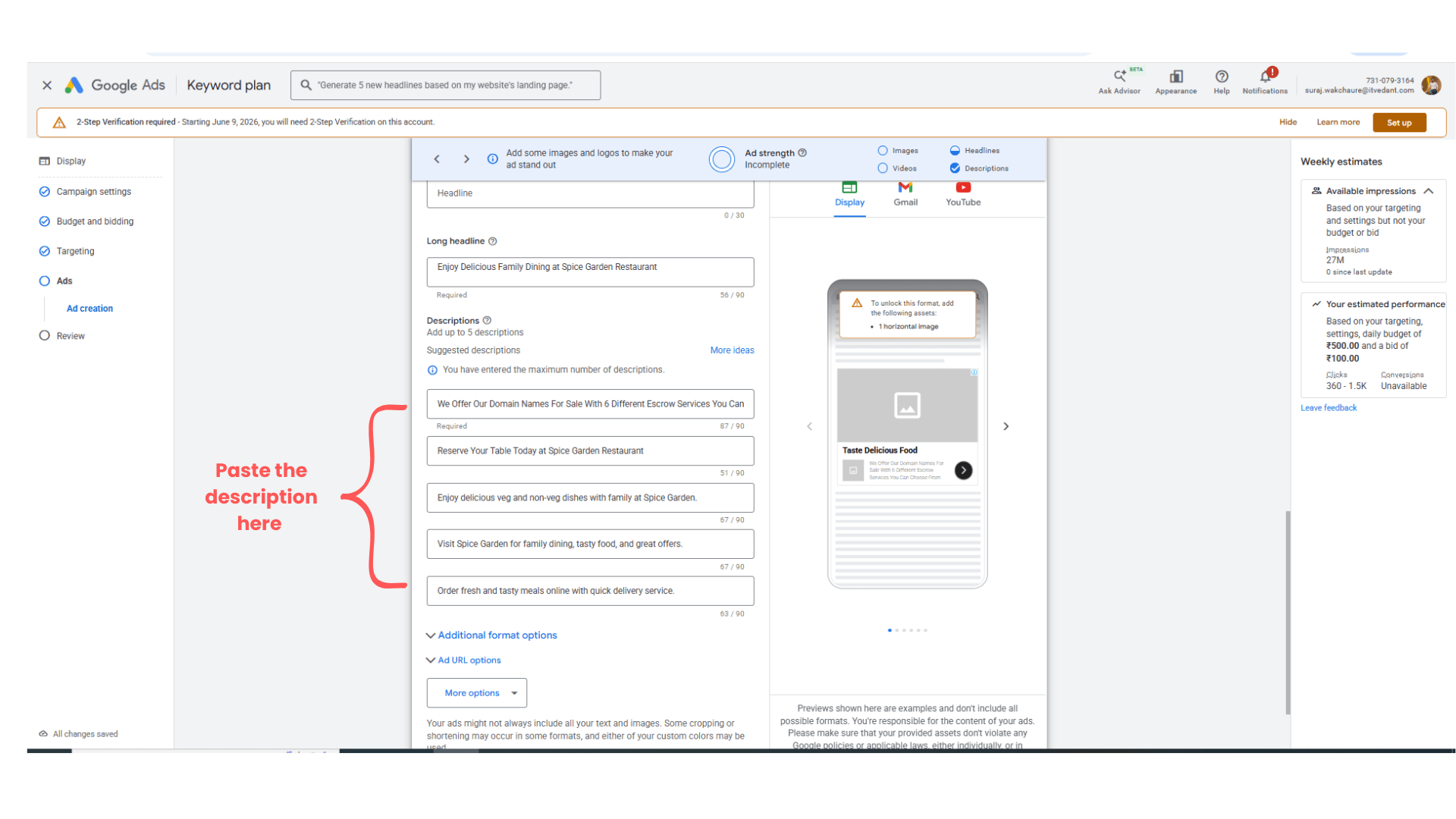
Enjoy delicious food with your family at Spice Garden Restaurant.
Order your favorite meals online with fast delivery service.
Preview Display Ads
5
Review:
-
Mobile Preview
-
Website Placement Preview
-
Banner Layouts
Publish Campaign
6
-
Click:
“Publish Campaign”
Expected Outcome
After completing this LAB, learners will be able to:
-
Create Google Display Campaigns
-
Configure display campaign settings
-
Setup audience targeting
-
Upload banner creatives
-
Create responsive display ads
-
Publish and verify display campaigns
Congratulations!
You have successfully completed the Display Ads Setup LAB for Spice Garden.
In this LAB, you learned how to:
-
Create Display Campaigns
-
Configure audience targeting
-
Upload display creatives
-
Create responsive display ads
-
Publish display advertising campaigns
This knowledge will help you run visual advertising campaigns for restaurants and local businesses effectively.
Checkpoint