GTM Integration

Business Scenario
After implementing AI SEO strategies, Spice Garden wants to track website actions such as button clicks, form submissions, table bookings, and page visits. Instead of adding tracking code manually to every page, the marketing team decides to use Google Tag Manager (GTM) to manage all tracking tags from a single dashboard.

Pre-Lab Preparation
Topic : Google Tag Manager
1) Google Tag Manager Dashboard
2) Conversion Tracking in Tag Manager
Task 1: Connect the Google Tag Manager with the restaurant
Objective
Create a GTM account for Spice Garden, integrate the GTM container with the website, verify the installation, and explore the GTM Dashboard to understand how tags, triggers, and variables are managed.
Create a Google Tag Manager Account
1
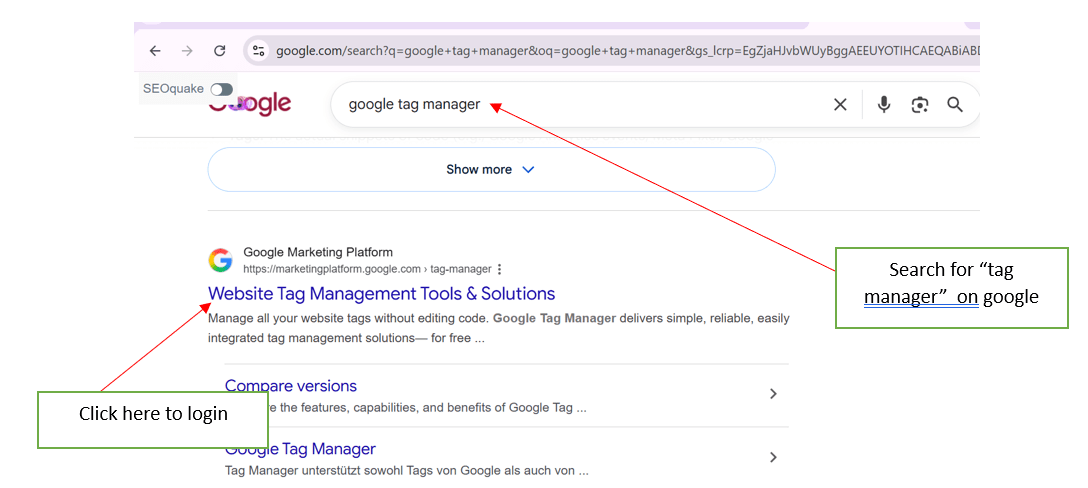
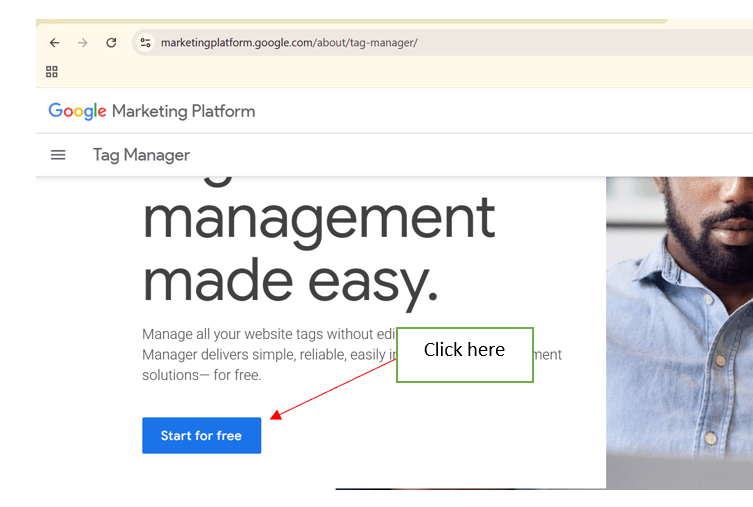
- Visit Google Tag Manager.
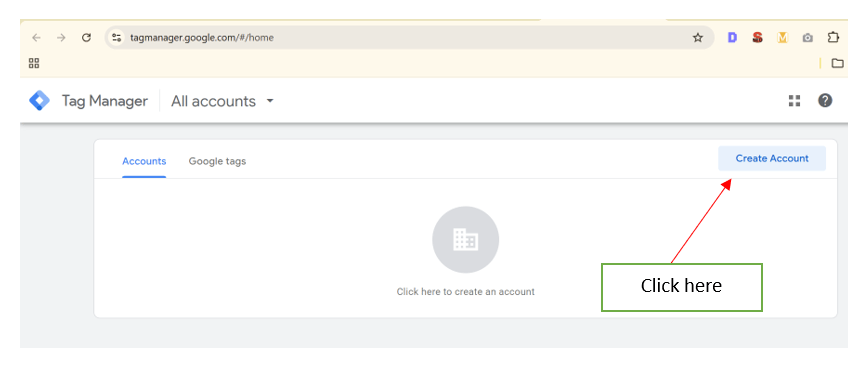
- Click on Create Account.
-
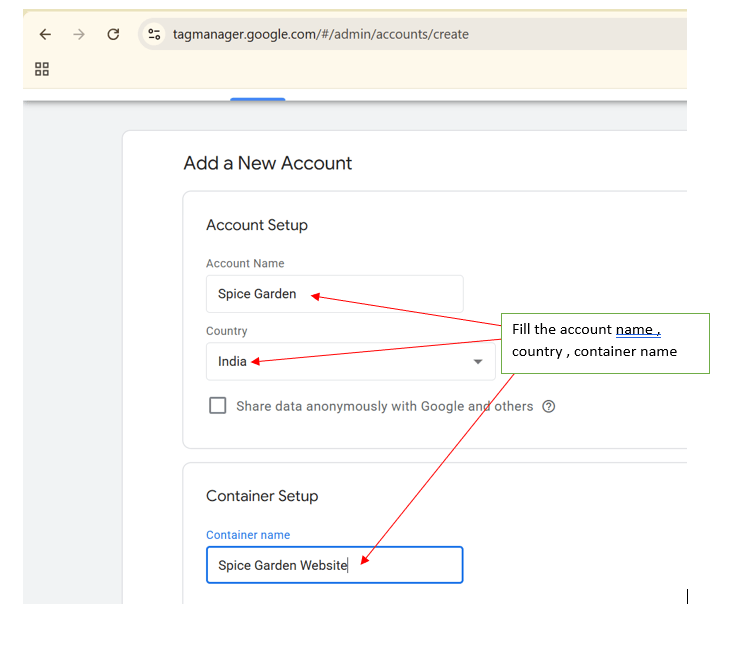
Enter the Account Name as Spice Garden.
-
Select India as the country.
-
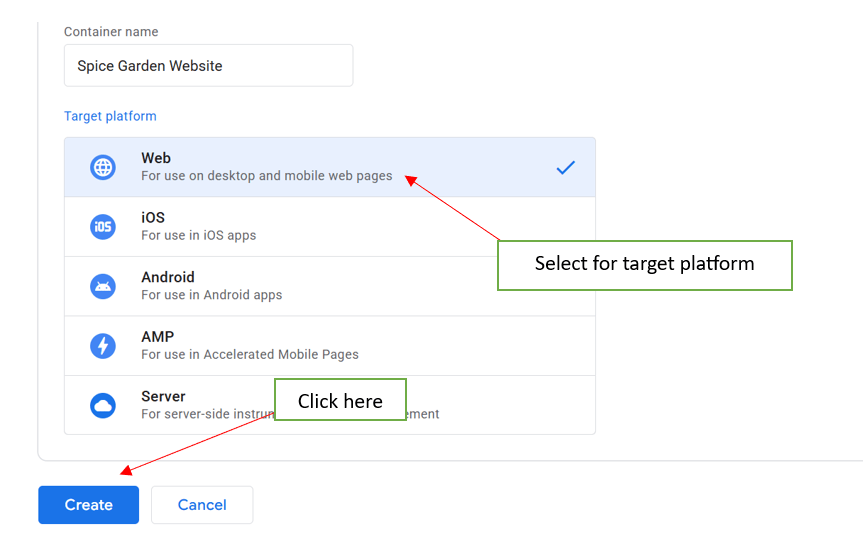
Enter the Container Name as a Spice Garden Website.
-
Choose the Web as the target platform.
-
Click Create and accept the terms and conditions.
Obtain the GTM Container Code
2
-
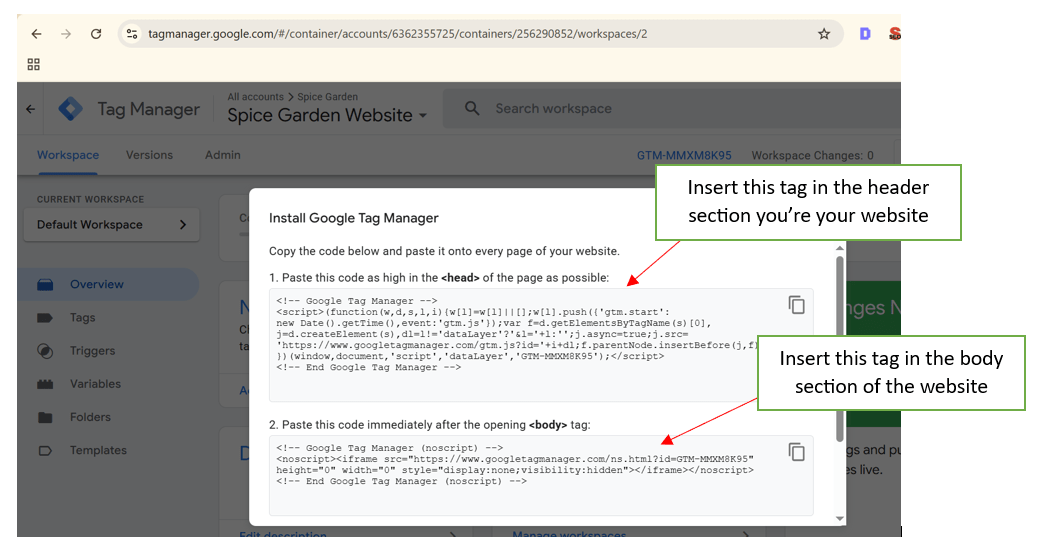
After creating the account, GTM will generate two code snippets.
-
Copy both the code snippets provided by GTM.
Install GTM on the Website
3
-
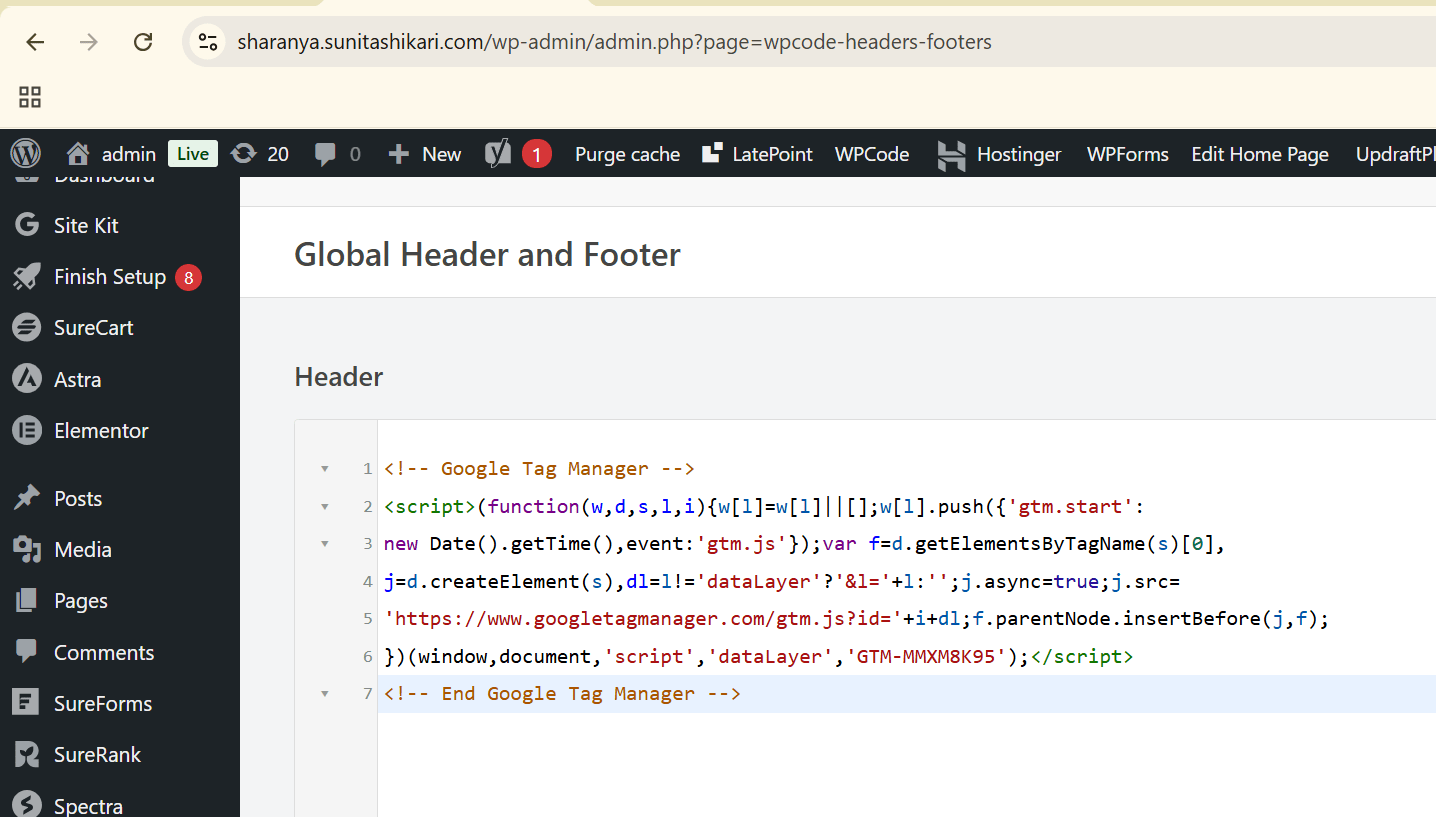
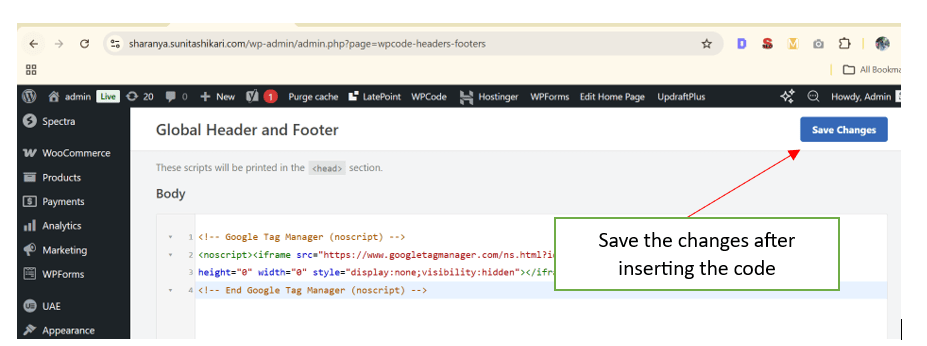
Paste the first GTM code immediately after the opening <head> tag.
-
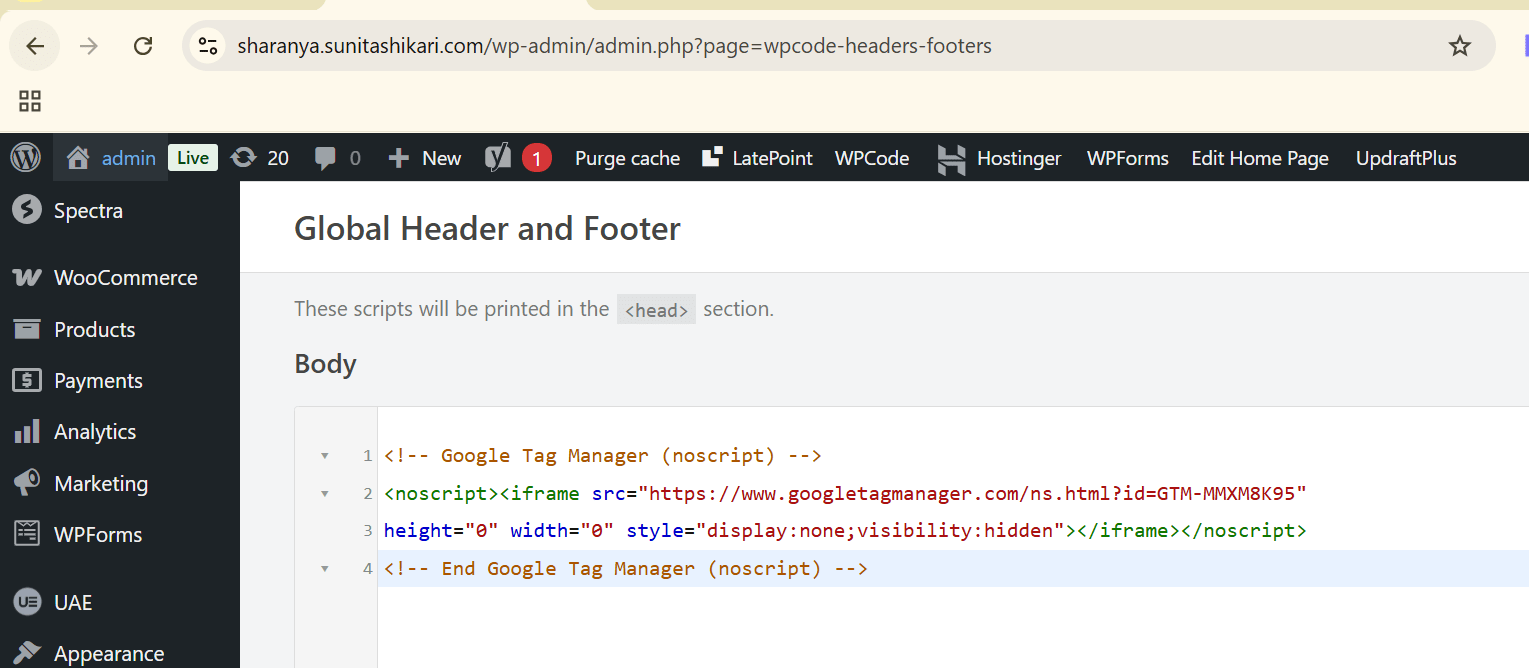
Paste the second GTM code immediately after the opening <body> tag.
-
Save and publish the website changes
Verify GTM Installation
4
-
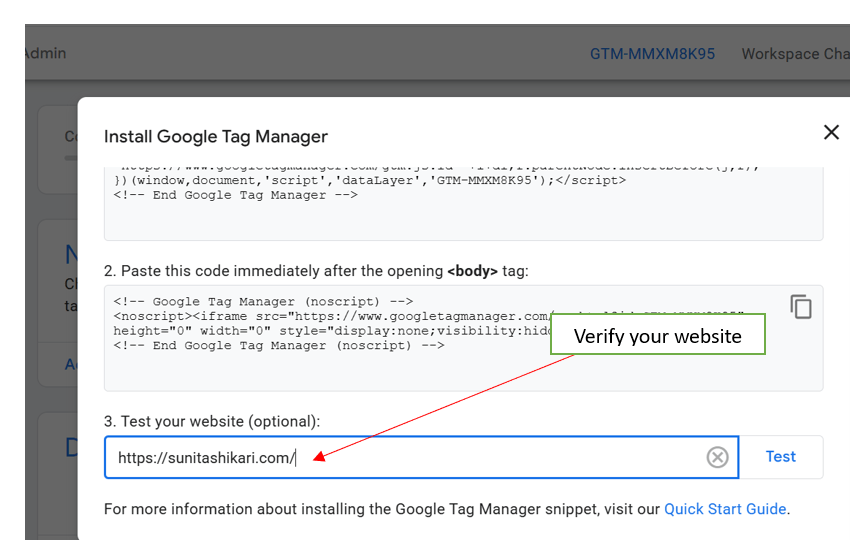
Open Google Tag Manager.
-
Click on Preview.
-
Enter the Spice Garden website URL.
-
Confirm that the website successfully connects with GTM
Explore the GTM Dashboard
5
-
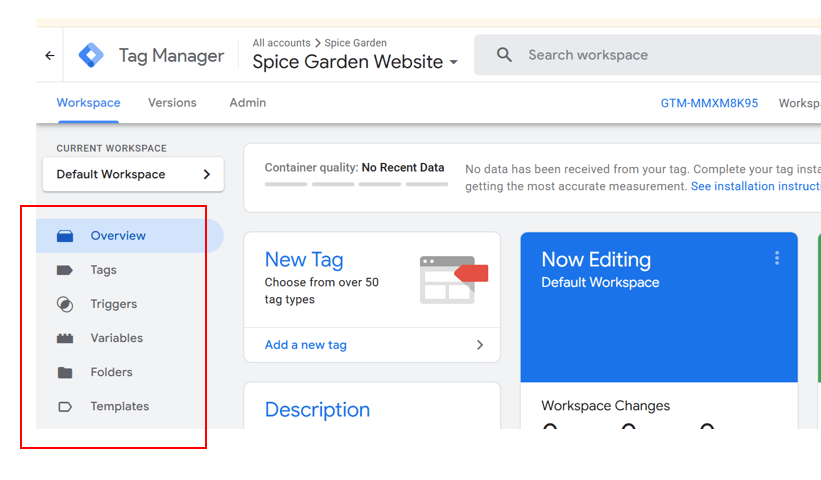
Open the GTM Dashboard.
-
Navigate through the following sections:
-
Workspace
-
Tags
-
Triggers
-
Variables
-
Folders
-
Templates
-
Versions
-
Admin
-
-
Observe the purpose of each section.
Analyze the Tags Section
6
-
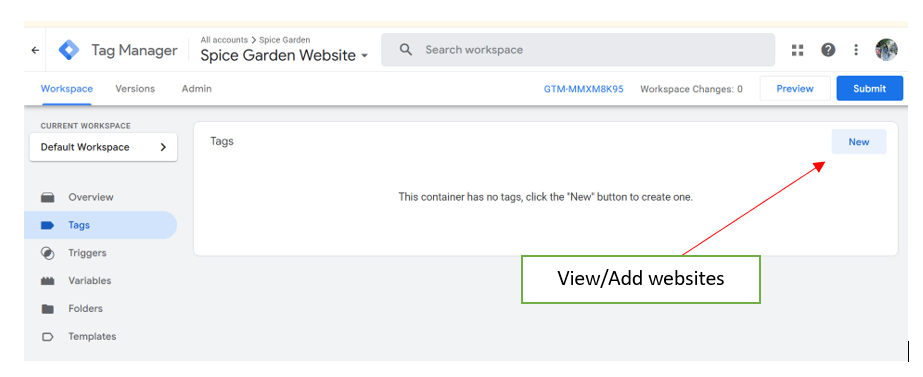
Open the Tags menu.
-
Review the available options for creating and managing tags.
-
Identify the different tag types available within GTM.
Analyze the Triggers Section
7
-
Open the Triggers menu.
-
Review how triggers control when tags are fired.
-
Observe the different trigger categories available.
Analyze the Variables Section
8
-
Open the Variables menu.
-
View the built-in variables available in GTM.
-
Enable additional variables if required
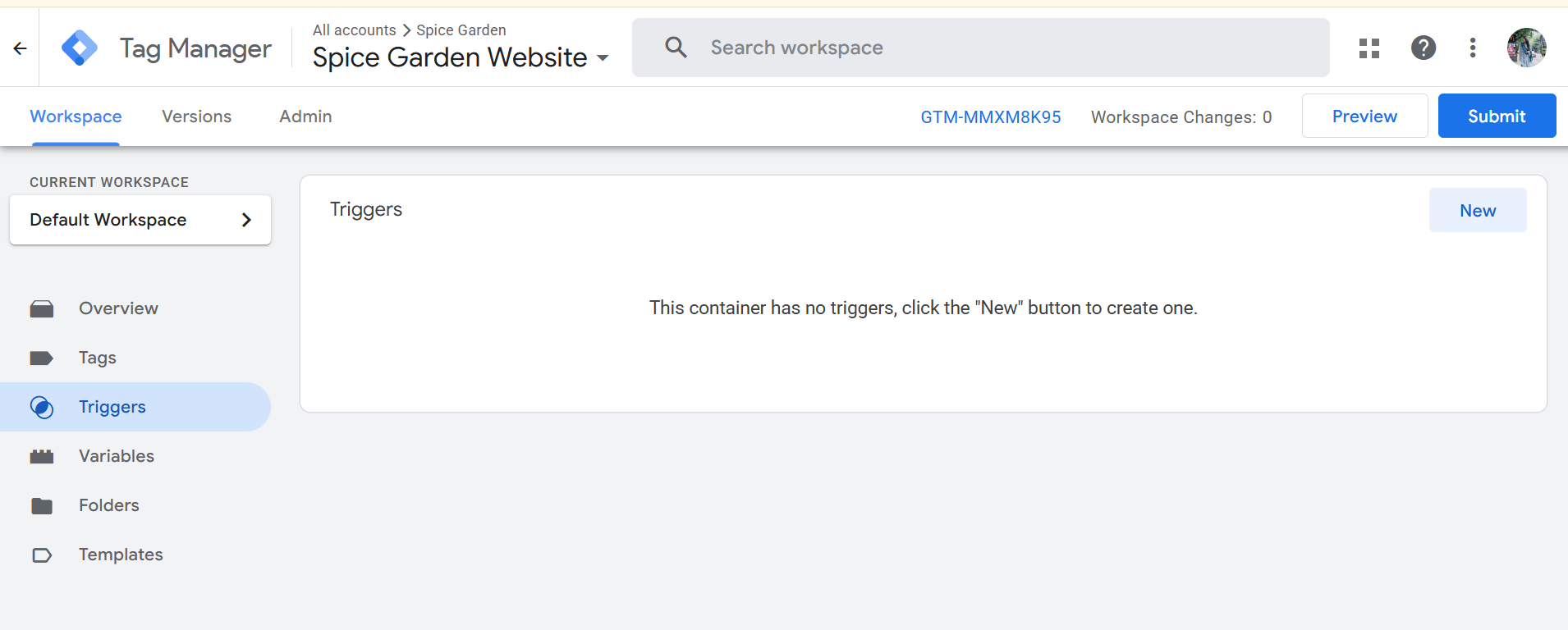
The Spice Garden website is successfully integrated with Google Tag Manager, enabling centralized management of tracking and marketing tags.
Activity
Configure conversion tracking in Google Tag Manager to monitor a form submission event on the Spice Garden website and verify that the conversion is recorded successfully.
Congratulations!
You have successfully completed GTM Integration.
What You Learned :
-
Creating a Google Tag Manager account
-
Understanding GTM containers
-
Installing GTM on a website
-
Exploring the GTM Dashboard
-
Understanding Tags, Triggers, and Variables
Checkpoint
-
Using GTM Preview Mode
-
Publishing container versions