Create Traffic Campaign

Business Scenario
After creating an Awareness Campaign, the next step is driving potential customers to the Spice Garden website. A Traffic Campaign is designed to increase website visits by directing users from Meta platforms to a specific landing page. In this activity, you will create a Meta Traffic Campaign, define the target audience, configure campaign settings, and direct users to the Spice Garden website.

Pre-Lab Preparation
Topic : Inorganic Marketing (Paid Ads)
1) Ad Manager Overview & Ad Objectives
2) Auction & Bidding Strategies
3) Awareness Ad Setup on Meta
4) Traffic Ad Setup on Meta
5) Lead Generation Ad Setup on Meta
6) Engagement Ad Setup on Meta
7) AB Testing on Meta
8) Campaign Budget Optimizatin/ Advantage Campaign Budget
9) Commerce Manager | Catalogue Creation
10) Sales Ad Setup on Meta
11) Payment Setup on Meta and Automation Rules
12) Awarness Ad Setup on LinkedIn
13) Lead Generation Ad Setup on LinkedIn
Task: Setup Traffic campaign for Spice Garden Restaurant.
Objective:
To create a Meta Traffic Campaign that drives visitors to the Spice Garden website using the appropriate campaign settings and audience targeting.
Open Meta Ads Manager
1
- Log in to Meta Business Suite.
- Navigate to Ads Manager.
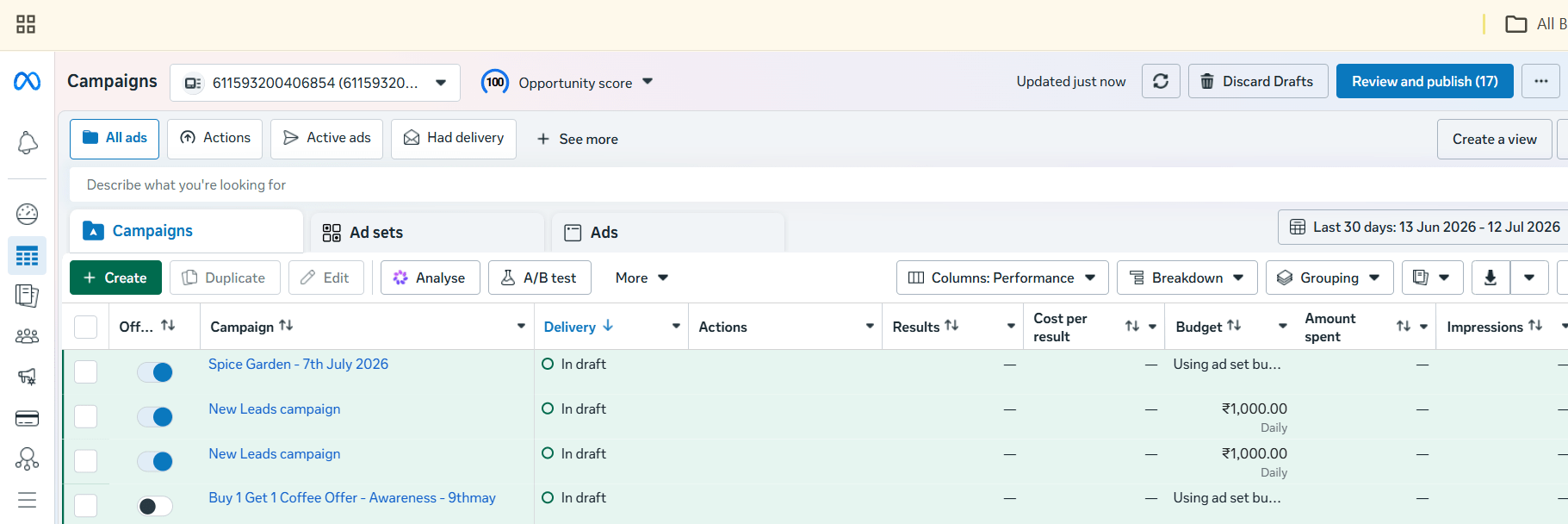
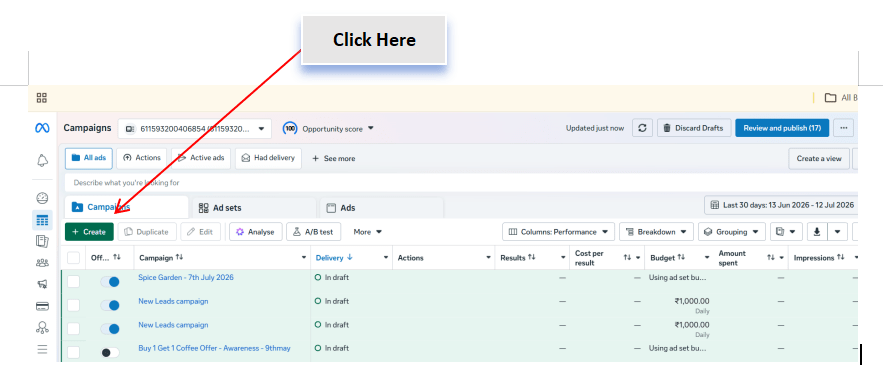
- Click Create to start a new campaign.
Select the Campaign Objective
2
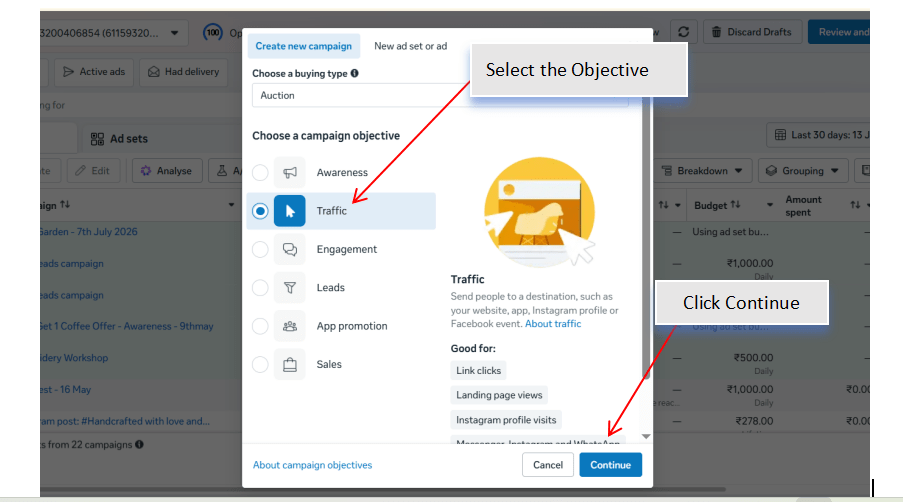
- Choose the Traffic campaign objective.
- Click Continue to proceed with the campaign setup.
Configure Campaign Settings
3
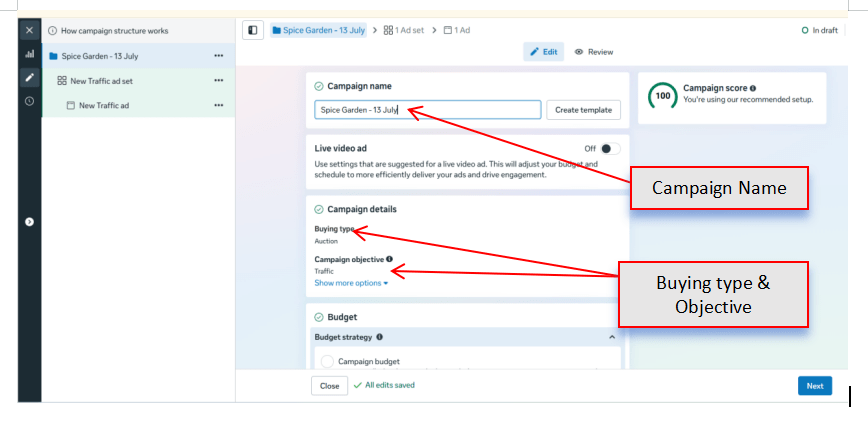
Enter the campaign details.
Configure:
-
Campaign Name
-
Buying Type (Auction)
-
Campaign Objective (Traffic)
Enable Advantage Campaign Budget if required.
Set the campaign budget.
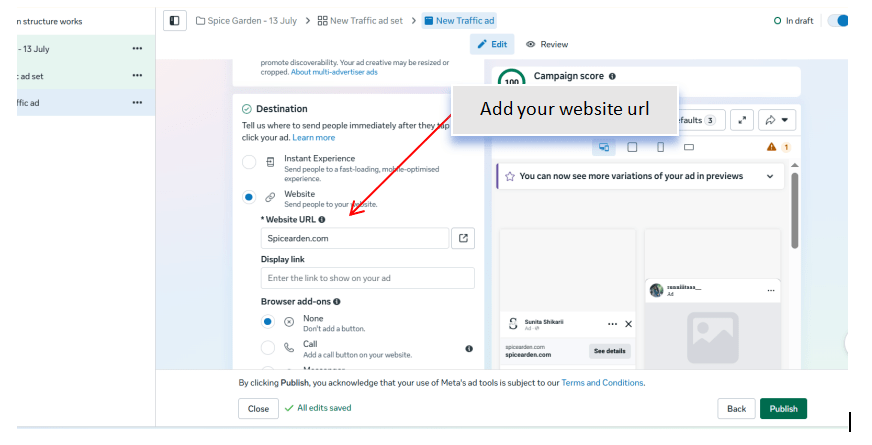
Select the Traffic Destination
4
Choose where you want to send users.
Select:
-
Website
Enter the Spice Garden Website URL as the landing page.
Verify that the website link is correct.
Define the Target Audience
5
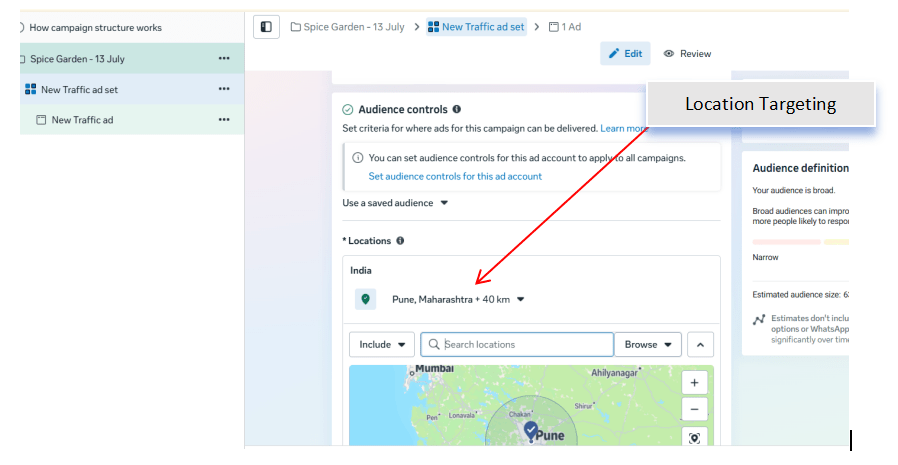
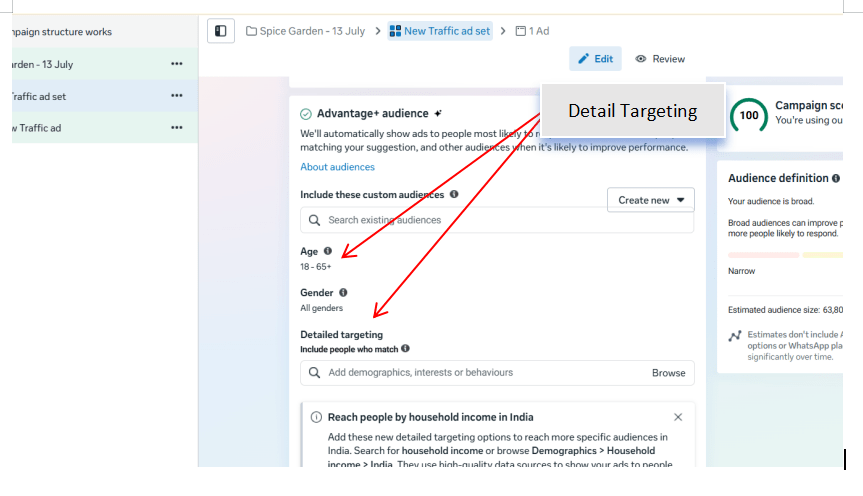
Configure the audience by selecting:
-
Location
-
Age Group
-
Gender
-
Language
-
Interests (Food, Restaurants, Dining, Chinese Cuisine, Family Dining, etc.) Review the estimated audience size.
Configure Ad Placements
6
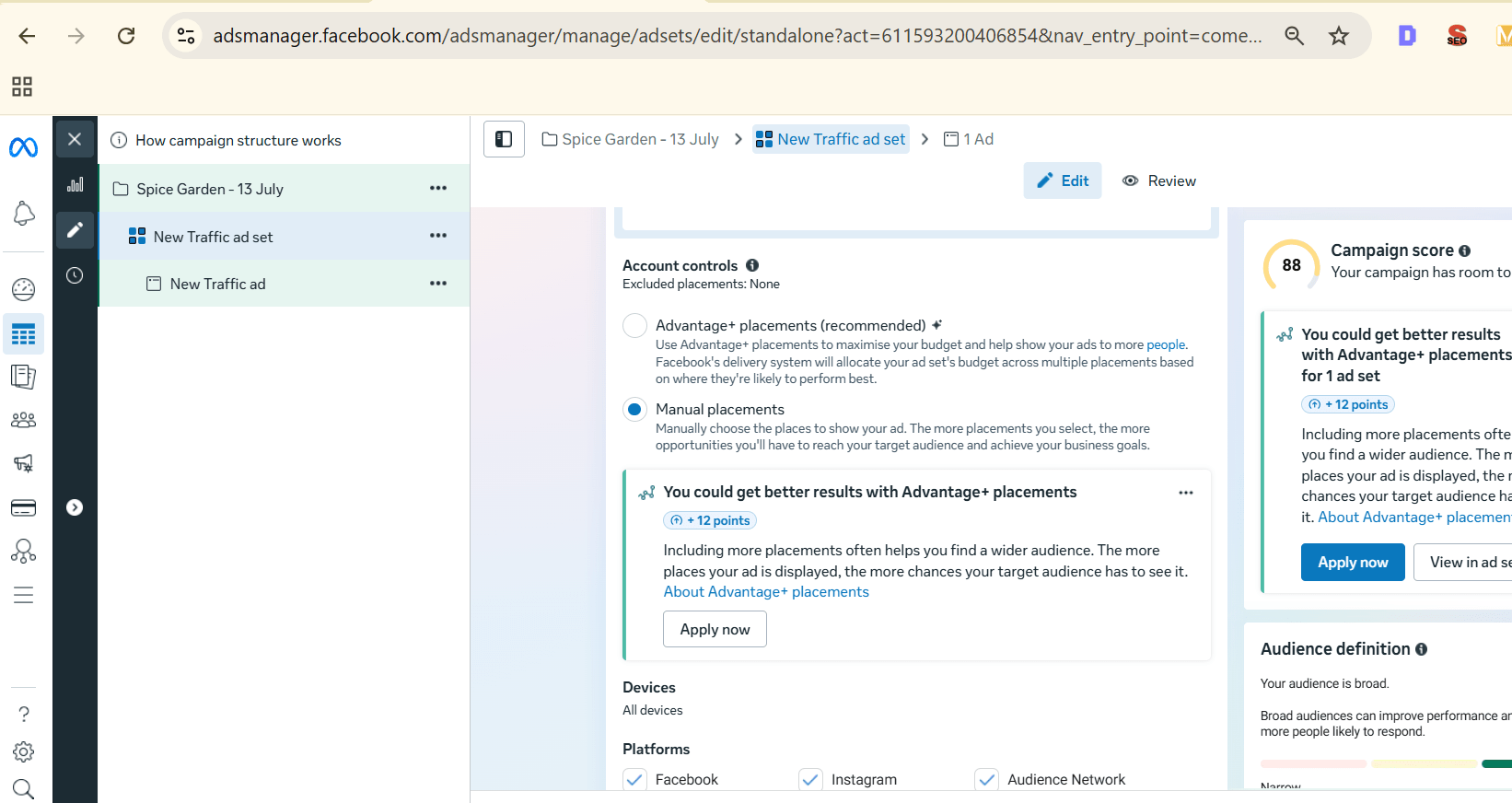
Choose the placement option.
Select:
-
Advantage+ Placements (Recommended)
or
-
Manual Placements
Review available placements such as:
-
Facebook Feed
-
Instagram Feed
-
Stories
-
Reels
-
Facebook Marketplace
Create the Advertisement
7
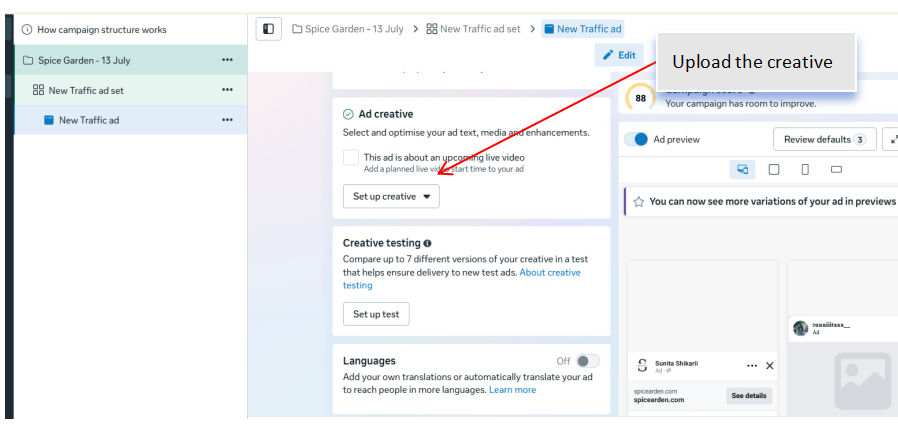
Upload the campaign creative.
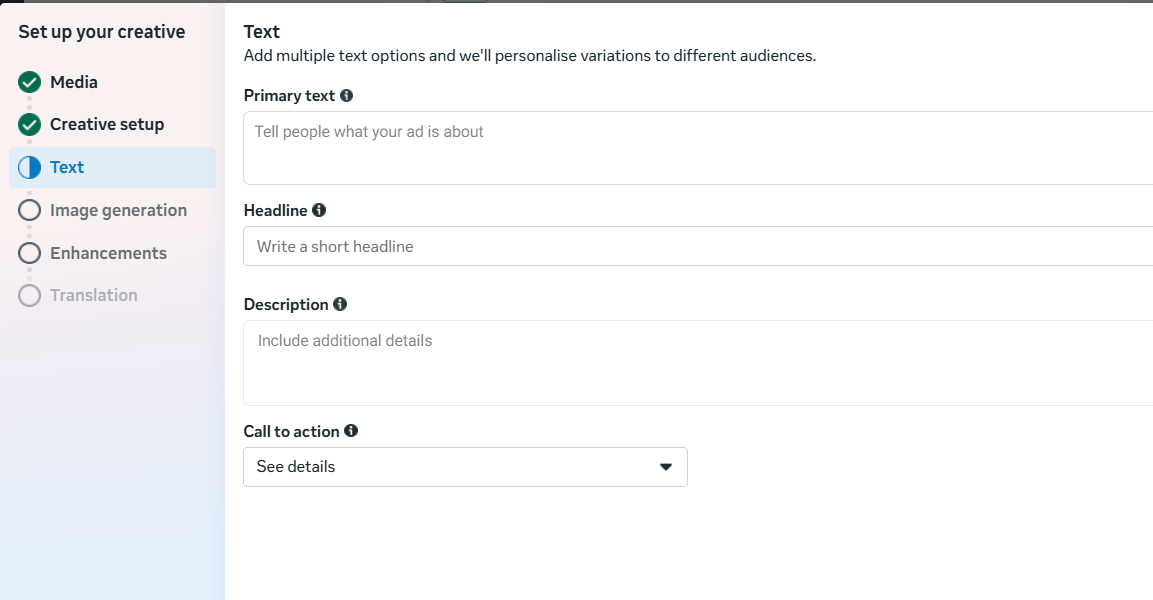
Include:
-
Image or Video
-
Primary Text
-
Headline
-
Description
-
Website URL
Select a suitable Call-to-Action (CTA) such as:
-
Learn More
-
Visit Website
-
Order Now
-
Book Now
Preview the advertisement across different placements.
Review Campaign Settings
8
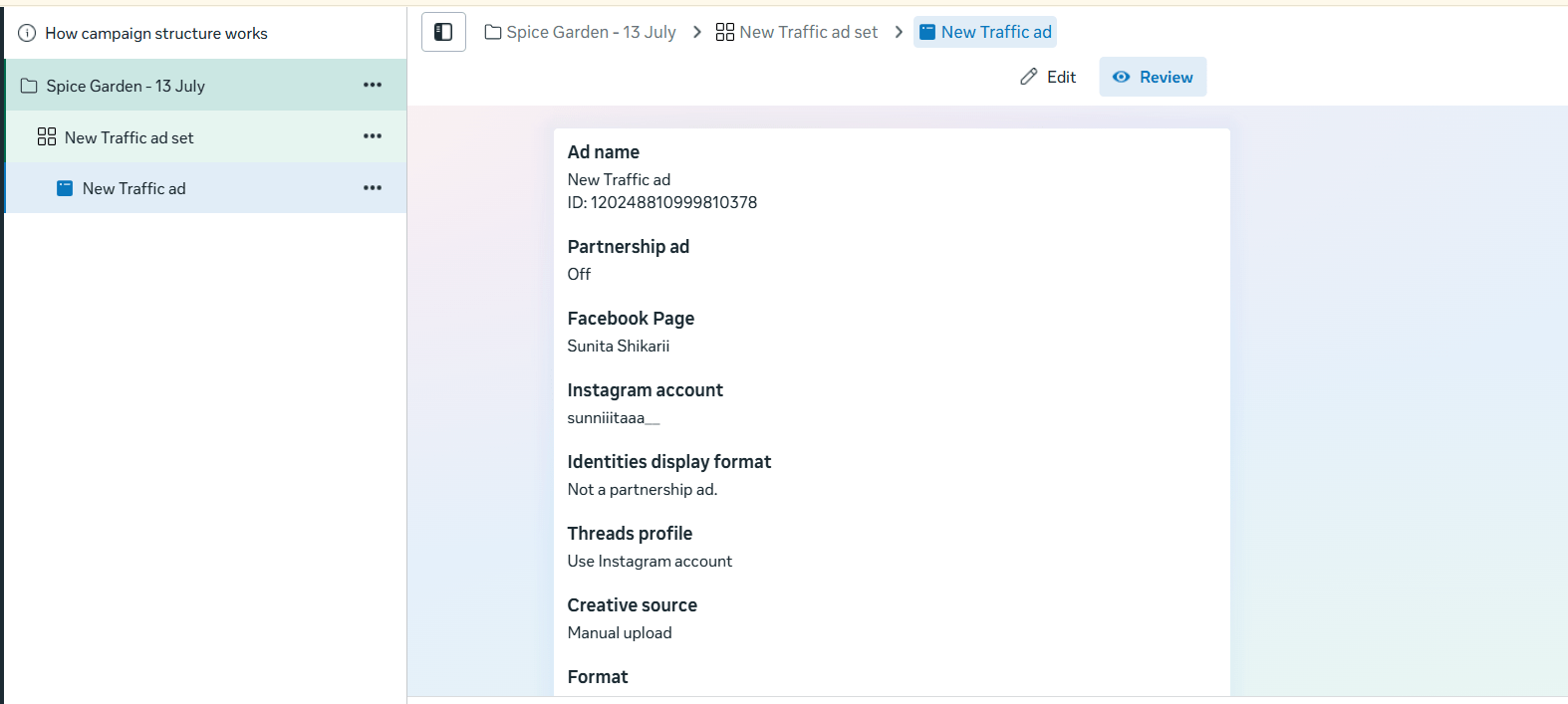
Verify the following before publishing:
-
Campaign Objective
-
Website Destination
-
Budget
-
Target Audience
-
Placements
-
Advertisement Creative
-
CTA
Ensure all settings are accurate.
Publish the Campaign
9
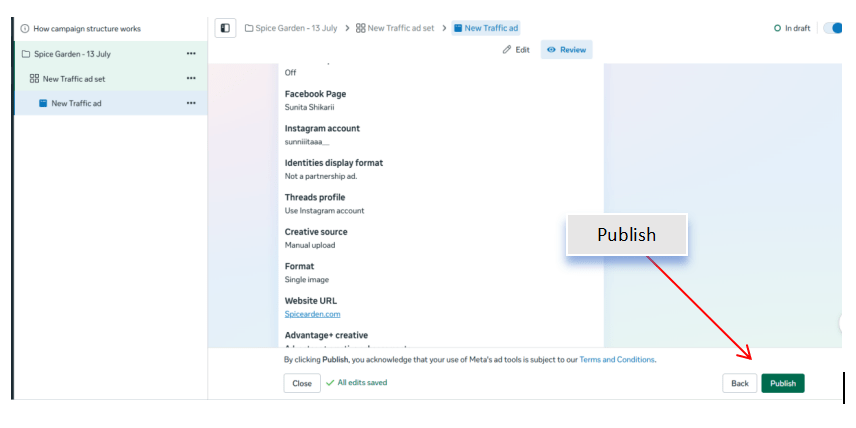
Click Publish to submit the campaign.
Monitor the campaign status in Ads Manager.
Verify that the campaign has been created successfully.
Activity
Now it's your turn!
Create a Meta Traffic Campaign for the Spice Garden website.
You need to:
-
Create a new Traffic campaign
-
Configure campaign settings
-
Set the website as the traffic destination
-
Define the target audience
-
Select ad placements
-
Design the advertisement
-
Add the website URL and CTA
-
Review and publish the campaign
Congratulations!
You have successfully completed Create Traffic Campaign LAB for Spice Garden.
In this LAB, you learned how to:
-
How to create a Traffic Campaign in Meta Ads Manager
-
How to direct users to a website using Meta Ads
Checkpoint
-
How to configure audience targeting
-
How to select ad placements
-
How to create effective traffic-focused advertisements
-
How to publish and monitor a Meta Traffic Campaign