Restaurant Menu Management

Business Scenario
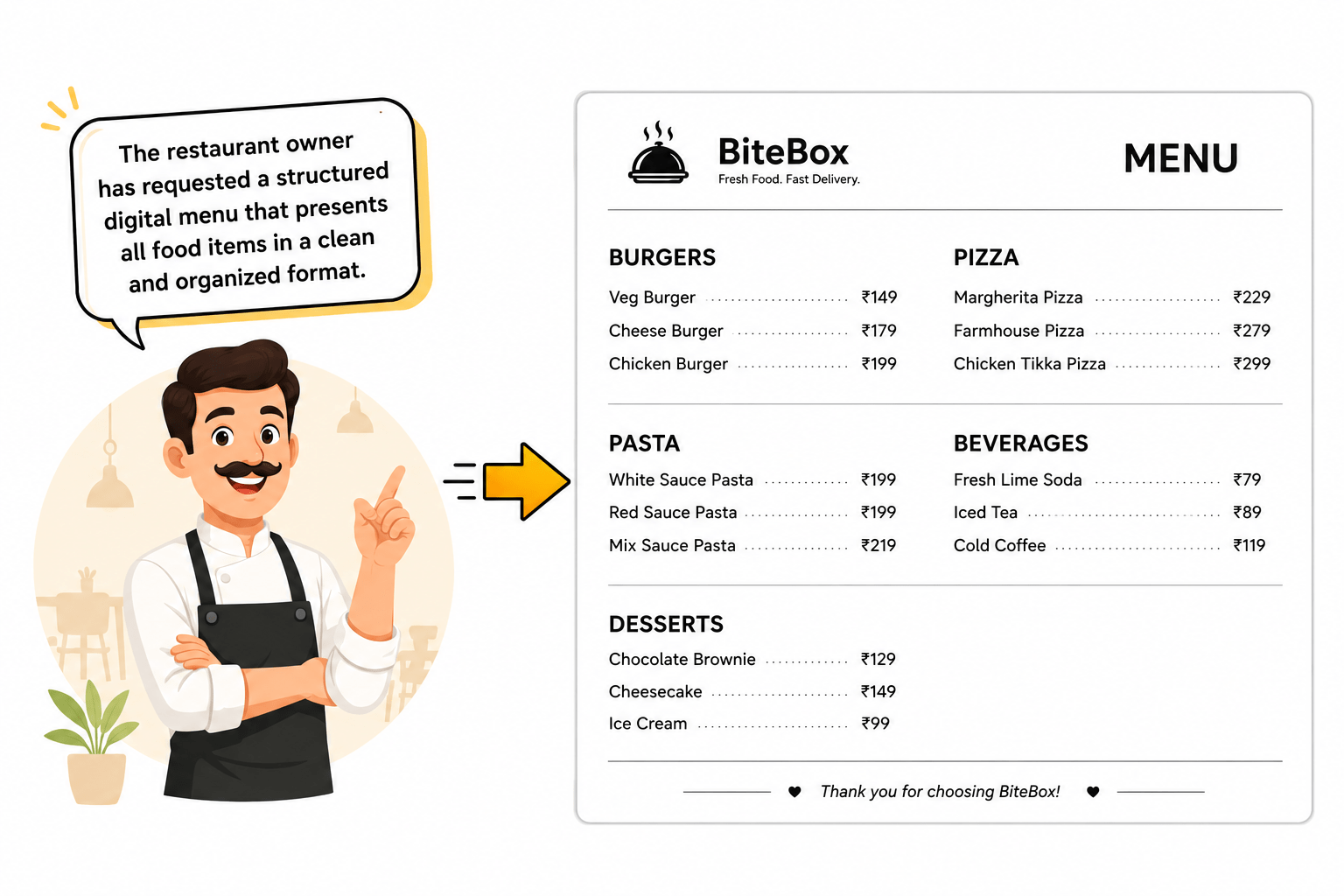
The BiteBox website now displays food images, categories, descriptions, and restaurant information. While customers can browse the menu visually, they cannot easily compare food items, prices, availability, and offers.

Now...
Pre-Lab Preparation
git pull origin branchName
Git Pull
Module: Advanced HTML: Structure, Tables, Forms, and Media
1) Semantic HTML and Page Structure
2) Why semantic HTML matters
Task 1: Create the Basic Restaurant Menu Table
Open menu.html - Add a horizontal rule below the Food Gallery to separate the gallery from the table
1
<hr>
<h2>Restaurant Menu</h2>

<table>

  <caption>
  BiteBox Menu
  </caption>

</table>- Add a heading
- Create the table container.
- Add a table caption.
Create the first row - Inside the row, add the column headings.
2
<table>
  <caption> BiteBox Menu </caption>

<tr>

<th>Category</th>
<th>Food Item</th>
<th>Price</th>
<th>Availability</th>

</tr>

</table>
Task 2: Add Menu Items Using Table Data (<td>)
<tr>

    <td>Pizza</td>

    <td>Veg Pizza</td>

    <td>₹299</td>

    <td>Available</td>

</tr>
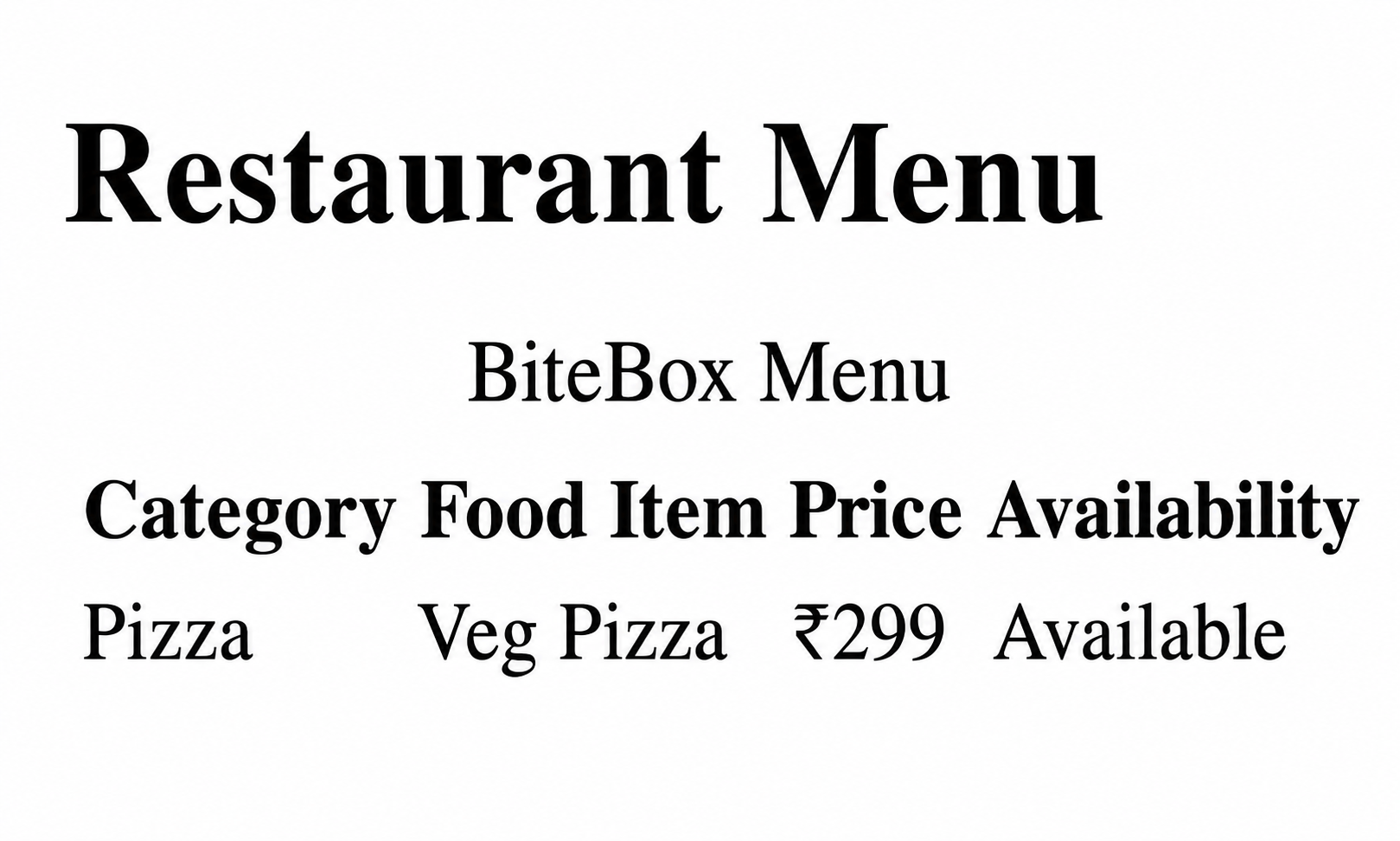
Add the first menu item.
1
Check the Output
2
Add more menu items
3
<tr>
    <td>Burger</td>
    <td>Cheese Burger</td>
    <td>₹199</td>
    <td>Available</td>
</tr>

<tr>
    <td>Pasta</td>
    <td>White Sauce Pasta</td>
    <td>₹249</td>
    <td>Available</td>
</tr>
<tr>
<td>Sandwich</td>
<td>Veg Grilled Sandwich</td>
<td>₹179</td>
<td>Available</td>
</tr>
<tr>
<td>Dessert</td>
<td>Chocolate Brownie</td>
<td>₹149</td>
<td>Limited</td>
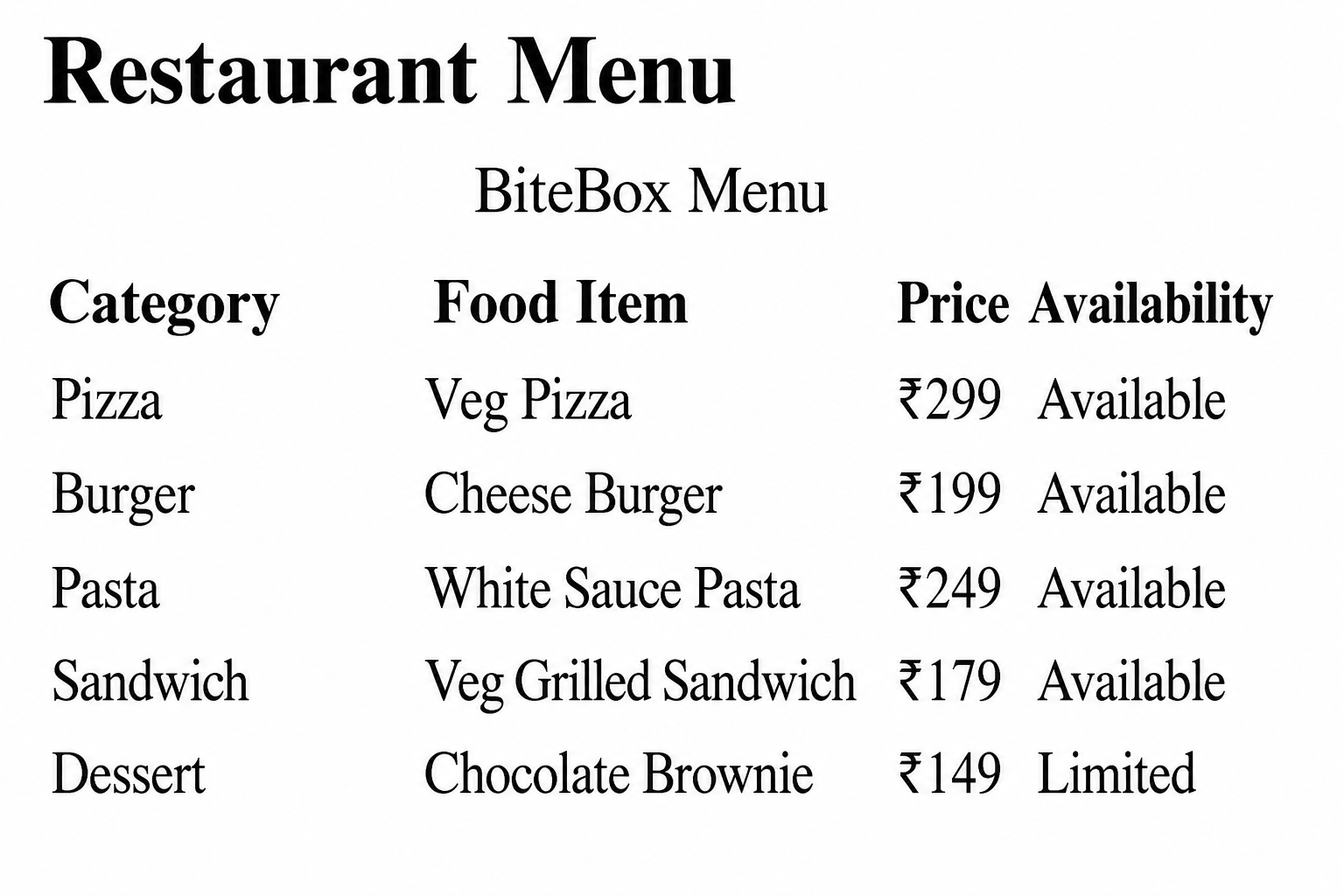
</tr>Check the Output
4
Task 3: Improve Table Using Border, Padding, Spacing
1
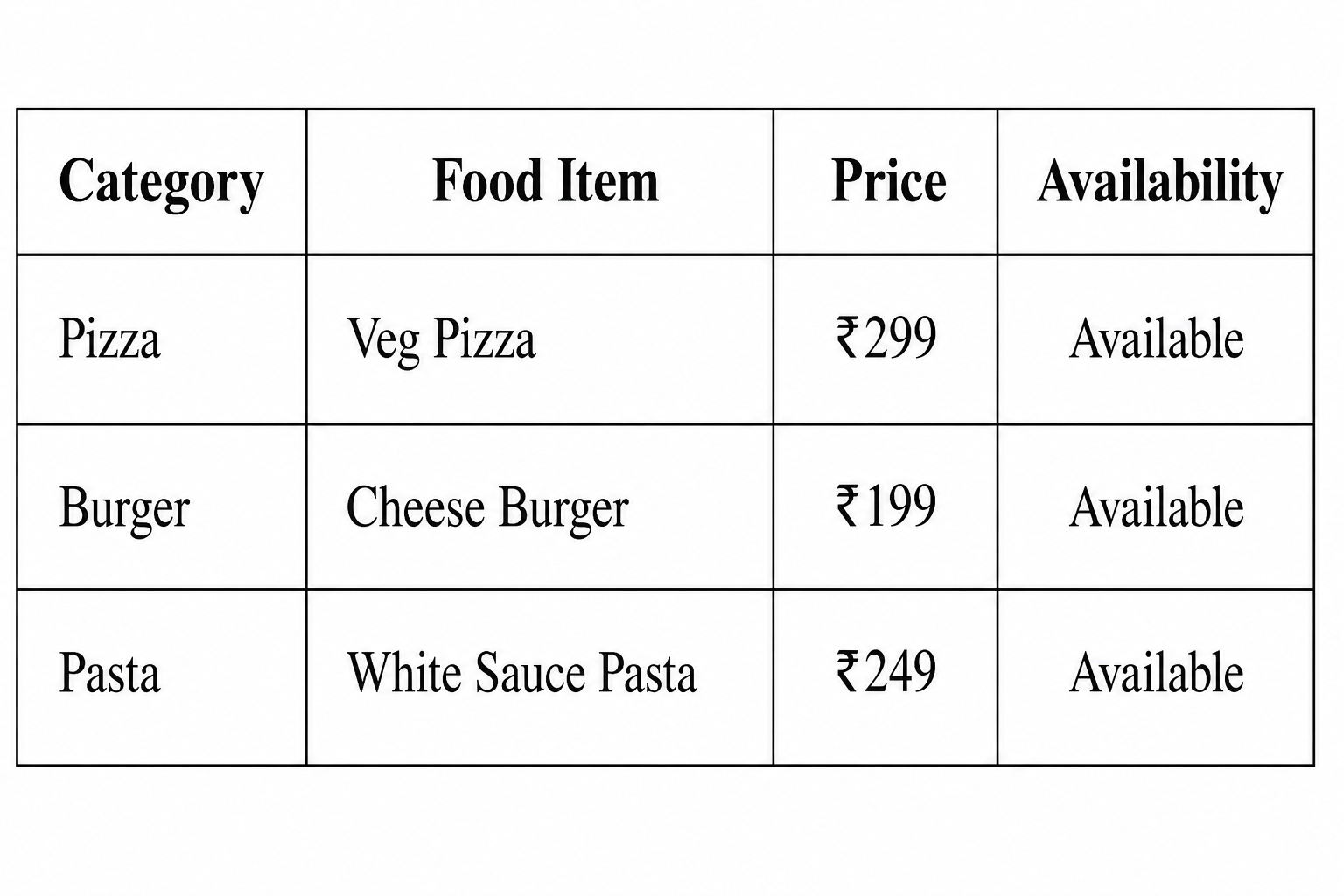
Locate the <table> tag and update it
<!--Restaurant Menu-->
  <hr>
  <h2>Restaurant Menu</h2>

<table border="1"
       cellpadding="10"
       cellspacing="0">

  <caption> BiteBox Menu </caption>

  <tr>
2
Check the Output
Task 4: Merge Table Columns Using colspan
1
Below the last food item, create a new row - Since the table has four columns,
create one cell that spans all four.
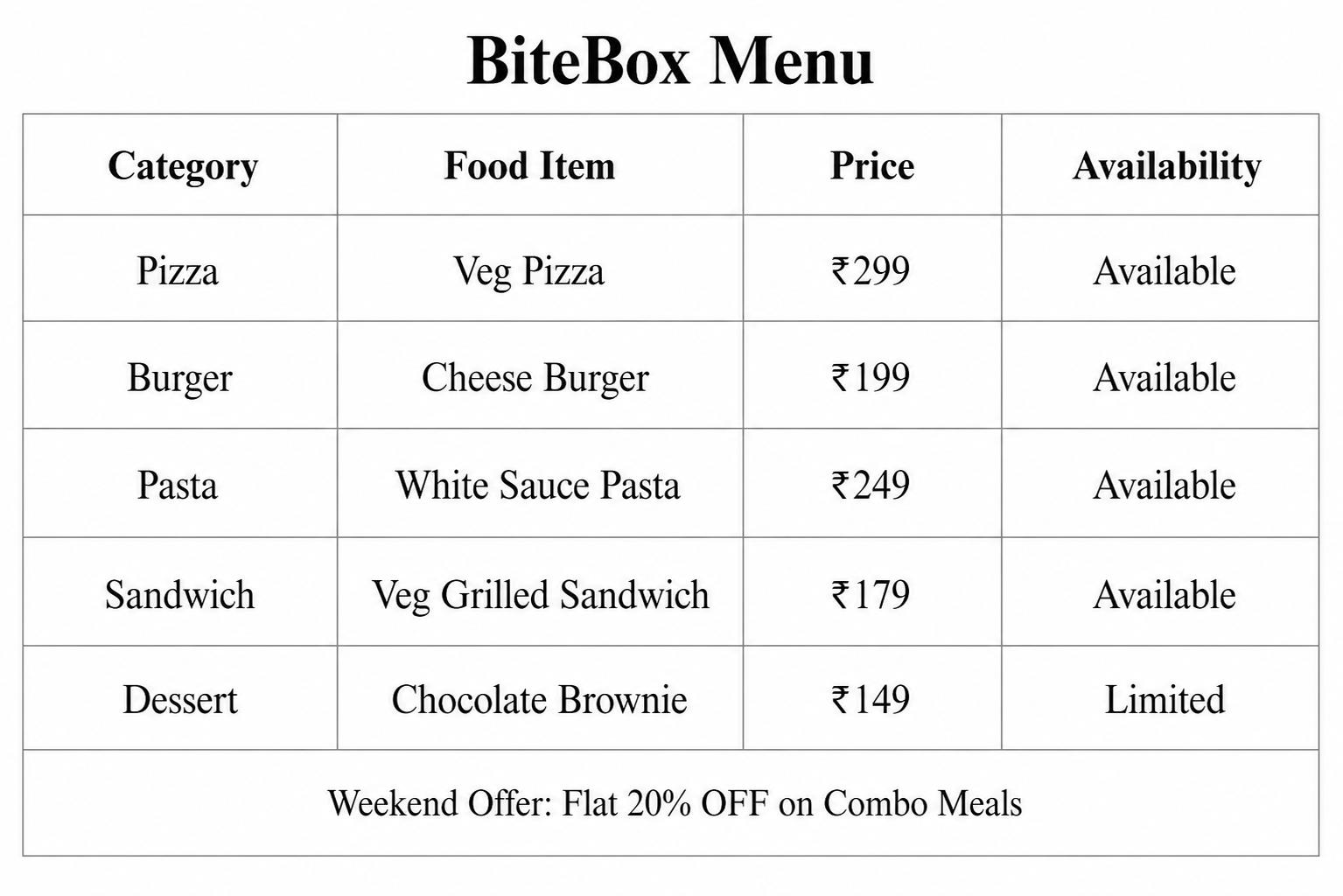
<tr align="center">

    <td colspan="4">
         Weekend Offer:
        Flat 20% OFF on Combo Meals

    </td>

</tr>
2
Check the Output
Task 5: Merge Table rows Using rowspan
1
Replace the existing Pizza row with the following rows.
<tr>
    <td rowspan="3">Pizza</td>
    <td>Veg Pizza</td>
    <td>₹299</td>
    <td>Available</td>
</tr>
<tr>
    <td>Farmhouse Pizza</td>
    <td>₹349</td>
    <td>Available</td>
</tr>
<tr>
    <td>Paneer Pizza</td>
    <td>₹329</td>
    <td>Limited</td>
</tr>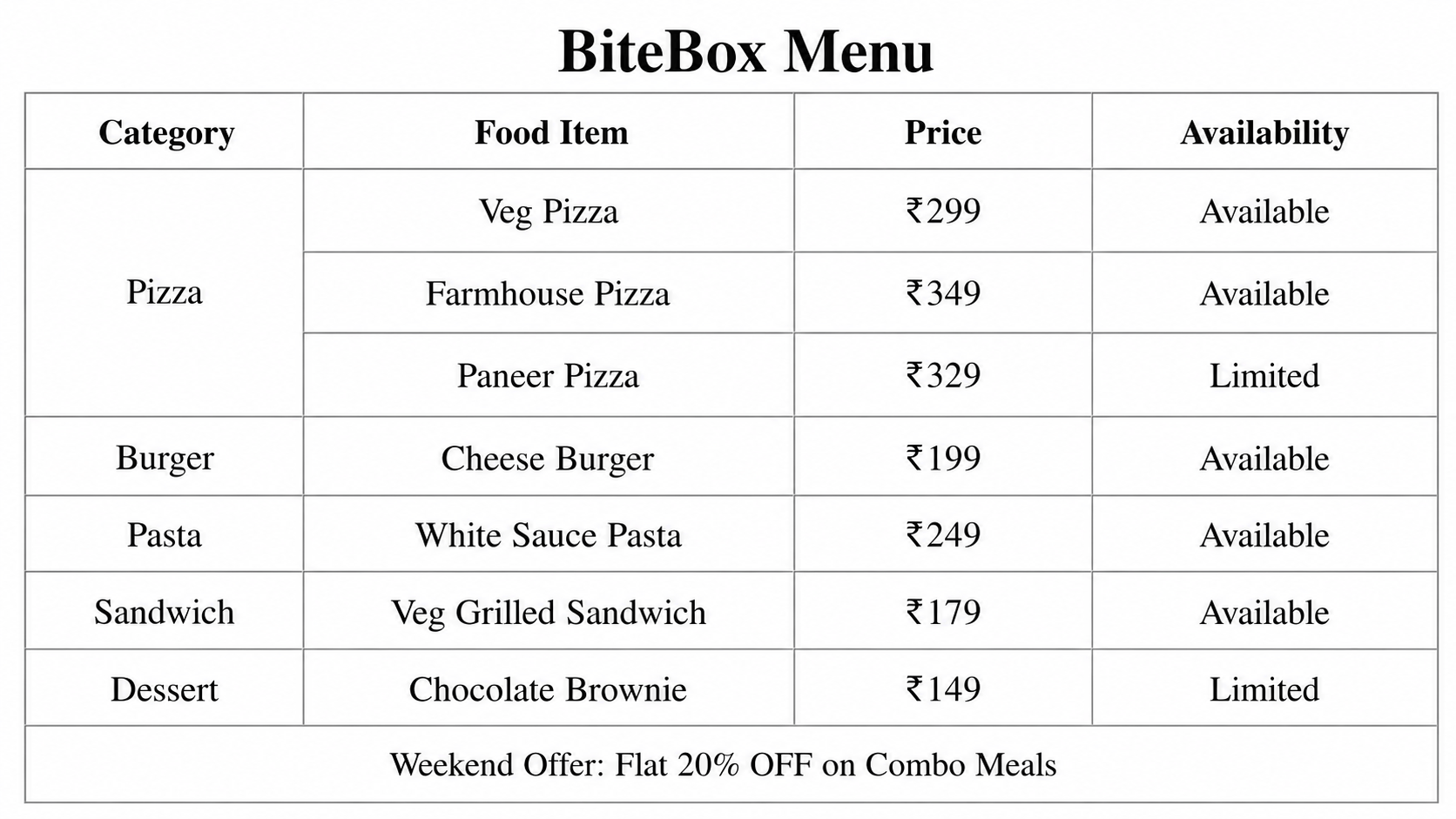
2
Check the Output
*
Complete Solution
Menu Page(menu.html)
<!DOCTYPE html>
<html lang="en">
<head>
  <meta charset="UTF-8">
  <meta name="viewport" content="width=device-width, initial-scale=1.0">
  <title>Menu - BiteBox</title>
</head>

<body>

  <h1> Menu </h1>
  <p>
    <a href="index.html">Home</a>
    |
    <a href="menu.html">Menu</a>
    |
    <a href="about.html">About</a>
|
<a href="contact.html">Contact</a>
</p>
<!--Popular dishes-->
<h2>Our Popular Dishes</h2>
<!--Piza-->
<img src="assets/images/pizza.png" alt="Pizza" width="250" height="180">
<h3>Cheesy Veg Pizza</h3>
<p>
Loaded with fresh vegetables and topped with delicious mozzarella cheese.
</p>
<!--Burger-->
<img src="assets/images/burger.png" alt="Pizza" width="250" height="180">
<h3>Classic Cheese Burger</h3>
<p>
A juicy grilled burger served with fresh vegetables
and cheese.
</p>
<!--Pasta-->
<img src="assets/images/pasta.png" alt="Pizza" width="250" height="180">
<h3>Creamy White Sauce Pasta</h3>
<p>
Rich and creamy pasta prepared with fresh herbs and
vegetables.
</p> <!--Restaurant Menu-->
<hr>
<h2>Restaurant Menu</h2>
<table border="1" cellpadding="10" cellspacing="0">
<caption> BiteBox Menu </caption>
<tr>
<th>Category</th>
<th>Food Item</th>
<th>Price</th>
<th>Availability</th>
</tr>
<tr>
<td rowspan="3">Pizza</td>
<td>Veg Pizza</td>
<td>₹299</td>
<td>Available</td>
</tr>
<tr>
<td>Farmhouse Pizza</td>
<td>₹349</td>
<td>Available</td>
</tr>
<tr>
<td>Paneer Pizza</td>
<td>₹329</td>
<td>Limited</td> </tr>
<tr>
<td>Burger</td>
<td>Cheese Burger</td>
<td>₹199</td>
<td>Available</td>
</tr>
<tr>
<td>Pasta</td>
<td>White Sauce Pasta</td>
<td>₹249</td>
<td>Available</td>
</tr>
<tr>
<td>Sandwich</td>
<td>Veg Grilled Sandwich</td>
<td>₹179</td>
<td>Available</td>
</tr>
</tr>
<tr>
<td>Dessert</td>
<td>Chocolate Brownie</td>
<td>₹149</td>
<td>Limited</td> </tr>
<tr align="center">
<td colspan="4">
Weekend Offer:
Flat 20% OFF on Combo Meals
</td>
</tr>
</table>
<!--Food Categories-->
<h2>Food Categories</h2>
<ul>
<li>Pizza</li>
<li>Burgers</li>
<li>Pasta</li>
<li>Sandwiches</li>
<li>Beverages</li>
</ul>
<h2>How to Place an Order</h2>
<ol>

    <li>Select your favourite food.</li>
    <li>Add the item to your cart.</li>
    <li>Confirm your order.</li>
    <li>Enjoy your meal.</li>

  </ol>

  <!--Restaurant Information-->
  <!--Using Block elements-->
  <h2>Restaurant Information</h2>
  <p>Delivery Available</p>
  <p>Open Every Day</p>
  <p>Fresh Ingredients</p>

  <!--Using inline elements-->
  <span>Delivery Available</span>

  <span> | </span>

  <span>Open Every Day</span>

  <span> | </span>

  <span>Fresh Ingredients</span>
</body>
</html>
Great job!
You successfully created a structured restaurant menu using HTML tables.
Checkpoint
Git Push
git push origin branchNameNext-Lab Preparation
Module: Advanced HTML: Structure, Tables, Forms, and Media
1) Understanding of HTML Form
2) Understanding of various form elements