Deployment
LAB
BECM33MLE - Ing. David Pařil
Introduction + Agenda
Preparing your app for delivery
This lab focuses mainly on deployment - containerization and final touches. You will learn the following topics:
Docker
Deployment

containers
Containers help to remove the "it works on my machine" problem by "sending your machine to the client".
Containers help with:
- Isolation between applications
- Reproducibility of runtime environments
- Portability across machines and clouds

\(\Rightarrow\) Logical runtime environment for a process (or a group of processes)
Shares the host kernel, but has:
- its own filesystem view
- its own process tree
- its own network interfaces and ports
Created from an image, running as an isolated process on the host
Container is not a full OS.
It is a process with extra isolation and a filesystem snapshot.
What is a Container?
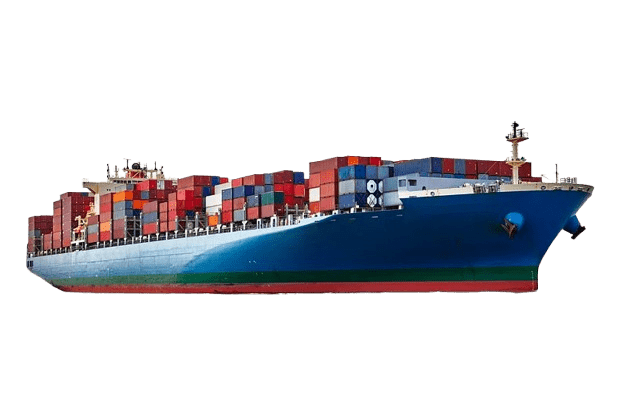
Container vs Virtual Machine
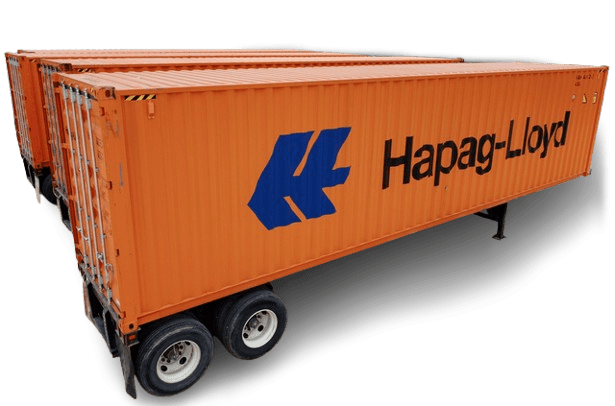
Containers
Virtual machines

OS-level virtualization
Kernel shared with the host
Lightweight
Startup within seconds or less
Use case: microservices, CI/CD
Hardware-level virtualization
Own kernel per VM
Heavy (more memory, CPU)
Startup in up to minutes
Use case: full OS isolation, legacy
Key idea: Like VMs, but technically they're just processes with isolation.
Cgroups
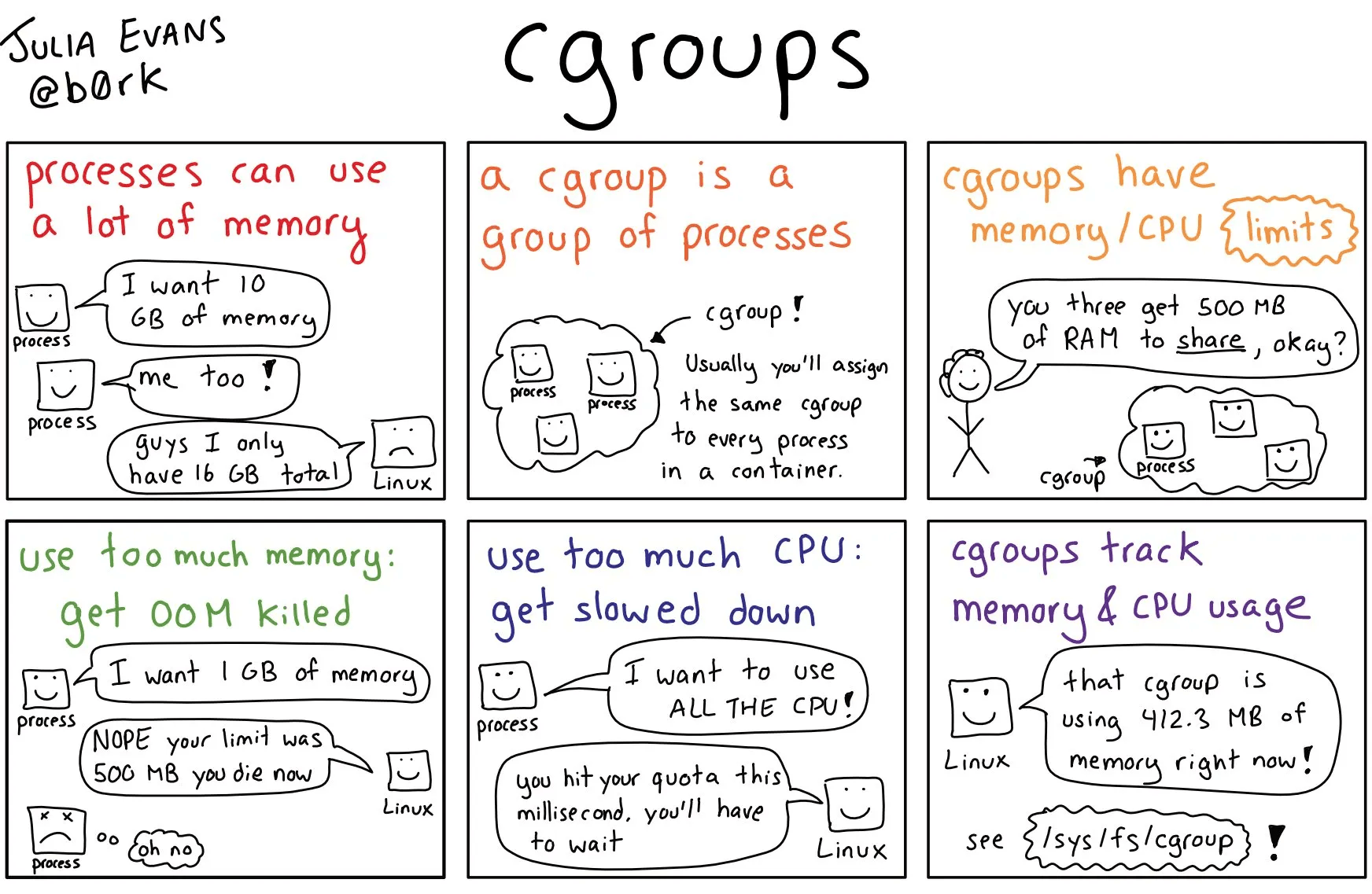
Image source: https://medium.com/@boutnaru
Control groups = resource limit
- Limit CPU usage
- Limit memory usage
- Limit I/O (disk/network)
Provides accounting and isolation
Image source: https://medium.com/@boutnaru
Filesystems and layers
Container filesystems are typically layered:
- Read-only base image (e.g. ubuntu:22.04)
- Top writable layer for container changes
- Mountable storages
Implemented using union/overlay filesystems
Efficient:
- Reuse common layers between images
- Only changes go on top



MyApp
Libraries
Base
Docker architecture
Docker client (docker CLI)
- Command Line Interface exposing commands to start/stop/control Docker containers
Docker Daemon (dockerd)
- Manages images, containers, networks, volumes
Registries
- Public (DockerHub) or Private (self-hosted)

Image source: www.deviantart.com
Docker Images
Docker Containers
- Read-only template
- Contains filesystem contents + metadata (entrypoint, default command)
- Versioned and tagged
e.g.,ngingx:1.27-alpine
A running instance of an image
Has a writable layer on top
Can be started, stopped removed
Class/blueprint
Object/instance
Basic Docker CLI commands
docker images
list local images
docker pull IMAGE
docker run IMAGE
docker ps
docker stop ID
docker rm ID
docker logs ID
download image
create and start a container
create and start a container
list running containers
stop container
remove container
show logs
Running your first docker
- Downloads the hello-world image (if missing)
- Runs container and prints a test message
- Exits immediately
docker run hello-world
Running minimal interactive example:
-
-it= interactive terminal -
--rm= remove container when it exits
docker run -it --rm alpine sh
Ports and Networking
Containers often run network services (web servers, APIs, ...)
By default, their ports are not exposed to the host
Use -p HOST:CONTAINER to map ports
docker run -d -p 8080:80 nginx
- Runs Nginx in the background (
-d) - Maps container port
80to host port8080 - Access via http://localhost:8080/

Volumes and Persistence
Containers are ephemeral by default
\(\rightarrow\) if removed, filesystem changes can be lost
Volumes store data outside the container's writable layer
- Named volumes (
docker volume create) - Bind mounts (host directory \(\rightarrow\) container)
adjective: lasting for a very short time
# Named volume
docker run -d -v mydata:/data nginx

# Bind mount
docker run -d -v $(pwd)/site:/usr/share/nginx/html nginx
Building your own images
Dockerfile = recipe for an image
Typical instructions:
FROM
base image
WORKDIR
COPY / ADD
RUN
EXPOSE
CMD / ENTRYPOINT
working directory
copy files into an image
run commands during build (install deps)
document ports
default command
FROM
base image
WORKDIR
COPY / ADD
RUN
EXPOSE
CMD / ENTRYPOINT
working directory
copy files into an image
run commands during build (install deps)
document ports
default command
FROM python:3.12-slim
WORKDIR /app
COPY requirements.txt .
RUN pip install -r requirements.txt
COPY . .
CMD ["python", "app.py"]
FROM
base image
WORKDIR
COPY / ADD
RUN
EXPOSE
CMD / ENTRYPOINT
working directory
copy files into an image
run commands during build (install deps)
document ports
default command
FROM python:3.12-slim
WORKDIR /app
COPY requirements.txt .
RUN pip install -r requirements.txt
COPY . .
CMD ["python", "app.py"]
docker build -t myapp:1.0 .Building custom image:
docker run -d -p 5000:5000 myapp:1.0
Running custom image:
name:tag
dir
detach
port forwarding
Good practices
- Use small base images
- Pin versions (
python:3.12-slim, notpython:latest) - Keep images stateless, use volumes for data
- Clean up:
- docker ps -a
- docker rm
- docker image prune
Hands-on lab
Dockerize the following minimal Python Flet example:
import flet as ft


def main(page: ft.Page):
    page.title = "Flet Hello World"
    page.add(ft.Text("Hello, world!"))


if __name__ == "__main__":
    ft.app(main)

Dockerize the following minimal Python Flet example:
import flet as ft


def main(page: ft.Page):
    page.title = "Flet Hello World"
    page.add(ft.Text("Hello, world!"))


if __name__ == "__main__":
    ft.app(main)
FROM python:3.12-slim
WORKDIR /app

COPY requirements.txt .
RUN pip install --no-cache-dir -r requirements.txt

COPY main.py .

ENV FLET_SERVER_PORT=8000
EXPOSE 8000

CMD ["python", "main.py"]
flet==0.28.3
flet-web==0.28.3
TXT
requirements.txt
main.py
Dockerfile
Optional: Deploy on cloud
There are multiple options for a free cloud computing service:


Google cloud
Oracle cloud
In the remaining time, try to deploy the minimal example online using the docker image we created earlier.
Google cloud
Oracle cloud