Collaborative git
Joel Ross
Spring 2018
INFX 511
https://slides.com/joelross/infx511s18-collab-git/live
Homework Check-in
(< 20min)
Today's Objectives
By the end of class, you should be able to
- Use git branches to track different versions of your code
-
Merge changes between branches
- Resolve merge conflicts
- Collaborate and share code with others through Github
Using GitHub


edit files
staging area
git addgit commit
exercise repo
your copy

git cloneyour machine
fork
git pushgit pull
Code for Today
FORK and clone this repo!
Commit History
"First"
git commit -m "First""Second"
"Third"
"Fourth"
git commit -m "Second" git commit -m "Third" git commit -m "Fourth"Git history has been a linear sequence of commits.
HEAD
Why Non-Linear?
-
What if we want to try something new and crazy without breaking code that we've already written?
-
What if we want to work on two different features simultaneously?
-
What if we want multiple people to work on the same code without stepping on each other's toes?
Branches
Branches allow for non-linear commits.
master
master
master
master
experiment
bugfix
experiment
experiment
Branch Commands
git branchList available branches
git branch [my_branch]Create a new branch called "my_branch"
git checkout [my_branch]Switch to branch "my_branch"
git checkout -b [my_branch]Create and switch to branch "my_branch"
git branch -d [my_branch]Delete branch "my_branch"
Branches
master
master
experiment
experiment
HEAD
HEAD
HEAD
HEAD
git branch experiment

git checkout experiment

git commit

git commit

git checkout master

git commit

git checkout experiment
HEAD
HEAD
experiment
HEAD
Branch Practice!
-
Open the README.md file (in VS Code)
-
Create and
checkouta new branch called experiment -
Add another item to the end of the list
-
Commit your change (hint: use
git commit -am "msg"to add and commit at once!) -
checkoutthe master branch -
Add yet another item to the beginning of the list
-
Commit your change
-
Switch between the experiment and master branches (clicking on Atom in between). See the file contents changing?
Merging
We can
merge two branches back together, producing a commit that contains the combined changes from both branches
master
master
experiment
HEAD
HEAD
Merging
git merge [other_branch]Merges changes from other_branch into the current branch.
A new commit is created on the current branch containing the merged content.
Merging Practice
-
Make sure you are on the master branch
(usegit branchto check; the current branch has a*) -
Use
git mergeto merge the experiment branch into master branch.-
If you get dropped into vi, hit
:wq(colon then w then q) to accept the message.
-
-
Check in VS Code that the file now contains both sets of changes!
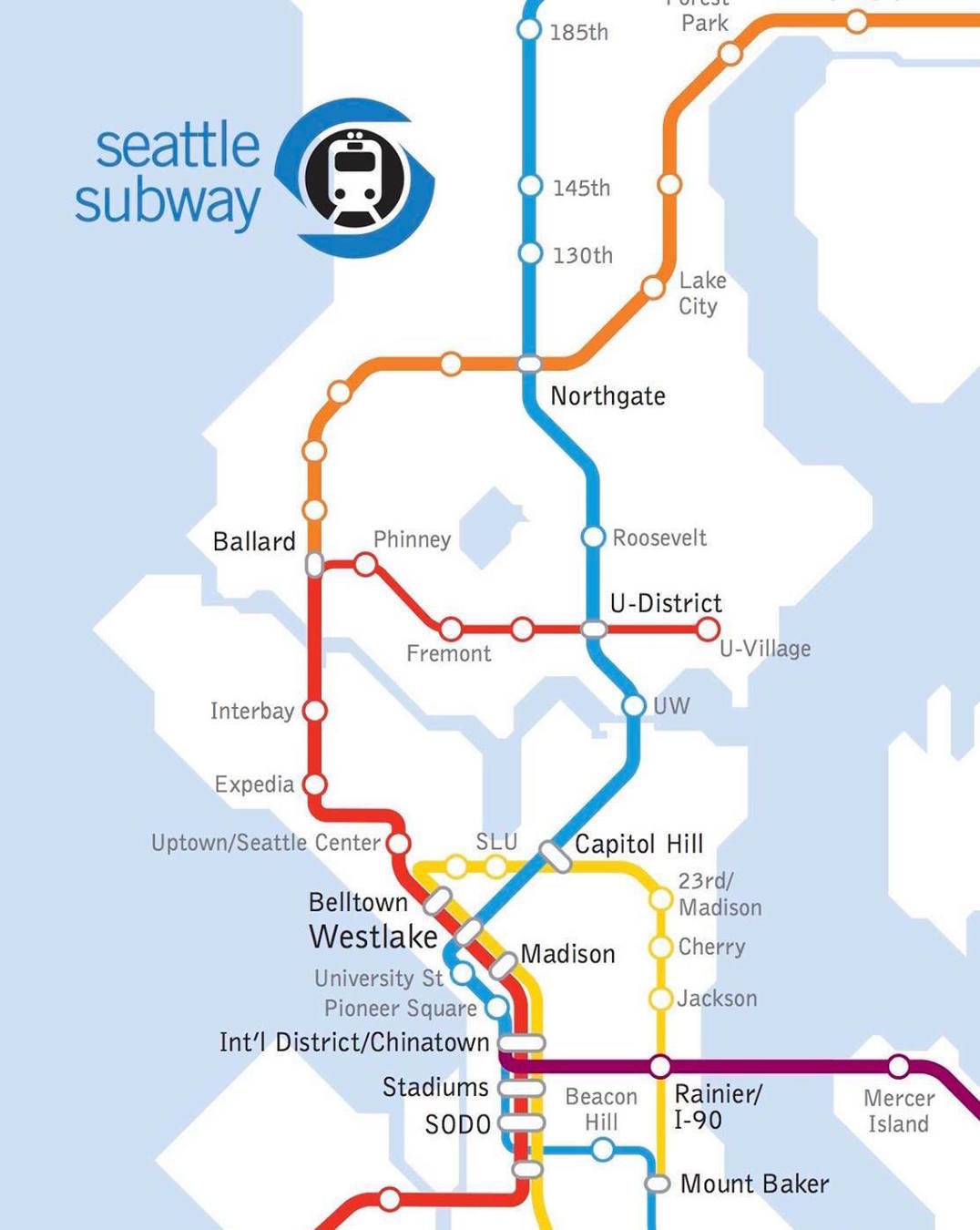
Merging: A Metaphor
Merging Practice II
-
You should be on the master branch.
-
Create and
checkouta new branch called danger -
On the danger branch, change the word "kittens" to "puppies". Remember to
commityour change. -
checkoutthe master branch again. -
Change the word "kittens" to something else that is pleasant.
commityour change. -
Use
git mergeto merge the danger branch into master branch
-
DON'T PANIC

Merge Conflicts
A merge conflict is when two commits from different branches include different changes to the same code.
Git does not know which version to keep, so makes you choose.
Merge conflicts must be resolved manually
Conflicts are expected!
Resolving Conflicts
In order to
resolve a conflict, you need to edit the file (code) so that you pick which version to keep.
git will add "code" where you need to make a decision:
<<<<<<< HEAD

# This is the code from the "local" version (the branch you merged INTO)
# a.k.a the version from the HEAD commit

message = "I am an original"
lyric = "I've got no strings to hold me down"

# There can be multiple lines that conflict, including lines being deleted

=======

# This is the code from the "remote" version (the branch you merged FROM)

message = "I think I'm a clone now..."

# The lines need not be related in content, they've just changed in a way
# that git can't figure out which to keep!

>>>>>>> f292a3332aedc8df3e8e8cf22ca3debc214c6460
the two versions to pick from
a divider between the versions
end conflict area
git add .
git commit -m "Merge branch 'other'"
Resolving Conflicts
- Use
git statusto see which files have merge conflicts. Note that files may have more than one!
- Delete the
<<<<<<<and=======and>>>>>>>!!
- Once you're satisfied that the conflicts are all resolved,
addandcommityour changes (the code you "modified" to resolve the conflict):
GitHub and Branches
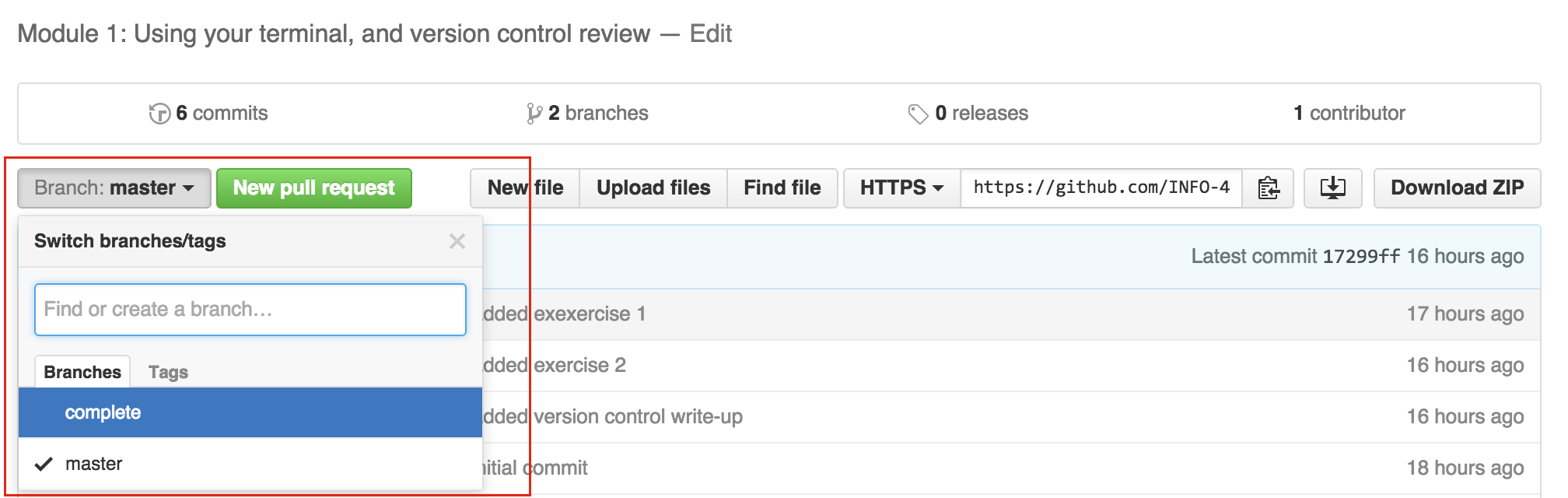
Because GitHub just hosts normal repositories, GitHub has branches as well! These can (but need not) correspond with the branches on your local machine.
Remote Branches
Other linked repositories (remotes, like the one on Github that you cloned from) can simply be seen as different branches that happen to live on another machine.
master
origin/master
remote branch!
Remote Branch Cmds
git branch -aList all branches (including remote ones)
git pull [remote] [branch]Shortcut for
git fetch then
git merge
git fetchImport remote branches into local repo
Are still listed as "remote" branches that need to be merged
Can cause conflicts!
git push [remote] [branch]Remote Branch Cmds
Upload commits to remote
Essentially has the remote branch merge (rebase) your changes.
git push [remote] --allPush all branches
Multiplayer Git
Do you have a partner for a6 yet?
Collaboration
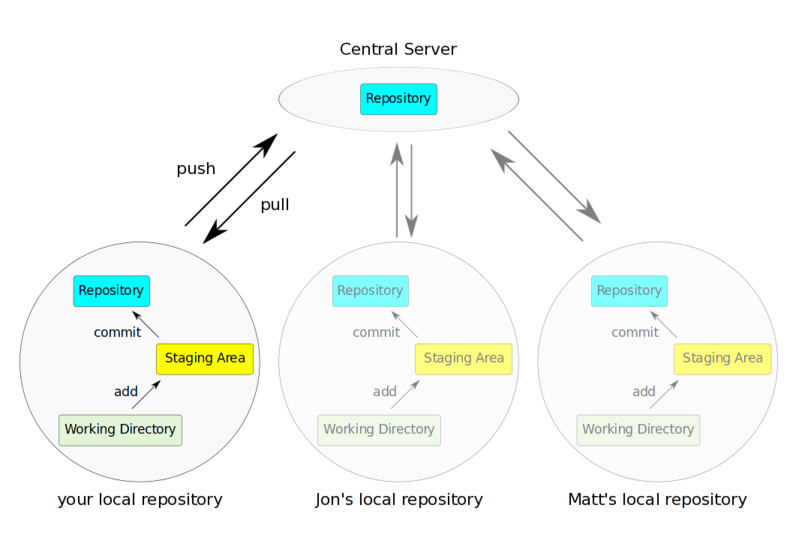
Multiple people's local repositories can be linked to the same remote repository, allowing them to push and pull to the same central location.
Collaboration Practice
-
Partner up with your partner ("Howdy pardn'r")
-
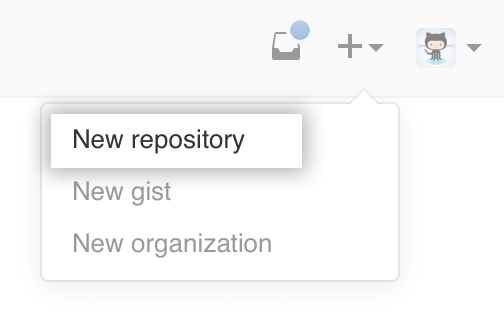
Have one person create a new Github repository
(git-collab-practice is a fine name)-
Initialize it with a README
-
-
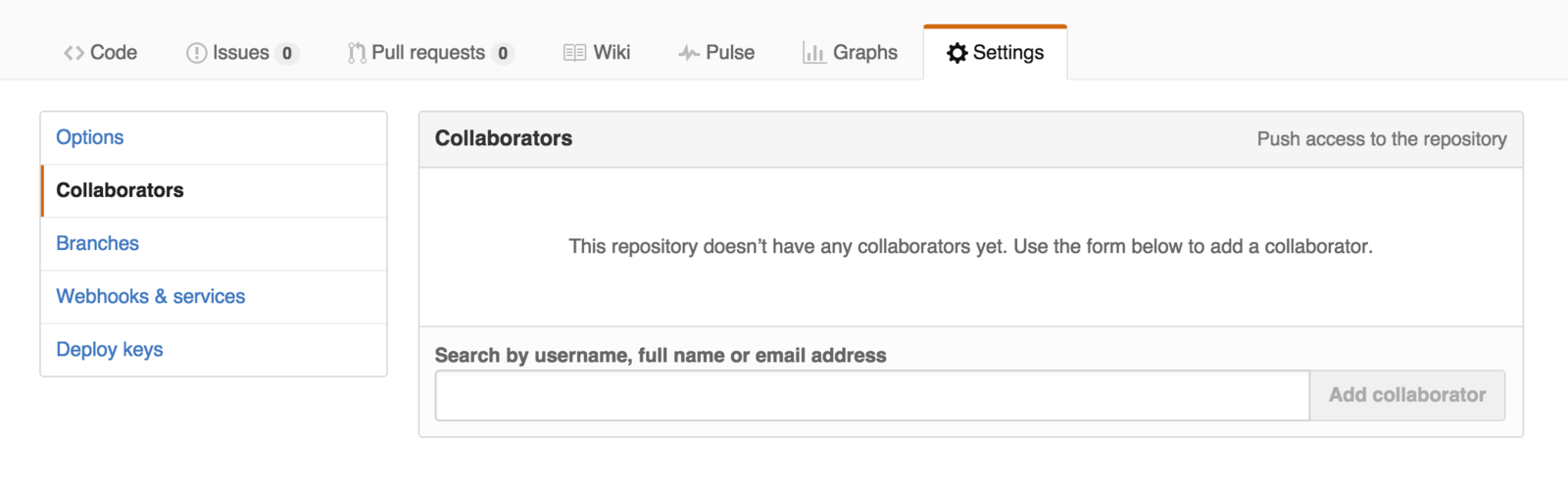
That person should then add the other as a collaborator
-
The added person will then need to clone their partner's repo on their machine
-
Remember to do this in a different folder!
-
Collaboration Practice
-
Person 1: edit the README.md file so it includes a message to your partner (be nice)
-
add and commit your change as usual.
-
-
Person 2: create a new file partner.py that prints a message to your partner (be nice)
-
add and commit as usual.
-
-
Person 1 should push their changes to Github
-
Then Person 2 should push their changes to Github
-
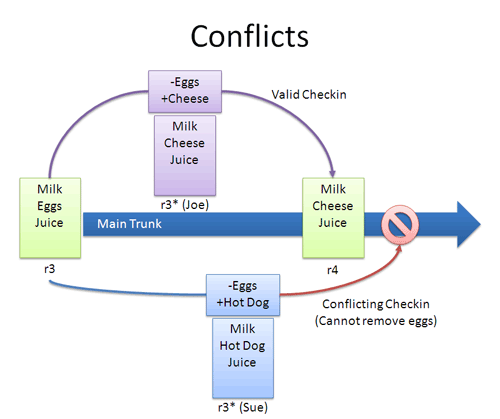
What happened?!
-
Collaboration Practice
-
Person 2: pull to merge in Person 1's message
-
Both people should confirm the changes are local!
-
-
Person 2: push your changes to Github
-
Person 1: pull in Person 2's message and merger
-
You both should now have up-to-date code!
-
Collaboration Practice II
-
Person 1: edit the partner.py file so that it prints a different message. Change the existing line of code.
-
add and commit your change as usual.
-
-
Person 2: edit the partner.py file so that it prints a different message. Change the existing line of code.
-
add and commit as usual.
-
-
Person 2 should push their changes to Github
-
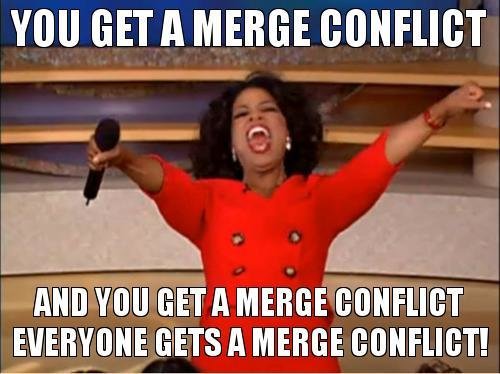
What happened?
-
-
Then Person 1 should push their changes to Github.
But they need to pull first...
git add .
git commit -m "Merge branch 'other'"
Resolving Conflicts
- Use
git statusto see which files have merge conflicts. Note that files may have more than one!
- Delete the
<<<<<<<and=======and>>>>>>>!!
- Once you're satisfied that the conflicts are all resolved,
addandcommityour changes (the code you "modified" to resolve the conflict):
Make sure both partners have all the changes!!
Commit IDs
8ac18e2
a16a4f9
8417290
2f7de03
$ git log --oneline
2f7de03 Fourth
8417290 Third
a16a4f9 Second
8ac18e2 First
Each commit has a unique commit id that refers to it
"First"
"Second"
"Third"
"Fourth"
HEAD
Undoing with Checkout
We can use
checkout to switch not only to the commit named by a branch, but to
any commit in order to "undo" our work.
8ac18e2
a16a4f9
2f7de03
2f7de03
HEAD
bugfix
HEAD
bugfix
HEAD
git checkout -b bugfix a16a49fgit commitDetached Head
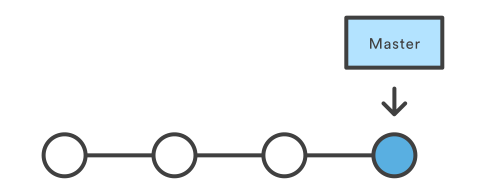
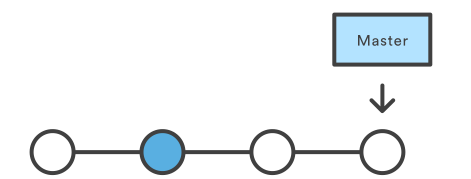
If you don't create a
new branch when checking out an old commit, you'll enter
detached HEAD state. You can't commit from here, because there is no branch for that commit to be attached to!
checkout master to go back.
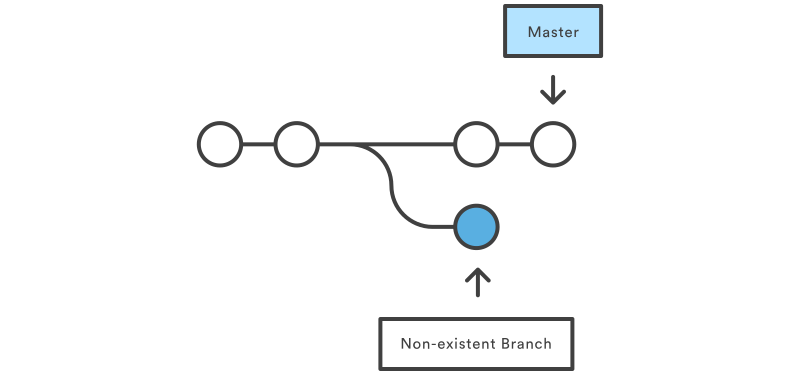
detached HEAD
Undoing Things
git checkout [commit] [file]Replace file with previous version
git revert [commit]Change files to undo commit and remove the changes it made (adding a new commit, preserving history)
git checkout -b [branch_name] [commit]Go back to previous commit for development
Branching Questions?
Action Items!
- Feel comfortable with Chapter 13-14
- Pre-read: Chapter 15 (online tonight?)
- Pre-read: Chapter 15 (online tonight?)
- Assignment 5 due tonight
- Assignment 6 due next week in pairs
Next: object-oriented programming
("special topic", can also do pair work)