MongoDB and JavaScript
SQL vs MongoDB
- Traditional SQL requires you to define schema before inserting data
- MongoDB is a flexible document-oriented database, where documents are structured like JSON objects.
- Watch the "MongoDB Explained in 10 minutes" video.
Getting Started
-
Sign up as a GitHub Student Developer.
- Read the Student Benefit FAQs
- If asked what your goal is, say to learn MongoDB.
- If asked what type of application you're building, say you are just exploring.
- Select JavaScript as your preferred language.
Bookmark These
- Bookmark the sign-in web page.
- Bookmark the MongoDB Client Libraries for JavaScript and other language resources.
- Bookmark these tutorials from the Quickstarts section.
- Bookmark MongoDB's Learning Paths.
- Bookmark MongoDB's certification exams.
- MongoDB for Educators
MongoDB Atlas
- MongoDB Atlas is a fully-managed cloud database.
- Watch the video titled "Intro to MongoDB Atlas in 10 minutes".
Atlas Organizations
- After signing in, you will see your Atlas dashboard.
- Organizations allow you to group and define users and teams and grant them project access.
- Your organization will be selected in the upper-left corner.
- Click the link to view all organizations.
- Personalize your preferences, such as the time zone, date, and time format.
- Click the organization name to view its projects and settings.
- Change organization settings, such as the name, multi-factor authentication, and more.
- From "Access Manager," you can invite a partner or teacher to access all projects in your organization.
- View the "Billing" section to ensure you have credits from the GitHub Student Developer promotion.
- Optionally, add a payment method to continue using MongoDB after your credits expire.
Atlas Projects
- In your organization screen, go to the "Projects" tab and click the default project name.
- Projects allow you to define and organize resources, like database clusters.
- It is common to create several projects, one for development, testing, and production environments.
- Click the menu icon next to the project name and click "Project Settings".
- Personalize your settings, such as the project name, time zone, etc.
- From "Access Manager," you can invite a partner or teacher to access your an individual project.
Create a Database
- With your project selected, create a new database cluster.
- Click the white "Go to Advanced Configuration" button for additional configuration options.
- Cluster types:
- Serverless is for testing environments with variable traffic.
- Please note that an unexpected, significant increase in usage could result in an expensive invoice.
- Dedicated is for high-load production environments that must operate 24/7. You pay per hour. M10 is the least expensive.
- Shared is for learning and exploring MongoDB.
- M0 is free and offers no data backup. There is a limit of one M0 cluster per project.
- With M2 and M5, you pay per hour. M2 is about $9/month.
- Serverless is for testing environments with variable traffic.
- Choose a cloud provider (Google Cloud, Iowa)
- Name the cluster "Cluster0" or anything you would like.
Security
- Create a database user.
- Do not use special characters in the password
- Save the username and password to a .txt file
- Setup database connection controls
- By default, MongoDB blocks access from all IP Addresses (except Atlas itself).
- For this class, please allow access from anywhere by entering "0.0.0.0/0" as the IP Address
- For production databases, you should limit access to your current IP Address (multiple entries for work and home)
- Kirkwood's IP addresses include:
- 207.165.224.70 (to .100) and 207.165.225.70 (to .100)
- Click "Finish and Close".
- You can update access rules in the "Database Access" and "Network Access" sidebar links.
Add Sample Data
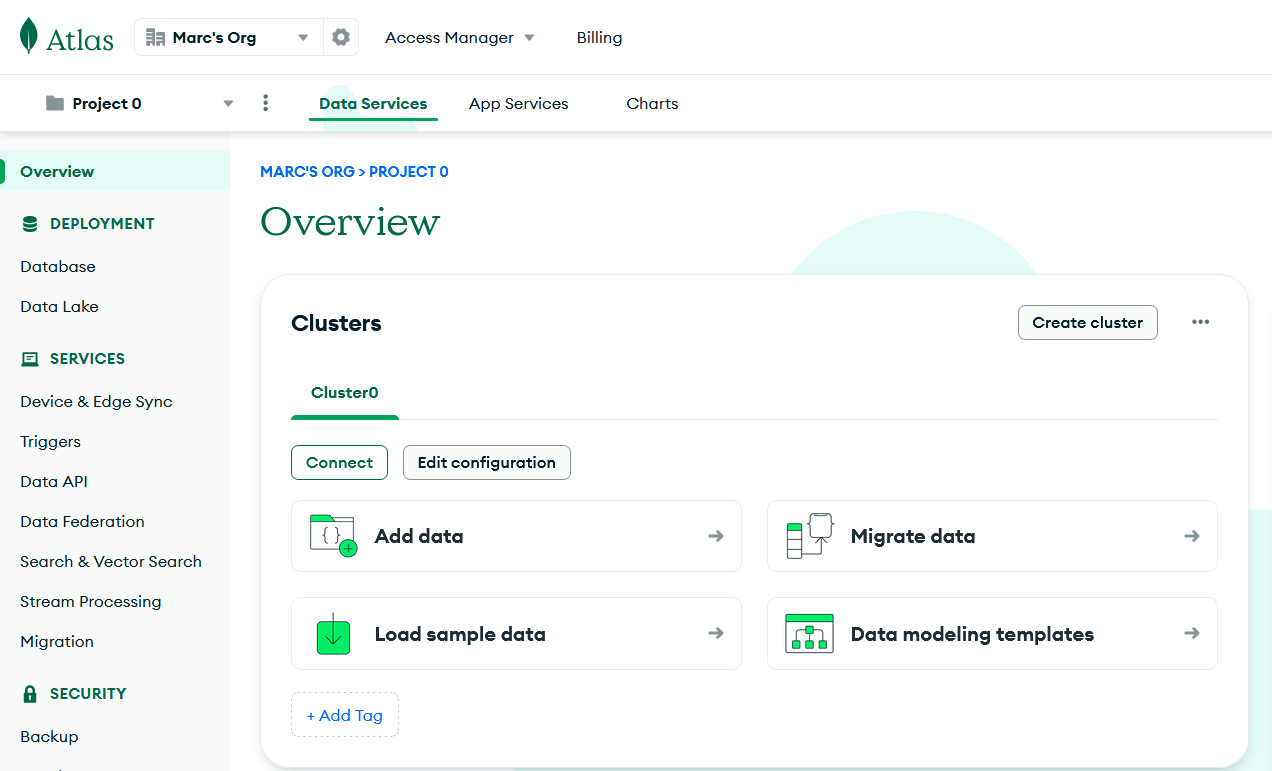
- You should be on the Project Overview screen, which shows your database deployment.
- Click the "Load sample data" button. This process will take a few minutes.
Data Explorer - View data
- You can view, filter, and modify the sample data by clicking the "Browse Collections" button.
- Note that several sample datasets were added:
- airbnb
- analytics
- geospatial
- guides
- mflix
- restaurants
- supplies
- etc.
- Click on the "analytics" database to see three collections:
- accounts
- customers
- transactions
Data Explorer - Filter data
- Click the "accounts" collection name to view the documents within it.
- Use the filter bar to specify a particular query to find a specific document.
- Type "{account_id: 794875}" and click the "Apply" button to view the document with that id.
- Click the "airbnb" database. Click the "listingsAndReviews" collection.
- Type "{bedrooms: {$gt : 3}}" to view all listings with more than 3 bedrooms.
- $gt is greater than, $gte is greater than or equal to
- $lt is less than, $lte is less than or equal to
- $eq is equal, $ne is not equal
- Click the "mflix" database. Click the "movies" collection.
- Type "{rated: {$in: ['TV-G', 'G']}}" to view all listings that are rated TV-G or G.
Data Explorer - Add Data
- Click the "+ Create Database" button.
- Name the database "sample_blog".
- Name the collection "posts".
- Do not select any additional preferences.
- The blog.posts collection will display.
- To create a new collection, click blog, and click the green "Create Collection" button (or the plus sign button).
- Name the collection "comments".
- To create a new blog post document, click posts, and click the white "Insert Document" button.
- You now have the ability to edit a JSON-like document, which will be inserted into the collection.
- Type "title" as the key and "My First Blog Post" as the value.
- Click the green "Insert" button.
Connecting to MongoDB
- Click the "Connect" button shown on the Database Cluster.
- Click "Drivers" under the "Connect to your application" section.
- Open JetBrains WebStorm.
- Click the + button to add a new data source, select MongoDB.
- Click the "Download missing driver files" link.
- Copy the full connection string from the website and paste it in the URL field in DataGrip.
- Add your saved password, removing the < and > characters.
mongodb+srv://YOUR-DB-USERNAME:YOUR-DB-PASSWORD@YOUR-CLUSTER-URL.mongodb.net/?retryWrites=true&w=majority&appName=YOUR-CLUSTER-NAME- Click the "Test Connection" link. If it says "Succeeded", click "OK".
- Common errors are incorrect passwords or using an IP Address that isn't whitelisted.
- Toggle open the database, click the "..." next to "No schemas selected". Check all of the sample databases.
sample_training Dataset
- In the sample dataset, you can find the database sample_training, which contains a collection called "grades".
- Each document in this collection represents a student's grades for a particular class.
- Here is the JSON representation of a document
{
    "_id" : ObjectId("56d5f7eb604eb380b0d8d8ce"),
    "student_id" : 0,
    "scores" : [
        {
            "type" : "exam",
            "score" : 78.40446309504266
        },
        {
            "type" : "quiz",
            "score" : 73.36224783231339
        },
        {
            "type" : "homework",
            "score" : 46.980982486720535
        },
        {
            "type" : "homework",
            "score" : 76.67556138656222
        }
    ],
    "class_id" : 339
}
sample_training Dataset
- If you hold your mouse pointer over the column headings you will see the data type.
- Note that student_id and class_id are actually a double and not an integer, which is not explicit in the JSON representation on the last slide.
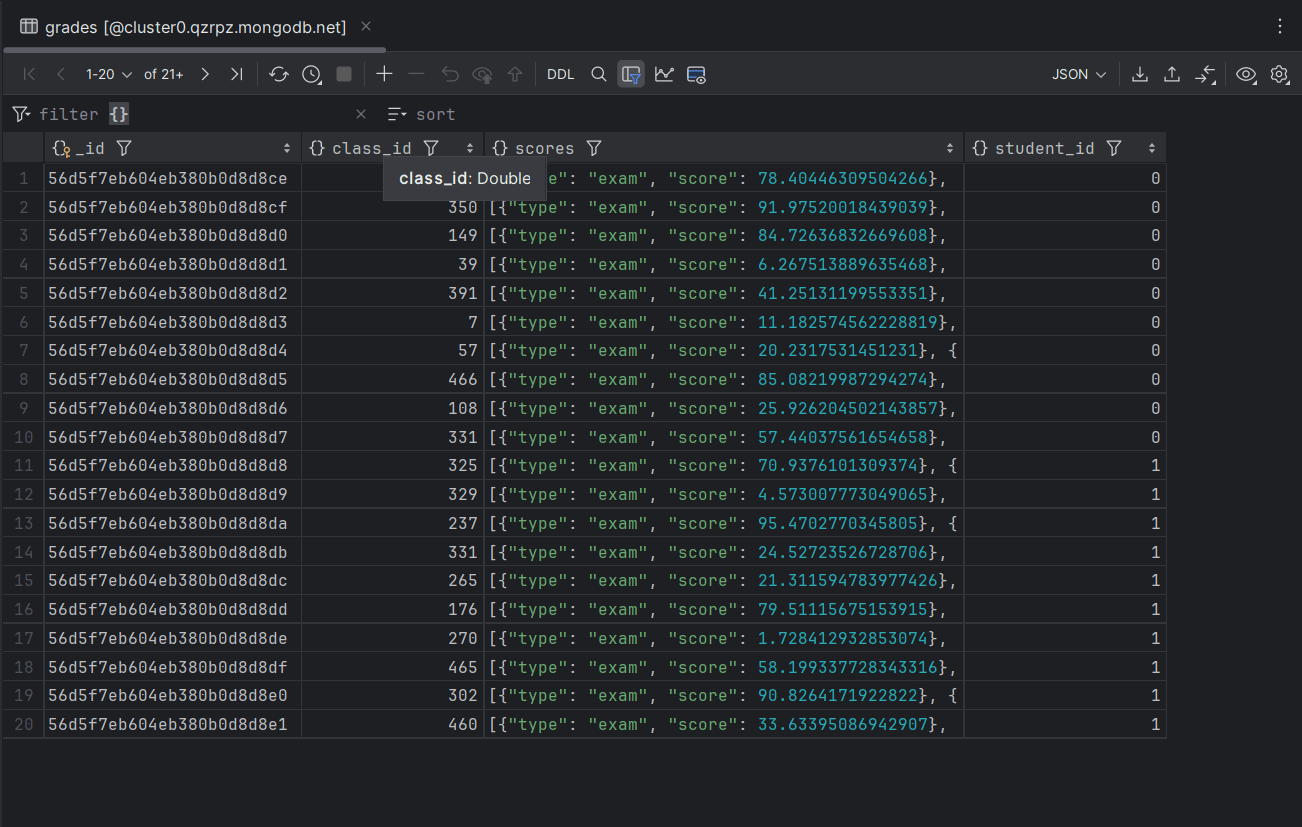
- A JSON object is an unordered set of name/value pairs. The order in which the columns appear in DataGrip and in MongoDB Atlas may not be the same.