OmegaT
for translators


OmegaT
for translation, reconciliation and adaptation
Translation
- Input: the source text
- Output: the translation (or target text)
Adaptation
- Input: both the source text and the target text.
- Output: modified translation. Your task consists of adapting the target text to your specific requirements (regional use, etc.).
Reconciliation
- Input: the source text and 2 translation proposals
- Output: the reconciled translation

Is OmegaT installed and correctly configured?
Contents
- Unpacking / exporting / packing
-
GUI and editor
- Project files, segment properties, notes, comments
-
Matches
- Assessing, inserting, replacing
-
Repetitions
- Auto-propagation, alternative/multiple transl.
-
Tags
- Inserting, moving, fixing
-
QA checks
- Spell checking, completion, LT, tags, glossary
shortcuts save a lot of time
Clicking is handy but...
Ctrl+S
to save
Ctrl+C
to copy
Ctrl+V
to cut (copy and remove)
Ctrl+X
to paste
Build some muscle memory
We propose just a few shortcuts to remember:
- Ctrl+U
- Enter / Ctrl+Enter
- Ctrl+L
- Ctrl+J
- Ctrl+Space
- ...

Grabbing
the project
Un/pack
Open/Close
Download
Team projects are online



The project is downloaded directly from OmegaT
OmegaT will sync translations directly with the repo
Download a team project
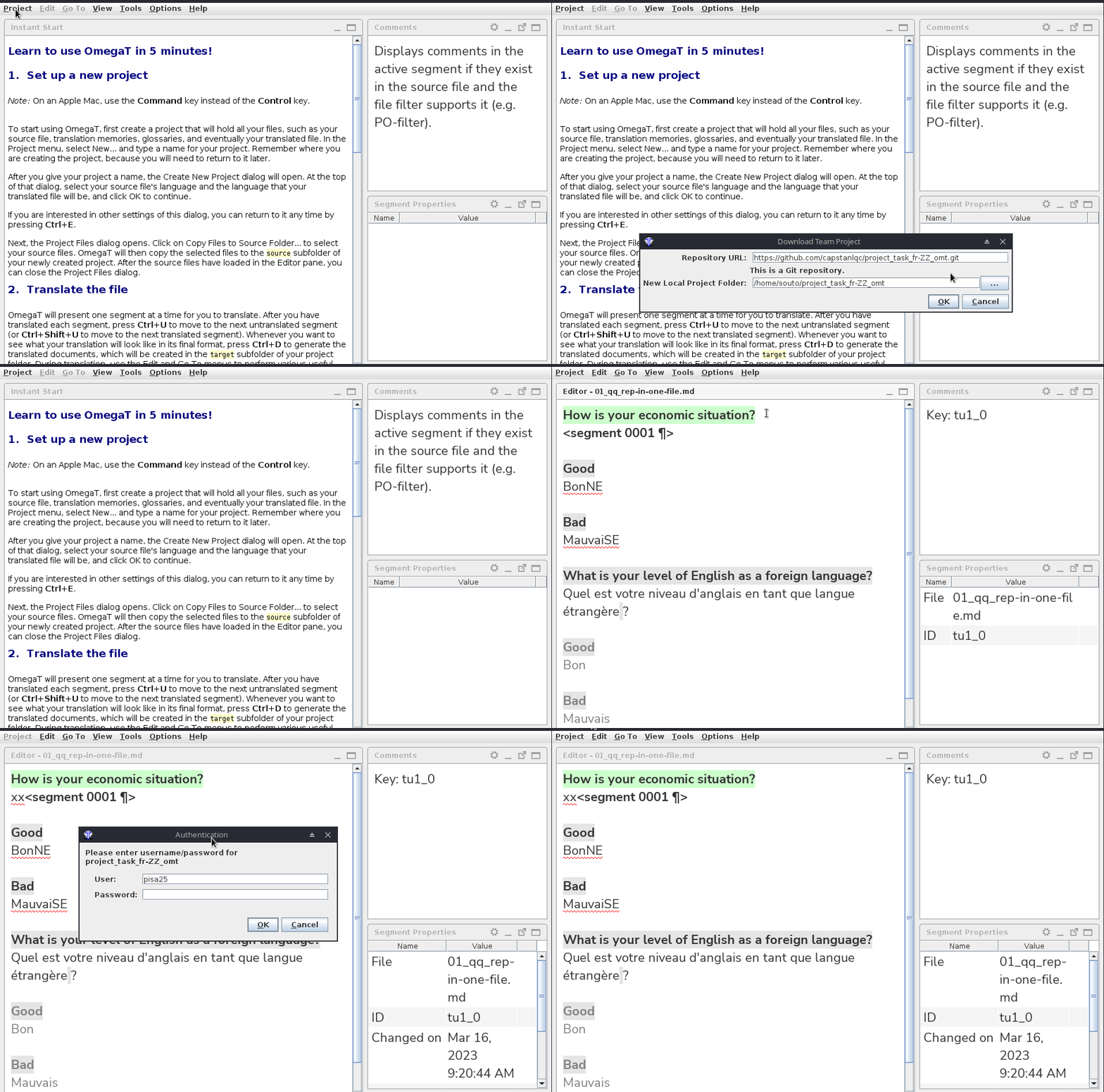
Download a team project
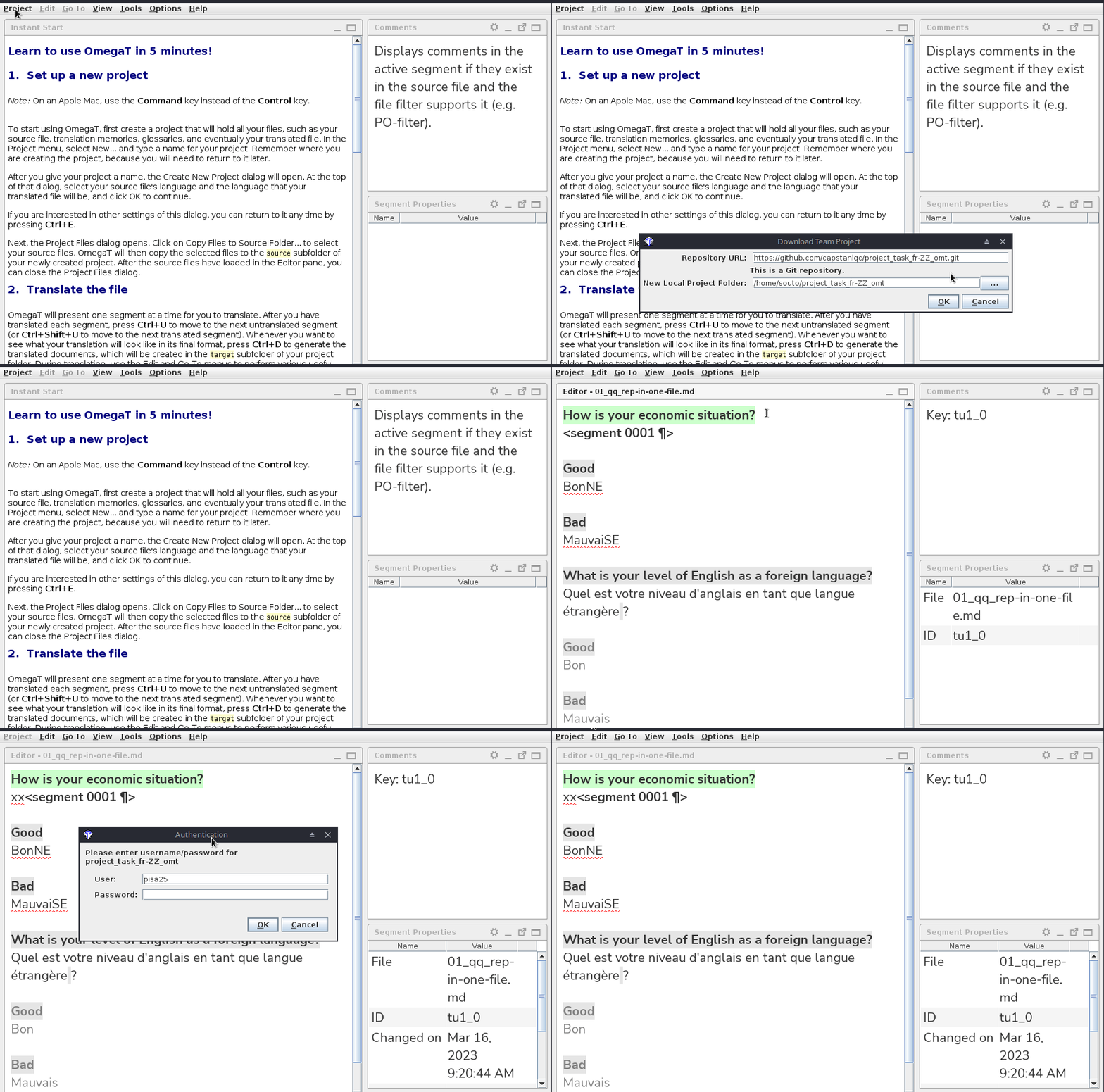
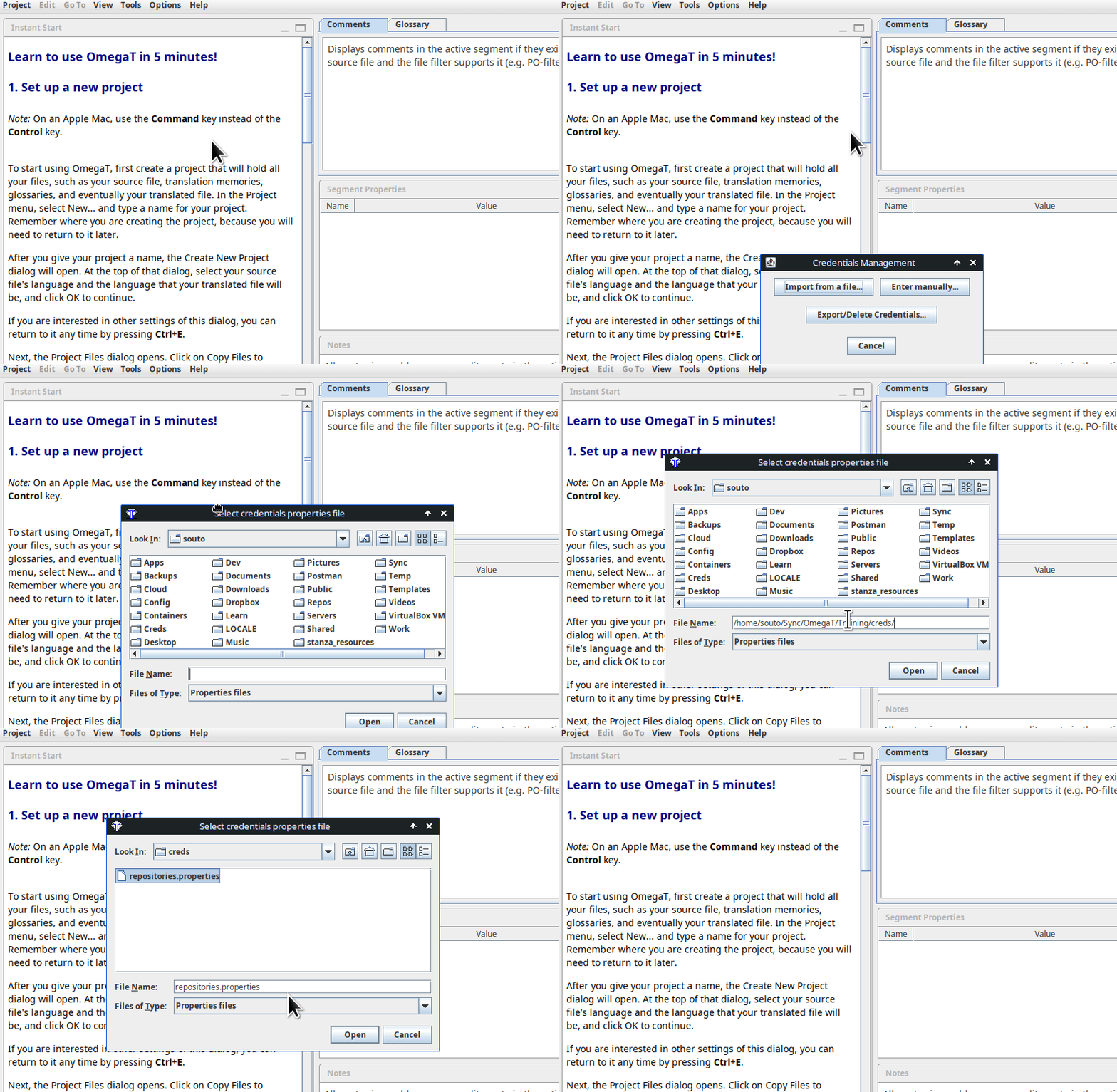
Importing credentials
Download a team project
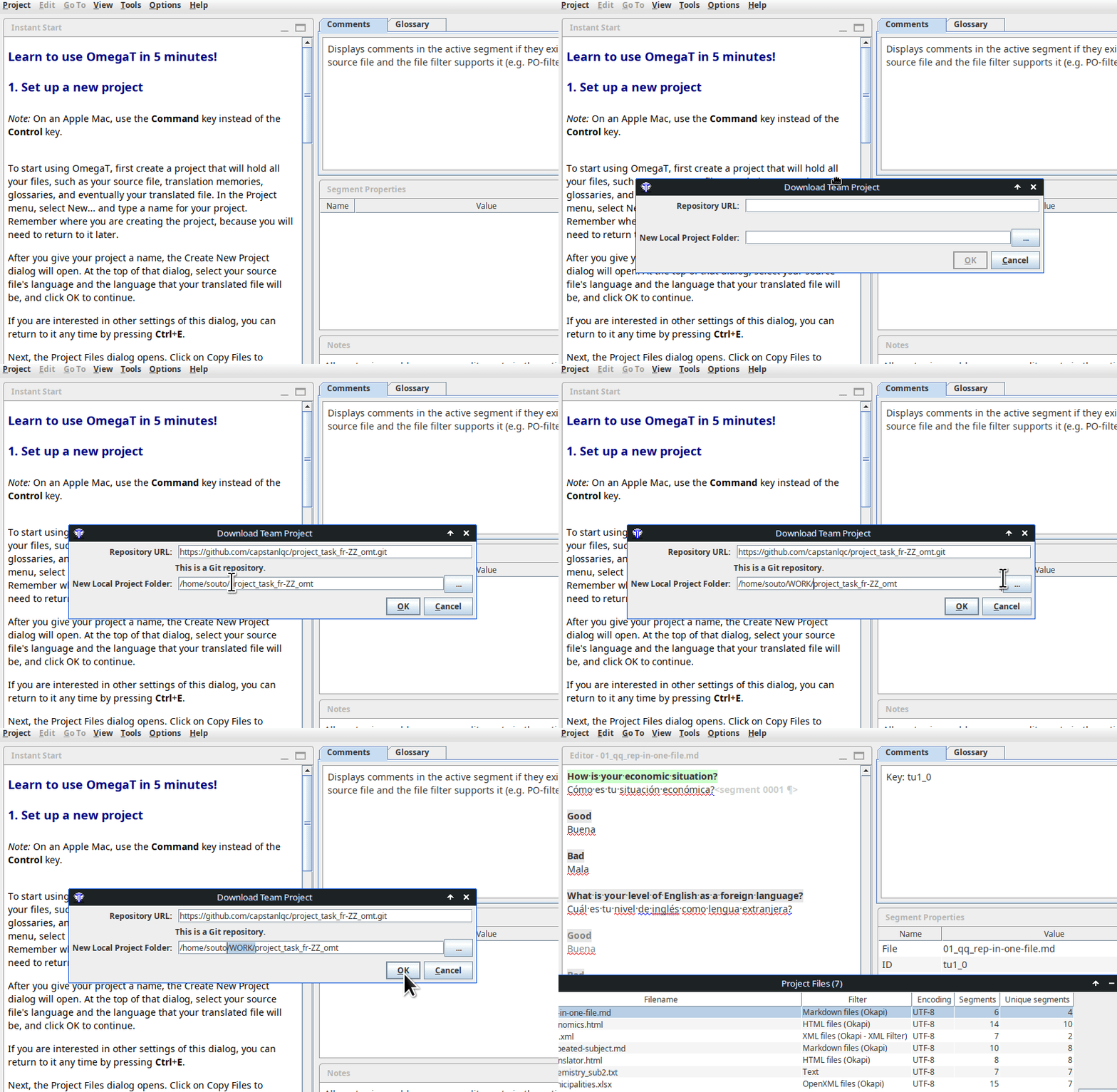
The local project folder
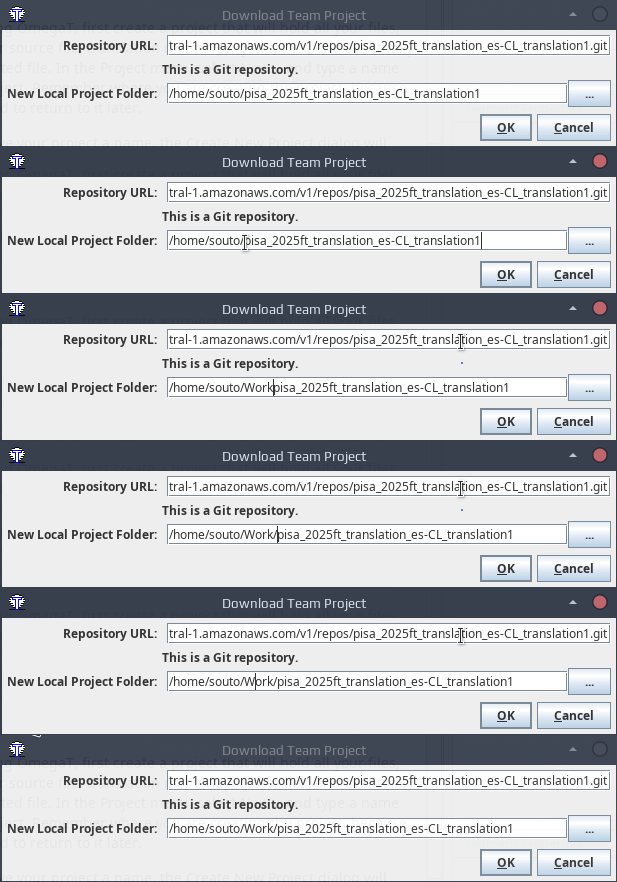
Please download the project to a dedicated folder where you only save OmegaT team/online projects, e.g.
C:\Users\Jane\Work\program_batch_locale_omt
your user folder or HOME directory
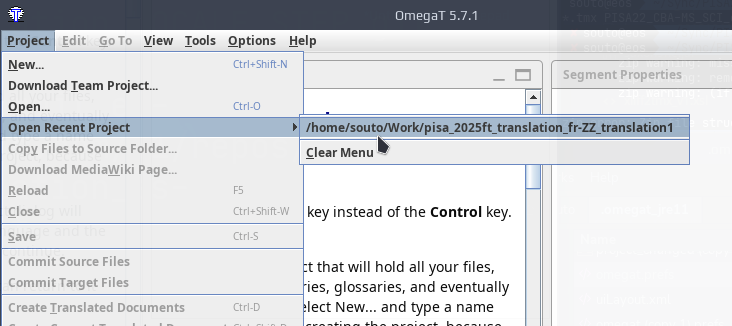
Download once, then re-open
You only need to download a team project once. After that, you can re-open it from the list of recent projects.
Unpacking a project
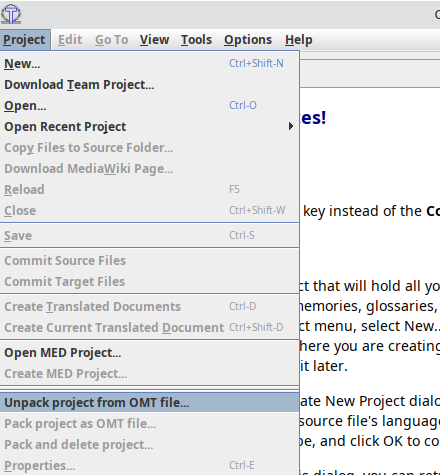
- Project > Unpack project from OMT file...
- Browse to where you downloaded the package
- Open the package
-
Interface
-
Editor
-
Panes
The user interface
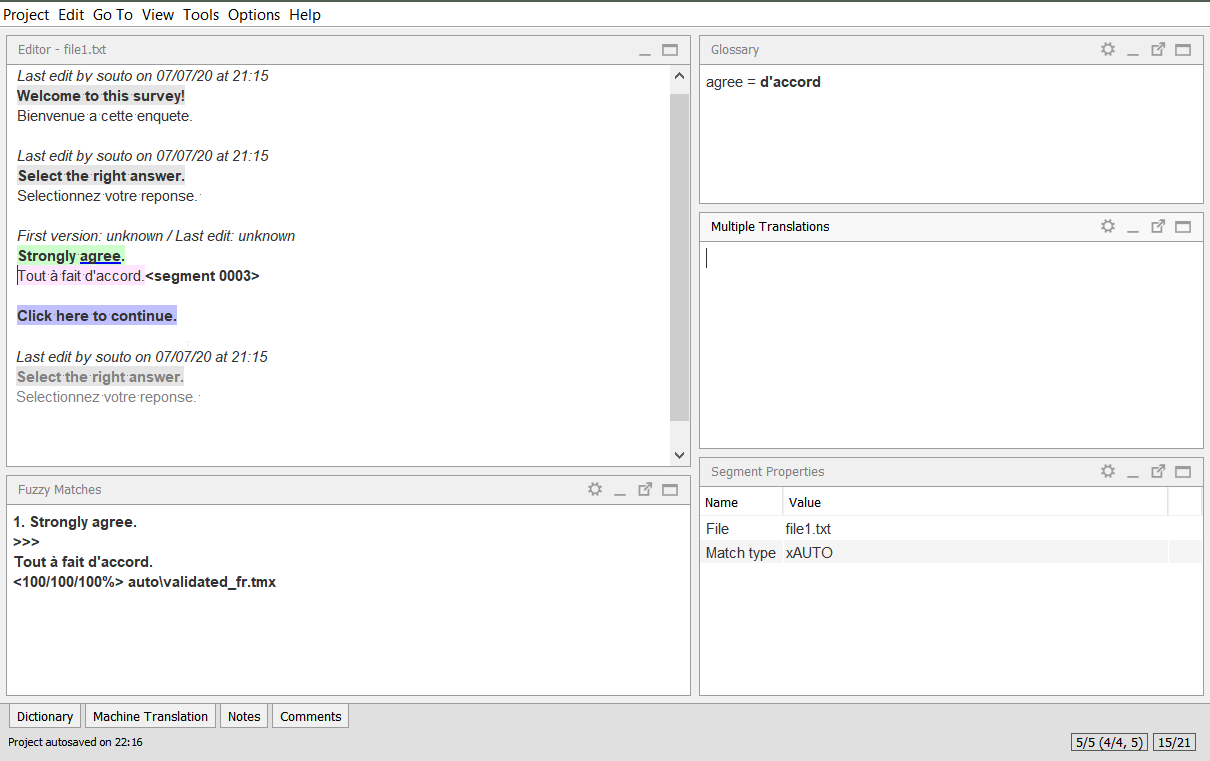
Glossary
translated
active
auto-populated
untranslated
repeated
auto-pop/locked
Alternative translations
Segment properties
Matches from TMs
Editor
(none in this project)
Segment colors
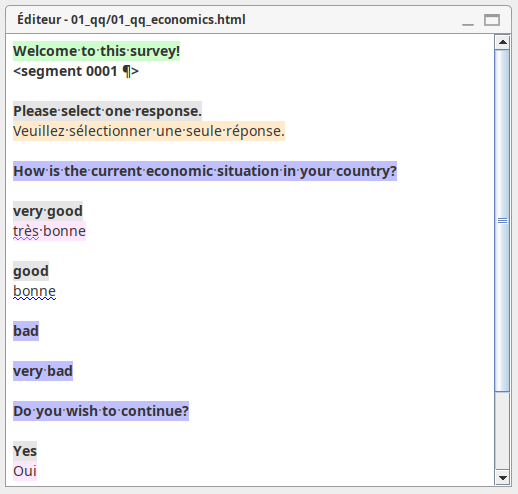
Target text:
- Pink = pretranslated
- Orange = pretranslated and locked
- no background color = regular translation
Source text:
- Green = active
- Blue = untranslated
- Grey = translated
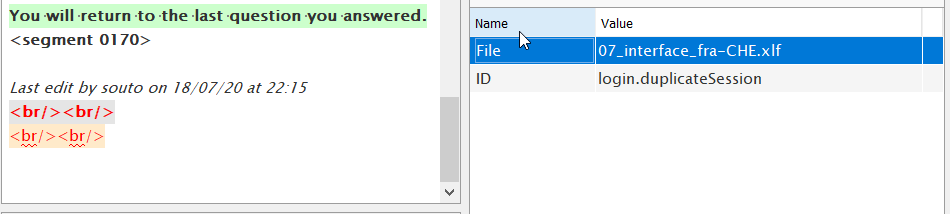
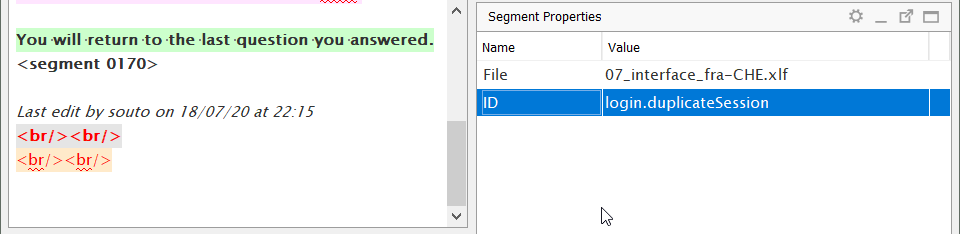
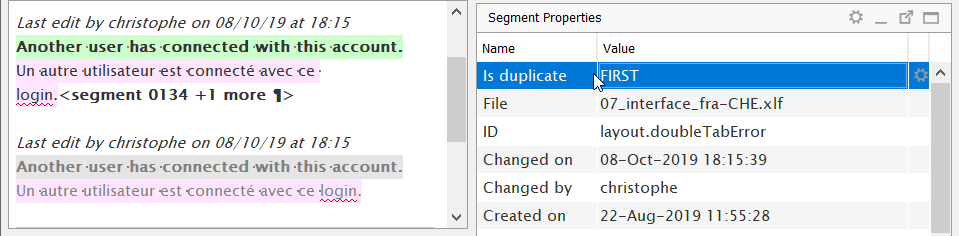
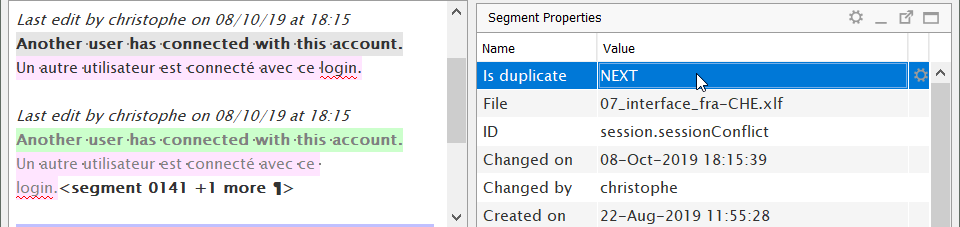
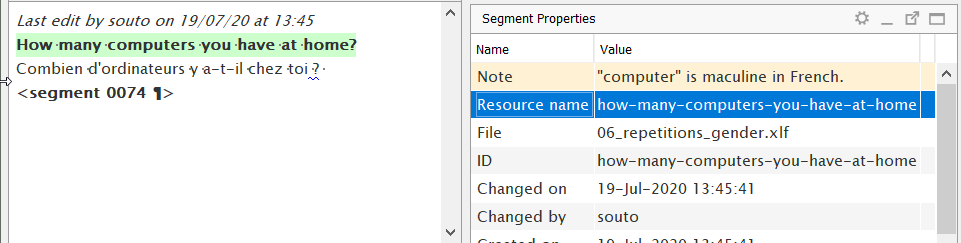
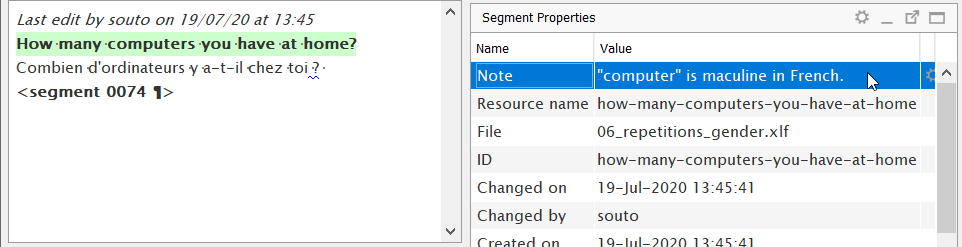
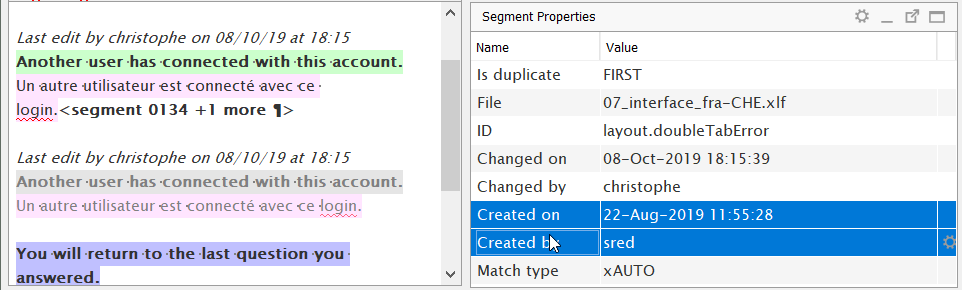
Segment properties
- File name
- ID (if set)
- Duplicate status
- Resource name
- Notes
- Author of the first translation
- Date/time of the first translation
- Author of the last edit
- Date/time of the last edit
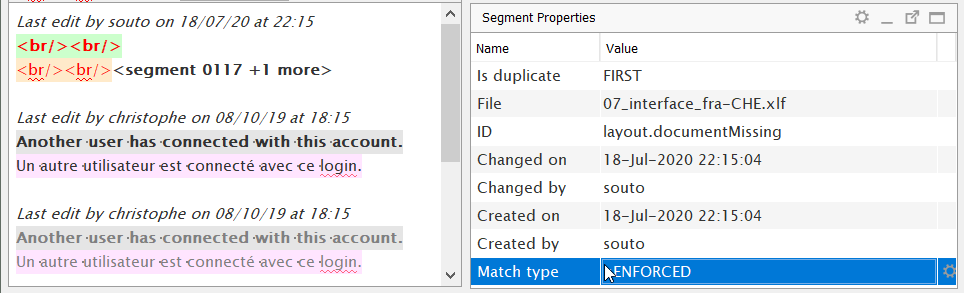
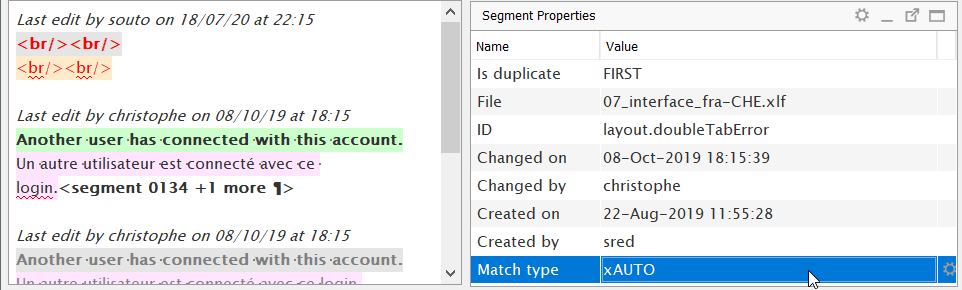
- Match type
source text
target text
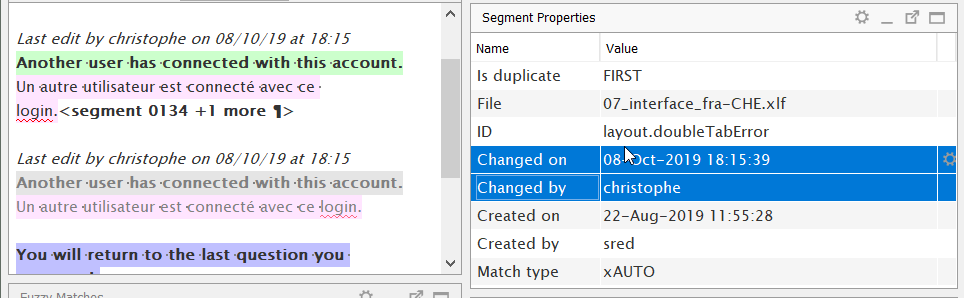
Match type
Duplicate status
Project Files pane
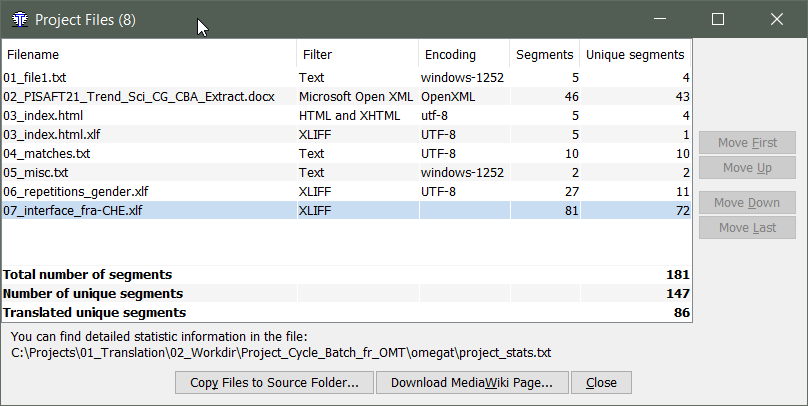
filename of each file
segment counts
progress tracking
Project Files pane
This dialog will always tell you in which file you are.
Ctrl+L
to show the list of files
Moving through the project
Enter
Ctrl+Enter
Forward/backward keys:
Go-to functions / shortcuts
- Ctrl+U
- Go to next untranslated segment
- When you are translating
- Ctrl+Shift+U
- Go to next translated segment
- When you are reviewing (but not all is translated)
- Ctrl+J
- Go to a specific segment by its number
- Ctrl+Shift+P (previous) / Ctrl+Shift+N (next)
- Back/Forward in history
- Very useful if you go back to where you were
If you don't remember a shortcut, you may check the Go To menu.
Ctrl+U
go to next untranslated segment
Ctrl+J
go to specific segment by number
Create
translated
documents
Generate target files / export
- If you need to preview the target version.
- Ctrl+D
- Generate all target files in the project
- Easy to remember
- Slow if you have many files or if files are big
- Ctrl+Shift+D
- Generate current target file
- Faster, so more practical

Ctrl+D
create translated documents
Ctrl+Shift+D
create current translated document
Matches
What is a match?
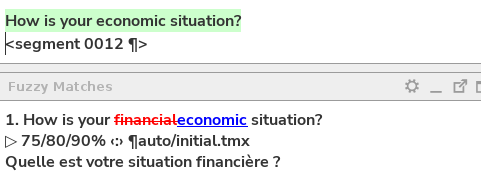
Differences are conveniently shown in diff mode.
Types of matches
- Exact match
- Fuzzy match
Strongly agree. <segment 0009>
-------------------------------------------------
Strongly agreedisagree.
<50/50/75%>
Strongly agree. <segment 0001>
-------------------------------------------------
Strongly agree.
<100/100/100%>
- In-context exact (ICE)
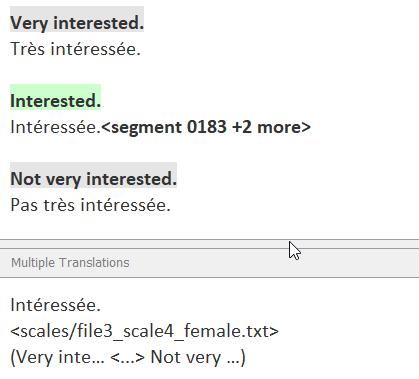
Match similarity metric
- Three percentages:
- Stemmed without stopwords
- Inflected form without stopwords
- All tokens (inflected forms and stopwords)
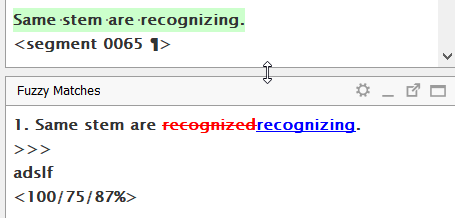
Differences are conveniently shown in diff mode.
Match leverage / insertion
- A reference match (of any score)
- Must be inserted manually
-
Auto-populated match (exact)
- It is inserted automatically when the project loads...
- ... as long as the segment is not translated
- It is inserted automatically when the project loads...
- An enforced match (exact)
- It is inserted automatically when the project loads...
- ... replacing any text in the segment.
- It is inserted automatically when the project loads...
Automatic leverage
Manual leverage
Carrying over matches
A match must be activated so that it can be carried over.
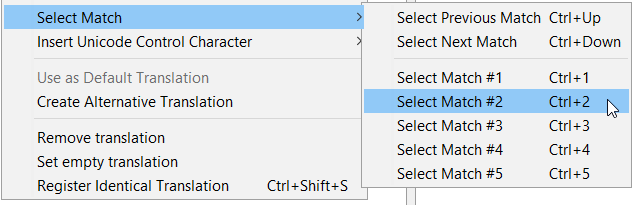
- Ctrl+# (or doble-clicking)
- Activates the match numbered with #
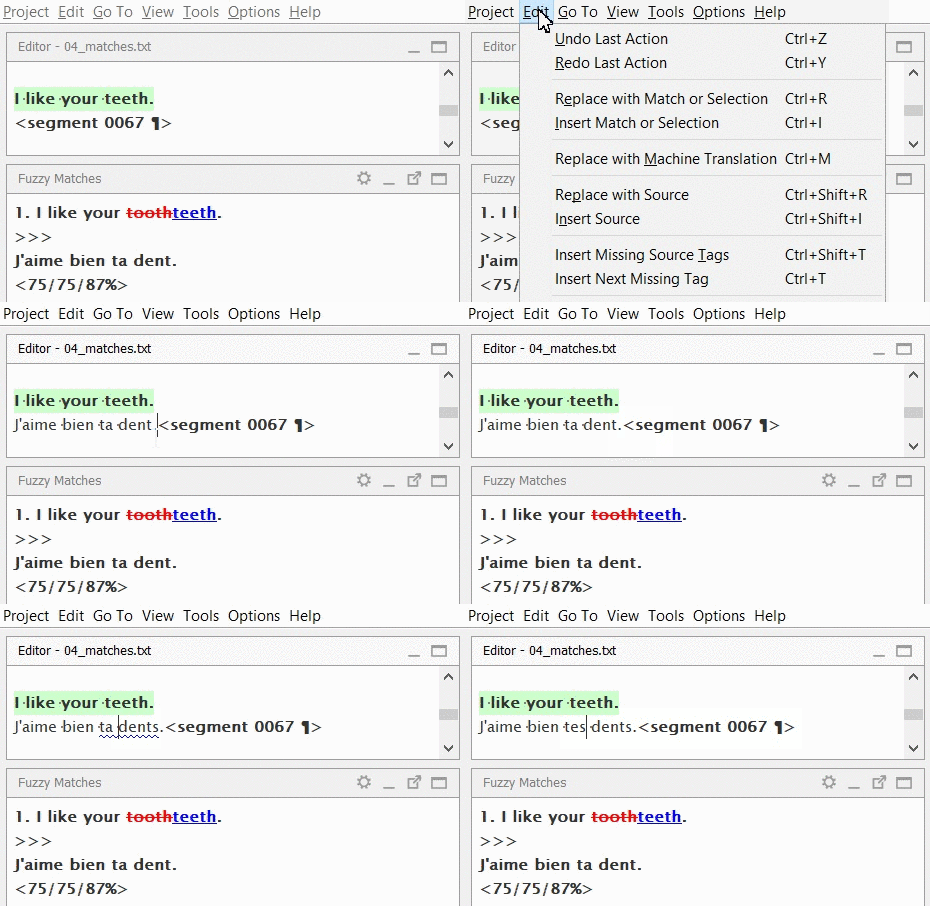
The active match (or the selected part) can be carried over to the translation by inserting it.
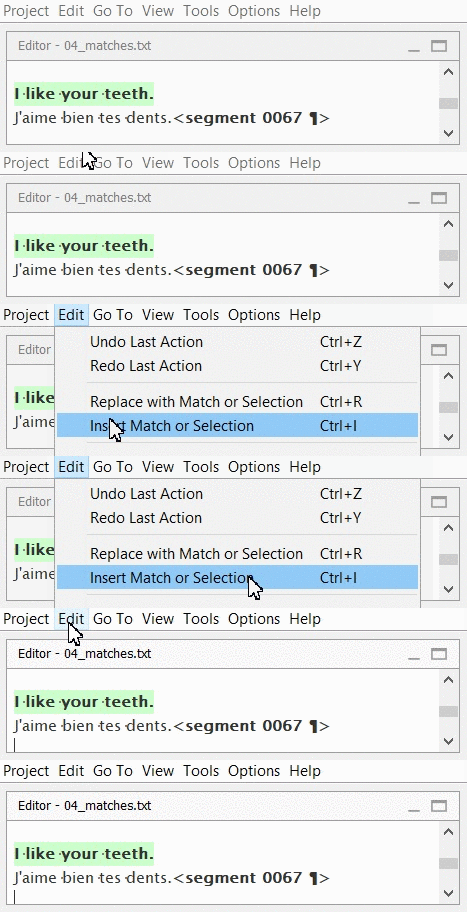
- Ctrl+i (or from menus)
- Inserts the active match or the selected part of it
- It can be used to replace in combination with Ctrl+A
.
Carrying over matches
Note:
- Inserted text can be assembled with a translation draft.
- Or, in combination with Ctrl+A, the inserted text can replace the existing translation draft.
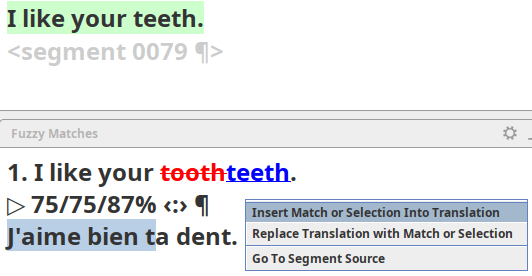
The whole active match (or the selected part of it) can be inserted in the translation by different means:
- Ctrl+i
- It inserts from the active/selected match
- Right-click on the match
- Edit > Insert Match or Selection
.
Insertion+update strategies
- Insert whole match, update later
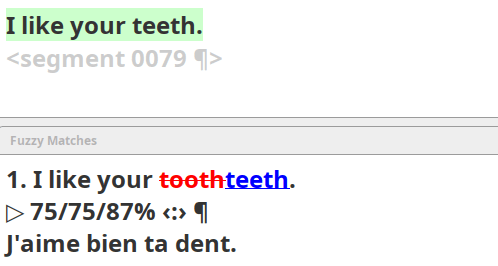
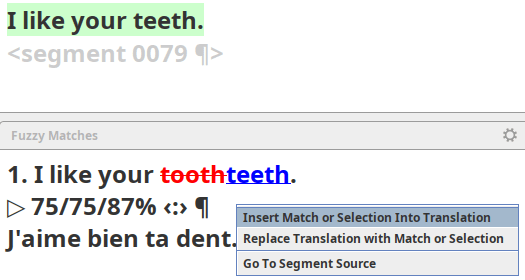
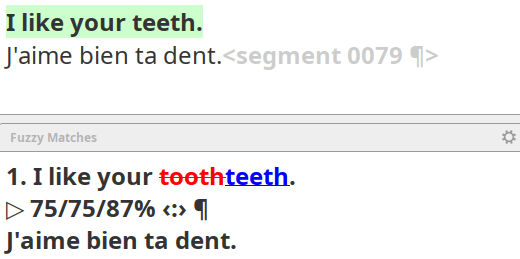
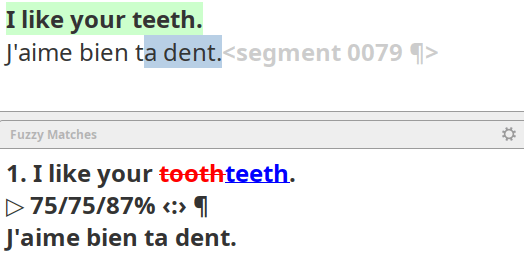
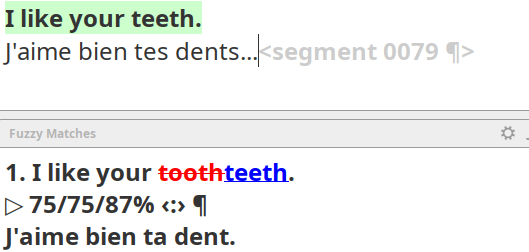
Insertion+update strategies
- Insert whole match, update later
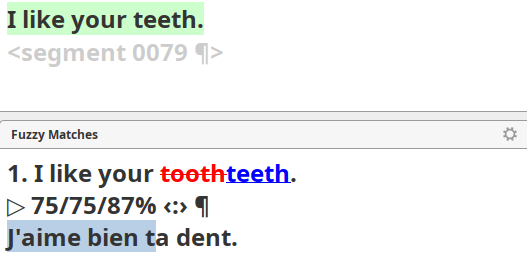
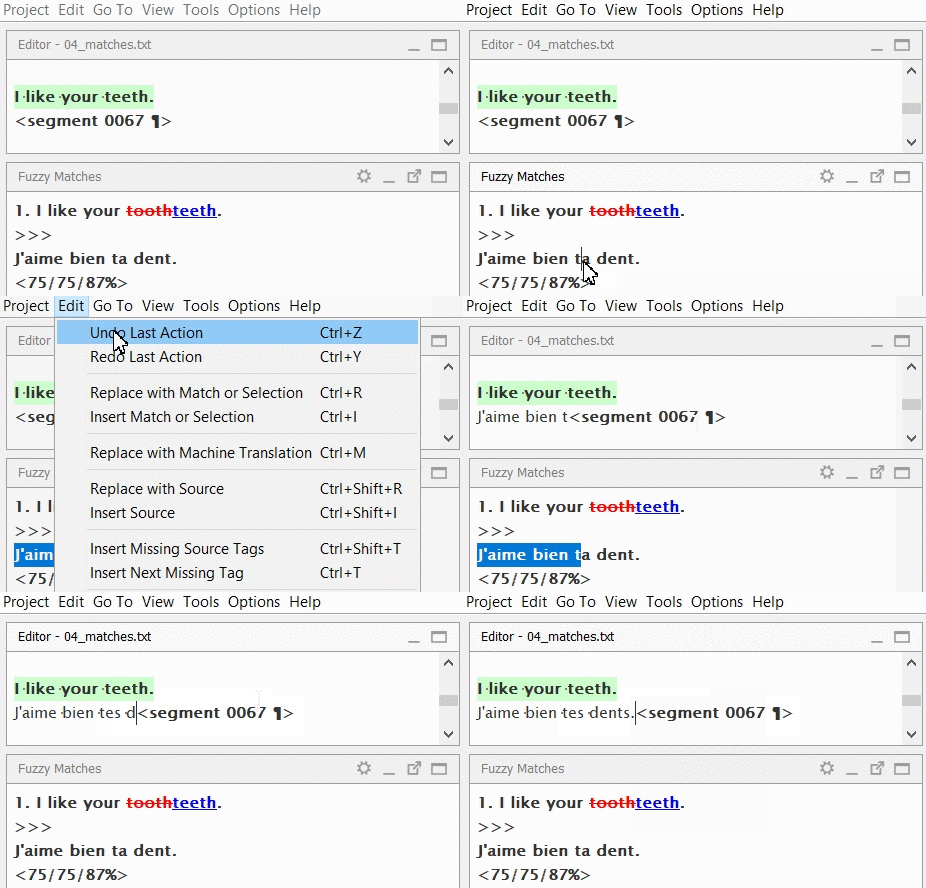
- Select part of the match, insert selection, then update
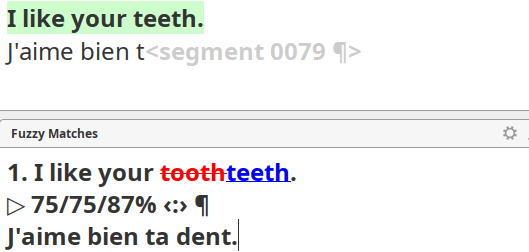
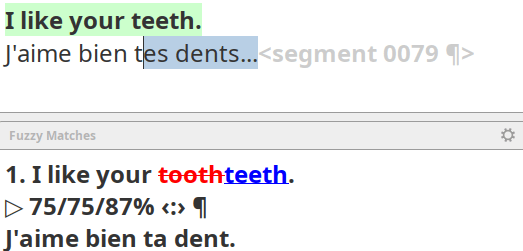
Recommended steps
- Activate the match you want to insert
- The first match is the one active by default
- Select the part of the match that you want to insert
- (if you don't want to insert the whole match)
- In the target segment, do one of these:
- Assemble fragments: Move the cursor to the position where you want to insert the match/selection to assemble fragments
- Replace: Select the part of the existing translation draft that you want to replace with the match/selection (or select the whole of it with Ctrl+A)
- Press Ctrl+i
Updating matches
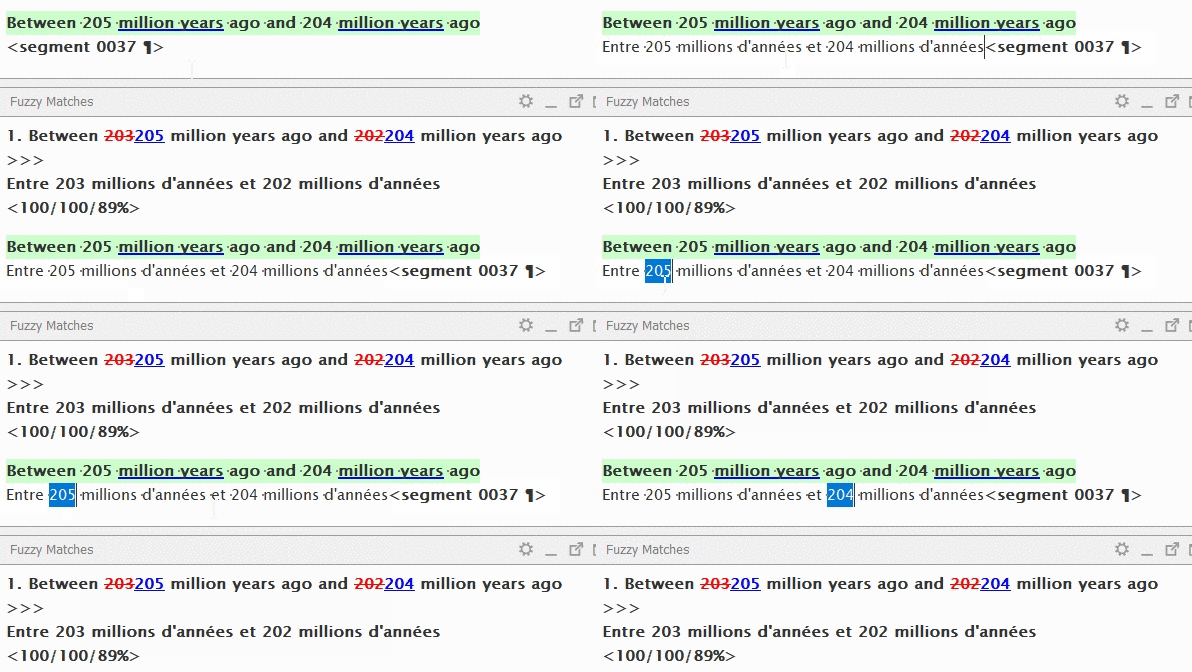
- Some matches must be leveraged manually:
- Exact matches: probably do not require updates
- Fuzzy matches: probably do require updates
- Updates:
- Inserting full match
+ editing/overwriting
invalid part - Selection of valid part
+ insertion
+ complete + editing - Automatically!
- Inserting full match
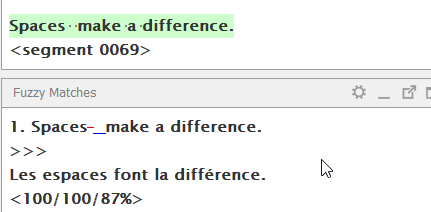
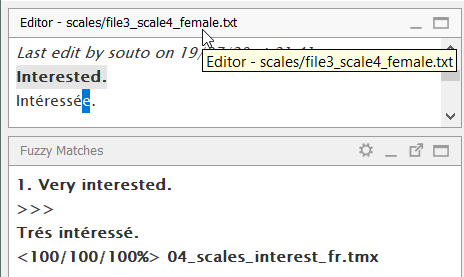
Updating matches
- Some matches must be leveraged manually:
- Exact matches: probably do not require updates
- Fuzzy matches: probably do require updates
- Updates:
- Inserting full match
+ editing/overwriting
invalid part - Selection of valid part
+ insertion
+ complete + editing - Automatically!
- Inserting full match
Carrying over matches
A match must be active so that it can be carried over.
-
Ctrl+#
- Activates the match numbered with #



An active match can be carried over to the translation in 2 ways.
-
Ctrl+R
- Replaces the translation with the match or the selected part
-
Ctrl+i
- Inserts the match or the selected part
- It can be used to replace in combination with Ctrl+A
Ctrl+i
insert match or selection
[also available upon right-clicking on the match]
selects the match by its number (1-5)
[= double-click on the match]
Ctrl+#
Ctrl+i
insert match or selection
Ctrl+R
activates segment by number (1-5)
Ctrl+#
replace with match or selection
Tags
(placeables)
Tags stand for codes/markup
-
Structural markup/codes define the different parts of the document and how they are arranged together. Parts can be paragraph, list, table, footnote, title, etc.
- Some of those parts contain text. Text might contain some embedded elements, like icons, buttons, etc.
-
Formatting markup/codes define how the text is styled or decorated. Styles include bold, italics, underlining, font-family, colour, size, etc.
- These codes embed the formatted text, which can be a whole sentence or part of a sentence.
Tags: what are tags?
Click Play to see it in action.
Click <strong>Play</strong> to see it in action.Click <g1>Play</g1> to see it in action.
Tags stand for inline codes, they are not translatable text but need to be replicated in the translation.


Paired tags generally apply some formatting to a fragment of text.
Tags: what are tags?
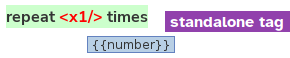
repeat {{number}} timesrepeat <x1/> times
Standalone tags stand for some code that does not contain translatable text.

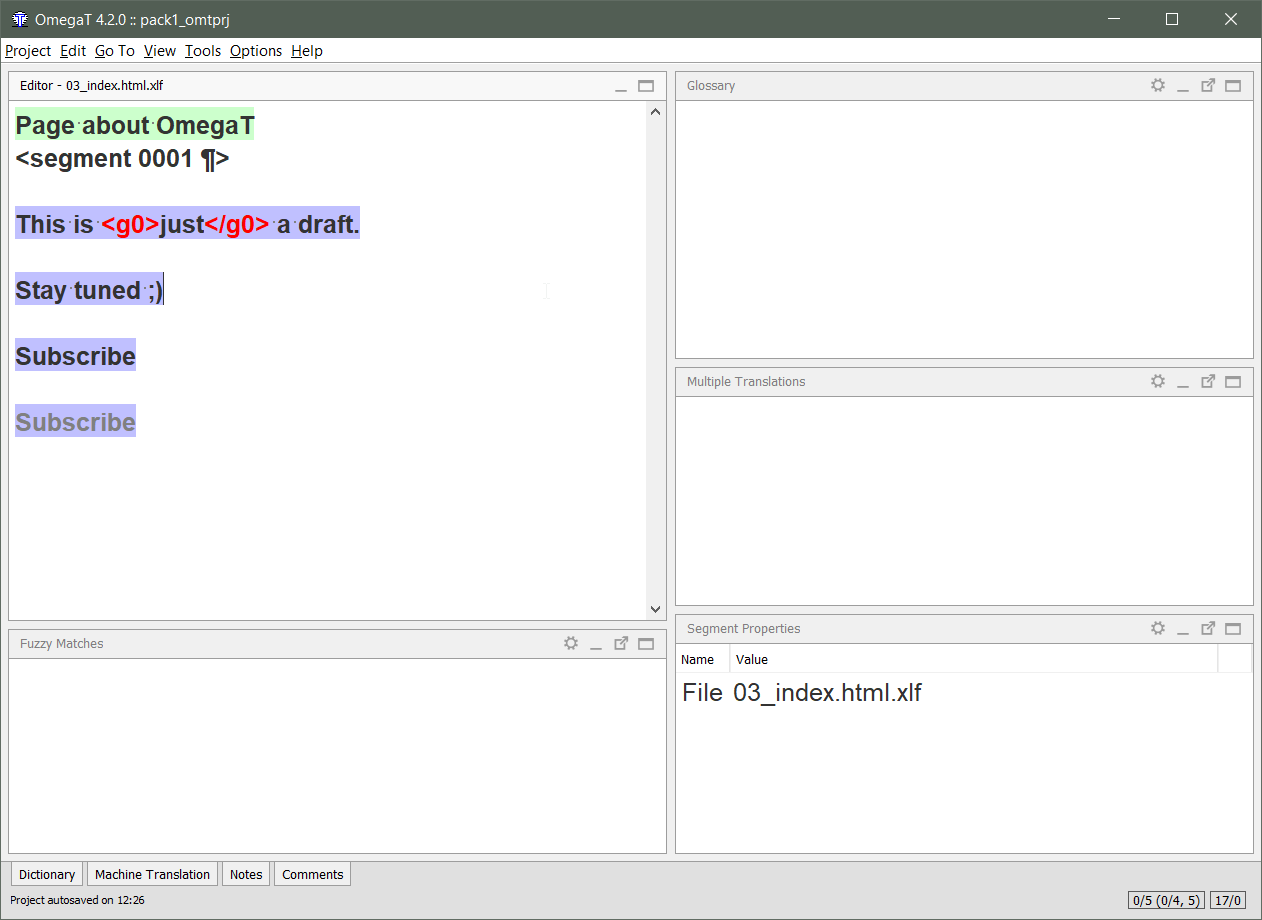
This is what it looks like when you add the file to the OmegaT project.
Tags: standalone vs paired

Tags need to be placed in the translation.
You have several options to insert tags:
- Ctrl+Space
- Auto-completer, recommended!
- It can be used to insert other things
- Ctrl+T
- Inserts the next missing tag
- Easy to remember
Auto-completer:
Insert paired tags
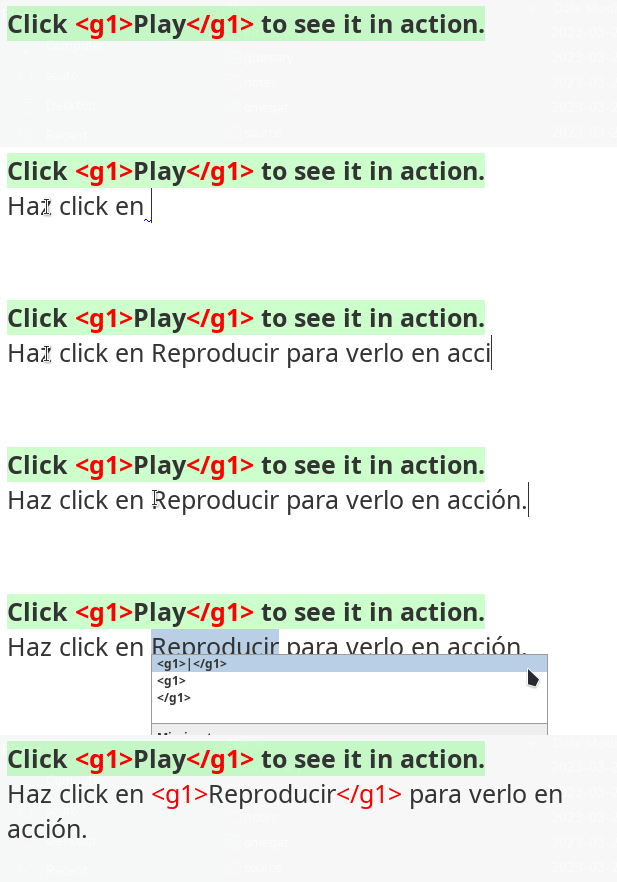
The auto-completer allows you to insert paired tags in the right position around the text that needs to be formatted.
- Selected the text to be formatted
- Press Ctrl+Space
- Use the arrow keys to select the row that applies
- Press Enter to insert the tag pair
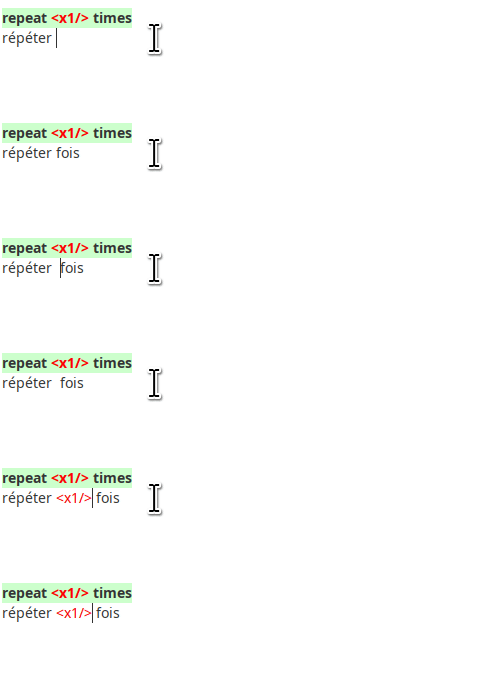
The auto-completer allows you to insert standalone tags
in the right position within the target text.
- Position the cursor in the insertion point
- Press Ctrl+Space
- Use the arrow keys to select the row that applies
- Press Enter to insert the tag
Auto-completer:
Insert standalone tags
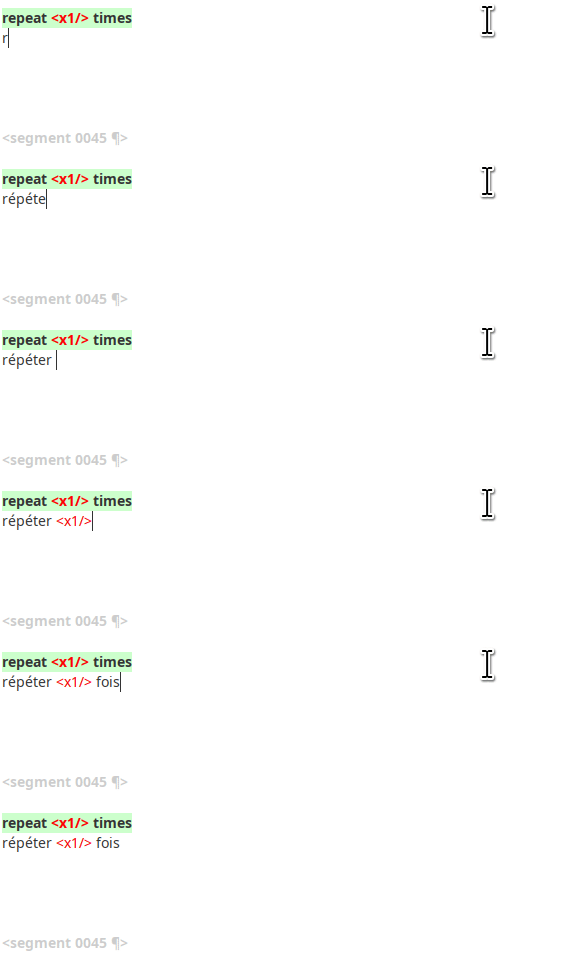
You're free to produce your translation first and insert tags later OR to insert tags as you type your translation.
The cursor is already in the right place, the rest is the same:
- Press Ctrl+Space
- Use the arrow keys to select the row that applies
- Press Enter to insert the tag
Auto-completer:
Insert tags as you go alone
Ctrl+Space
to launch the Auto-Completer
Ctrl+T
to insert next missing tag
Inserting tags: next missing
Ctrl+T
- Inserts the next missing tag.
- During translation...
-
-
During editing (on a given translation)...
-


Inserting tags: auto-complete
Ctrl+Space
- Allows you to insert any missing tag...
- Or to inserts any tag pair to create an embedding...


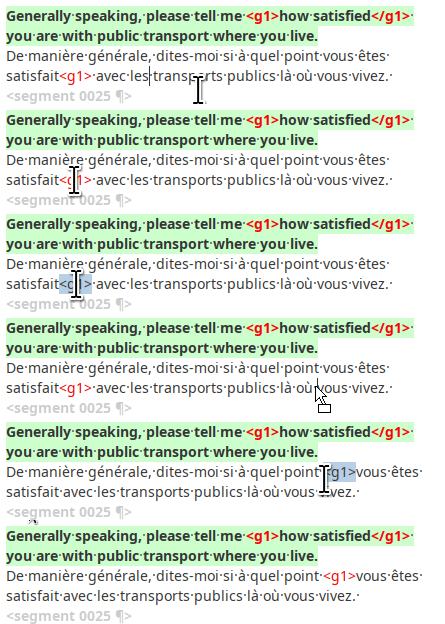
Fixing tags: position
Drag & Drop:
- Double-click to select the tag
- Drag it to its new position
- Drop it
or Cut & Paste:
- Double-click to select the tag
- Cut the tag (Ctrl+X)
- Click on the new position
- Paste the tag (Ctrl+V)
Repetitions
Repetitions
Repetitions
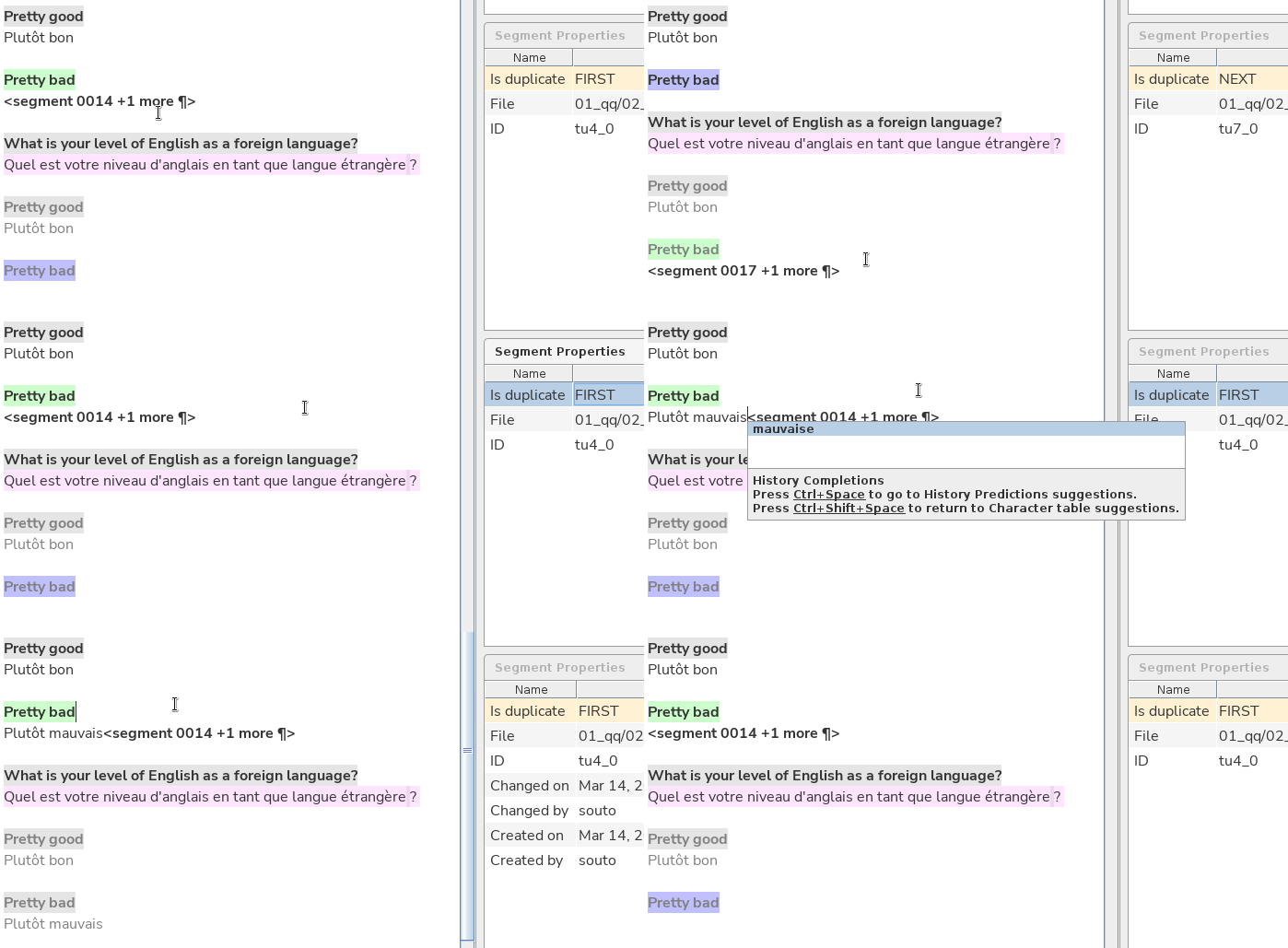
Repetitions and auto-propagation
| Email message | |
| Subject: | |
| Fw: Summer Streets | |
| Dear Subscriber | |
| ... | ... |
| Library Catalog | Catálogo bibliotecario |
| genetically modified food | |
| Food for the world | |
| Subject: | |
| biotechnology | |
| Modern farming |
files/editor
working TM
file 1
file 2
| Library Catalog | Catálogo bibliotecario |
Tema:
Subject:
Tema:
Subject:
Auto-propagation (1)
| Email message | |
| Subject: | |
| Fw: Summer Streets | |
| Dear Subscriber | |
| ... | ... |
| Library Catalog | Catálogo bibliotecario |
| genetically modified food | |
| Food for the world | |
| Subject: | |
| biotechnology | |
| Modern farming |
files/editor
working TM
| Library Catalog | Catálogo bibliotecario |
Tema:
Subject:
Tema:
Subject:
Tema:
Tema:
Tema:
Auto-propagation (2)
| Email message | |
| Subject: | |
| Fw: Summer Streets | |
| Dear Subscriber | |
| ... | ... |
| Library Catalog | Catálogo bibliotecario |
| genetically modified food | |
| Food for the world | |
| Subject: | |
| biotechnology | |
| Modern farming |
files/editor
working TM
| Library Catalog | Catálogo bibliotecario |
Subject:
Tema:
Subject:
Tema:
Tema:
Tema:
Auto-propagation (3)
| Email message | |
| Subject: | |
| Fw: Summer Streets | |
| Dear Subscriber | |
| ... | ... |
| Library Catalog | Catálogo bibliotecario |
| genetically modified food | |
| Food for the world | |
| Subject: | |
| biotechnology | |
| Modern farming |
files/editor
working TM
| Library Catalog | Catálogo bibliotecario |
Subject:
Tema:
Subject:
Context determines meaning
Tema:
Tema:
Tema:
The subject field of a book
The topic of an email

| Email message | |
| Subject: | |
| Fw: Summer Streets | |
| Dear Subscriber | |
| ... | ... |
| Library Catalog | Catálogo bibliotecario |
| genetically modified food | |
| Food for the world | |
| Subject: | |
| biotechnology | |
| Modern farming |
files/editor
working TM
| Library Catalog | Catálogo bibliotecario |
Subject:
Tema:
Subject:
Alternative translations
Tema:
Tema:
Tema:
Create alternative translation

Asunto:
Subject:
Asunto:
| Email message | |
| Subject: | |
| Fw: Summer Streets | |
| Dear Subscriber | |
| ... | ... |
| Library Catalog | Catálogo bibliotecario |
| genetically modified food | |
| Food for the world | |
| Subject: | |
| biotechnology | |
| Modern farming |
files/editor
working TM
| Library Catalog | Catálogo bibliotecario |
Subject:
Tema:
Subject:
Alternative translations
Tema:
Tema:
Create alternative translation
Asunto:
Subject:
Asunto:
prev: Email message
next: Fw: Summer Streets
Alternative translations are like crossing the street.
If you proceed with caution you should be fine ;)
Create alternative translations
- Create alternative translation
- Modify the text
- Save (Ctrl+S)
Steps:
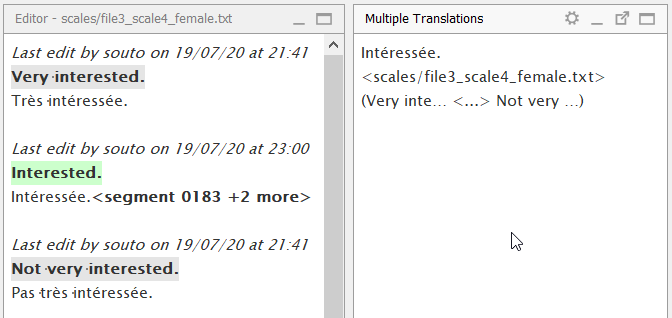
In-context exact (ICE) match
- Alternative translations rely on a context-wide match
- Source text
- Previous and next source texts
- File name
Not very robust if other repetitions have the same context.
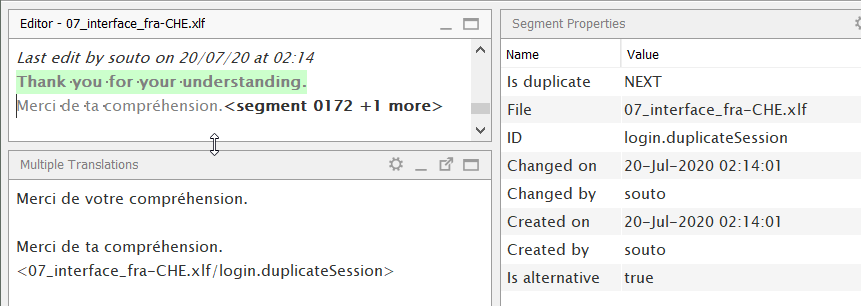
ID-bound match (XLIFF)
- Alternative translations based on stricter kinds of context
- Source text
- Segment ID
- File name
For formats that allow it (e.g. XLIFF), we can use segment IDs to create a unique context.
Create alternative translation
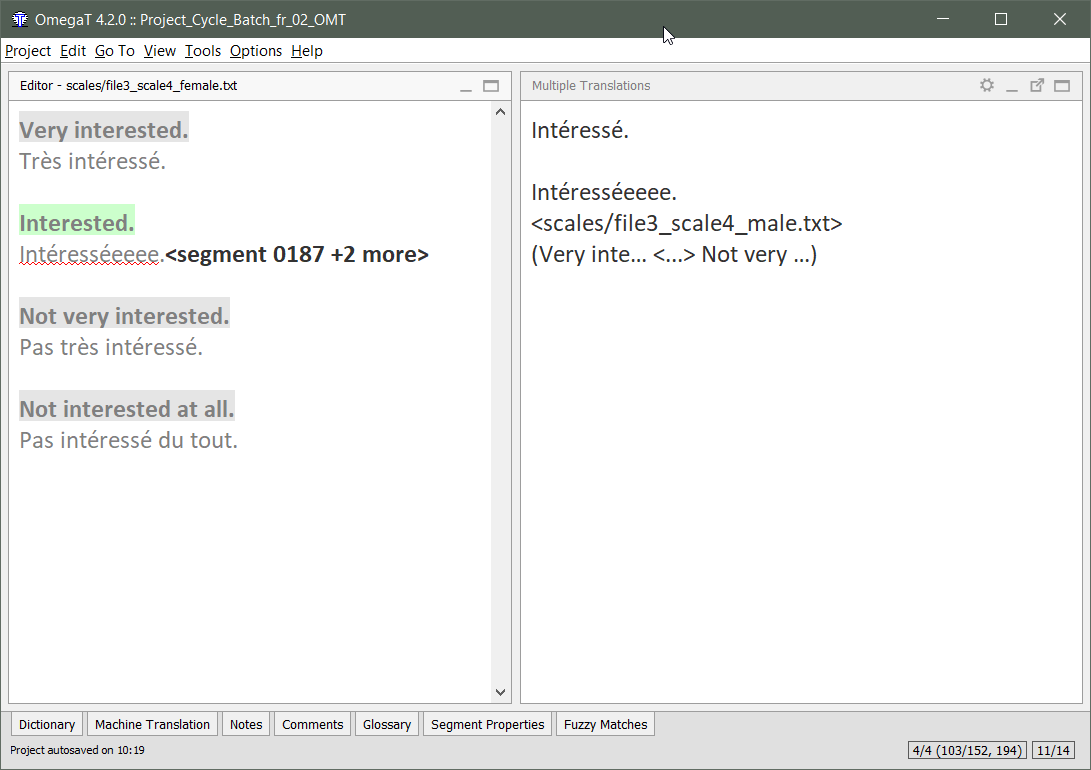
A default translation exists.
Right click the segment and select "Create Alternative Translation"
Edit the translation, then press Ctrl+S to save.
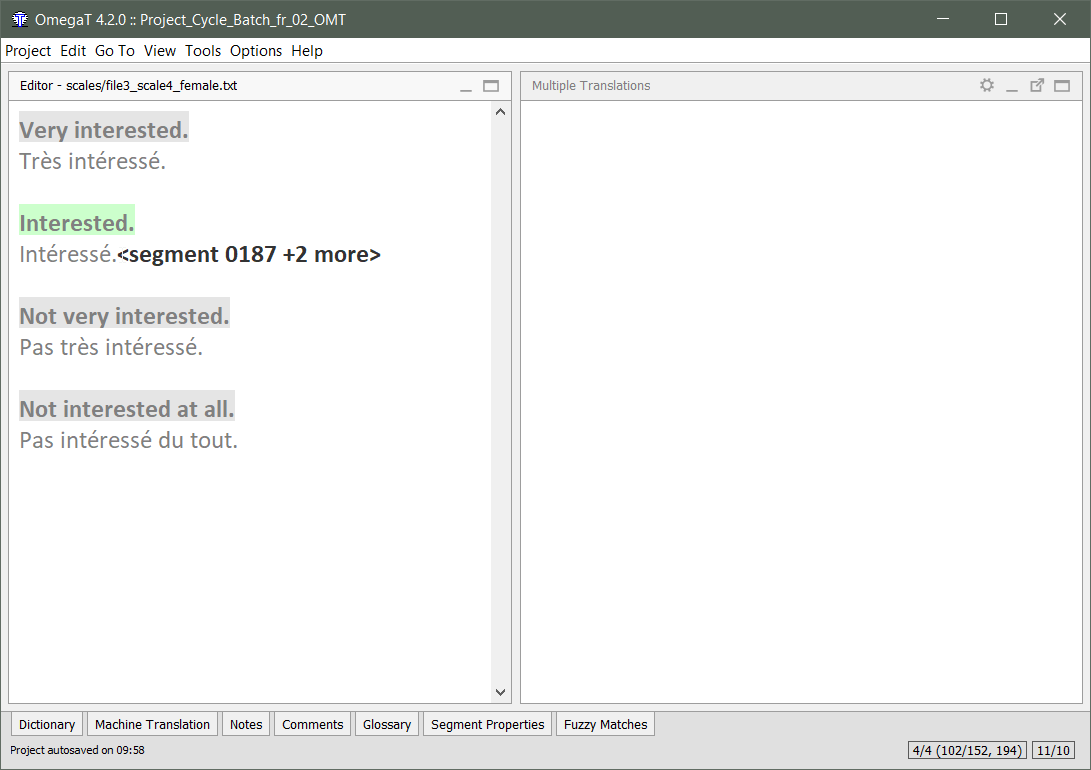
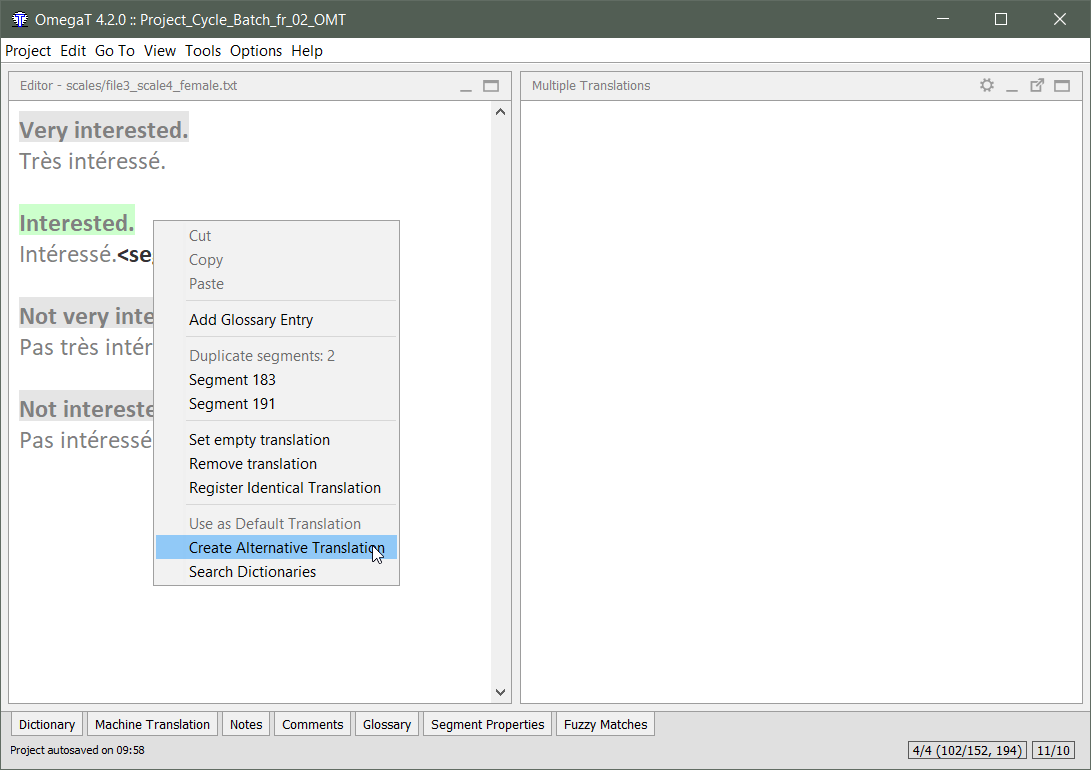
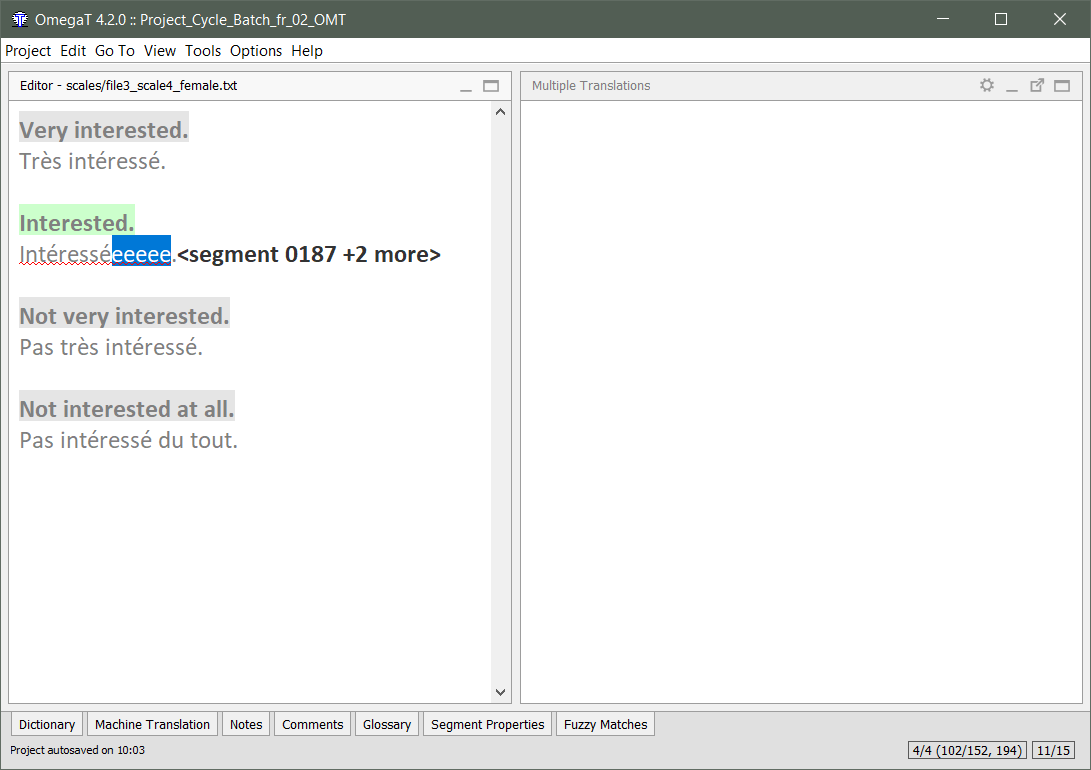
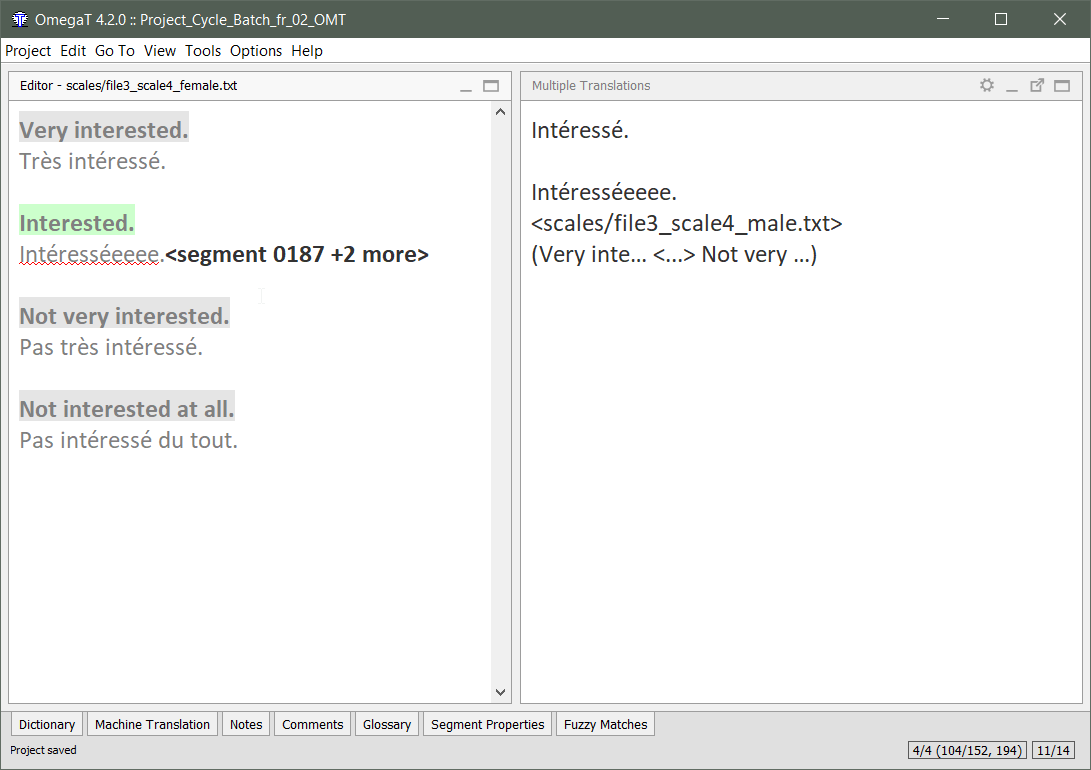
When you save, the new alternative translation will appear in the Multiple Translations pane.
Restore default translation
An alternative translation exists.
Delete the alternative translation, then Ctrl+S to save.
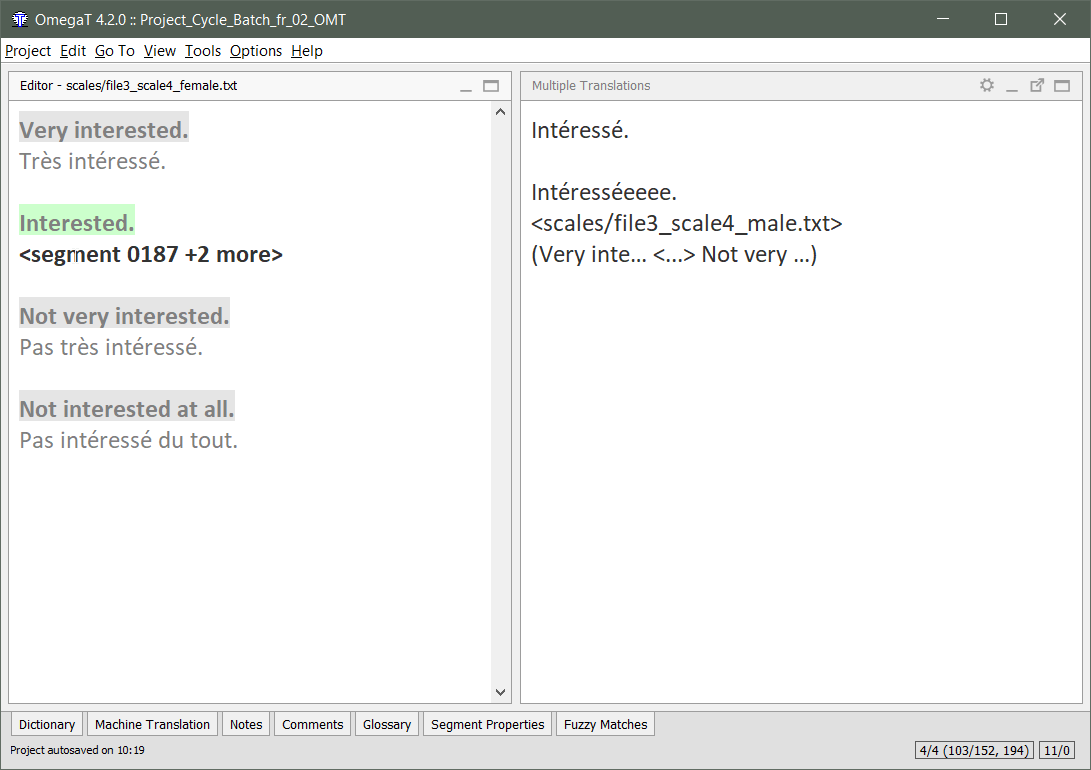
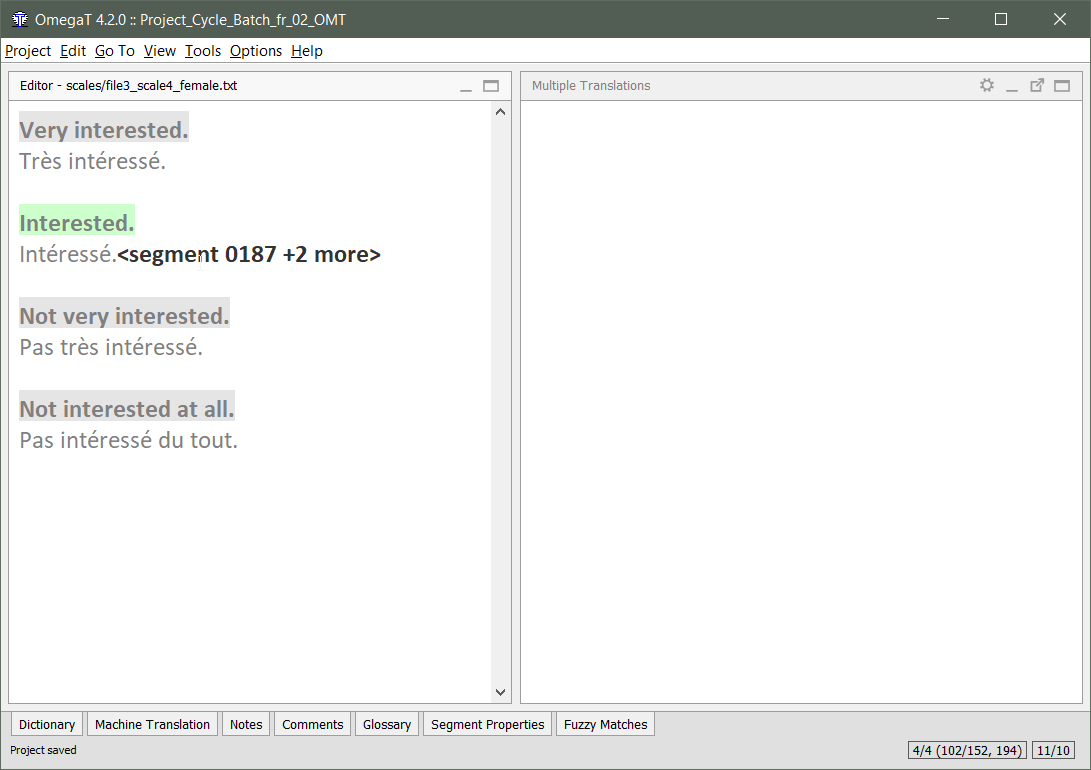
When you save, the default translation appears in the segment.
And the alternative translation disappears from the Multiple Translations pane.
Search
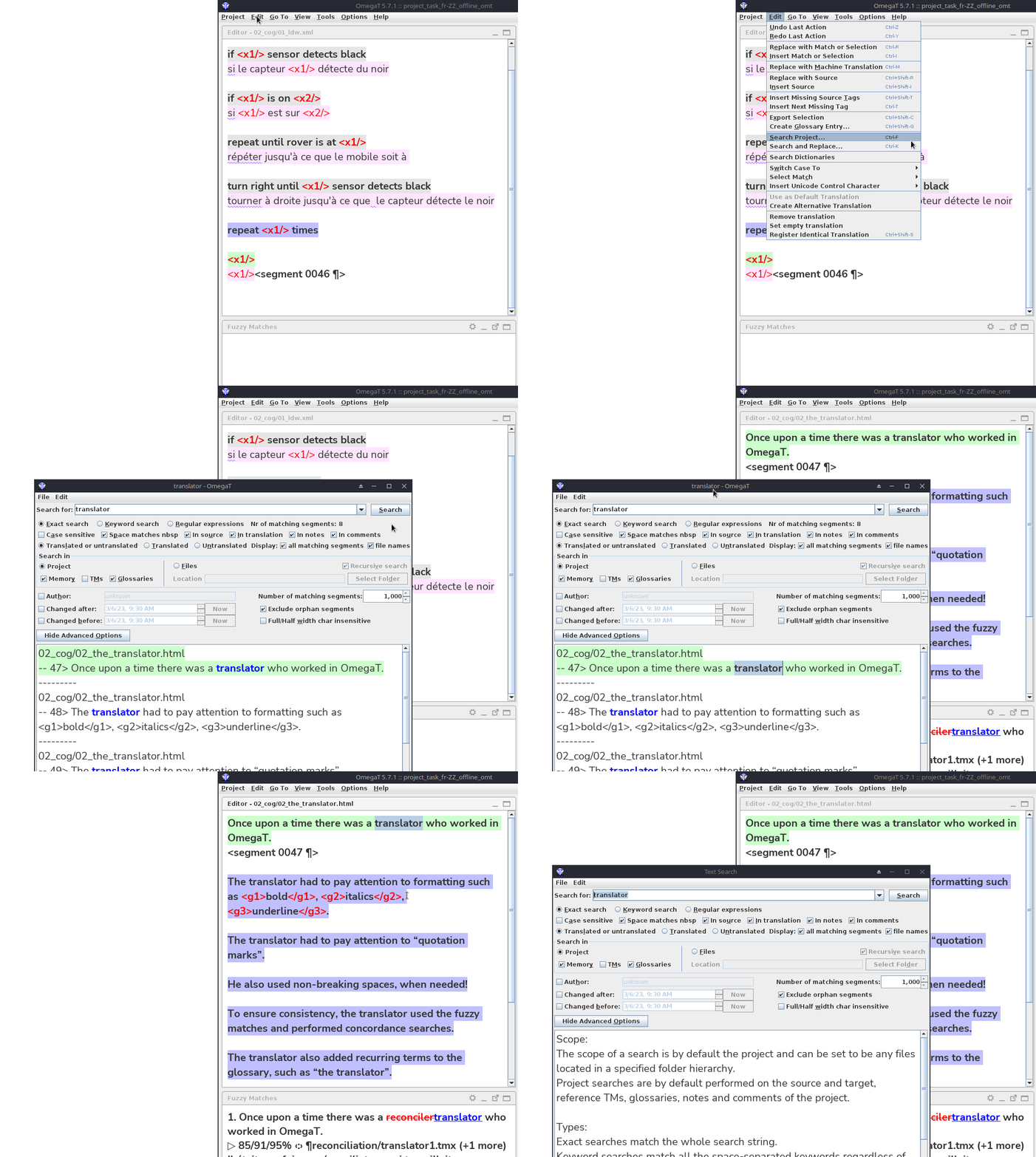
Search is a powerful feature
The Search dialog (Ctrl+F) can help you:
- Find concordances in the working or reference TMs
- (what doesn't appear in the Matches pane)
- Find any text in reference files
- (in any folder, not necessarily in the project)
- Find segments with some particular property:
- An identifier
- Edited in a time range or by someone in particular
- Filter by certain results:
- Useful to focus on one particular aspect.
Search...
Filtering:
Ctrl+F
to launch the search dialog to find things
QA
QA checks: last but never least
Some QA checks are automated:
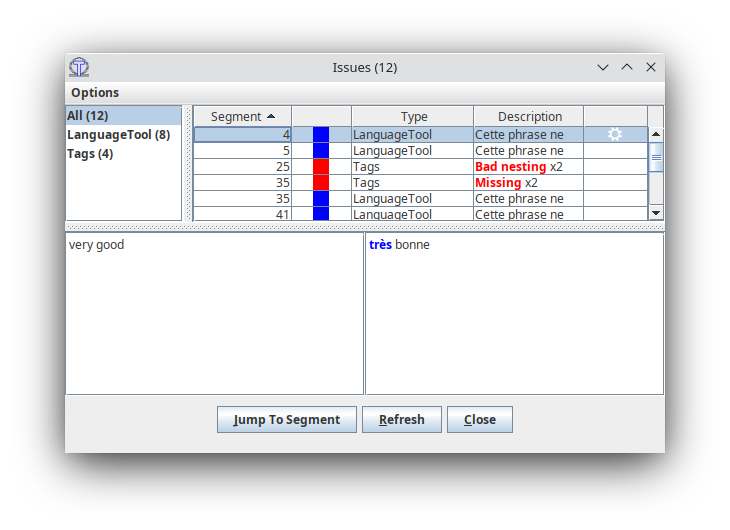
- Tags
- Spelling mistakes
- Adherence to glossary (terminological consistency)
- LanguageTool issues
Some QA checks are not automated:
- Completion
- Statistics: zero remaining segments
All tag issues should always be fixed! (manually)
QA checks: last but never least

Preview and delivery
Preview
Offline:
- Project > Create Target Documents
- Go to the Target folder
- Open the file in question
Online (platform):
- Project > Commit Target Files
- Access previewer
Special characters
Special Characters
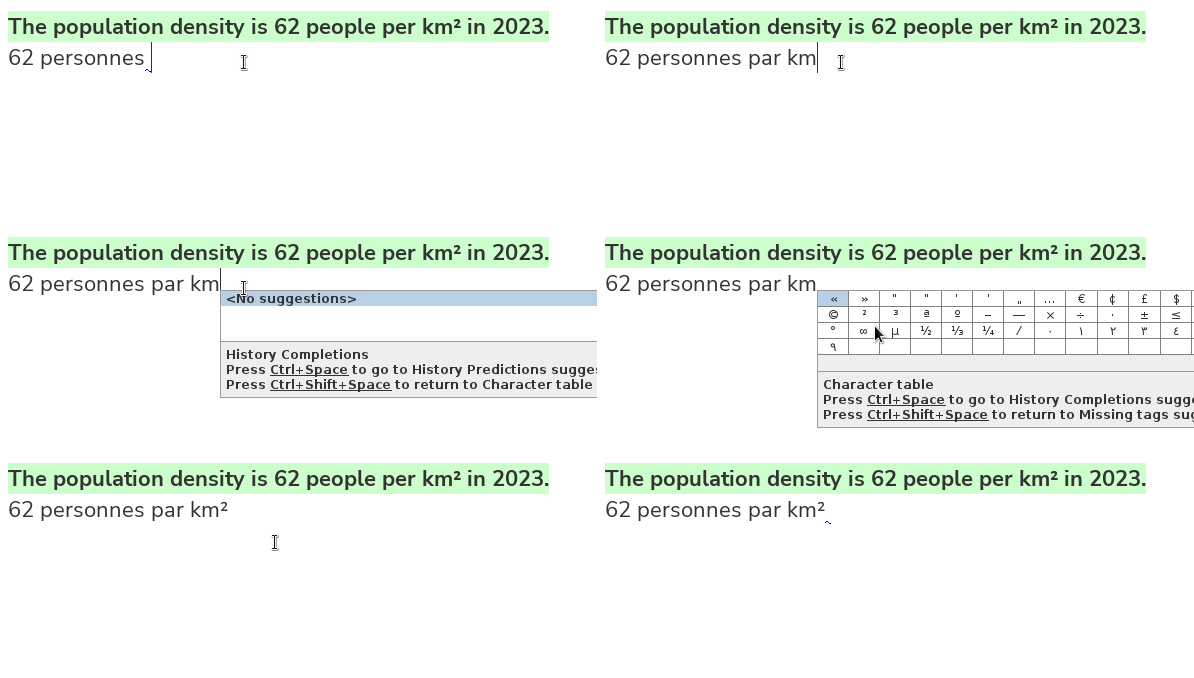
Special characters are any character for which your keyboard doesn't have a key, e.g.
Special Characters
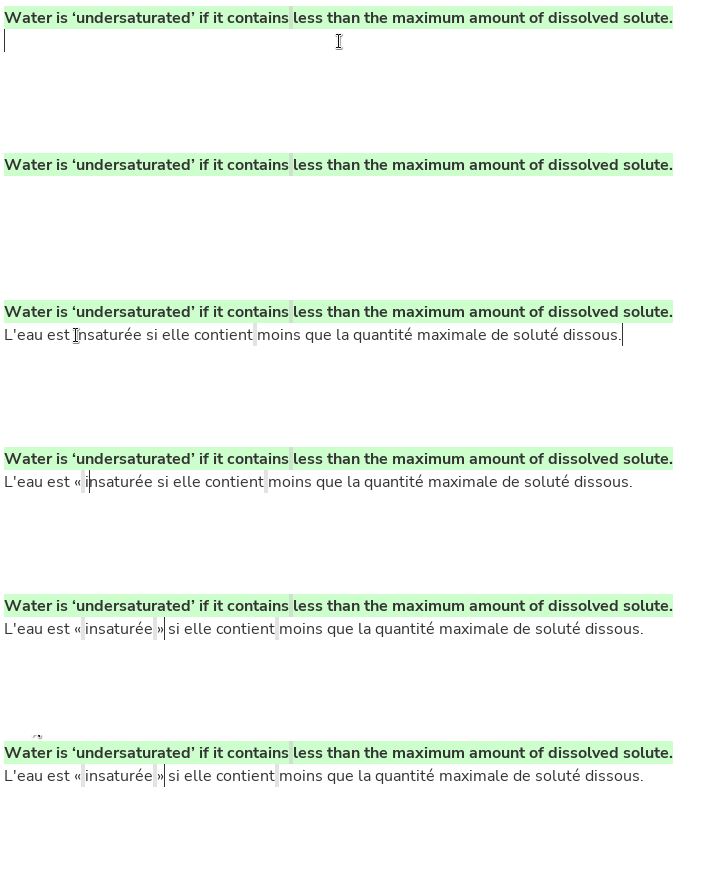
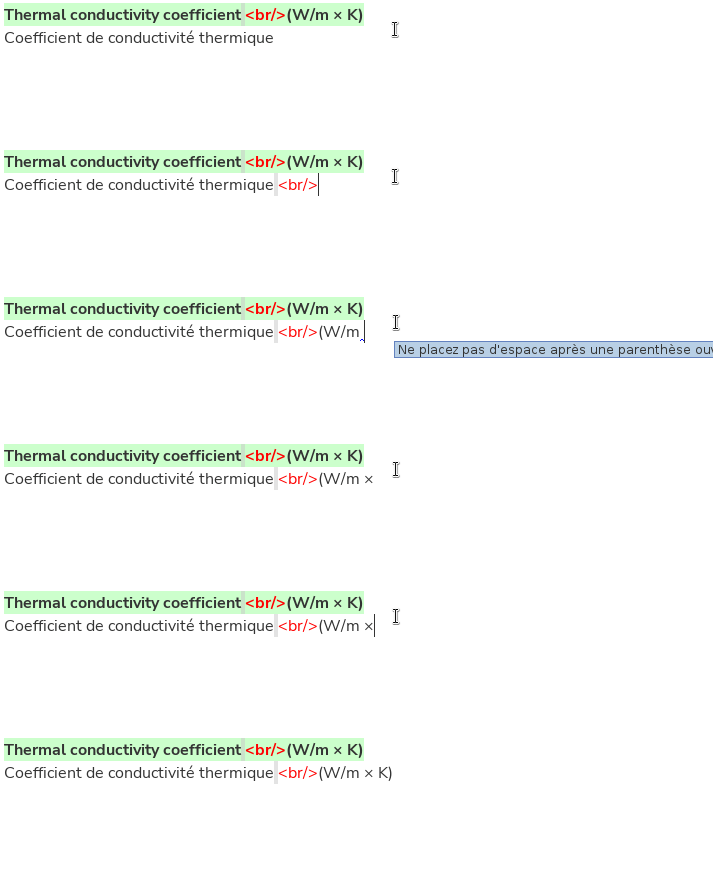
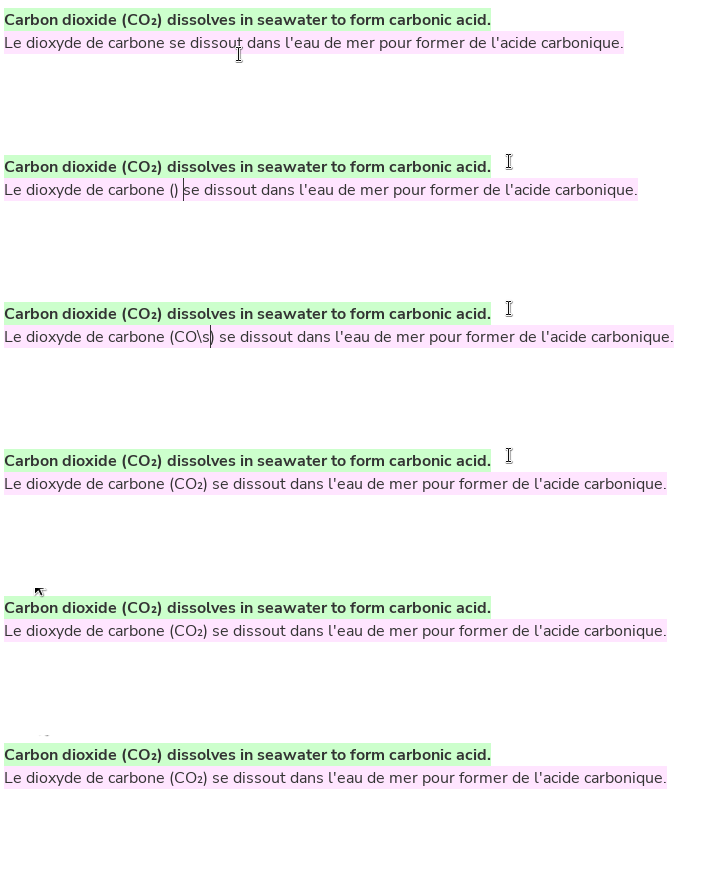
You can use auto-text to insert special characters:
- << >> → « »
- \times or \x → ×
- \sub2 → o₂
- \sup2 → o²
- etc.
If you don't remember a shortcut, you can check the list of special characters and their shortcuts in:
- the OmegaT preferences
- the OmegaT guides
Ctrl+Space
to launch the Auto-Completer
- Cursor flag
- Bidi control characters
- Marks
- Can be used to change the direction/position of a single character
- Embeddings
- Can be used to change the direction of a whole text run
- Marks
- Script "Remove bidi marks"
Edit > Insert Unicode Control Characters
Bidirectionality (LTR+RTL)
If you need help with OmegaT:
Please can contact cApStAn's OmegaT Helpdesk:
omegat-helpdesk@capstan.be
Please do not struggle!
If you find a problem in OmegaT
Please let us know at cApStAn's OmegaT Helpdesk on http://odoo.capstan.be/helpdesk
We will strive to find a solution.
(if you tell us about the issue)