Zoom How-to & Etiquette
for university
by Dr. Tobias A. Kleemann, Munich University of Applied Sciences
Content
- Zoom how-to
- Etiquette rules for attendees
- Features attendees may expect
1. Zoom Preparation
Slides are ordered top-down, then to the right.
1. How to log-in to Zoom
Start the Zoom application
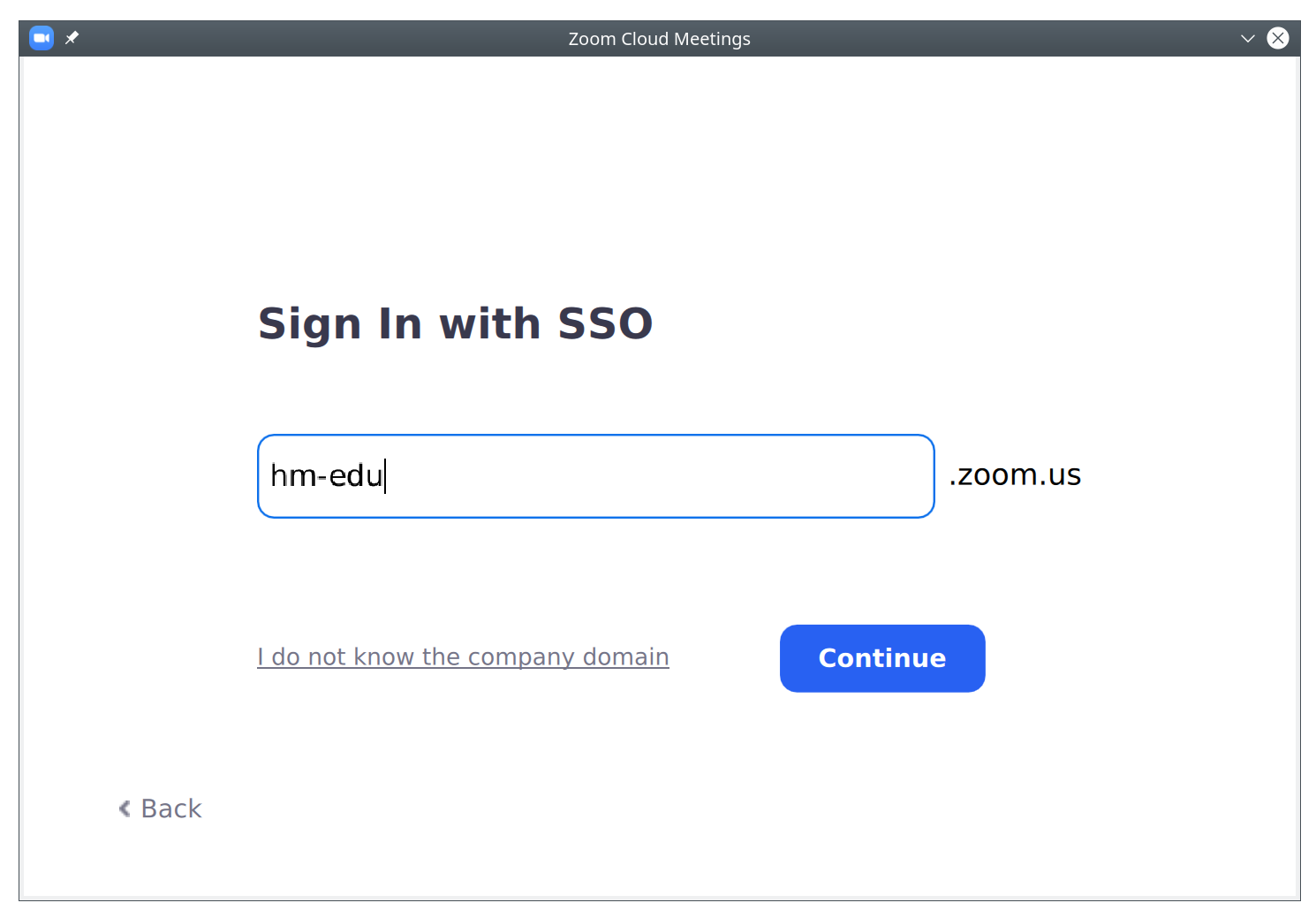
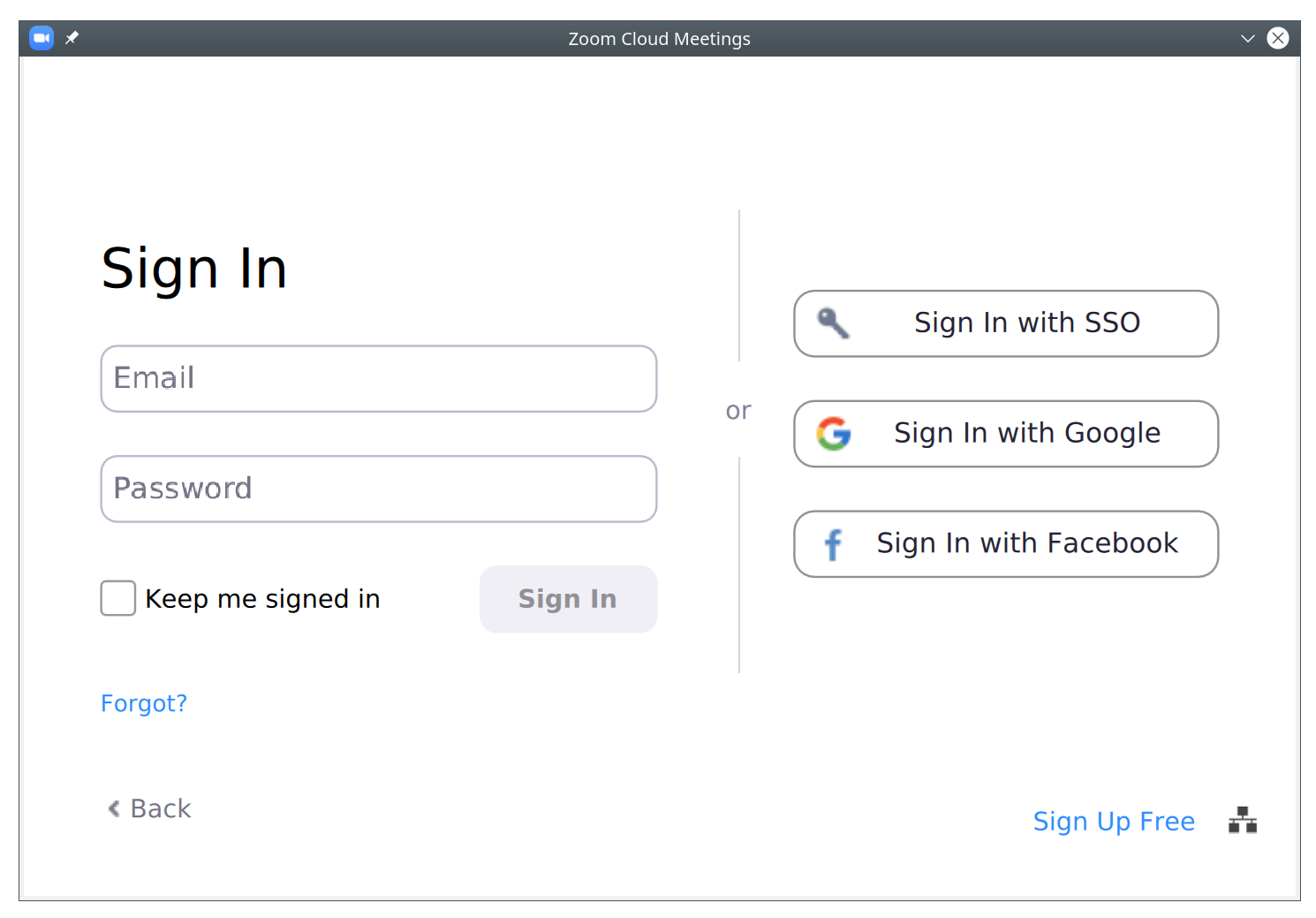
Choose the Single-Sign-On (SSO) Method
hm-edu
Specify the domain as "hm-edu"
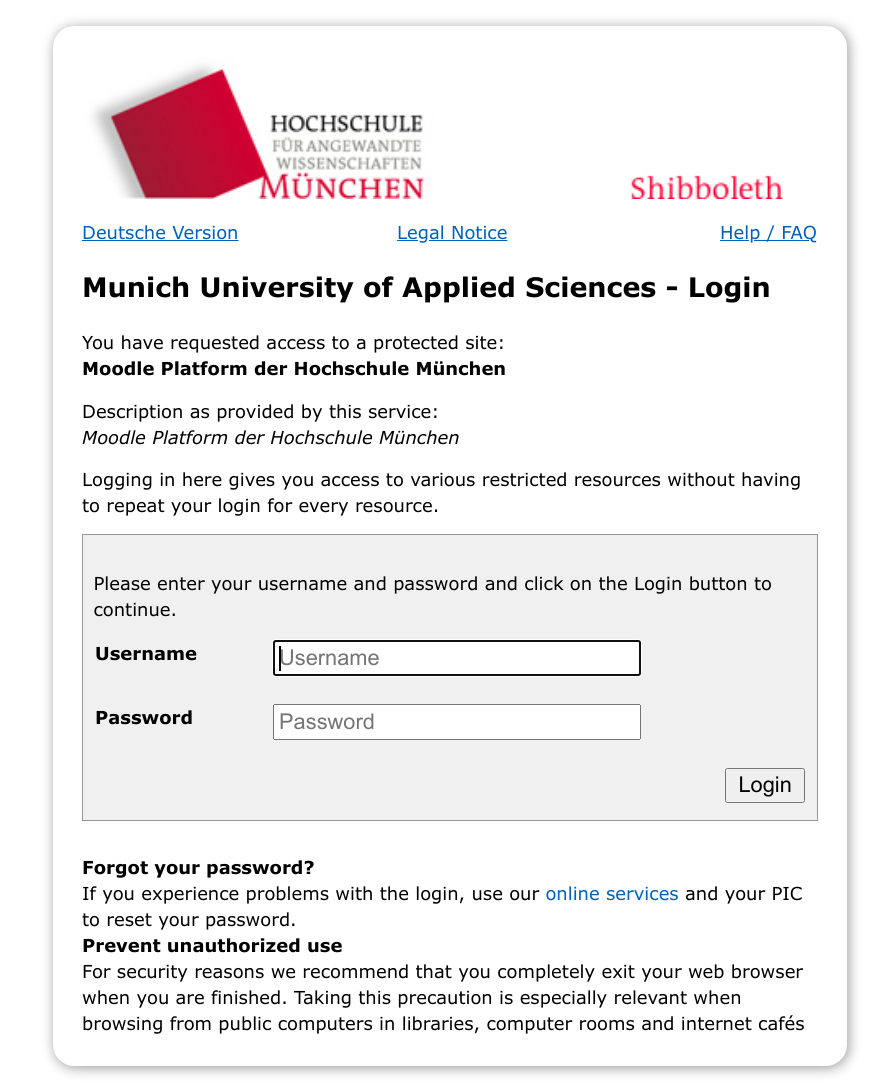
A browser window with the university log-in page should open. Log-in using your university account.
Test your technology!
Please make sure your online meeting technology works. Test this ahead of any meeting.
- Is the internet connection sufficiently fast and stable?
- Is the zoom application working?
- Is the webcam working?
- Are the speakers/headphones and the microphone working?

Be a smart fox and test your tech' ahead of time.
How to check your video & audio
Testing video & audio
in the settings of Zoom you can check your webcam under the "Video" setting and your speakers/headphone and microphone settings under "Audio".
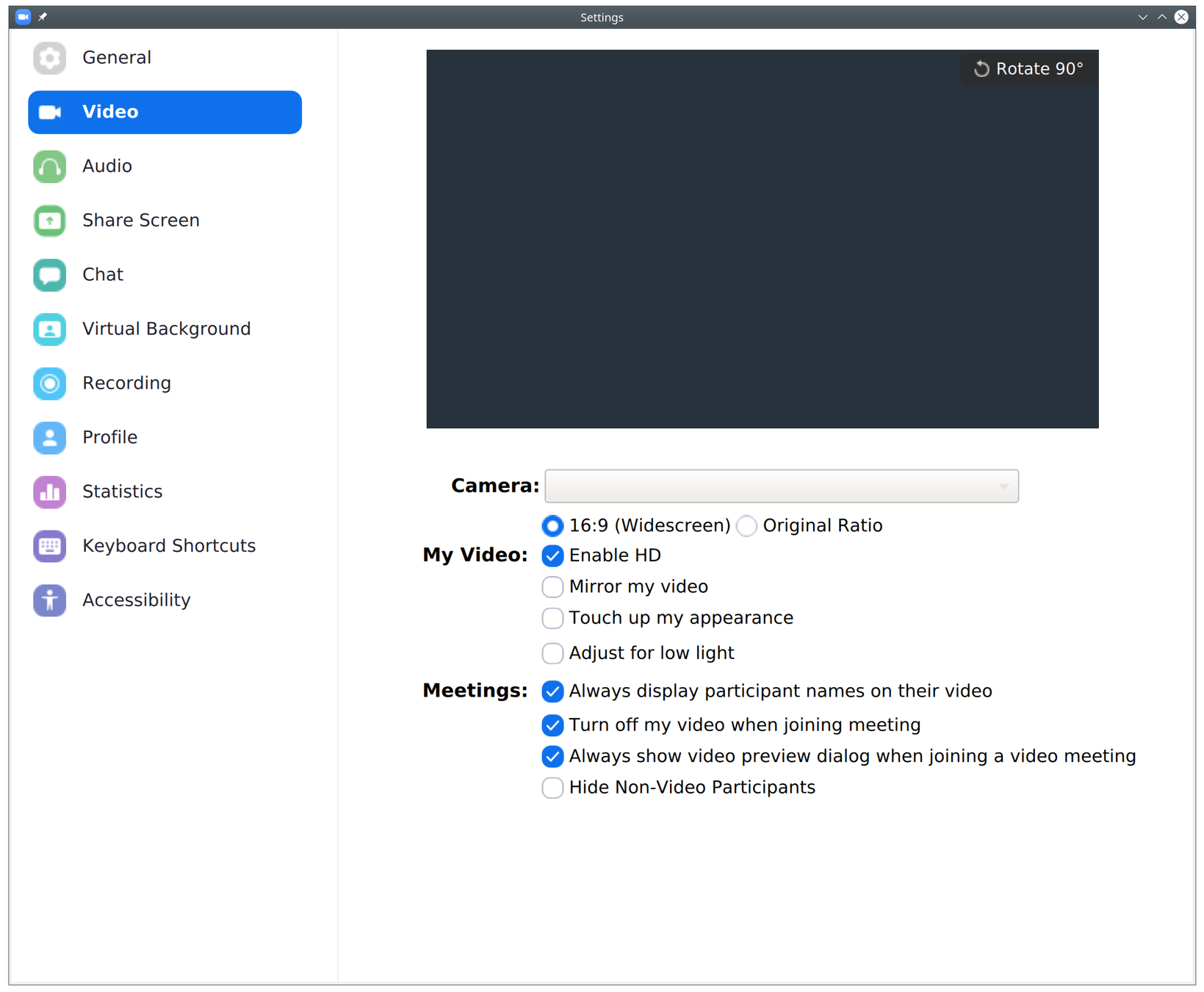
How to test Zoom
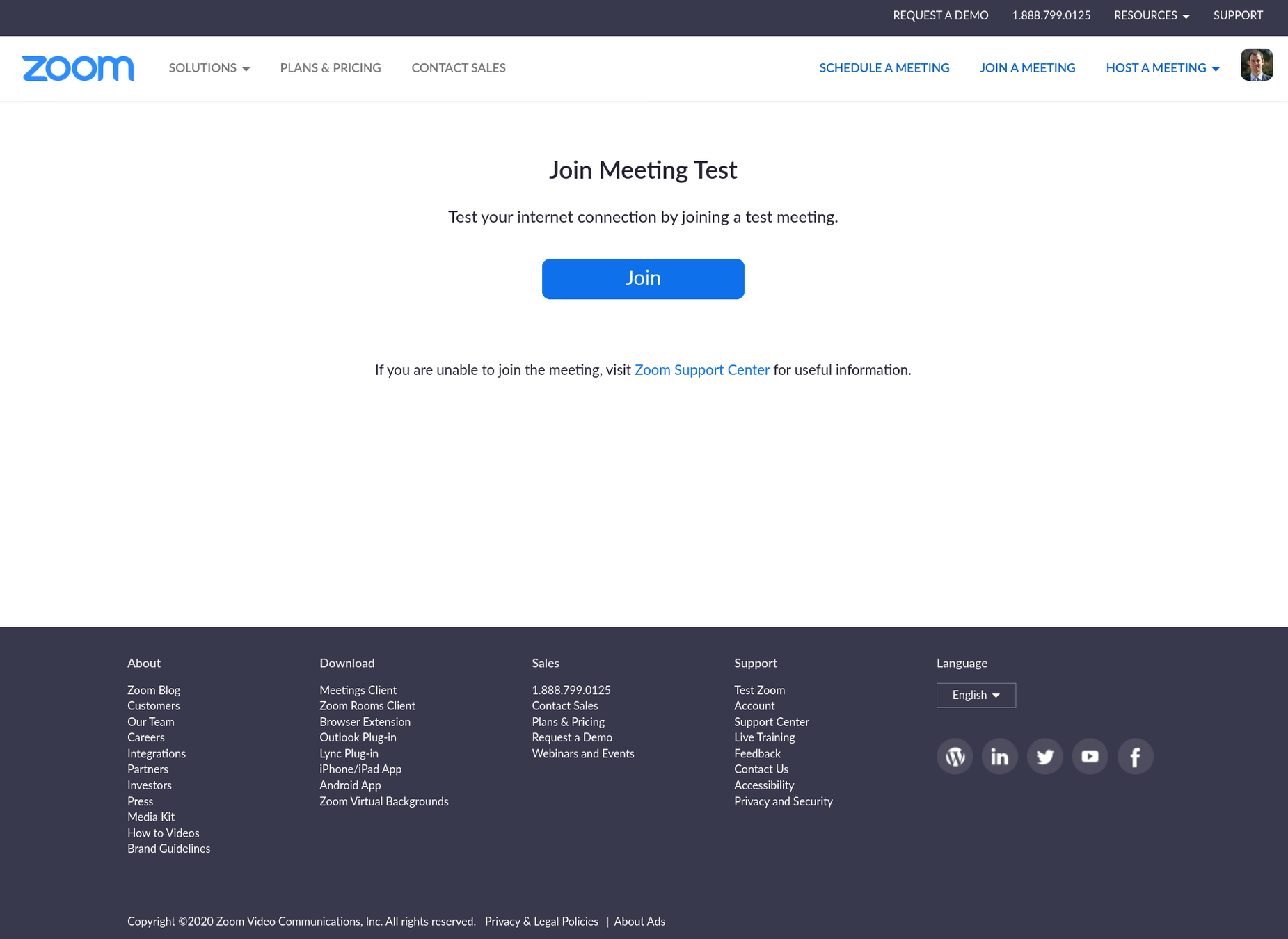
Join a Zoom meeting test
Open your web browser, go to https://zoom.us/test and join test meeting to see if everything works.
Add a picture to your Zoom profile
Even if, for some reason, you can not enable your webcam, it helps if you show a picture.
Go to this link to find out how:

Continue
1. Zoom How-To
Slides are ordered top-down, then to the right.
Audio & Video
The settings for audio and video are located on the left of the menu. The buttons can be used to turn your microphone and camera ON or OFF.
By clicking on the little arrow to the right of the button you can choose from different audio or microphone sources. You can also specify which audio output should be used (e.g. speakers or headphones).

Chat & Participants
You can show the participants and chat windows by clicking on these buttons.

Emotions & Emojis
You can provide some feedback to the presenter by using the emojis that pop up when you click the "Reactions" button.
Useful feedback includes:
- clapping hands or thumbs-up
- Raising your hand (if you have a question and would not like to interrupt).

2. Zoom Etiquette
Slides are ordered top-down, then to the right.
Mute your mic
Mute your microphone whilst you are not talking so that background noise does not distract anyone else.
It also eliminates the chance of unwanted feedback or echoes.

Speak to the camera
no to the (laptop) screen.

Turn on your webcam!
For the speaker it is terrible to talk into a black void. So, please, turn on your webcam!
This is also necessary when you are sent into break-out sessions to discuss something in small groups.

Naturally this requires you to have a webcam (+ microphone) installed
Dress appropriately
you are expected to turn on your camera, so dress appropriately.

Put on some pants :-)
Be aware of your surroundings
You are expected to turn on your webcam, so choose a professional background and adjust your work setup so that you have have enough light i.e. near a window.

Mind your manners

Turn off or silence your mobile phone during a Zoom session (unless you are running Zoom on the mobile)

Pay attention to what is being taught and be 'present'.

Don't type in the background or multitask on other tasks (checking email, messages etc.)
3. What to expect
Slides are ordered top-down, then to the right.
Polling / Questionnaires
Be ready to vote on questions that are put to you using the Zoom polling tool.

Breakout Groups
You may be asked to split into smaller "breakout groups" to discuss a topic.
This interrupts the general Zoom session.
In these small discussion groups it is even more important that you can all see each other (video / webcam + microphone).

Thank you!
the End.
All photos in this presentation were sourced from unsplash.com