INTRO TO DATA VIZ
Getting your hands dirty

@bayreporta
CONSIDERATIONS
Tell one story.
Think less, understand more.
Respect the chart.
Know your audience.
GENERAL DESIGN TIPS
Label sparingly.
A Minimalist's Guide
Mute gridlines and axis lines.
Think critically about color and shading.
Don't misrepresent the data.
Let the data determine the best chart.
Avoid gimmick.
TOOLS OF THE TRADE
What We're Playing With Today
DataWrapper
Can quickly build interactive charts
Inkscape to fully customize chart
Datavisual/Inkscape
Datavisual to make charts and export to PDF or SVG
Minimal customization
Static charts
Google Charts
Static or interactive charts
Moderate customization
CHARTS!
Here's What We're Building
Table
Line Chart
Area Chart
Pie Chart
Bar Chart
Stacked Bar Chart
Scatter Plot Chart
Bubble Chart
LET'S DO THIS!
Google Spreadsheet with Data
Download Templates
TABLE
Text
Display large amounts of data.
Allows for exploration of data.
Search functions can assist with queries.
Not Pretty, But Useful
TABLE
Text
Tips and Considerations
Shade columns for emphasis.
Search functions to filter data.
Strategic gridlines.
Logical sorting.
Align text left, align numbers right.
TABLE
Great Search, Random Emphasis
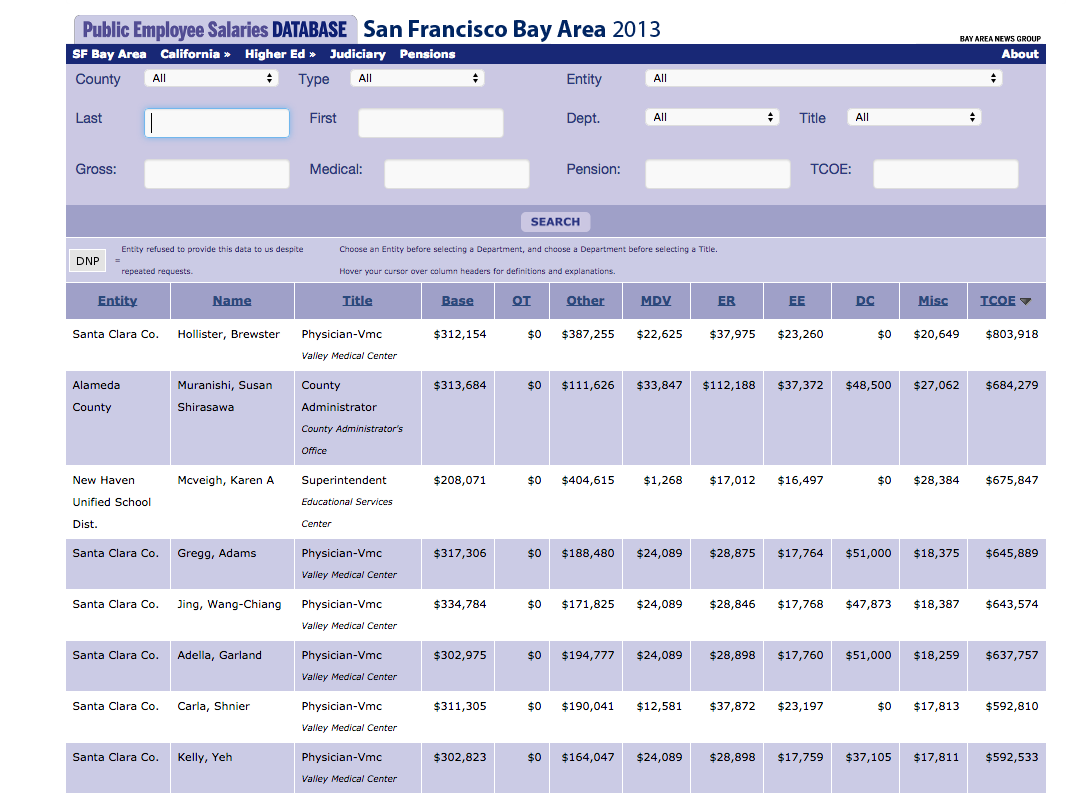
Source: Bay Area News Group
TABLE
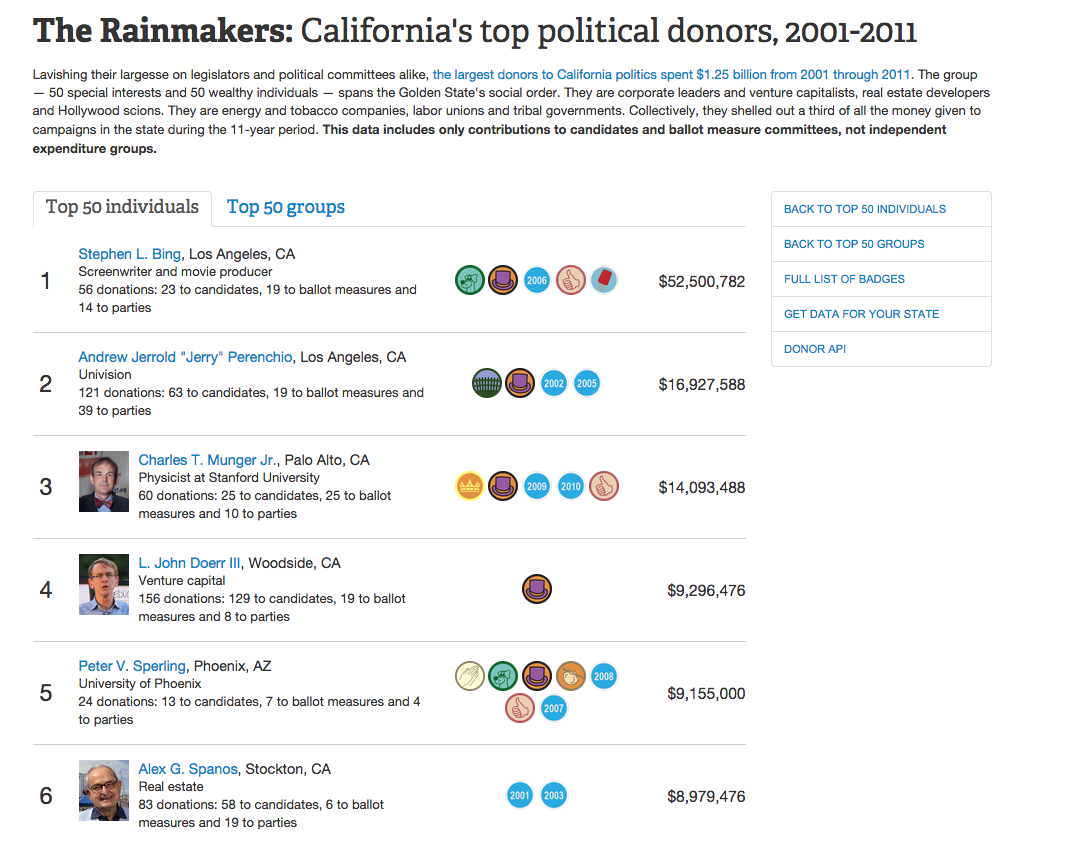
A Different Take
Source: Center for Investigative Reporting
TABLE
Simple Tools
Google Charts
DataWrapper
LINE CHART
Don't Trend on Me
Change over time, especially small changes.
Works well with one or more variables.
Relationship between time and data.
LINE CHART
Tips and Considerations
Be aware of the baseline.
Use color and shading strategically.
Label lines directly.
Clear axis ticks.
LINE CHART
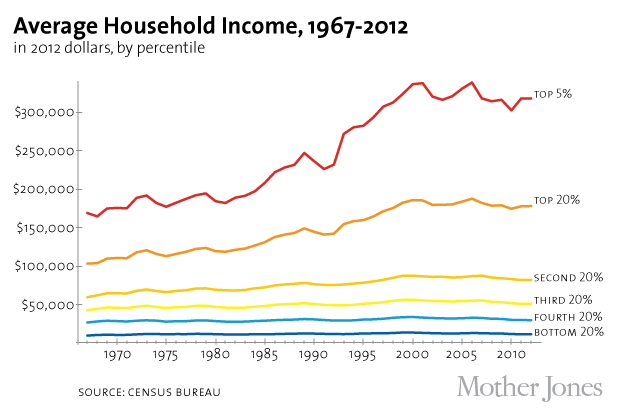
Clean, Strategic Color Use
Source: Mother Jones
LINE CHART
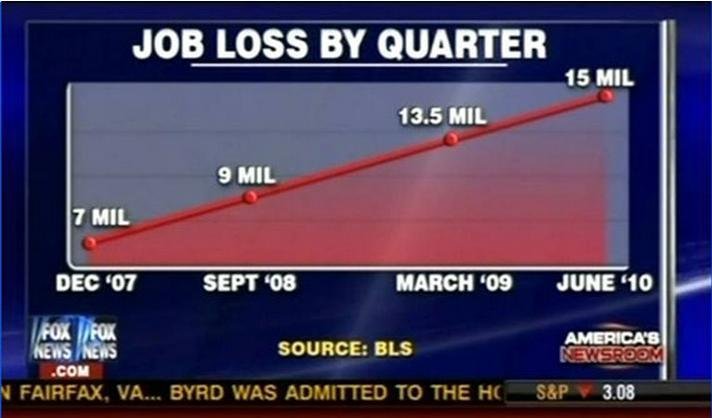
Baseline and Axis Distortion
Source: Fox News
LINE CHART
Simple Tools
Google Charts
DataWrapper
DataVisual
AREA CHART
Line Chart Plus
Comparing parts of a whole over time.
Where lines show rate, fill shows substance.
Shows cumulation.
AREA CHART
Tips and Considerations
Avoid visual overlap.
Best at showing vast differences.
When showing cumulation, clarity is required.
AREA CHART
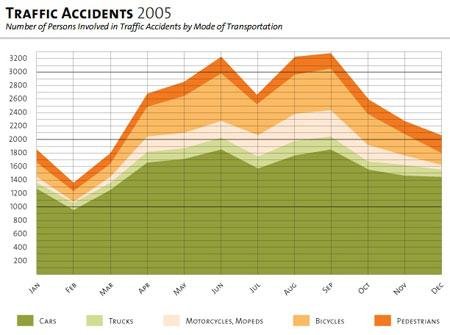
Cumulation or Proportion?
Source: christina29 info blog
AREA CHART
Simple Tools
Google Charts
DataVisual
PIE CHART
Not Just For Eating
Comparing parts of the whole.
Best when data is categorical.
Even better when showing distinct differences.
PIE CHART
Tips and Considerations
Avoid 3D and donut variants.
Restrict variables to a few.
Never compare different pie charts.
Largest segment top right, then work counter-clockwise.
PIE CHART
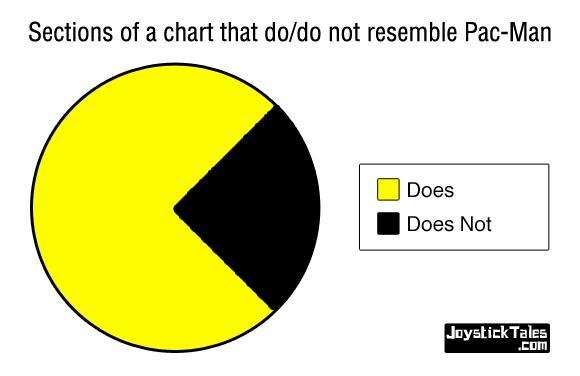
Clear Difference Between Variables
Source: Joystick Tales
PIE CHART
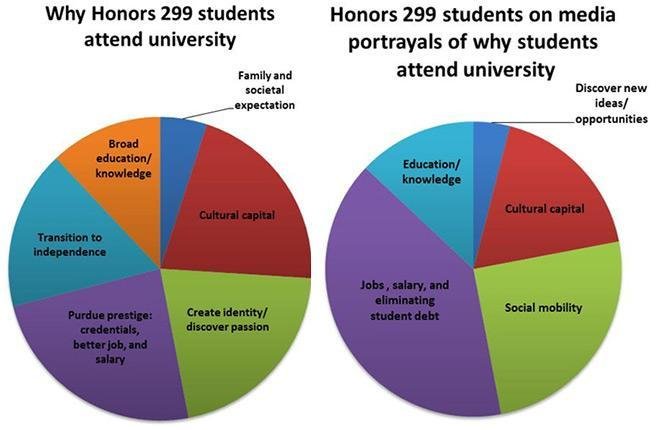
NEVER DO THIS!!!!
Source: THINK Magazine
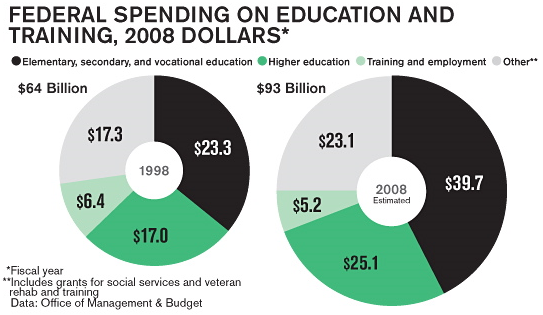
DONUT CHART
Great for Eating, Bad for Visualization
Source: Business Week
PIE CHART
Simple Tools
Google Charts
DataWrapper
DataVisual
BAR CHART
Rectangles Are Cool
Good for showing large changes over time.
Easy to compare differences.
Best at ranking data.
Histogram variant for distribution.
BAR CHART
Tips and Considerations
Watch those baselines!
If ranking, sort by largest to smallest.
Avoid narrow bars and mind the gap.
Avoid 3D.
BAR CHART
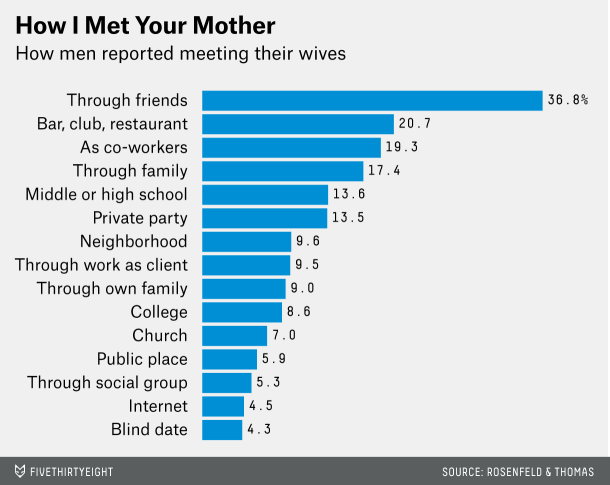
Ranked Bars
Source: 538
BAR CHART
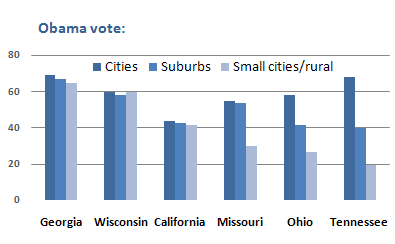
Comparing Different Variables
Source: New York Times
BAR CHART
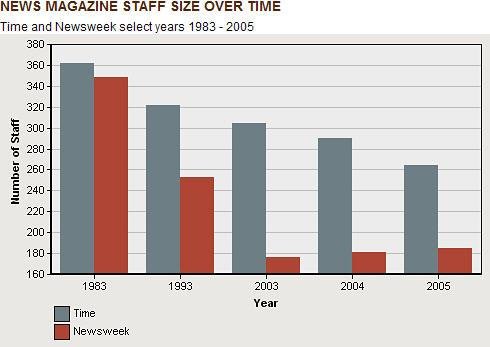
What's Going On Here?
Source: Perceptual Edge
BAR CHART
Simple Tools
Google Charts
DataVisual (Column only)
DataWrapper
STACKED BAR CHART
Stacked Rectangles Are Cooler
Easily compare across bars.
Comparing parts of a whole.
Percentage or Proportion.
Tips and Considerations
Largest value first.
Horizontal bars best for comparison.
If showing percentage, data adds up to 100 percent.
STACKED BAR CHART
Limit the number of variables for each bar.
Focus on Largest Chunk
STACKED BAR CHART
Source: Edsource
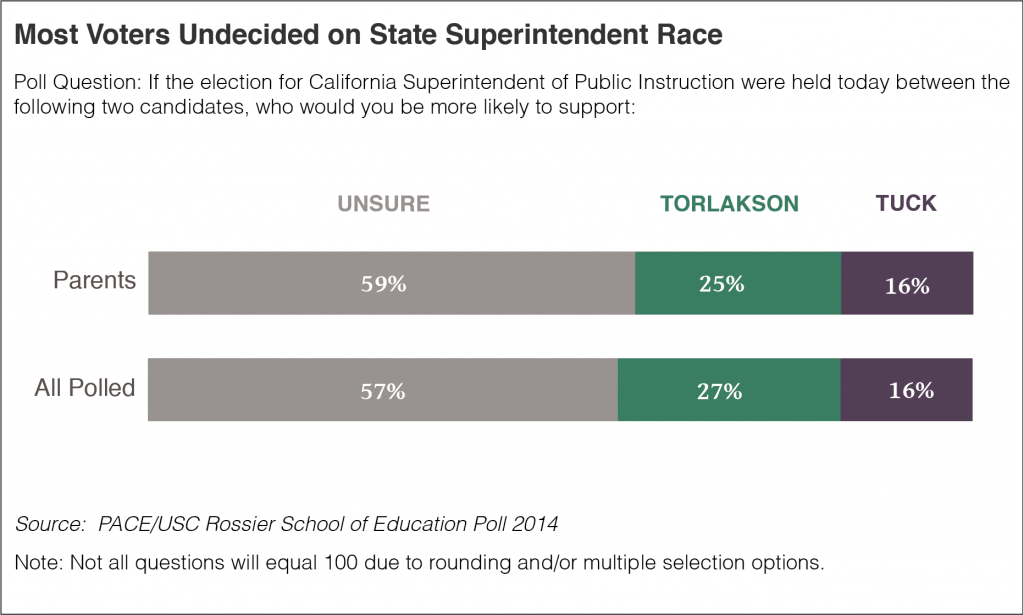
Equals 100 percent?
STACKED BAR CHART
Source: Flowing Data
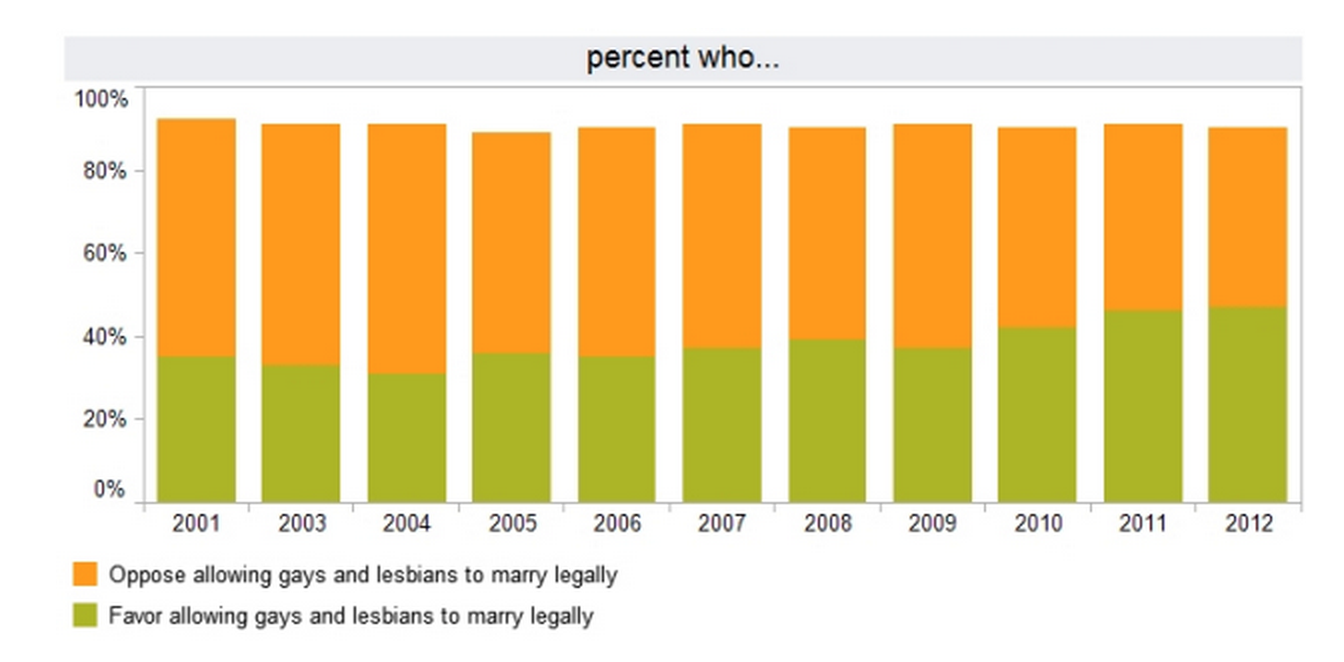
STACKED BAR CHART
Simple Tools
Google Charts
DataVisual (Column only)
DataWrapper
Correlation!
Shows distribution of data.
Add trendline to test distance from average.
Great for exploring relationship between two datasets.
SCATTER PLOT
SCATTER PLOT
Tips and Considerations
Strategically label when data points are numerous.
Keep an eye out for outliers and clusters.
Correlation != Causation.
SCATTER PLOT
Thoughts?
Source: New York Times
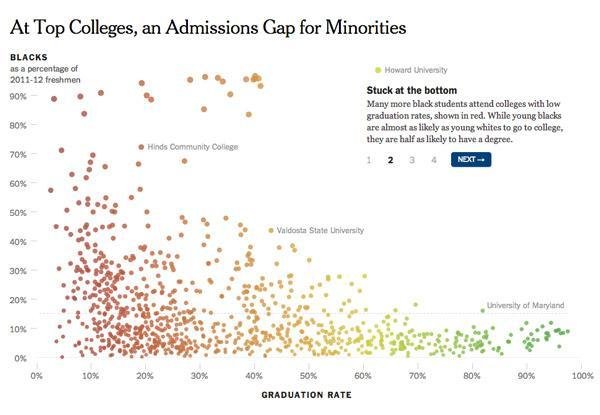
SCATTER PLOT
Using the Trendline
Source: New York Times
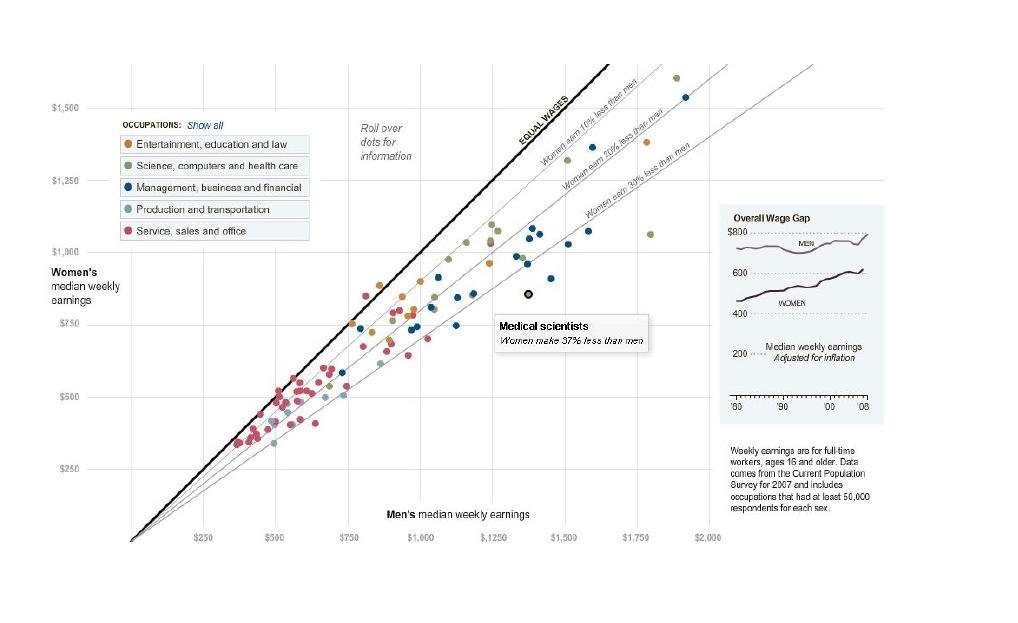
SCATTER PLOT
Simple Tools
Google Charts
DataVisual
When Two Dimensions Don't Cut It
Can show up to four dimensions of data.
Uses an X-Axis, Y-Axis, Size, and Color.
Works with categorical and quantitative data.
BUBBLE CHART
BUBBLE CHART
Tips and Considerations
Think critically about what dimensions will tell the story.
Population as size may distort other points.
Only use the dimensions you need.
BUBBLE CHART
Good Use of Population as Size
Source: Flowing Data
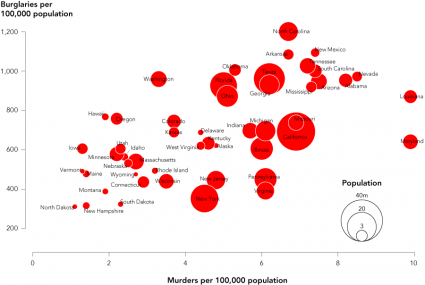
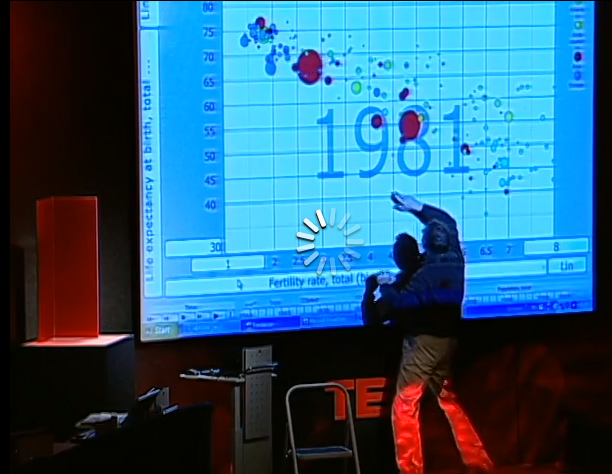
MOTION CHART
The Most Insane Thing Ever
Source: TED
BUBBLE CHART
Simple Tools
Google Charts