Android Development


Bhavdip Sagar
Senior Android Developer
Kishan Vaghela
Android / ReactNative Developer

3/02/2018
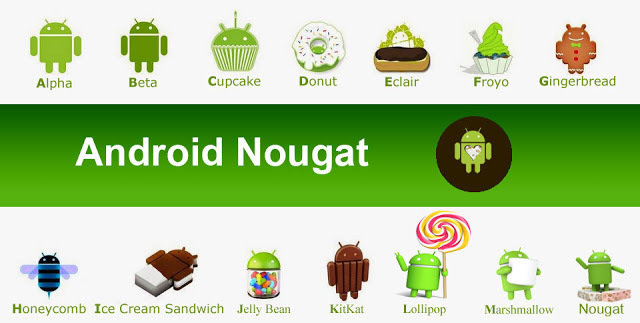
History Of Android
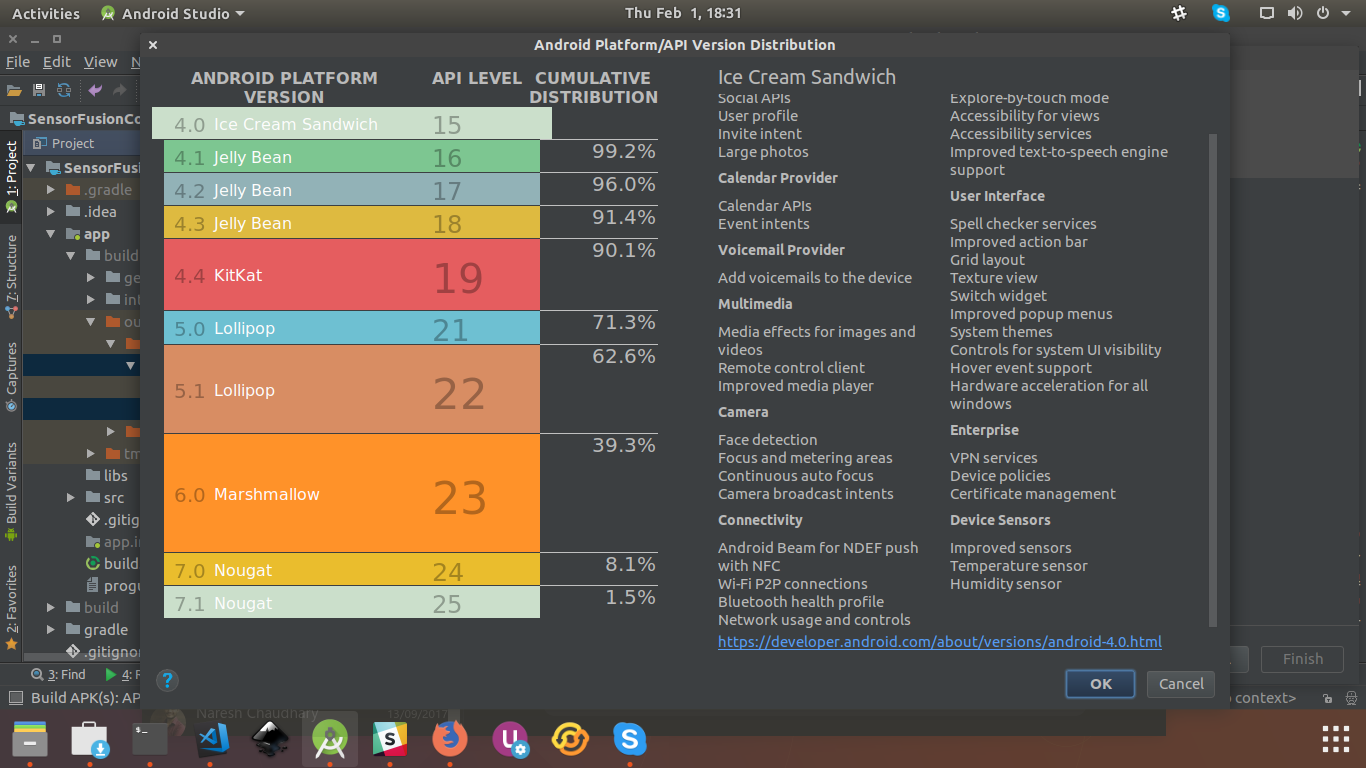
Android Platform Version & API
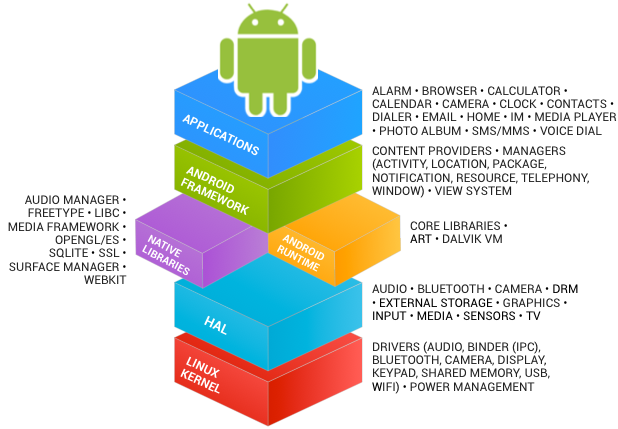
Android Architecutre
Android vs Java

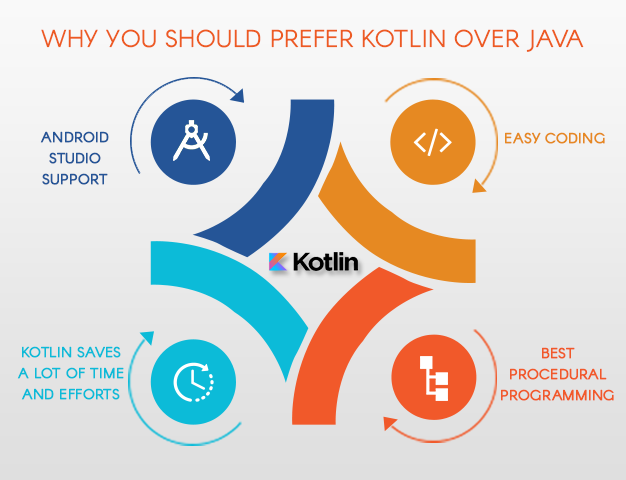
Android vs Kotlin
Android RunTime
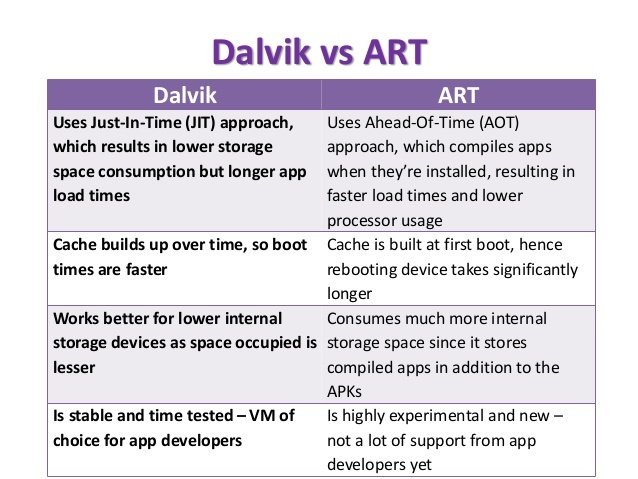
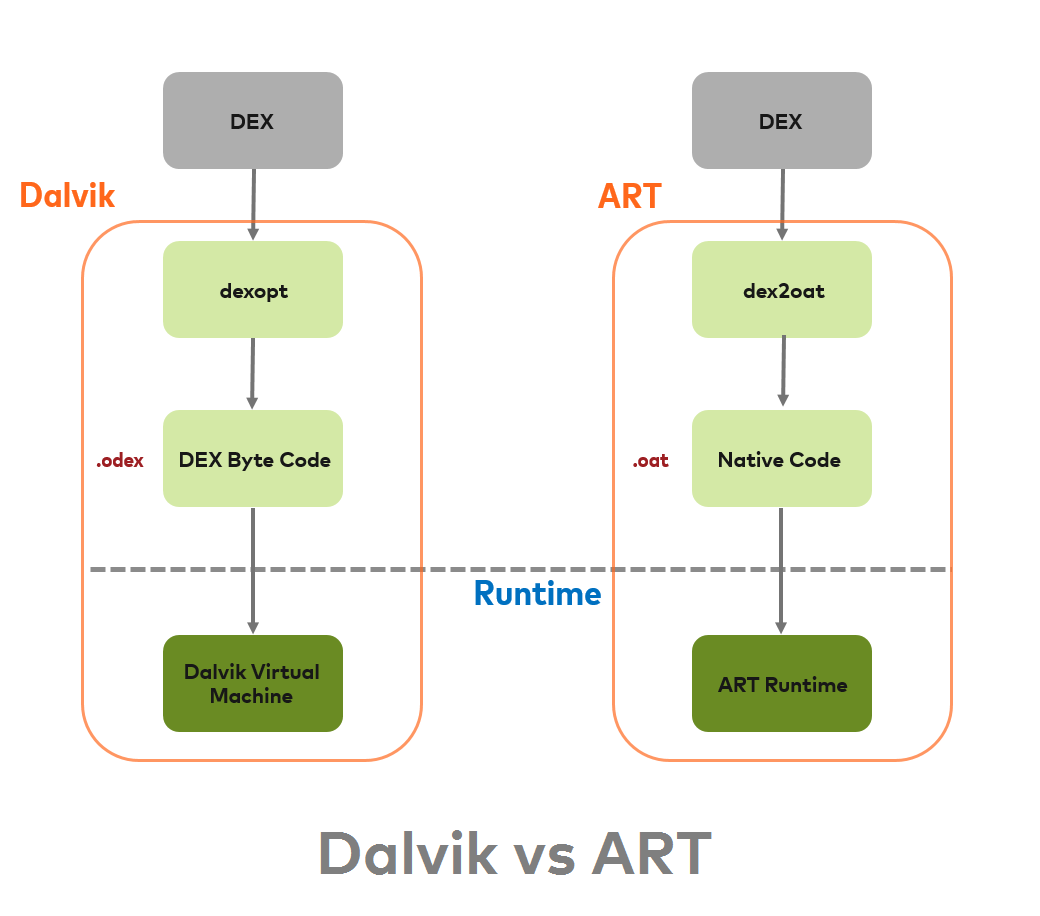
Life Time of Android APK

Android Components
- Intents and IntentFilters
- Activity
- Fragments
- Broadcasts
- Service
- Process and Threads
Intents and Intent Filters

Intents and Intent Filters
// Executed in an Activity, so 'this' is the Context
// The fileUrl is a string URL, such as "http://www.example.com/image.png"

Intent downloadIntent = new Intent(this, DownloadService.class);
downloadIntent.setData(Uri.parse(fileUrl));
startService(downloadIntent);
// Create the text message with a string
Intent sendIntent = new Intent();
sendIntent.setAction(Intent.ACTION_SEND);
sendIntent.putExtra(Intent.EXTRA_TEXT, textMessage);
sendIntent.setType("text/plain");
// Verify that the intent will resolve to an activity
if (sendIntent.resolveActivity(getPackageManager()) != null) {
startActivity(sendIntent);
}Explicitly and Implicitly Intents
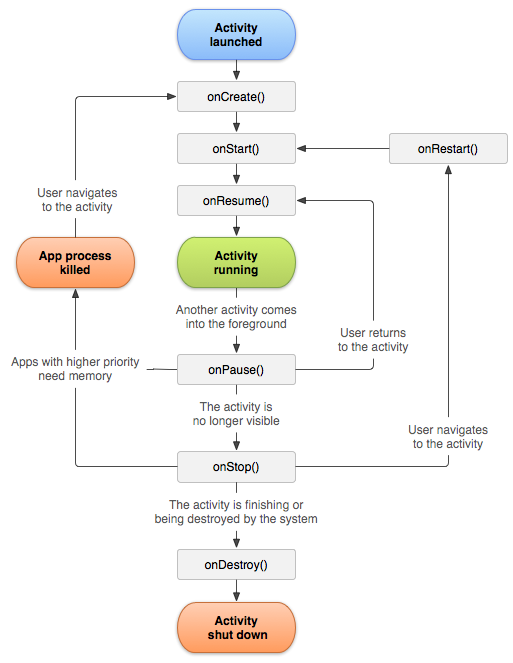
Activity & Lifecycle
-
Modularity
Fragment & Lifecycle
-
Adaptabilty
-
Reusability
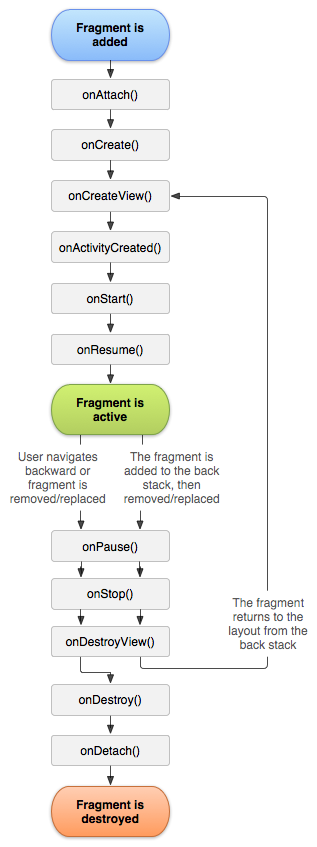
Fragment & Lifecycle
A fragment is usually used as part of an activity's user interface and contributes its own layout to the activity.
To provide a layout for a fragment, you must implement the onCreateView() callback method, which the Android system calls when it's time for the fragment to draw its layout. Your implementation of this method must return a View that is the root of your fragment's layout.
-
Adding A User Interface
-
Adding A Fragment to An Activity
Fragment & Lifecycle
Declare the fragment inside the activity's layout file.
public static class ExampleFragment extends Fragment {
    @Override
    public View onCreateView(LayoutInflater inflater, ViewGroup container,
                             Bundle savedInstanceState) {
        // Inflate the layout for this fragment
        return inflater.inflate(R.layout.example_fragment, container, false);
    }
}
<?xml version="1.0" encoding="utf-8"?>
<LinearLayout xmlns:android="http://schemas.android.com/apk/res/android"
android:orientation="horizontal"
android:layout_width="match_parent"
android:layout_height="match_parent">
<fragment android:name="com.example.news.ArticleListFragment"
android:id="@+id/list"
android:layout_weight="1"
android:layout_width="0dp"
android:layout_height="match_parent" />
<fragment android:name="com.example.news.ArticleReaderFragment"
android:id="@+id/viewer"
android:layout_weight="2"
android:layout_width="0dp"
android:layout_height="match_parent" />
</LinearLayout>Adding a User Interface
Broadcast Receiver
- Android apps can send or receive broadcast messages from the Android system and other Android apps, similar to the publish-subscribe design pattern.
- These broadcasts are sent when an event of interest occurs.
- For example, the Android system sends broadcasts when various system events occur, such as when the system boots up or the device starts charging.
- Apps can also send custom broadcasts, for example, to notify other apps of something that they might be interested in (for example, some new data has been downloaded).
Apps can receive broadcasts in two ways: through manifest-declared receivers and context-registered receivers.
Broadcast Receiver
If you declare a broadcast receiver in your manifest, the system launches your app (if the app is not already running) when the broadcast is sent.
1. Specify the <receiver> element in your android manifest file.
Manifest-declared receiver
<receiver android:name=".MyBroadcastReceiver"  android:exported="true">
    <intent-filter>
        <action android:name="android.intent.action.BOOT_COMPLETED"/>
        <action android:name="android.intent.action.INPUT_METHOD_CHANGED" />
    </intent-filter>
</receiver>
The intent filters specify the broadcast actions your receiver subscribes to.
2. Subclass BroadcastReceiver and implement onReceive(Context, Intent). The broadcast receiver in the following example logs and displays the contents of the broadcast:
Broadcast Receiver
public class MyBroadcastReceiver extends BroadcastReceiver {
    private static final String TAG = "MyBroadcastReceiver";
    @Override
    public void onReceive(Context context, Intent intent) {
        StringBuilder sb = new StringBuilder();
        sb.append("Action: " + intent.getAction() + "\n");
        sb.append("URI: " + intent.toUri(Intent.URI_INTENT_SCHEME).toString() + "\n");
        String log = sb.toString();
        Log.d(TAG, log);
        Toast.makeText(context, log, Toast.LENGTH_LONG).show();
    }
}
The system package manager registers the receiver when the app is installed. The receiver then becomes a separate entry point into your app which means that the system can start the app and deliver the broadcast if the app is not currently running.
To stop receiving broadcasts, call unregisterReceiver(android.content.BroadcastReceiver). Be sure to unregister the receiver when you no longer need it or the context is no longer valid.
https://developer.android.com/guide/components/broadcasts.html#sending_broadcasts
Service
- A service is a component which runs in the background without direct interaction with the user.
- As the service has no user interface, it is not bound to the lifecycle of an activity.
- Services can also be configured to be restarted if they get terminated by the Android system once sufficient system resources are available again.
Services and Background Process
-
By default, a service runs in the same process as the main thread of the application.
-
you need to use asynchronous processing in the service to perform resource intensive tasks in the background.A commonly used pattern for a service implementation is to create and run a new Thread in the service to perform the processing in the background and then to terminate the service once it has finished the processing.
-
Services which run in the process of the application are sometimes called local services.
Foreground Service
-
A foreground service is a service that should have the same priority as an active activity and therefore should not be killed by the Android system, even if the system is low on memory.
Implementation and Declaration
-
A service needs to be declared in the AndroidManifest.xml file and the implementing class must extend the Service class or one of its subclasses.
<service
    android:name="MyService"
    android:icon="@drawable/icon"
    android:label="@string/service_name"
    >
</service>
Implementation and Declaration
public class MyService extends Service {

  @Override
  public int onStartCommand(Intent intent, int flags, int startId) {
      //TODO do something useful
      return Service.START_NOT_STICKY;
  }

  @Override
  public IBinder onBind(Intent intent) {
    //TODO for communication return IBinder implementation
    return null;
  }
}
Start A Service
- An Android component (service, receiver, activity) can trigger the execution of a service via the startService(intent) method.
// use this to start and trigger a service
Intent i= new Intent(context, MyService.class);
// potentially add data to the intent
i.putExtra("KEY1", "Value to be used by the service");
context.startService(i);
Start A Service....
-
If startService(intent) is called while the service is running, its onStartCommand()is also called. Therefore your service needs to be prepared that onStartCommand() can be called several times.
-
A service is only started once, no matter how often you call the startService()method.
-
In its onStartCommand() method call, the service returns an int which defines its restart behavior in case the service gets terminated by the Android platform.
| Option | Description |
|---|---|
| Service.START_STICKY | Service is restarted if it gets terminated |
| Service.START_NOT_STICKY | Service is not restarted. Used for services which are periodically triggered anyway. |
| ervice.START_REDELIVER_INTENTE | Similar to Service.START_STICKY but the original Intent is re-delivered to the onStartCommand method. |
Stop A Service....
-
You stop a service via the stopService() method. No matter how frequently you called the startService(intent) method, one call to the stopService() method stops the service.
-
A service can terminate itself by calling the stopSelf() method. This is typically done if the service finishes its work.
IntentService: A one Time Task
-
You can also extend the IntentService class for your service implementation
-
The IntentService is used to perform a certain task in the background. Once done, the instance of IntentService terminates itself automatically. An example for its usage would be downloading certain resources from the internet.
-
The IntentService class offers the onHandleIntent() method which will be asynchronously called by the Android system.
Process and Thread
-
Android follows a multitasking design. This allows a number of applications to run at the same time. The problem is that all these apps need memory which is in short supply.
-
All applications run in their own process and are built using 4 key components
-
Activities – typically the screen that the user sees
-
Services – a component that does work in the background
-
Content providers – a component that manages a shared set of data
-
Broadcast receivers – a component that responds to a broadcast message
Is is All About Memory
-
All processes are kept alive in memory for as long as possible. Even when you exit an app, its processes may be kept alive in memory – maybe the process is shared by another app, and in some cases the process is kept alive in case it’s needed again.
Process Lifecycle....
-
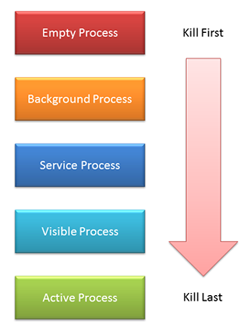
Android kills the process once it has decided to do so and releases the resources so that they can be used elsewhere. Processes with the lowest importance are killed first.
-
Android can re-launch an app (the process) based on its last state when the process was killed.Activities – typically the screen that the user sees.
-
You should structure your app so that its priority will make sure that it is not killed while it is doing something important
Process Lifecycle....
-
Active Process: Active processes have components that the user is interacting with. Android will try to keep these processes alive by reclaiming memory elsewhere.
-
Visible process: Which are not in the foreground. The user is not interacting with them. These processes will only be killed under extreme circumstances.
-
Service process – they have running services and are treated as an Active process. They won’t be killed unless their resources are badly needed
-
Background process– these contain activities that are not visible. There is no user interaction with them. They can be killed at any time. These processes are killed according to the last-seen-first-killed principle.
Android Studios
- Undestanding AndroidStudio Feature
- Gradle
- Layout Editor
- App Structure
- Virtual Devices
- SDK Manager
- Debugging Application
- Signed APK
Developing Application
Basic UI elements
- Intents Activities, Fragment
- Layouts, Input Controls
- DataBinding
- Recyclerview, Adapter & ViewHolder
- Material design elements
- Navigation: ViewPager, Drawer
Developing Application
Resources
- String.xml, value.xml, colors.xml,style.xml
- Assets
- Debugging
Developing Application
Storage
- Shared Preferences
- Files
- SQLite databases
- Libraries: ORM