HTML & CSS
Workshop
Drop me a line -
Got questions?
mina@bitmaker.co

Welcome to Bitmaker!

Contact us :) -
admissions@bitmaker.co

I'm Mina.
I started programming for the web 16 years ago.
I studied Computer Engineering at the University of Waterloo.
Since then I've worked on many web projects, big and small.
I've been teaching web development at Bitmaker for the past three years.
I'm really passionate about technology and the web (and movies!).
INTRO // Goal
By the end of this workshop, our goal is to build a simple responsive web page.
http://bitmakerlabs.github.io/html-css-workshop-v4-final
How Web Pages Work
INTRO
INTRO
The development process can be broken into two areas
FRONT-END WEB DEVELOPMENT
BACK-END WEB DEVELOPMENT
-
How things look to the user
-
Involves: Images, Content, Structure
-
HTML, CSS, & Javascript
-
How things work
-
Involves: "business logic"
-
Ruby, PHP, C++, Java, etc.
_________________________________________________________________________________________
INTRO
Tools We'll Be Using
INTRO // Tools
Text Editor
I'll be using Sublime Text
- It's free

- Provides syntax highlighting, code hinting, auto completion, and a lot more features geared toward writing code
- Word, Pages and any WYSIWYG editor are NOT suitable for code!
INTRO // Tools
Browser

I'll be using Google Chrome
It provides many developer-friendly tools ("inspect element")
INTRO
Let's get started!
INTRO // Getting Started
1. Visit this URL:
2. This link will save the file on your Downloads folder
3. On a Mac - double click the downloaded .zip file to extract to a folder. On Windows, you will need to right-click the file and select Extract All.
4. Open up the Sublime Text Application
5. Drag the extracted folder to open Sublime Text window
http://bitm.kr/1hmaPta
HyperText Markup Language
HTML
A language used to describe the content and structure of our documents
HTML
Think of HTML as ....
Let's take a deeper dive into an HTML tag
HTML
A typical HTML tag
HTML
<p>Content</p>The tag above represents a paragraph
A typical HTML tag
HTML
<p>Content</p>This is the opening tag.
It always starts with a tag name ('p' in this case).
HTML tags always start with a < and end with a >
A typical HTML tag
HTML
<p>Content</p>This is the closing tag.
Most (but not all) HTML tags have a closing tag.
Closing tags always start with a forward slash ( / )
followed by the tag name.
A typical HTML tag
HTML
<p>Content</p>This is the content of the tag.
The content appears between the opening and closing tags. This is the content that will appear on your page.
Elements Without Closing Tags
HTML
Some tags don't have closing tags.
Tags such as image do not enclose any content
(in the case of an image, it points to the location of a file) ...
So it doesn't need an opening and closing tag.
<img src="picture.jpg" />
Note: the / at the end is optional
Attributes
HTML
This is an example of an attribute.
They provide further description of the content or purpose of the tag. Attributes are always in the form of key="value"
<a href="http://www.google.ca">
  Google Please!
</a>
Attributes
HTML
Certain attributes may only have use for specific tags.
In the case above, we used "href" which is very specific to the "a" tag. The "src" attribute is needed by the "img" tag. If these attributes were used on a paragraph, they would be ignored.
<a href="http://www.google.ca">
  Google Please!
</a>
<img src="picture.jpg" />Hierarchy In HTML
HTML
<section>
  <p>
    Some text in a paragraph.
    <a href="http://www.cbc.ca">CBC</a>
  </p>
</section>
HTML tags can be nested inside on another.
HTML is represented as a tree. That means you can put tags inside other tags as their content. The outer tag is the parent and the inner tag(s) are the children.
HTML Shell
HTML
<!DOCTYPE html>
<html>
	<head>
		<title></title>
	</head>
	<body>

	</body>
</html>
<head>
HTML
<!DOCTYPE html>
<html>
	<head>
		<title></title>
	</head>
	<body>

	</body>
</html>-
Can be though of as the brain of the document
-
Its properties are not part of the physical layout of the page
-
Holds all of the properties like the document's title as shown here
<body>
HTML
<!DOCTYPE html>
<html>
	<head>
		<title></title>
	</head>
	<body>

	</body>
</html>-
Represents the area from the top left corner of our page, to the bottom right
-
Holds the physical structure of the page, much like our own body
-
All of our work today will be done here!
Add content to the <body>
HTML
We write elements (content wrapped in tags) to the document's body
<!DOCTYPE html>
<html>
	<head>
		<title></title>
	</head>
	<body>
		<p>Content</p>
	</body>
</html>
Common Element Types
HTML
Inline text elements
Text wrappers
Content containers
List containers
<a> <span> <em> <strong>
<p> <h1> to <h6> <blockquote> <li>
<header> <footer> <main> <section> <article> <nav> <aside> <div>
<ul> <ol>
Practice Time!
HTML
CSS
Cascading Style Sheets
Rules that specify how your elements should appear in your document
CSS
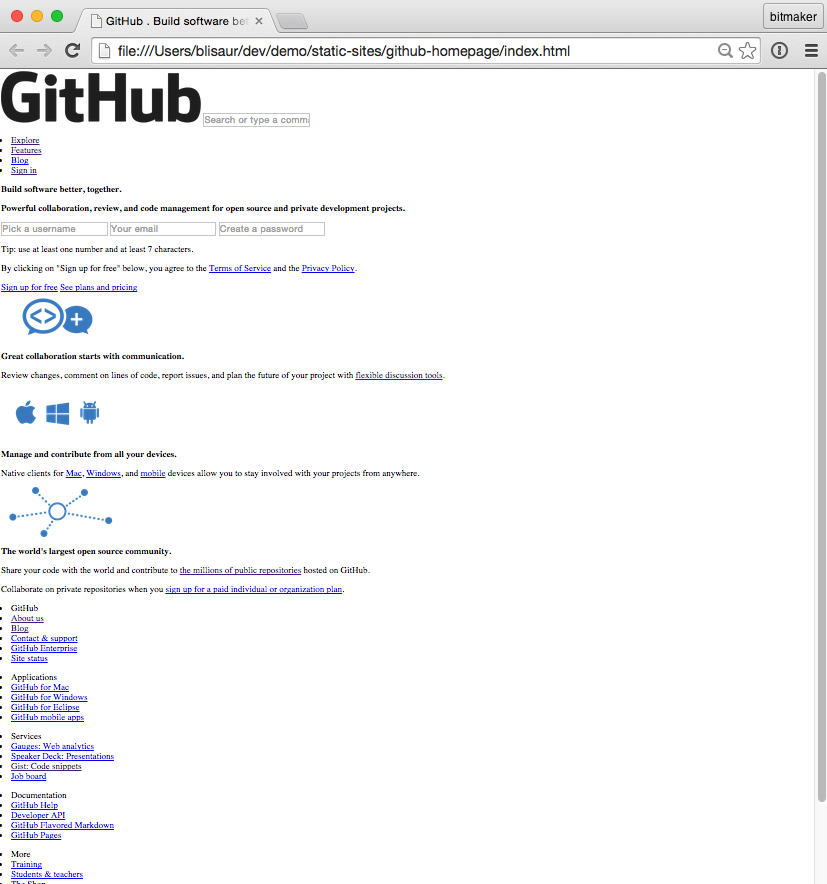
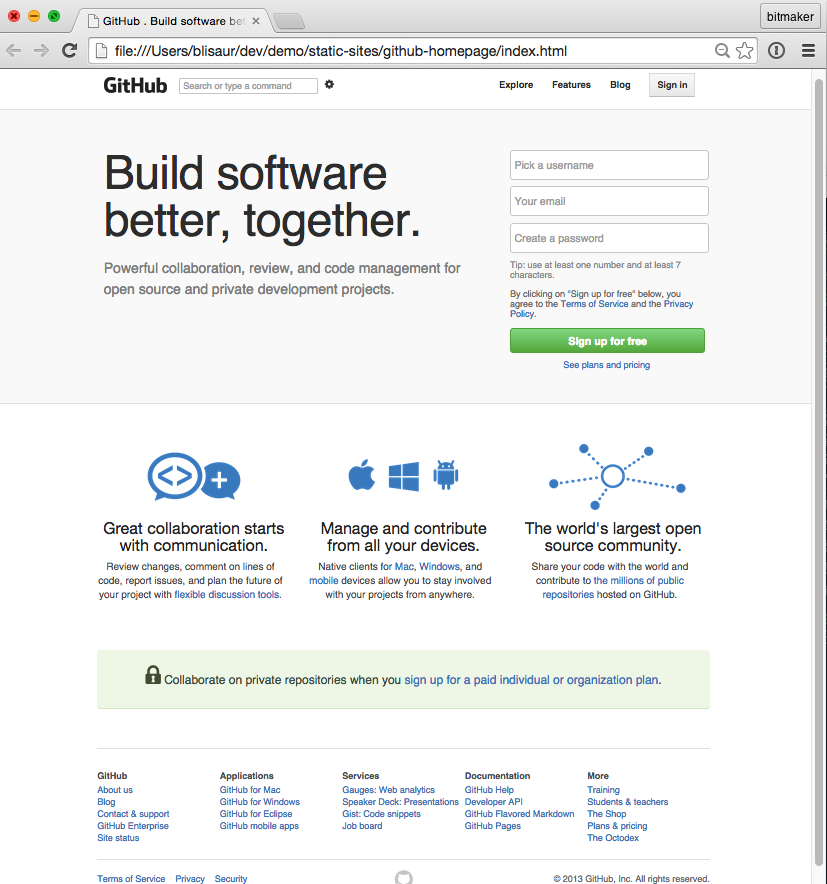
Before
After
CSS
CSS Syntax
h1 {
    font-size: 16px;
    color: red;
}- CSS Selector
- Declaration block denoted by the opening { and closing }
- A declaration consists of a property and a value, separated by : and ends with ;
CSS
Declaration >> property: value;
p {
    font-size: 16px;
    color: red;
}
Properties:
Values:
Pre-defined terms that will change the way elements look and behave.
Properties are set with values using a colon.
Declaration:
Together, each property-value pair form a declaration
CSS
Selecting an HTML element
h1 {
    background-color: red;
}
The rule's selector will define which elements in the HTML document will have this rule's declarations applied.
CSS
Selecting an HTML element
p {
    text-align: center;
}
Select the element by its tag name
<p>
    It's morphing time!
</p>
CSS
Selecting an element by class
.box {
    width: 100px;
    height: 100px;
    background-color: green;
}
We don't just have to select by element type...
Custom rules can be written using the class selector. In order to apply a class, we add a class attribute to our HTML element.
CSS
Applying a class attribute
<div class="box">
    <p>I'm shaped like a box</p>
</div>
This is the class attribute.
A class is a way of grouping similar things together, like how cars and trucks are both automobiles. The class attribute is useful for styling and adding interaction to many elements at once.
CSS
Selecting an HTML element
.highlight {
    background-color: red;
}
<h1 class="highlight">
Hello there!
</h1>Class selectors are denoted through dot ( . ) notation
CSS
What's next?
NEXT STEPS
PRACTICE.
NEXT STEPS
PRACTICE.
PRACTICE.
NEXT STEPS
Once you're comfortable with HTML & CSS ... move on to learn Javascript!
NEXT STEPS
You might feel like this ...

NEXT STEPS
But if you keep working hard, you'll be a boss in no time!

NEXT STEPS
Online Resources:
- Codecademy
- CodeSchool
- Khan Academy
NEXT STEPS
mina@bitmaker.co
Friends don't let friends struggle ...
Give me a shout if you need a hand :)