Effectively Communicating Using Slack
Who is Bryan?
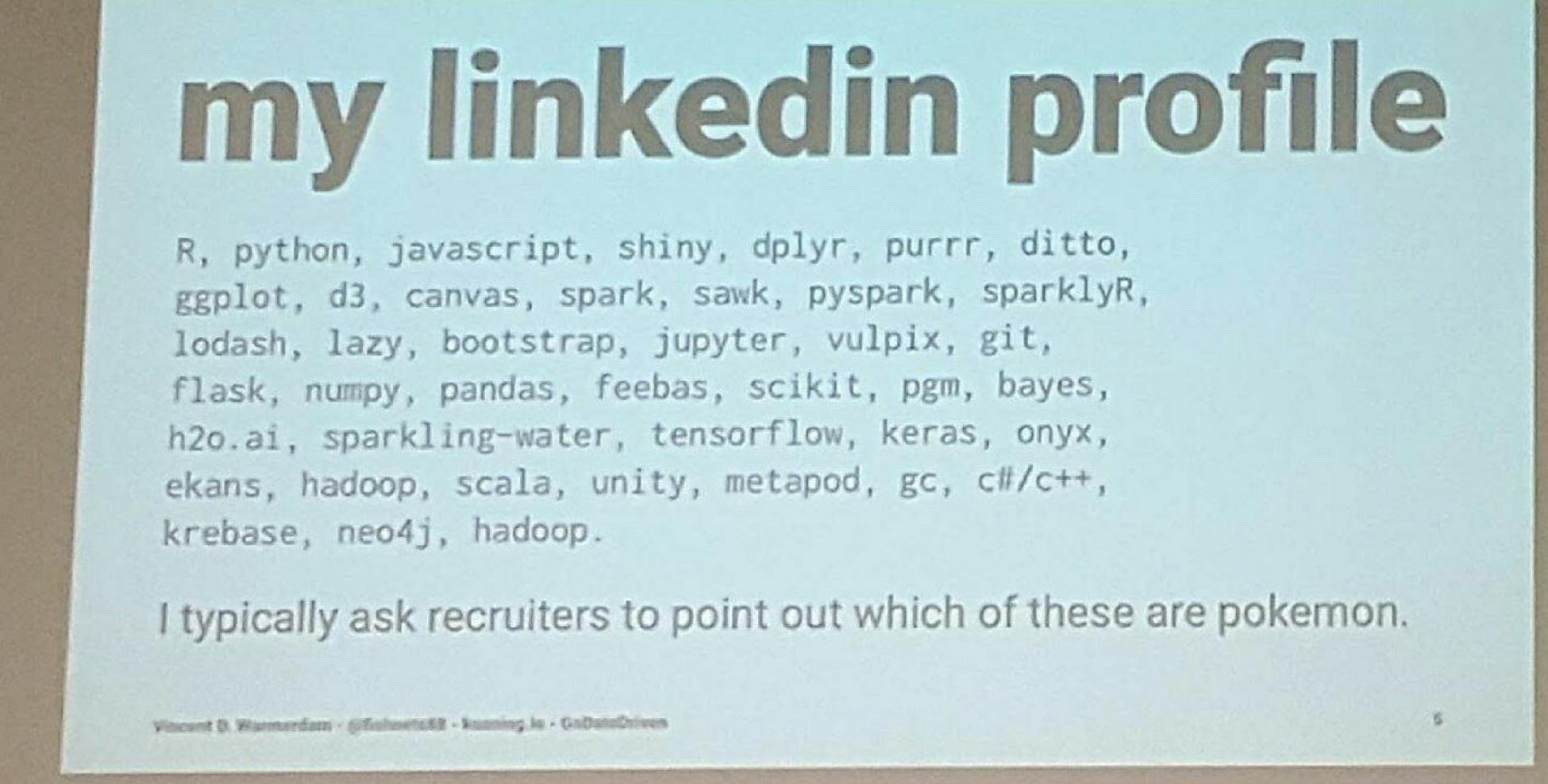
https://www.reddit.com/r/ProgrammerHumor/comments/6llocd/my_linkedin_profile/
About Bryan (and slack)
-
Over 10,000 public slack messages
-
Search `from:@bryanr` to see for yourself
-
-
Part of 5 slack teams
-
Just used one for my family reunion
-
-
Wrote a slack bot

Agenda
- What is Slack?
- Why use Slack?
- How to effectively use Slack?
- Being a Good Slack Citizen
- Tips and Tricks
- Questions
What is Slack?
- Team communication tool
- Keep everyone in the loop
- Knowledge repository
- Pinned items
- Search
- Sharing about articles, conferences, etc.
- A way to connect with other teams
- Ask for help
- Issue/incident resolution
- Automation and alerting
- CI alerts
- RE alerts
- Bots
Why Slack?
- Open communication
- Team collaboration
- Stay informed on technologies, SOPs, best practices
- Finding help
Why Slack vs...
- UX is top notch
- Web, desktop, mobile apps (all play well together)
- Power of search and archive
- THD is paying for it
- Cheap to spin up channels
- Skype/lync is trash :)
Note: Skype/lync still have a place for screen sharing and presenting, though other tools exist as well
How to use slack effectively?
Problem
-
"Slack is distracting me from getting my work done"
-
"People are posting about things I don't care about"
-
"There's too much noise"
-
"I get too many notifications"
Solutions
- Only join the slack channels you care about
- Configure notifications for what works for you
https://get.slack.help/hc/en-us/articles/201649323-Channel-notification-preferences
- Mute channels
https://get.slack.help/hc/en-us/articles/204411433-Muting-a-channel
- Don't feel like you need to read everything
- Star channels and people
Being a Good Slack Citizen
Good Manners
- Try to create and use public channels as opposed to private channels - the more knowledge share, the better
- If you need to copy/paste a long piece of text (e.g. code), use the + button and select "Create Snippet"
- Don't copy/paste the same message in a bunch of channels - if you must cross-post, right-click the timestamp next to the first message and select Copy Link, and then paste that into additional channels
Searching for Answers
- Try NOT to use @here and @channel - you will be notifying everyone in that channel (possibly causing them to divert focus from what they are working on
- @here and @channel should primarily be used for announcements, not getting answers to a question

Searching for Answers
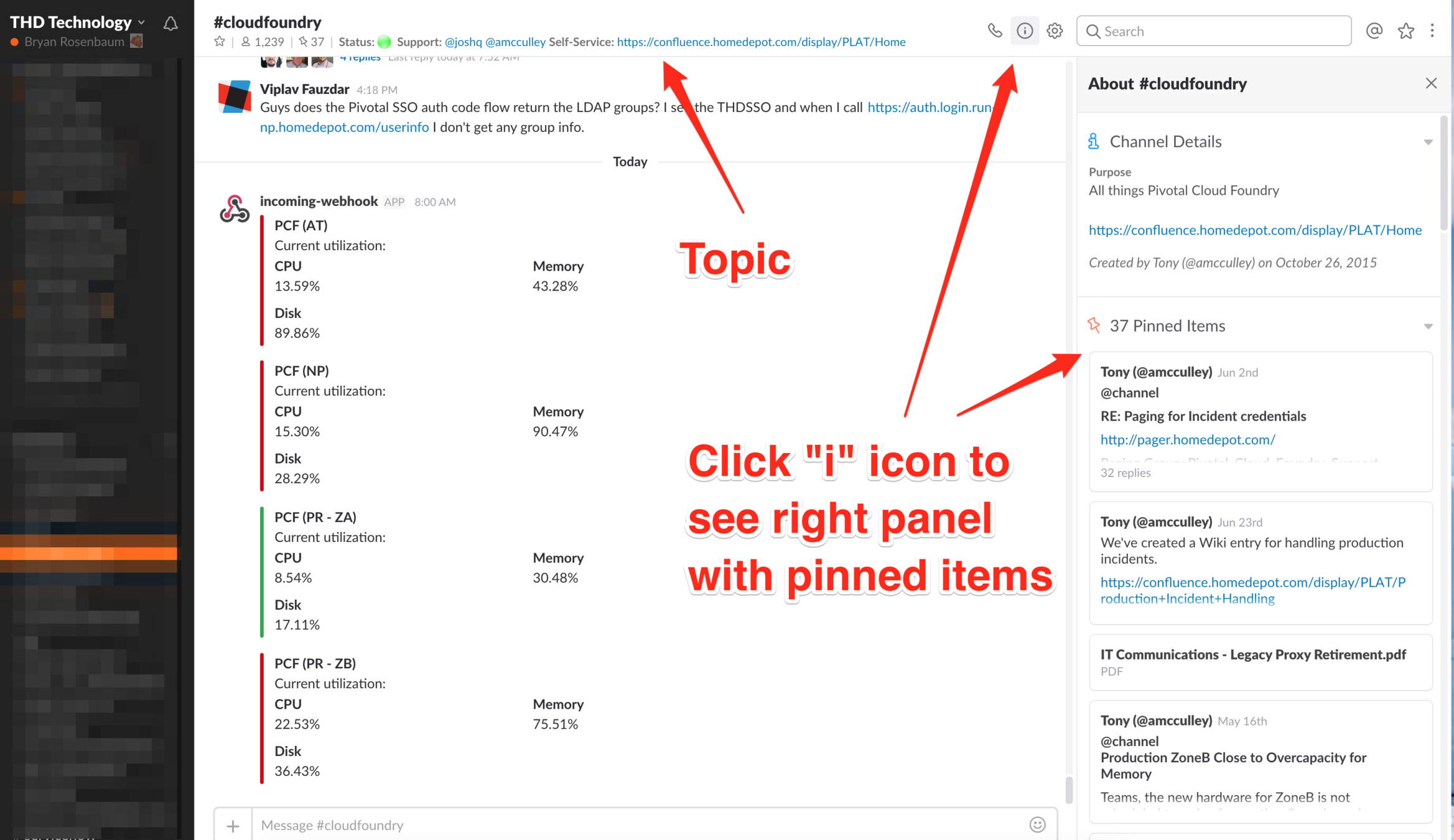
- When you first get into a channel and have a question, try looking at the Pinned Items and the topic
- Topic may have names of who is on call or links to helpful documents
Searching for Answers
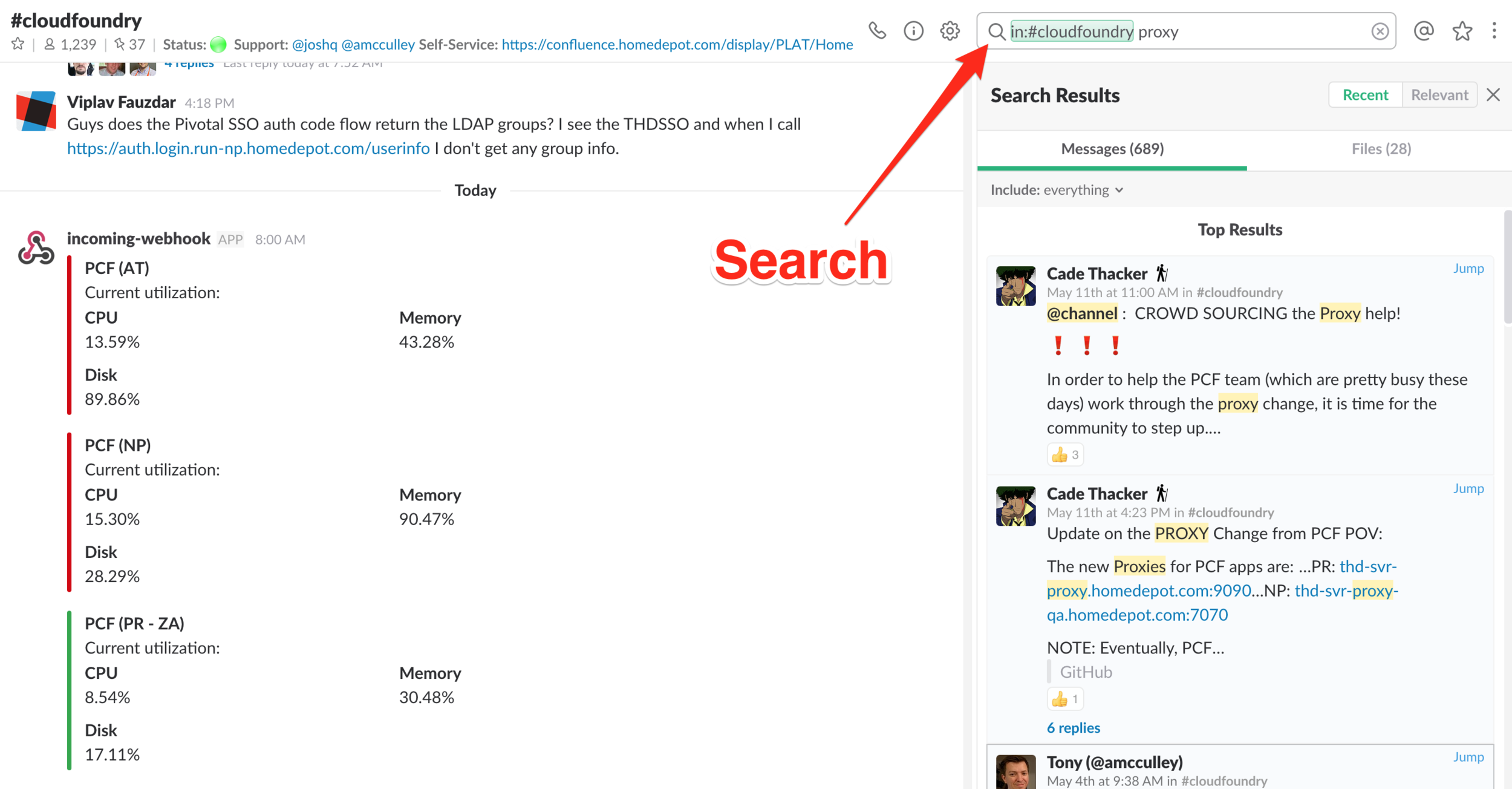
- Before you ask your question, try searching for an answer - there's a chance someone has already asked that question (especially if you are new to the channel)
Tips and Tricks
Navigation
- Use Cmd+K (mac) or Ctrl+K (windows) to quickly switch between channels
-
Star channels and people you communicate with most often and they will move to the top of your list
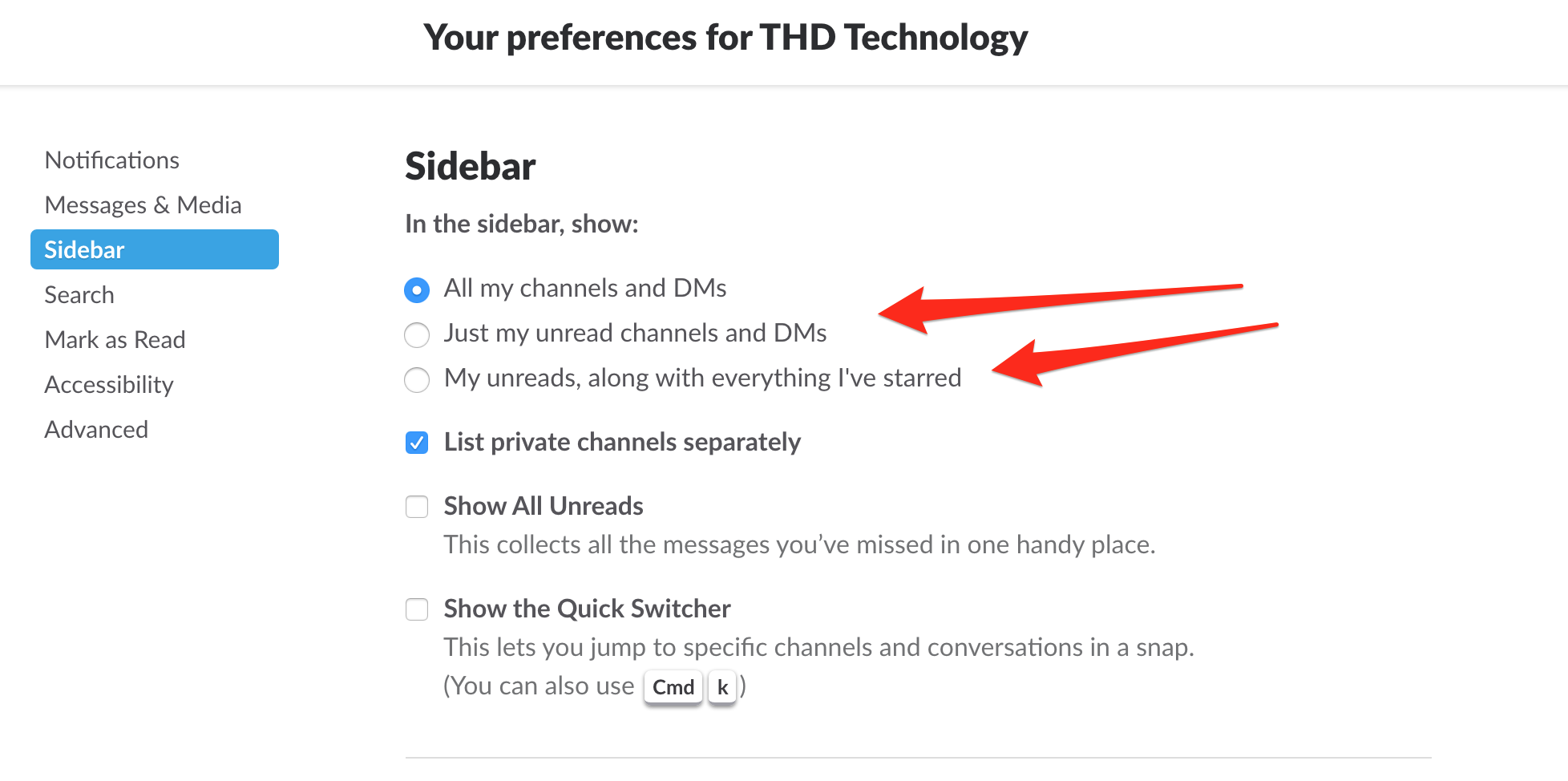
- Tweak your preferences for suit your needs
Creating Channels and DMs
- Channels are cheap - create new ones as needed
- Cross-team problem solving
- Instead of creating impromptu groups, create a new channel
- Saves history
- Can add new people easily!
Reducing Clutter
- If you are in too many channels, try going to Preferences > Advanced Options > Channel List, and selecting "Hide any channels, etc., which have no unread activity, unless they are starred"
- Code can be formatted with backticks ` (next to the number 1 on your keyboard) for a single line, or 3 backticks for multiple lines
https://get.slack.help/hc/en-us/articles/202288908-Formatting-your-messages - Images, gifs, and expanded articles can be minimized by clicking the adjacent arrow

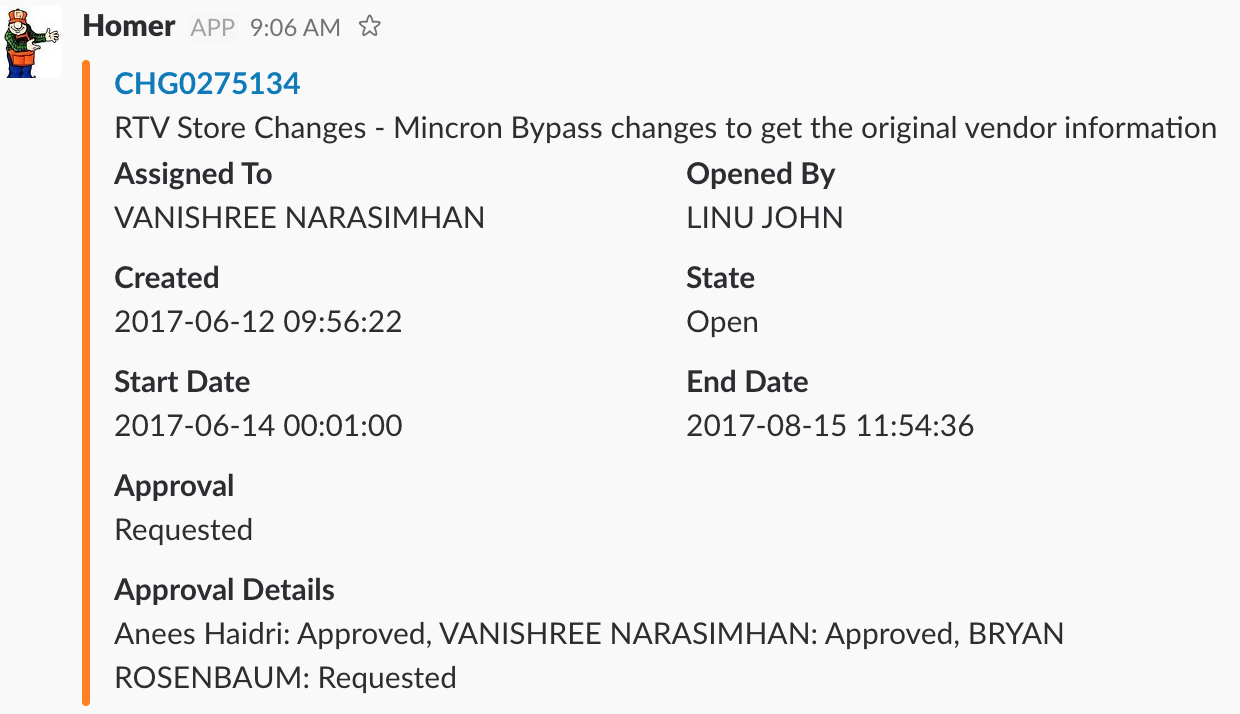
Homer Bot
- Direct message @homer or add him to your channels
- Really helpful:
- CHG###### - change information
- INC###### - incident information
- what's broken
- store num ####
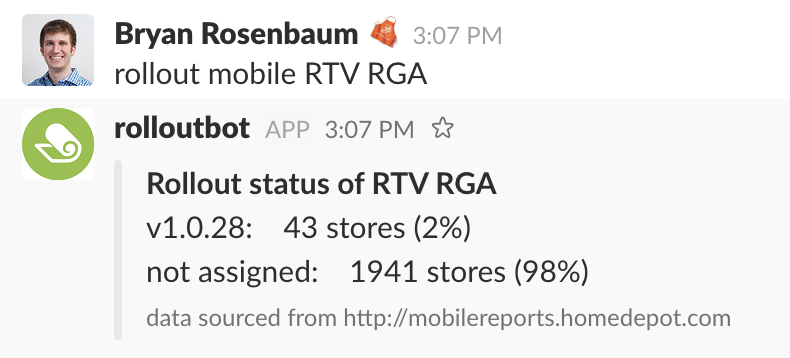
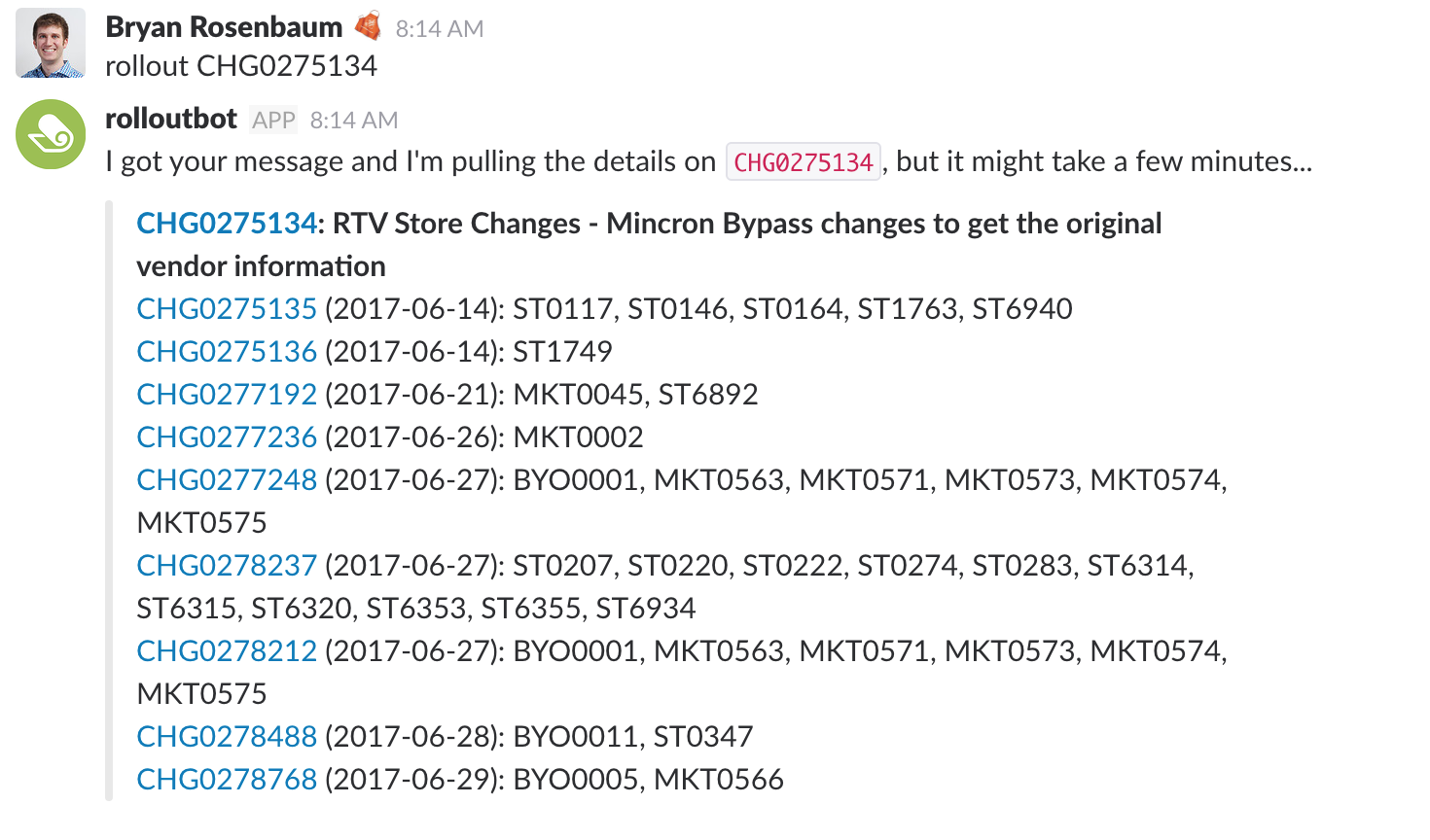
Rollout Bot
- Direct message @rolloutbot or add him to your channels
- Really helpful:
- Rollout status of an RPM or mobile apk
- See all child CHGs for a given parent with target locations
Reminders
- Use the /remind command
- Can alert self (/remind me) or other channels/people (/remind #my-team)
- Use /remind list to see all of the outstanding reminders

Workflow Alerts
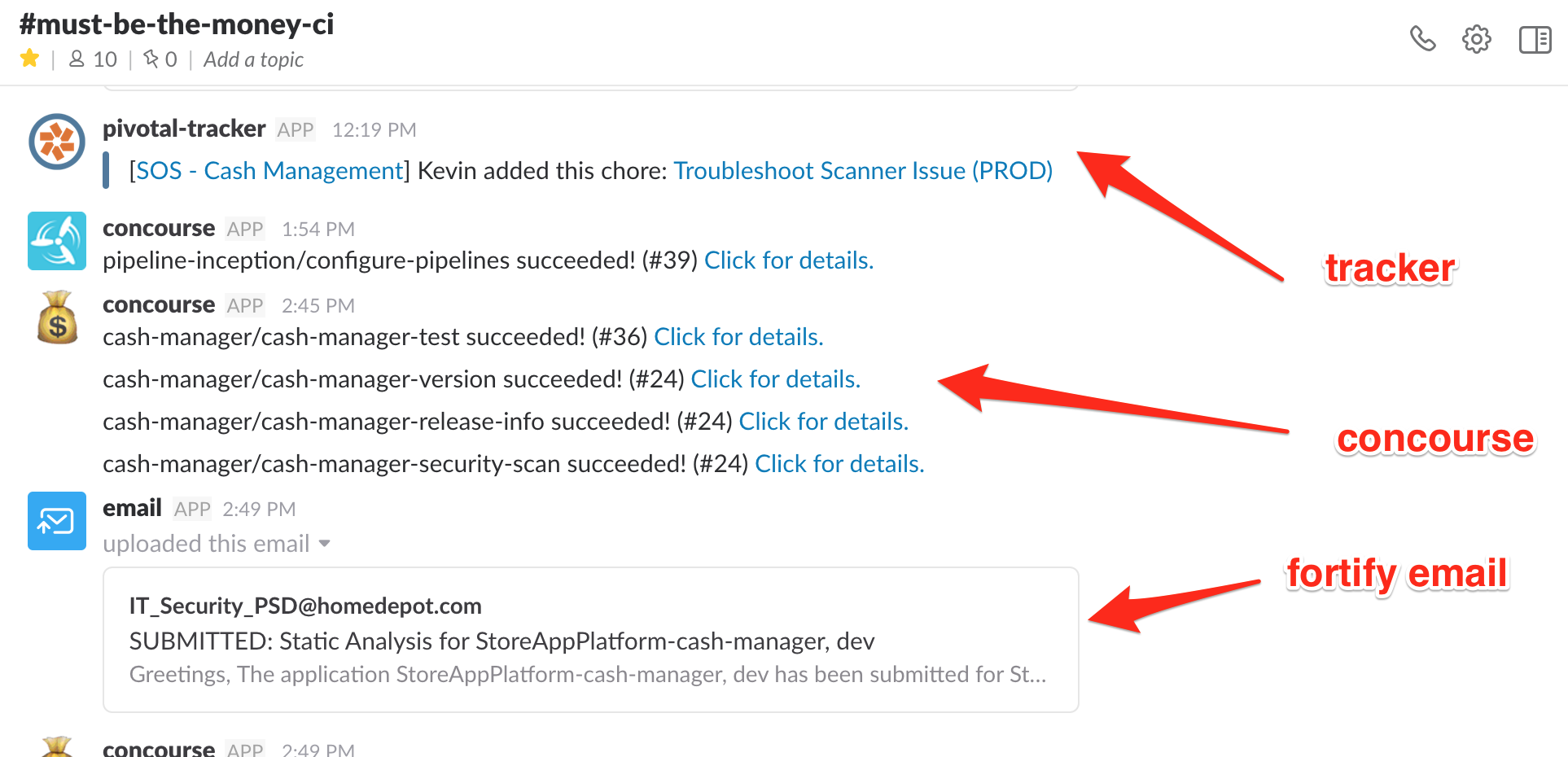
- Setup your CI to send alerts to a slack channel
- Check out the #help-slack-bots channel which has a pinned item that contains a lot good information
- Request a new webhook by using /apps Webhook
- Use the webhook with Github, Pivotal Tracker, Jenkins/Concourse, etc.
- Request a new email by using /apps Email
- Example would be for using with Fortify security scans