A Quick Guide to Commenting with Google Docs
Use the space bar to navigate this slide deck
Open the Draft
Anyone can comment or make suggestions, even without a Google Account
If not, then I've messed up the sharing settings; let me know!
When you open the link in a web browser (Chrome, Firefox, IE, Safari, etc.) it should look like the next slide
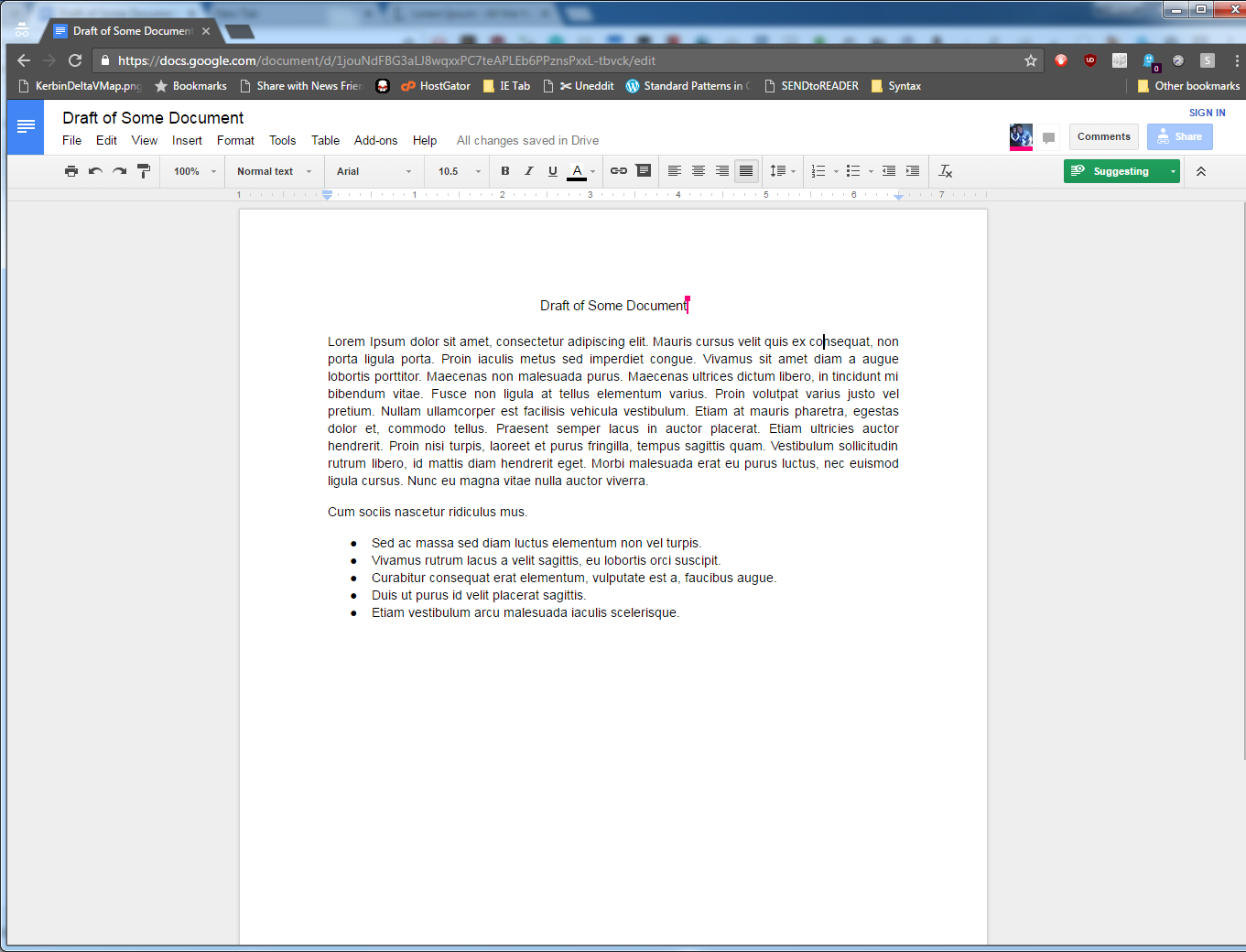
You may start in viewing mode.
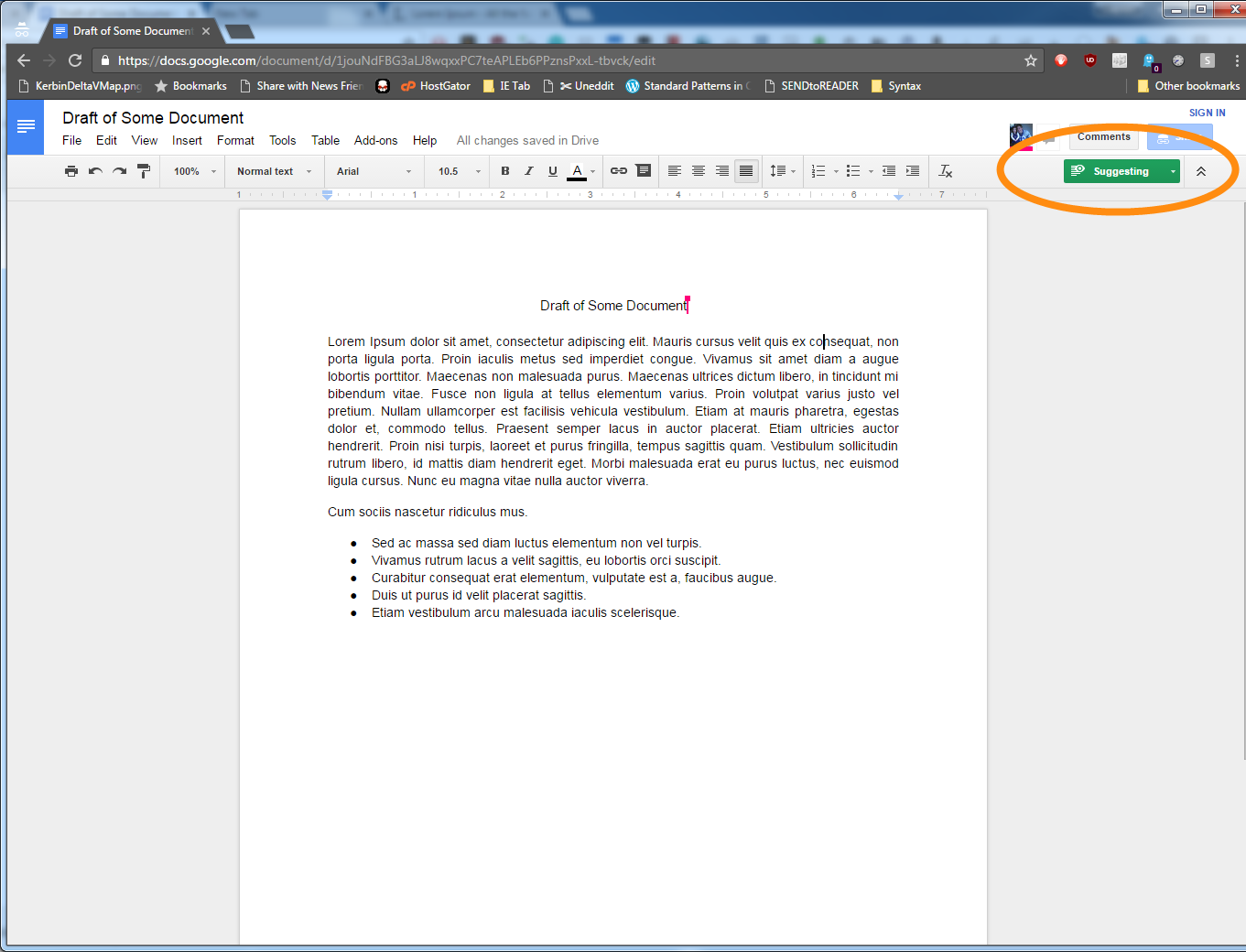
To leave feedback, switch to Suggestion Mode.
Do this by changing the dropdown box in the upper left corner to "Suggesting".
Provide Feedback
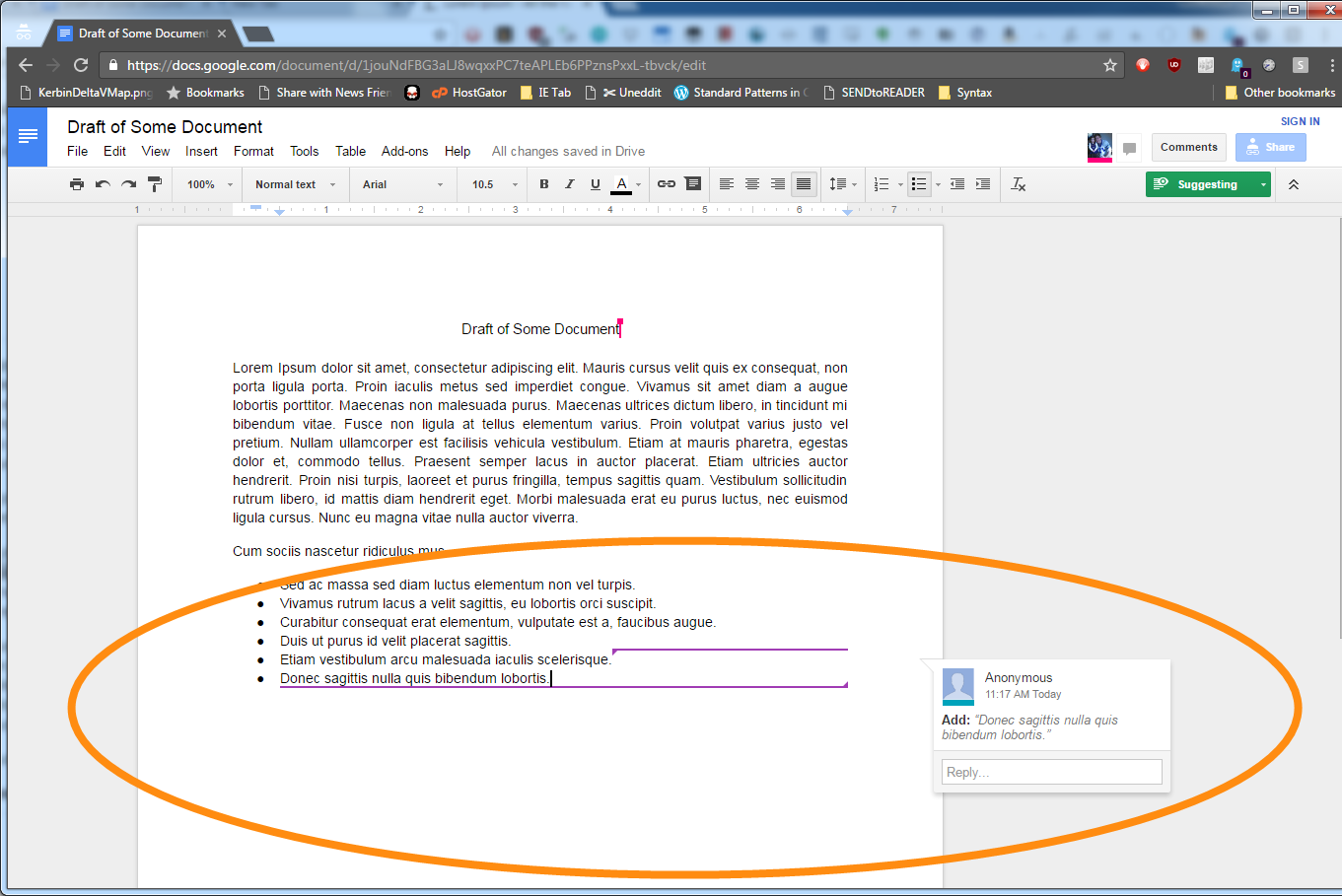
Add Something Missing
If I've left something out, you can just type it in and Google Docs will provide it as a suggestion
This is similar to Word's "Merge/Track Changes" features, but we only have one collaborative copy of the document we're working on, instead of many.
Leave a Comment
Instead of editing the text itself, you can choose to leave a comment.
When you leave a comment, it will apply to where your | cursor is, or to text you've highlighted.
It's super helpful to highlight the part of the document you're commenting on to show where you're making a specific comment.
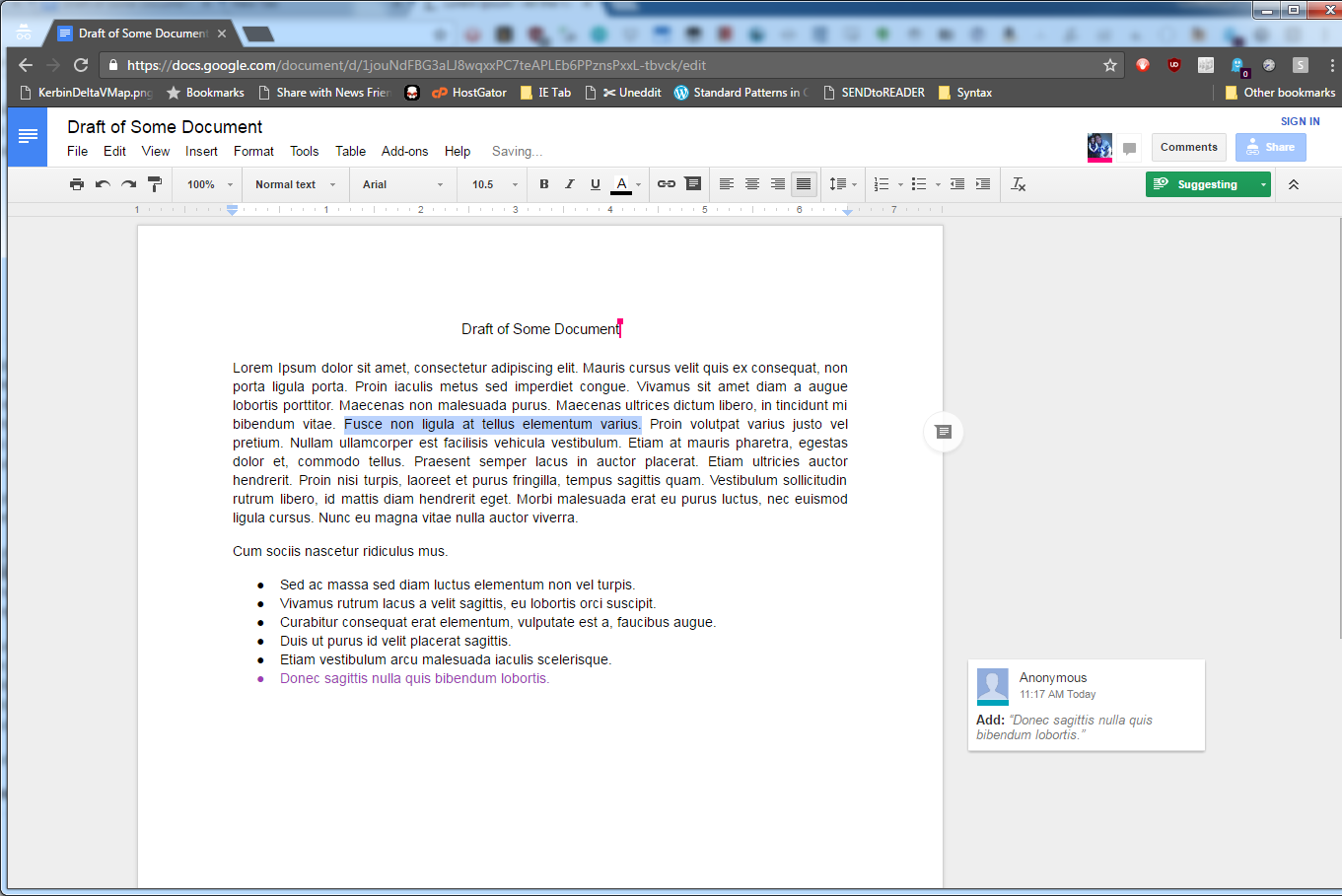
Highlight the text you're commenting on in the usual way
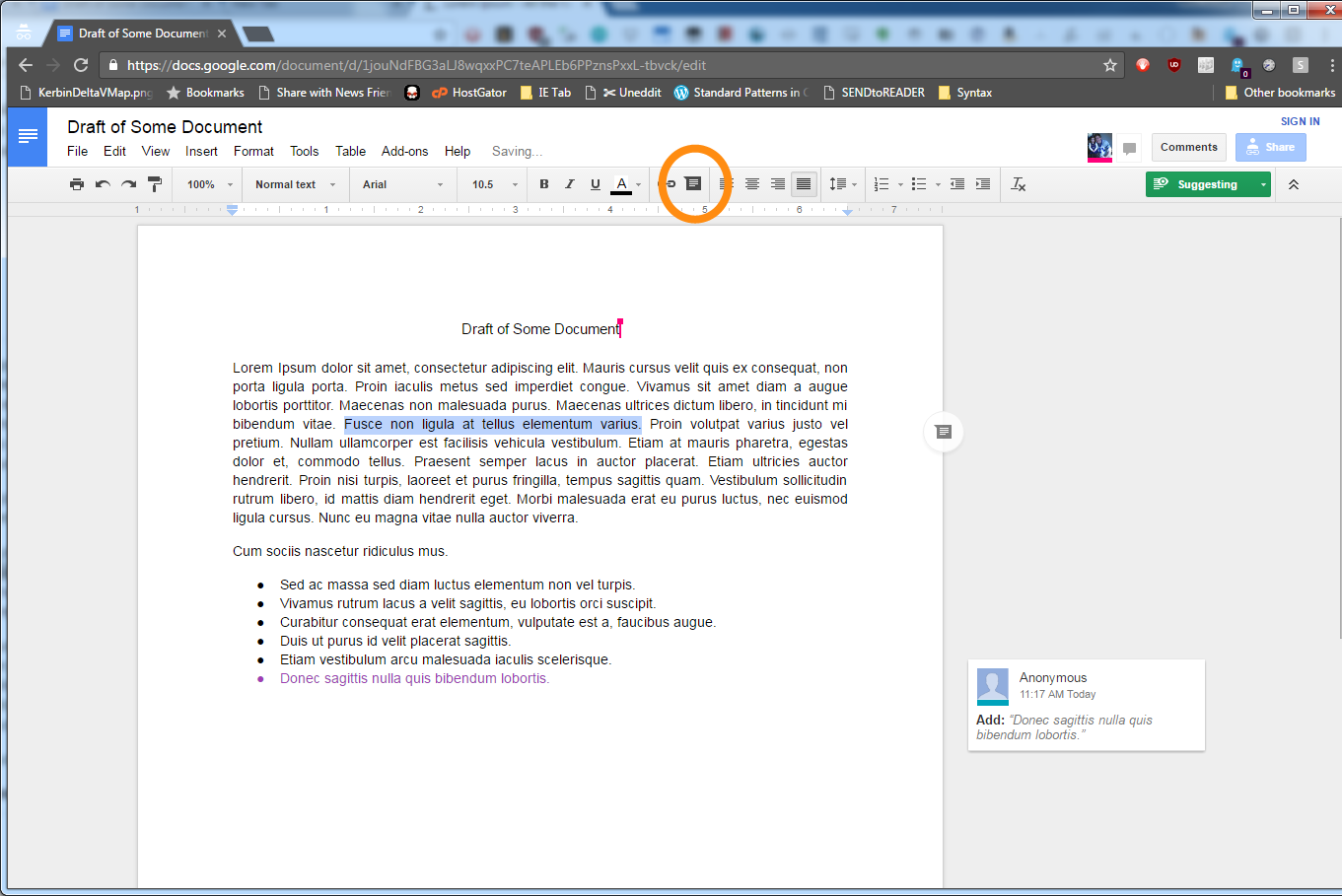
Text
Text
Click the comment button or press Ctrl+Alt+M (Mac: Cmd+Opt+M)
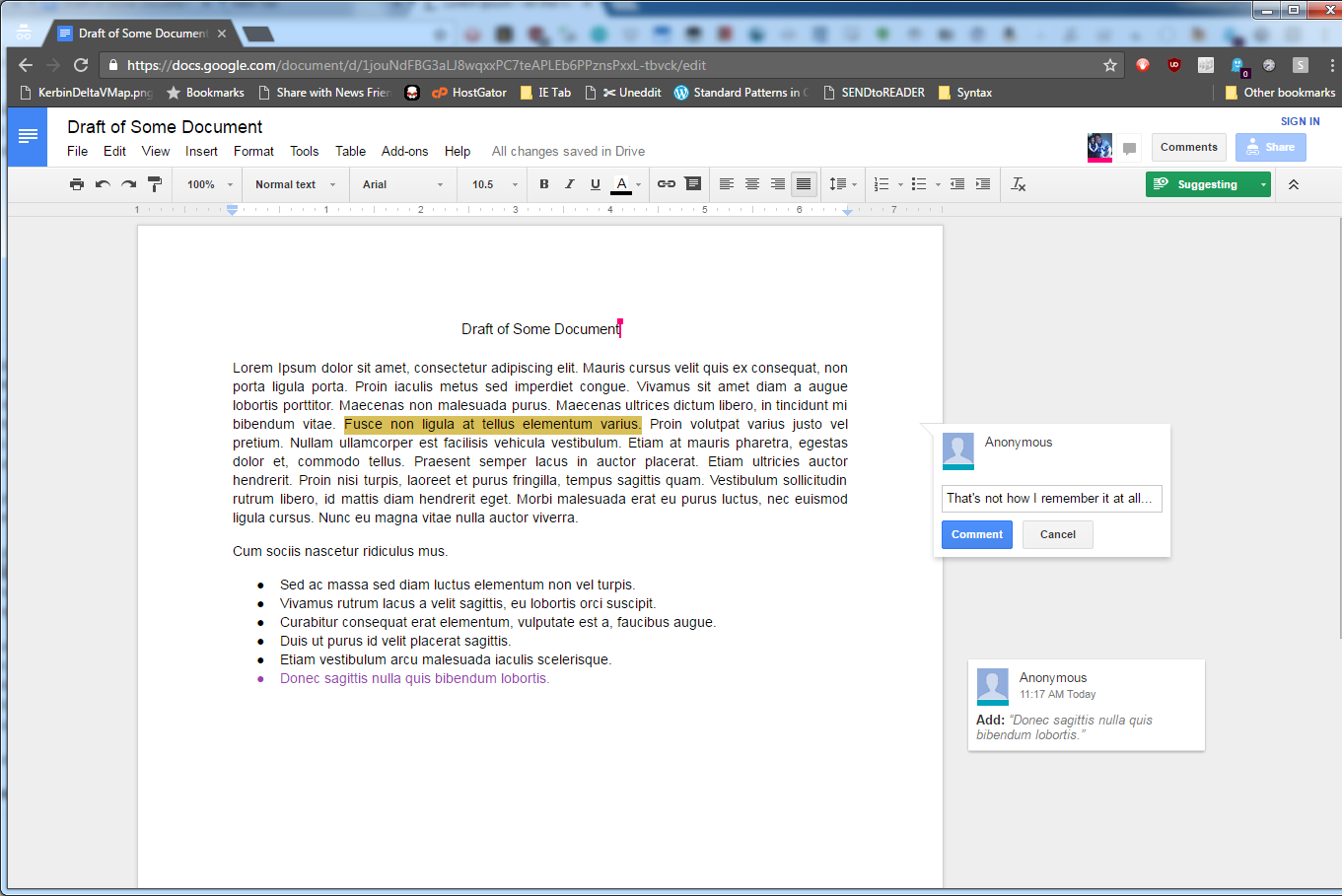
Type your comment, then click the big blue button to save it
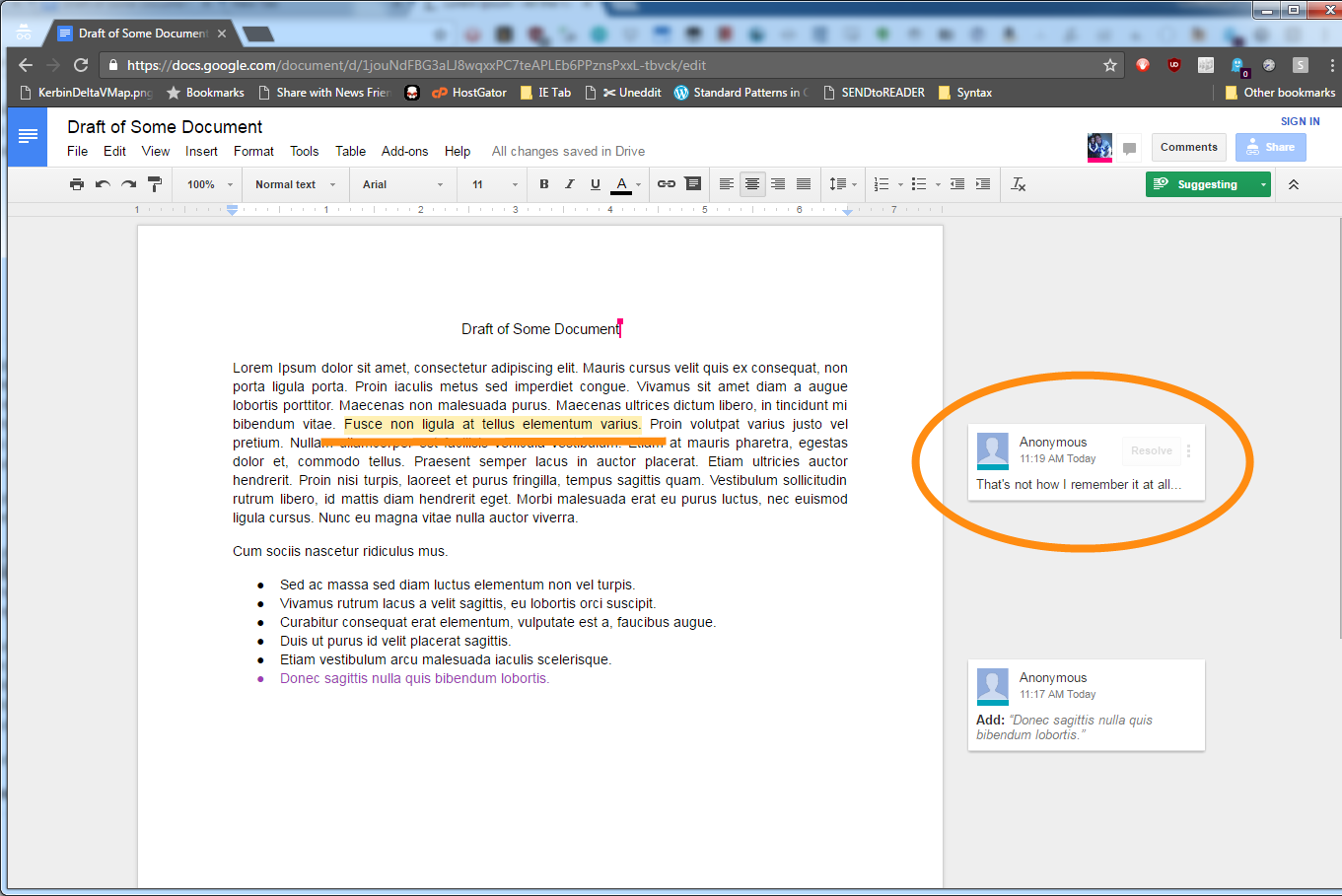
The new comment highlights the text it applies to
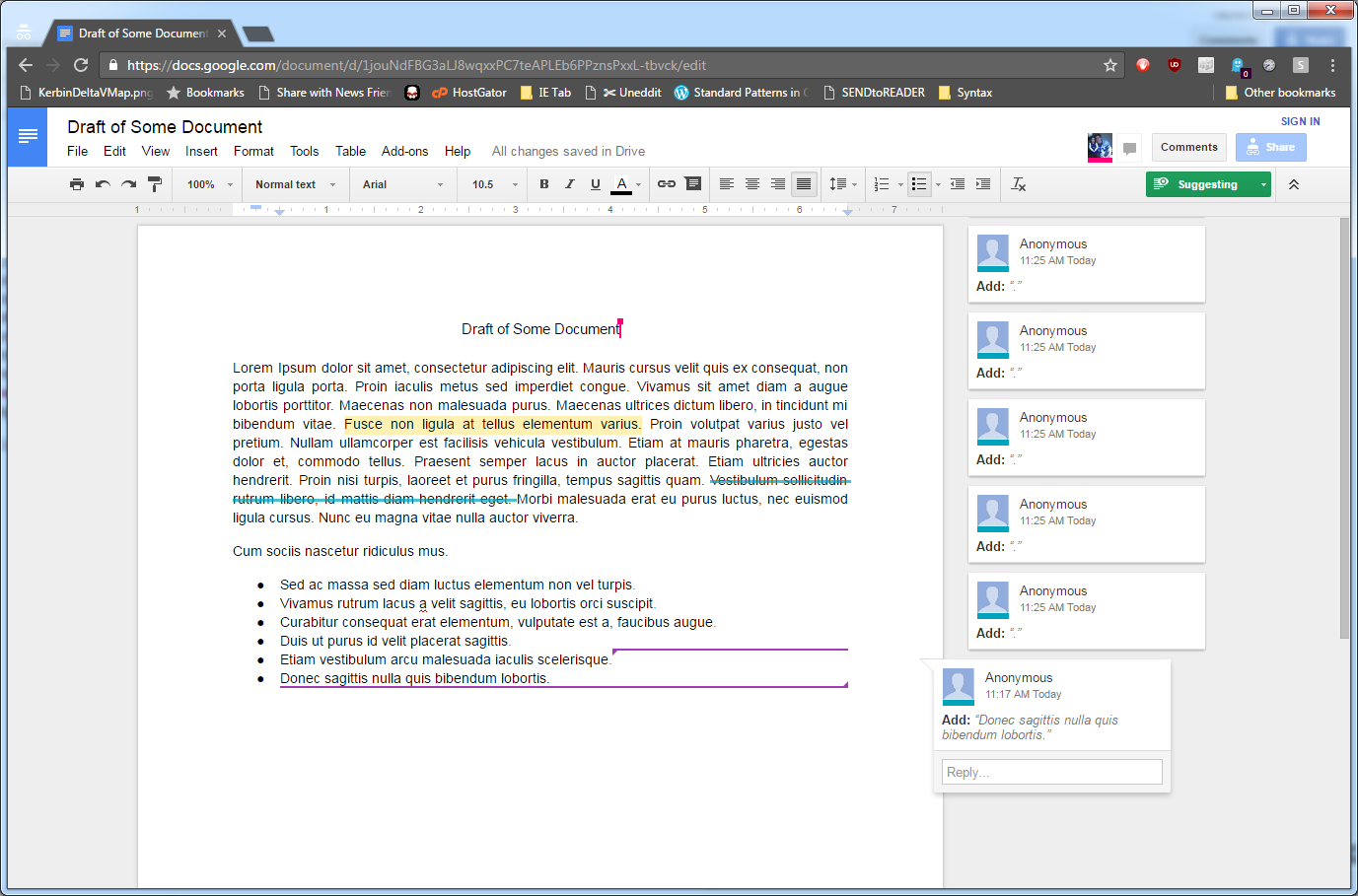
Delete Some Text
If something needs to be deleted from the draft, just highlight and delete it in the usual way.
Google will make a deletion suggestion for the document, just like in addition.
On your screen, the text will be stricken in your color.
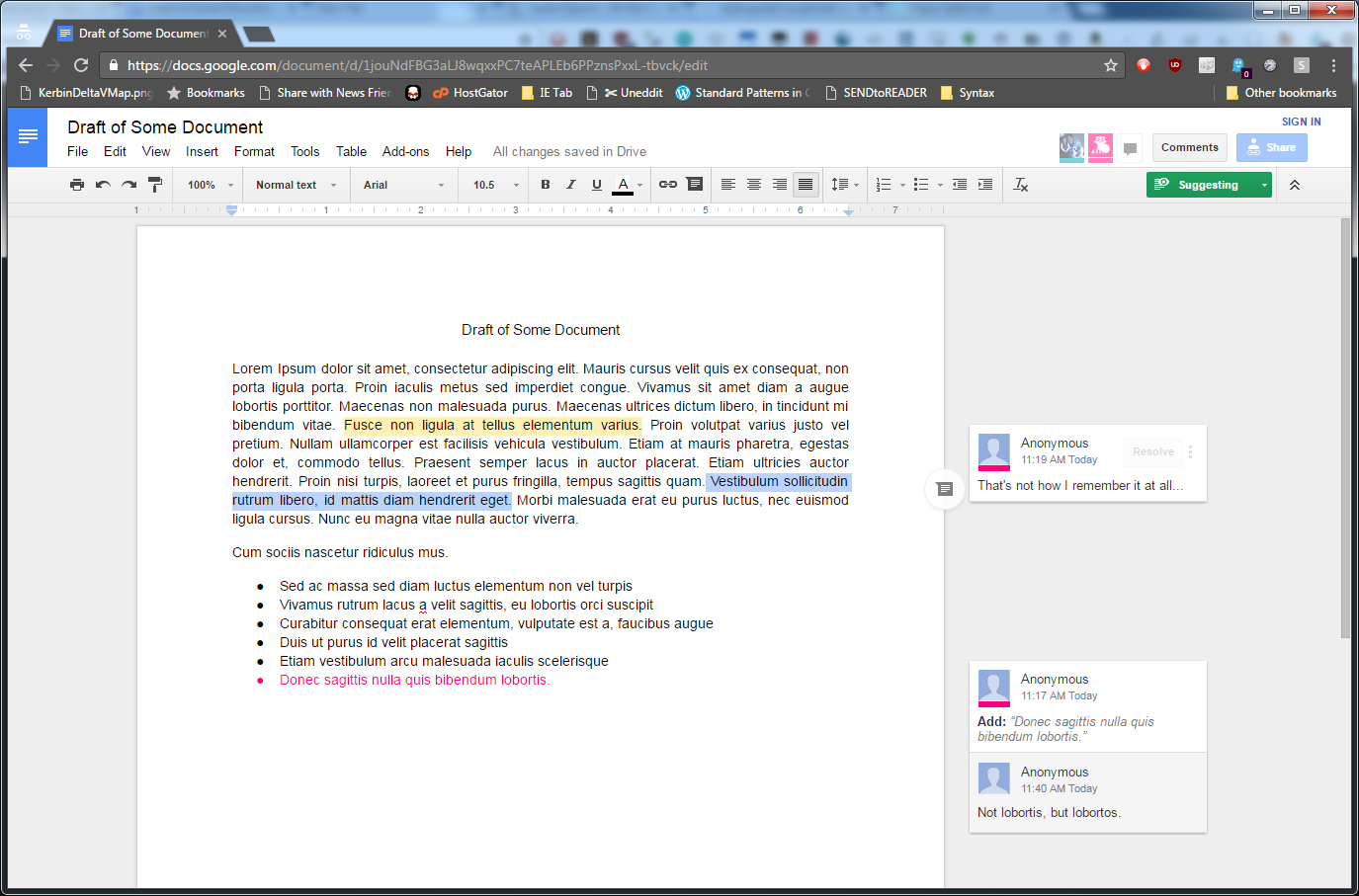
Don't worry about the formatting (e.g. spaces between sentences)
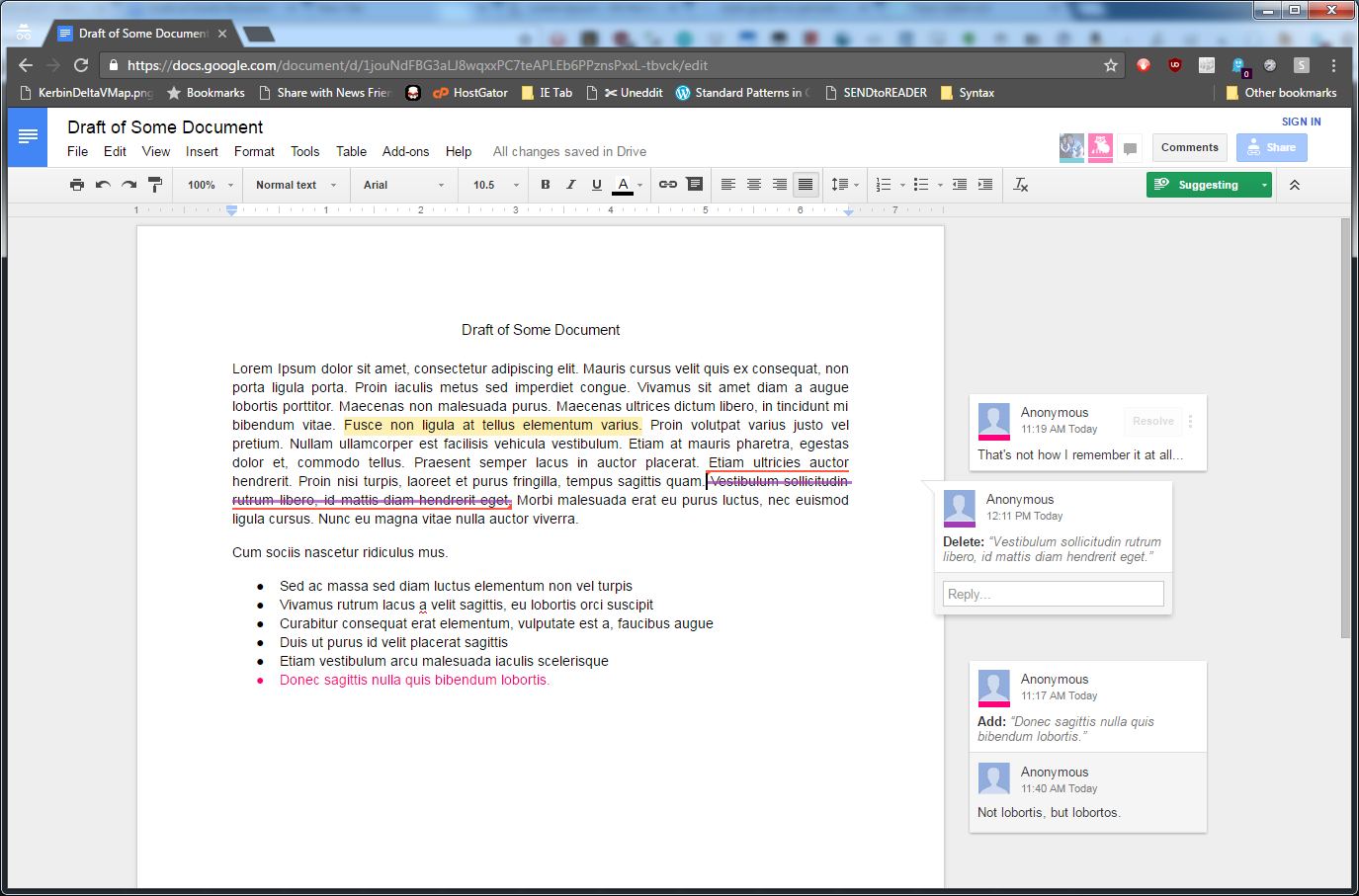
(Note: each person's suggestions will have a different color)
Suggest Many Small Changes
If you've worked with Track Changes before, you may know that making many small changes (e.g. in formatting) can be gnarly.
It's probably easier for everyone if any suggestions like those are kept to a single comment.
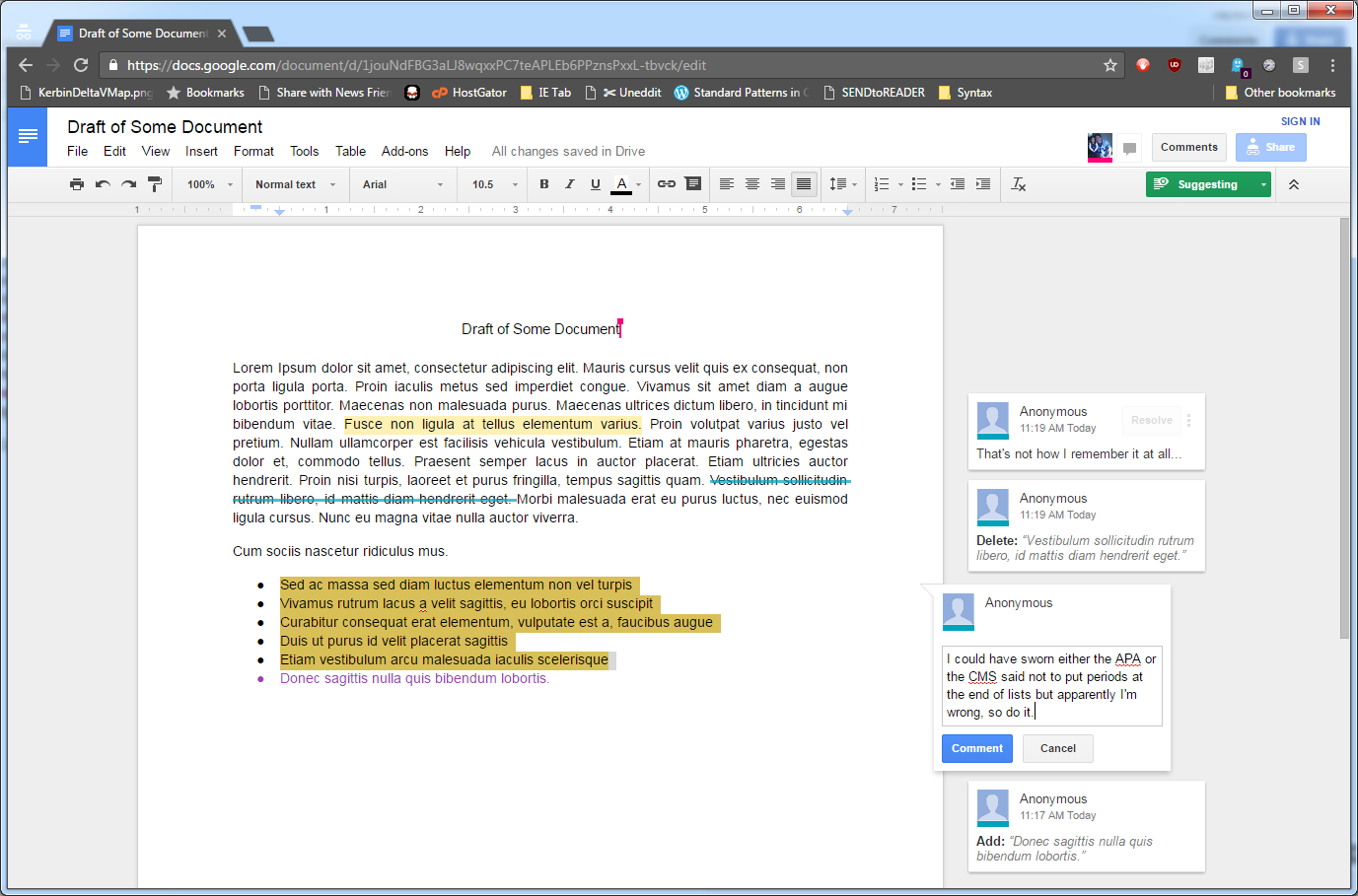
A comment, which helpfully explains things, is succinct
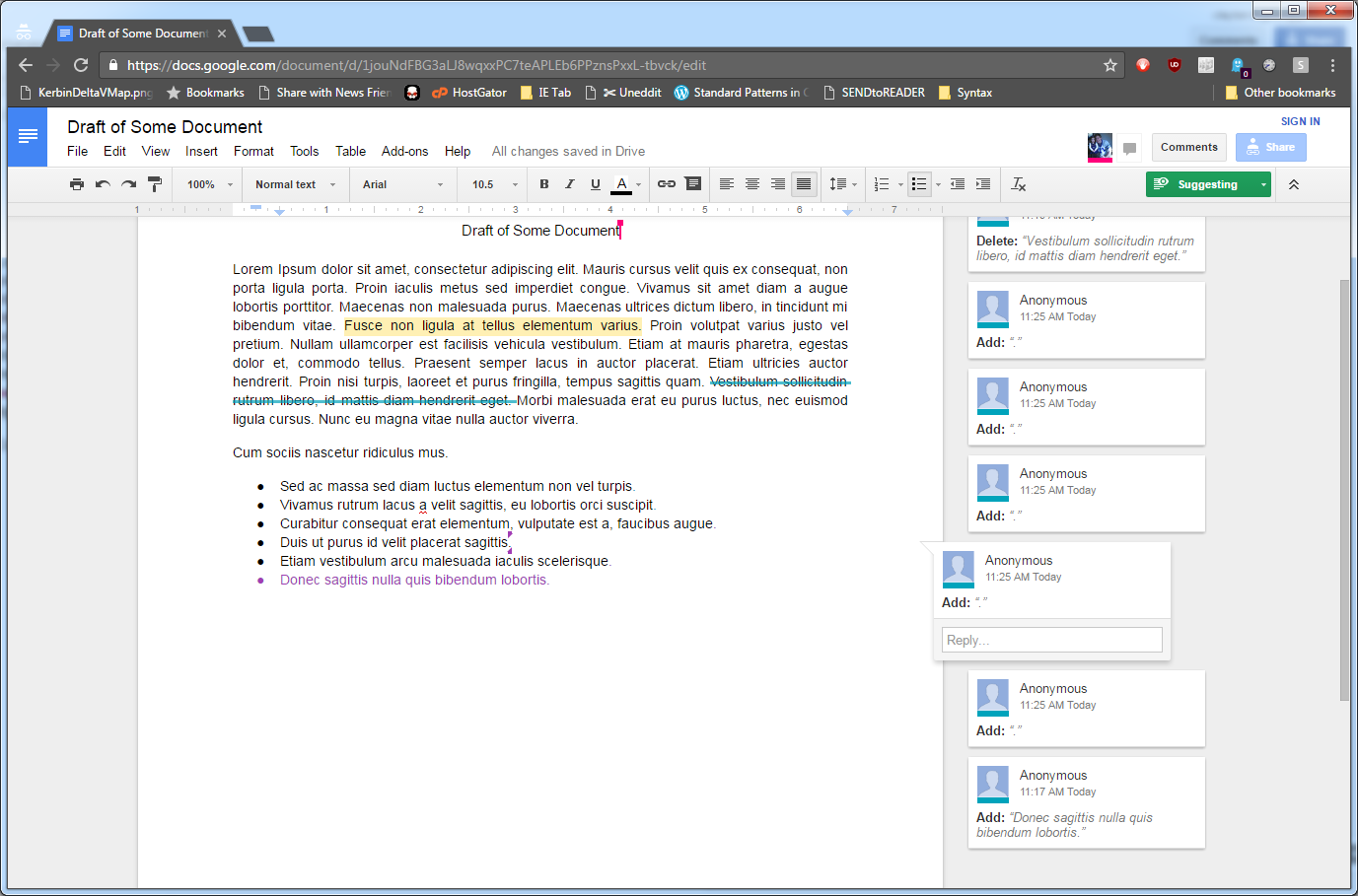
Many small alterations are noisy and complicated
Fix Something You Wrote
You've accidentally typed or deleted some text in the document, and want to correct it.
Don't try to delete or re-type it! That produces a change request on your change request, and quickly leads to a big mess.
Instead, just "Undo" it with Ctrl+Z (Mac: Cmd+Z), or by selecting "Undo" from the Edit Menu
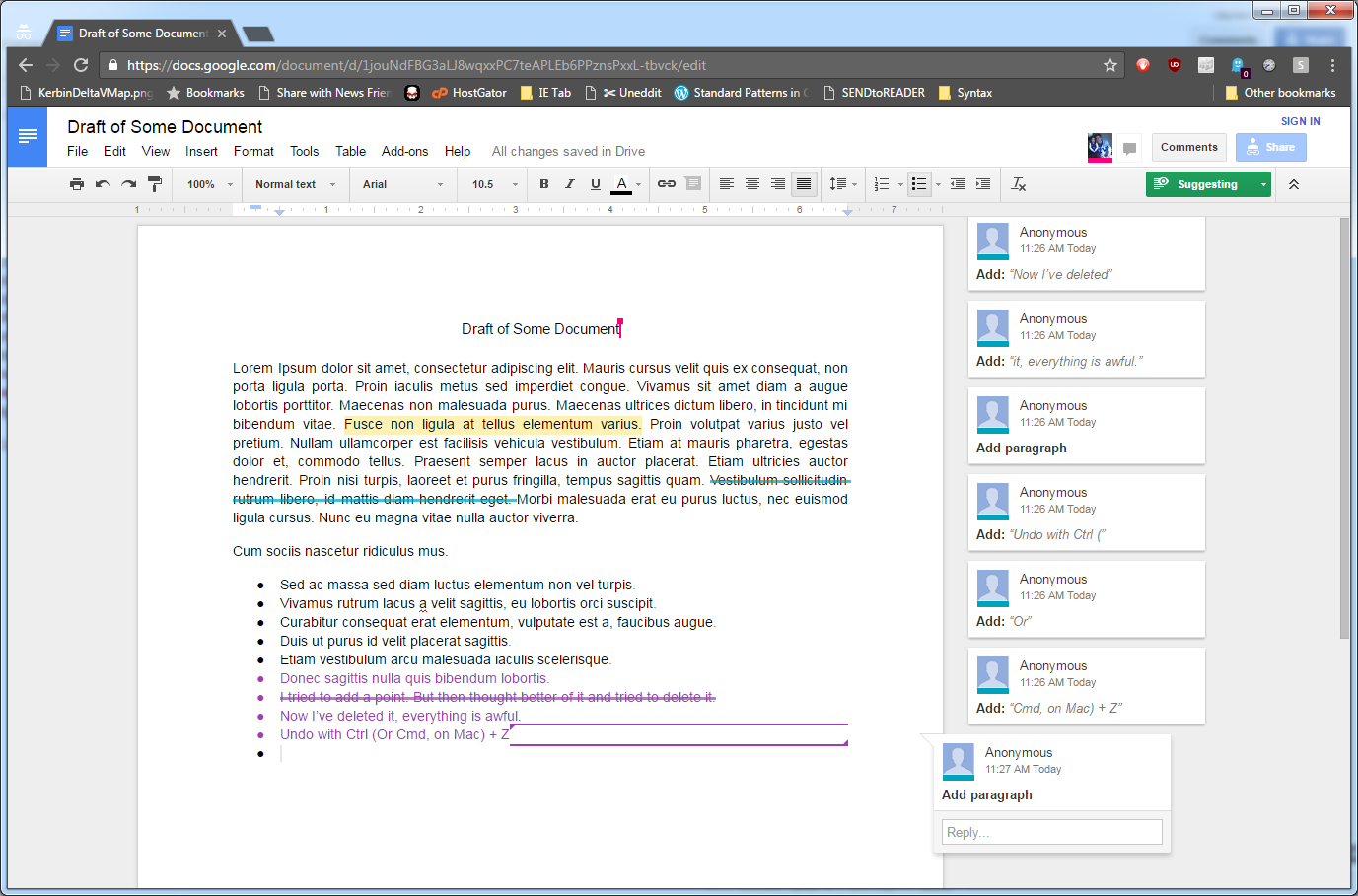
If you find yourself in a mess of accidental suggestions...
Just Undo, Undo, Undo until it's all cleaned up!
Fin.
Go and comment to your heart's delight!