Previously:
- Laying out Semantic HTML
- Semantic Tag Attributes
- Semantic Text Formatting Tags
- HTML Forms
Today:
- HTML Test
- Review/Practice Making Forms
- External Style Sheets
- CSS Box Model
HTML Test:
Make an HTML document using the following layout/content:
www.goo.gl/kaEnZ5
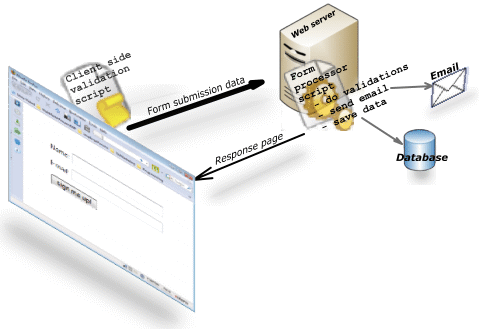
The HTML <form> tag
A container for a collection of <input> tags
Required Attributes:
- action = "URL to server script" (php, asp, perl, cgi)
-
method = "get" or "post" (get server response)
The HTML form <input> elements
Required Attributes:
-
type = "text", "checkbox", "radio button"...etc
-
name = variable id name for server usage
- value = "default" value if there is no input
Other Attributes:
- required, autofocus, autocomplete
-
placeholder = variable id name for server usage
-
min, max = min or max allowable value
An HTML form submits to a server a collection of
Name-Value Pairs
HTML form SUBMIT button
<input type="submit" value="submit">
Class Exercise:
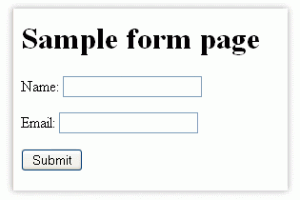
Create a sample HTML form with submit button
<form>
<input type="checkbox" name="ride" value="Bike">I use a bike<br>
<input type="checkbox" name="ride" value="Car">I use a car <br>
<!------->
<input type="radio" name="sex" value="boy">Boy<br>
<input type="radio" name="sex" value="girl">Girl<br>
<!------->
<label for="male">Male</label>
<input type="radio" name="sex" id="male" value="male"><br>
<label for="female">Female</label>
<input type="radio" name="sex" id="female" value="female"><br>
</form>
<input type="checkbox" name="ride" value="Bike">I use a bike<br>
<input type="checkbox" name="ride" value="Car">I use a car <br>
<!------->
<input type="radio" name="sex" value="boy">Boy<br>
<input type="radio" name="sex" value="girl">Girl<br>
<!------->
<label for="male">Male</label>
<input type="radio" name="sex" id="male" value="male"><br>
<label for="female">Female</label>
<input type="radio" name="sex" id="female" value="female"><br>
</form>
Grouping input elements with the <fieldset> tag
<form>
<fieldset>
<legend>Sample Input Group:</legend>
Name: <input type="text"><br>
Email: <input type="text"><br>
Date of birth: <input type="text">
</fieldset>
</form>
Class Exercise:
Create an HTML form based on the pdf file:
www.goo.gl/EpgdBB
www.goo.gl/p0o1s4
HTML <datalist> element
<form action="demo_form.asp" method="get">
<input list="browsers" name="browser">
<datalist id="browsers">
<option value="Internet Explorer">
<option value="Firefox">
<option value="Chrome">
<option value="Opera">
<option value="Safari">
</datalist>
<input type="submit" value="submit">
</form>
HTML <select> drop-down list
<select name="cars"><option value="volvo">Volvo</option>
<option value="saab">Saab</option>
<option value="opel">Opel</option>
<option value="audi">Audi</option>
</select>
HTML<textarea> tag defines multiline text input
Attributes:
- name = variable id name for server usage
- cols, row = visible width and height
- autofocus, disabled, readonly, required
- placeholder = hint to describe expected value
- form = id textarea belongs to
-
wrap = "soft" or "hard"
Class Exercise:
Create an HTML form based on the pdf file:
www.goo.gl/HQg2Hi
Intro to cascading style sheets - CSS3
<!DOCTYPE html>
<html>
<head>
<link rel="stylesheet" href="styles.css">
</head>
.
.
</html>
<html>
<head>
<link rel="stylesheet" href="styles.css">
</head>
.
.
</html>
CSS external file is a text file saved using .css extension
Follow the exact same format used inside <style> tags
Selector { Property: Value; }
Examples:
body{ background-color: gray;}
p { color: blue; }
h3 { color: white; }
CSS Selectors
- Universal Selector - matches any element type
- Element Type Selector - specific element type name
- Class Selector -selects specified class attribute value
- ID Selector - matches an element's specific id attribute value
- Attribute Selector - selects elements on attribute values
other types of selectors:
http://www.w3schools.com/cssref/css_selectors.asp
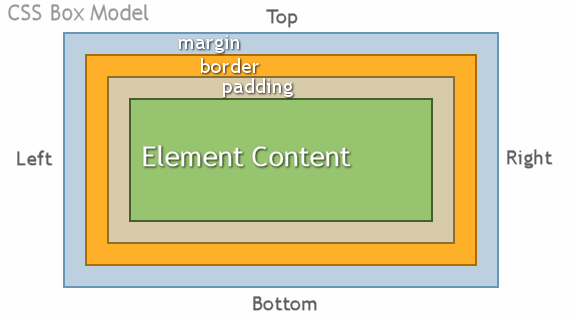
- Every element in a html document is considered to be a box
- Margins are always transparent
- Borders come in various styles
- Background settings apply to the the area of the padding and content areas
CSS Border Commands
- Border-Width
- Border-Color
- Border-Style
CSS Measurements
%     percentage
in    inch
cm    centimeter
mm    millimeter
em    1em is equal to the current font size. 2em means 2 times the size of
      the current font.
ex    one ex is the x-height of a font (x-height is usually about half
      the font-size)
pt    point (1 pt is the same as 1/72 inch)
pc    pica (1 pc is the same as 12 points)
px    pixels (a dot on the computer screen)