HTML
Preliminary Statement
We're going to start building our very first website. At first our website is going be pretty ugly but it's still going to be functional! We're going to be using the language HTML, or hypertext markup language. This isn't a programming language since it doesn't actually do anything. It's like how English isn't a programming language either: you can't "run" English. Same idea with HTML: you can't "run" HTML. HTML is simply the language and pictures on the page. It's the static (which is another word for unchanging) content.
HTML provides the conduit for content, words, images, video and audio, forms, interactive experiences. It's the solid foundation on which everything else is built. Humans speak human languages with millions of words and all kinds of nuance. It takes years to master a human language. Computers also speak languages. Programming languages are far more logical and consistent. The internet is a place where human language meets computer language. Websites are programmed and they're read, watched, or listened to
Role of HTML
- The Web is made out of three programming languages, HTML, CSS and Javascript.
HTML marks up the content of a site. Basically, it tells the user's computer what things are. It also provides access to an incredible amount of functionality that's already built directly into the browser. You can call up that functionality by using certain HTML.
CSS stands for Cascading Style Sheets. CSS provides visual styling and layout for everything on the web page. It makes each web page look the way that it looks, color, typography and size. And we can add simple animations and interactions through CSS.
JavaScript is a programming language that provides the ability to create more powerful interactivity. The more complex and rich an interface becomes, the more likely that JavaScript is used to make that experience seamless for the site's users
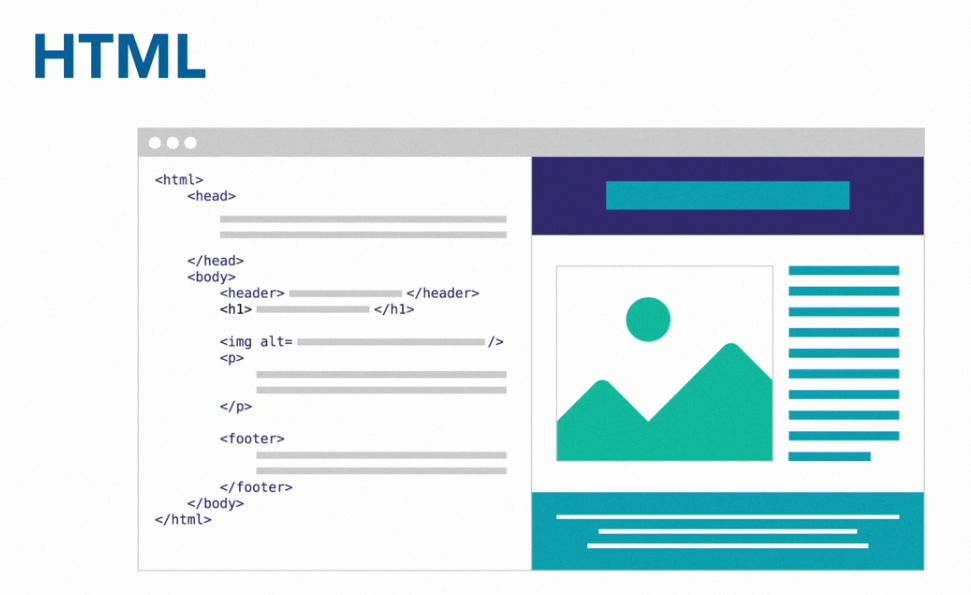
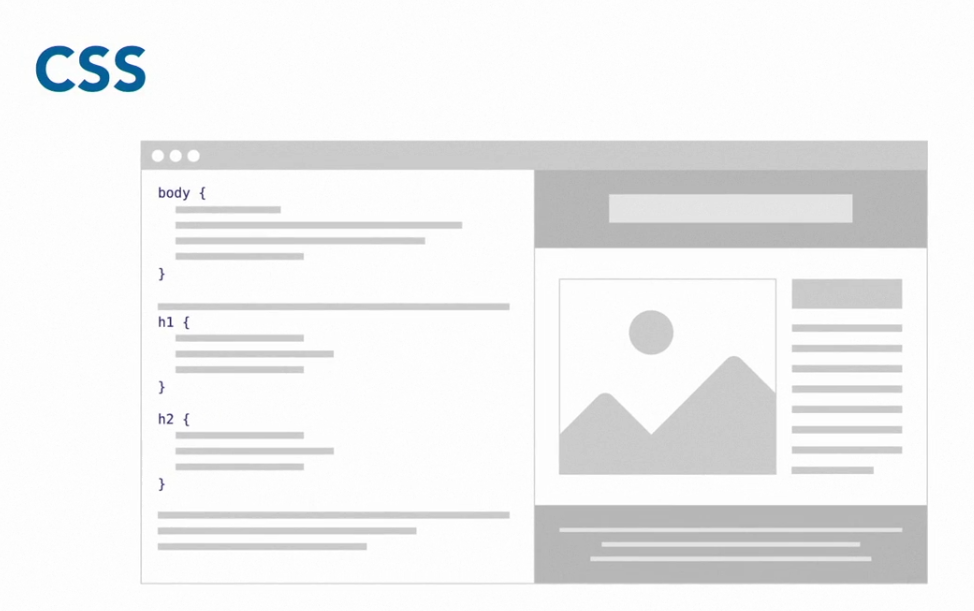
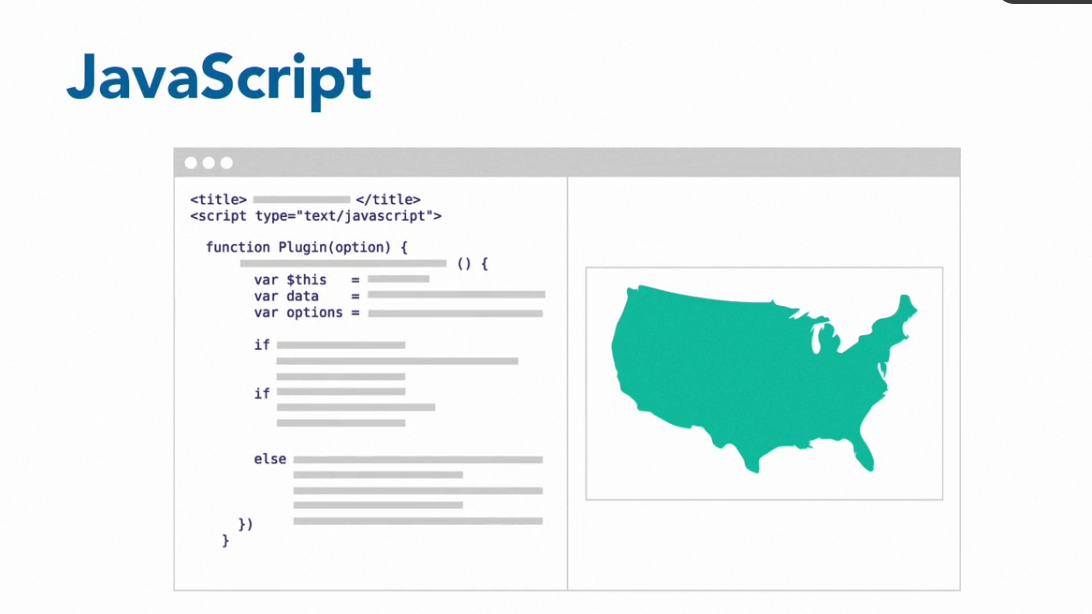

- Which is the most powerful and fragile of the browser programming languages?
- What are the three building blocks of a website
THE SYNTAX OF HTML
Tags
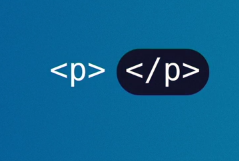
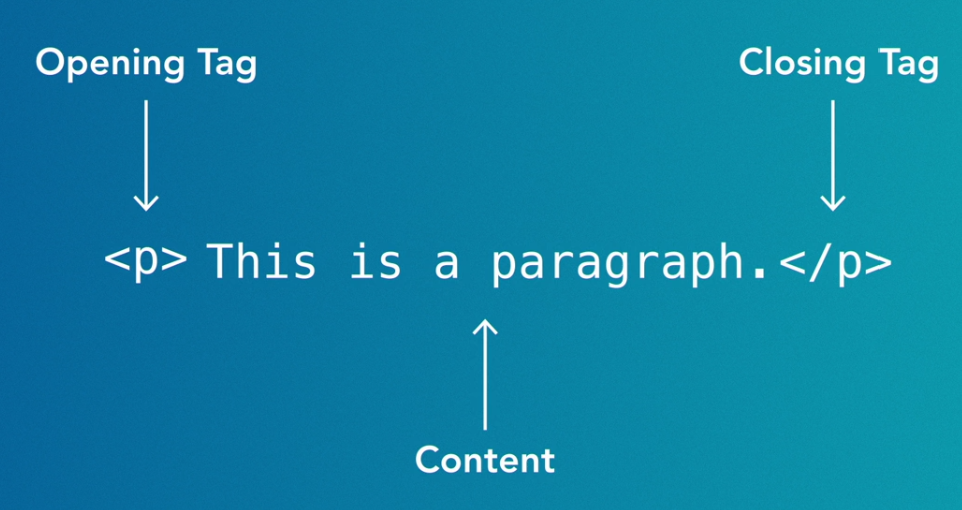
HTML's base building block is the tag. A tag is a building block. It describes what's inside it. Every tag has an opening and a closing tag (some tags open and close at the same point.) I think the easiest way to learn it is just to show a bunch of examples.
<h1>
  This is the title to my document
</h1>
You can see the <h1> and the </h1> surrounding the the text "This is the the title to my document". This is how HTML operates. You can have opening tag which has information or more tags inside of it. In this case we have an h1 tag which is a heading tag: it's used for the biggest title on the page, typically a title. If you rendered that using the browser, it's look like:
This is the title to my document
<div>
  <h1>
    Hi There
  </h1>
</div>
Tags are also opened and closed in a specific order too. The most recently opened tag must be the next closed tag. For example, if I have an h1 instead of a div, the h1 must be closed first.
Types of Tags
So let's explore some of the essential tag types.
- h1, h2, h3, h4, h5, and h6 – Headings. These are the six levels of headings and subheadings you can have. You can see up top of this page we have HTML which is an h1 and then below that we have Types of Tags which is an h2. An h2 is a subheading to an h1. An h3 is a subheading to a h2. Some schools of thought say each page should only have one h1. I'm of the opinion that just use these as it feels appropriate to. Like formatting a Microsoft Word document, there's no "correct" way to do it, just different ways that make more or less sense. Example <h1>Document Title</h1>.
- p – Paragraph. You'll put a paragraph of text together inside of a p tag. Only text goes in p tags. Each one of these paragraphs is a p tag. Example: <p>A paragraph of text</p>.
<h1>Heading 1</h1>
<h2>Heading 2</h2>
<h3>Heading 3</h3>
<h4>Heading 4</h4>
<h5>Heading 5</h5>
<h6>Heading 6</h6>

<p>
 This is a Paragraph
  <br />
 Lorem ipsum dolor sit amet consectetur adipisicing elit. Aliquid, dignissimos.
 Maiores soluta enim in assumenda dolores vel officia doloribus. Vitae amet nam
 velit! Eveniet sequi accusamus maxime error alias cumque.
</p>
- div – Short for division. A div is sort of like a cardboard box. It's not really anything by itself; it's more defined by what's in it. It's a generic container tag for grouping together with other things. You'll use a lot of divs. Very useful with CSS. In general, you want to group together "like" things into a containing tag (like a div) to keep them together. If you have a website with a list of blog posts that each have paragraphs, titles, images, etc. you'll group each post together in a div or other container-type tag typically.
- span – A container for small pieces of text. If a div is like a cardboard box, a span is like a Ziploc bag. It doesn't change the styling of anything by itself but it allows you use CSS and JavaScript later to make that text different in some way.
<div>
	<h1>Hi there</h1>
	<h2>Subheading</h2>
	<p>Here is some text.</p>
</div>

<p>
  Here is some text.
   <span>This text is in a span</span>
  but it doesn't look any
  different.
</p>
- ol, ul, and li – Both ol and ul represent lists. In fact, this list of various tags is a ul! A ul is an unordered list: it's a list of things that could be shuffled and still mean the same thing. If I asked you to list all the teams in a sports league or all the characters on a TV show, those could be presented in any order. An ol is an organized list: what comes first matters. If I ask you to list out the ten most populous cities in the world, there is an order to that and changing the order makes the list incorrect. In either list, each item in the list is an li.
<ul>
	<li>Bob</li>
	<li>Eve</li>
	<li>Alice</li>
</ul>

<ol>
	<li>one</li>
	<li>Two</li>
	<li>Three</li>
</ol>
table, thead, tbody, tr, and td – Like making a table in Word or Excel. If you have a table of data, this is the best way to display it. Just for your context, we used to do terrible, awful things with tables to make websites, way back when. Because of that, some tutorial will tell you never ever use tables. That's not good either because when you have tabular data (something you would put into Excel) then tables are very useful. The table is the container for the whole table, tr represents a row, and td represents one cell in the table.
<table border="2">
	<thead>
		<tr>
			<th>Col 1</th>
			<th>Col 2</th>
			<th>Col 3</th>
		</tr>
	</thead>
	<tbody>
		<tr>
			<td>C1 R1</td>
			<td>C2 R1</td>
			<td>C3 R1</td>
		</tr>
		<tr>
			<td>C1 R2</td>
			<td>C2 R2</td>
			<td>C3 R2</td>
		</tr>
		<tr>
			<td>C1 R3</td>
			<td>C2 R3</td>
			<td>C3 R3</td>
		</tr>
	</tbody>
</table>
Atributes - HTML attributes are special words used inside the opening tag to control the element's behavior. HTML attributes are a modifier of an HTML element type. An attribute either modifies the default functionality of an element type or provides functionality to certain element types unable to function correctly without them. In HTML syntax, an attribute is added to an HTML start tag.
<table border="2">

</table>

<a href="www.facebook.com">Go to facebook</a>
Media Elements
<img
	src="https://images.unsplash.com/photo-1633113087607-bbd9d4b6449a?ixid=MnwxMjA3fDF8MHxlZGl0b3JpYWwtZmVlZHwxfHx8ZW58MHx8fHw%3D&ixlib=rb-1.2.1&auto=format&fit=crop&w=500&q=60"
	alt="Person on a laptop"
	width="200"
	height="200"
/>
<img
	src="resources/images/SuccessMatters.PNG"
	alt="Success Matters"
	width="200"
	height="200"
/>

<audio src="resources/audio/katy_perry_roar.mp3" controls></audio>

<video src="resources/videos/video-1.mp4" width="600" height="325"></video>

<iframe
	width="560"
	height="315"
	src="https://www.youtube.com/embed/IpAp1YNbuGg"
	title="YouTube video player"
	frameborder="0"
	allow="accelerometer; autoplay; clipboard-write; encrypted-media; gyroscope; picture-in-picture"
	allowfullscreen
></iframe>
img – An image. You use this to load images onto the page. This can be confusing because you can use CSS to bring in images too. The key difference is that when the image is apart of the content, like a diagram that shows data you're talking about or a picture that shows something from the article, it should be an img tag. If it's a nice background image or something that's for decoration of your website, use CSS. An img tag needs a src to say where the image is coming from and alt to say what is in the image for screen readers so that the image will still be useful to blind people, people who are hard of seeing, and Google and Bing search engines. img are always self-closing tags.
Form Elements
- form – A group of Html tags related to gathering data from a user. This will be some combination of input, textarea, and select tags. You can then use this form element to send that data to your server. A form tag itself doesn't show anything; it's a just a container for the other tags.
- input – Browser inputs. Sometimes you need to gather input from the user. Luckily for us, the browser is already really good at doing that. It gives us several types of inputs that you can use. One of the most common ones is the text input, seen here: . You can also have these input tags do numbers, dates, colors, checkboxes, radio buttons, and others. We'll explore them more later when we talk about forms. Inputs are always self-closing tags
Form Elements
textarea – Similar to an input but for a lot more text. You'd type long-form responses in here that could linebreaks in it (a linebreak happens when you hit "return" or "enter" on your keyboard.) Despite never having anything inside of a textarea, it is not a self-closing tag. HTML is a really old language and so we have to live with some old quirks.
select and option — Sometimes you want to limit a user to a certain group of options to select from. What country you're from, what month you were born in, etc. A select is a user-interactive input that a user can select an option from a dropdown menu. An option is one of the available options. Each option needs a value that will be sent back to the server if the user select that option. What's inside of the option is what shown to the user
Comments
We, as coders, forget what things do. We write things that are really complicated or we know will be difficult to figure out later. Something to keep in mind is that you are mostly writing code for yourself to read later, not for the computer. The hardest part of writing code is having to maintain it later, not writing it the first time. Writing code the first time is the easier part. Going back and trying to remember what the hell you were thinking is the hard part.
This is where comments can be useful. You can leave little notes in your code that the computer won't read, it'll just ignore them. In HTML, the way you write a comment is <!-- your comments go here -->.
Play Ground
<!-- links -->
<div>
  <a href="https://www.frontendmasters.com">Frontend Masters</a>
  <a href="https://aka.ms/visual-studio-code">Visual Studio Code</a>
  <a href="https://www.codepen.io">CodePen</a>
</div>

<!-- header -->
<div>
  <h1>This is an h1!</h1>
  <h2>This is an h2!</h2>
  <h3>This is an h3!</h3>
  <h4>This is an h4!</h4>
  <h5>This is an h5!</h5>
  <h6>This is an h6!</h6>
</div>

<!-- text empasis -->
<div>
  <strong>This text is strong.</strong>
  <em>This text is emphasized.</em>
</div>

<!-- paragraphs -->
<div>
  <p>Lorem ipsum dolor sit amet consectetur adipisicing elit. Incidunt modi est sapiente in optio quia inventore quis maxime ullam tenetur?</p>
  <p>Maxime quibusdam, dolorum quaerat ducimus inventore sunt pariatur et ea dolore ipsam. Distinctio eum nobis officiis quam quasi exercitationem eaque?</p>
  <p>Tempore quaerat odit sit rem nihil eligendi error quisquam, natus deleniti molestias voluptate nobis, amet repellendus. Aliquam deserunt quia impedit.</p>
  <p>Doloremque expedita earum quidem pariatur amet. Officia ex corporis, repellendus ipsa, cumque quia at voluptas, iste harum dolor debitis labore?</p>
  <p>Et quisquam sit nemo ipsam aliquid provident, ullam eligendi aspernatur placeat fuga nostrum molestiae ab nobis obcaecati nesciunt cupiditate neque.</p>
</div>

<!-- images -->
<div>
  <img src="http://www.placepuppy.net/1p/100/100" alt="an adorable puppy" />
  <img src="http://www.placepuppy.net/2p/100/100" alt="an adorable puppy" />
  <img src="http://www.placepuppy.net/3p/100/100" alt="an adorable puppy" />
</div>

<!-- inputs -->
<div>
  <input /> <!-- with a trailing slash -->
  <input> <!-- without a trailing slash; it's the same thing -->
  <input type="color" />
  <input type="file" />
  <input type="number" />
  <input type="datetime-local" />
  <input type="radio" />
  <input type="checkbox" />
</div>

<!-- textarea -->
<div>
  <textarea></textarea>
</div>

<!-- select -->
<div>
  <select>
    <option value="seattle">Seattle</option>
    <option value="portland">Portland</option>
    <option value="san-francisco">San Francisco</option>
  </select>
</div>

<!-- buttons -->
<div>
  <button>Click me! I don't do anything</button>
</div>

<!-- table -->
<table>
  <tr>
    <td>(0,0)</td>
    <td>(1,0)</td>
  </tr>
  <tr>
    <td>(0,1)</td>
    <td>(1,1)</td>
  </tr>
</table>

<!-- for fun -->
<div>
  <marquee>This is a really old feature that only works in some browsers. You should never use it for a real website.</marquee>
</div>
HTML NEXT STEPS
Attributes
Let's start with a text input tag. There are several types of inputs that we discussed in the previous section: text, color, checkboxes, radio buttons, etc. How can the browser tell which is meant to be what? HTML attributes! Attributes are additional pieces of information that you can attach to HTML tags. We're going to use the type attribute to pass that to the browser.
<input type="checkbox" />
<input type="color" />
<input type="file" />
type is considered an attribute. Different tags have different attributes that they care about. For example, the type attribute is not useful with p, div, h1, etc. You can still put a type attribute on these tags; they'll just ignore them.
CLASSES
Classes are special attributes that can go on any tag, though some you won't use it with. While a class does nothing itself, it allows that tag to be found by your CSS and your JavaScript. Using our house analogy, you don't want to make a rule that says "all walls are south facing." It's nonsensical and you could never build a house that way. Instead, you'd make a rule that says "walls marked south-facing-wall are south facing." This is what classes allow you to do: they allow you to mark your HTML so you can write rules and code to govern them later. Let's see what that looks like.
<div class="header">
  <h1 class="header-title">My Great Blog</h1>
</div>
<div class="blog-posts">
  <div class="post">
    <h1 class="post-title">When Not to Overextend House Metaphors</h1>
    <p class="post-text"> … </p>
  </div>
  <div class="post">
    <h1 class="post-title">Another Great Blog Post</h1>
    <p class="post-text"> … </p>
  </div>
</div>
Now when I go to write CSS later, I can target just post-titles. If I wrote a rule targeting h1s, I'd get all the post-titles and the header-title as well. As you may imagine, you'll want the site header's h1 to look and act different than the blog post title.
IDs
IDs are far less useful than classes. Whereas you'll be using classes everywhere and frequently, you should be using IDs very sparingly. As you see in our above blog-posts HTML, we can re-use classes like post and post-title. This is extremely important. As a coder, you want a piece of code and use it a lot. As coders, we want to write as little code as possible (which we'll explore why later, for now trust me.) For now, be satisfied that I get to write a little bit of code that governs post and have it affect every post on the page.
Let's contrast that with IDs. When you designate something with an ID, you're affirming that this is the only one of those on your website. Not even just that page, but your whole website. Sometimes that is useful; just not very often. Some other coders and tutorials will tell you to never use IDs; I think that's misguided. IDs are a sledgehammer. Most problems don't require a sledgehammer. However sometimes you have problems that need a sledgehammer and then you're really grateful that you have one.
<div class="header">
  <h1 class="header-title">My Great Blog</h1>
</div>
<div class="blog-posts">
  <div id="house-metaphors-post" class="post">
    <h1 class="post-title">When Not to Overextend House Metaphors</h1>
    <p class="post-text"> … </p>
  </div>
  <div class="post">
    <h1 class="post-title">Another Great Blog Post</h1>
    <p class="post-text"> … </p>
  </div>
</div>
HTML & META
So far we've just shown you HTML that produces something concrete, something visual. We now need to talk about HTML that you still need but it won't produce visual things.
Let's start with the absolute basic foundations for an HTML page. Like a house needs a foundation, your HTML document needs a basic framework to get up and going.
<!DOCTYPE html>
<html lang="en">
  <head>
    <title>My amazing HTML Document</title>
  </head>
  <body>
    <h1>Check this out</h1>
    <!-- Your amazing HTML here -->
  </body>
</html>
<!DOCTYPE html>
HTML is an old language. It was invented in 1993! While I'm sure the originators and the early adopters of HTML did their best to make they could, there's no way they could have anticipated that we'd still be using it 25 years and they needs we'd have. As such, HTML has had to evolve in many unexpected ways and part of that is removing bad parts and mistakes that used to HTML as we go along. When they remove bad stuff and add good stuff, they make a new version of HTML. The way we tell the browser that's reading the HTML what version of HTML we're using is this first tag. This particular one is for HTML5, the latest (as of writing) revision of HTML. HTML doesn't get revised very often so this will be the header you'll use for a long time to come.
<html lang="en"></html>
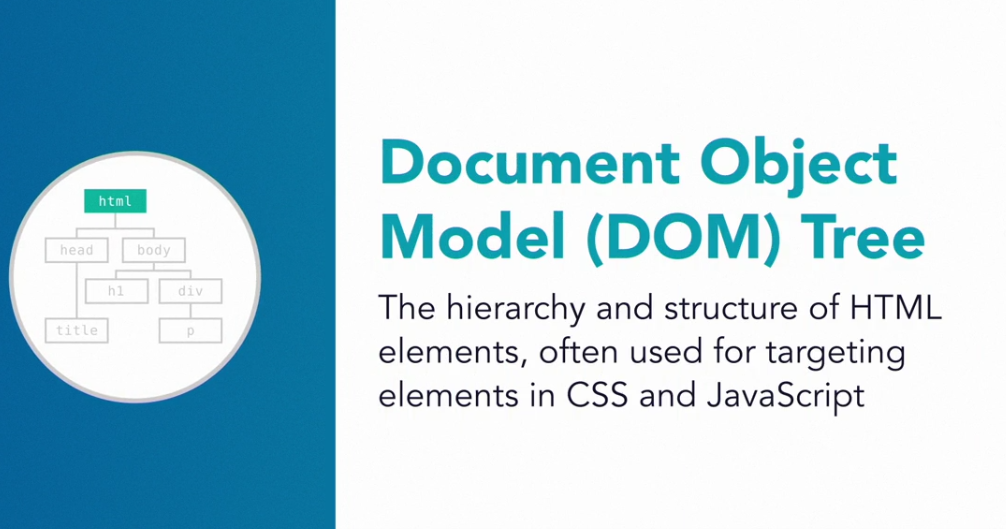
Everything (besides the doctype) goes into your html tag. You'll wrap everything in here. You also should give it a language attribute to let the browser know what language your document is in which is what the lang="en" is communicating. This is useful to the browser to know for a number of reasons.
<head></head>
First, there's <head></head> and also <header></header> and they are different. Be careful about that. We're talking about <head></head>.
We'll first talk about head. Inside of head goes all of the meta-data to help the browser understand how to read your document. In our case, the only thing we're putting in head is the title of the document. What goes inside of title is what will the name of the tab of the browser. It's also the name of the Google or Bing search result. Basically, anywhere that's going to display the title of the web page will use what's inside of here. This is the theme of what goes in head: data that's useful for reasons other than displaying it. We can put a tag in here that prevents pinch-to-zoom on mobile if we needed that (don't do that!) We can put a tag that identifies the description and image that Google would use for search results. We'll see some more later but for now we'll stick with just a title.
<body></body>
All of our "visual" HTML will go in here. All your divs, spans, imgs, etc.
<script></script>, <style></style>, and <link />
We're about to talk about CSS and JavaScript, but know they have the above three tags, script, style, and link are used for them, script being used for JavaScript and the latter two for CSS.
HTML 5 ELEMENTS
- nav
- section
- article
- header
- footer