Introduction to
React

Download the React Browser Extension

Vite.js
"React starter kit". Installs React (and other JavaScript frameworks.)
# In the command line:
npm create vite@latest
# If it asks you to install "create-vite", say "y"
# Enter project name
# Select "React"
# Select "JavaScript" (not "+ SWC")

cd my-project-name
npm install

# Run the application
npm run dev
JSX
import logo from "./logo.svg";

function MyComponent () {
  return <div className="App">
    <header className="App-header">
      <img src={logo} className="App-logo" alt="logo" />
      <h1 className="App-title">Welcome to React</h1>
    </header>
    <p className="App-intro">
    To get started, edit <code>src/App.js</code> and save to reload.
    </p>
  </div>
}
JSX is for templating HTML. It allows you to write HTML-like code directly into your JavaScript code.

Rendering
Anytime your JSX is translated into HTML on your screen
| JSX element |
DOM element |
Rendered element |
|---|
|
|
|
|
|---|---|---|
| React's version of an HTML element | JavaScript's version of an HTML element | What you see on your screen |
<div>My HTML element</div><!-- index.html -->
<!DOCTYPE html>
<html lang="en">
<!-- ,.. -->
<body>
<!-- React creates all HTML inside this div tag -->
<div id="root"></div>
<!-- Loads React JavaScript files here -->
<script type="module" src="/src/main.jsx"></script>
</body>
</html>
Rendering at the top level
// src/main.jsx
import React from "react";
import ReactDOM from "react-dom/client";
import App from "./App.jsx";

// This finds a <div> tag or other element in your HTML file
// where you would like to put your React app
const root = ReactDOM.createRoot(document.getElementById("root"));
// This transforms your React code into HTML
root.render(
  <React.StrictMode>
    <App />
  </React.StrictMode>
);
React Components
Components are UI building blocks. With components, you can organize your code into small, reusable pieces of UI.

function Profile() {
  return (
    <div>
      <img
        src="https://tinyurl.com/uodo4d2"
        alt="Luke Skywalker"
        className="img-responsive"
      />
      <h2>Luke Skywalker</h2>
      <p>Luke Skywalker was a Tatooine farmboy who rose from humble beginnings to become one of the greatest Jedi the galaxy has ever known</p>
    </div>
  );
}
<div>
  <h1>Profiles</h1>
  <Profile />
  <Profile />
</div>
Creating a component
Using a component
ES Modules
With ES modules, you break up your code into multiple files (or modules), and then share code between different files.
By convention, React components are broken into one component per file.

Importing a default module
Exporting as default
import myFunction from "./path/to/file/with/myFunction";

myFunction();
// This really can be anything.
// A function, class, object, variable, etc.
const myFunction = () => {
// code
}
export default myFunction;Importing a default React Component module
Exporting a React Component as default
import Greet from "./path/to/file/with/Greet";

function App() {
  return <div>
    <h1>This is my first blog post!</h1>
    <Greet />
  </div>
}
function Greet() {
return <p>Hello World!<p>;
}
export default Greet;Importing a named module
Exporting as named
import { Greet } from "./path/to/file/with/Greet";

function App() {
  return <div><Greet /></div>
}
export const Greet() {
return <p>Hello World!<p>;
};
Adding CSS to a component
// App.jsx
import "./App.css";

function App() {
  return <div className="App">
    <h1>My App!</h1>
  </div>
}
/* App.css */
.App {
background-color: yellow;
}Adding an image to a component
import projectImage from "./path/to/image.png";

function User() {
  return <div>
    <h1>John Wayne</h1>
    <!-- Images that are a part of your React site -->
  	<img src={projectImage} width="200" height="300" />

    <p>Connect with John Wayne</p>
    <!-- Images on another website -->
    <img src="https://www.facebook.com/profile/johnwayne" />
  </div>
}Rules of JSX
1. If no closing tags, elements must end with />
<img src="logo.png" alt="Logo" />2. You must use camel case
<input type="text" autoCorrect="off" />Not Allowed
function MyComponent() {
  return
     <p>Paragraph 1</p>
     <p>Paragraph 2</p>
}
a.) a single parent element ...
It can return one of the following:
b.) a React fragment
c.) or an array of elements
function MyComponent() {
  return [
     <p>Paragraph 1</p>,
     <p>Paragraph 2</p>
  ];
}
function MyComponent() {
return <>
<p>Paragraph 1</p>
<p>Paragraph 2</p>
</>
}function MyComponent() {
return <div>
<p>Paragraph 1</p>
<p>Paragraph 2</p>
</div>
}Rules of JSX
5. A React component cannot return sibling elements.
// We must call this "ProfileImage" instead of "profileImage"
function ProfileImage() {
  return <img src="myavatar.jpg" alt="My profile image" />;
}

// We must call this "Profile" instead of "profile"
function Profile() {
  return <>
    <h1>Nevena Draganov</h1>
    <ProfileImage />
  </>
}
Rules of JSX
6. Component names must be capitalized.
You can write JavaScript expressions directly into JSX
(Expressions evaluate to a single value)
function ComponentName () {
  return <div>{/* Javascript goes inside the { } */}</div>
}
Variables
// Where "price" is a variable
<div>Total $ {price}</div>
Ternary expression
// Where "price" is a variable
<div>
  Total {price > 0 ? "$" + price : "FREE"}
</div>
Single line expressions
// Where "price" is a variable
<div>Total $ {price.toFixed(2)}</div>
Block comments
{/* This is how you write comments in JSX */}You can write JavaScript expressions directly into JSX
(Expressions evaluate to a single value)
Functions
const displayDollars = num => {
// or function displayDollars(num) {
  return "$" + num.toFixed(2);
}

// ... JSX
<div>Total {displayDollars(5)}</div>
Immediately Invoked Functional Expressions (IIFE)
<div>
  Total
  {(() => {
    return " $" + num.toFixed(2);
  })()}
</div>
You can write JavaScript expressions directly into JSX
(Expressions evaluate to a single value)
const links = ["www.grumpycats.com/", "omfgdogs.com/"];

const newLinks = links.map(link => {
  return "https://" + link;
});

console.log(newLinks);
//[ 'https://www.grumpycats.com/', 'https://omfgdogs.com/' ]
Looping through arrays with
Array.map()
JS Review
Looping Through Arrays in JSX
Arrays should include keys for better performance
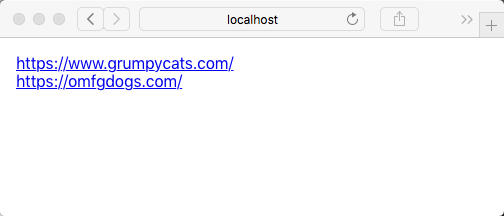
const links = ["https://www.grumpycats.com/", "https://omfgdogs.com/"];

function Links() {
  return <div>
    {links.map((link) => {
      return <div>
        <a href={link}>{link}</a>
      </div>
    })}
  </div>
}
const links = ["https://www.grumpycats.com/", "https://omfgdogs.com/"];
function Links() {
return <div>
{links.map((link, index) => {
return <div key={"link-" + index}>
<a href={link}>{link}</a>
</div>
})}
</div>
}
const linkObj = {
  "Grumpy Cats": "www.grumpycats.com/",
  "Happy Dogs": "omfgdogs.com/"
};

const links = Object.values(linkObj);

console.log(links);
// [ 'www.grumpycats.com/', 'omfgdogs.com/' ]
Getting an array of values
Object.values()
JS Review
Props
Arguments passed into React components

Creating a component with props
  console.log(props);
  // { myString: "my value", myNumber: 5 }
<ComponentName myString="my value" myNumber={5} />Using a component with props
Props is an object that contains any kind of data (e.g. strings, numbers, booleans, arrays, objects, null, undefined)
Props
function ComponentName(props) {
  console.log(props);
  // { myString: "my value", myNumber: 5 }
  return <p>{props.myProp}</p>
}
You need to use { } when the value is not a string
function Profile(props) {
  return <div>
      <img src={props.image} alt={props.name} />
      <h2>{props.name}</h2>
      <p>{props.bio}</p>
    </div>
}
function Profiles() {
  return (
    <div>
      <h1>Profiles</h1>
      <Profile
        name="Luke Skywalker"
        image="https://tinyurl.com/uodo4d2"
        bio="Luke Skywalker was a Tatooine farmboy..."
      />
      <Profile
        name="Leia Organa"
        image="https://tinyurl.com/o8shmhl"
        bio="Princess Leia Organa was one of the Rebel..."
      />
    </div>
  );
}
Creating a component
Using a component
Props
Default Function Parameters
const displayError = ({ status = "error", message = "Oops! Something went wrong." }) => {
  console.log(status); // warning
  console.log(message); // Oops! Something went wrong.
};

displayError({ status: "warning" });
JS Review
Creating a component with default props
function ButtonLink({ href, text="Read More" }) {
  return (
    <a href={href} className="button">
      {text}
    </a>
  );
}
<ButtonLink href="https://www.example.com" />To use a component's default prop, don't pass in a prop
Default Props
Children Props
Put children elements inside a React component
Using a component with children props
<ComponentName>
  <p>Lorem ispum ...</p>
</ComponentName>
function ComponentName(props) {
return <p>{props.children}</p>
}Creating a component with children props
Children Props
Using a component
Creating a component
function Profile() {
  return (
    <div>
      <img src="https://tinyurl.com/o8shmhl" alt="Leia Organa" />
      <h2>Leia Organa</h2>
      <ButtonLink href="https://en.wikipedia.org/wiki/Princess_Leia">
        Select
      </ButtonLink>
    </div>
  );
}
function ButtonLink(props) {
return (
<a href={props.href} className="button">
{props.children}
</a>
);
}function Profile() {
return (
<div>
<ProfileImage
src="https://tinyurl.com/uodo4d2"
alt="Luke Skywalker"
width={250}
height={250}
/>
</div>
);
}function ProfileImage(props) {
return <img
src={props.src}
alt={props.alt}
width={props.width}
height={props.height}
className="circle"
/>
}function ProfileImage(props) {
return <img
{...props}
className="circle"
/>
}Spread Attributes
...props
Shorter syntax that makes your component very flexible
Using a component
Creating a component
Conditional Rendering
only display something on the screen
if a condition is true
Ternary Operator
// With the ternary operator
let price = 2;

console.log(
  price1 > 0
    ? "$" + price.toFixed(2)
    : "FREE"
); // $2.00
// Without the ternary operator
// If else statement instead
let price = 2;

if (price > 0) {
  console.log("$" + price.toFixed(2));
}
else {
  console.log("FREE");
}
JS Review
Conditional rendering with the ternary operator
function Profile(props) {
  return (
    <div>
      <img src={props.image} alt={props.name} width="200" />
      <h2>{props.name}</h2>
      {/* Only render if character has a profile page */}
      {props.profilePage ? <a href={props.profilePage}>View Profile</a> : null}
    </div>
  );
}
function Profiles() {
return <Profile
name="Storm Trooper"
image="https://tinyurl.com/v5uyvgs"
/>
}This does NOT have a profilePage, so it will not display a profile link
This has profilePage, so it WILL display a profile link
function Profiles() {
  return <Profile
      name="Leia Organa"
      image="https://tinyurl.com/o8shmhl"
      profilePage="https://en.wikipedia.org/wiki/Princess_Leia"
    />
}
{props.profilePage ? <a href={props.profilePage}>View Profile</a> : null}Short circuiting
let price1 = 2;
let price2 = 0;

price1 > 0 && console.log("$" + price1.toFixed(2));
// $2.00

price2 > 0 && console.log("$" + price2.toFixed(2))
JS Review
Conditional rendering with short circuiting
function Profile(props) {
  return (
    <div>
      <img src={props.image} alt={props.name} width="200" />
      <h2>{props.name}</h2>
      {/* Only render if character has a profile page */}
      {props.profilePage && <a href={props.profilePage}>View Profile</a>}
    </div>
  );
}
function Profiles() {
return <Profile
name="Storm Trooper"
image="https://tinyurl.com/v5uyvgs"
/>
}This does NOT have a profilePage, so it will not display a profile link
function Profiles() {
  return <Profile
      name="Leia Organa"
      image="https://tinyurl.com/o8shmhl"
      profilePage="https://en.wikipedia.org/wiki/Princess_Leia"
    />
}
{props.profilePage && <a href={props.profilePage}>View Profile</a>}This has profilePage, so it WILL display a profile link
State
Any data your component needs to know about and can change over time."
Examples
status: 'warning',
temperature: 90.8
isActive: true
State can be any type of data (e.g. strings, numbers, booleans, arrays, objects, null, undefined)
Props
- Arguments passed into the component
- Cannot be changed by the component (but a component can receive different props)
State
- Constants / variables declared inside the component
-
Changes inside the component
vs
import { useState } from "react";

function ComponentName() {
  const [value, setValue] = useState("optional starting value");
  return // ...
}
useState() hook
setValue("new value");Updating state
console.log(value);Accessing state
return <p>{value}</p>declares and updates state
import { useState } from "react";

function Clock() {
  const [datetime, setDatetime] = useState(new Date());
  // IMPORTANT! It will cause memory leaks and bugs if you put setDatetime inside setTimeout
  // We will talk about a better way to do this with the useEffect hook later
  window.setTimeout(() => {
    setDatetime(new Date());
  }, 1000);
  return (
    <>
      <h1>Clock</h1>
      <h2>{datetime.toString()}</h2>
    </>
  );
}

export default Clock;
Whenever state or props change, the component reacts and immediately re-renders what has changed to the screen.

setValue(...)

<Component myProp={...} />
React components are driven by state.
What you see on the screen stays in sync with what is in state and props.
import { useState } from "react";

function Likes() {
  const [likes, setLikes] = useState(0);
  const like = () => setLikes(likes + 1);
  return (
    <div>
      <button onClick={like}>
        {likes} Likes
      </button>
    </div>
  );
}
Increasing the value of a counter
import { useState } from "react";

function ComponentName() {
  const [value, setValue] = useState("optional starting value");
  return // ...
}
Rules of useState (and other hooks)
2. Only call hooks at the top level
This means don't call hooks inside loops, conditions, nested functions or after return
3. Only use hooks within React component functions (and custom hooks, which we will talk about later)
useState should go here
How would you update state in this example?
import { useState } from "react";
import picture from "./picture.jpg";
function Warning() {
const [showWarning, setShowWarning] = useState(true);
if (showWarning) {
return <div className="alert alert-warning" role="alert">
<strong>Warning!</strong> If you dismiss this, you will see a disturbing picture.
<button className="close">
<span>×</span>
</button>
</div>
}
else return <img src={picture} width="300" />;
}Using an
Event
| Arrays | Objects Literals |
|---|---|
| Each item belongs to a list of things. (Usually, the things have something in common.) | A list of different properties (characteristics) that describe a thing. |
| Items in sequence | Key value pair |
| Order matters and is gaurenteed. | Order does not matter and is not gaurenteed. |
| Items can occur more than once. | Keys must be unique. Values do not have to be unique. |
Assigning Values
with constants and variables
const name = "T-Shirt";
const size = "M";

const item = {
    name: name,
    size: size
};

console.log(item);
// { name: "T-Shirt", size: "M" }
Assigning Values
with constants and variables
const name = "T-Shirt";
const size = "M";

const item = {
    name,
    size
};

console.log(item);
// { name: "T-Shirt", size: "M" }
This will only work if the key has the same name as the variable
Method 1 - Dot Syntax
Accessing a Value
const person = {
    firstName: "John",
    lastName: "Adams"
};
Method 2 - Bracket Syntax
console.log( person.firstName ); // "John"
console.log( person["firstName"] ); // "John"
Unpacking values from an object with
Destructuring
const driver = {
  id: 123456789,
  name: 'Jamal Taylor'
};

// Without destructuring
const id = driver.id;
const name = driver.name;

console.log(id); // 123456789
console.log(name); // Jamal Taylor
const driver = {
  id: 123456789,
  name: 'Jamal Taylor'
};

// With destructuring
const { id, name} = driver;


console.log(id); // 123456789
console.log(name); // Jamal Taylor
Without destructuring
With destructuring
Destructuring an object
that is passed in as an argument to a function
// Without destructuring
const print = (driver) => {
  let id = driver.id;
  let name = driver.name;
  console.log(id, name);
  // 123456789 Jamal Taylor
};

print({
  id: 123456789,
  name: 'Jamal Taylor'
});
// With destructuring
const print = ( { id, name } ) => {
  console.log(id, name);
  // 123456789 Jamal Taylor
};


print({
  id: 123456789,
  name: 'Jamal Taylor'
});
Without destructuring
With destructuring
Adding a New Property
let person = {
  firstName: "John",
  lastName: "Adams"
};

person.title = "Mr.";
// or
person["title"] = "Mr.";

console.log(person);
// { firstName: "John", lastName: "Adams", title: "Mr." }
Changing a Value in an Object
let song = {
  title: "Mary Had a Little Lamb",
  yearReleased: 1578
};

song.title = "Smells Like Teen Spirit";
// or
song["title"] = "Smells Like Teen Spirit";

console.log(song);
// { title: "Smells Like Teen Spirit", yearReleased: 1578 }
TypeScript
What will this print?
const greet = (name) => {
  return `Hello ${name}`;
};
console.log(greet()); // What is this?
const greet = (name) => {
return `Hello ${name}`;
};
console.log(greet()); // Hello undefinedWhat will this print?
const sum = (x, y) => {
  return x + y;
}
console.log( sum(10, undefined) ); // What is this?
console.log( sum(10) ); // What is this?
const sum = (x, y) => {
return x + y;
}
console.log( sum(10, undefined) ); // NaN
console.log( sum(10) ); // undefinedSo What is TypeScript?
a type system for JavaScript
It helps us catch errors with typed annotations or types.
let myCarName: string = "Betsy";
It is only active during development, so it won't cost performance.
Why do we care about types?
- With types, we can get immediate feedback from the typescript compiler when our code has type related errors and bugs.
- Types allow other engineers to understand what values are floating around our codebase.
Code Along with Quokka.js

command+shift+p

ctrl+shift+p

You might need to add this to the end of your new TypeScript file:
export {};
Typed Annotations
We, developers, tell typescript what to type.
Type Inferance
Implicit. Typescript figures out the type of a variable, constant or object.
Explicit. We tell typescript the type of a variable, constant, or object.
Typescript guesses the type.
Type Inferences
const myCarName = "Betsy";If declaration and initialization are on the same line, TypeScript will figure out that myCarName is type string.
declaration
initialization
When typed inferances don't work
The Any Type
Cons of this:
Avoid variables with type any.
let canUserSeeRRatedMovie;
if (canUserSeeRRatedMovie >= 18) {
  canUserSeeRRatedMovie = true;
}
else canUserSeeRRatedMovie = false;- TypeScript has no idea what this is and cannot check type
- Delayed initialization
- Mixing of types
let birthday: string | number = 1999;
birthday = '04/25/1999';
Mixed Types
use the | operator
Typed annotations with
Functions
const sum = (x: number, y: number): number => {
  return x + y;
}

function sum(x: number, y: number): number {
  return x + y;
}
// Style 1
const vehicles: string[] = ["Honda", "Chevy", "Horse driven wagon"];
// Style 2
const vehicles: Array<string> = ["Honda", "Chevy", "Horse driven wagon"];
Typed Arrays
where each item is the same type
Why do we care?
- TypeScript can prevent us from adding incompatible values to the array.
- We can get help with high order functions ( e.g. Array.map(), Array.forEach(), Array.reduce() )
type CarType = {
  carType: string;
  mileage?: number;
}

const betsy: CarType = {
  carType: "sedan",
  mileage: 75000
};

const describeCar = (obj: CarType) => {
  console.log(`My car is a ${obj.carType}`);
  // My car is a sedan
};
Typed annotations with
Objects
Interfaces
types for object types; like a contract
Interfaces
with object literals
interface ICar {
  carType: string;
  mileage?: number;
}

const betsy: ICar = {
  carType: "sedan",
  mileage: 75000
};

const describeCar = (obj: Car) => {
  console.log(`My car is a ${obj.carType}`);
  // My car is a sedan
};
You use an interface instead of a type annotation when your type is shared and reused:
- Same variable, constant or object has the same types
- Extending types
- Union of types
Extending Interfaces
interface IAutomobile {
  carType: string;
  mileage?: number;
}

interface ICommercialVehicle extends IAutomobile {
  company: string
};

const iceCreamTruck: ICommercialVehicle = {
  carType: "truck",
  mileage: 75000,
  company: "Frozen on Wheels"
};

const describeVehicle = (obj: ICommercialVehicle) => {
  console.log(`My car is a ${obj.carType}`);
  // My car is a sedan
};
Primitive Types
- Number
- String
- Boolean
- Undefined
- Null
- Symbol
- BigInt
Object Types
- Object literals
- Arrays
- Classes
- Instances of classes
- Functions
Vite
Vite.js
"React starter kit". Installs React (and other JavaScript frameworks.)
# In the command line:
npm create vite@latest
# If it asks you to install "create-vite", say "y"
# Enter project name
# Select "React"
# Select "JavaScript" (not "+ SWC")

cd my-project-name
npm install

# Run the application
npm run dev
What is Vite.js?
- Vite means "fast" in French.
- Modern frontend tool for building web apps.
- Provides:
- Super-fast development server.
- Optimized production builds.
- Supports JavaScript frameworks like React, Vue, and more.
Why Use Vite.js?
- Faster startup: Instant dev server, even for large projects.
- Hot Module Replacement (HMR): See code changes instantly.
- Simpler configuration: Easy to set up and extend.
- Optimized builds: Uses Rollup for smaller bundles.
Installing Vite.js
npm create vite@latest- Select your framework (e.g., React).
- Choose "JavaScript" (or "TypeScript" for TS projects).
- Install dependencies:
cd my-project
npm install
npm run dev
Vite Project File Structure
my-project/
├── index.html           # Entry point for the app
├── package.json         # Project dependencies and scripts
├── vite.config.js       # Vite configuration file
├── public/              # Static assets served as-is
│   └── logo.png
└── src/                 # Source code folder
    ├── main.js          # JavaScript entry point
    ├── App.jsx          # Main React component (for React apps)
    ├── components/      # Reusable components
    ├── styles/          # CSS or SCSS files
    └── assets/          # Assets like images or fonts
Vite Configuration Files
// vite.config.js
import { defineConfig } from 'vite';
import react from '@vitejs/plugin-react';

export default defineConfig({
  plugins: [react()],      // Add plugins (e.g., React support)
  server: {
    port: 3000,            // Development server port
    open: true,            // Automatically open in browser
  },
  build: {
    outDir: 'dist',        // Output folder for production build
    sourcemap: true,       // Generate source maps
  },
  resolve: {
    alias: {               // Custom import paths
      '@': '/src',
    },
  },
});
Modern JavaScript by Default
What are ES Modules (ESM)?
- ES Modules are the official standardized module system in JavaScript.
- Allow you to split code into reusable pieces.
- Use
importandexportsyntax for better organization and performance.
// utils.js
export function greet(name) {
  return `Hello, ${name}!`;
}

// main.js
import { greet } from './utils.js';

console.log(greet("Jamal")); // Output: Hello, Jamal!
JSX
import logo from "./logo.svg";

function MyComponent () {
  return <div className="App">
    <header className="App-header">
      <img src={logo} className="App-logo" alt="logo" />
      <h1 className="App-title">Welcome to React</h1>
    </header>
    <p className="App-intro">
    To get started, edit <code>src/App.js</code> and save to reload.
    </p>
  </div>
}
JSX is for templating HTML. It allows you to write HTML-like code directly into your JavaScript code.
Rendering
Anytime your JSX is translated into HTML on your screen
| JSX element |
DOM element |
Rendered element |
|---|
|
|
|
|
|---|---|---|
| React's version of an HTML element | JavaScript's version of an HTML element | What you see on your screen |
<div>My HTML element</div><!-- index.html -->
<!DOCTYPE html>
<html lang="en">
<!-- ,.. -->
<body>
<!-- React creates all HTML inside this div tag -->
<div id="root"></div>
<!-- Loads React JavaScript files here -->
<script type="module" src="/src/main.jsx"></script>
</body>
</html>
Rendering at the top level
// src/main.jsx
import React from "react";
import ReactDOM from "react-dom/client";
import App from "./App.jsx";

// This finds a <div> tag or other element in your HTML file
// where you would like to put your React app
const root = ReactDOM.createRoot(document.getElementById("root"));
// This transforms your React code into HTML
root.render(
  <React.StrictMode>
    <App />
  </React.StrictMode>
);
React Components
Components are UI building blocks. With components, you can organize your code into small, reusable pieces of UI.
function Profile() {
  return (
    <div>
      <img
        src="https://tinyurl.com/uodo4d2"
        alt="Luke Skywalker"
        className="img-responsive"
      />
      <h2>Luke Skywalker</h2>
      <p>Luke Skywalker was a Tatooine farmboy who rose from humble beginnings to become one of the greatest Jedi the galaxy has ever known</p>
    </div>
  );
}
<div>
  <h1>Profiles</h1>
  <Profile />
  <Profile />
</div>
Creating a component
Using a component
ES Modules
With ES modules, you break up your code into multiple files (or modules), and then share code between different files.
By convention, React components are broken into one component per file.
Importing a default module
Exporting as default
import myFunction from "./path/to/file/with/myFunction";

myFunction();
// This really can be anything.
// A function, class, object, variable, etc.
const myFunction = () => {
// code
}
export default myFunction;Importing a default React Component module
Exporting a React Component as default
import Greet from "./path/to/file/with/Greet";

function App() {
  return <div>
    <h1>This is my first blog post!</h1>
    <Greet />
  </div>
}
function Greet() {
return <p>Hello World!<p>;
}
export default Greet;Importing a named module
Exporting as named
import { Greet } from "./path/to/file/with/Greet";

function App() {
  return <div><Greet /></div>
}
export const Greet() {
return <p>Hello World!<p>;
};
Adding CSS to a component
// App.jsx
import "./App.css";

function App() {
  return <div className="App">
    <h1>My App!</h1>
  </div>
}
/* App.css */
.App {
background-color: yellow;
}Adding an image to a component
import projectImage from "./path/to/image.png";

function User() {
  return <div>
    <h1>John Wayne</h1>
    <!-- Images that are a part of your React site -->
  	<img src={projectImage} width="200" height="300" />

    <p>Connect with John Wayne</p>
    <!-- Images on another website -->
    <img src="https://www.facebook.com/profile/johnwayne" />
  </div>
}Rules of JSX
1. If no closing tags, elements must end with />
<img src="logo.png" alt="Logo" />2. You must use camel case
<input type="text" autoCorrect="off" />Rules of JSX
3. Some attributes have different names
<header className="App-header">
  ...
</header>

<label htmlFor="email">Email</label>
<input type="email" id="email" />
4. JSX must follow the word return
// The parentheses () and trailing semicolon are optional
return (
  <div>My JSX</div>
);