ZARP Gaming
A guide to being an SSRP Moderator
Guide made by The Gamer Guy
We will be looking at the following :
- Commands
- The Logs
- The Keypad Checker
/tp
This command is used to teleport. You can type in the command to teleport yourself to your cursor or you can enter a name at the end of the command to teleport a different player.
/back
This command is used to teleport you to your last position before you teleported. Yet again you can insert a name at the end of the command to teleport the selected player to their last position.
Commands
/goto
This command followed by a name or a Steam ID will teleport you to the chosen player. You can return with /back
/warn
The warn command is your essential command as a moderator. Type the command and insert a name and reason to warn them. Do not random warn and do not warn other members of staff.
/unwarn
This command removes the warning of a player. Just insert their name at the end of the command to unwarn them. Do not unwarn someone who was warned by a different member of staff unless you have their permission.
/bring
Entering a name at the end of this command will teleport the selected user to you. We do not advise that you use this as you can not return them with the /back command.
/kick
Insert a name or Steam ID at the end of this command to kick the chosen user from the current server. They will be able to reconnect after though.
/freeze
Typing this command followed by a name or Steam ID will freeze the selected user in place. They will not be able to use their cursor to look around and they will not be able to walk, jump, shoot etc.
/unfreeze
This command followed by a name or Steam ID will unfreeze the selected player and let them regain their control. Using this command on someone who is not frozen will not do anything.
Admin chat
This can be used to contact other staff members. Type /// or @ followed by a message will send it into admin chat.
The Logs
- Admin Requests
- Warnings
- Logging
The Logs are separated into 3 different tabs. To get up the menu, press F1. We will look at :
Admin Requests
This shows all of the current f1s, the Priority on the left shows how long it's been there, next to that is the person's name and reason, and to the far right you will see if someone is handling the f1 or not. Right click and press handle this f1 to take it.

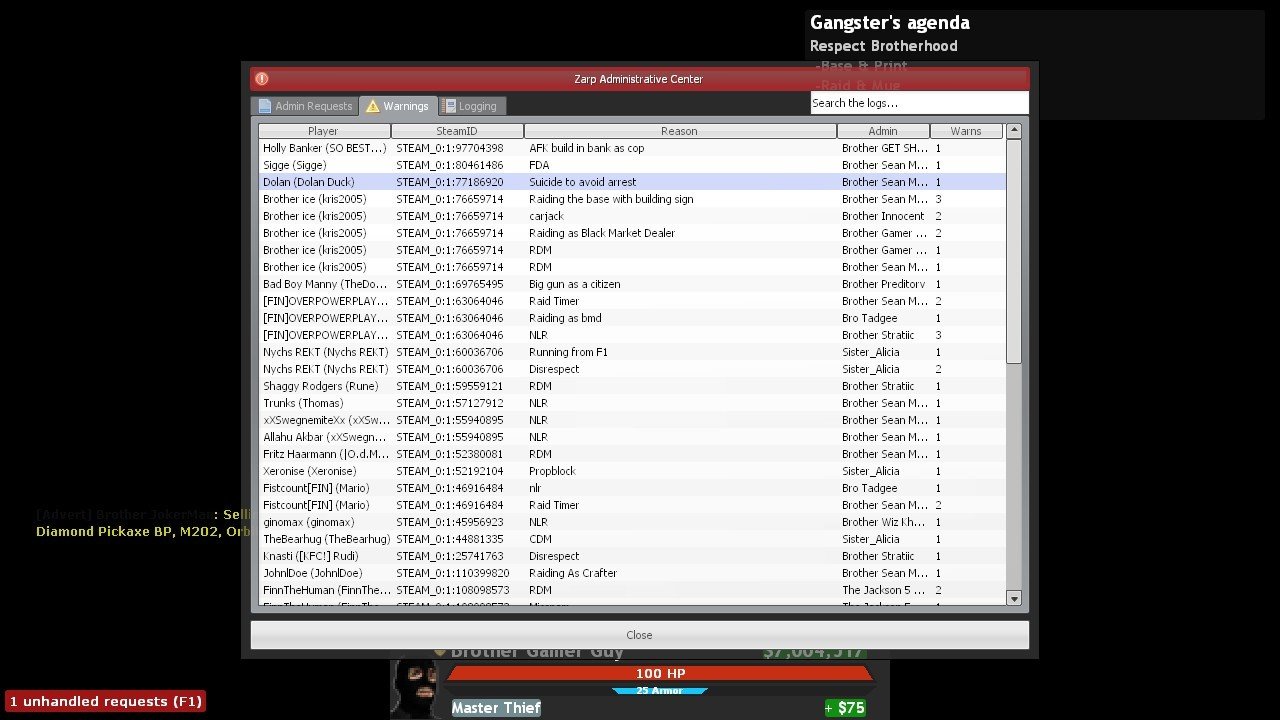
Warnings
This tab shows all of the current warnings, although F6 shows you all the punishments, this shows you all the warnings given since you've been online.
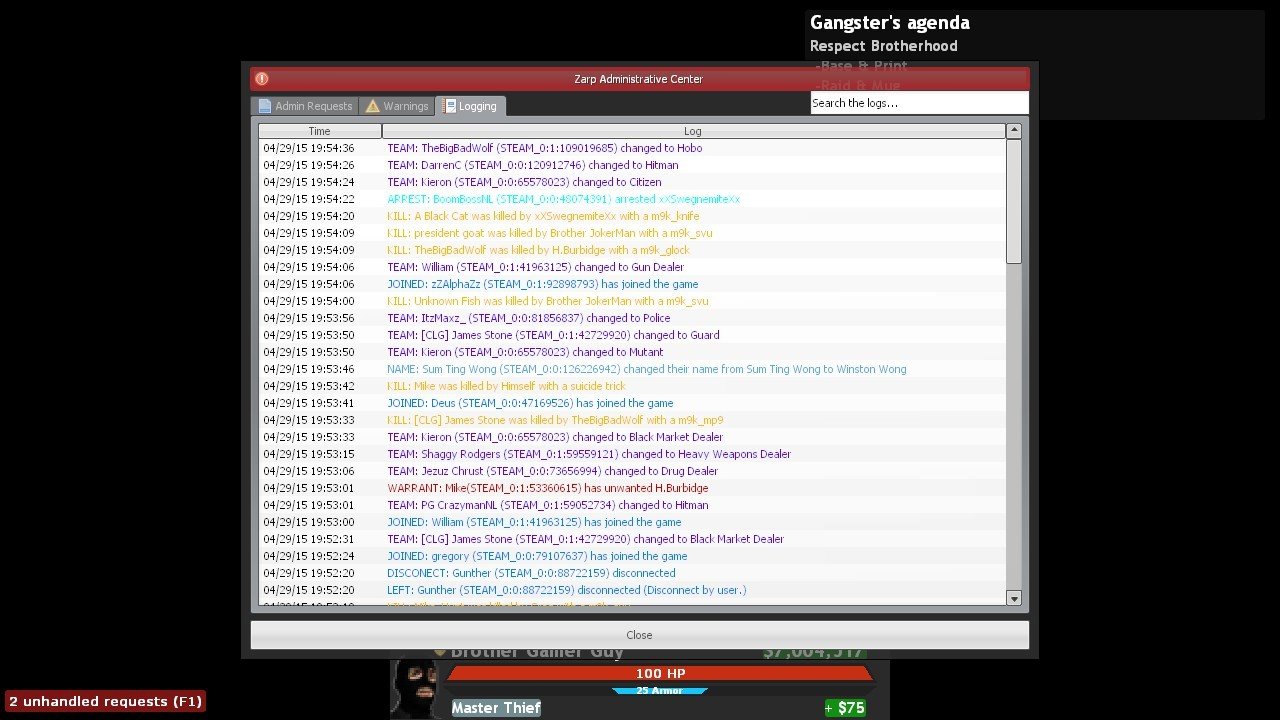
Logging
This is the Logging tab, you can scroll around to see everything going on, but if you want more detail of a person, type their name or Steam ID into the search box.
The Keypad Checker
The keypad checker is used to find connected fading doors and to see their delay time. Left click on a keypad to see it's connected fading doors and delay time.
So you're all done....
Just remember that now you have your moderator tag, that you represent ZARP, so no rule-breaking and play and judge fairly. You can change to Mod on Duty by going into the f4 menu, scrolling to the bottom and clicking Mod on Duty.
On behalf of the SSRP Administrative Team, congratulations.
The Forums.
If you ever need any extra help, or if you want to play some forums games or maybe apply for Administrator one day, you can do all of this at www.zarpgaming.com