基本介紹
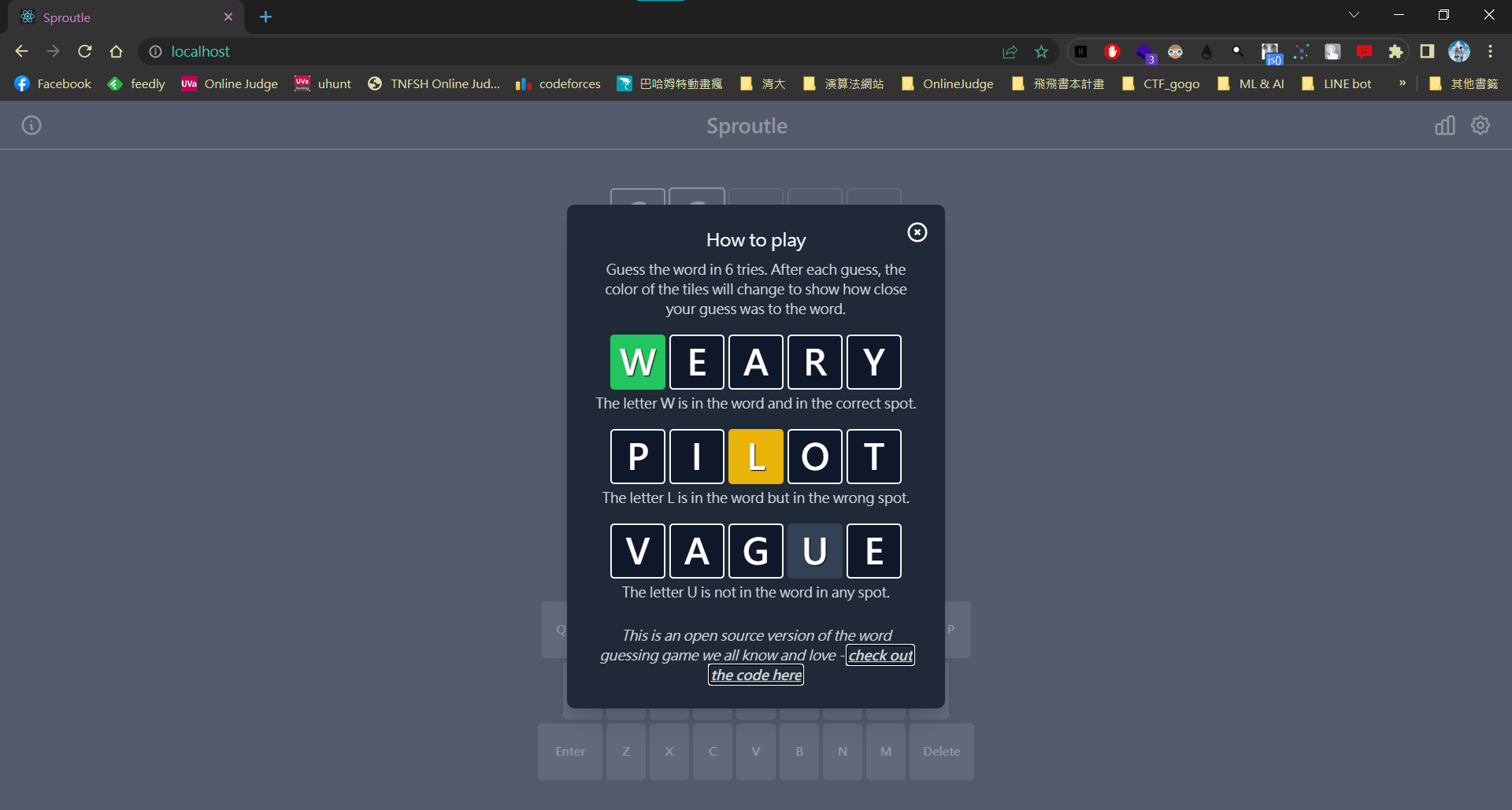
遊戲規則介紹
- 每個使用者都會有自己的一組正確答案
- 每次猜測的字串長度為 5
- 最多猜測 6 次
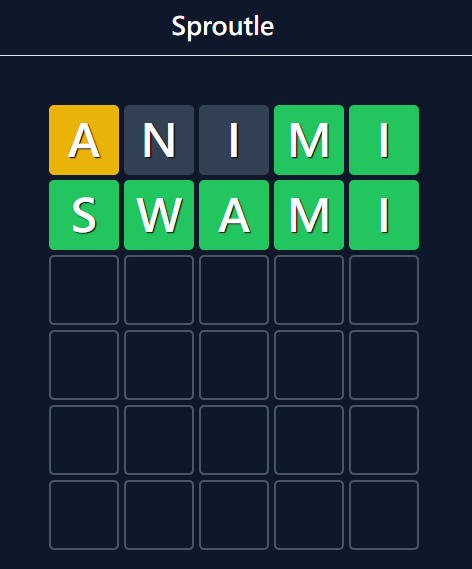
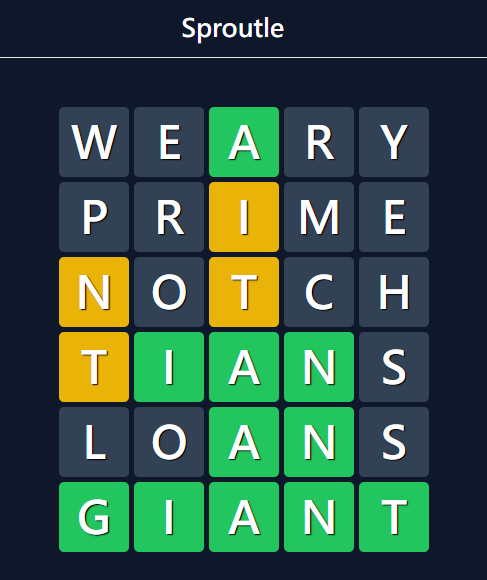
- 每次的猜測需要將每個字元一狀態上色
- 綠色 - 字母出現在答案中且位置正確
- 黃色 - 字母出現在答案中但位置錯誤
- 灰色 - 字母沒出現在答案中
環境建構
- Git
- Docker
- Docker Compose
- Sproutle 檔案
Git
- 只有使用 Windows 需要安裝
- 用來下載 Sproutle 檔案
- https://git-scm.com/download/win
Docker
- 為了讓開發環境相同需要使用
- Windows/MacOS
- Linux
Docker
- Windows/MacOS
- 裝了 Docker Desktop 就會連帶裝好 Docker Compose 了
- 如果裝完打不開,請繼續看下面的步驟
1. 下載並安裝 Docker Desktop
Docker(Windows)
2. 進入 Bios
在開機出現品牌 Logo 或是圖片的時候按按鈕進入
不同廠牌的電腦進入 Bios 的方式也不同,以下列舉幾個常見廠牌
| 品牌 | 按鍵 |
|---|---|
| Acer | F2 或 DEL |
| ASUS | F2 或 DEL |
| HP | ESC 或 F10 |
| MSI | DEL |
| MS Surface | 音量鍵上鍵 |
| Lenvo | Enter+F1 或 F1 |
Docker(Windows)
3. 找到 虛擬化技術、VT-d/VT-x 並開啟
Docker 要在 windows 上執行需要先開起虛擬化技術的功能
VT-d 和 VT-x 是不同版本的硬體輔助虛擬化技術
看 Bios 上是哪個就開啟哪個即可
Docker(Windows)
2. 找到 虛擬化技術、VT-d/VT-x 並開啟
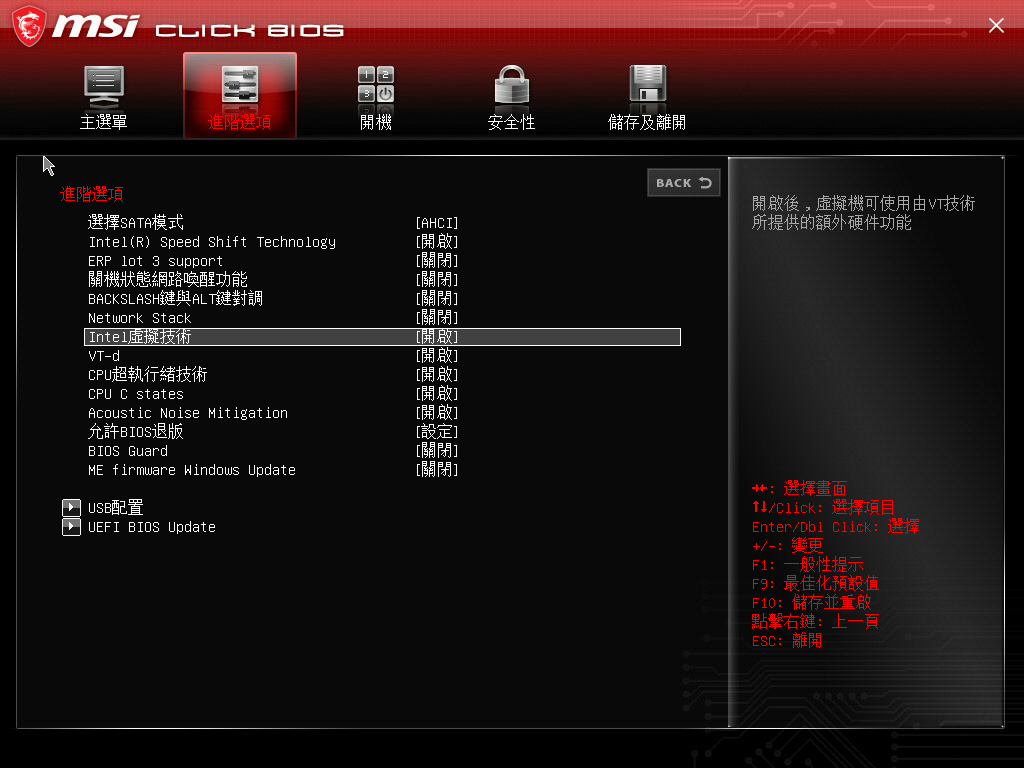
Docker(Windows)
2. 找到 虛擬化技術、VT-d/VT-x 並開啟
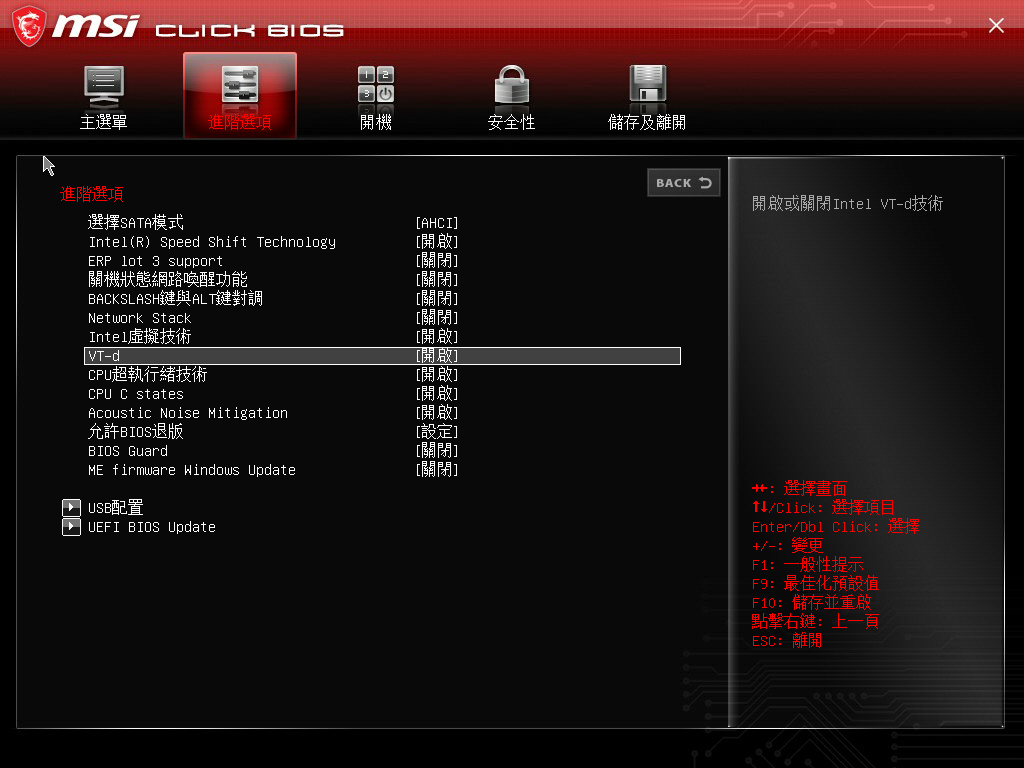
Docker(Windows)
2. 找到 虛擬化技術、VT-d/VT-x 並開啟
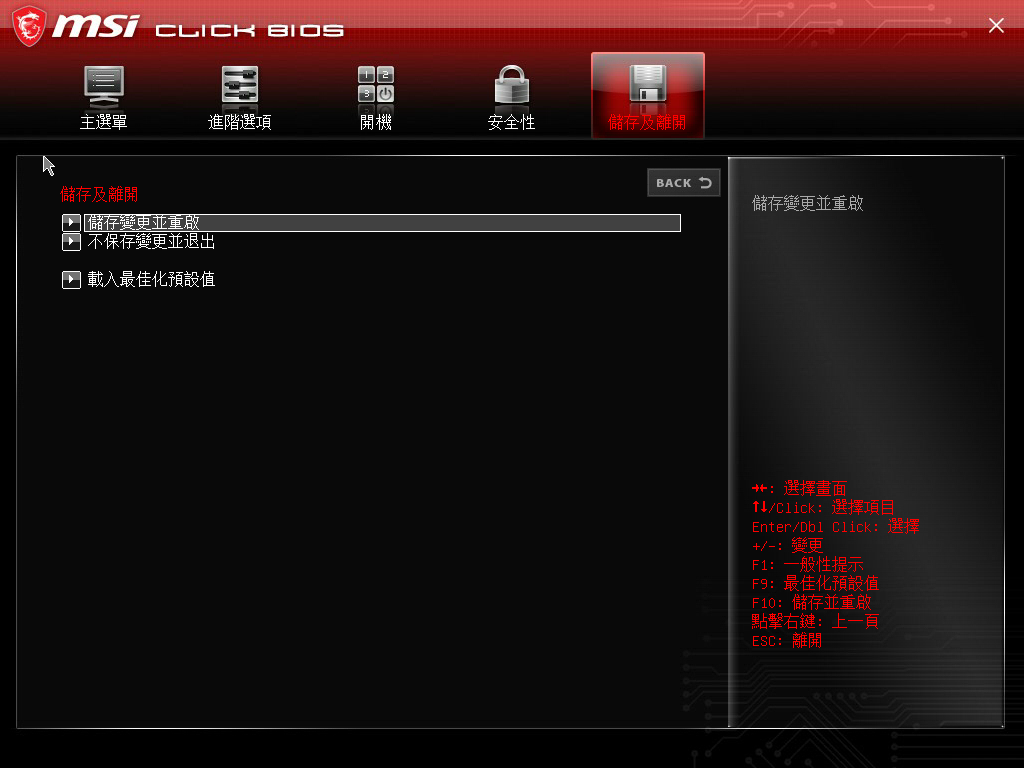
Docker(Windows)
3. 在程式和功能當中開啟 Hyper-V 功能
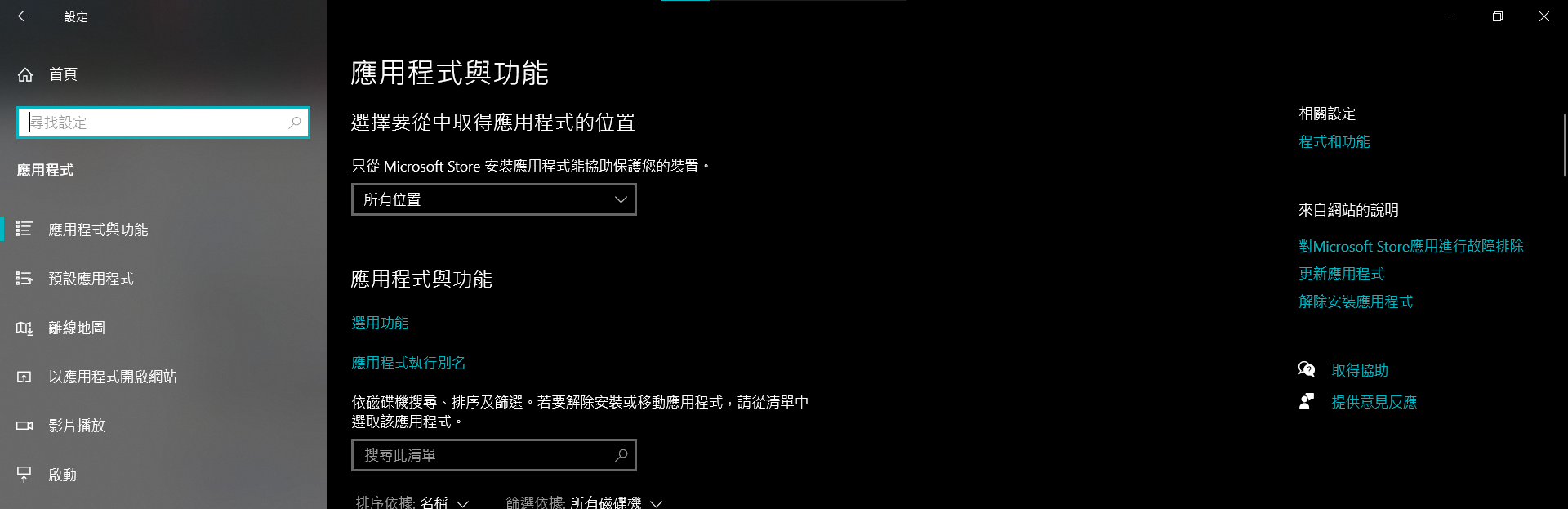
設定>應用程式>程式和功能
Docker(Windows)
3. 在程式和功能當中開啟 Hyper-V 功能
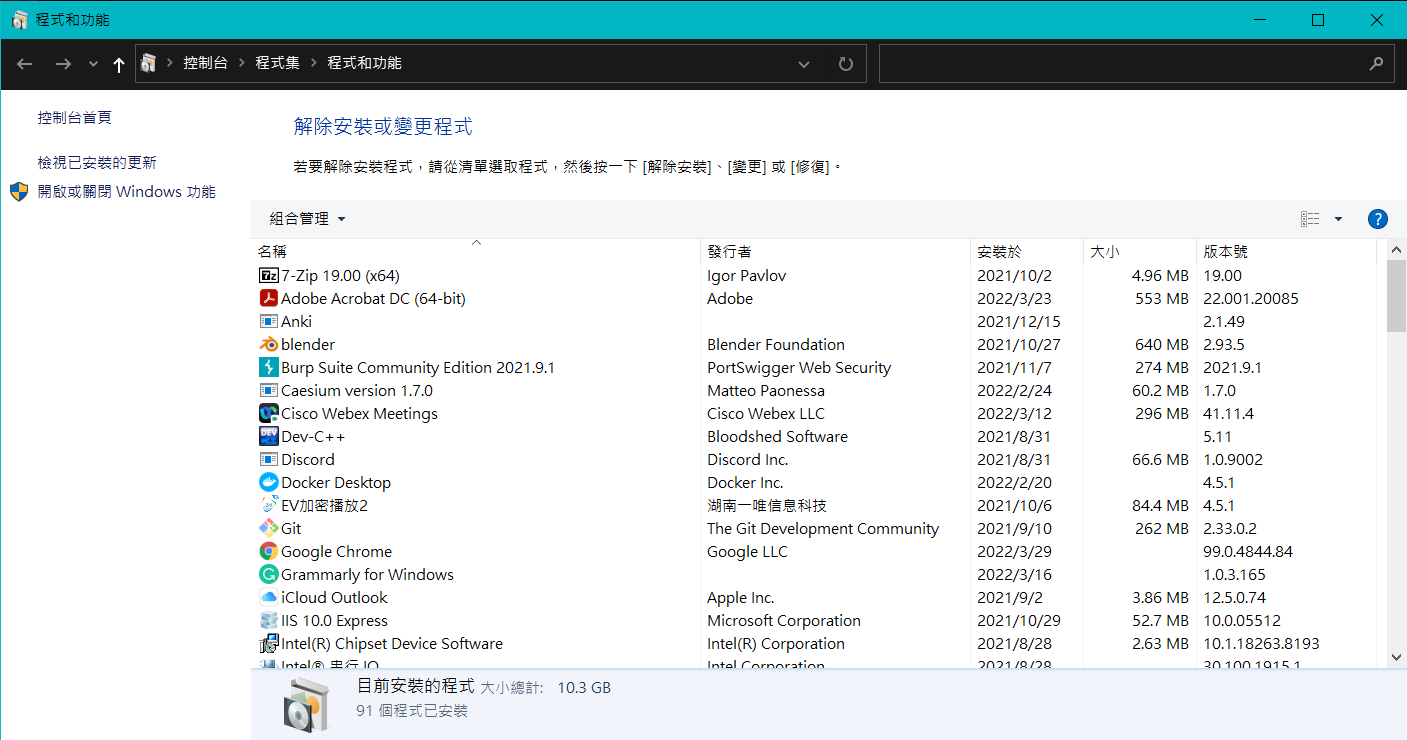
Docker(Windows)
3. 在程式和功能當中開啟 Hyper-V 功能
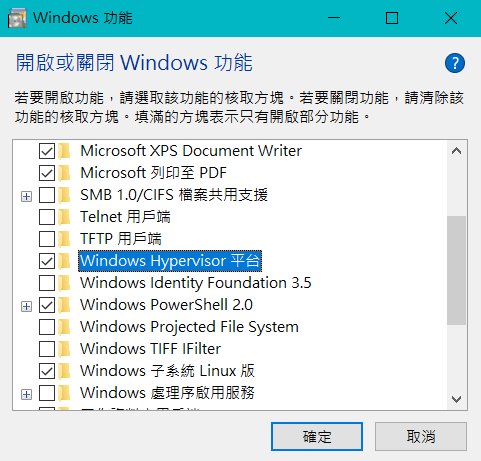
Docker(Windows)
4. 以系統管理員身分開啟 CMD
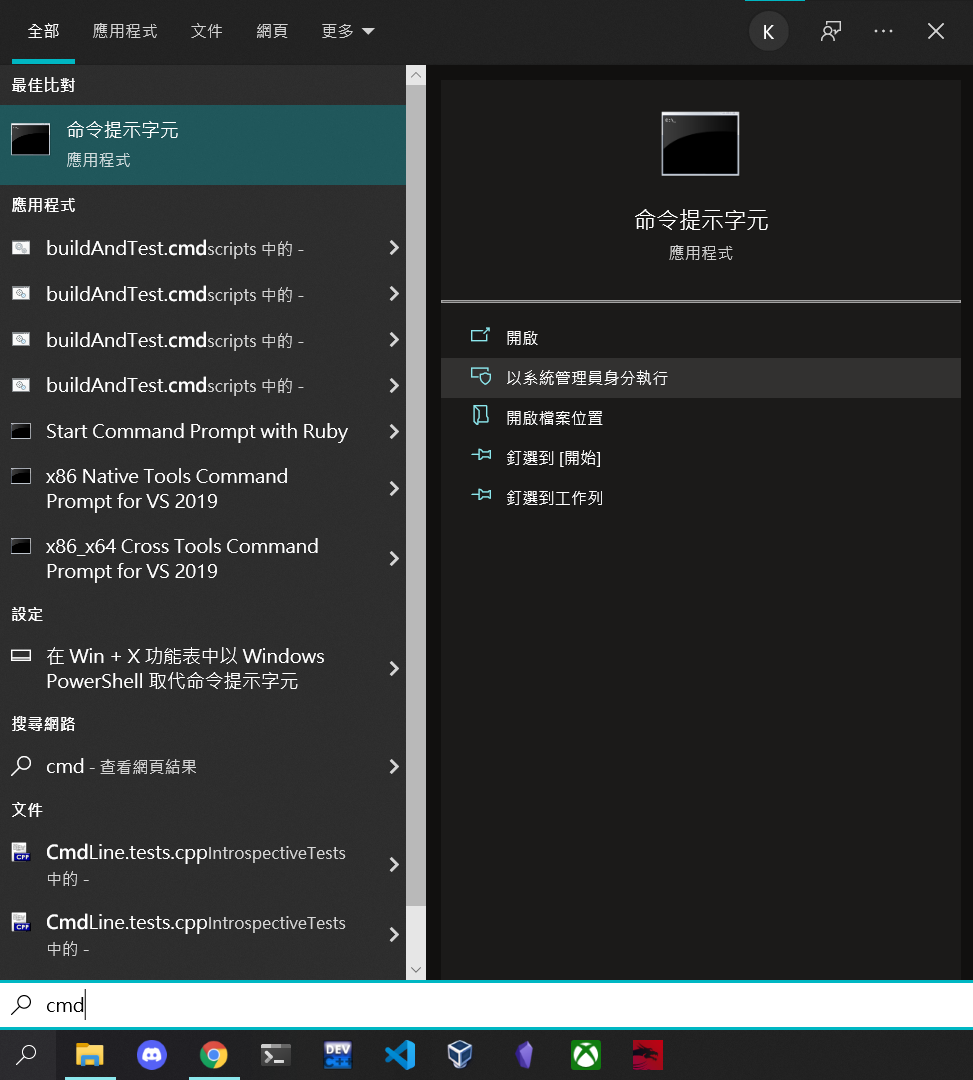
Docker(Windows)
5. 執行指令
bcdedit /set hypervisorlaunchtype auto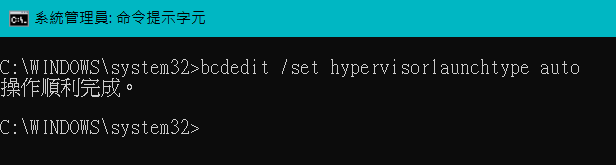
Docker(Windows)
6. 重新開機
基本上做到這裡就能夠成功開啟 Docker 了
有問題記得到資芽社團上提問!
Sproutle 檔案
Sproutle 檔案放在 Github 上,可以透過 Git 下載
建議下載到桌面比較方便
git clone https://github.com/cdes5804/Sproutle.git- 開啟 powershell 或 Terminal
- 切換到桌面
- 如果是 windows 請再執行
- 下載檔案
cd Desktopgit config --global core.autocrlf false環境建構完成!
專案架構
專案架構
- Dictionary
- UserDB
- Server
專案架構
Dictionary
程式檔: src/dictionary/dictionary.cc
標頭檔: src/include/dictionary/dictionary.hh
負責跟單字有關的邏輯
專案架構
Dictionary
-
answer_pool_
-
answer_pool_size_
-
allowed_guesses_
-
allowed_guesses_size_
-
maximum_common_characters_allowed_
-
last_returned_word_
可用變數
專案架構
void GetNewWord(char word[])
當玩家加入遊戲,Dictionary 需要在 answer_pool_ 當中找一個字串當作答案
這個字串需要符合兩個條件
- 這個字串和上次回傳的字串不能超過 maximum_common_characters_allowed_ 個相同的字元,若無法達成則無視這個條件。
- 回傳的單字不能和上一個回傳的單字相同,若無法達成則無視這個條件
如果找好了字串,就放到 word 當中
p.s. 我們有實作 GetCommonCount() 函數,給兩個字串會回傳兩個字串相同字元數量
Dictionary
專案架構
bool IsWordInDictionary(const char word[]) const
檢查 word 是否有在字典裡面,只要有出現在 answer_pool_ 或是 allowed_guessess_ 都算是有出現(回傳 true),否則沒有(回傳 false)。
Dictionary
專案架構
UserDB
程式檔: src/user_db/user_db.cc
標頭檔: src/include/user_db/user_db.hh
負責記錄與使用者相關的狀態
專案架構
可用變數
UserDB
-
users_
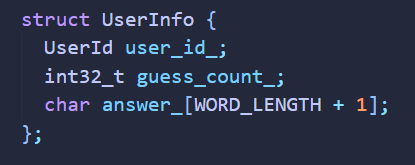
專案架構
UserId CreateNewUser(const char answer_for_user[])
建立新的 User 並給予一個獨特的 UserId,同時設定答案為 answer_for_user
UserId 是一個 unsigned int
使用者數量不會超過 1000
你可以依照需求適度修改 src/include/user_db/user_db.hh
UserDB
專案架構
void GetUserAnswer(UserId user_id, char answer_for_user[])
找到 UserId 是 user_id 的使用者並回傳該使用者的正確答案
將找到的字串放在 answer_for_user
如果沒有這個使用者,則將 answer_for_user 設為空字串
UserDB
專案架構
int32_t GetUserGuessCount(UserId user_id)
找到 UserId 是 user_id 的使用者並回傳該使用者的猜測次數
如果沒有該使用者則回傳 -1
UserDB
專案架構
void SetUserGuessCount(UserId user_id, int32_t guess_count)
找到 UserId 是 user_id 的使用者並設定猜測次數為 guess_count
如果沒有該使用者則甚麼事都不做
UserDB
專案架構
bool RemoveUserFromDB(UserId user_id)
找到 UserId 是 user_id 的使用者並刪除,回傳刪除是否成功
如果沒有該使用者則回傳 false
UserDB
專案架構
Server
程式檔: src/server/server.cc
標頭檔: src/include/server/server.hh
負責處理使用者的各種操作
專案架構
可用變數
Server
-
dictionary_
-
user_db_
-
guess_limit
專案架構
dictionary_ 可以使用 Dictionary 當中的函數
user_db_ 可以使用 UserDB 當中的函數
-> 符號可以引用函數
Server
Example: dictionary_ 使用 GetNewWord()
dictionary_->GetNewWord(word);專案架構
UserId Connect()
當新的使用者要加入遊戲的時候會自動觸發這個函數
需要建立一個新的 User,並且給一個正確答案,最後回傳 UserId
Server
專案架構
void Guess(const GuessArgs& args, GuessReply* reply)
當使用者要猜答案時會自動觸發這個函數
Server
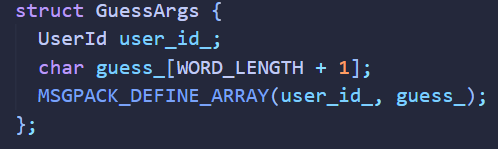
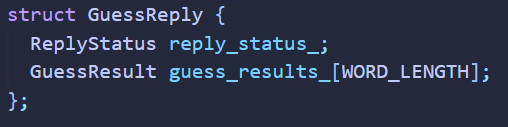
傳入 args
傳出 reply
專案架構
void Guess(const GuessArgs& args, GuessReply* reply)
reply_status_
Server
| Status | 意義 |
|---|---|
| ReplyStatus::Invalid_User | 使用者不存在 |
| ReplyStatus::Word_Not_Found | 猜測字串不存在字典中 |
| ReplyStatus::WON | 猜對字串,遊戲勝利 |
| ReplyStatus::Lost | 錯誤次數到達 6 次 |
| ReplyStatus::OK | 其餘狀況 |
專案架構
void Guess(const GuessArgs& args, GuessReply* reply)
guess_result_
Server
| Status | 意義 |
|---|---|
| GuessResult::CORRECT | 這個字元猜測正確 |
| GuessResult::PRESENT | 這個字元猜錯位置 |
| GuessResult::ABSENT | 這個字元完全猜錯 |
專案架構
void Guess(const GuessArgs& args, GuessReply* reply)
guess_result_
Server
執行程式
Powershell(Windows)
cd Desktop\Sproutle
docker build -t sproutle .
docker create -t -i --name sproutle -v ${PWD}:/sproutle sproutle bash
Terminal(MaxOS)
cd Desktop/Sproutle
docker build -t sproutle .
docker create -t -i --name sproutle -v $(pwd):/sproutle sproutle bash
Linux
cd Desktop/Sproutle
sudo docker build -t sproutle .
sudo docker create -t -i --name sproutle -v $(pwd):/sproutle sproutle bash
執行程式
建構好環境後,每次要進入到開發環境當中只需要輸入下列指令
docker start -a -i sproutle執行程式
第一次進入到開發環境當中,需要輸入下列的指令
cd /sproutle
git submodule update --init
mkdir -p build
cd build
cmake ..
執行程式
執行完上述指令後,之後在 build 這個資料夾當中可以執行
- make check-tests
- 編譯你的程式碼,並執行講師寫好的部分測試
- make format
- 把程式碼格式變得更漂亮
- make check-coding-style
- 檢查目前 coding style 是否有問題
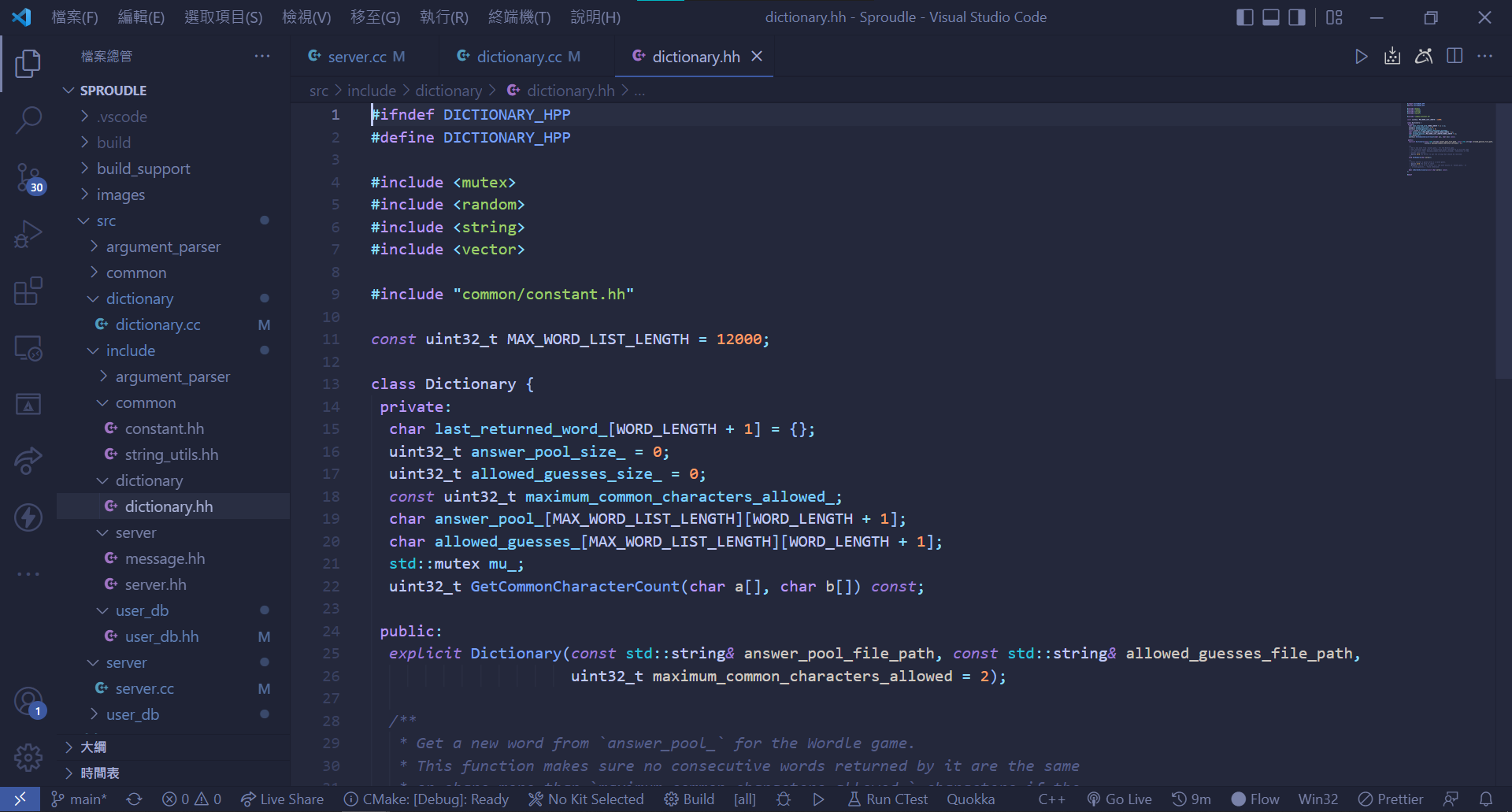
編寫程式
之後每次要編輯程式的時候只需要用自己熟悉的程式編輯在桌面上 Sproutle 資料夾內的檔案即可
執行專案
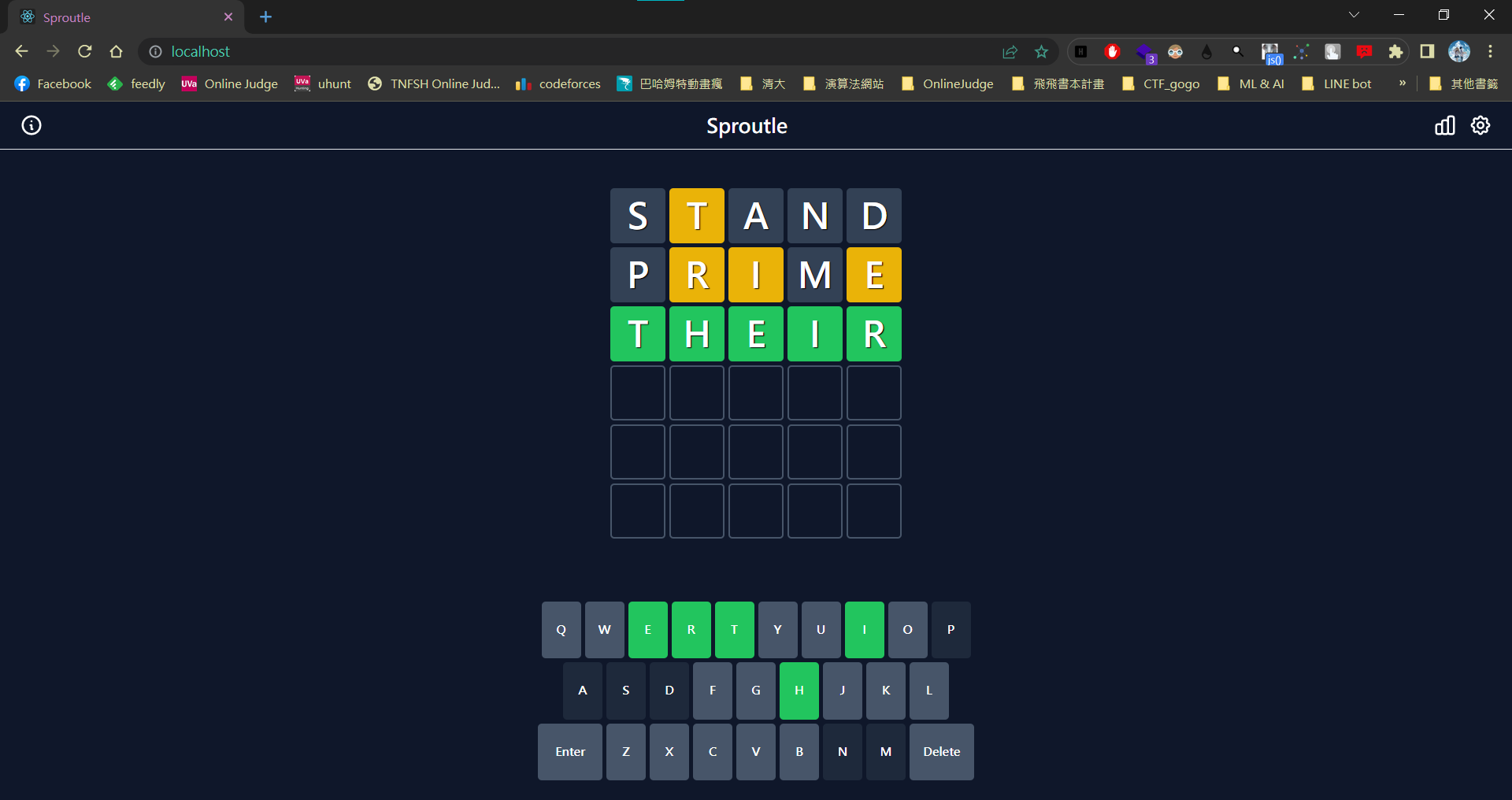
當你寫完程式碼,也跑過 check-tests 確定沒問題後,就可以把整個專案實際跑起來看看了
打開 Terminal 或是 PowerShell,並執行下列指令
cd Desktop/Sproutle
docker compose up
最後打開瀏覽器,在網址列輸入 localhost ,就可以開始遊戲囉!
作業評分
作業評分
- 公開測資 60%
- 隱藏測資 40%
- Coding-style
- 繳交時間
公開測資(60%)
-
Dictionary
- 測試條件一是否符合
- 測試條件二是否符合
- 測試僅有一個單字可以使用的情況
- 測試合法與不合法詢問字串
-
UserDB
- 測試是否能新增多個使用者
- 測試 GetUserAnswer()
- 測試 Set/GetUserGuessCount()
- 測試 RemoveUser()
-
Server
- 測試 Connect()
- 測試不合法使用者
- 測試不合法猜測字串
- 測試猜測上限
Coding-Style
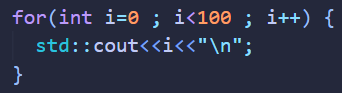
- function 名稱使用 big camel case
- 變數名稱單字間用底線(_)區隔
- 迴圈、if-else 記得加上大括號
- ... 其他
只要透過 check-coding-style 檢測出 warning 或是 error 都視為錯誤
只要出現錯誤,成績就打9折
Coding-Style




作業繳交
請建立一個名為 sprout_project_1 的資料夾,並將以下檔案複製過去
- src/dictionary/dictionary.cc
- src/include/dictionary/dictionary.hh
- src/user_db/user_db.cc
- src/include/user_db/user_db.hh
- src/server/server.cc
- src/include/server/server.hh
最後把整個資料夾打包成 sprout_project_1.zip,上傳到https://forms.gle/DJTn7yJ4cM7TuKNZ7
格式不符者,成績打9折
其他注意事項
- 嚴禁抄襲,請自己完成作業
- 遇到問題先想想,再到社團上提問
- 環境建構有疑問隨時提出
- 繳交期限 4/30,遲交總成績打 8 折
- 記得檢查 coding-style 以及繳交檔案格式