An intro to npm and JavaScript Modules
Joshua Lin (@konekoya)
How do you build a website?
- Plain HTML, CSS and JS
- No tools
Let's begin with the old school way
This line refers to a separate JS file
Manually including your JS
<!DOCTYPE html>
<html lang="en">

<head>
  <meta charset="UTF-8">
  <title>An intro to NPM and JavaScript Modules</title>
</head>

<body>

  <script src="script.js"></script>
</body>

</html>
And in your script.js you have:
Okay, this is all you need to make a website! 🎉🎉🎉
Wait... what if I need a third-party plugin or library like jQuery?
console.log('Hello world from script.js');

// logs out "Hello world from script.js" in your console
Adding a dependency to your project
Downloading jQuery
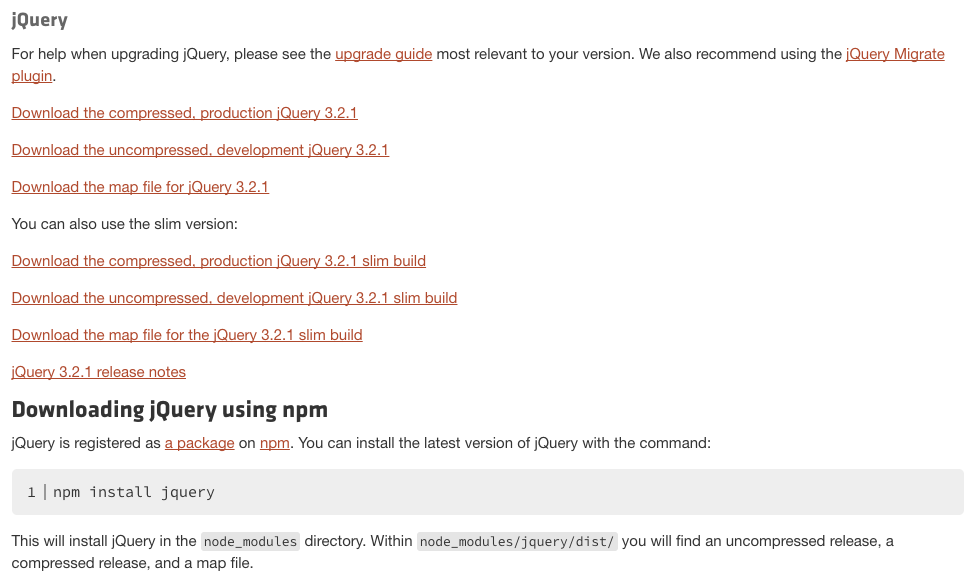
This is exactly what we want!
Adding jQuery in our example
<!DOCTYPE html>
<html lang="en">

<head>
  <meta charset="UTF-8">
  <title>An intro to NPM and JavaScript Modules</title>
</head>

<body>
  <script src="jquery-3.2.1.js"></script>
  <script src="script.js"></script>
</body>

</html>
Note that jQuery gets loaded before script.js
Now, in your script.js
console.log('Hello world from script.js');

$('body').append('Hello world from script.js');

// logs out 'Hello world from script.js' in the browser console and
// append the script to the body element of index.html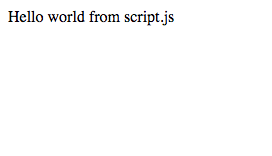
TADA! The result is pretty, right?
Add this line
But...
- Manually finding and downloading dependencies are annoying and time-consuming.
- Manually including dependencies in your HTML file.
- Upgrading and removing a dependency is also hard. You have to repeat the process over and over again.
- Evil global variables are everywhere.
- Many HTTP requests
Introducing npm

- A Node.js package manager. Hence, NPM
- A registry that holds all the packages
- A tool for devs to install, uninstall, upgrade and publish a package
What's npm anyway?
Let's see how npm change our workflow
Yep, you have to install it first...
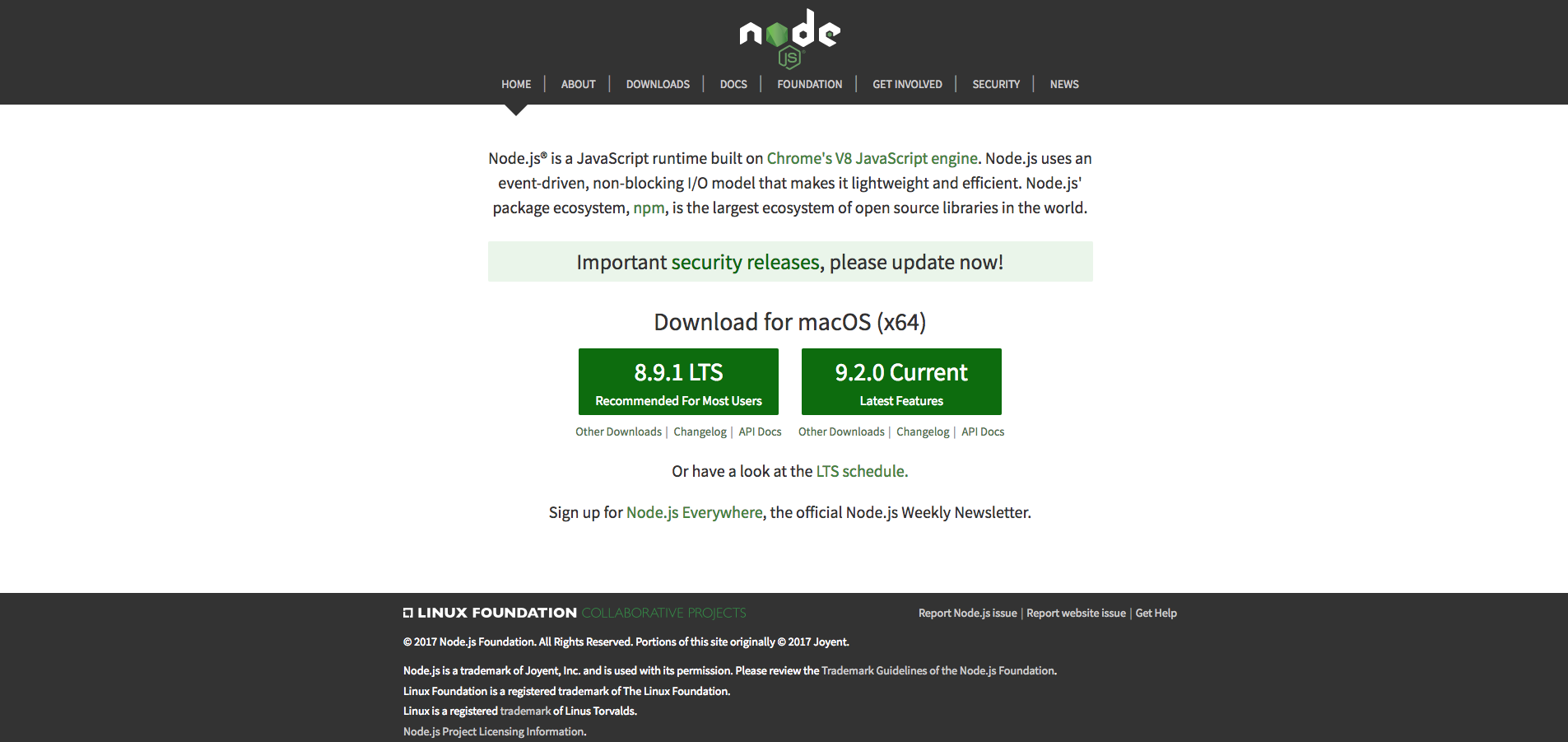
Installing Node.js also installs npm
Initializing a project with npm
npm initIt will create a package.json in your directory like this:
{
  "name": "an-intro-to-npm-and-js-modules",
  "version": "1.0.0",
  "description": "",
  "main": "jquery-3.2.1.js",
  "scripts": {
    "test": "echo \"Error: no test specified\" && exit 1"
  },
  "keywords": [],
  "author": "konekoya <tank158r5155@yahoo.com.tw> (http://konekoya.github.io/)",
  "license": "MIT"
}
Installing jQuery with npm
npm install jquery --saveThe install command does two things
fisrt, it downloads all the code from jquery package into a directory call node_modules
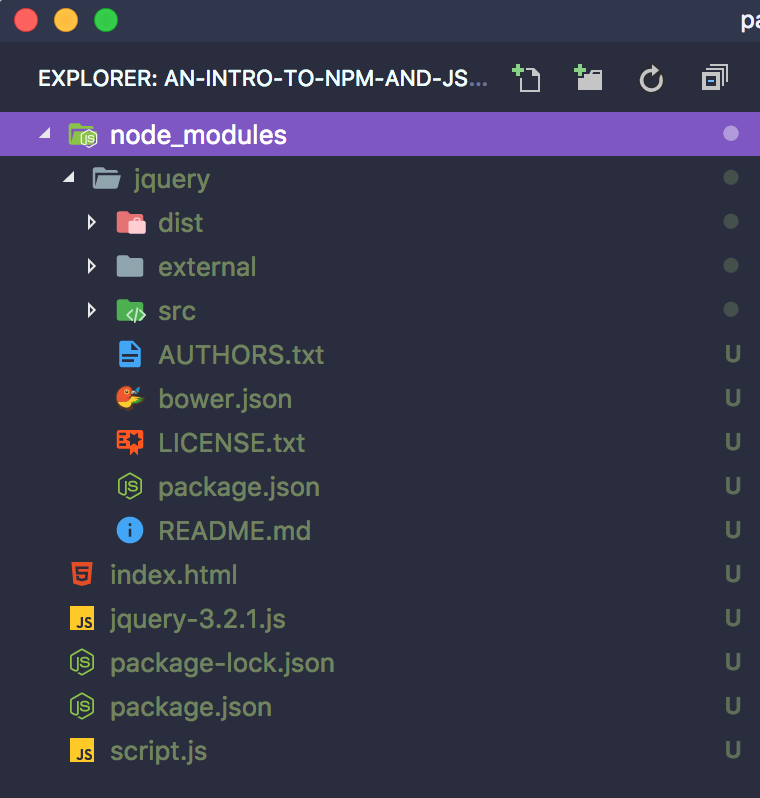
Second, it adds jQuery as a project dependency in the package.json file
{
  "name": "an-intro-to-npm-and-js-modules",
  "version": "1.0.0",
  "description": "",
  "main": "jquery-3.2.1.js",
  "scripts": {
    "test": "echo \"Error: no test specified\" && exit 1"
  },
  "keywords": [],
  "author": "konekoya <tank158r5155@yahoo.com.tw> (http://konekoya.github.io/)",
  "license": "MIT",
  "dependencies": {
    "jquery": "^3.2.1"
  }
}
Okay, what's big deal?
- No more manually find and download dependencies
- It makes update and removing dependencies a breeze
Now, we can include jQuery from node_modules
<!DOCTYPE html>
<html lang="en">

<head>
  <meta charset="UTF-8">
  <title>An intro to NPM and JavaScript Modules</title>
</head>

<body>

  <script src="node_modules/jquery/dist/jquery.min.js"></script>
  <script src="script.js"></script>
</body>

</html>
The output should be the same
But...
Manually finding and downloading dependencies are annoying and time-consuming.- Manually including dependencies in your HTML file.
Upgrading and removing a dependency is also hard. You have to repeat the process over and over again.- Evil global variables are everywhere.
- Many HTTP requests
Let's talk a little bit about CommonJS
-
Modules for Node.js
-
It allows JavaScript to import and export code across files like most programming languages.
- No more global variables, everything is encapsulating in modules!
- Node.js knows the location of each npm module path
CommonJS
Let's use CommonJS to load JQuery, in our script.js
const $ = require('jquery');


console.log('Hello world from script.js');

$('body').append('Hello world from script.js');
But, if you open this in your browser. It won't work! 🐛 🐛
Because the require is not defined in the browser environment. It's design specifically for Node.js
webpack comes the rescue!
- A module bundler: combining all of the necessary files into a single JavaScript file
- It's built with Node.js, so it also has access to the file system.
Let's talk about webpack
Installing webpack
{
  "name": "an-intro-to-npm-and-js-modules",
  "version": "1.0.0",
  "description": "",
  "main": "jquery-3.2.1.js",
  "scripts": {
    "test": "echo \"Error: no test specified\" && exit 1"
  },
  "keywords": [],
  "author": "konekoya <tank158r5155@yahoo.com.tw> (http://konekoya.github.io/)",
  "license": "MIT",
  "dependencies": {
    "jquery": "^3.2.1"
  },
  "devDependencies": {
    "webpack": "^3.8.1"
  }
}
--save-dev flag tells npm to save this as devDependencies
This is what your package.json should look like now:
npm install webpack --save-devLet's build our little site with webpack
node_modules/.bin/webpack script.js bundle.jsAfter webpack finish building, you should have a new bundle.js in your folder
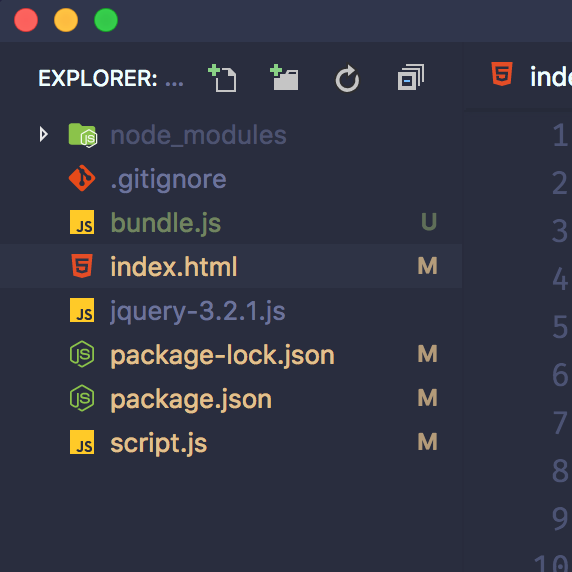
Remember to change your index.html
<!DOCTYPE html>
<html lang="en">

<head>
  <meta charset="UTF-8">
  <title>An intro to NPM and JavaScript Modules</title>
</head>

<body>

  <script src="bundle.js"></script>
</body>

</html>
The output should be the same
Take a look of that HUGE bundle.js file
it's too big to include it in the slide...Use a config file for webpack
Create a webpack.config.js file in our root folder
module.exports = {
  entry: './script.js',
  output: {
    filename: 'bundle.js',
  },
};
node_modules/.bin/webpackRun the following command again, you should get the exact same result! webpack loads webpack.config.js automatically
But...
Manually finding and downloading dependencies are annoying and time-consuming.Manually including dependencies in your HTML file.Upgrading and removing a dependency is also hard. You have to repeat the process over and over again.Evil global variables are everywhere.Many HTTP requests
Use JavaScript Modules!
Let's change our CommonJS to ES modules
import $ from 'jquery';


console.log('Hello world from script.js');

$('body').append('Hello world from script.js');
Use webpack to build our site again
node_modules/.bin/webpackUse npm script to automate our dev process
{
  "name": "an-intro-to-npm-and-js-modules",
  "version": "1.0.0",
  "description": "",
  "main": "jquery-3.2.1.js",
  "scripts": {
    "build": "webpack --progress -p",
    "watch": "webpack --progress --watch"
  },
  "keywords": [],
  "author": "konekoya <tank158r5155@yahoo.com.tw> (http://konekoya.github.io/)",
  "license": "MIT",
  "dependencies": {
    "jquery": "^3.2.1"
  },
  "devDependencies": {
    "webpack": "^3.8.1"
  }
}
Let's add two npm scripts in our package.json
Add these two
Building our site with:
npm run watchWhen developing, use:
npm run build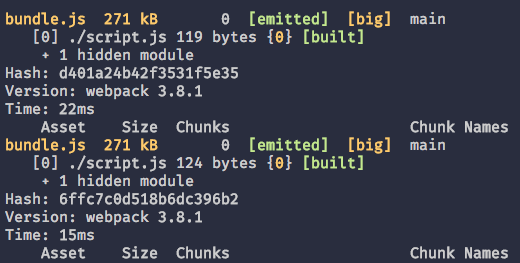
webpack will keep watching your file while you're working
when script.js
The final step: a dev server!
Add webpack-dev-server in our project
npm install webpack-dev-server --save-dev{
"name": "an-intro-to-npm-and-js-modules",
"version": "1.0.0",
"description": "",
"main": "jquery-3.2.1.js",
"scripts": {
"build": "webpack --progress -p",
"watch": "webpack --progress --watch",
"server": "webpack-dev-server --open"
},
"keywords": [],
"author": "konekoya <tank158r5155@yahoo.com.tw> (http://konekoya.github.io/)",
"license": "MIT",
"dependencies": {
"jquery": "^3.2.1"
},
"devDependencies": {
"webpack": "^3.8.1",
"webpack-dev-server": "^2.9.4"
}
}
In our package.json:
Add this line
Now, you can start a dev server with a single command
npm run server- npm will start a webpack dev server at port 8080
- Open the page in the browser.
- Watching and reloading when files are changed.
Okay, a recap is necessary
- We now use npm to manage our dependencies. Things like installing, removing and upgrading is a whole lot easier through npm.
- With single command, webpack is building production-ready static assets for us, which including combines all dependencies together into one JavaScript file.
- Through ES modules, we no longer expose variables to global scope, everything is kept locally in each module.
- A dev server is always ready for us to develop and debug our site.