JavaScript
A bootcamp by Pieter Mathys
Table of Contents
- Intro - Who am I?
- What is JavaScript?
- How to learn JS
- Getting started
- Basic syntax
- Debugging
- Browser Manipulation
- jQuery
- JSON
- AJAX
JavaScript
Who am I?
Pieter Mathys

- Frontend Dev
- Themer
- Sitebuilder
- Teacher
Born in


Sint-Katelijne-Waver
Belgium


Contact
Facebook: Pieter Mathys
Twitter: @mathysp
Email:
mathysp@gmail.com
pieter.mathys@thomasmore.be
JavaScript
What is?
JavaScript is the Programming Language for the Web
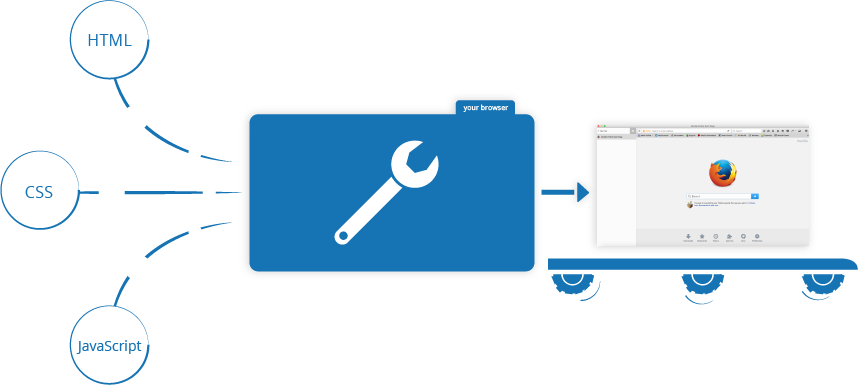
JavaScript can update and change both HTML and CSS
JavaScript can calculate, manipulate and validate data
JavaScript is a scripting or programming language that allows you to implement complex things on web pages, displaying timely content updates, interactive maps, animated 2D/3D graphics, scrolling video jukeboxes, etc. — you can bet that JavaScript is probably involved.
It is the third layer of the layer cake of standard web technologies, the other two being HTML and CSS.
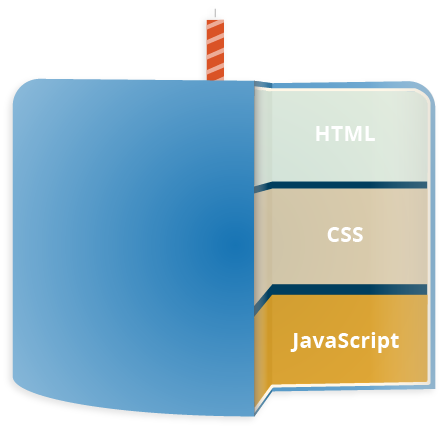
HTML: markup language that we use to structure and give meaning to our web content
CSS: language of style rules that we use to apply styling to our HTML content
JS: scripting language that enables you to create dynamically updating content, control multimedia, animate images, and pretty much everything else.
Things you can do with JS?
- Store useful values inside variables.
- Operations on pieces of text (known as "strings" in programming).
- Running code in response to certain events occurring on a web page.
- Consuming API's
API's?
An application programming interface (API) is an interface or communication protocol between different parts of a computer program intended to simplify the implementation and maintenance of software.
An API may be for a web-based system, operating system, database system, computer hardware, or software library.
An API specification can take many forms, but often includes specifications for routines, data structures, object classes, variables, or remote calls. POSIX, Windows API and ASPI are examples of different forms of APIs.
API's?
An application programming interface (API) is an interface or communication protocol between different parts of a computer program intended to simplify the implementation and maintenance of software.
An API may be for a web-based system, operating system, database system, computer hardware, or software library.
An API specification can take many forms, but often includes specifications for routines, data structures, object classes, variables, or remote calls. POSIX, Windows API and ASPI are examples of different forms of APIs.
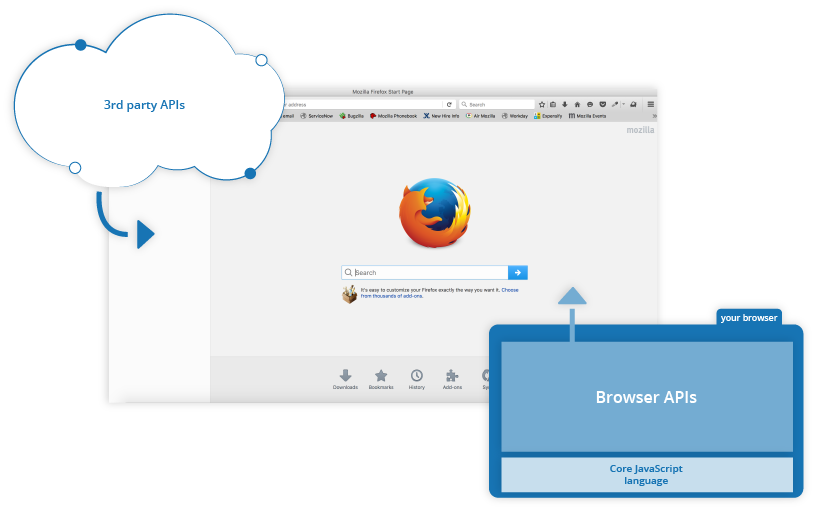
Browser APIs are built into your web browser, and are able to expose data from the surrounding computer environment:
- The DOM (Document Object Model) API allows you to manipulate HTML and CSS, creating, removing and changing HTML, dynamically applying new styles to your page, etc. Every time you see a popup window appear on a page, or some new content displayed (as we saw above in our simple demo) for example, that's the DOM in action.
- The Geolocation API retrieves geographical information.
- The Canvas and WebGL APIs allow you to create animated 2D and 3D graphics.
- Audio and Video APIs like HTMLMediaElement and WebRTC allow you to do really interesting things with multimedia, such as play audio and video right in a web page, or grab video from your web camera and display it on someone else's computer
- And many more ...
Third party APIs are not built into the browser by default, and you generally have to grab their code and information from somewhere on the Web. For example:
- The Twitter API allows you to do things like displaying your latest tweets on your website.
- The Google Maps API and OpenStreetMap API allows you to embed custom maps into your website, and other such functionality.
Order
JavaScript
How to learn

Online Courses
The best way to learn JavaScript is by practicing, thus online courses provide a great learning environment that requires you to complete activities and projects.
Many websites will have free options for their courses, but for $40 or less (usually) you can upgrade to the professional tier and unlock more content.
Online Courses
Lynda ($30/month)
Front-end Masters ($39/month)
Pluralsight ($29/month)
General Assembly ($ varies by course)
Treehouse ($25/month)
Coursera ($ varies by course)
Egghead.io ($40/month — pro)
CodeAcademy ($ varies by course)
Email Subscriptions
An easy way to stay up-to-date on the latest and greatest features in JavaScript is to sign up for weekly email subscriptions. They show up in your inbox without you having to think about it.
Books
For beginners, I recommend starting with the JavaScript and jQuery book below, although I wouldn’t recommend relying too heavily on jQuery as it’s a bit dated and most employers find this to be a deterrent.
Professional JavaScript for Web Developers ($13 — $27)
JavaScript & jQuery ($22)
Websites & Blogs
Mozilla Developer Network is one of the best resources for looking up the answers to your most burning JavaScript questions. I highly recommend reading through their documentation. CSS Tricks is also an awesome website for staying up-to-date on JavaScript.
Or tutorials like:
jsforcats - beginner tutorial
javascript.info - advanced tutorial
Tools
Below are some great tools for quickly testing JavaScript (and related frameworks). They require no overhead to set up and are wonderful tools to use when following along to a course.
Frameworks & Libraries
I highly recommend learning all the ins-and-outs of JavaScript (vanilla JS) before getting to know a framework or library.
Too often, developers jump in to learning React or Vue and don’t understand what’s going on under-the-hood, so these should be seen more as a second step in your JavaScript journey.
Top Influencers
A great, and easy, way to learn JS is to follow awesome influencers, or experts in the field. Below are some of the people I enjoy learning from.
Conferences & Meetups
Lastly, I highly recommend attending meetups and conferences as often as you can. Conferences can get expensive, however, so meetups can be a great way to meet other JS lovers in your city.
Google!
Use it!
JavaScript
Interactive beginner tutorial

JavaScript
Getting started
How do you add JavaScript to your page?
JavaScript is applied to your HTML page in a similar manner to CSS. Whereas CSS uses <link> elements to apply external stylesheets and <style> elements to apply internal stylesheets to HTML, JavaScript only needs one friend in the world of HTML — the <script> element.
Internal JavaScript
<html>
  <head>

    <link rel="styles.css" />

    <script>

      // JavaScript goes here

      function myFunction() {
        alert("Hello! I am an alert box!");
      }

    </script>
  </head>
  <body>
  	<p>Click the button to display an alert box.</p>

	<button onclick="myFunction()">Try it</button>
  </body>
</html>- Create a new file: index.html
- Add the following code
External JavaScript
<script src="script.js" defer></script>- Create a new file: scripts.js
- Replace the current script element with the following:
- Add the following code to scripts.js:
- Save and refresh your browser
This is the preferred way.
Using a separate file for JS has a number of benefits.
function myFunction() {
  alert("Hello! I am an alert box!");
}
External JavaScript
<script src="https://code.jquery.com/jquery-3.4.1.min.js"></script>- You can also link to externally hosted files
Although, this might have some issues with cross-site scripting
& other related security issues.
It's usually better to download the file and host it yourself.
Script tag
You are allowed to place the script tag anywhere on the page (not just in the <head>).
This is important for loading order.
A common problem is that all the HTML on a page is loaded in the order in which it appears. If you are using JavaScript to manipulate elements on the page (or more accurately, the Document Object Model), your code won't work if the JavaScript is loaded and parsed before the HTML you are trying to do something to.
Look up async & defer if you run into these issues.
Inline JavaScript handlers
<button onclick="createParagraph()">Click me!</button>This thing:
onclick="createParagraph()"
Please don't do this.
It is bad practice to pollute your HTML with JavaScript, and it is inefficient — you'd have to include the onclick="createParagraph()" attribute on every button you wanted the JavaScript to apply to.
JavaScript
Basic syntax
Comments
A single line comment is written after a double
forward slash (//), e.g.
A multi-line comment is written between the
strings /* and */, e.g.
// I am a comment/*
I am also
a comment
*/Alerts
Text
alert("This is alert box!");  // display string message

alert(100); // display number

alert(true); // display boolean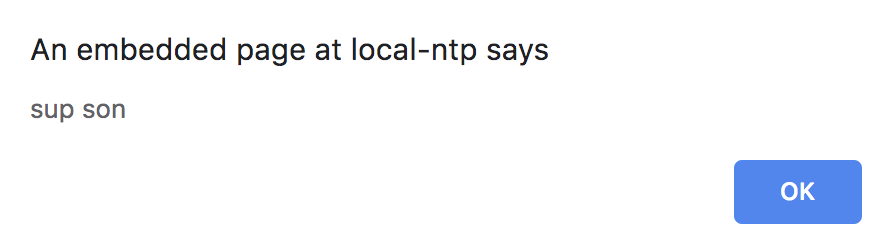
Prompts
Text
let age = prompt('How old are you?', 100);

alert(`You are ${age} years old!`);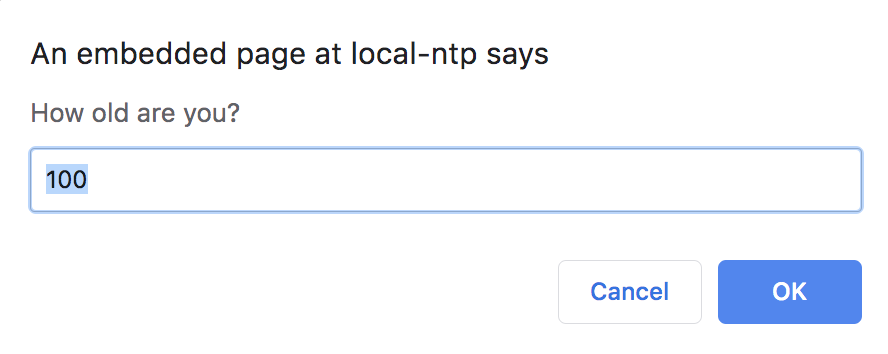
Confirm
Text
let isBoss = confirm("Are you the boss?");

alert( isBoss ); // true if OK is pressed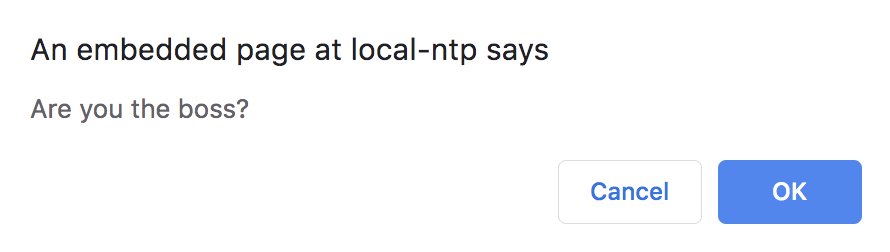
Console.log
Text
// Easy debugging
console.log('Hi this is Pieter')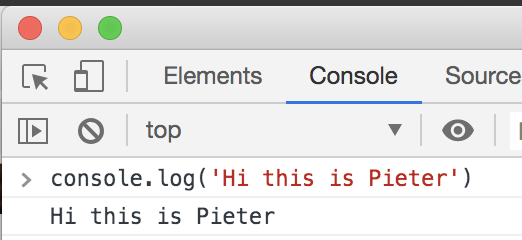
With chrome/firefox/safari/... devtools
Variables
Can be declared as
- let
- var (old-style)
- const (constant, can’t be changed)
let one = 1; // variable stores numeric value

let two = 'two';  // variable stores string value

let three;  // declared a variable without assigning a value
Variables
There are 7 data types:
- number for both floating-point and integer numbers,
- string for strings,
- boolean for logical values: true/false,
- null – a type with a single value null, meaning “empty” or “does not exist”,
- undefined – a type with a single value undefined, meaning “not assigned”,
- object and symbol – for complex data structures and unique identifiers.
The data type is assigned automatically based on the value. Use typeof to identify the type.
Variables - LET or VAR?
Note: in a "recent" update of JavaScript (ECMAScript 6) a new name for VAR was introduced: LET.
VAR & LET are synonymous and can be used interchangeably.*
But please pick one and stick to it for now. ;-)
You will see LET used a lot in more modern tutorials.
* Not entirely accurate; there are advantages to using let over var. But let's not open that can of worms for now.
Variables - Numbers
var x = 5;
var y = 6;
var z = x + y;

// Decimals
var x = 3.14;    // A number with decimals
var y = 3;       // A number without decimals

// All numbers are stored as double precision
// floating point numbers.
// The maximum number of decimals is 17,
// but floating point is not always 100% accurate:
var x = 0.2 + 0.1;         // x will be 0.30000000000000004
Variables - Strings
// Strings
var carname = "Volvo XC60";  // Double quotes
var carname = 'Volvo XC60';  // Single quotes


// The length of a string is found
// in the built in property length:

var txt = "ABCDEFGHIJKLMNOPQRSTUVWXYZ";
var sln = txt.length;
Variables - Arrays
// Arrays
var cars = ["Saab", "Volvo", "BMW"];
var numbers = [1, 2, 5, 7]
Variables - Objects
// Objects

// This code assigns many values (Fiat, 500, white)
// to a variable named car:
var car = {type:"Fiat", model:"500", color:"white"};
Functions
// Declare function
function myFunction() {
  alert("Hello World!");
}
// Execute function
myFunction;Functions
// With parameters
function myFunction(param1, param2) {
  alert("Param 1: " + param1 + "; Param 2: " + param2);
}

myFunction('ABC', 'XYZ');
Operators
| + | Adds two numeric operands. |
| - | Subtract right operand from left operand |
| * | Multiply two numeric operands. |
| / | Divide left operand by right operand. |
| % | Modulus operator. Returns remainder of two operands. |
| ++ | Increment operator. Increase operand value by one. |
| -- | Decrement operator. Decrease value by one. |
Operators
var x = 5, y = 10, z = 15;

x + y; //returns 15

y - x; //returns 5

x * y; //returns 50

y / x; //returns 2

x % 2; //returns 1

x++; //returns 6

x--; //returns 4
Operators
// You can also use the + operator to join text strings
// together (in programming, this is called concatenation).

var name = 'Bingo';
var hello = ' says hello!';
var greeting = name + hello;

// result 'Bingo says hello!'
// There are also some shortcut operators available
name += ' says hello!';
// This is equivalent to
name = name + ' says hello!';Operators
// When we are running true/false tests
// we use comparison operators. For example:

// ===	Strict equality (is it exactly the same?)
5 === 2 + 4 // false
'Chris' === 'Bob' // false
5 === 2 + 3 // true
2 === '2' // false; number versus string

// !==	Non-equality (is it not the same?)
5 !== 2 + 4 // true
'Chris' !== 'Bob' // true
5 !== 2 + 3 // false
2 !== '2' // true; number versus string

// <	Less than
6 < 10 // true
20 < 10 // false

// >	Greater than
6 > 10 // false
20 > 10  // true
Conditionals - IF
// Simple IF
if(a < b) {
  doSomething;
}

// IF ELSE
if(userGuess < randomNumber) {
  lowOrHi.textContent = 'Last guess was too low!';
} else if(userGuess > randomNumber) {
  lowOrHi.textContent = 'Last guess was too high!';
}
Conditionals - SWITCH
switch(variable){
    case 1:
        //code to be executed
      break;
    case 2:
        //code to be executed
        break;
    case n:
        //code to be executed
        break;
    default:
        //default code to be executed
        //if none of the above case executed
}
Events
// What if we want to execute a function on a button press?
// To do this we need to use an event.

guessSubmit.addEventListener('click', checkGuess);
Click is just one of many different events, see https://javascript.info/introduction-browser-events for a more complete list.
Loops - FOR
for (var i = 1 ; i < 21 ; i++) { console.log(i) }- A starting value: In this case we are starting a count at 1. You could replace the letter i with any name you like too, but i is used as a convention because it's short and easy to remember.
- An exit condition: Here we have specified i < 21 — the loop will keep going until i is no longer less than 21. When i reaches 21, the loop will no longer run.
- An incrementor: We have specified i++, which means "add 1 to i". The loop will run once for every value of i, until i reaches a value of 21 (as discussed above). In this case, we are simply printing the value of i out to the console on every iteration using console.log().
Loops - WHILE
var i =0;

while(i < 5)
{
    console.log(i);
    i++;
}
JavaScript includes while loop to execute code repeatedly till it satisfies a specified condition. Unlike for loop, while loop only requires condition expression.
Loops - DO WHILE
do{

    //code to be executed

}while(condition expression)
The do-while loop is similar to while loop the only difference is it evaluates condition expression after the execution of code block.
Arrow functions
let sum = (a, b) => a + b;

/* This arrow function is a shorter form of:

let sum = function(a, b) {
  return a + b;
};
*/

alert( sum(1, 2) ); // 3
Code structure
// Statements are delimited with a semicolon:

alert('Hello'); alert('World');

// Usually, a line-break is also treated as a delimiter,
// so that would also work:

alert('Hello')
alert('World')

// That’s called “automatic semicolon insertion”.
// Sometimes it doesn’t work, for instance:

alert("There will be an error after this message")
[1, 2].forEach(alert)

// Most codestyle guides agree that we should put
// a semicolon after each statement.

// Semicolons are not required after code blocks {...}
Strict mode
// Strict mode

// To fully enable all features of modern JavaScript,
// we should start scripts with "use strict".

'use strict';

// Code below here
More info
This was a very brief summary of the tutorial Part 1 The JavaScript language found over at https://javascript.info/
Visit the source for (a lot) more information.
JavaScript
Debugging
Debugging
Debugging is the process of finding and fixing errors within a script. All modern browsers and most other environments support debugging tools – a special UI in developer tools that makes debugging much easier. It also allows to trace the code step by step to see what exactly is going on.
We’ll be using Chrome here, because it has enough features, most other browsers have a similar process`.
DevTools
Turn on developer tools with F12 (Mac: Cmd+Opt+I).
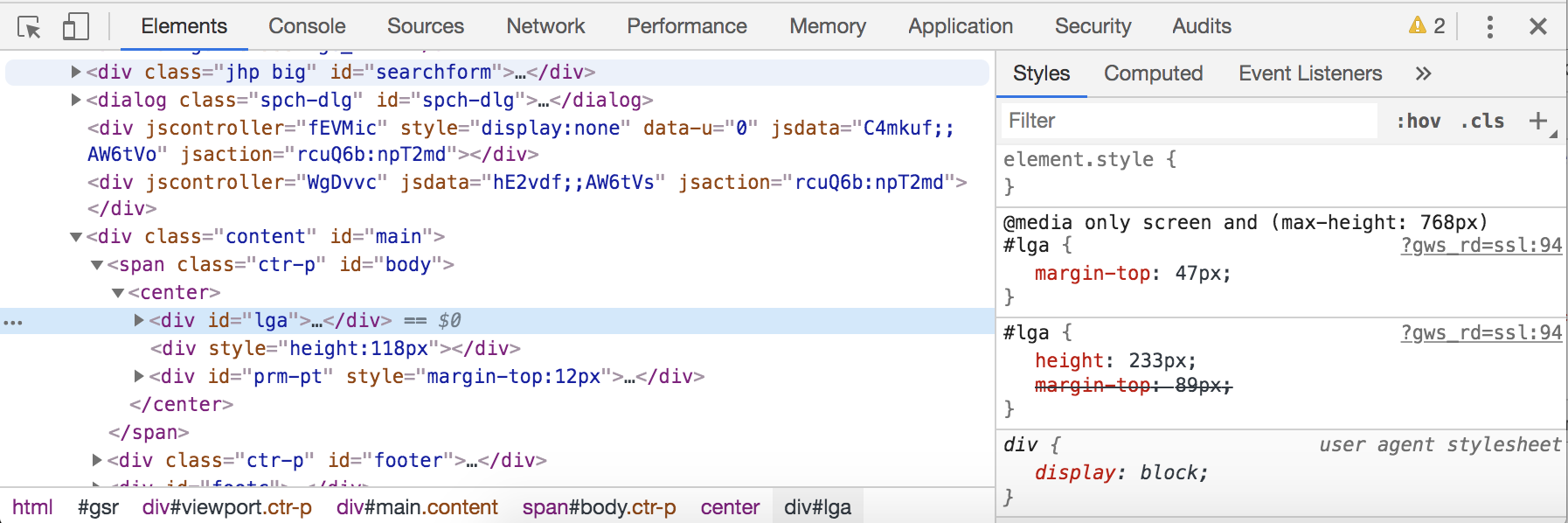
On the ELEMENTS tab you can see the DOM.
Here you can manipulate the output to test.
DevTools - Sources
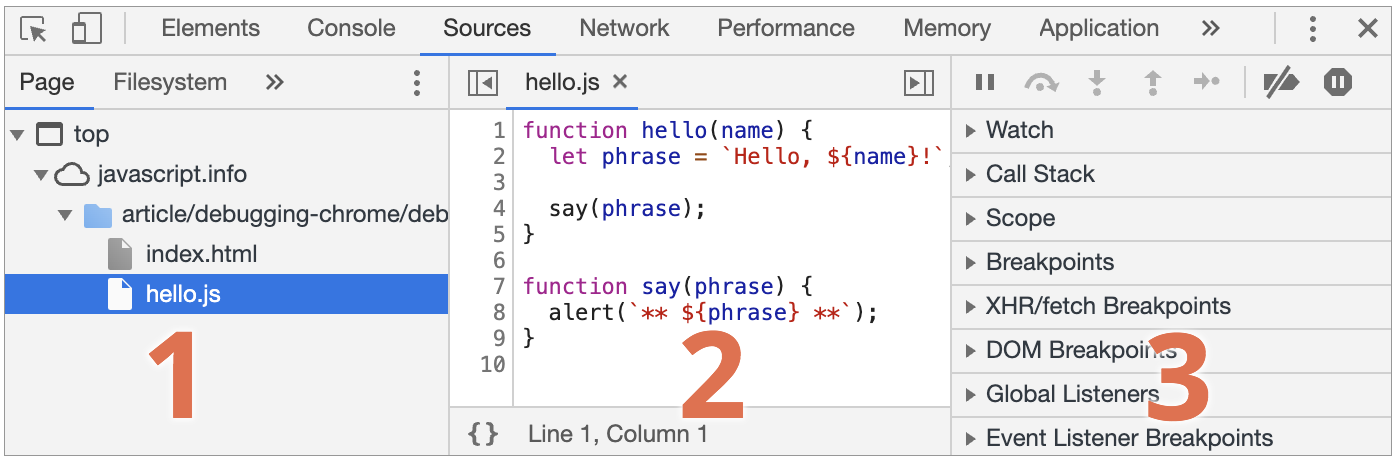
- The Resources zone lists HTML, JavaScript, CSS and other files, including images that are attached to the page. Chrome extensions may appear here too.
- The Source zone shows the source code.
- The Information and control zone is for debugging, we’ll explore it soon.
DevTools - Console
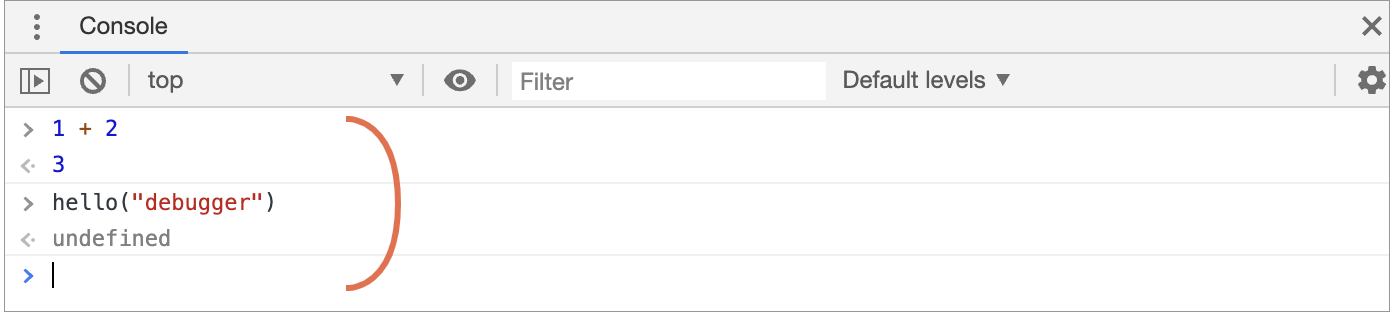
- If we press Esc, then a console opens below. We can type commands there and press Enter to execute.
- After a statement is executed, its result is shown below.
- For example, here 1+2 results in 3, and hello("debugger") returns nothing, so the result is undefined:
DevTools - Breakpoints
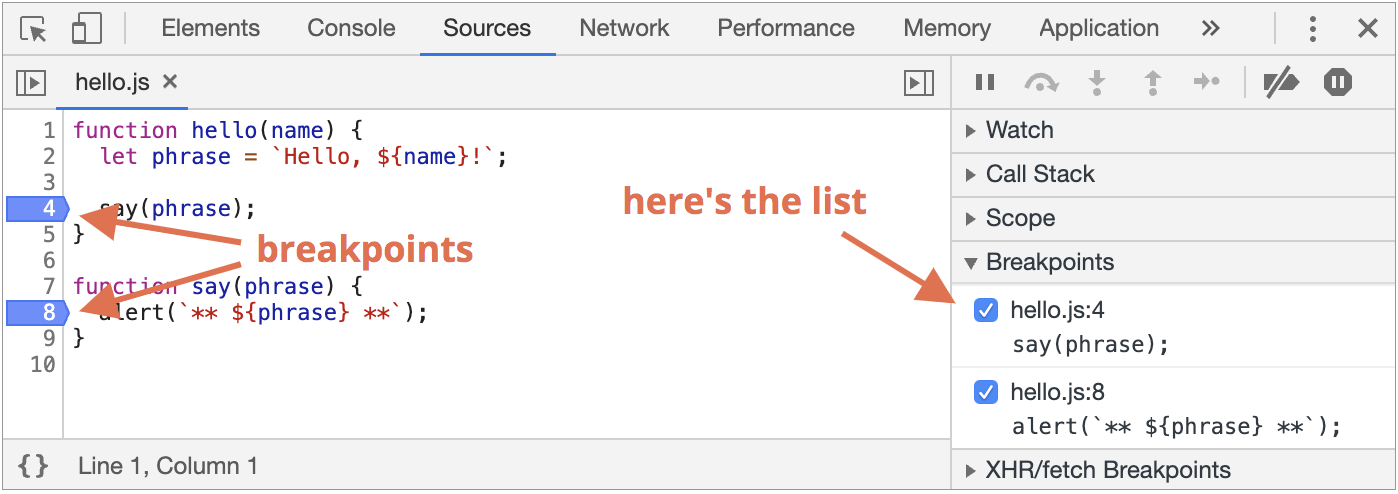
- Clicking on a line sets a breakpoint
-
A breakpoint is a point of code where the debugger will automatically pause the JavaScript execution.
-
While the code is paused, we can examine current variables, execute commands in the console etc. We can always find a list of breakpoints in the right panel.
DevTools - BP Command
-
We can also pause the code by using the debugger command in it
-
That’s very convenient when we are in a code editor and don’t want to switch to the browser and look up the script in developer tools to set the breakpoint.
function hello(name) {
  let phrase = `Hello, ${name}!`;

  debugger;  // <-- the debugger stops here

  say(phrase);
}
DevTools - Pauze
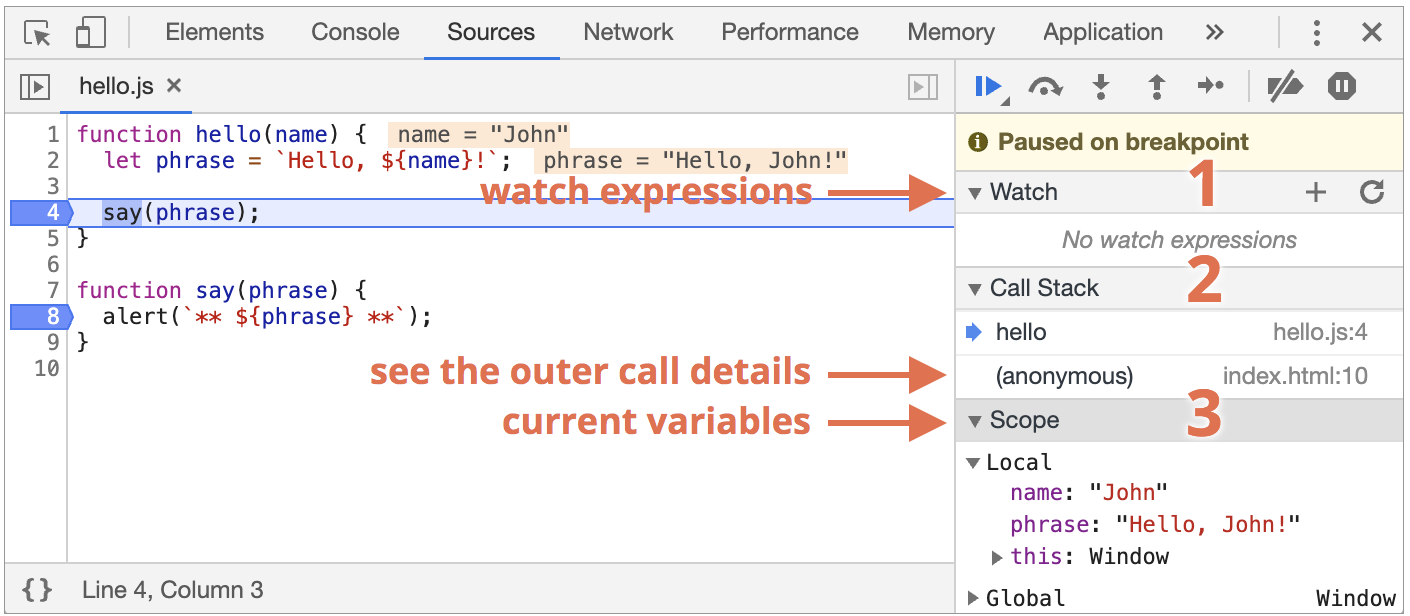
- Watch – shows current values for any expressions.
-
Call Stack – shows the nested calls chain.
-
Scope – current variables.
DevTools - Continue
- “Step”: run the next command, hotkey F9.
- “Step over”: run the next command, but don’t go into a function, hotkey F10.
- “Step into”: run the next command, go into function, hotkey F11
- “Step out”: continue the execution till the end of the current function, hotkey Shift+F11.
- enable/disable all breakpoints.
- enable/disable automatic pause in case of an error.

Logging with console.log
// Easy debugging
console.log('Hi this is Pieter');
// => 'Hi this is pieter'

var name = 'Pieter'
console.log(name);
// => 'Pieter'

var var1 = 20;
console.log('Var 1 is equal to' + var1)
// => 'Var 1 is equal to 20'
You can print out any variables, functions, objects, ... as a console object.
The output can be found in the Console of Browser.
JavaScript
Browser: Document, Events, Interfaces
Part 2
Browser: Document, Events, Interfaces
Learning how to manage the browser page: add elements, manipulate their size and position, dynamically create interfaces and interact with the visitor.
Scroll down to part 2
Go through ALL chapters.
Part 3
Additional articles
Feel free to go through part 3, it contains some useful principles/concepts/...
DOM tree
DOM tree
The backbone of an HTML document is tags.
According to the Document Object Model (DOM),
every HTML tag is an object.
Nested tags are “children” of the enclosing one. The text inside a tag is an object as well.
All these objects are accessible using JavaScript, and we can use them to modify the page.
DOM tree
For example, document.body is the object representing the <body> tag.
Running this code will make the <body> red for 3 seconds:
document.body.style.background = 'red'; // make the background red

setTimeout(() => document.body.style.background = '', 3000); // return back
DOM tree
Here we used style.background to change the background color of document.body, but there are many other properties, such as:
- innerHTML – HTML contents of the node.
- offsetWidth – the node width (in pixels)
- …and so on.
DOM tree - example
<!DOCTYPE HTML>
<html>
  <head>
    <title>About elk</title>
  </head>
  <body>
    The truth about elk.
  </body>
</html>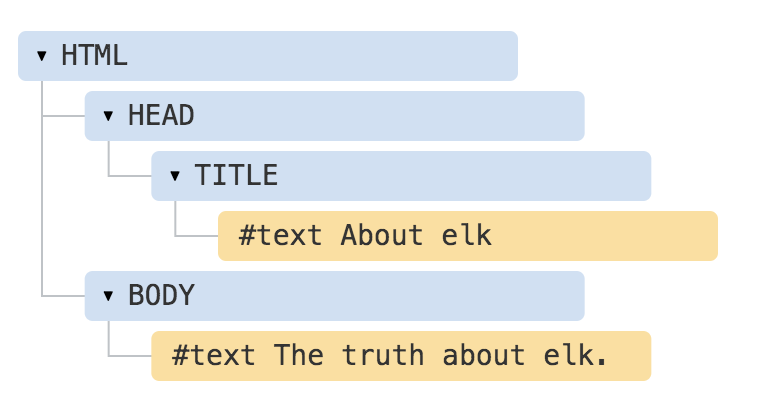
DOM tree - example
Tags are element nodes (or just elements) and form the tree structure: <html> is at the root, then <head>and <body> are its children, etc.
The text inside elements forms text nodes, labelled as #text. A text node contains only a string. It may not have children and is always a leaf of the tree.
Other node types
There are some other node types besides elements and text nodes.
For example, comments:
<!DOCTYPE HTML>
<html>
<body>
  The truth about elk.
  <ol>
    <li>An elk is a smart</li>
    <!-- comment -->
    <li>...and cunning animal!</li>
  </ol>
</body>
</html>
See it for yourself
- Open elk.html
- Right click on the page -> Inspect element
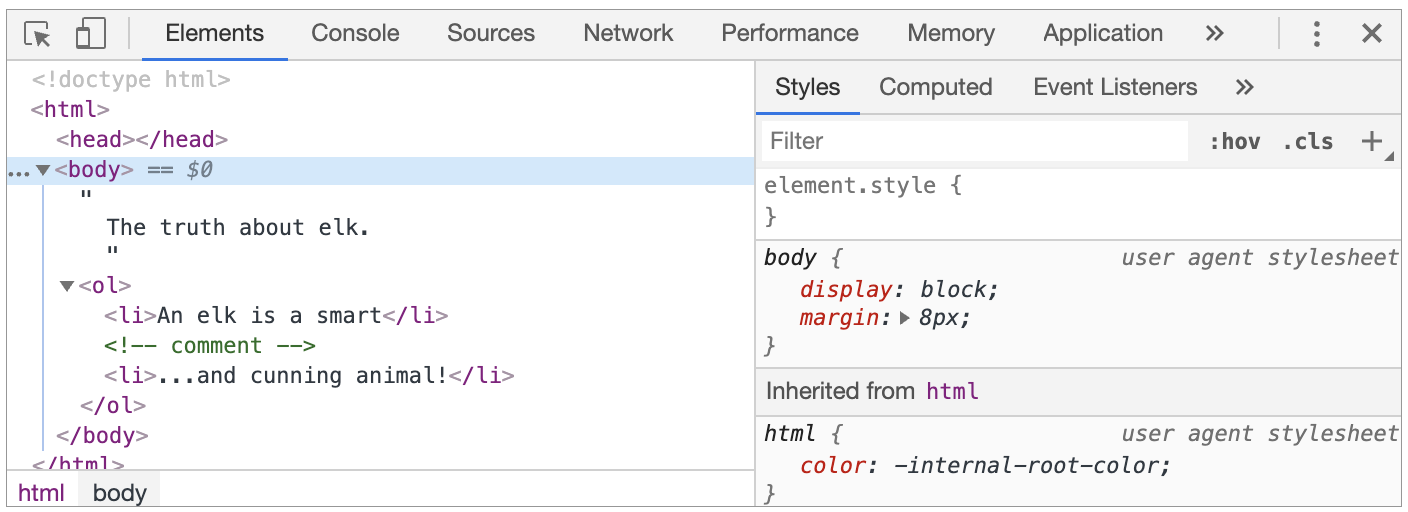
DevTools explained
At the right part of the tools there are the following subtabs:
- Styles – we can see CSS applied to the current element rule by rule, including built-in rules (gray). Almost everything can be edited in-place, including the dimensions/margins/paddings of the box below.
- Computed – to see CSS applied to the element by property: for each property we can see a rule that gives it (including CSS inheritance and such).
- Event Listeners – to see event listeners attached to DOM elements (we’ll cover them in the next part of the tutorial).
- …and so on.
Selecting items
document.getElementById
If an element has the id attribute,
we can get the element using the method
document.getElementById(id),
no matter where it is.
<div id="elem">
  <div id="elem-content">Element</div>
</div>

<script>
  // get the element
  let elem = document.getElementById('elem');

  // make its background red
  elem.style.background = 'red';
</script>
document.querySelectorAll
elem.querySelectorAll(css)
returns all elements inside elem matching
the given CSS selector.
Here we look for all <li> elements that are last children:
<ul>
  <li>The</li>
  <li>test</li>
</ul>
<ul>
  <li>has</li>
  <li>passed</li>
</ul>
<script>
  let elements = document.querySelectorAll('ul > li:last-child');

  for (let elem of elements) {
    alert(elem.innerHTML); // "test", "passed"
  }
</script>
document.querySelectorAll
Any CSS selector can be used.
Can use pseudo-classes as well
:hover :before
querySelectorAll returns an array of objects:
elem.querySelectorAll(css)[0] // Gets the first object

elem.querySelectorAll(css)[4] // Gets the fifth object
matches
The elem.matches(css) does not look for anything, it merely checks if elem matches the given CSS-selector. It returns true or false.
<a href="http://example.com/file.zip">...</a>
<a href="http://ya.ru">...</a>

<script>
  // can be any collection instead of document.body.children
  for (let elem of document.body.children) {
    if (elem.matches('a[href$="zip"]')) {
      alert("The archive reference: " + elem.href );
    }
  }
</script>
JavaScript
JavaScript
JSON
Who is this Jason guy I keep hearing about?

Meet JSON
{"menu": {
  "id": "file",
  "value": "File",
  "popup": {
    "menuitem": [
      {"value": "New", "onclick": "CreateNewDoc()"},
      {"value": "Open", "onclick": "OpenDoc()"},
      {"value": "Close", "onclick": "CloseDoc()"}
    ]
  }
}}JavaScript Object Notation.
JSON is a syntax for storing and exchanging data.
JSON is text, written with JavaScript object notation.
Have a read:
Meet JSON
JavaScript
AJAX
But I don't follow soccer?

Meet AJAX
AJAX lets you:
Read data from a web server - after the page has loaded
Update a web page without reloading the page
Send data to a web server - in the background
Meet AJAX
AJAX = Asynchronous JavaScript And XML.
AJAX is not a programming language.
AJAX just uses a combination of:
A browser built-in XMLHttpRequest object (to request data from a web server)
JavaScript and HTML DOM (to display or use the data)
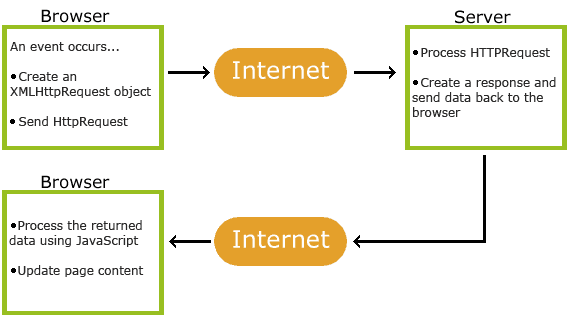
Learn AJAX
Mozilla has a great guide to get you started:
https://developer.mozilla.org/en-US/docs/Web/Guide/AJAX/Getting_Started
Find one that works for you.
JavaScript
CodePen Examples
CodePen Examples
Basic structure ribbon
https://codepen.io/mathysp/pen/GRgordM
Flex - hover item