Managing Sequence
robustack.com
Run Sequence
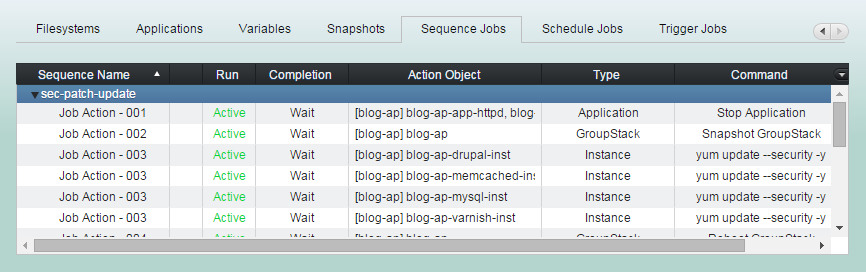
(1) Click "Sequence Jobs" tab. And select one or more sequences to run now.
(2) Click "Run Sequence" button

Turn on heartbeat icon in the right of top menu to see the sequence progress smoothly.
Select "Show Job Log" in the top menu to open 'Job Log View'.
Job Action 002 is in progress now among all sequence actions.
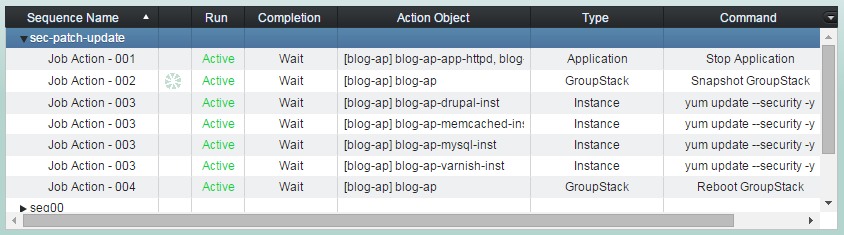
You can add more actions to the sequence or modify all those attributes on the fly for the rest of actions which are not started yet.
Add Sequence Action
Unlike job actions in Schedule/Trigger, those in Sequence have run orders and waiting options. You can design them to run in serial or in parallel to suit your needs.
(1) Click "Sequence Jobs" tab and select the sequence you'd like to add actions into it.
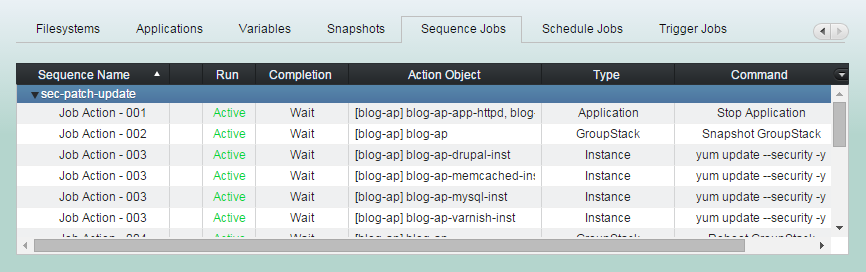
(2) Click "Add Job Action" button
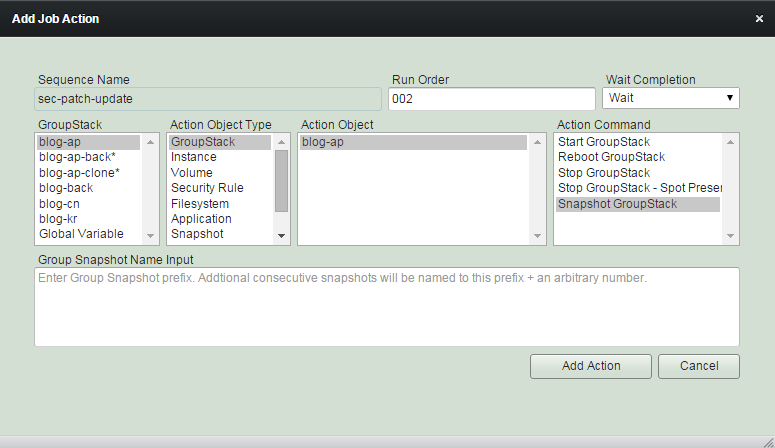
'Run Order' is integer number between 001 and 999.
Actions in a sequence with lower number will run earlier than those with higher. Actions with same order number will run in parallel.
We recommend you set the order 010, 020, 030 ... rather than 001, 002, 003.
So that you could put an action between them as 015, 025, 035 ... later.
Select 'Wait Completion' option.
If you select 'Wait', then the next action with higher run order will wait until this action completed.
You can select any groupstack
in any location.
Or Global variable.
Select one type of action object.
GroupStack
Instance
Volume
Security Rule
Filesystem
Application
Snapshot
Schedule
Variable
Global Variable
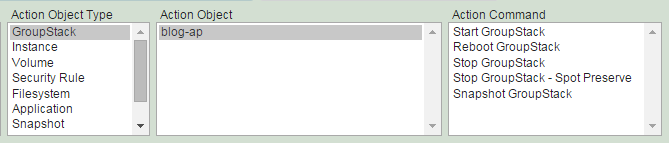
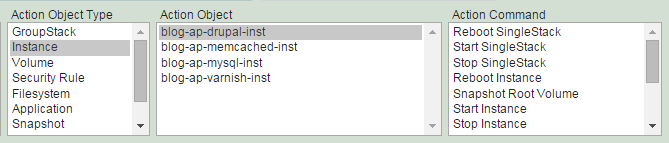
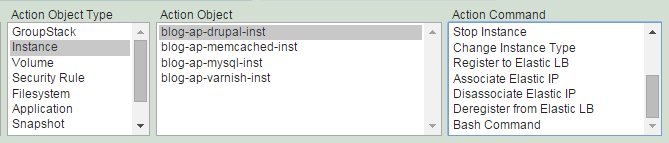
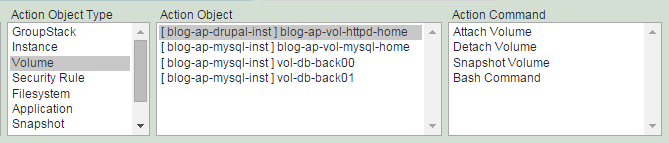
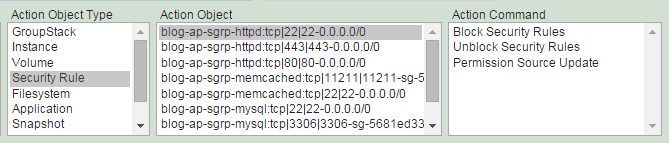
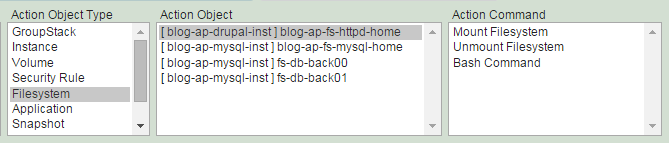
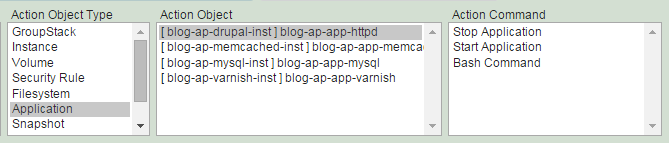
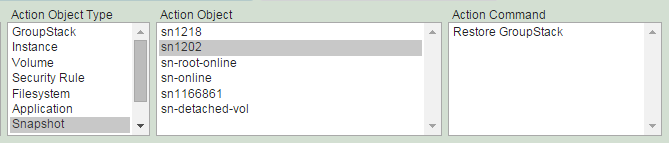
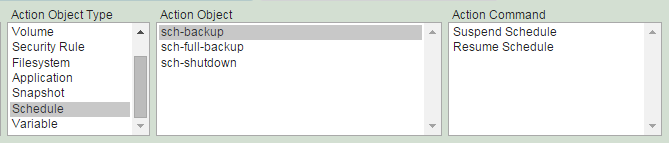
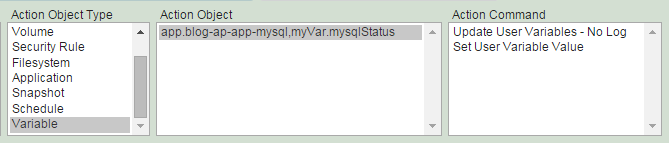
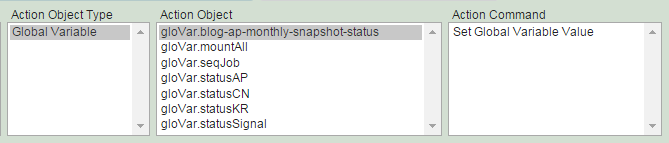
Select action objects and command.
Fill 'Command Option' if requested.
(3) Click "Add Action" button.
Copy Sequence
(1) Click "Sequence Jobs" tab. And select a source sequence to copy.
(2) Click "Copy Sequence" button
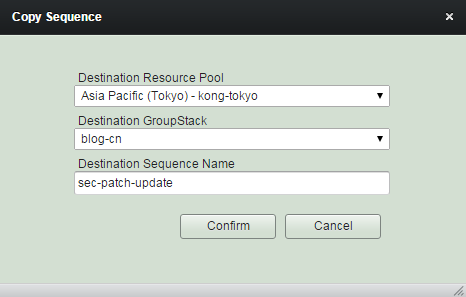
(3) Fill items for the destination as needed and click "Confirm".
Remove Sequence
(1) Click "Sequence Jobs" tab. And select sequences to remove.
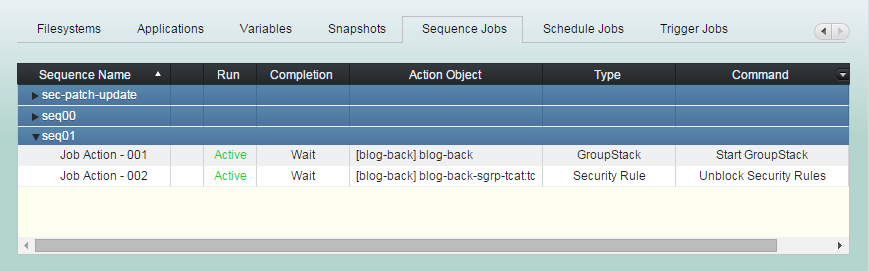
(2) Click "Remove Sequence" button