Managing
Running Instance
robustack.com
robustack.com
You can manage individual instances or singlestacks, selecting instances in the "Instances" tab of the groupstack view.
Reboot SingleStack
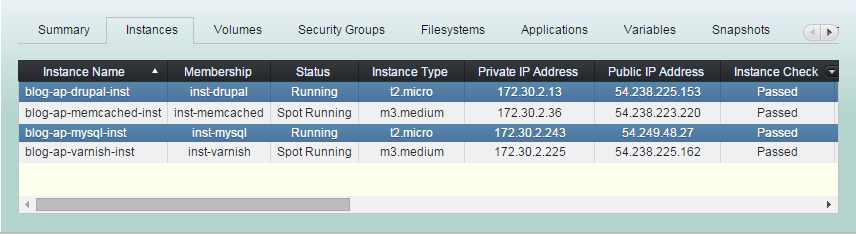
(1) Click "Instances" tab in groupstack sub table view. And select one or more (CTRL^) instances you'd like to reboot those singlestacks.
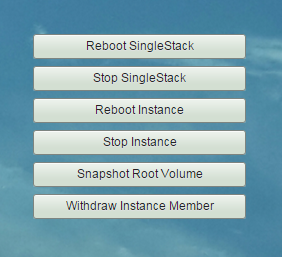
(2) Click "Reboot SingleStack" button.
(3) Reboot SingleStack workflow
1. Stops bound applications according to its groupstack-wide reverse 'Start Order' and 'Stop App Dependencies'.
2. Unmounts all bound filesystems.
(3) Reboot SingleStack workflow
3. Reboots selected instances.
4. Waits selected instances are rebooted.
5. Mounts all bound filesystems.
6. Runs 'Post Bash Script'.
(3) Reboot SingleStack workflow
7. Starts bound applications according to those groupstack-wide 'Start Orders' and 'Start App Dependencies'.
(4) Reboot SingleStack completed.
Stop SingleStack
(1) Click "Instances" tab in groupstack sub table view. And select one or more (CTRL^) instances you'd like to stop those singlestacks.
(2) Click "Stop SingleStack" button.
(3) Stop SingleStack workflow
1. Stops bound applications according to its groupstack-wide reverse 'Start Order' and 'Stop App Dependencies'.
2. Unmounts all bound filesystems.
(3) Stop SingleStack workflow
4. Stops selected instances.
5. Deregisters instances from Elastic LB,
if 'Auto Register to ELB' are set to instances.
6. Waits until selected instances stopped.
(4) Stop SingleStack completed
Reboot Instance
'Reboot Instance' will reboot EC2 instances only.
Be sure when you run this. Bound applications and filesystems will not be handled by this workflow. And operating system will not handle them properly either.
(1) Click "Instances" tab in groupstack sub table view. And select one or more ( CTRL^) instances you'd like to reboot.
(2) Click "Reboot Instance" button.
(3) Reboot Instance workflow
1. Reboots selected instances.
2. Waits selected instances are rebooted.
(4) Reboot Instance completed
You may need handling the bound filesystems and applications manually.
Stop Instance
'Stop Instance' will stop EC2 instances only.
Be sure when you run this. Bound applications and filesystems will not be handled by this workflow. And operating system will not handle them properly either.
(1) Click "Instances" tab in groupstack sub table view. And select one or more ( CTRL^) instances you'd like to stop.
(2) Click "Stop Instance" button.
(3) Stop Instance workflow
1. Stops all selected instances.
2. Deregisters instances from Elastic LB,
if 'Auto Register to ELB' are set to instances.
3. Waits until selected instances stopped.
(4) Stop instance completed
Snapshot Root Volume
Although snapshotting root volumes while the instances are running is not safe and not recommended, you can snapshot them and use it later at your own risk.
(1) Click "Instances" tab in groupstack sub table view. And select one or more (CTRL^) instances you'd like to snapshot those root volumes.
(2) Click "Snapshot Root Volume" button.
(3) Enter Group Snapshot Name and
click "Confirm" button.
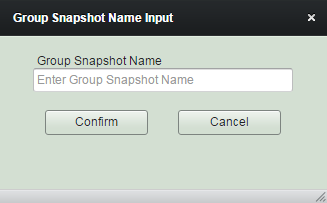
(4) Root volumes snapshot has been initiated. You can check the snapshots soon to be created at "Snapshots" tab.
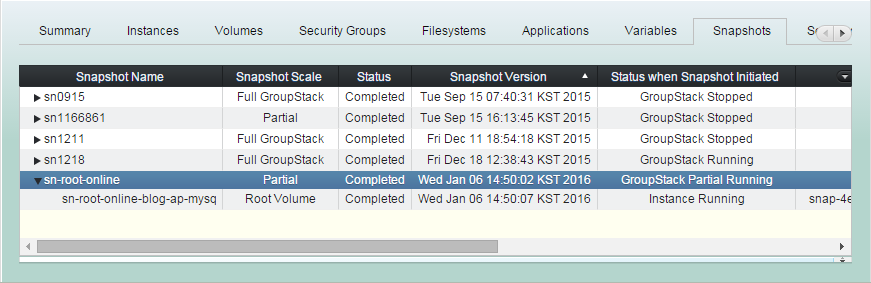
(4) Root volumes snapshot has been completed.
You can restore root volumes
or create new AMIs later
with the snapshots you've done here.
Register Root Volume Snapshot
You may have a root volume snapshot you created from other instance. You can utilize the snapshot for restoring or cloning instance root volume as if it was created from an instance here
The expression 'register to groupstack' means 'giving membership to a resource which is outside the groupstack' and 'withdraw from groupstack' means 'taking the membership back from a resource which is inside the groupstack'.
(1) Click "Instances" tab in groupstack sub table view. And select an instance you want to register a snapshot which had done outside the groupstack as a root snapshot.
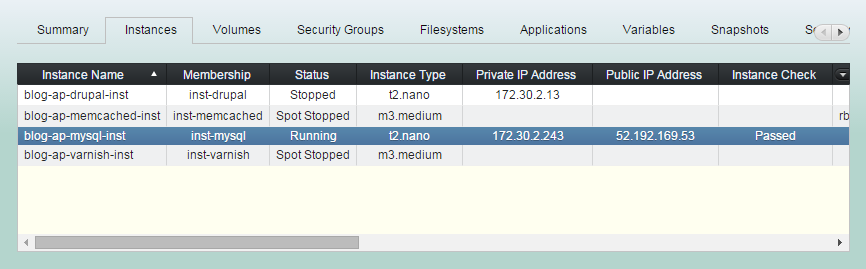
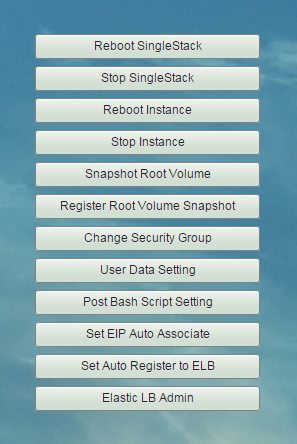
(2) Click "Register Root Volume Snapshot"
(3) Enter Group Snapshot Name and select snapshot you want to register to. And Click "Register" button.
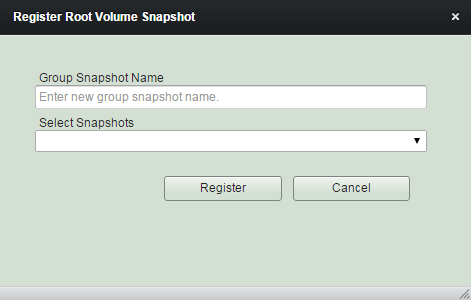
You can select a snapshot among which don't belong to any group snapshots.

(4) Registering root volume snapshot has been completed. You can see the snapshot is now in the group snapshot.
You can restore root volume with this snapshot or create new AMIs later
with the snapshot you've registered here.
Change Security Group
Only available for the instances in VPC.
(1) Click "Instances" tab in groupstack sub table view. And select an instance you want to change its security groups.
(2) Click "Change Security Group" button.
(3) Select multiple (CTRL^) security groups to be taken effect to the instance.
You cannot unselect mandatory security groups, such as group for robustack agents.
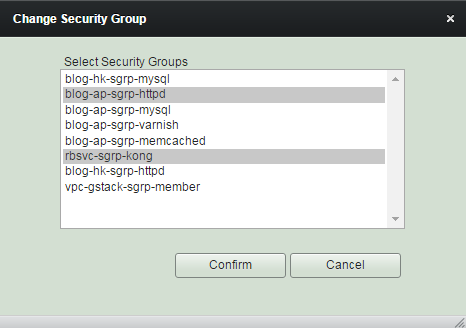
(4) Changing security groups has been completed.
Register Instance Member
You can register any instance in the same location as a groupstack member, if the instance is not already a member of other groupstack.
The expression 'register to groupstack' means 'giving membership to a resource which is outside the groupstack' and 'withdraw from groupstack' means 'taking the membership back from a resource which is inside the groupstack'.
(1) Click "Instances" tab
in groupstack sub table view.
And leave all instances unselected.
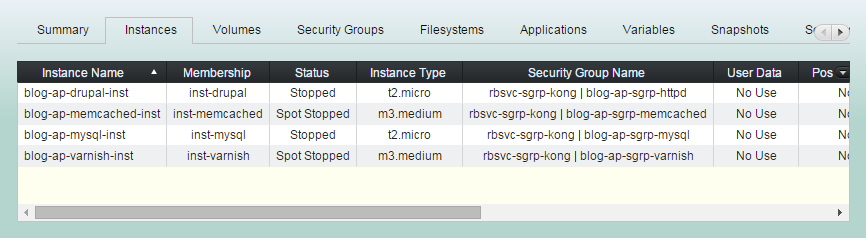
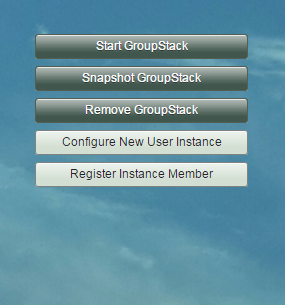
(2) Click "Register Instance Member".
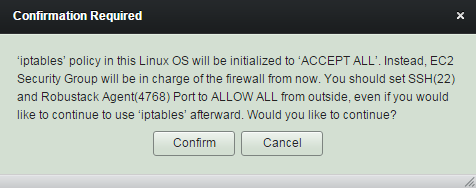
(3) Read confirmation message and click "Confirm".
Amazon EC2 security group should be the only firewall for the instance from now.
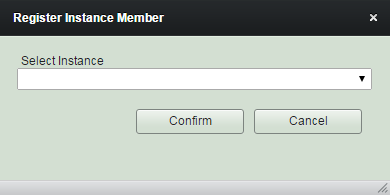
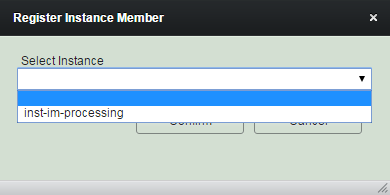
(4) Select instance you want to register.
You can select an instance
among which are running now.
As robustack agent should be installed to the instance.
(5) Register Instance Member has been completed.
Bound volumes have also been registered to the groupstack.
Withdraw Instance Member
Withdrawing instances from a groupstack will never terminate nor stop EC2 instances. Only the instances will lose those memberships. Bound resources will have been withdrawn beforehand in order to withdraw the instances.
(1) Click "Instances" tab in groupstack sub table view. And select instances you'd like to withdraw those membership from the groupstack.
(2) Click "Withdraw Instance Member"
(3) Withdraw Instance Member
has been completed.