ZnDraw - SiMGen integration
Welcome! In this tutorial you'll learn how to:
- Create guiding curves for generation.
- Control the generation.
- Draw in 3D.
You can use the buttons below to quickly jump to a particular section!

Source code:
Drawing controls
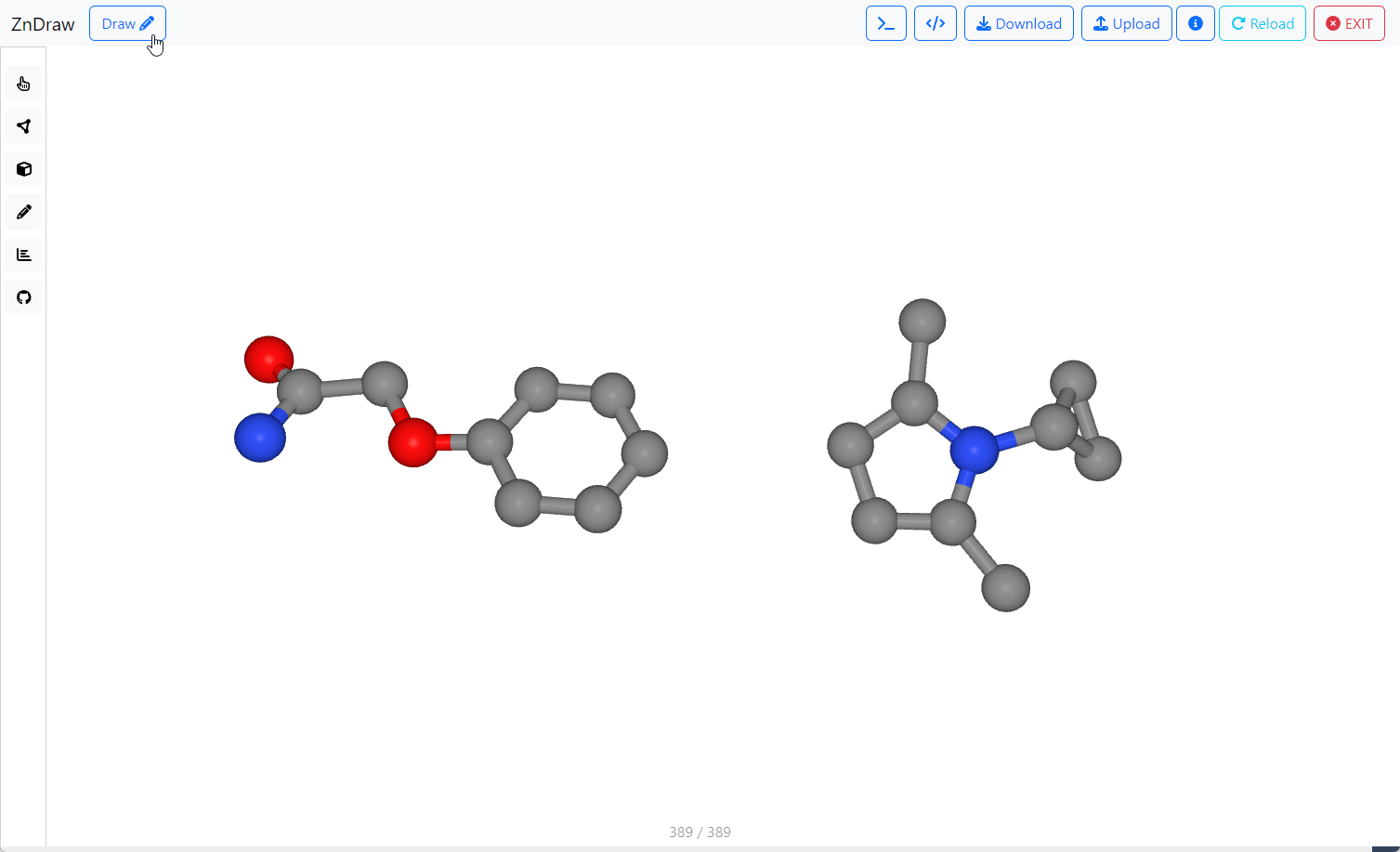
Enter Draw mode by clicking the Draw button (or X on your keyboard).
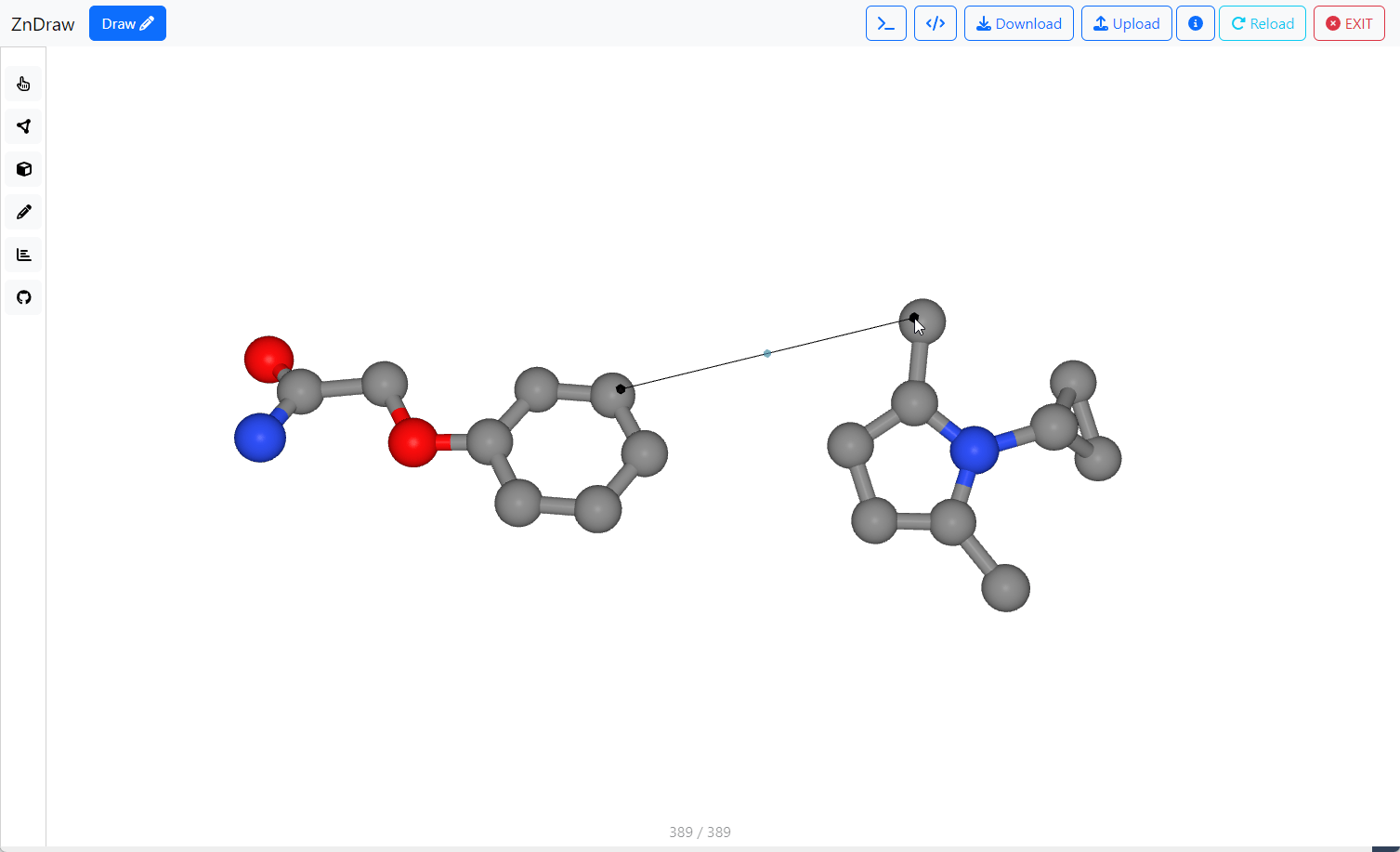
Place guiding points by clicking on atoms.
click!
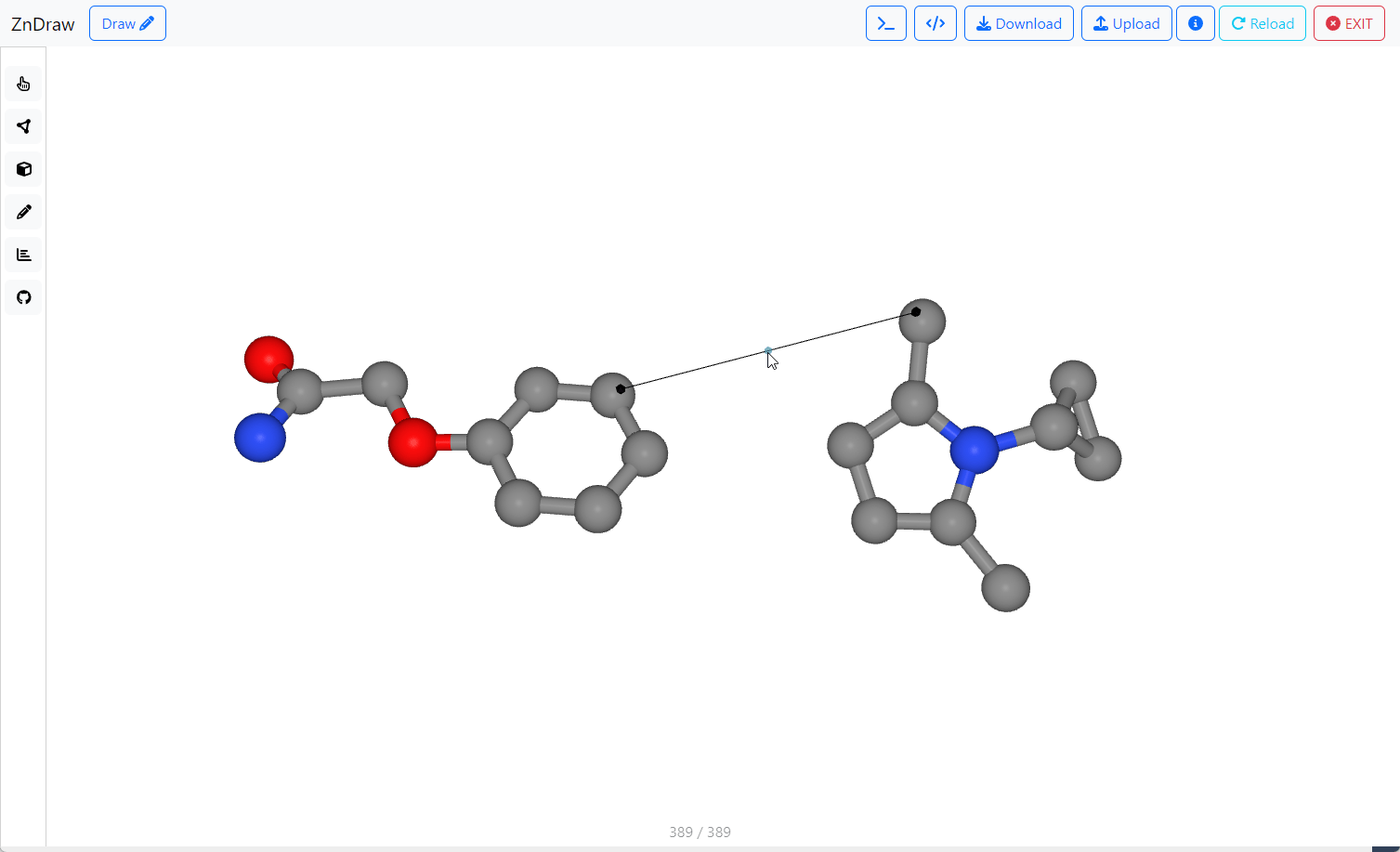
Add more points by clicking segment midpoints outside Draw mode.
Turned off
click!
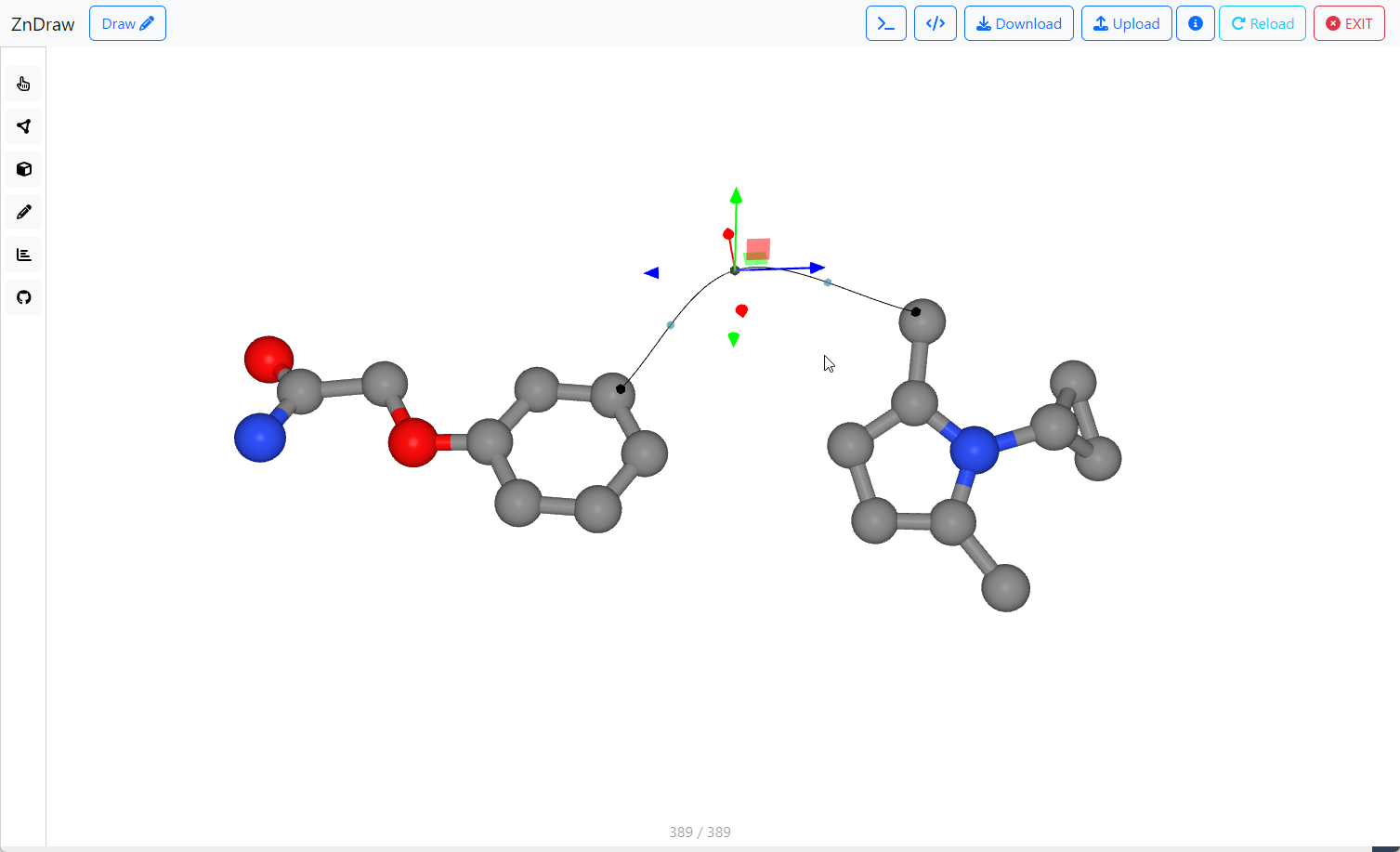
Move guiding points by clicking and then using on-screen controls. Click Esc to deselect points.
click+drag
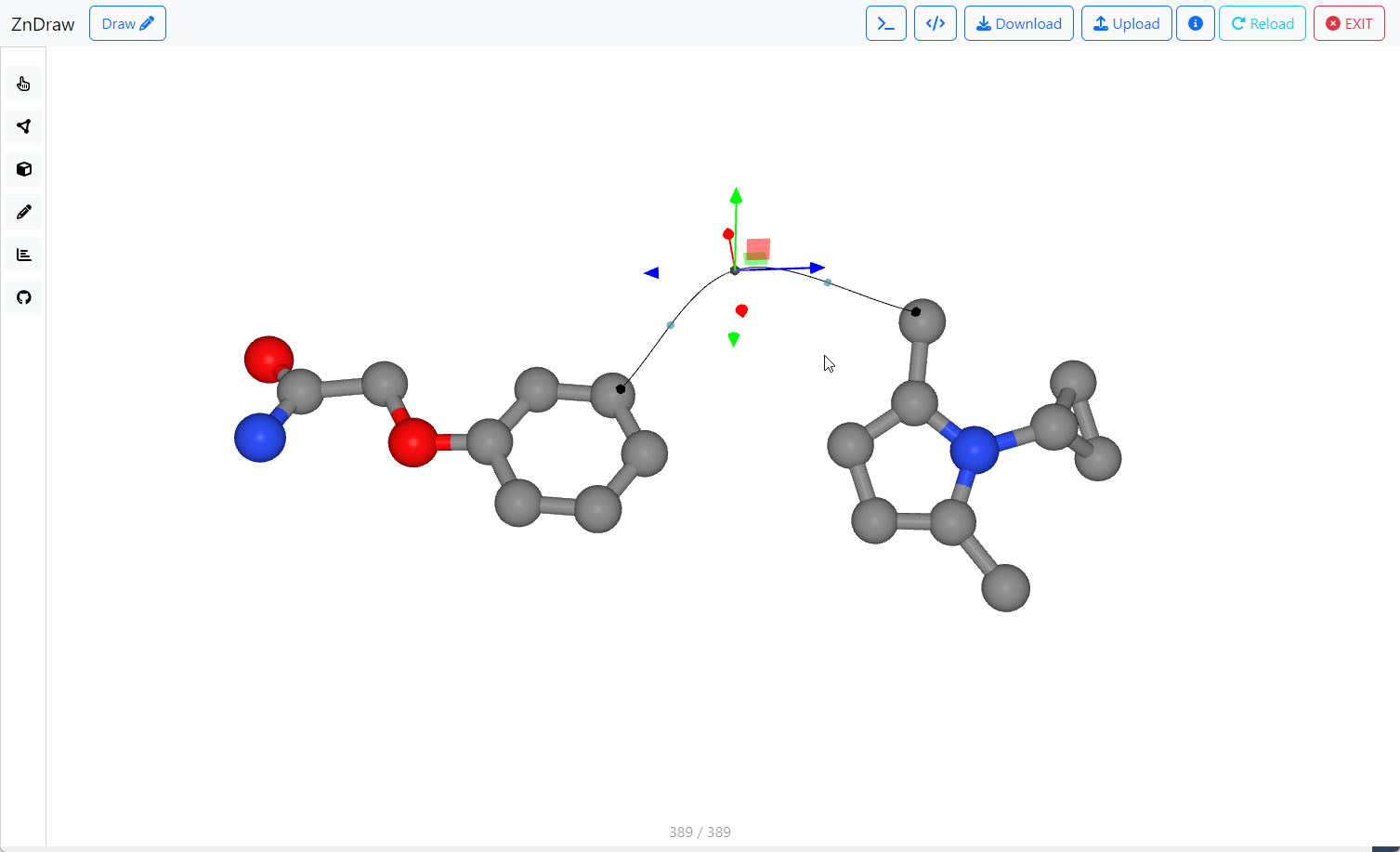
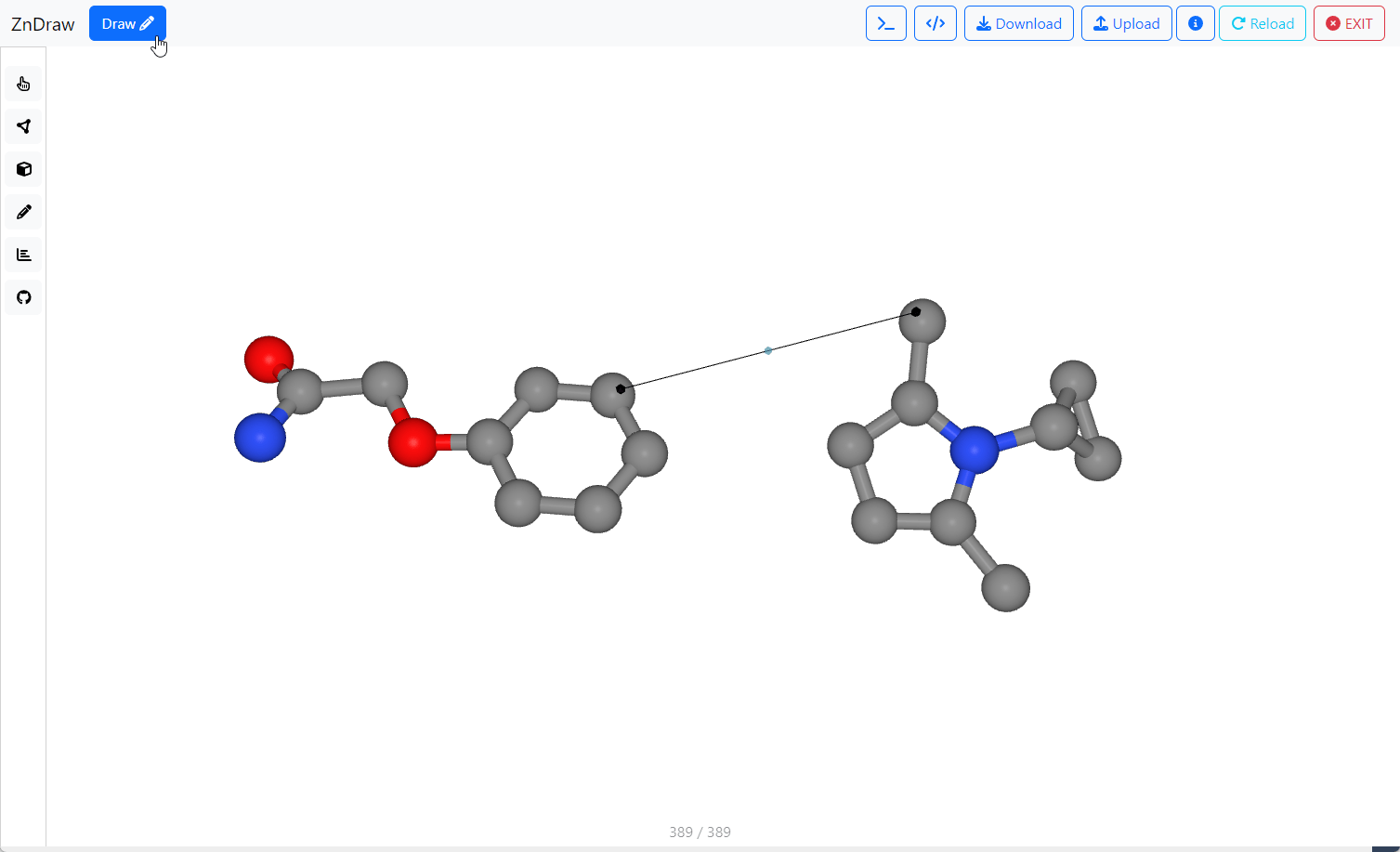
Delete a selected point by clicking Backspace on your keyboard.
Jump to start
Generation controls
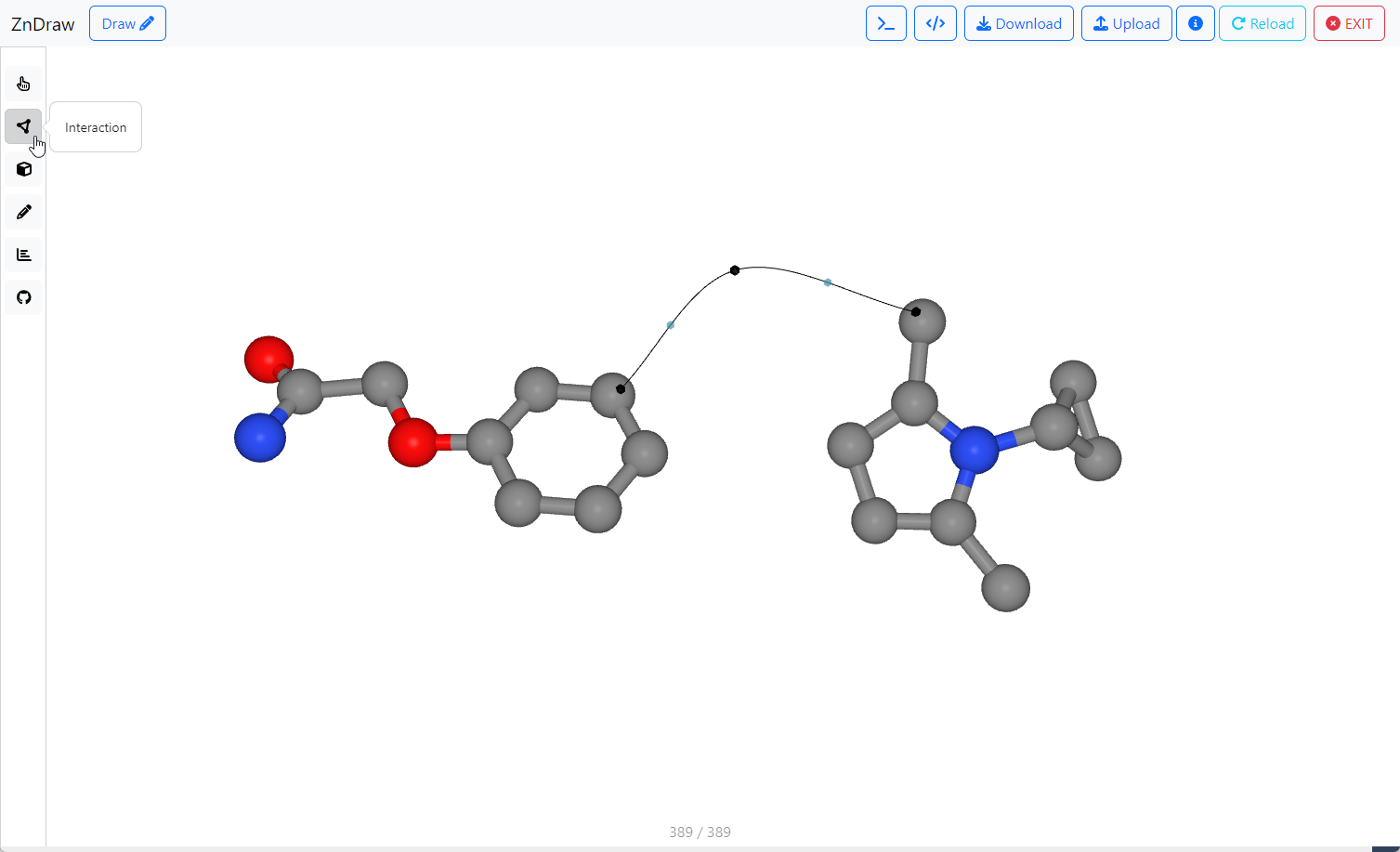
Open the Interaction menu and select DiffusionModelling
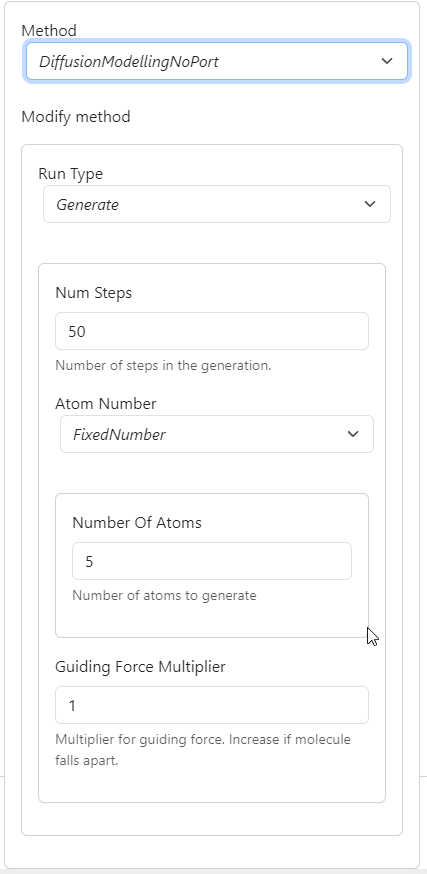
This opens the generation controls.
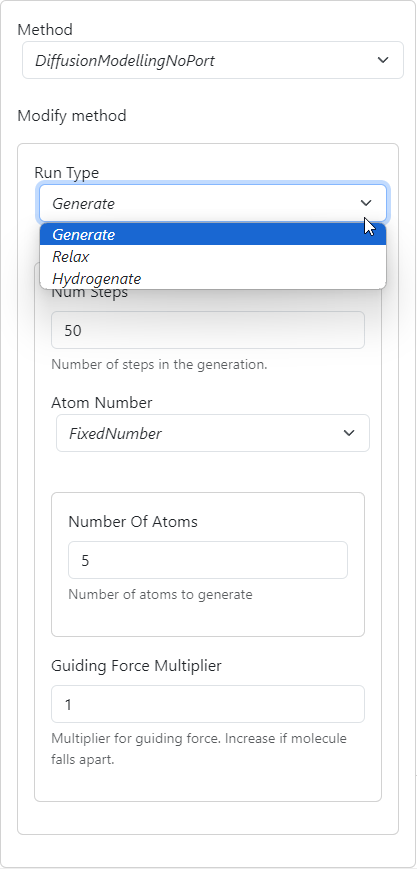
Change the run type using a drop-down menu.
Usual workflow is:
Generate → Hydrogenate → Relax
Num Steps controls the number of steps for each run type.
Default values should work for most use cases.
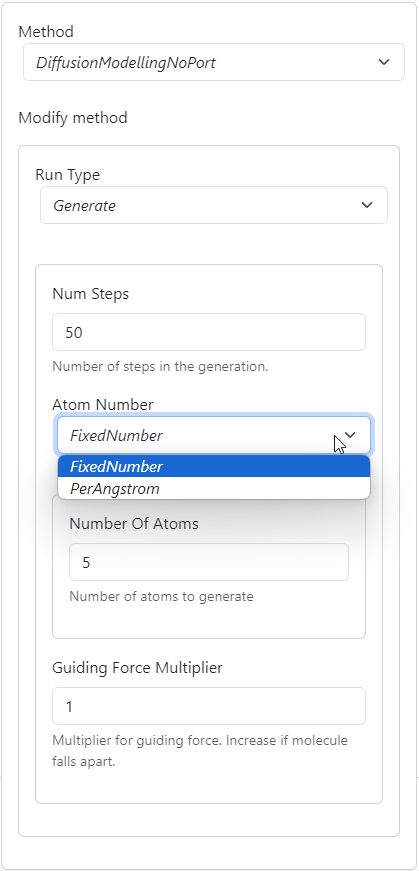
Specify the number of atoms to generate via:
FixedNumber-
PerAngstromwhich uses the length of the guiding curve
If generated structures are fragmented, increase the guiding force multiplier.
We recommend changing in multiples of 2.
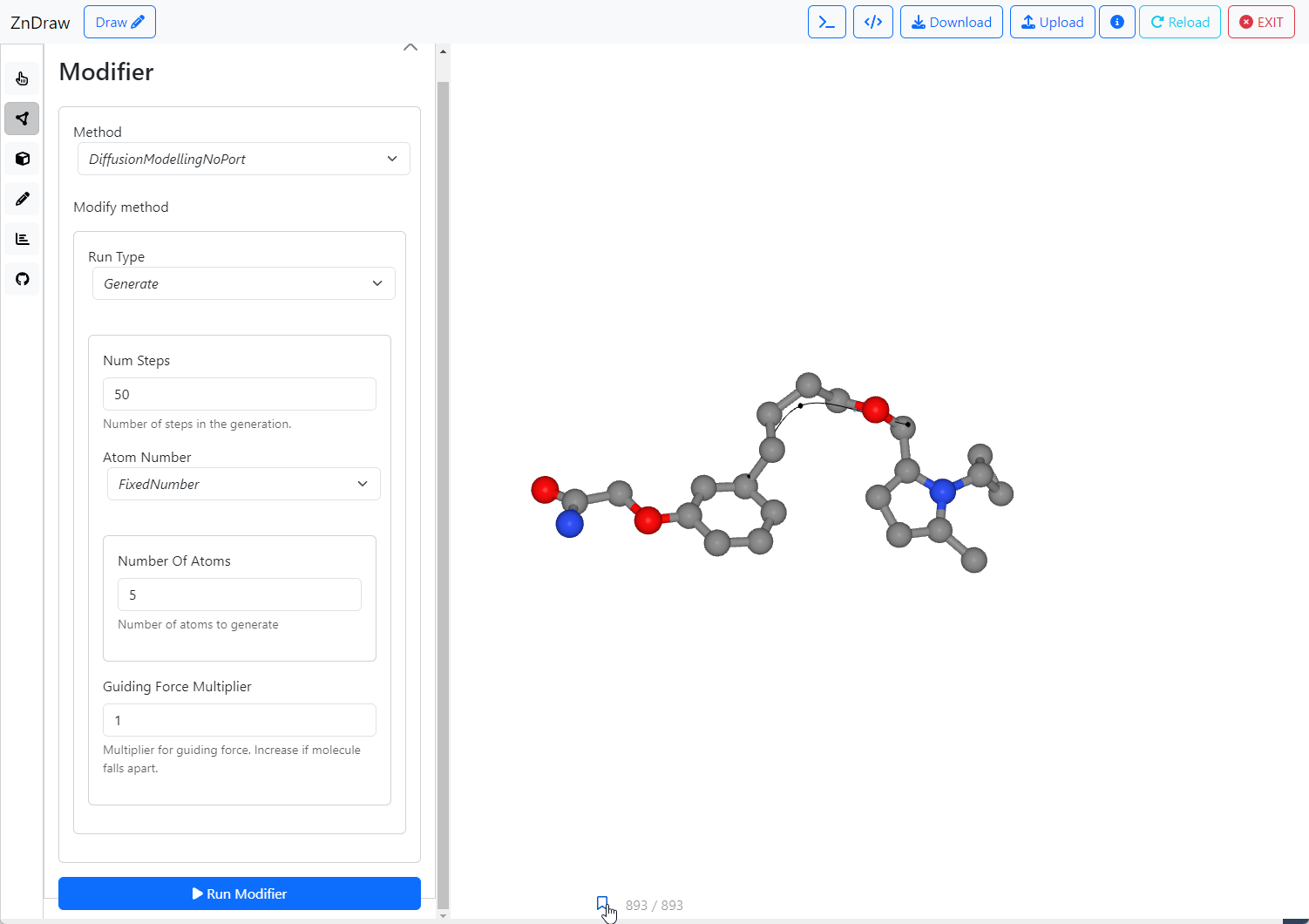
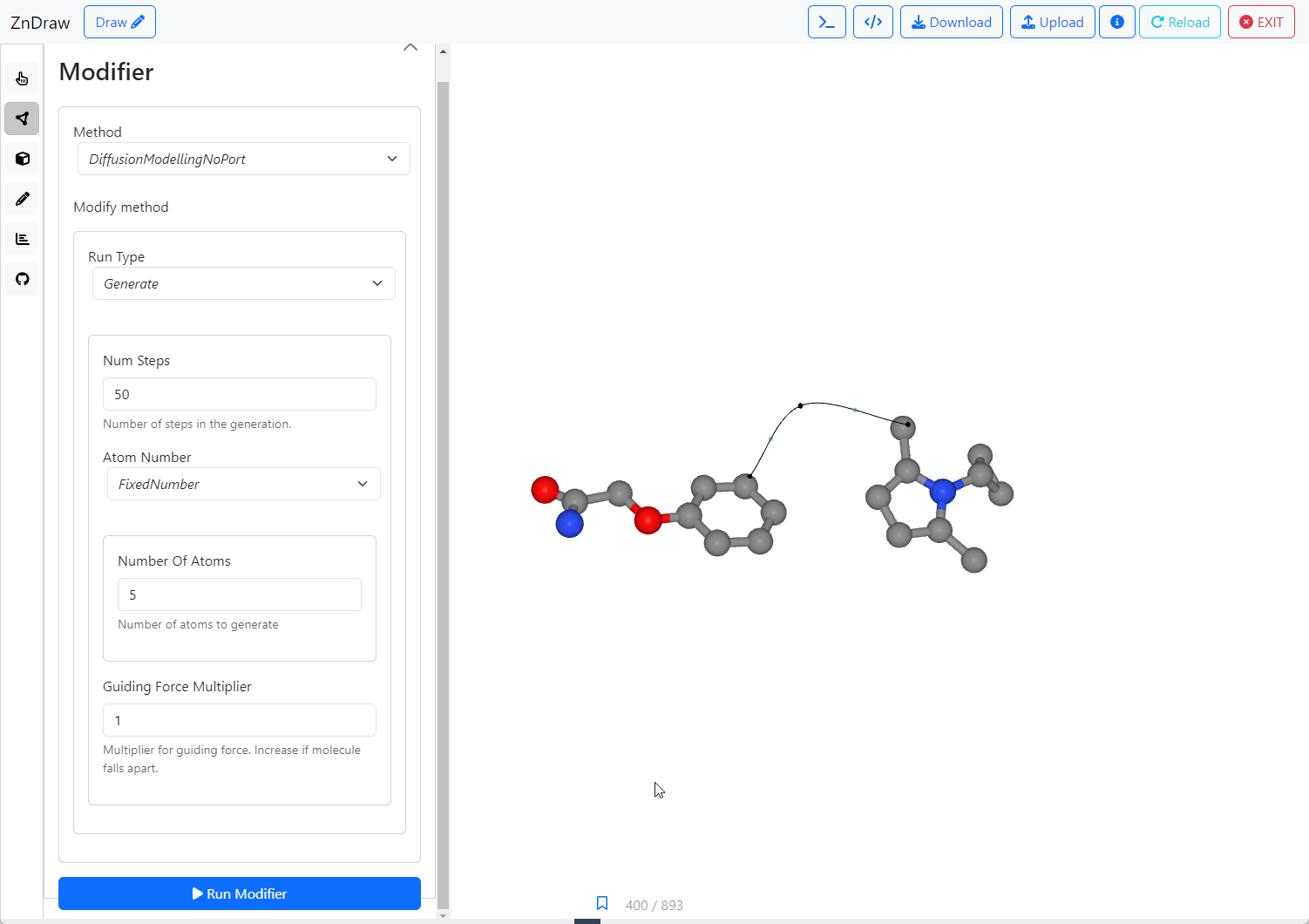
Click Run Modifier to launch the generation!
Each step creates a clickable bookmark, allowing to easily jump back to the starting point.
click
Jump to start
Generation in free 3D space
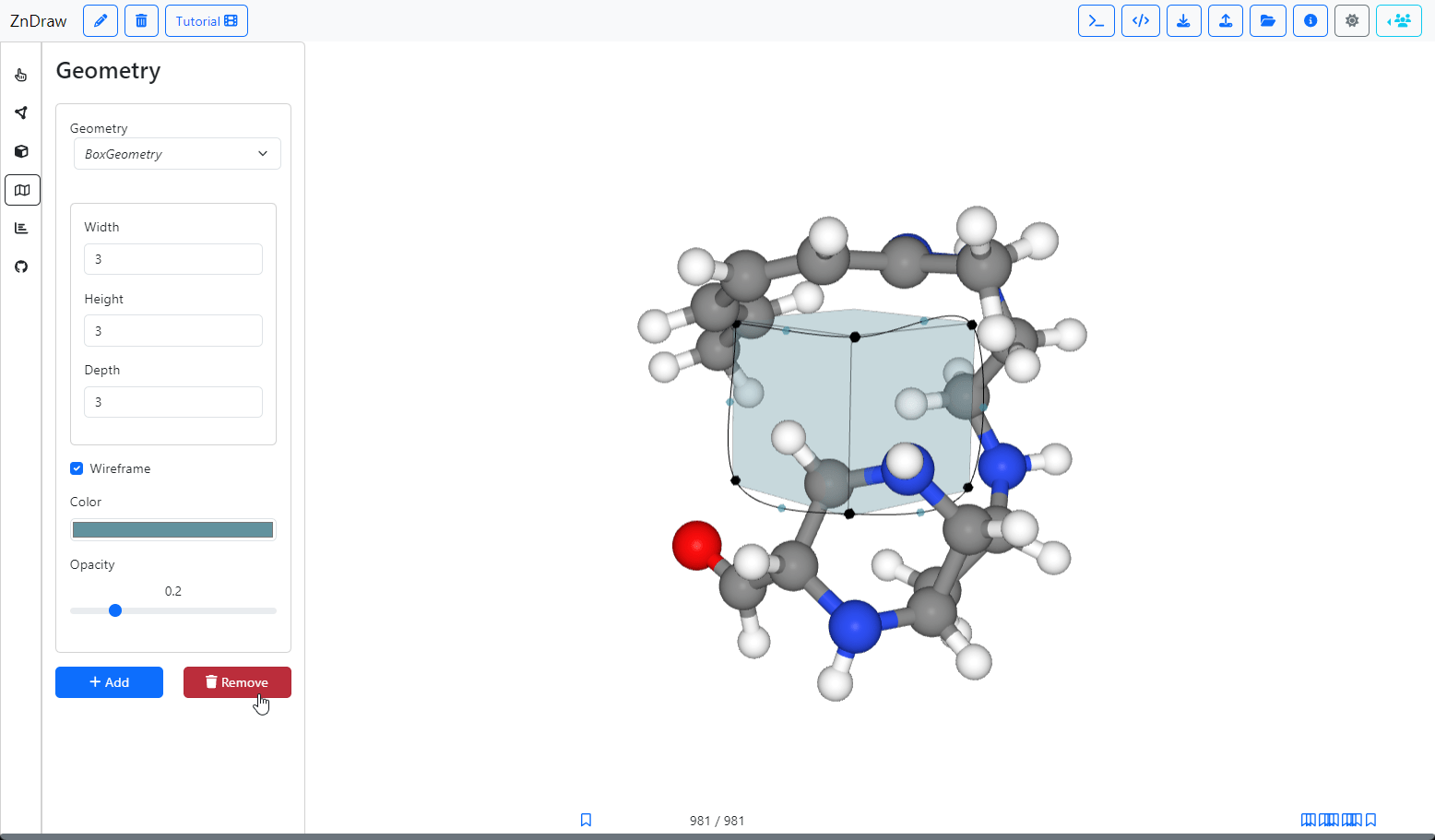
Open the Geometry menu by clicking the map icon on the sidebar
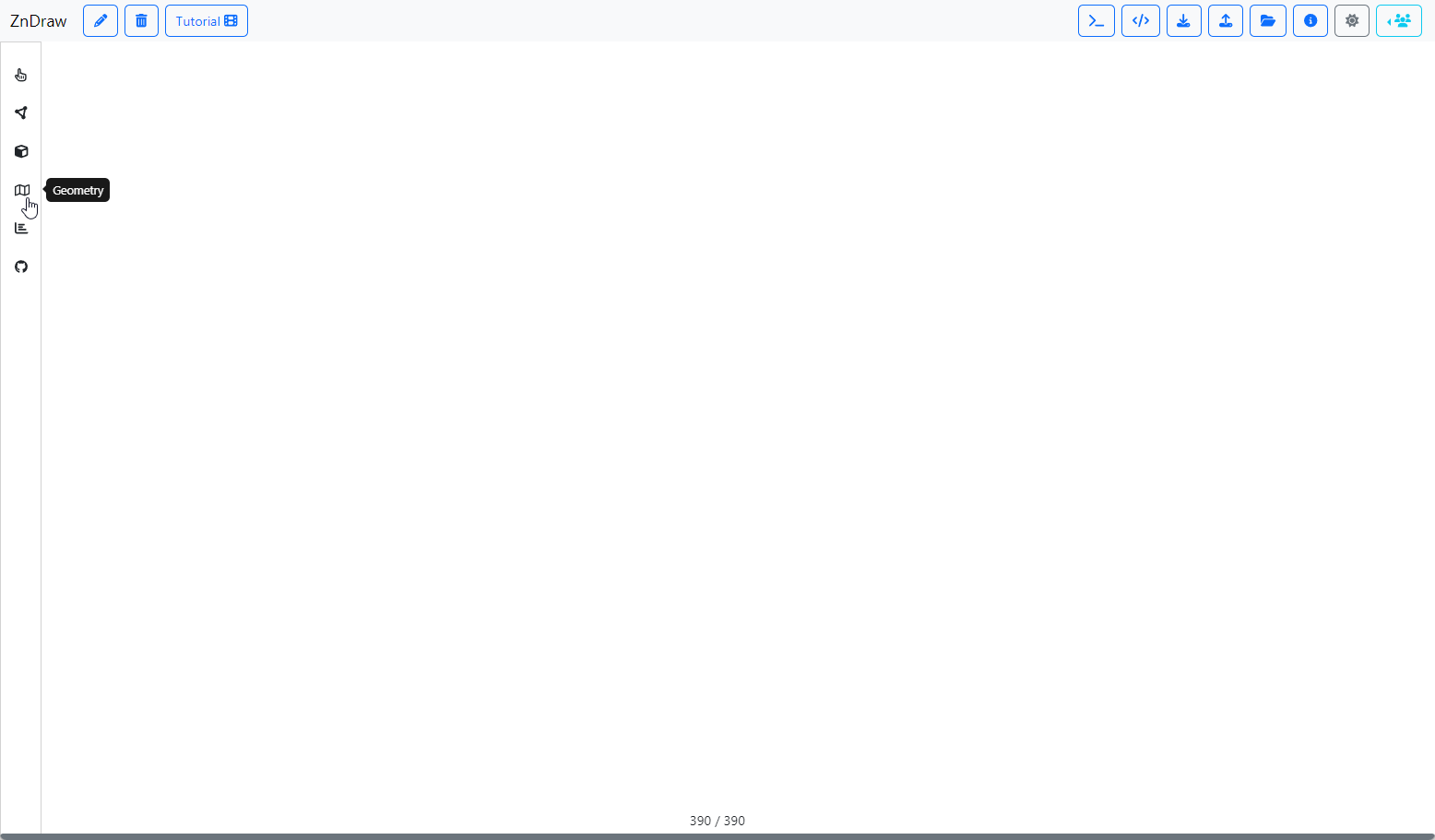
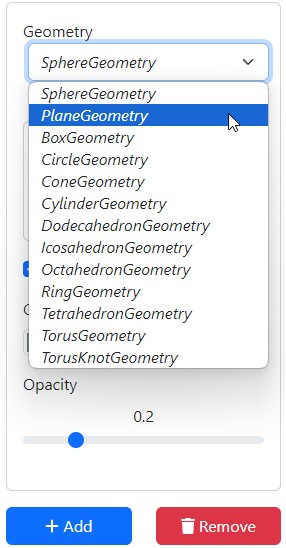
In the Geometry menu, select the type of canvas to add.
Click Add to add the selected canvas to the scene.
Guiding points can be attached to the canvas.
Click me in Draw mode!
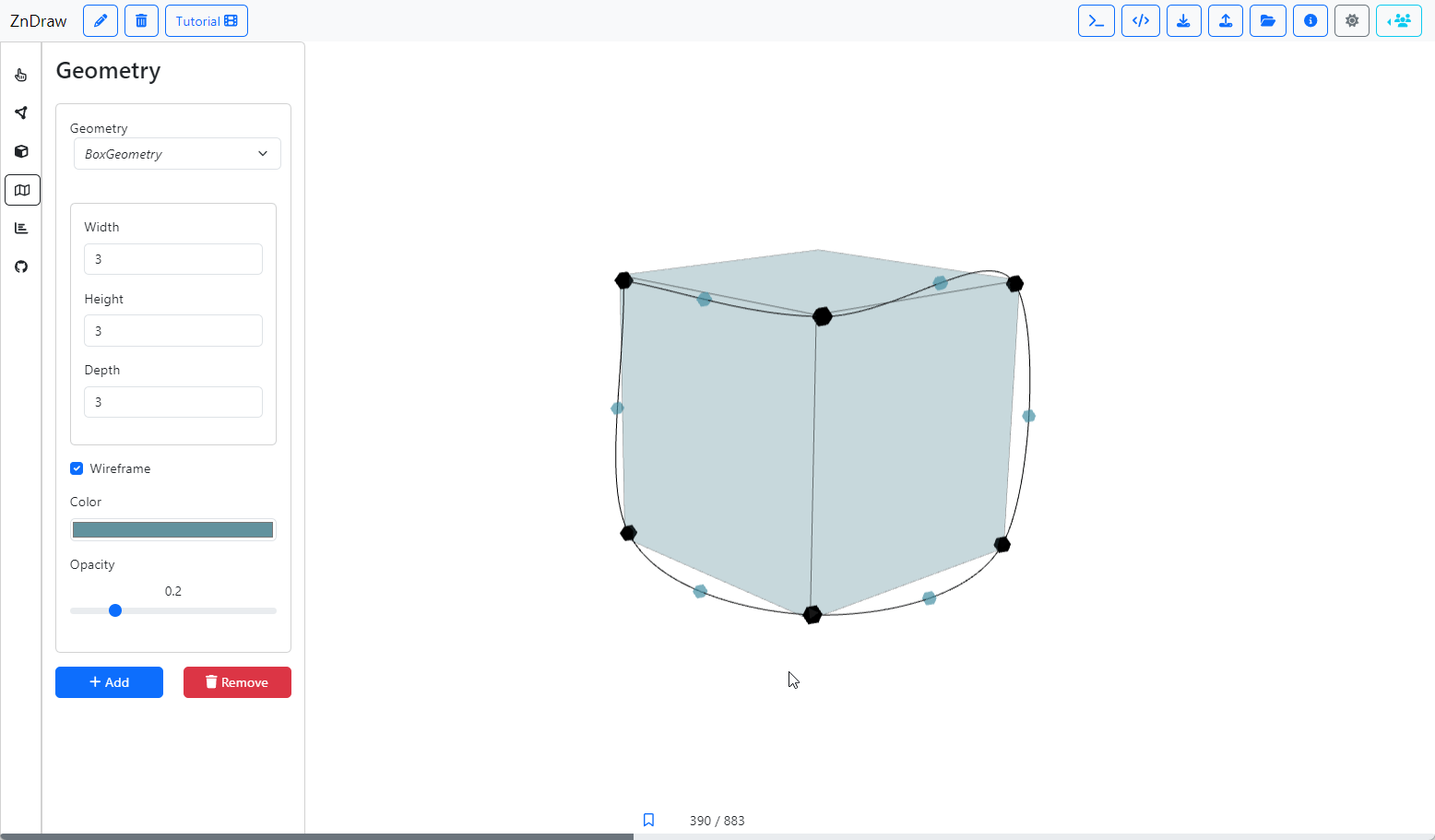
Click Remove once you're done with the canvas.
Jump to start