
Maximiliano Osorio
¿que es git?
git es un sistema de control de versiones
¿Que es un sistema de control de versiones y porque debiera importarte?
Un sistema de control de versiones guarda los cambios de un archivo o un set de archivos durante un tiempo para que puedas revisar versiones anteriores después.
http://git-scm.com/book/en/Getting-Started-About-Version-Control, 2013
Control de versiones
En general, te permite:
- Revertir los archivos a un estado anterior
- Revertir el proyecto completo anterior
- Revisar los cambios durante todo el tiempo
- Ver quien y cuando hizo algo para buscar el problema
Using a VCS also means that if you screw things up or lose files, you can generally recover easily. In addition, you get all this for very little overhead.
¿Que es git?
-
Git es un sistema de control de versiones
- Diseñado por Linus Torvalds para el manejo del
código del kernel de Linux
O sea git maneja y control las versiones de código.
Evitando los conocidos problemas de:
- informefinal1
- informefinalfinal
- informefinalfinalfinal_ahora_si
Uso de git
-
Kernel de Linux
-
Google
-
Facebook
-
Twitter
-
Linkedin
-
Netflix
-
Perl
-
Postgresql
- Rails, Android
- Gnome
- Microsoft
Características de git
- Veloz
- Diseño simple
- Totalmente distribuido
- Soporte para ramas en paralelos
- Integridad de archivos (SHA1)
Git thinks of its data more like
a set of snapshots of a mini filesystem.
Instalación de git
Linux
$ yum install git (RHEL, Fedora, CentOS)
$ apt-get installl git-core (Debian, Ubuntu, LinuxMint)
Otros
http://git-scm.com/download/mac
http://git-scm.com/download/windows
Advertencia
git al inicio no es fácil de comprender
menos de usar.
Pero es totalmente sencillo.
Y cuando lo aprendes a usar.
¡Es genial!
Si te está dando un dolor de cabeza al inicio.
Vas bien.
Git
-
Git crea repositorios.
-
Podemos decir que un repositorio es :
Una carpeta que es "observada" por git, o sea git va a
mirar los archivos y las carpetas que se encuentran ahí."
lA VIDA DE UN ARCHIVO
 http://i.stack.imgur.com/ppgRW.png
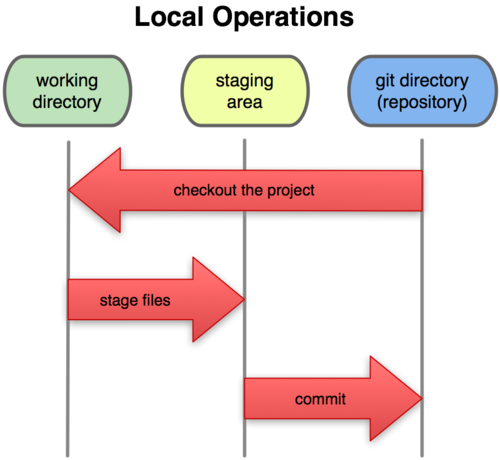
Estados
- Untracked: No esta añadido al git, o sea no es vigilado.
- Unmodified: No ha sido cambiado.
- Modified: Ha sido modificado.
-
Staged: El contenido está preparado para el cambio.
- Archivos añadidos y removidos
- Archivos modificados
- Committed: Los cambios han sido confirmado y es la
nueva versión
estados
COnfiguración de git
Identidad
$ git config --global user.name "John Doe"
$ git config --global user.email johndoe@example.com
Editor
$ git config --global core.editor vim
Colores
$ git config --global color.ui true
creando nuevo repositorio
$ mkdir nueva_carpeta
$ cd nueva_carpeta
$ cd nueva_carpeta
$ git init
TRABAJANDO EN EL REPOSITORIO
Un nuevo archivo o carpeta
Imaginemos que hicimos un nuevo archivo llamado: ejercicio1b.py
¿Que hacemos?
Revisando el estado del repo
$ git status

# On branch master
#
# Initial commit
#
# Untracked files:
#   (use "git add <file>..." to include in what will be committed)
#
#	ejercicio1b.py
nothing added to commit but untracked files present (use "git add" to track)
AÑADIENDO UN ARCHIVO
$ git add ejercicio1b.py
Luego podemos verificar con $git status
$ git status
# On branch master
#
# Initial commit
#
# Changes to be committed:
#   (use "git rm --cached <file>..." to unstage)
#
#	new file:   ejercicio1b.py
Lo mismo para carpeta, si añade una carpeta, añade todas sus carpetas.
haciendo el commit
$ git commit -am "Mensaje significado de lo que hizo"
Estado: los cambios cambios ha sido confirmado
trabajando con repositorio
Imaginemos que debemos modificar el archivo para añadir
una nueva función
Cuando lo hacemos
$ git status
# On branch master
# Changes not staged for commit:
#   (use "git add <file>..." to update what will be committed)
#   (use "git checkout -- <file>..." to discard changes in working directory)
#
#	modified:   ejercicio1b.py
#
no changes added to commit (use "git add" and/or "git commit -a")
CONFIRMANDO LOS CAMBIOS
$ git commit -am "Nueva función: verifica si la matriz es diagonal dominante"
Hasta ahora, todo ha sido local.
Ahora añadamos un servidor.
fORGE.INF.UTFSM.CL
- Ingresar a la página
- Loguear
- Entrar a la opción: "Manage SSH keys"
- Entrar a la opción: "Add SSH key"
CREAR LA LLAVE SSH
- Abrir una terminal
- Ejecutar el comando
$ ssh-keygen - Eligir la ruta por defecto
- Escribir dos veces una password personal
- Luego, copiar el contenido de la llave publica.
Pasos para iniciar su repo.
$ git init
$ git remote add origin git@forge.inf.utfsm.cl:mi_proyecto/mi_repo
$ echo ".gitignore" > .gitignore
$ git add -f .gitignore
$ git commit -a -m "Initial Commit"
$ git push -u origin master
Notas:
- Esto se hace una vez, sólo para iniciar.
-
Aquí se omitió mucha información, si quieresaber bien pregunte al final o envié mosorio@inf.utfsm.cl
TRABAJANDO CON EL SERVIDOR
Sino tiene repositorio en el computador, debe clonarlo solamente.
$ git clone <url support https, ssh>
Por ejemplo
$ git clone git@github.com:openshift/origin-server.git
trabajando con el servidor
Para traer los cambios desde el servidor
$ git pull
Si hay archivos o carpetas nuevos, recuerde añadirlos
$ git add carpeta
Para confirmar los cambios.
$ git commit -a -m "descripción del cambios"
Para enviar cambios al servidor:
$ git push
Mix de comandos - log - MERGE
Ver log
$ git log
$ git log --since=2.weeks
$ git log --since="2 years 1 day 3 minutes ago"
MIX DE COMANDOS - MERGE
$ git merge <branch>
$ git merge origin/master
MIX DE COMANDOS - diffs
UNSTAGED CHANGES
$ git diff
STAGED CHANGES
$ git diff --cached
RELATIVE TO SPECIFIC REVISION
$ git diff 1776f5
$ git diff HEAD^
MIX DE COMANDOS - SHOW COMMITS
ÚLTIMO COMMIT
$ git show
COMMIT ESPECIFICO
$ git show 1776f6
$ git show HEAD^
MIX DE COMANDOS - deshaciendo cosas
VOLVER AL ÚLTIMO COMMIT
$ git commit -amend
$git commit $HASH
SACAR DE STAGE UN ARCHIVO
$ git reset HEAD file.py
DESMODIFICAR UN ARCHIVO MODIFICADO
$ git checkout -- file.py
http://www.cheat-sheets.org/saved-copy/git-cheat-sheet.pdf
.GITIGNORE
Este archivo es útil para ignorar archivos siempre del git.
*.rbc
*.sassc
.sass-cache
capybara-*.html
.rspec
.rvmrc
/.bundle
/vendor/bundle
/log
/tmp
/db/*.sqlite3
/public/system
/coverage/
/spec/tmp
**.orig
rerun.txt
pickle-email-*.html
config/initializers/secret_token.rb
TAGS
TAGS
$ git tag v0.1.0
TAGS CON NOMBRE
$ git tag -a v0.1.0 -m 'Version 0.1.0'
GPG TAGS
$ git tag -s v0.1.0 -m 'Signed version 0.1.0'
$ git tag -v v0.1.0
BRANCHES
Son punteros a commits

manejo de branch
CREAR UNA NUEVA BRANCH
$ git branch iss53
$ git checkout -b iss53 master (creo y cambio)
CAMBIAR BRANCH
$ git checkout iss53
BORRAR BRANCH
$ git branch -d iss53
VER RAMAS
Ver ramas
$ git branchVer todas las ramas
$ git branch -raVer último commit en la rama
$ git branch -v


licencia
http://creativecommons.org/licenses/by-sa/3.0/cl/
Basado en:
http://blog.dbrgn.ch/2013/2/7/git-introduction-presentation-slides/
-
Most illustrations:
-
http://git-scm.com/book
-
Merge vs rebase illustration:
-
http://git.mikeward.org/