Interfaces graphiques avancées Android
ActionBar
La barre d'action
Présentation

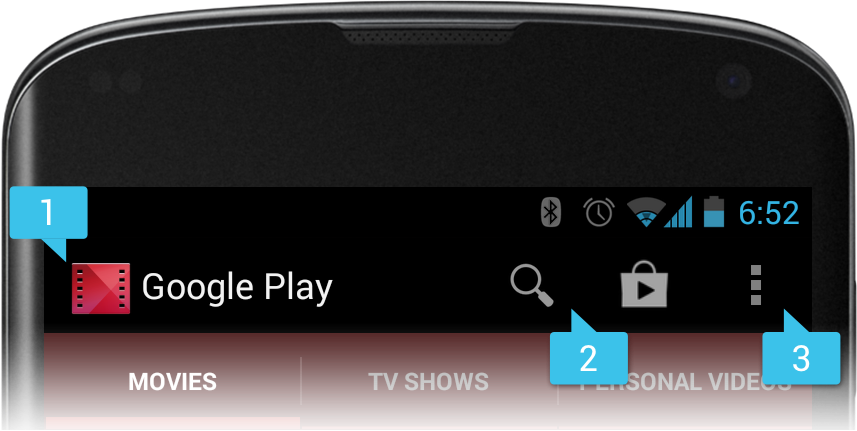
- Barre située dans la partie haute de chaque écran
- Améliore la navigation entre les écrans
- Donne une identité à une application
- Met en avant les actions importantes
- Regroupe les actions moins importantes...
- ...dans un menu déroulant : l'action overflow
- ...pouvant être affiché avec la touche Menu
Conception
- Nombre d'actions en fonction de la largeur de l'écran
- 2 actions = largeur inférieure à 360 dp (density-independent pixels)
- 3 actions = largeur comprise entre 360-499 dp
- 4 actions = largeur comprise entre 500-599 dp
- 5 actions = largeur égale ou supérieure à 600 dp
- Identifier une action importante (Frequent - Important - Typical)
- Si l’action est fréquemment utilisée (utilisée plusieurs fois par l’utilisateur)
- ... ou si l’action est importante (doit facilement être trouvée par l’utilisateur)
- ... ou si l’action est importante dans des applications similaires (se serait surprenant pour l’utilisateur de trouver l’action dans l’action overflow)
- alors il s’agit d’une action importante qui peut apparaître dans l'ActionBar
- Utiliser des icônes standards pour les actions communes
Afficher la barre d'action
-
A partir de l'API Level 11
- Affichée par défaut dans les activités utilisant le thème Holo (ou une extension)
-
Rétro-compatibilité jusqu'à l'API Level 7
- Les activités doivent étendre la classe ActionBarActivity
-
- Il faut utiliser le thème AppCompat (ou une extension)
<!-- res/values/styles.xml -->
<resources>
    <!-- Base application theme. -->
    <style name="AppTheme" parent="Theme.AppCompat.Light">
        <!-- Customize your theme here. -->
    </style>
</resources>

<!-- AndroidManifest.xml -->
<application ... android:theme="@style/AppTheme">
Masquer la barre d'action
-
Ne pas dessiner la barre d'action
- Utiliser le thème Holo.NoActionBar
-
Masquer la barre d'action
- Récupérer la référence de la barre d'action avec getActionBar() ou getSupportActionBar()
- Puis utiliser la méthode hide() pour la masquer
- Et show() pour l'afficher à nouveau
ActionBar actionBar;
if (Build.VERSION.SDK_INT >= 11) {
    actionBar = getActionBar();
} else {
    actionBar = getSupportAction();
}
actionBar.hide();
actionBar.show();
Ajout d'une action (1/2)
-
onCreateOptionsMenu() de la classe Activity est appelée pour initialiser la barre d'action
- Modifier l'instance Menu passée en premier paramètre pour ajouter des boutons
- La ressource Menu permet de définir des boutons d'actions dans un fichier XML (dans res/menu/)
- Le tag <item> représente un bouton d'action
-
Attribut android:showAsAction d'un bouton
- ifRoom : affiche le bouton si un espace est disponible
- never : place le bouton dans l’action overflow
- Les valeurs peuvent être combinées : ifRoom|withText affiche le bouton avec son titre dans la barre si un espace est disponible
- Attribut android:OrderInCategory pour prioriser les bouttons
Ajout d'une action (2/2)
@Override
public boolean onCreateOptionsMenu(Menu menu) {
    // Inflate the menu items for use in the
    // action bar
    MenuInflater inflater = getMenuInflater();
    inflater.inflate(
        R.menu.main_activity_actions,
        menu
    );
    return super.onCreateOptionsMenu(menu);
}
<!-- res/menu/main_activity_actions.xml -->
<menu
xmlns:android="http://schemas.android.com/apk/res/android" >
<item
android:id="@+id/action_compose"
android:icon="@drawable/ic_action_compose"
android:title="@string/action_compose"
android:showAsAction="ifRoom|withText"/>
<item
android:id="@+id/action_search"
android:icon="@drawable/ic_action_search"
android:title="@string/action_search"
showAsAction="never"/>
</menu>Activité
Définition XML du menu
Traitement d'une action
- onOptionsItemSelected() de la classe Activity est appelée lorsque l'utilisateur appuie sur un bouton d'action
- Le paramètre d'appel MenuItem correspond au bouton pressé
- Le bouton pressé peut être identifié via sa méthode getItemId()
- Le traitement associé au bouton doit retourner un booléen
- Si le bouton pressé n'est pas traité par l'activité, il est important de retourner l'exécution de la même méthode du parent
@Override
public boolean onOptionsItemSelected(MenuItem item) {
    switch (item.getItemId()) {
        case R.id.action_compose:
            composeMessage();
            return true;
        case R.id.action_search:
            openSearch();
            return true;
        default:
            return super.onOptionsItemSelected(item);
    }
}
Navigation hiérarchique (1/2)
- L'icône de l'application (élément tout à gauche) peut être utilisé comme bouton de navigation hiérarchique entre les écrans
- Il s'agit du bouton Up composé de l'icône de l'application précédée du caractère "<"
- L'utilisation de Up permet de revenir à l'activité parente
- La méthode setDisplayHomeAsUpEnabled() active le bouton Up
- L'attribut android:parentActivity permet d'indiquer l'activité parente d'une activité (tag <activity>) dans le manifeste
- Il faut utiliser un tag <meta-data> fournissant l'information PARENT_ACTIVITY pour assurer la rétro-compatibilité
- Documentation du bouton de navigation hiérarchique
Navigation hiérarchique (2/2)
<!-- The main/home activity (has no parent activity) -->
<activity
  android:name="com.example.app.MainActivity"
  ... >
      ...
</activity>

<!-- A child of the main activity -->
<activity
  android:name="com.example.app.DisplayMessageActivity"
  android:label="@string/title_activity_display_message"
  android:parentActivityName="com.example.app.MainActivity">
    <!-- Parent activity meta-data to support API level 7+ -->
    <meta-data
      android:name="android.support.PARENT_ACTIVITY"
      android:value="com.example.app.MainActivity" />
</activity>
AndroidManifest.xml
@Override
protected void onCreate(Bundle savedInstanceState) {
    super.onCreate(savedInstanceState);
    setContentView(R.layout.activity_details);
    getSupportActionBar().setDisplayHomeAsUpEnabled(true);
}
DisplayMessageActivity.java
Apparence
-
Icône de l'application
- Utiliser l'attribut android:logo dans le tag <activity> pour remplacer l'icône de l'application utilisé par défaut
-
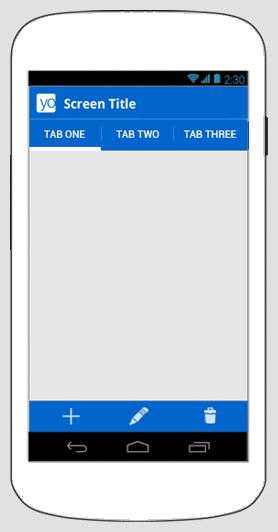
Fractionner la barre d'action
- Consiste à décharger les boutons d'actions dans une
barre positionné dans la partie basse sur les petits écrans - Utiliser l'attribut android:uiOptions avec la valeur
splitActionBarWhenNarrow dans le tag <activity> - Utiliser un tag <meta-data> fournissant l'information
UI_OPTIONS pour assurer la rétro-compatibilité
- Consiste à décharger les boutons d'actions dans une
-
Personnaliser les couleurs
- Un style peut être défini dans le fichier styles.xml
- Documentation sur les styles et thèmes
Fragment
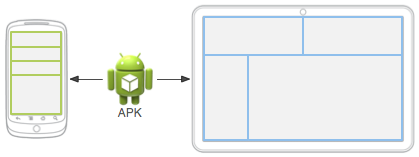
Interfaces multi-panneaux
Présentation
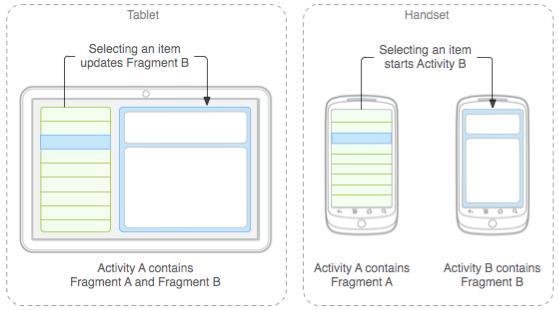
- Introduit par l'API Level 11 pour améliorer la conception d'interfaces pour les grands écrans
- Brique pouvant être intégrée dans une ou plusieurs activités
- Une activité peut combiner plusieurs fragments pour créer des interfaces multi-panneaux
- Un fragment a son propre cycle de vie et reçoit ses propres événements déclenchés par utilisateur
- Le cycle de vie d'une activité impacte ceux des fragments utilisés
- Un fragment partage des informations avec l'activité dans laquelle il est intégré
- Un fragment définit son propre affichage dans une activité et peut agir sur la barre d'action
- Un système de transaction permet d'annuler plusieurs modifications d'un fragment avec la touche Back
Conception
- Un appareil grand écran dispose d'assez d'espace pour combiner plusieurs écrans d'un petit appareil
- Un fragment doit être conçu comme une sous-activité réutilisable dans différentes activités
- Un fragment doit gérer...
- son propre cycle de vie
- son affichage
- et les événements utilisateur
- Un fragment doit pouvoir
être utilisé par un autre
fragment pour éviter une
implémentation complexe
des activités
Cycle de vie (1/3)
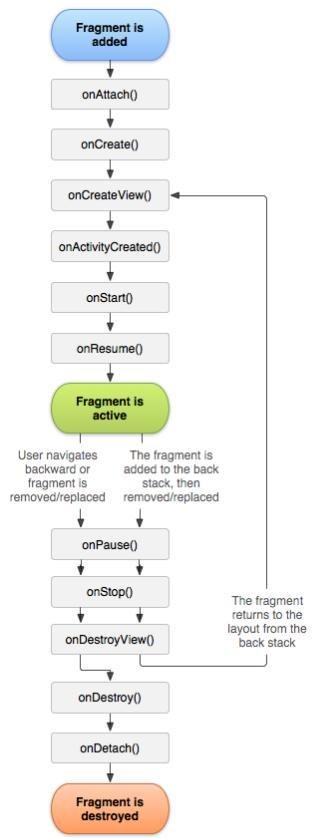
- Proche de celui de l'activité (cela facilite la création d'un fragment à partir d'une activité n'en utilisant pas)
- Certaines méthodes associées au cycle de vie du fragment doivent obligatoirement être définies
- onCreate() appelée à la création du fragment pour initialiser les principaux composants
- onCreateView() appelée lorsque le fragment doit dessiner l'interface et retourne une View
- onPause() appelée quand l'utilisateur quitte le fragment (utilisée pour valider des changements à conserver)
- Les autres méthodes associées au cycle de vie du fragment permettent de définir un traitement spécifique à chaque étape
- Le cycle de vie d'un fragment est impacté par celui de l'activité dans lequel il est utilisé
Cycle de vie (2/3)
- Un fragment a 3 états : Resumed quand il est visible, Stopped s'il ne l'est plus et Paused s'il est partiellement recouvert
- L'état d'un fragment peut être conservé (comme celui d'une activité) via le premier paramètre Bundle de onCreate()
- Le cycle de vie du fragment a plus d'étapes que celui de l'activité
- onAttach() appelée quand le fragment est ajouté à une activité
- onCreateView() appelée pour créer l'interface du fragment
- onActivityCreated() appelée après l'exécution de la méthode onCreate() de l'activité
- onDestroyView() appelée pour détruire l'affichage
- onDetach() appelée quand le fragment est retiré d'une activité
Cycle de vie (3/3)
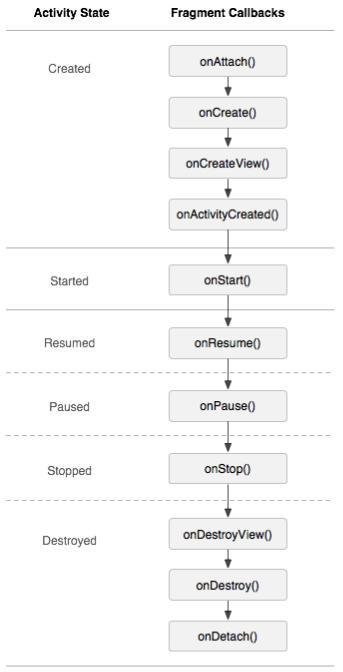
Création d'un fragment
- Utiliser la classe Fragment ou l'une de ses sous-classes
- DialogFragment pour afficher une boîte de dialogue superposée à l'écran de l'activité
- ListFragment pour afficher une liste d'objets gérés par un adaptateur
- PreferenceFragment pour afficher une instance Preference comme une liste
- WebViewFragment pour afficher une page web
- Et implémenter la méthode onCreateView() pour créer la View
- Elle peut être créée manuellement dans le code
- Ou par déclaration XML dans une fichier de res/layout/
- Inutile d'implémenter onCreateView() pour le fragment ListFragment
Ajout d'un fragment
FragmentTransaction T = getFragmentManager()
                          .beginTransaction();
ExampleFragment F = new ExampleFragment();
T.add(R.id.example_container, F);
T.commit();
<LinearLayout
xmlns:android="..."
android:orientation="horizontal"
android:layout_width="match_parent"
android:layout_height="match_parent">
<fragment
android:name="com.example.ExampleFragment"
android:id="@+id/example_container"
android:layout_weight="1"
android:layout_width="0dp"
android:layout_height="match_parent" />
</LinearLayout>Définition dans le code
Définition XML dans un layout
Communication
- L'activité doit gérer l'échange d'information entre ses fragments
- Illustration : un fragment A informe l'activité de la sélection d'un item qui le transmet à un fragment B pour l'afficher
- L'activité peut accéder a ses fragments en utilisant la méthode getFragmentManager() puis findFragmentById()
- La méthode getActivity() du fragment permet d'accéder à l'activité à laquelle il est associé
-
Mécanisme d'échange d'événements entre fragments
- Créer une interface dans le fragment A qui définit des callbacks
- L'activité utilisant le fragment A doit implémenter son interface de callbacks pour interagir avec d'autres fragments
- Le fragment A doit vérifier que l'activité l'utilisant implémente bien son interface de callbacks
public static class FragmentA extends ListFragment {

    // Container Activity must implement this interface
    public interface OnArticleSelectedListener {
      public void onArticleSelected(Uri articleUri);
    }

    private OnArticleSelectedListener mListener;

    // ...

    @Override
    public void onAttach(Activity activity) {
        super.onAttach(activity);
        // Activity containing this fragment must
        // implement its callbacks
        if (!(activity instanceof OnArticleSelectedListener)) {
            throw new ClassCastException ("Activity must "
                +"implement fragment's callbacks.");
        }
        // will be used to share events with activity
        // by calling callbacks
        mListener = (OnArticleSelectedListener) activity;
    }

    @Override
    public void onListItemClick
        (ListView l, View v, int position, long id) {
        // Append the clicked item's row ID
        // with the content provider Uri
        Uri noteUri = ContentUris.withAppendedId
                          (ArticleColumns.CONTENT_URI, id);
        // Send the event and Uri to the host activity
        mListener.onArticleSelected(noteUri);
    }

    // ...

}
public class ArticleActivity extends Activity
    implements FragmentA.OnArticleSelectedListener {

    @Override
    protected void onCreate(Bundle savedInstanceState) {
        super.onCreate(savedInstanceState);
        setContentView(R.layout.activity_article);
    }

    @Override
    public void onItemSelected(String id) {
        // Show the detail view in this activity by
        // adding or replacing the detail fragment using a
        // fragment transaction.
        Bundle arguments = new Bundle();
        arguments.putString(ArticleColumns.CONTENT_URL, id);
        FragmentB fragment = new FragmentB();
        fragment.setArguments(arguments);
        getFragmentManager()
            .beginTransaction()
                .replace(
                    R.id.article_detail_container,
                    fragment
                )
                .commit();
    }

    // ...

}
ArticleActivity.java
FragmentA.java
Agir sur la barre d'action
- Un fragment peut contribuer à la barre d'action
- setHasOptionMenu() indique à la création du fragment qu'il peut créer des boutons dans la barre d'action
- Surcharger onCreateOptionMenu() pour modifier le menu passé en paramètre et y insérer les boutons
- Les boutons sont ajoutés dans l'action overflow par défaut
- Utiliser l'attribut android:showAsAction avec ifRoom pour afficher le bouton dans la barre si l'espace le permet
- Lorsqu'un bouton de la barre d'action est enclenché...
- onOptionsItemSelected() est d'abord appelé sur l'activité
- Puis sur les fragments si l'activité n'a pas géré l'événement
Ressources
Le dossier des ressources
Introduction
- Une application Android peut être exécutée sur une multitude d'appareils mobiles
- Les caractéristiques matérielles sont propres à chaque type d'appareil
- Des appareils d'un même type peuvent exécuter une version différente d'Android
- L'exécution d'une application nécessite différentes ressources selon l'appareil utilisé
- La manière d'organiser les ressources permet d'adapter l'application selon l'appareil d'exécution
- Les ressources du projet d'une application sont placées dans le dossier res/
Présentation
| Répertoire | Type |
|---|---|
| res/animator | Descriptions d'animations au format XML |
| res/color | Couleurs utilisées en fonction de l'état d'un widget |
| res/drawable | Images matricielles (GIF, JPEG, PNG) ou descriptions au format XML |
| res/layout | Descriptions de parties de l'interface graphique au format XML |
| res/menu | Descriptions de menus de l'application au format XML |
| res/raw | Fichiers de données brutes (musiques, pages HTML, etc) |
| res/values | Différentes variables définies en XML (chaînes, booléens, dimensions, styles, ...) |
| res/xml | Divers fichiers XML utilisées par l'application |
Permet d'appliquer une couleur à un widget en fonction de son état
- Fichiers : res/color/filename.xml
- Classe correspondante : ColorStateList
-
Références :
- Java : R.color.filename
- XML : @color/filename
<elector xmlns:android="...">
    <!-- pressed -->
    <item android:state_pressed="true"
          android:color="#ffff0000"/>
    <!-- focused -->
    <item android:state_focused="true"
          android:color="#ff0000ff"/>
    <!-- default -->
    <item android:color="#ff000000"/>
</selector>
<Button
android:layout_width="fill_parent"
android:layout_height="wrap_content"
android:text="@string/button_text"
android:textColor="@color/button_text" />res/color/button_text.xml
Dans un fichier de layout XML
Android supporte de nombreux types d'images. Ici nous nous intéressons aux images Bitmap
- Fichiers : res/drawable/filename.{gif,jpg,png}
- Classe correspondante : BitmapDrawable
-
Références :
- Java : R.drawable.filename
- XML : @drawable/filename
Resources res = getResources();
Drawable drawable =
    res.getDrawable(R.drawable.filename);
<ImageView
android:layout_height="wrap_content"
android:layout_width="wrap_content"
android:src="@drawable/filename" />Java
XML
Différents types de menus peuvent être définis en XML et transformés en Java avec un MenuInflater
- Fichiers : res/menu/filename.xml
- Classe correspondante : Menu
-
Références :
- Java : R.menu.filename
- XML : @menu/filename
public boolean onCreateOptionsMenu(Menu menu) {
    MenuInflater inflater = getMenuInflater();
    inflater.inflate(R.menu.example_menu, menu);
    return true;
}

public void onGroupItemClick(MenuItem item) {
    // One of the group items was clicked
    // The item parameter passed here
    //   indicates which item it is
    // All other menu item clicks are
    //   handled by onOptionsItemSelected()
}

public void onOptionsItemSelected(MenuItem item) {
    // TODO
}
<menu xmlns:android="...">
<group android:id="@+id/group">
<item android:id="@+id/group_item1"
android:onClick="onGroupItemClick"
android:title="@string/group_item1"
android:icon="@drawable/group_item1_icon" />
<item android:id="@+id/group_item2"
android:onClick="onGroupItemClick"
android:title="@string/group_item2"
android:icon="@drawable/group_item2_icon" />
</group>
<item android:id="@+id/submenu"
android:title="@string/submenu_title"
android:showAsAction="ifRoom|withText" >
<menu>
<item android:id="@+id/submenu_item1"
android:title="@string/submenu_item1" />
</menu>
</item>
</menu>Code Java
res/menu/example_menu.xml
Android préconise la déclaration de chaînes de caractères dans des fichiers XML.
- Fichiers : res/values/filename.xml
- Classe correspondante : String
-
Références :
- Java : R.string.string_name
- XML : @string/string_name
<TextView
    android:layout_width="fill_parent"
    android:layout_height="wrap_content"
    android:text="@string/hello" />
<?xml version="1.0" encoding="utf-8"?>
<resources>
<string name="hello">Hello!</string>
</resources>Dans un fichier de layout XML
res/values/strings.xml
Android supporte des tableaux et des mots pluriels
Un style définit le "look" de l'interface graphique. Il peut s'appliquer à l'application, une activité ou un widget
- Fichiers : res/values/filename.xml
- Classe correspondante : String
-
Références :
- XML : @style/style_name
<?xml version="1.0" encoding="utf-8"?>
<EditText
    style="@style/CustomText"
    android:layout_width="fill_parent"
    android:layout_height="wrap_content"
    android:text="Hello, World!" />
<?xml version="1.0" encoding="utf-8"?>
<resources>
<style name="CustomText" parent="@style/Text">
<item name="android:textSize">20sp</item>
<item name="android:textColor">#008</item>
</style>
</resources>Dans un fichier de layout XML
res/values/styles.xml
Ressources alternatives
- La manière d'organiser permet de cibler des ressources pour un type précis d'appareil
- Possibilité de choisir le layout pour une activité en fonction de la largeur d'écran
- Il faut utiliser les qualificateurs
pour nommer les ressources - Les qualificateurs peuvent également être utilisés pour nommer les dossiers
- Android supporte de nombreux qualificateurs
- Langue et région : en, fr, en-rUS, fr-rFR, fr-rCA, etc
- Taille écran : small (320x426), normal (320x470), large (480x640), xlarge (720x960)
- Largeur et hauteur : w<N>dp et h<N>dp
- Orientation : port (verticale) et land (horizontale)
- Version de l'API : v<N>, v3, v4, v7, ..., v21
Material Design
Nouvelle spécification
Présentation
- Nouvelle spécification publiée par Google
- Les exigences décrites ont pour objectif de produire des interfaces homogènes visuellement

- Le nouveau thème Material introduit par l'API Level 11 respecte la spécification
- Material succède à Holo en place depuis 2011
- Android épouse la mode des designs flats
- Le thème rend les interfaces plus intuitives et ergonomiques : l'expérience utilisateur est améliorée
Conception
- Une interface Material Design est conçue comme un ensemble de cartes flottantes sur un arrière plan
- Une carte occupe une position dans l'espace
- La notion de "niveau" simule l'axe Z grâce aux ombres
- Nouvelle méthode setElevation() de la classe View pour définir le niveau d'élévation
- L'attribut android:elevation permet de définir le niveau d'élévation dans le XML
- Les éléments d'une interface Material Design ne doivent jamais se "téléporter" mais "transiter"
Utilisation
- Préciser le SDK 21 comme version minimum dans le manifeste
- Déclarer l'utilisation du thème Material
<resources>
    <!-- Etendre le thème Material ou l'une de ses extensions -->
    <style name="AppTheme" parent="android:Theme.Material">
        <!-- Personnalisations du thème -->
    </style>
</resources>- Thème Material et extensions
- Material : version sombre
- Material.Light : version claire
- Material.Light.DarkActionBar : version claire avec la barre d'action sombre
- Personnaliser la palette de couleur du thème Material
<!-- Couleur de l'ActionBar -->
<item name="android:colorPrimary">@color/primary</item>
<!-- Couleur de la StatusBar -->
<item name="android:colorPrimaryDark">@color/primary_dark</item>
<!-- Couleur des éléments de formulaire (zones de texte, checkboxes, ...)-->
<item name="android:colorAccent">@color/accent</item>
RecyclerView (1/2)
- Créer des listes plus simplement qu'avec ListView
- Nécessite un layout manager (pour positionner les éléments) et un adapter (pour fournir les éléments)
- Layout managers supporté :
- LinearLayoutManager : éléments sous forme de liste
- GridLayoutManager : éléments sous forme de grille
- StaggeredGridLayoutManager : cases décalées
- Etendre la classe RecyclerView.LayoutManager
- pour créer un layout manager personnalisé
- Projet RecyclerView sample
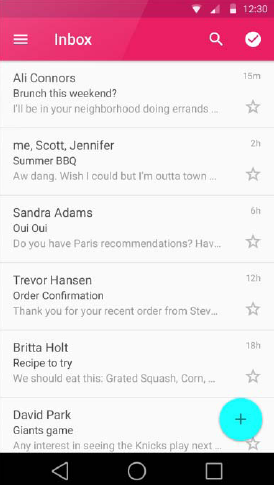
RecyclerView (2/2)
public class MyActivity extends Activity {

    private RecyclerView mRecyclerView;
    private RecyclerView.Adapter mAdapter;
    private RecyclerView.LayoutManager mLayoutManager;

    @Override
    protected void onCreate(Bundle savedInstanceState) {
        super.onCreate(savedInstanceState);
        setContentView(R.layout.my_activity);
        mRecyclerView = (RecyclerView) findViewById(R.id.my_recycler_view);
        // use this setting to improve performance if you know that changes
        // in content do not change the layout size of the RecyclerView
        mRecyclerView.setHasFixedSize(true);
        // use a linear layout manager
        mLayoutManager = new LinearLayoutManager(this);
        mRecyclerView.setLayoutManager(mLayoutManager);
        // specify an adapter (see also next example)
        mAdapter = new MyAdapter(myDataset);
        mRecyclerView.setAdapter(mAdapter);
    }
    // ...
}
CardView (1/2)
- Afficher des informations dans un cadre
- Offre un bon rendu sur toutes les plateformes
- Apparence personnalisable
-
Angles arrondis via setRadius()
ou card_view:cardCornerRadius - Couleur d'arrière plan via setBackgroundColor()
ou card_view:cardBackgroundColor
-
Angles arrondis via setRadius()
- Positionnée sur un niveau avec setElevation()
(ombres créées sur les éléments inférieurs) - Projet CardView sample
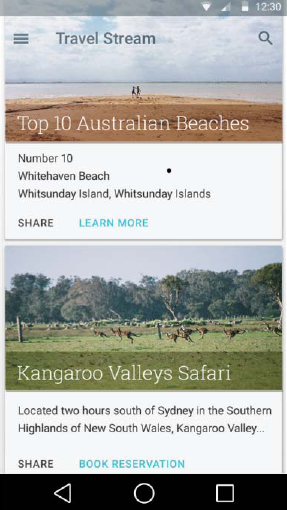
CardView (2/2)
<LinearLayout
    xmlns:android="http://schemas.android.com/apk/res/android"
    xmlns:tools="http://schemas.android.com/tools"
    xmlns:card_view="http://schemas.android.com/apk/res-auto">

    <!-- A CardView that contains a TextView -->
    <android.support.v7.widget.CardView
        xmlns:card_view="http://schemas.android.com/apk/res-auto"
        android:id="@+id/card_view"
        android:layout_gravity="center"
        android:layout_width="200dp"
        android:layout_height="200dp"
        card_view:cardCornerRadius="4dp">

        <TextView
            android:id="@+id/info_text"
            android:layout_width="match_parent"
            android:layout_height="match_parent" />

    </android.support.v7.widget.CardView>

</LinearLayout>
Rétro-compatibilité (1/2)
- Material Design uniquement disponibles à partir de l'API Level 21
- Possibilité d'assurer la rétro-compatibilité jusqu'à l'API 7
- Si le thème Material est utilisé dans res/values/styles.xml : l'application est uniquement utilisable sur Android 5
- Préférer déclarer un ancien thème qui sera écrasé par le nouveau thème Material dans res/values-v21/styles.xml
- Même remarque pour les layouts : déclarer des layouts spécifiques à Material Design dans res/layout-v21
- Le composant v7 Support Librairies r21 permet d'assurer la rétro-compatibilité de certains éléments
- Thème AppCompat pour simuler Material
- Introduit les classes RecyclerView, CardView et Palette
Rétro-compatibilité (2/2)
- Personnaliser la palette de couleurs
- Dépendances gradle pour le composant de rétro-compatibilité
<style name="Theme.MyTheme" parent="Theme.AppCompat.Light">
    <!-- customize the color palette -->
    <item name="colorPrimary">@color/material_blue_500</item>
    <item name="colorPrimaryDark">@color/material_blue_700</item>
    <item name="colorAccent">@color/material_green_A200</item>
</style>
dependencies {
compile 'com.android.support:appcompat-v7:21.0.+'
compile 'com.android.support:cardview-v7:21.0.+'
compile 'com.android.support:recyclerview-v7:21.0.+'
}- Proposer une alternative aux fonctionnalités non-disponibles
if (Build.VERSION.SDK_INT >= Build.VERSION_CODES.LOLLIPOP) {
    // Call some material design APIs here
} else {
    // Implement this feature without material design
}
WebView
Présentation
- Afficher des pages web comme la partie d'une interface graphique
- N'inclue pas les fonctionnalités propres aux navigateurs (barre d'adresse, etc)
- Vue privilégiée pour du contenu régulièrement modifié et accessible sur Internet
- Utilisation recommandée si les données fournies à l'utilisateur nécessitent une connexion permanente
- Plus simple que d'exécuter une requête, d'analyser le résultat et d'intégrer les données retournées
- L'autorisation d'accès à Internet est nécessaire pour charger des pages
<!-- added in AndroidManifest.xml -->
<uses-permission android:name="android.permission.INTERNET" />
Utilisation
- Déclarer le tag <WebView> dans un layout
<WebView
    xmlns:android="http://schemas.android.com/apk/res/android"
    android:id="@+id/webview"
    android:layout_width="fill_parent"
android:layout_height="fill_parent"/>- Charger une page web avec loadUrl()
WebView myWebView = (WebView) findViewById(R.id.webview);
myWebView.loadUrl("http://www.example.com");- Charger des données brutes avec loadData()
myWebView.loadData("<html><body><h1>Hello world!</h1></body></html>",
"text/html", "UTF-8");- Forcer l'ouverture des liens dans la WebView
myWebView.setWebViewClient(new WebViewClient());- Activer Javascript (désactivé par défaut)
myWebView.getSettings().setJavascriptEnabled(true);- Explorer l'historique avec goBack() et goForward()
Liaison Javascript
- Possibilité d'interaction entre une page web et la WebView via Javascript
- addJavascriptInterface() créer une interface utilisable en Javascript par les pages affichées dans la WebView
- Pour des raisons de sécurité, n'utiliser que des pages conçues exclusivement pour l'application
- Les messages de la console Javascript peuvent être récupérer dans l'application
public class WebViewActivity extends Activity {
    private class MyWebViewClient extends WebViewClient {
        @Override
        public boolean shouldOverrideUrlLoading(WebView view, String url) {
            if (Uri.parse(url).getHost().equals("www.example.com")) { // This is my web site, so do not override,
                return false;                                         // let my WebView load the page
            }
            URLs Intent intent = new Intent(Intent.ACTION_VIEW, Uri.parse(url)); // Otherwise, the link is not
            startActivity(intent);                                               // for a page on my site, so launch
            return true;                                                         // another Activity that handles
        }
    }
    private class WebAppInterface {                                      // Exemple de code d’une page web
        Context mContext;                                                // utilisant l’interface associée :
        public WebAppInterface(Context c) {                              //   <script type="text/javascript">
            mContext = c;                                                //   function showAndroidToast(toast) {
        }                                                                //       Android.showToast(toast);
        @JavascriptInterface                                             //   }
        public void showToast(String toast) {                            //   </script>
            Toast.makeText(mContext, toast, Toast.LENGTH_SHORT).show();  //   <input type="button"
        }                                                                //     onClick="showAndroidToast('Hello Android!')"
    }                                                                    //     value="Say hello" />
    private WebView myWebView;
    public void onCreate(Bundle savedInstanceState) {
        super.onCreate(savedInstanceState);
        setContentView(R.layout.webpage);
        myWebView = (WebView) findViewById(R.id.webview);
        myWebView.getSettings().setJavascriptEnabled(true);
        myWebView.setWebViewClient(new MyWebViewClient());
        myWebView.setWebChromeClient(new WebChromeClient() {
            public boolean onConsoleMessage(ConsoleMessage cm) {
                Log.d("MyApplication", cm.message()
                    +" -- From line "+ cm.lineNumber() +" of "+ cm.sourceId());
                return true;
            }
        });
        myWebView.addJavascriptInterface (new WebAppInterface(this), "Android");
        myWebView.loadUrl("http://www.example.com");
    }
    @Override
    public boolean onKeyDown(int keyCode, KeyEvent event) {
        // Check if keyCode is the Back button and if there's history
        if ((keyCode == KeyEvent.KEYCODE_BACK) && myWebView.canGoBack()) {
            myWebView.goBack();
            return true;
        }
        return super.onKeyDown(keyCode, event); // bubble up to the default system behavior
    }
}
Bonnes pratiques
- Rediriger les utilisateurs d'appareils mobiles vers la version dédié d'un site Internet
- Pour charger dans la WebView une version optimiser pour appareils mobiles
- Le paramètre User-Agent de l'entête HTTP permet d'identifier si un appareil mobile est utilisé (s'il contient le mot "mobile")
- Utiliser le doctype adapté aux appareils mobiles
- xHML Basic 1.1 est le plus utilisé pour les applications mobiles
- Penser à spécifier l'encodage (UTF-8 de préférence)
- Redimensionner proprement les pages web
- Minimiser les requêtes pour afficher les pages
- Privilégier une navigation verticale