Introduction
to CSS
What is CSS?
- CSS stands for Cascading Style Sheets
- Used for the look and formatting of an
HTML document - CSS is designed to separate the content
from the presentation - HTML - structure
- CSS - layout, fonts, colors, etc
CSS Saves a lot of Work!
- When tags like <font> and color attributes
were added in HTML 3.2, it started a nightmare
for web developers - Development of large web sites where fonts
and colors were added to every page became
a long and expensive process - To solve the problem, the World Wide Web
Consortium (W3C) created CSS - In HTML 4.0, all formatting could be removed
from HTML and stored in a separate CSS file
Brief Timeline
- CSS 1 - 1996
- CSS 2 - 1998
- CSS 2.1 - 2004
- Finally published in 2011
- CSS 3 - 2012
- Working drafts published as
early as 1999 - CSS 4
- No single CSS 4 integration
- A few level 4 modules exist
though
Live Editors & Text Editors
- JSBin
- JSFiddle
- Notepad++
- Sublime Text
- Komodo
- Adobe Dreamweaver
Ways to Implement CSS
- Inline styles
- <p style="color: blue;">This is blue.</p>
- Internal styles
- <head>
<style>
p { color: blue; }
</style>
</head> - External styles
- <head>
<link rel="stylesheet" type="text/css" href="styles.css">
</head>
Syntax
- A CSS rule combines two parts:
- a selector
- and one or more declarations
Syntax
Selectors
-
Selectors are used to declare which part of
the markup (HTML) a style applies to -
You can select elements by HTML tag or by
user defined selectors - HTML tag
- p { color: blue; }
- id
- #para1 { color: blue; }
- class
- .para2 { color: blue; }
Syntax
Selectors
- id
- An id is used to uniquely identify
an element - class
- A class is used to select many elements
that share that class
Syntax
Declaration Block
- Consists of a list of declarations in braces { }
- Each declaration consists of a property,
a colon (:), and a value - Multiple declarations in a block are separated
by a semi-colon (;)
Backgrounds
- background-color
- hex value: #FF0000;
- RGB value: rgb(255,0,0);
- color name: red;
- background-image
- url('background.jpg');
- background-repeat
- repeat-x;
- repeat-y;
- no-repeat;
- background-position
- right top;
- bottom left;
Shorthand Property
- It is possible to specify all the properties
in one single property - Called shorthand property
- body { background: #FFFFFF
url('background.jpg') no-repeat right top; }
Text Formatting
- color
- hex value: #FF0000;
- RGB value: rgb (255,0,0);
- color name: red;
- text-align
- center;
- right;
- justify;
- text-decoration
- underline;
- line-through;
- overline;
- none;
Text Formatting
- text-transform
- uppercase;
- lowercase;
- capitalize;
- first letter of each word
- text-indent
- indents the first line of a text
- line-height
- letter-spacing
- text-shadow
- 1px 1px 5px #000000;
Fonts
Font Families
- The font family is a set with the font-family
property - serif
- Times New Roman, Georgia
- sans-serif
- Arial, Verdana
- monospace
- All characters have the same width
- Courier New, Lucida Console
Fonts
Font Families
- Works on a "fallback" system - if the browser
does not support the first font, it tries the next - Start with the font you want and end with a
generic family - p {
font-family: "Times New Roman", Times, serif;
} - Web Safe Font Combinations:
http://www.w3schools.com/cssref/css_websafe_fonts.asp
Fonts
Font Style
- font-style:
- normal;
- italic;
- font-weight:
- normal;
- bold;
- 100 - 900
- Ex: font-weight: 700;
- 400 is normal
- 700 is bold
Fonts
Font Size
- font-size:
- 20px;
- 16pt;
- 1em;
- 1em is equal to the current font size
- default text size in browsers is 16px
-
CSS Units
http://www.w3schools.com/cssref/css_units.asp
Links
- Links can be styled like fonts (font-family, color, etc)
- Can also be styled based on what state they are in
- a:link - normal link
- a:visited - a link the user has visited
- a:hover - a link when the user mouses over it
- a:active - a link the moment it is clicked
Links
- a:hover must come after a:link and a:visited
- a:active must come after a:hover
- Ex:
a:link { color: #FF0000; }
a:visited { color: #00FF00; }
a:hover { color: #FF00FF; }
a:active { color: #0000FF; }
Lists
- Change list item (li) markers
- list-style-type: square;
- list-style-type: lower-alpha;
- list-style-type: upper-roman;
- list-style-image: url('bullet.png');
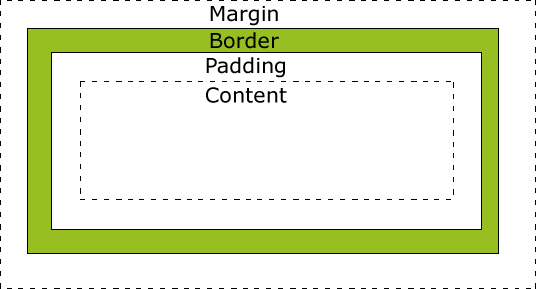
The CSS Box Model
- Consists of:
- content
- padding
- border
- margin
Content
- height:
- width:
- max-height:
- max-width:
- min-height:
- min-width:
Padding
- padding:
- 10px;
- 20%;
- Individual sides
- padding-top:
- padding-right:
- padding-bottom:
- padding-left:
Padding
- Shorthand property
- padding: 100px 50px;
- can have up to 4 values
- padding: 25px 50px 75px 100px;
- top padding is 25px
- right padding is 50px
- bottom padding is 75px
- left padding is 100px
- Goes clockwise around element
Borders
- border-style:
- solid
- dotted;
- dashed;
- double;
- groove;
- ridge;
- inset;
- outset;
- border-width:
- border-color:
Borders
- You can apply borders to individual sides
- border-bottom:
- border-top-style:
- border-left-color:
- border-right-width:
- border-radius
- border-radius: 25px;
- border-top-left-radius: 25px;
- shorthand property
- border: 1px solid black;
Margins
- margin:
- 10px;
- Margin is 10px on all sides
- Default value is 0px
- 20%;
- auto;
- Automatically uses up the largest
possible margin - inherit;
- Specifies that the margin should be
inherited from the parent element
Margins
- You can apply margins to individual sides
- margin-top
- margin-bottom
- Shorthand property
- margin: 100px; 50px;
- can have up to 4 values
- margin: 25px 50px 75px 100px;
- top margin is 25px
- right margin is 50px
- bottom margin is 75px
- left margin is 100px
- Goes clockwise around element
Display
- The display property specifies if/how an
element is displayed - display: block;
-
Takes up the full width available, and
has a line break before and after it - display: inline;
-
Takes up as much width as necessary,
and does not force line breaks - display: inline-block;
-
Displays inline but retains block level
formatting - display: none;
Float
- Allows elements to be pushed to the left or
right, allowing other elements to wrap around it - Elements are floated horizontally
- Elements after the floating element will flow
around it - Ex: flowing text around an image
- Elements before the floating element will not
be affected - float: right;
Horizontal Alignment
- Using the margin property
- margin-left: auto;
margin-right: auto; - Setting the left and right margins to auto
specifies that they should split the available
margin equally
Comments
- Help explain your code for yourself and others
- Ignored by the browser
- Begins with /* and ends with */
- /* This is a comment */
Animations
- It is possible to animate elements without using
Flash or JavaScript - Keyframes
- The @keyframes rule is where the animation
is created - Specify a CSS style inside the @keyframes rule
and the animation will gradually change from
the current style to the new style - @keyframes
- @-webkit-keyframes
- Chrome and Safari
- Techranger robot example
Browser Support
- Not all browsers correctly parse CSS code
- Competition between layout engines
- WebKit
- Apple Safari
- Google Chrome
- May require -webkit- prefix
- Gecko
- Mozilla Firefox
- May require -moz- prefix
- CSS 3 Browser Support Reference:
http://www.w3schools.com/cssref/css3_browsersupport.asp
Continue Learning!
- W3 Schools
- http://www.w3schools.com/css/
- http://www.w3schools.com/css3/default.asp
- http://www.w3schools.com/cssref/css_selectors.asp
- Learn CSS Layout
- Can I Use?
- Gettin' Specific with CSS
More Resources
- Treehouse
- Stack Overflow
- Bento
- Google it!
Introductionto CSS
By cschultze