
























Content ITV PRO
This is Itvedant Content department
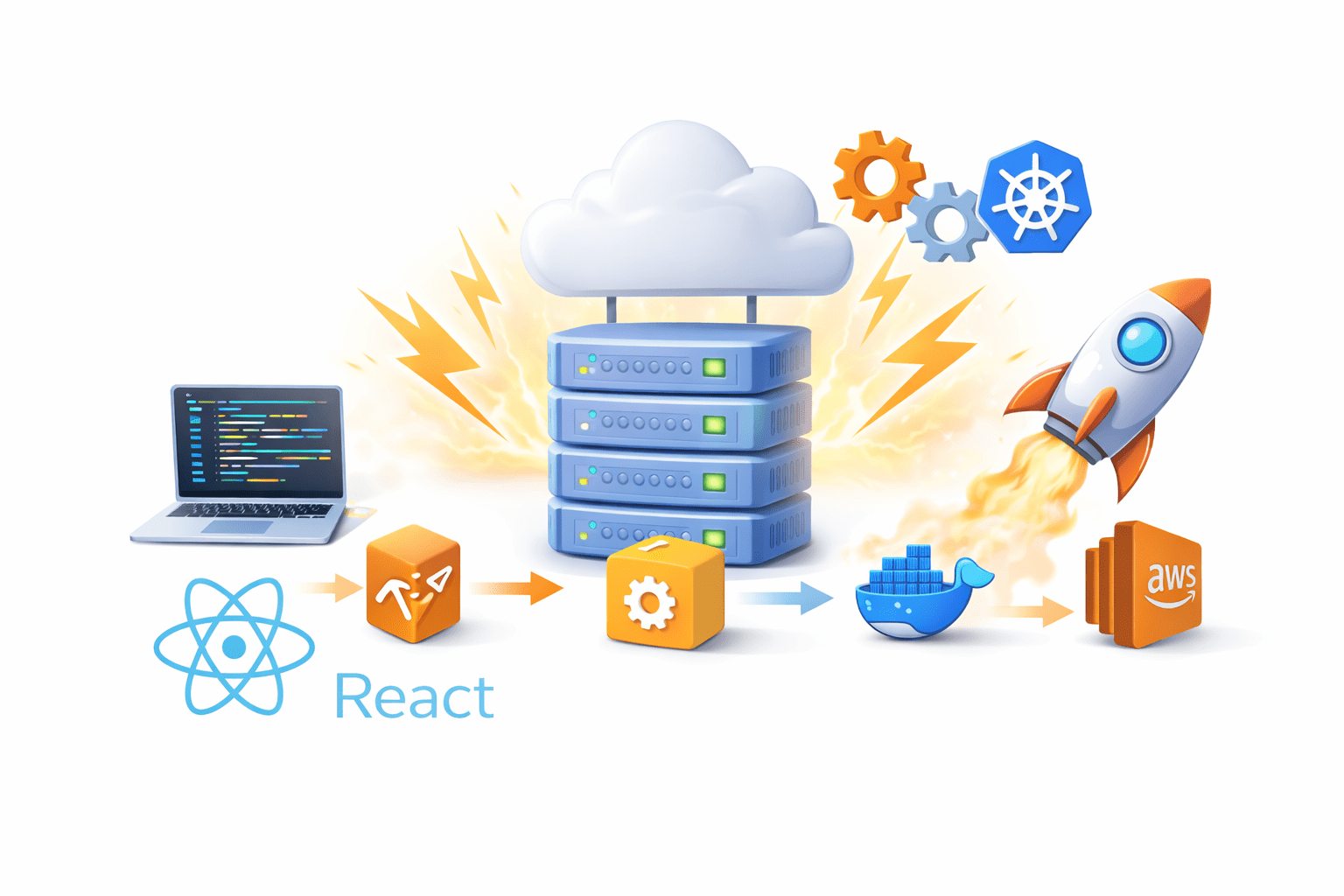
Mastering Deployments In A Flash
Learning Outcome
5
Prepare the application for Kubernetes deployment
4
Push the image to Docker Hub
3
Build a Docker image
2
Containerize an application using Docker
Explain what a Dockerfile is
1
Create a simple web application
Analogy
Imagine you have built a food recipe
Before selling it in restaurants you must
Prepare the recipe
Pack it properly
Send it to different restaurants
Similarly in software
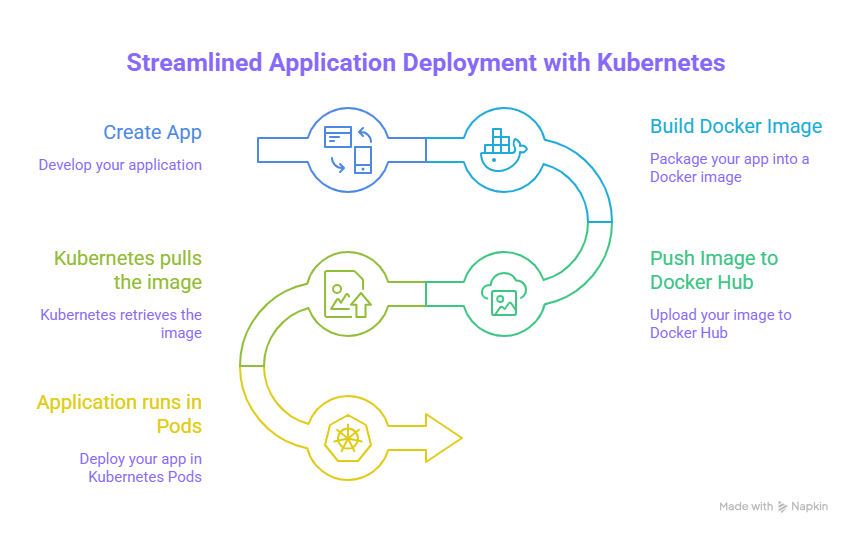
Create Application → Package with Docker → Upload to Docker Hub → Deploy on Kubernetes
First, we create a basic web application
For learning purposes, we create a simple HTML page
Example file:
index.html
<!DOCTYPE html>
<html>
<head>
<title>My Web App</title>
</head>
<body>
<h1>Hello from Kubernetes </h1>
<p>This is my first containerized application.</p>
</body>
</html>
Steps:
Create a project folder
mkdir my-web-app
cd my-web-app
Create the HTML file
touch index.html
Add your web page content
<!DOCTYPE html>
<html>
<head>
<title>My Web App</title>
</head>
<body>
<h1>Hello from Kubernetes </h1>
<p>This is my first containerized application.</p>
</body>
</html>
This simple page will be served using a web server container
Containerizing the Application with Docker
we package the application using Docker
To do this we create a Dockerfile
A Dockerfile tells Docker how to build the container image
Create a file named
Dockerfile
Example Dockerfile:
FROM nginx:latest
COPY index.html /usr/share/nginx/html
Explanation:
FROM nginx:latestUses the Nginx web server image
COPY index.html /usr/share/nginx/html
Copies our web page into the Nginx server folder
Building the Docker Image
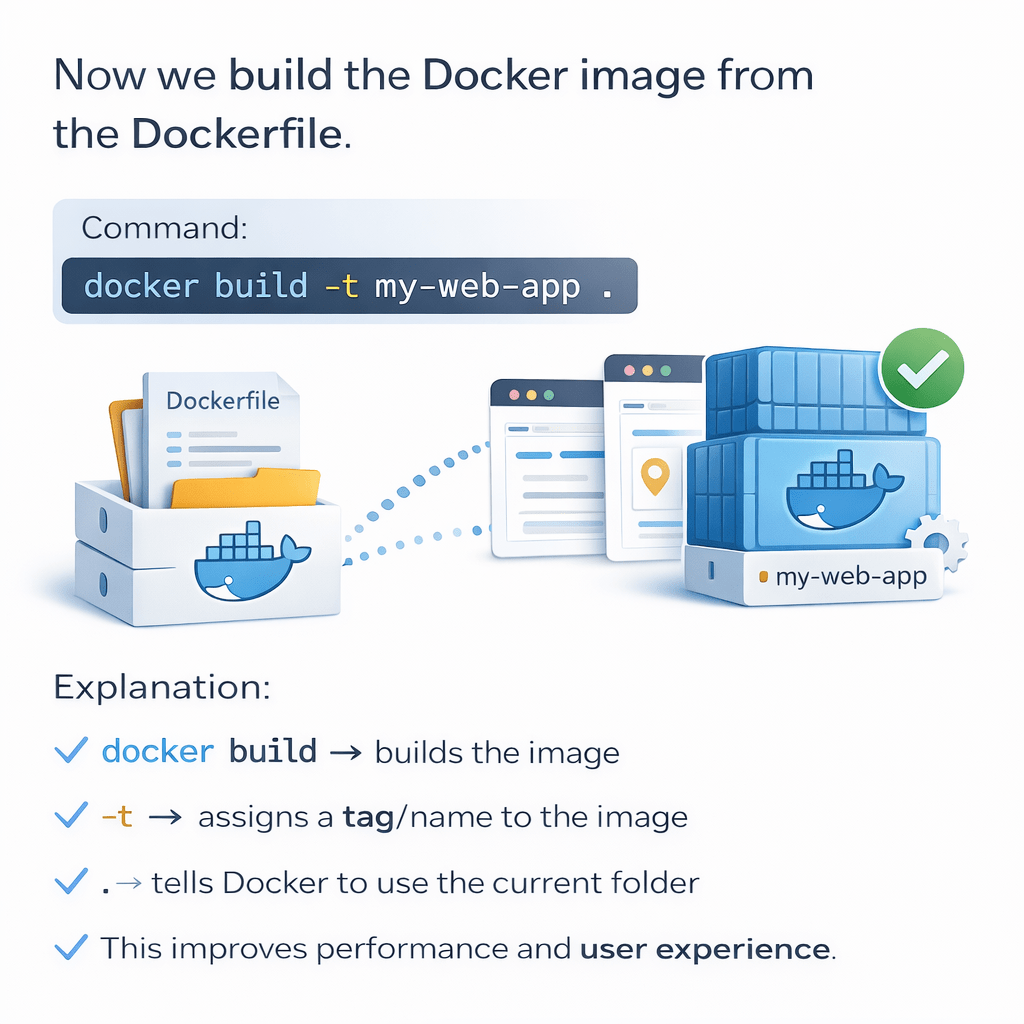
Now we build the Docker image from the Dockerfile
Command:
docker build -t my-web-app
Explanation:
docker build → builds the image
-t → assigns a tag/name to the image
. → tells Docker to use the current folder
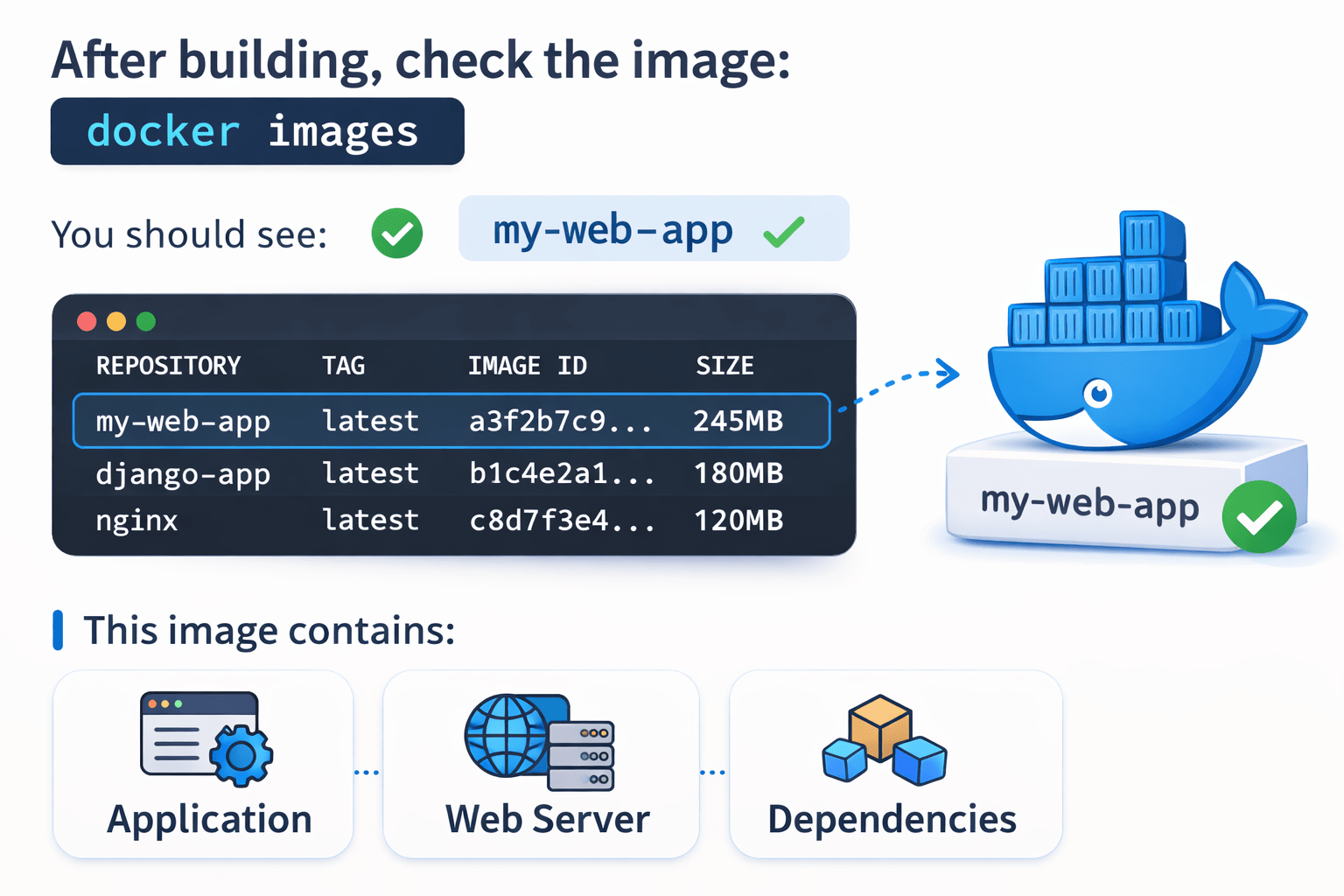
After building, check the image:
docker images
You should see:
my-web-app
This image contains:
Application + Web Server + Dependencies
Testing the Docker Container
Before pushing the image, we test it locally
Run the container:
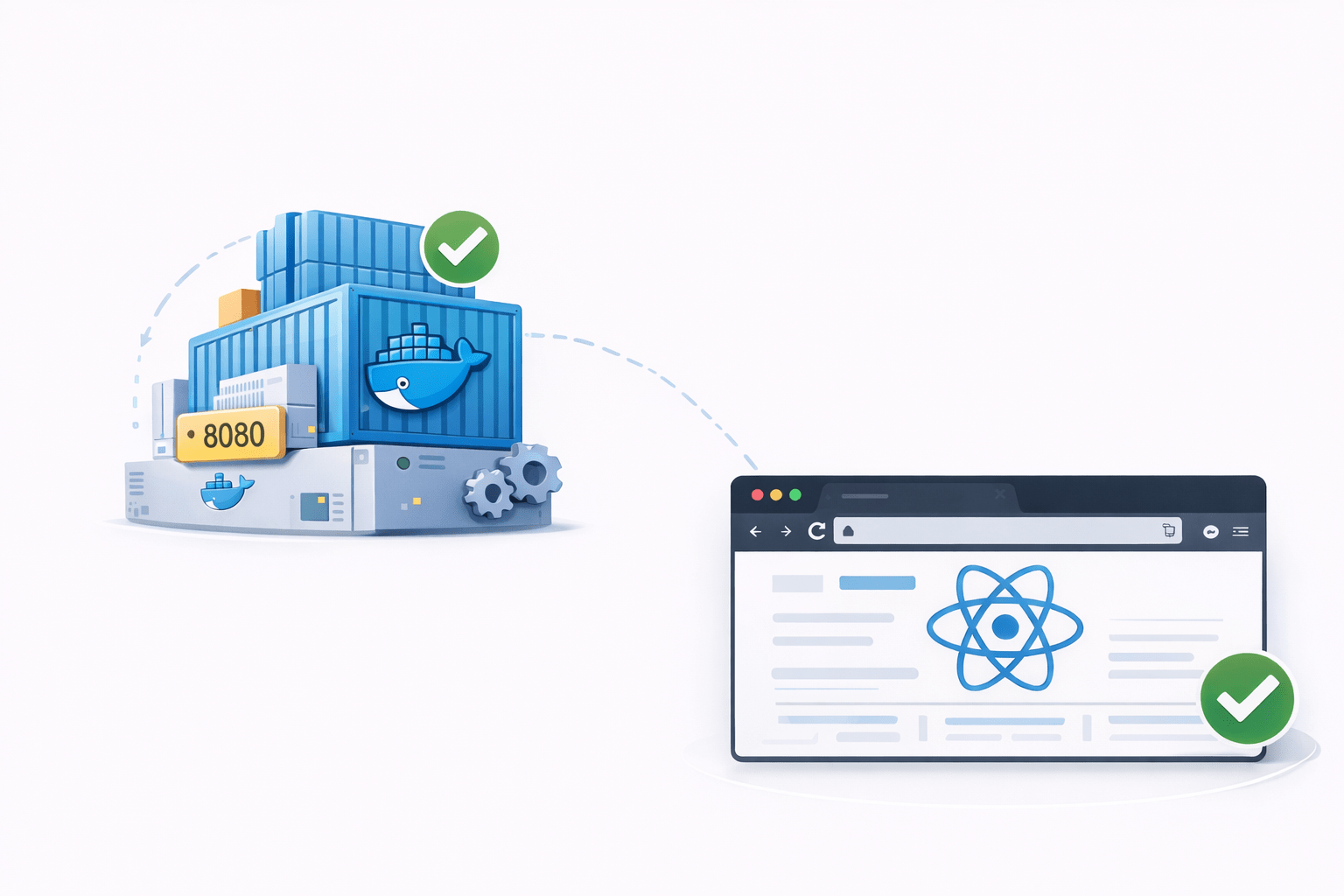
docker run -d -p 8080:80 my-web-appExplanation:
-d → runs container in background
-p 8080:80 → maps port 8080 to container port 80
Open browser:
http://localhost:8080
You should see your web application running
Creating a Docker Hub Account
Before pushing images, we need a Docker Hub account
Steps:
Go to Docker Hub website
Create an account
Login from terminal docker login
Enter:
Docker Hub username
Password
Now your system is connected to Docker Hub registry
Tagging the Docker Image
Before pushing, we must tag the image with Docker Hub username
Command:
docker tag my-web-app username/my-web-app
Example:
docker tag my-web-app john/my-web-appExplanation:
username → your Docker Hub username
my-web-app → repository name
This prepares the image for uploading
Pushing the Image to Docker Hub
Now we upload the image to Docker Hub
Command:
docker push username/my-web-app
Example:
docker push john/my-web-app
Docker will:
Upload image layers
Store them in Docker Hub
Make the image accessible from anywhere
Now the image is available online
Why We Push Images to Docker Hub
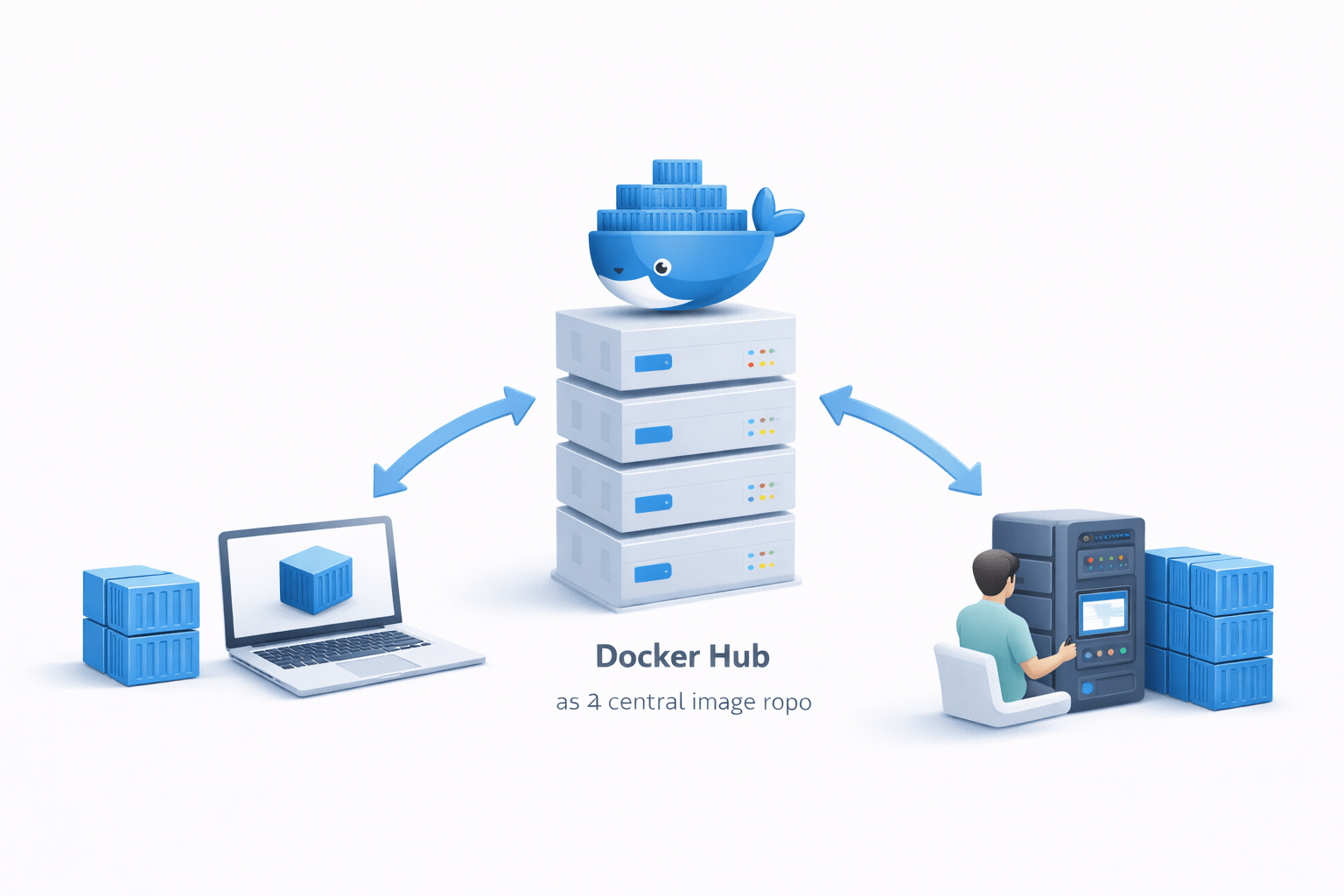
Docker Hub acts as a central image repository
Benefits:
Store container images
Share images with teams
Deploy images on servers
Use images in Kubernetes
Kubernetes will later pull this image from Docker Hub to run containers
Workflow:
Deployment Preparation for Kubernetes
Now our application is ready for deployment
We have:
Created a web application
Containerized it with Docker
Built a Docker image
Tested the container
Pushed the image to Docker Hub
Next step in Kubernetes:
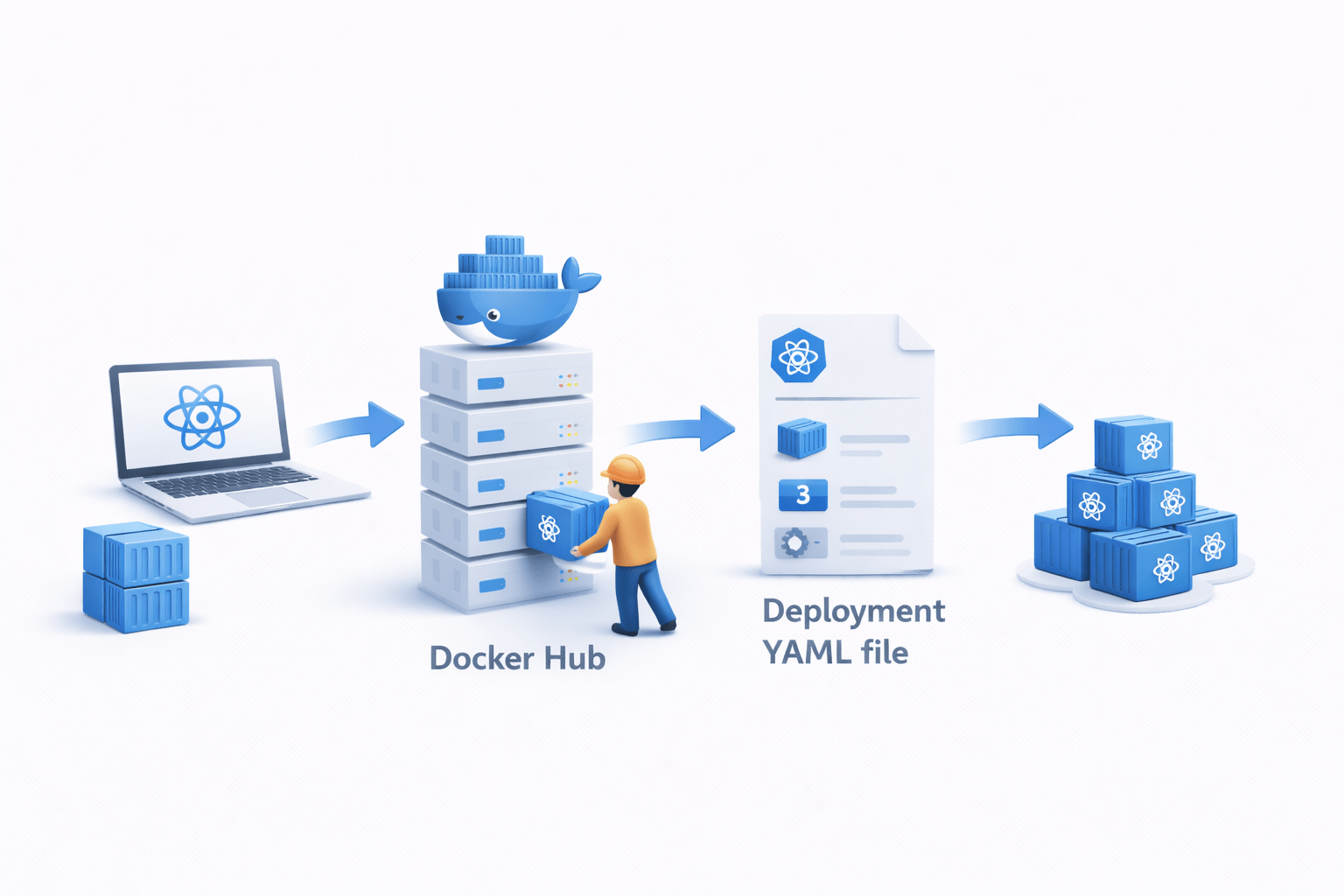
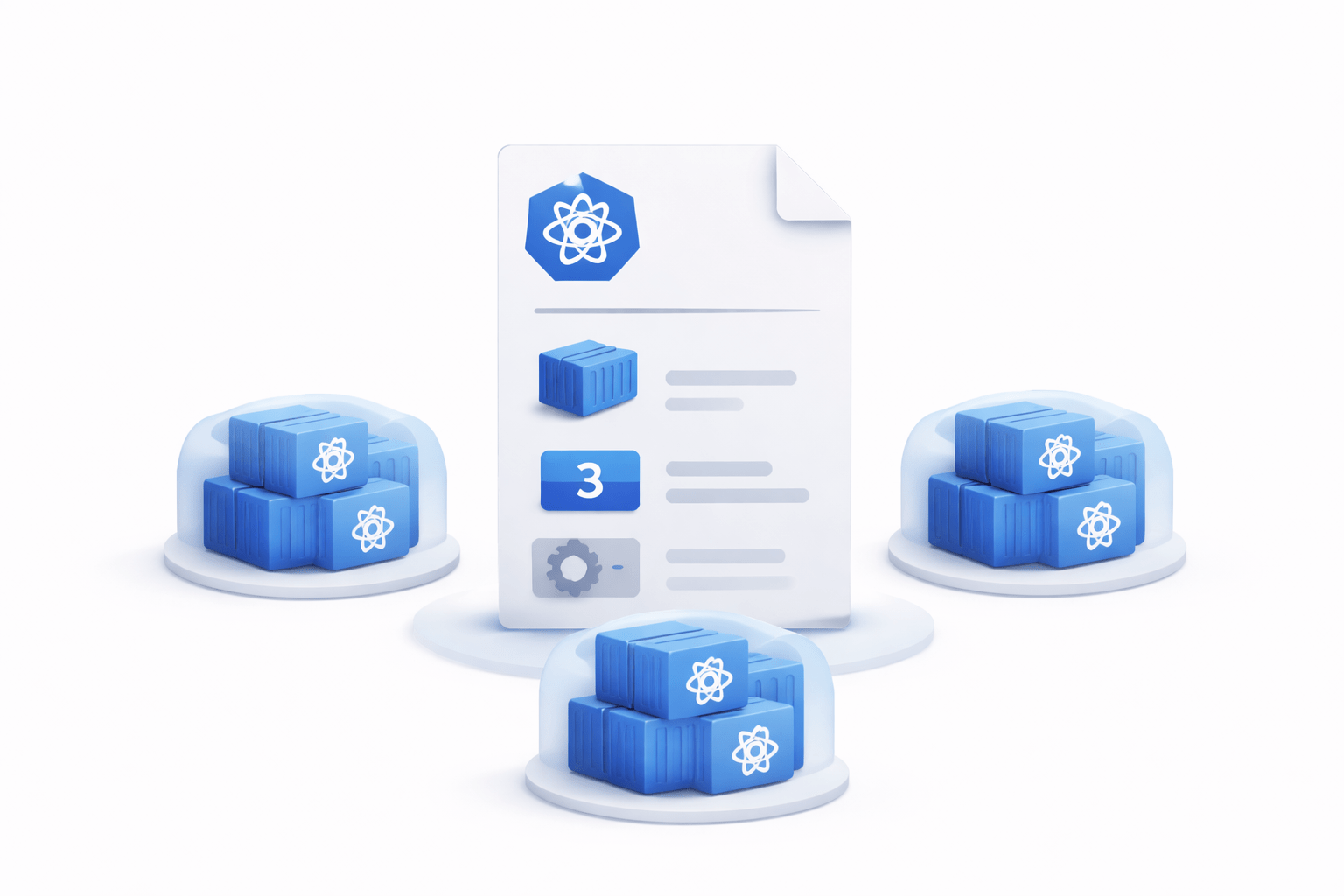
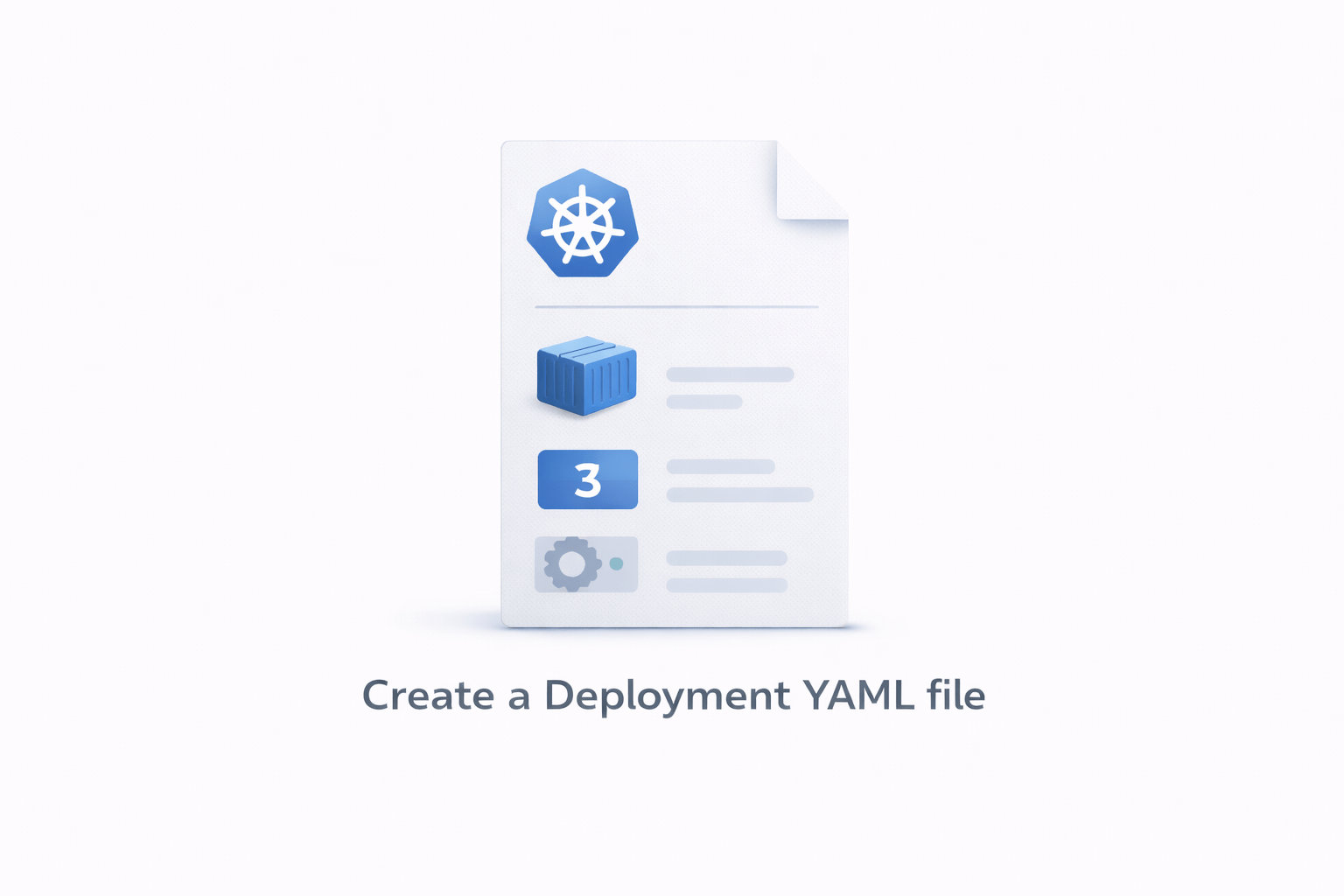
Create a Deployment YAML file
This file will tell Kubernetes
Which image to run
How many replicas to create
How to manage the application
4
Tagging Docker images , Pushing images to Docker Hub
3
Writing a Dockerfile , Building Docker images ,Testing containers locally
2
Containerizing applications using Docker
1
Creating a simple web application
Quiz
Which command is used to upload a Docker image to Docker Hub?
A. docker build
B. docker run
C. docker push
D. docker create
Quiz-Answer
Which command is used to upload a Docker image to Docker Hub?
A. docker build
B. docker run
C. docker push
D. docker create
By Content ITV