






























Content ITV PRO
This is Itvedant Content department
Learning Outcome
4
Create and run a basic Selenium test script
3
Configure build tools such as Maven or Gradle
2
Set up an IDE like Eclipse IDE or IntelliJ IDEA
1
Install and configure Java (JDK) for automation
5
Understand project structure for automation frameworks
Prerequisite
Basic knowledge of Java and object-oriented concepts
Installation and setup of JDK (Java Development Kit)
Familiarity with IDEs like Eclipse IDE or IntelliJ IDEA
Understanding of build tools like Maven
Basics of web browsers and how they
interact with Selenium WebDriver
Install & Configure Java (JDK)
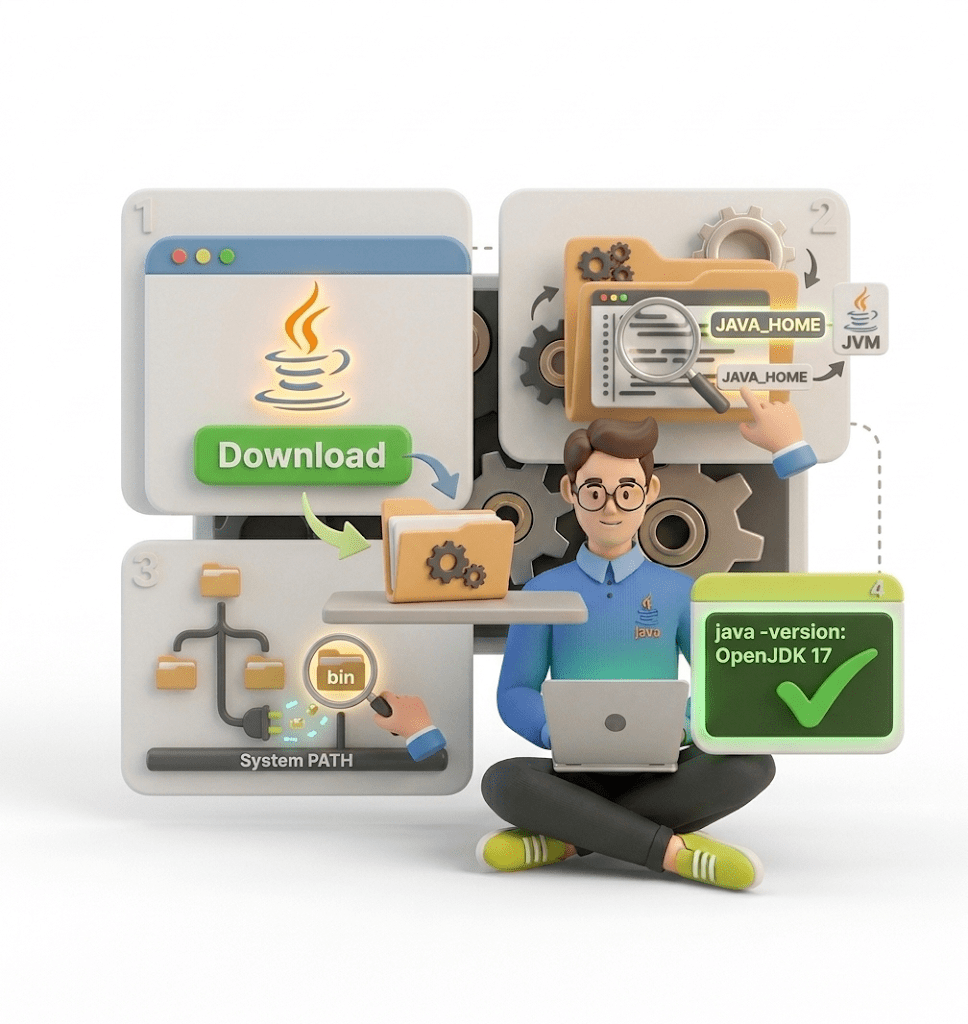
Download JDK from Oracle or OpenJDK
Install and set JAVA_HOME environment variable
Add JDK bin folder to system PATH
Verify installation using java -version
Set Up IDE
Recommended IDEs: Eclipse IDE or IntelliJ IDEA
Go to the official Eclipse website
Download Eclipse Installer
Run the installer
Download Eclipse
Choose the Right Package
When the installer opens, select:
Eclipse IDE for Java Developers (most common)
Set Up IDE
Set Installation Directory
Choose where to install Eclipse
Click Install
Accept license terms
Wait for installation to complete
Example:
C:\Users\YourName\eclipse-workspace
Launch
Open Eclipse
It will ask for a Workspace location
Workspace = folder where all your projects will be stored
Click Launch
Set Up IDE
Basic Configuration
Make sure you have JDK installed (like Java 17+)
Go to: Window → Preferences → Java → Installed JREs
Set Java (JDK)
Add your JDK if not already detected
Click Finish
Create Your First Project
Click File → New → Java Project
Enter project name
Configure Build Tools
Automatically download and manage libraries
Simplifies project builds and version control
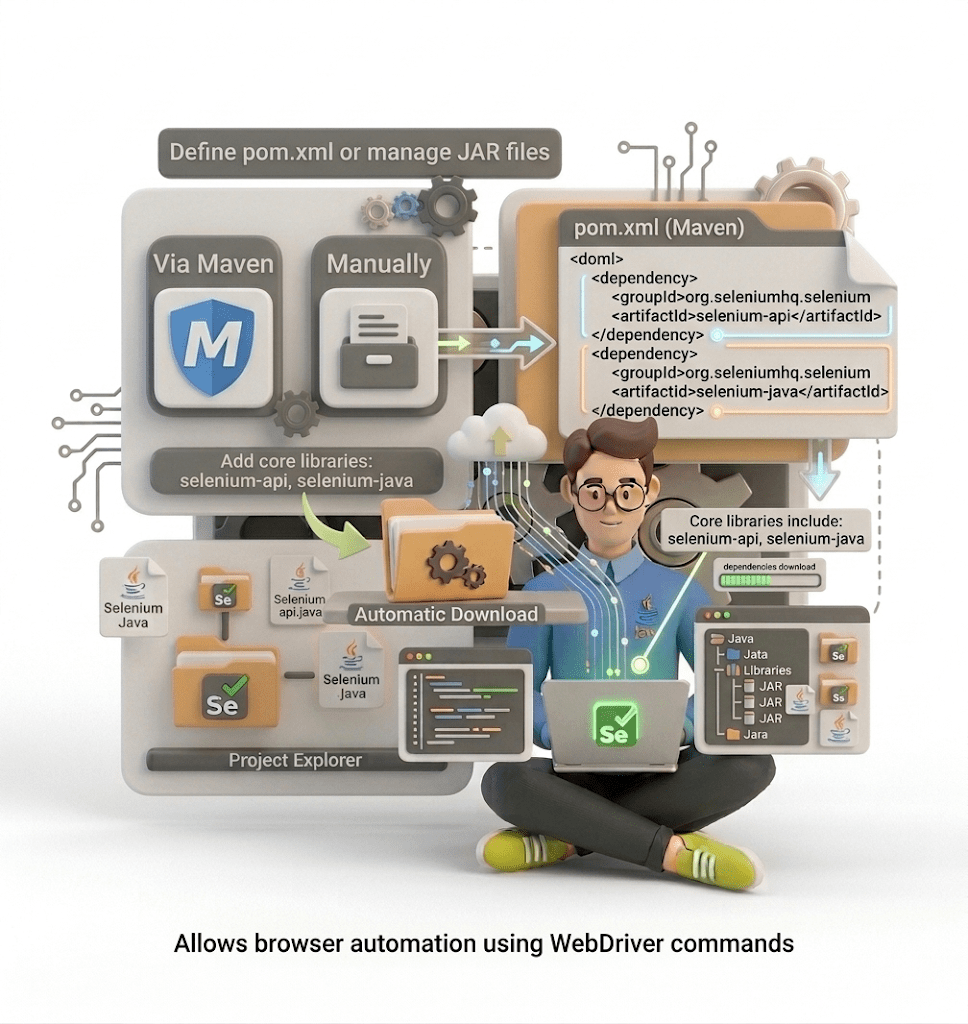
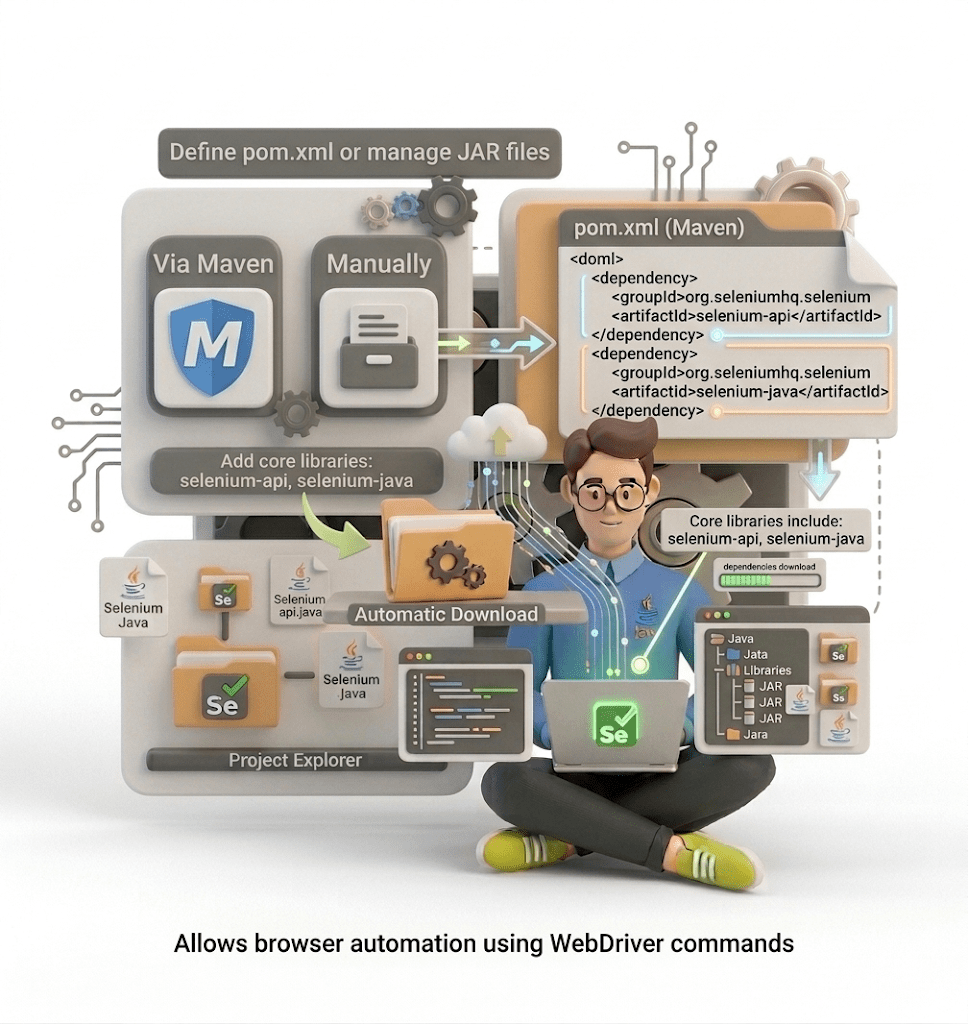
Define pom.xml (Maven) to include Selenium libraries
Maven or Gradle for dependency management
Add Selenium Dependencies
Add Selenium Java libraries via Maven or manually
Allows browser automation using WebDriver commands
Core libraries include: selenium-api, selenium-java
Download & Configure Browser Drivers
Chrome → ChromeDriver, Firefox → GeckoDriver
Drivers must match browser version
Add driver path to project or system PATH
Enables WebDriver to control the browser
Create & Run a Test Script
Create a simple Java class with main()
Open browser, navigate to a website and close
Example:
Run script in IDE to verify setup
Create & Run a Test Script
Use packages to organize test scripts
Typical folders: src/main/java, src/test/java, drivers, resources
Supports scalability for large frameworks
Summary
4
Successfully running a basic test confirms setup
3
Organized project structure supports maintainability
2
Selenium WebDriver and browser drivers enable automation
1
Java, IDE, and build tools are prerequisites
Quiz
What is the purpose of a Workspace in Eclipse IDE?
A.To store installed plugin
B.To store all your projects and related files
C. To run Java programs
D.To compile code automatically
Quiz-Answer
What is the purpose of a Workspace in Eclipse IDE?
A.To store installed plugin
B.To store all your projects and related files
C. To run Java programs
D.To compile code automatically
By Content ITV