












Content ITV PRO
This is Itvedant Content department
Learning Outcome
6
Combine Nested IF with IFERROR for robust formulas
5
Use IFERROR to handle common Excel errors
4
Understand what IFERROR does and why it is important
3
Write Nested IF formulas for multiple conditions
2
Explain when and why Nested IF is required
1
Understand what a Nested IF statement is
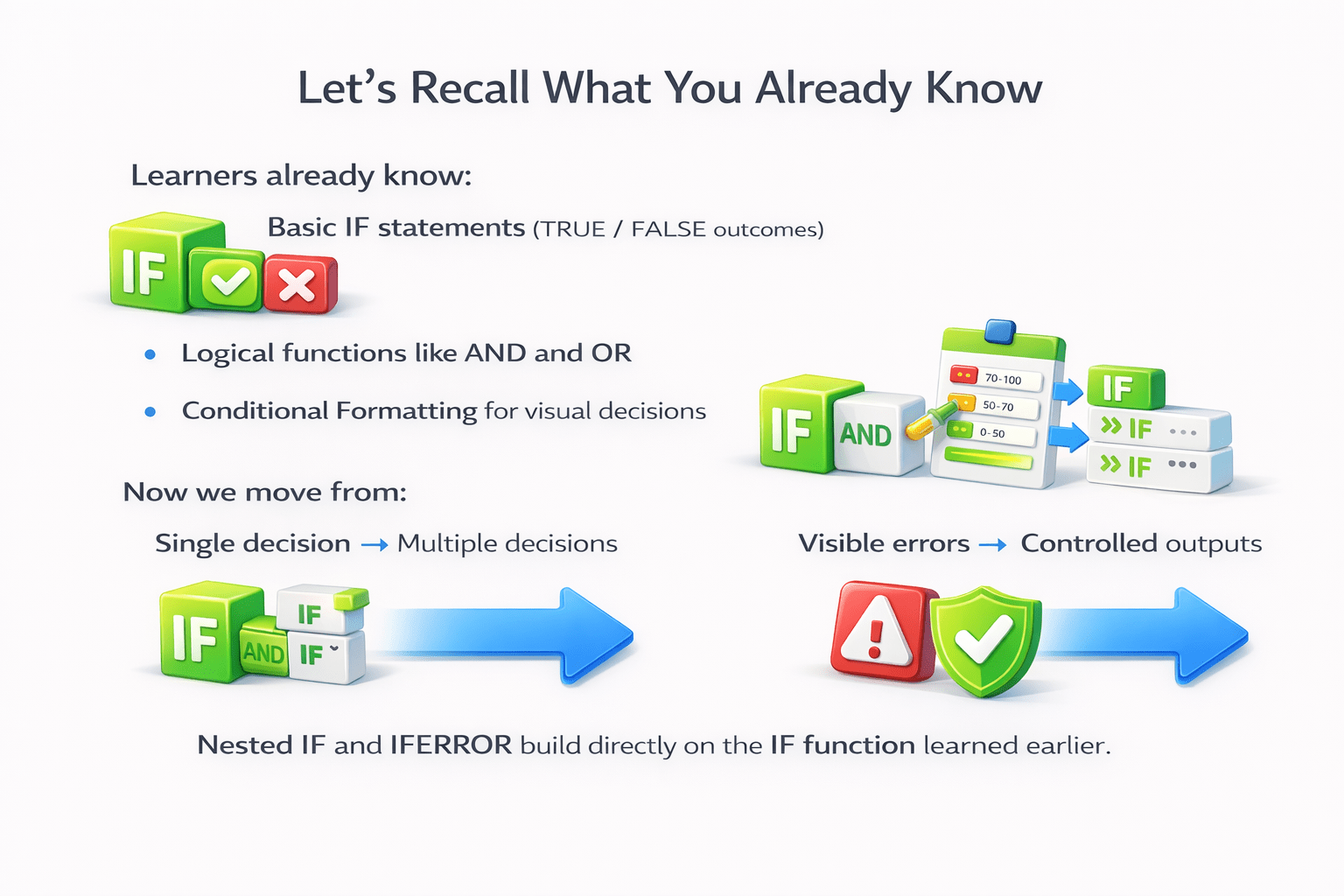
Learners already know:
Basic IF statements (TRUE / FALSE outcomes)
Logical functions like AND and OR
Conditional Formatting for visual decisions
Now we move from:
Single decision
Multiple decisions
Visible errors
Controlled outputs
Nested IF and IFERROR build directly on the IF function learned earlier.
Imagine a school result system.
The system must decide:
Excellent
Good
Average
Fail
And if marks are missing?
Show
“Data Not Available” instead of crashing
The system does not stop at one question.
It checks multiple conditions, step by step,
And handles unexpected situations calmly
That’s exactly what Nested IF and IFERROR teach Excel to do:
Think in layers
Handle problems gracefully
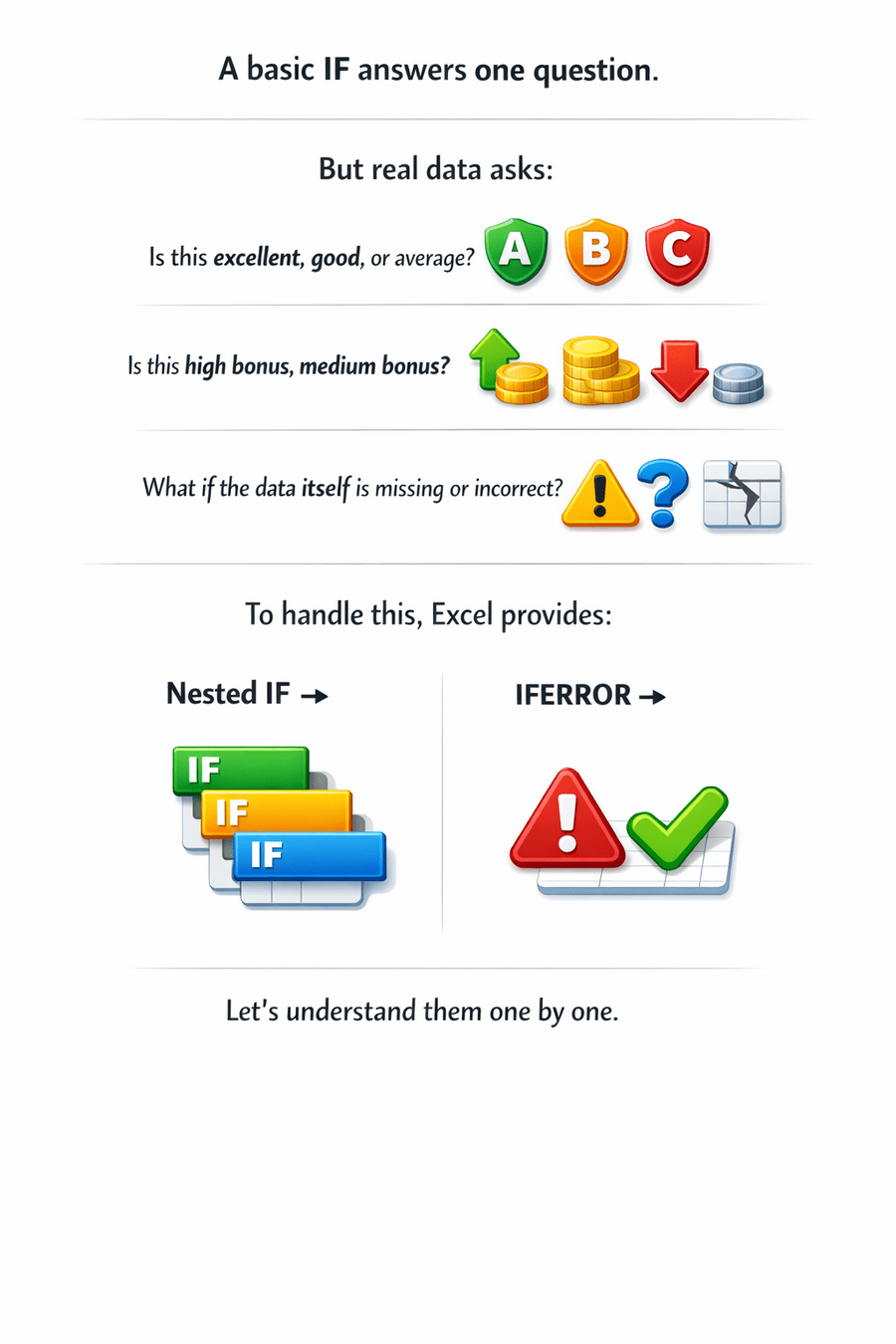
A basic IF answers one question.
But real data asks:
Is this excellent, good, or average?
Is this high bonus, medium bonus, or no bonus?
What if the data itself is missing or incorrect?
To handle this, Excel provides:
Nested IF
→ protection against errors
→ multiple logical checks
IFERROR
Let’s understand them one by one.
Nested IF – Making Multi-Level Decisions
If you clear Round 1
→ go to Round 2
If you clear Round 2
→ Final Selection
Else → Rejected
Nested IF works the same way.
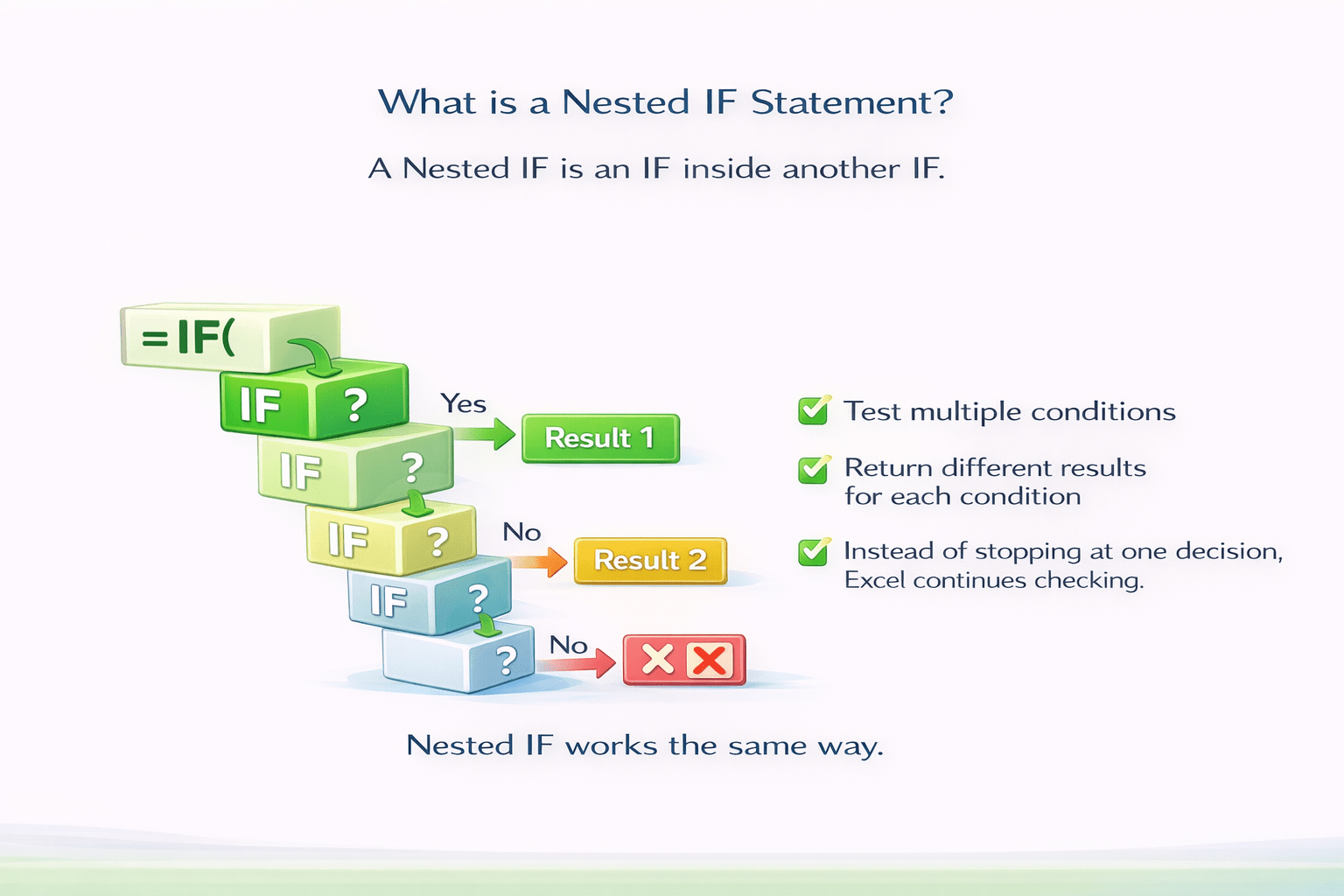
What is a Nested IF Statement?
Instead of stopping at one decision, Excel continues checking.
Syntax of Nested IF
=IF(condition1, result1,
IF(condition2, result2,
result3))
Syntax:-
Meaning:
(Check Condition 1)
If True
If False
return result 1
check condition2
If True
return result 2
return result 3
else
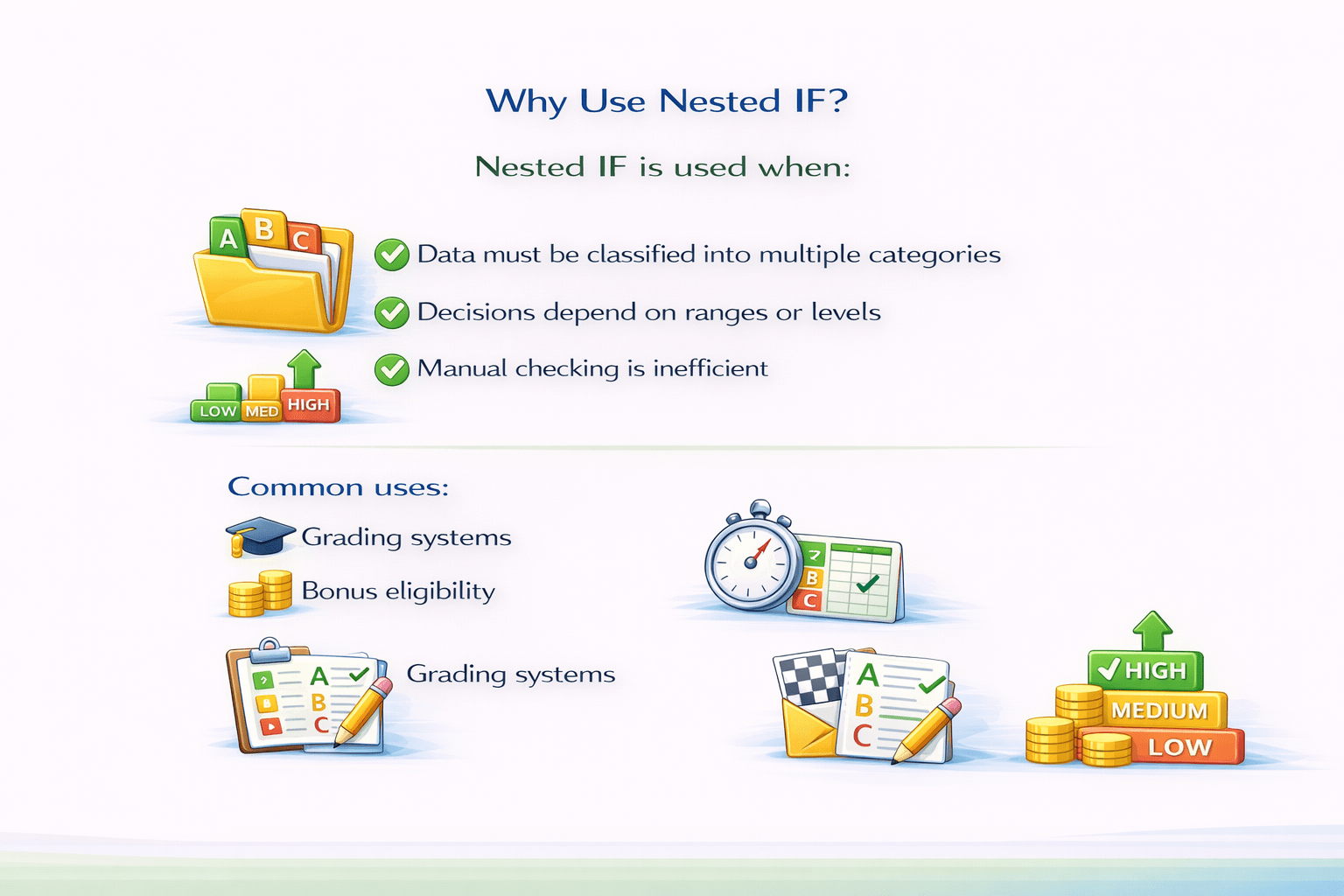
Why Use Nested IF?
Example 1: Grading System
Formula
Logic:
≥ 90
A
≥ 75
B
≥ 50
C
Else
Fail
=IF(A2>=90,"A", IF(A2>=75, "B",
IF(A2>=50,"C","Fail"))
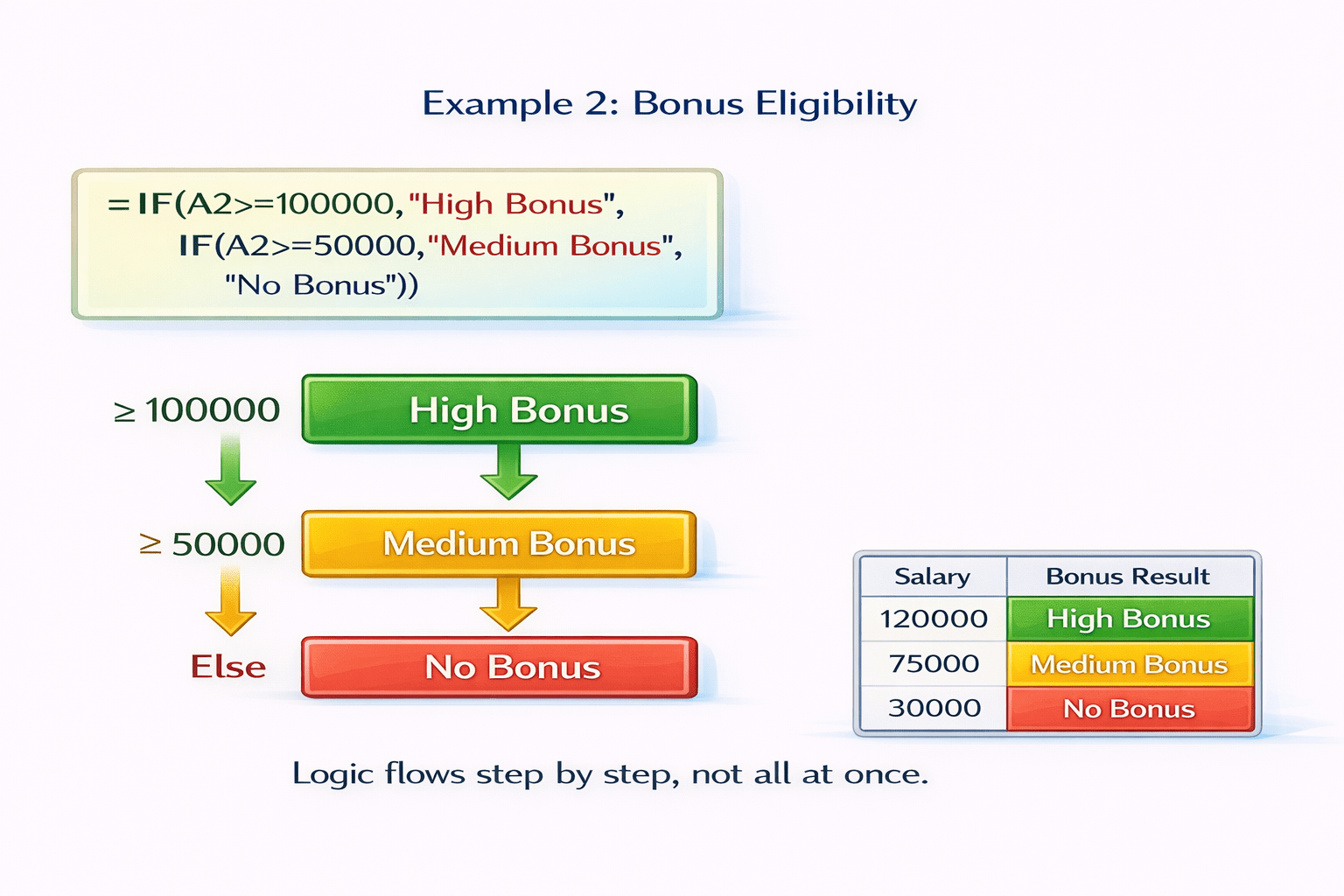
Example 2: Bonus Eligibility
=IF(A2>=100000,"High Bonus",
IF(A2>=50000,"Medium Bonus", "No Bonus"))
Logic flows step by step, not all at once.
Formula
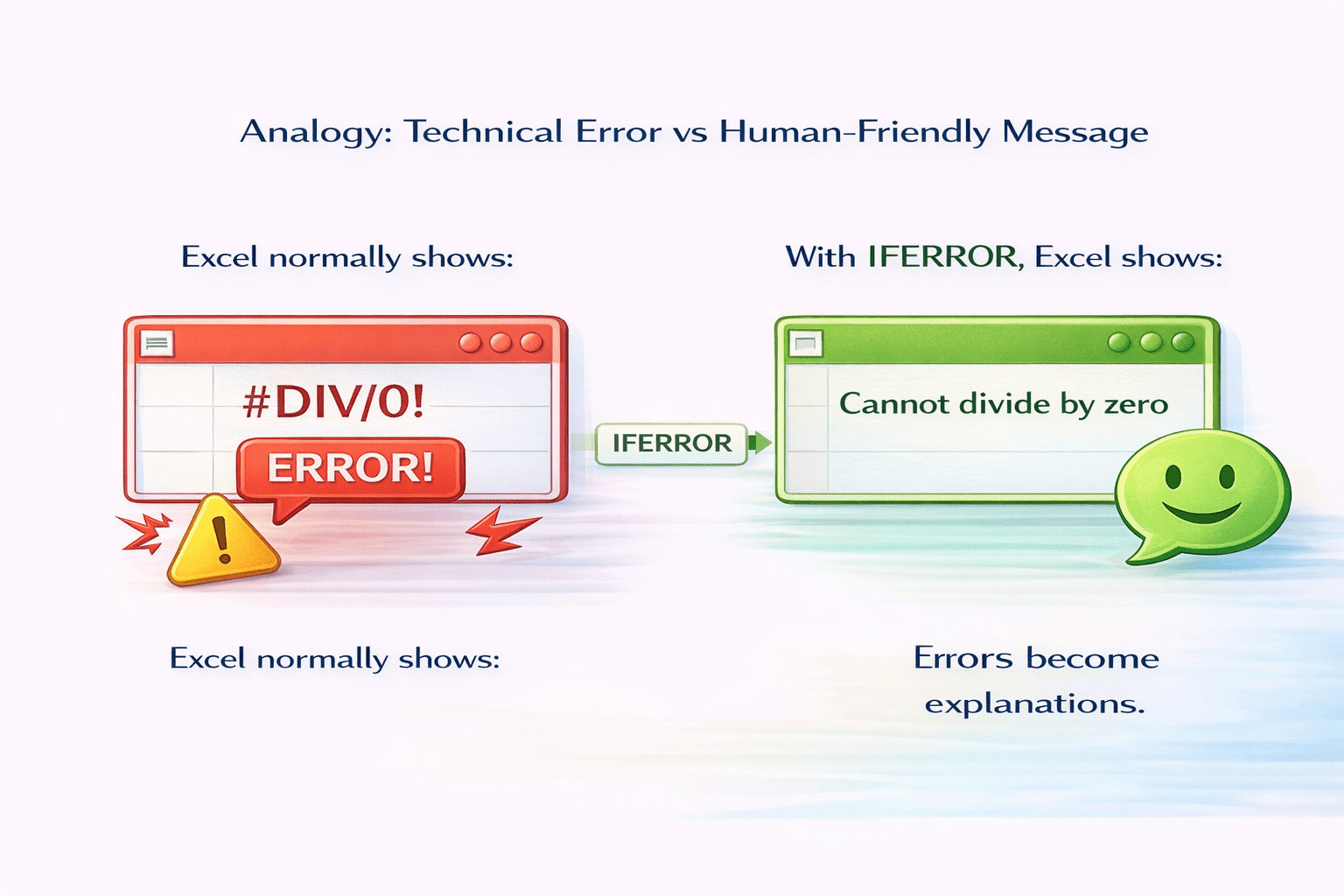
Technical Error
Human-Friendly Message
VS
Excel normally shows:
With IFERROR, Excel shows:
Errors become explanations.
What is IFERROR?
IFERROR checks:
show result
show a custom value
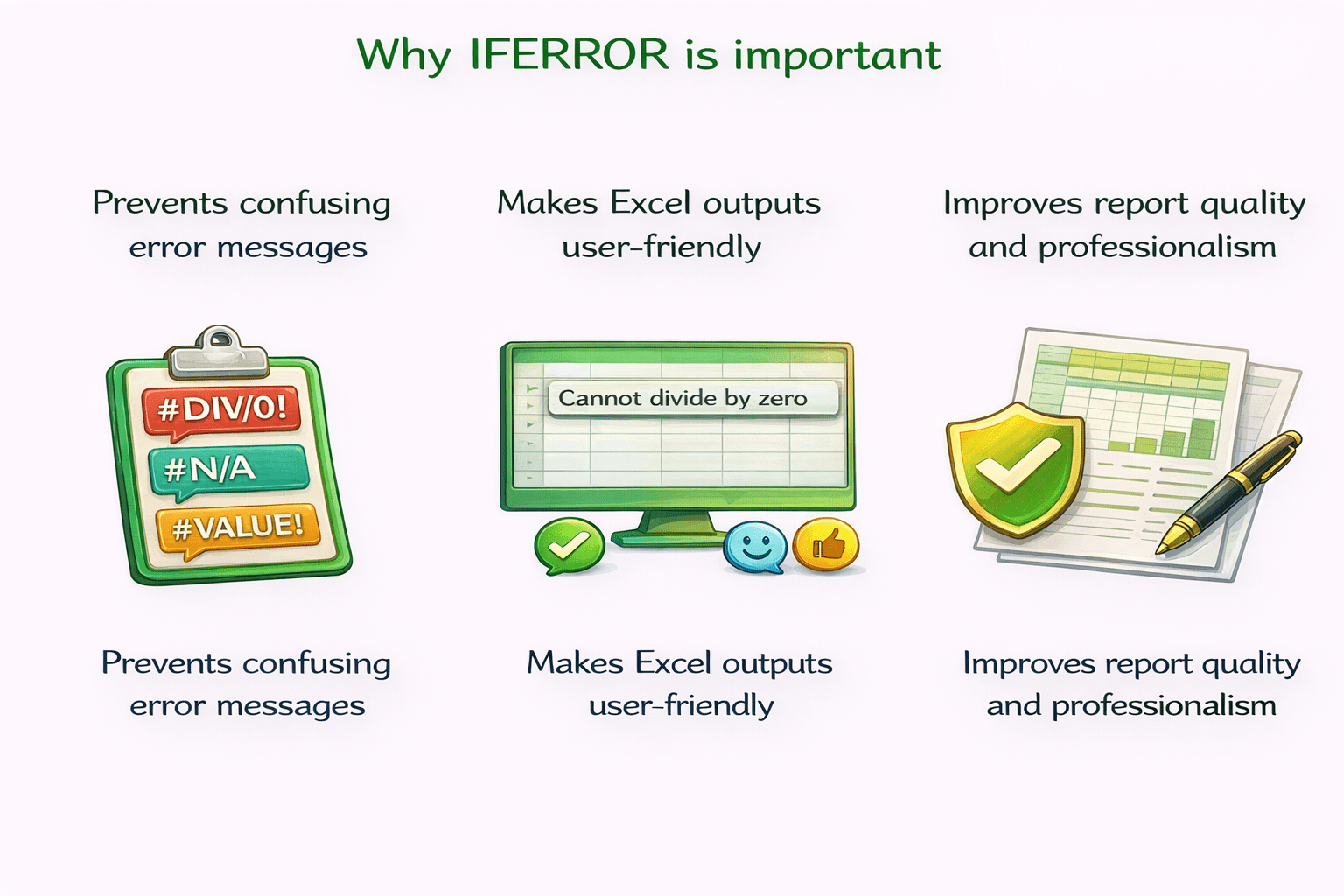
Why IFERROR is important
Prevents confusing error messages
Makes Excel outputs user-friendly
Improves report quality and professionalism
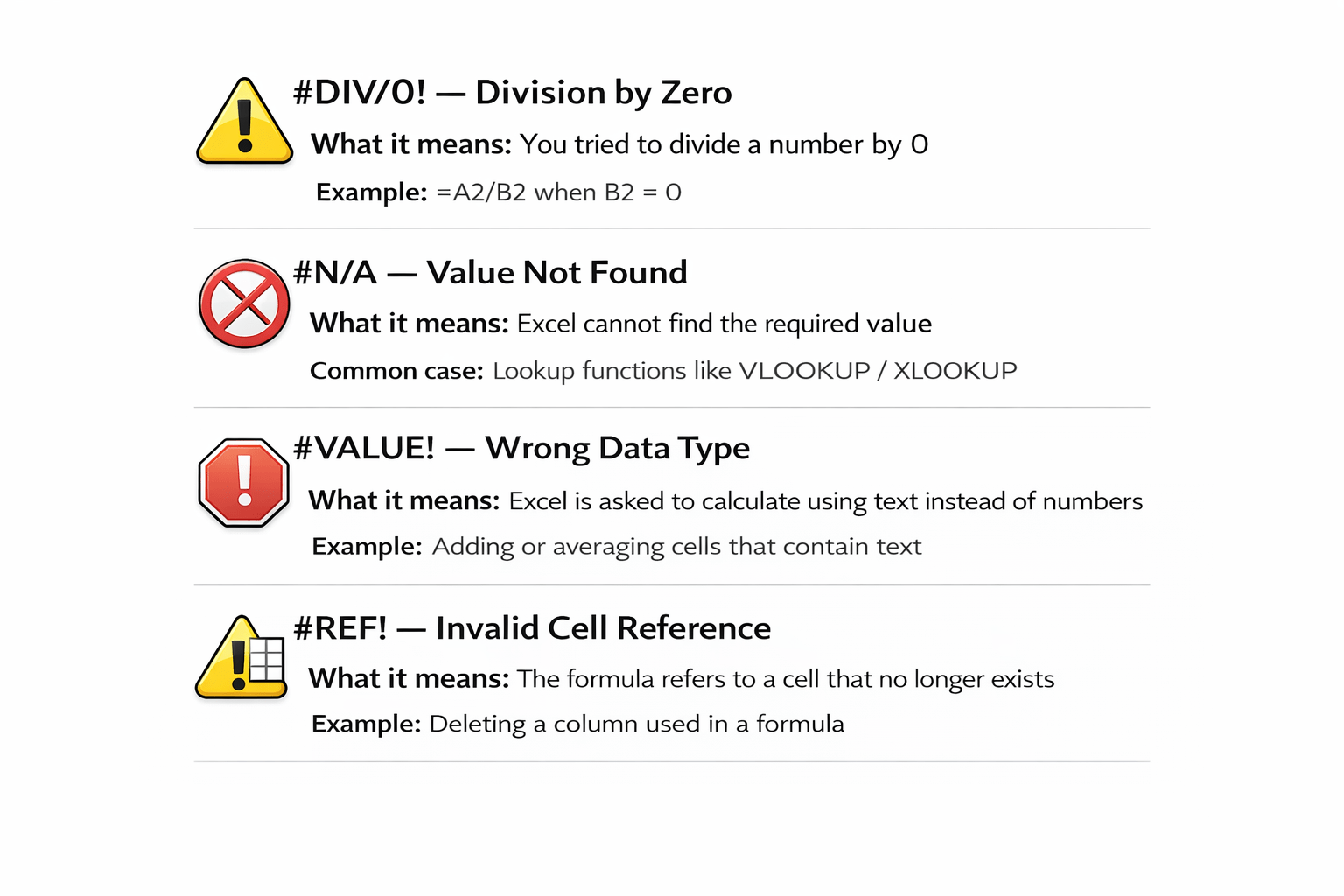
It prevents:
#DIV/0! — Division by Zero
What it means: You tried to divide a number by 0
Example: =A2/B2 when B2 = 0
#N/A — Value Not Found
What it means: Excel cannot find the required value
Common case: Lookup functions like VLOOKUP / XLOOKUP
#VALUE! — Wrong Data Type
What it means: Excel is asked to calculate using text instead of numbers
Example: Adding or averaging cells that contain text
#REF! — Invalid Cell Reference
What it means: The formula refers to a cell that no longer exists
Example: Deleting a column used in a formula
Syntax of IFERROR
=IFERROR(expression, value_if_error)
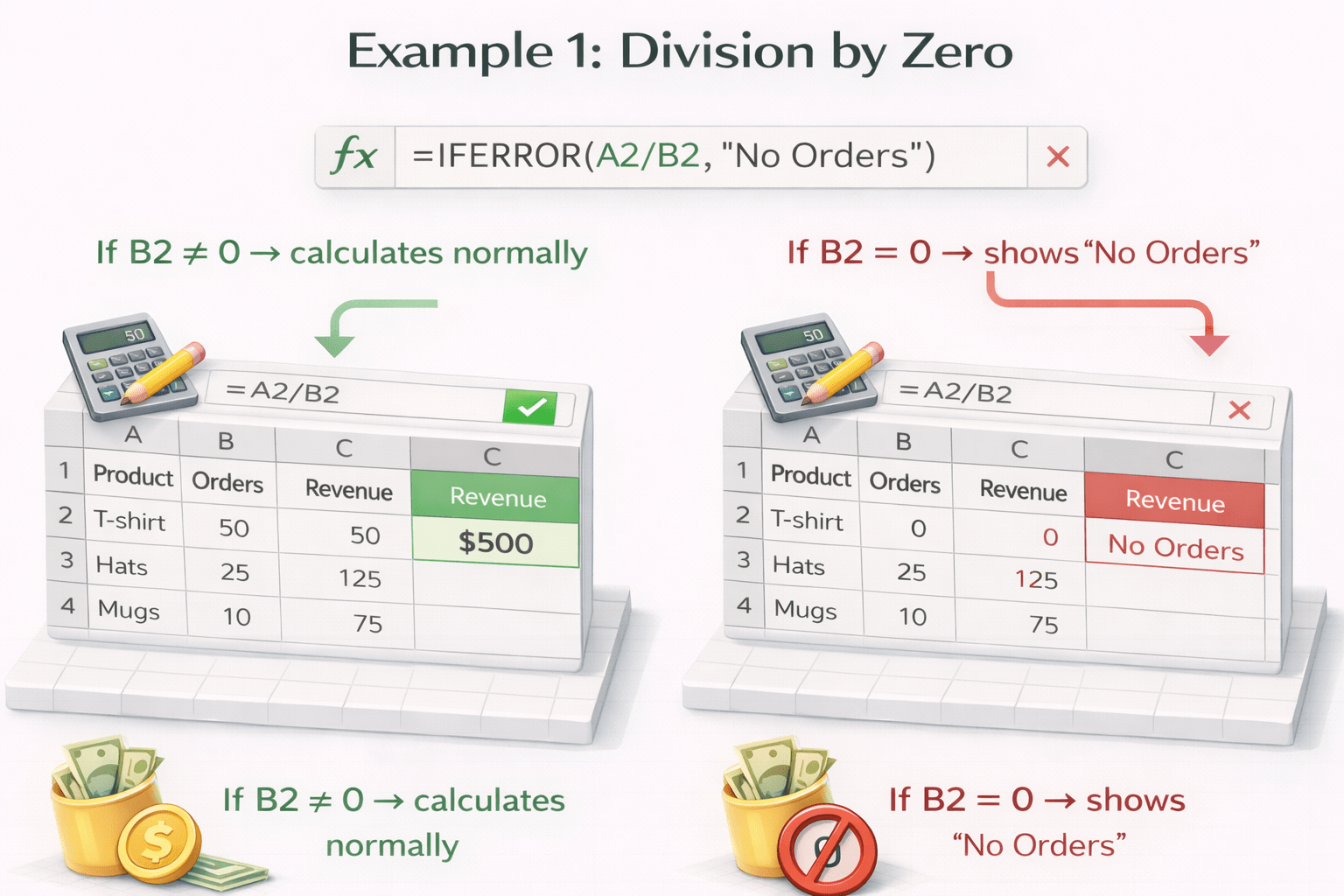
Example 1: Division by Zero
=IFERROR(A2/B2, "No Orders")
𝑓𝑥
If B2 ≠ 0 → calculates normally
If B2 = 0 → shows “No Orders”
Combining Nested IF with IFERROR
=IFERROR(
IF(A2>80,"Excellent",IF(A2>60,"Good",
IF(A2>40,"Average","Poor"))),
"Invalid Data")
Syntax:-
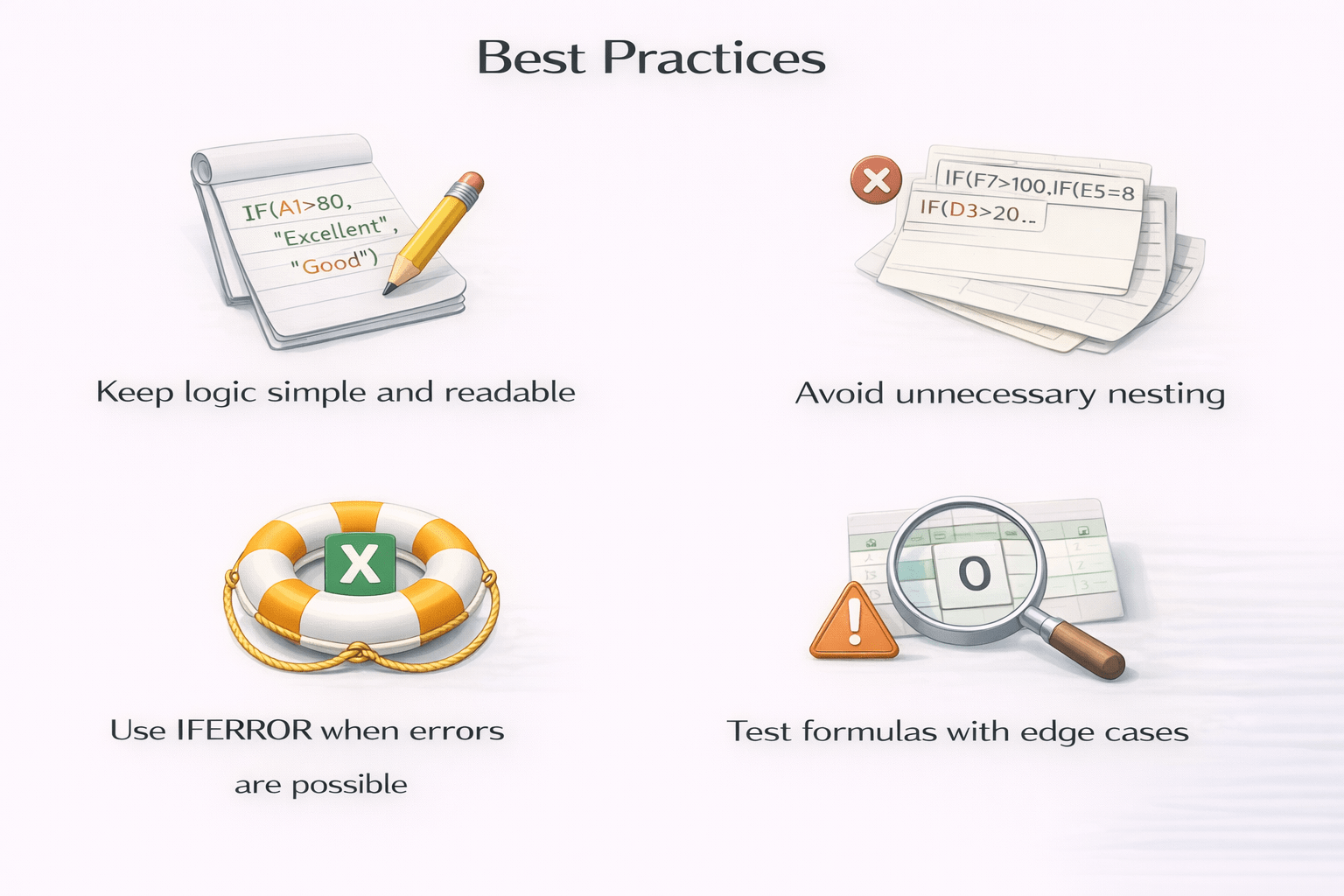
Best Practices
Keep logic simple and readable
Avoid unnecessary nesting
Use IFERROR when errors are possible
Test formulas with edge cases
1
2
3
4
Summary
5
Combining both creates robust formulas
4
IFERROR improves report reliability
3
IFERROR replaces error messages with meaningful output
2
It evaluates conditions sequentially
1
Nested IF handles multiple conditions
Quiz
Which function prevents #DIV/0! errors in Excel?
A. IF()
B. VLOOKUP()
C. IFERROR()
D. AND()
Quiz-Answer
C. IFERROR()
Which function prevents #DIV/0! errors in Excel?
A. IF()
B. VLOOKUP()
D. AND()
By Content ITV