












Content ITV PRO
This is Itvedant Content department
Learning Outcome
6
Understand offline access, alerts, and sharing on mobile
5
Interact with reports using touch-based controls
4
Use Power BI Mobile app features effectively
3
Design mobile-optimized report layouts
2
Understand how reports behave on mobile devices
1
Explain what Power BI Mobile is and why it is important
How report and dashboards are created in Power BI Desktop
How slicers, filters, and visuals work
Basics of interactive dashboards
Difference between report design and report consumption
Students already know:
Imagine your in a meeting
The discussion moves on.
A question comes up in a meeting.
Now imagine something different.
You pull out your phone.
The Dashboard is there.
You Tap a Filter.
The Chart updates.
The Answer is instant.
The Data didn’t move.
You did.
Why should insights stay tied to a desk?
Why should data wait for a screen that isn’t with you?
If decisions can happen everywhere:
That’s why Power BI works on mobile .
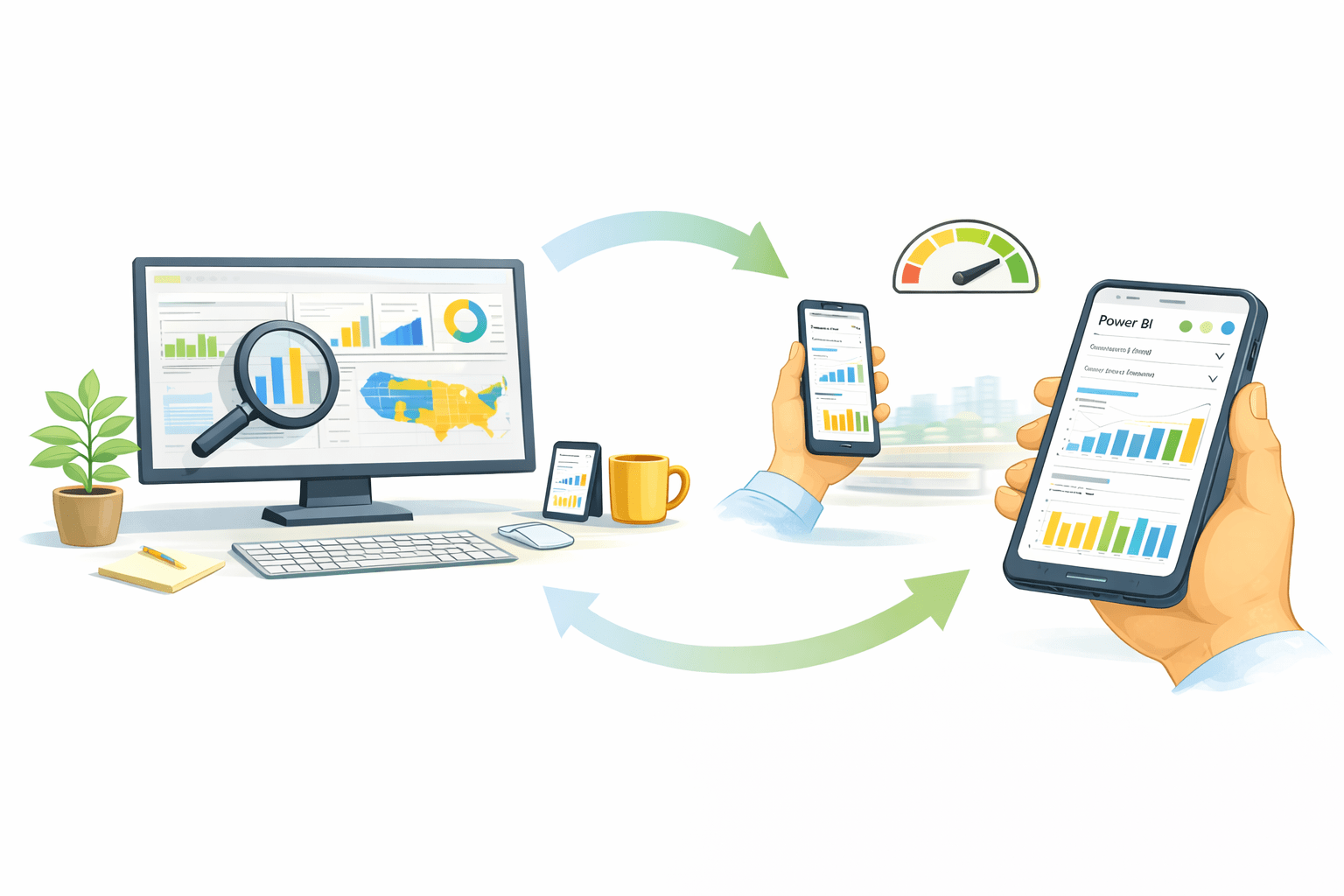
Power BI Mobile puts insights in your pocket.
Power BI provides:
A dedicated mobile app
Mobile-optimized report layout
Desktop reports are built for analysis
Mobile reports are built for speed and clarity
The core section explains how Power BI works on mobile and how to design for it
Power BI Mobile
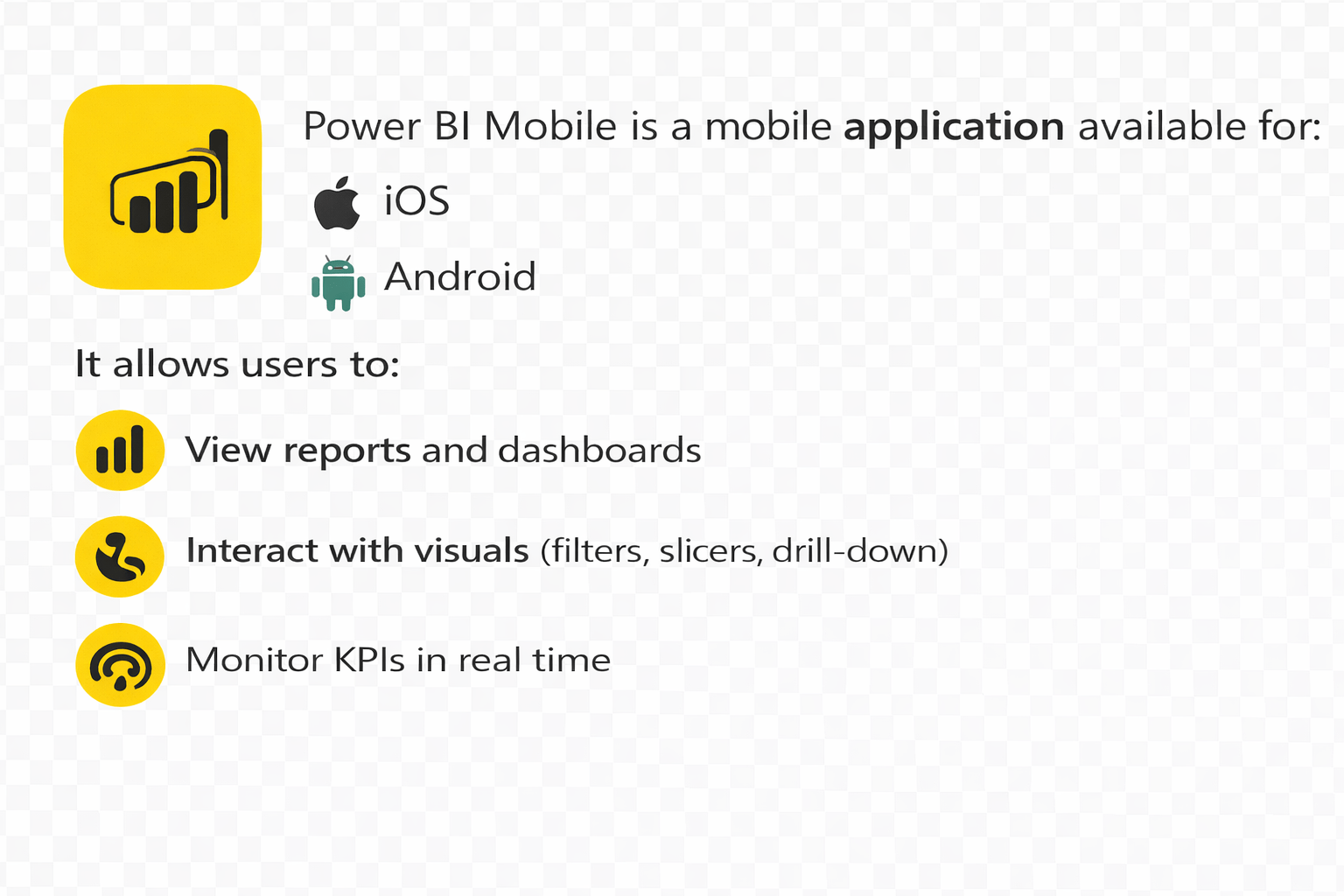
Power BI Mobile is a mobile application for:
iOS
Android
It allows users to:
Designed primarily for data consumption, not creation
View reports and dashboard
Interact with visuals
Monitor KPIs in real time
Why Power BI on Mobile Is Important
Keeps stakeholders connected to live data
Supports real-time monitoring of critical metrics
Reduces dependency on laptops and desktops
Enables decision-making on the go
How to Use Power BI on Mobile
1. Download
the Power BI
app
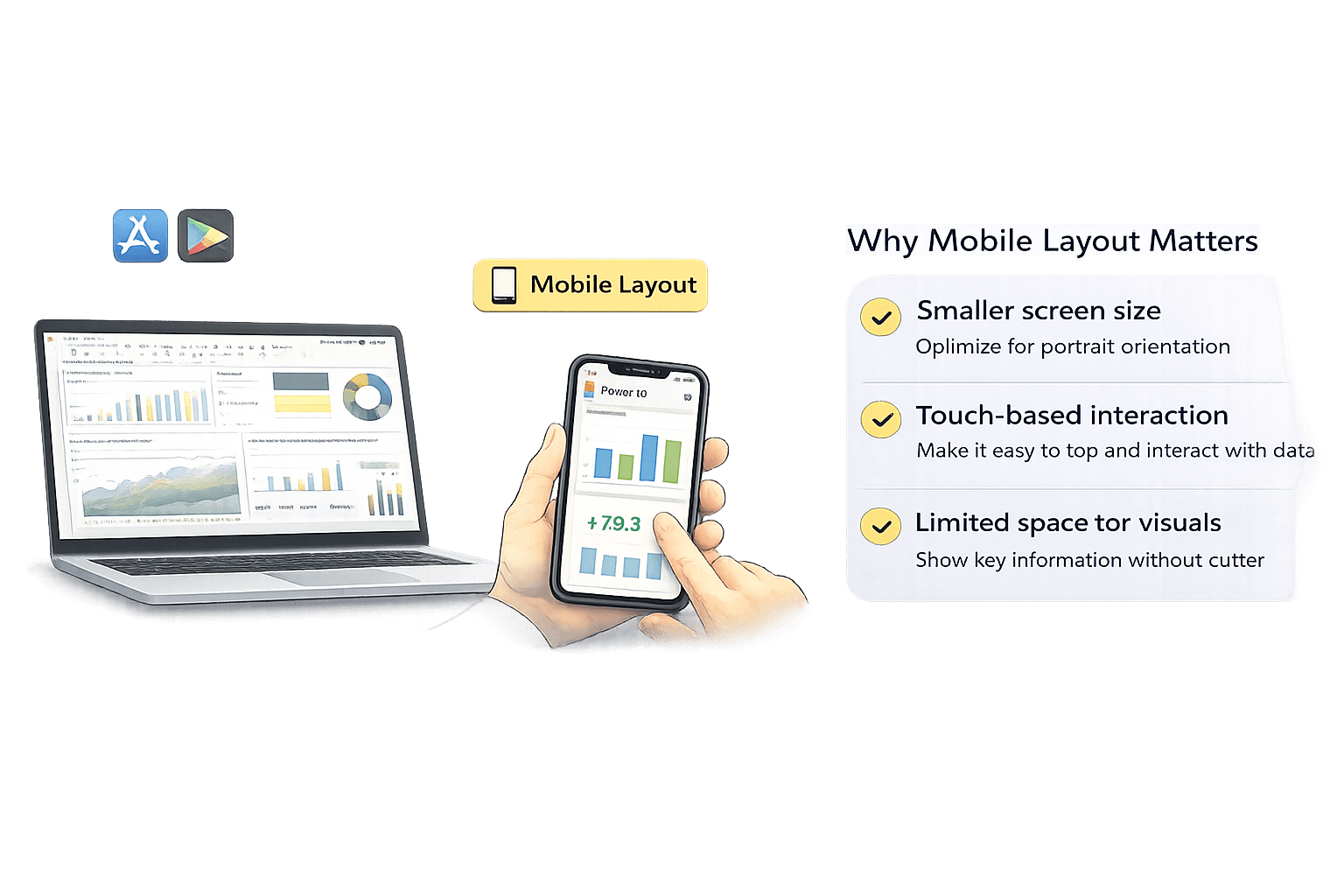
App Store or Play Store
Access shared reports and insigihts
2. Sign in using
a Microsoft
account
Track KPIs and Performances
3. Access reports and dashboards from the workspace
Use Filter and Slicers
4. Tap
visuals to Interact
Use filters and slicers to customize views
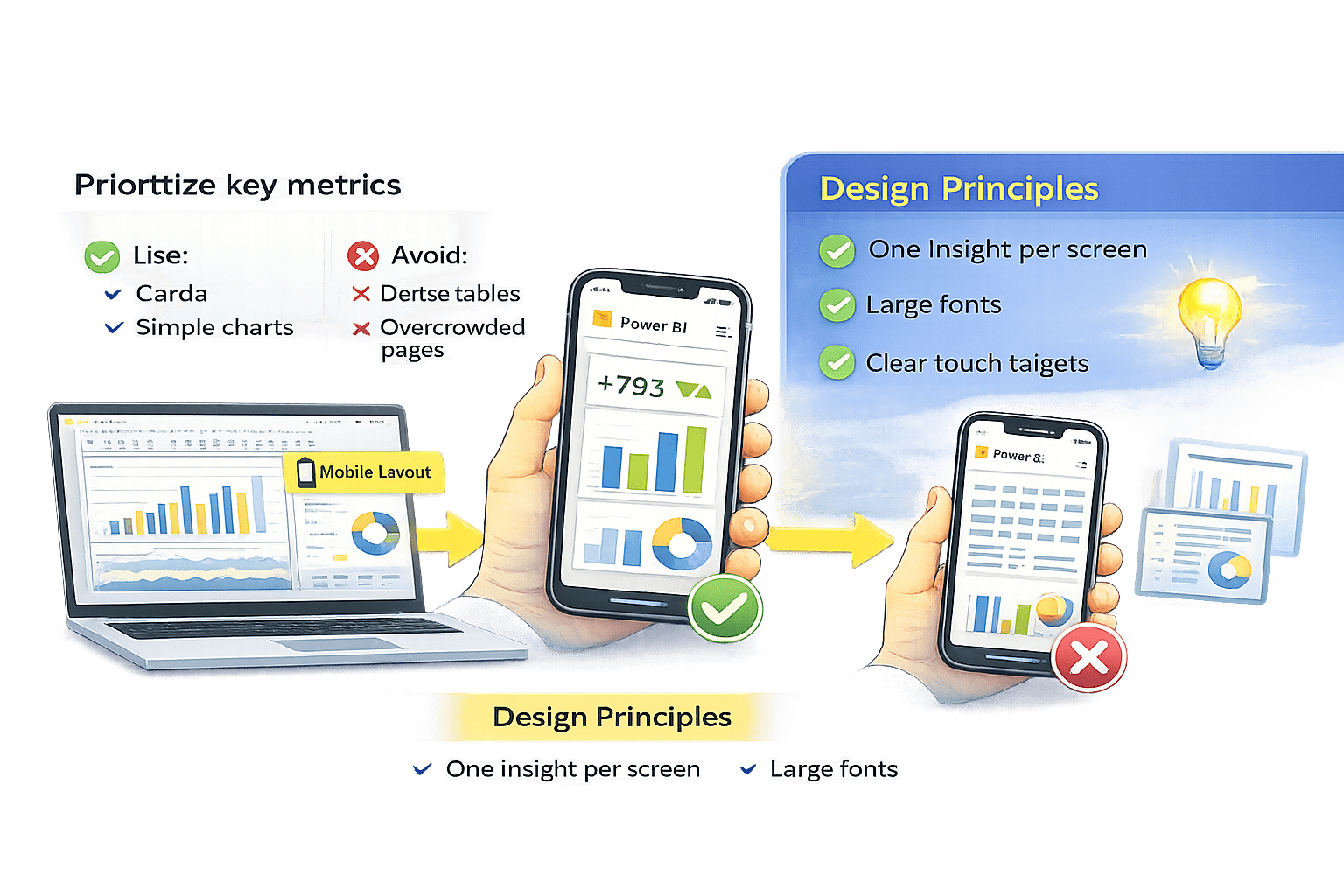
Mobile-Optimized Reports
Desktop layouts do not automatically work well on mobile
Power BI provides a Mobile Layout view in Power BI Desktop
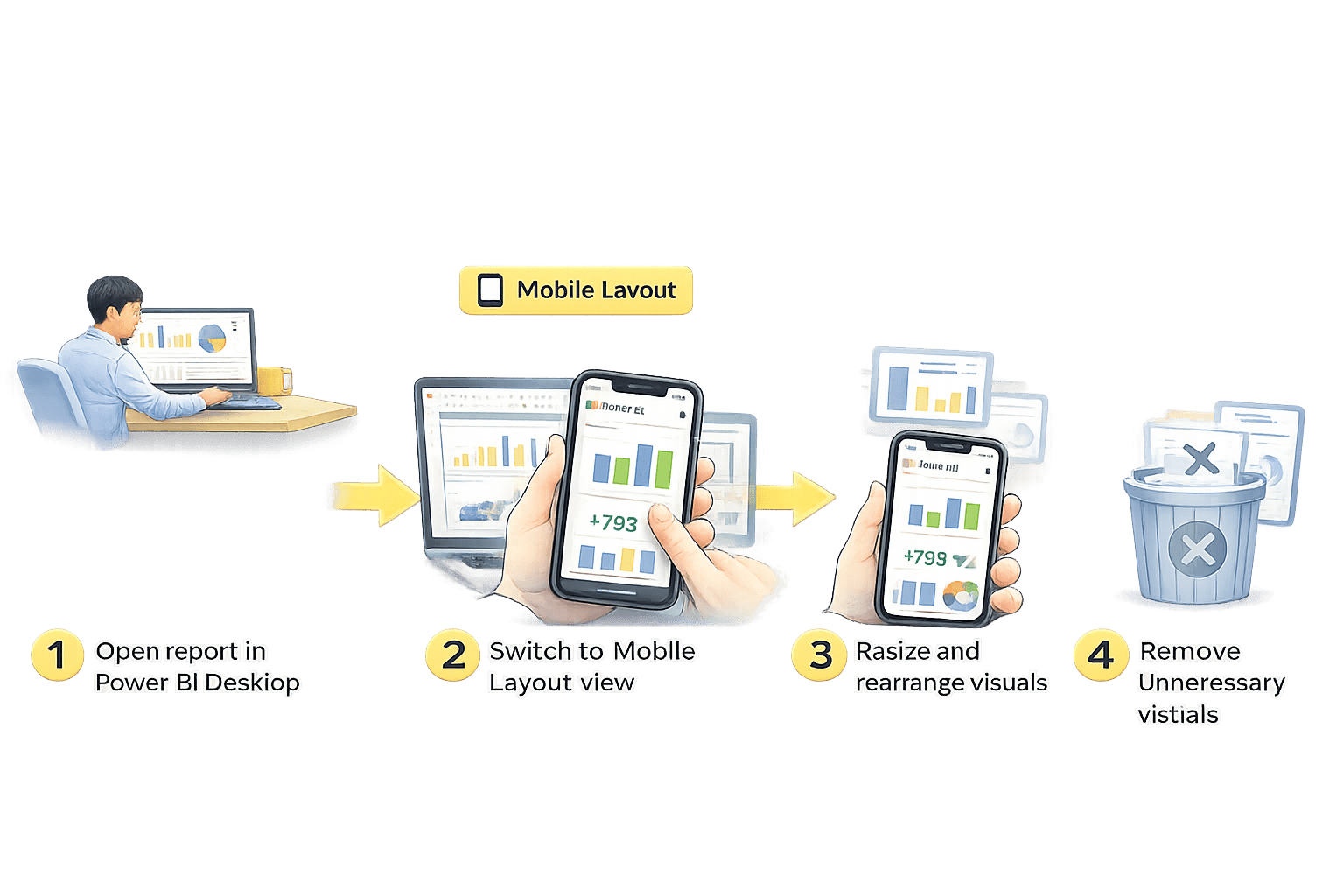
Open report in Power BI Desktop
Focus on KPIs and key trends
Steps to Create Mobile-Optimized Reports
Switch to Mobile Layout view
Resize and rearrange visuals
Remove unnecessary visuals
Designing for Mobile Usability
targets
Use:
Avoid:
Prioritize key metrics
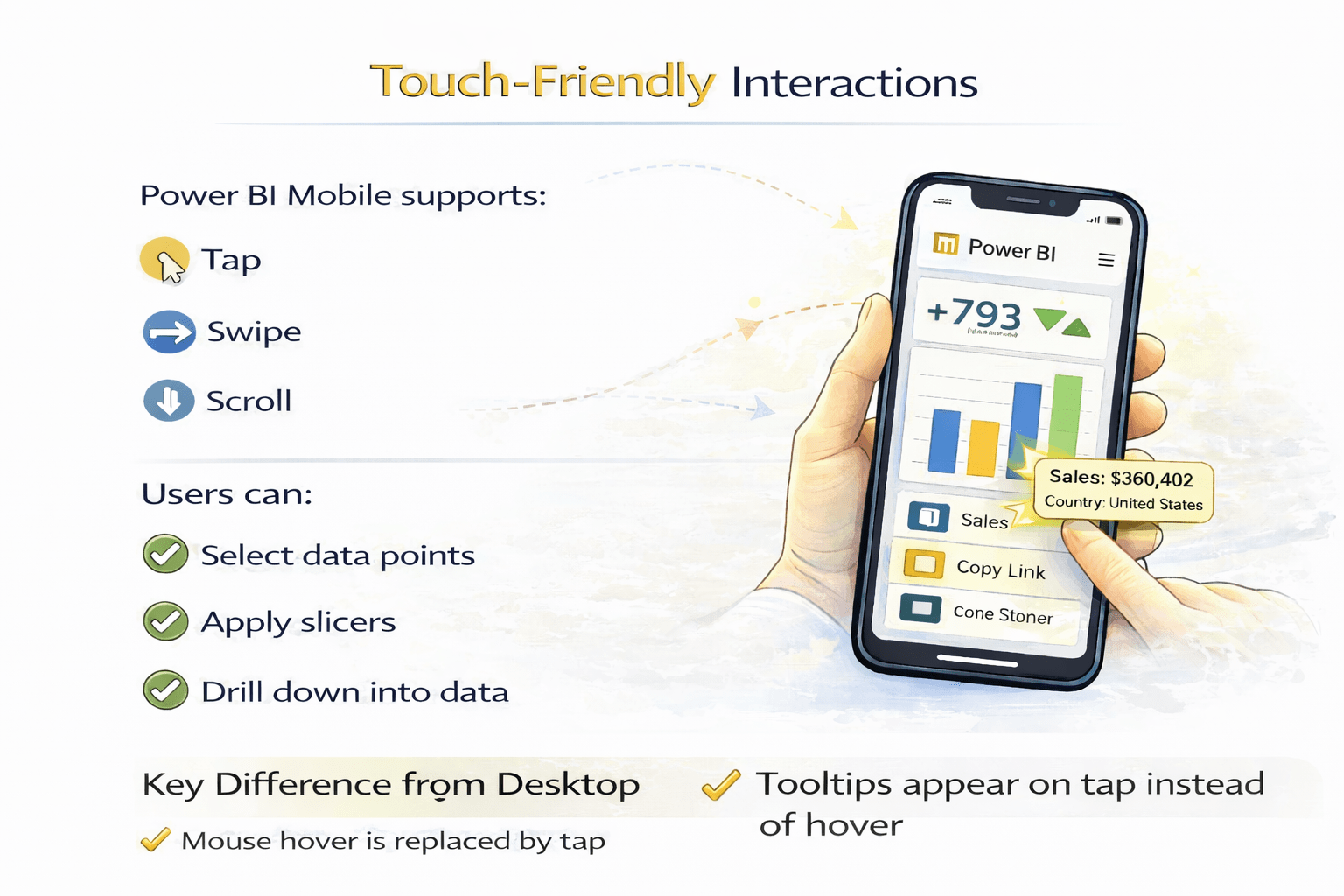
Touch-Friendly Interactions
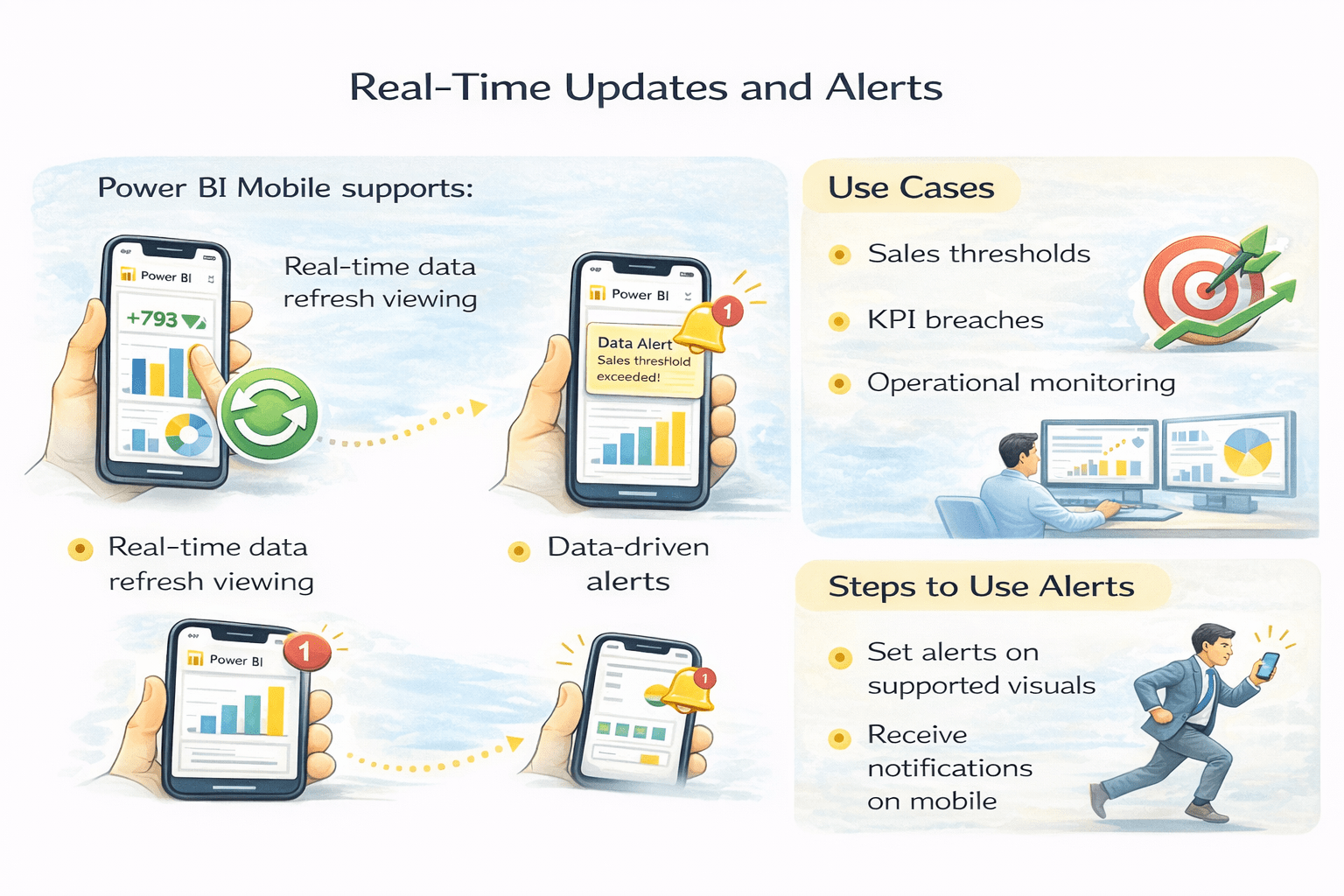
Power BI Mobile supports:
Tap
Scroll
Swipe
Users can:
Select data points
Drill down into data
Apply slicers
Key Difference from Desktop
Mouse hover is replaced by tap
Text
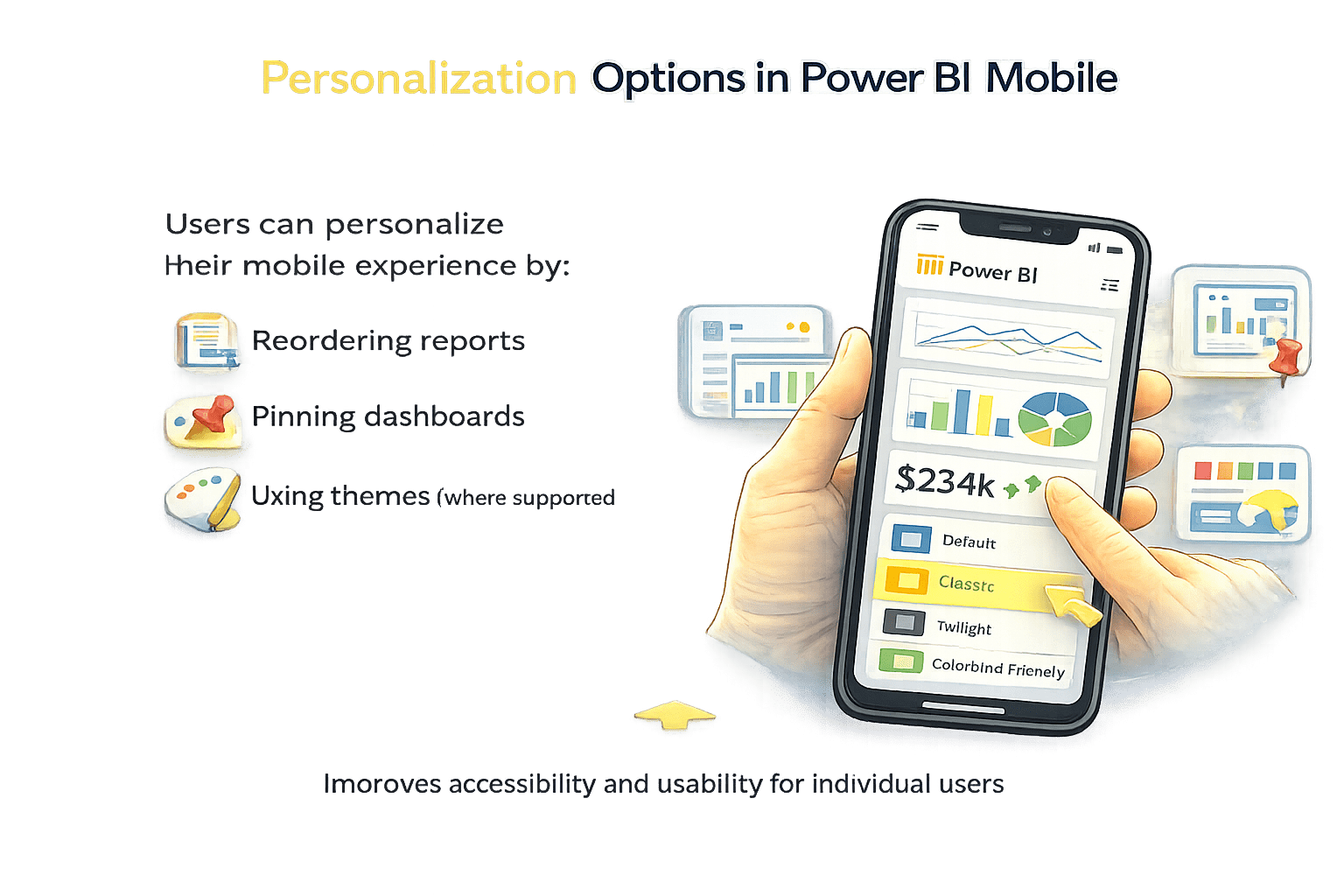
User can personalize
their mobile experience by :
Reordering reports
Pinning dashboards
Using themes (where supported)
Improves accessibility and usability for individual users
Personalization Options in Power BI Mobile
Real-Time Updates and Alerts
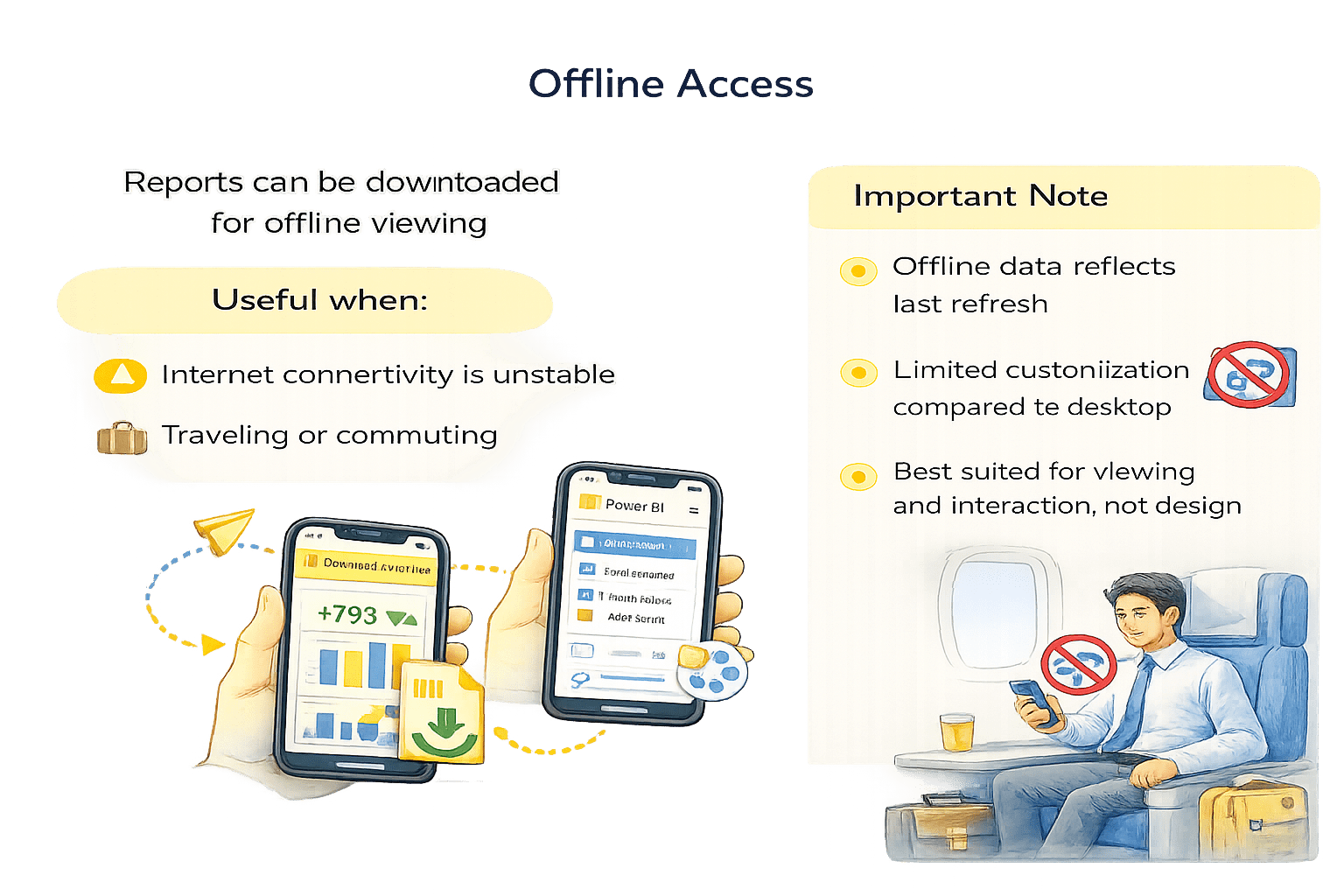
Reports can be downloaded for offline viewing
Internet connectivity is unstable
Traveling or commuting
Offline Access
Offline data reflects last refresh
No live interaction without connectivity
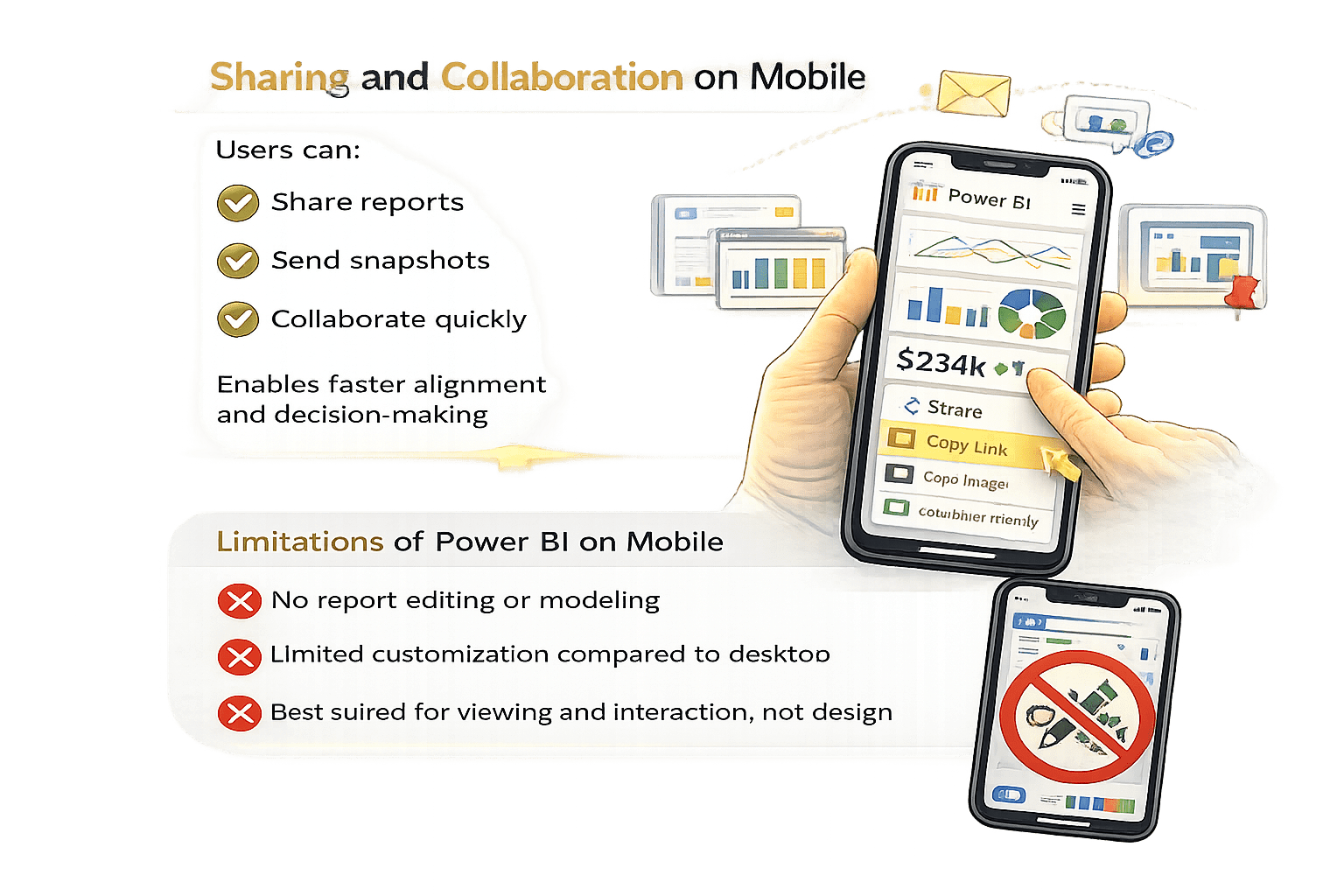
Limitations of Power BI on Mobile
Sharing and Collaboration on Mobile
Share reports
Send snapshots
Collaborate quickly
Enables faster alignment and decision-making
Users can:
Summary
5
Offline access supports mobility
4
Real-time alerts keep users informed
3
Touch-based interaction replaces mouse-based actions
2
Mobile layouts ensure usability on small screens
1
Power BI Mobile enables on-the-go access to insights
Quiz
What is the primary purpose of Power BI Mobile?
A. To design & build Power BI reports on mobile
B. Viewing and interacting with reports
C. To store data in the cloud
D. To create SQL queries and datasets
What is the primary purpose of Power BI Mobile?
A. To design & build Power BI reports on mobile
B. Viewing and interacting with reports
C. To store data in the cloud
D. To create SQL queries and datasets
Quiz-Answer
By Content ITV