











































Content ITV PRO
This is Itvedant Content department
Waits and Handling
Alerts, Frames, Windows
Learning Outcome
4
Perform basic context switching for web elements
3
Handle JavaScript alerts using accept and dismiss actions
2
Switch between main page, frames, and windows
1
Understand alerts, frames, and multiple browser windows
5
Improve test execution in multi-context web pages
Recall
Handling Alerts, Frames, Windows
Before handling the Alerts, Frames & Windows in Selenium WebDriver, we should recall these basic concepts:
Be familiar with basic WebDriver actions like click, sendKeys, and get
Understand HTML DOM structure and how web pages are built
Know locators like id, name, xpath, and cssSelector
Understand that Selenium works in a single active context at a time
Understand the concept of waits (implicit and explicit) for synchronization
Know that a browser can handle multiple windows and tabs
Think of a website as a large office building and Selenium as a worker inside it.
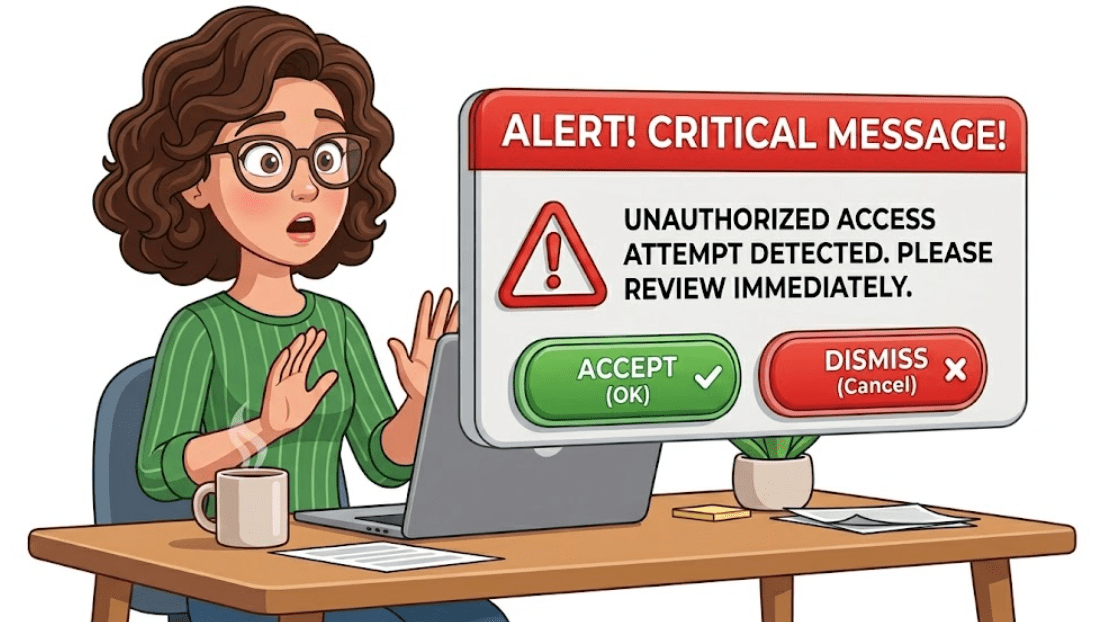
1. Alerts = Emergency Interruption
You cannot ignore it
You must either
Accept (OK) → acknowledge message
Dismiss (Cancel) → close it
An alert is like:
A sudden fire alarm or security message that pops up while you are working.
Until you handle it, you cannot continue your work.
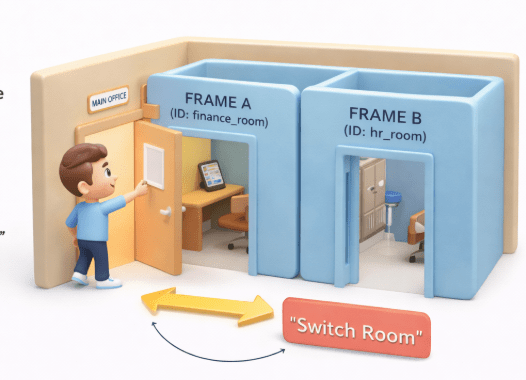
2. Frames = Rooms Inside the Same Office
A frame/iframe is like:
A separate room inside the same building.
You are still in the same office (same website)
But you are inside a different room
To work there, you must enter that room first
You must “switch room” before interacting with objects inside.
3. Windows = Different Buildings
A new window/tab is like:
A completely different office building
Same company (application), but different location
You must:
Go out of current building
Enter new building
Work separately there
3. Windows = Different Buildings
In all cases, you must switch context before acting
Each window has its own environment.
Alert → interrupt you
Frame → change room
Window → change building
Handling alerts, frames, and windows in Selenium is like dealing with interruptions, moving between rooms, and switching buildings in an office.
Why Handle Alerts, Frames & Windows in Selenium WebDriver?
Modern web apps are multi-context systems, but Selenium can work in only one context at a time.
That’s why handling alerts, frames, and windows is essential.
Ensures Selenium is always in the correct active context
Prevents failures caused by wrong page, frame, or blocked alert
Enables interaction with dynamic UI structures (pop-ups, iframes, tabs)
Maintains continuous and stable test flow without interruption
What is an Alert?
An Alert is a JavaScript-based modal pop-up dialog that appears on a web page to display messages, warnings, confirmations, or to collect input from the user.
It pauses the normal execution flow of the browser until the user or automation script handles it.
Alerts are browser-level pop-ups, not part of the HTML DOM
They are generated using JavaScript (window.alert, window.confirm, window.prompt)
Because they are outside DOM, Selenium cannot locate them using locators
Types of Alerts
Simple alert displays some information or warning on the screen
Shows message + OK button
Used for notifications
2. Confirmation Alert
Confirmation alert asks permission to do some type of operation
Has OK and Cancel
Used for user decisions(delete, logout, etc.)
Types of Alerts
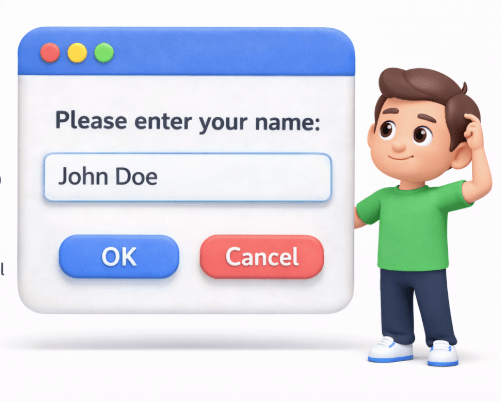
Prompt Alert asks some input from user selenium webdriver can enter the text using sendkeys(" input…. ")
Accepts user input
Has text box + OK/Cancel
How to Handle Alerts?
Alerts act as a blocking layer between user and browser execution flow, forcing explicit handling before continuing automation. To handle alert
import org.openqa.selenium.Alert;
Import this package prior to the script creation
This package references to the Alert Interface which is required to handle the web based alerts
Alert alert=driver.switchTo().alert();
We create a reference variable for Alert Interface and references it to the alert.
The above command is used to switch the control to the recently generated pop up window.
In Selenium WebDriver, alerts are handled using:
switchTo().alert()
to access alert
accept()
click OK
dismiss()
click Cancel
sendKeys()
enter text (for prompt alerts)
getText()
Get Alert message
Selenium must explicitly switch context to the alert.
Handling Multiple Windows & Tabs
When we have multiple windows in any web application, the activity may need to switch control among several windows from one to other in order to complete the operation After completion of the operation, it has to return to the main window i.e. parent window.
To handle all opened windows by web driver, we can use
“driver.getWindowHandles()"
And then we can switch from one window to another in a web application .
Its return type is Iterator
Set<String> allWindows = driver.getWindowHandles();
When the site opens, we need to handle the main window by
What is Selenium Wait?
A wait in Selenium WebDriver is a synchronization mechanism that delays the execution of automation scripts until a specified condition is met or a web element becomes available, visible, or interactable, ensuring reliable interaction with dynamically loaded web pages.
There are three main types of waits used to handle synchronization in Selenium:
Implicit Wait
Explicit Wait
Fluent Wait
It is a global synchronization mechanism in Selenium that tells the WebDriver to wait for a specified amount of time when trying to locate any web element before throwing a “NoSuchElementException”.
Applied once for the entire WebDriver session
How It Works
Works whenever Selenium tries to find an element
If element is not immediately available, Selenium keeps checking the DOM until:
Element is found
OR timeout expires
Syntax Example (Java)
driver.manage().timeouts().implicitlyWait(Duration.ofSeconds(10));
Example
When Selenium executes:
driver.findElement(By.id("username"));
It does NOT fail immediately. Instead:
Searches DOM
If not found → waits a little
Repeats searching
Continues until timeout is reached
This process is called polling with global timeout behavior
Features
Applies to all elements in the script
No need to write repeatedly for each element
DOM-Level Waiting
Only waits for element to appear in DOM
Does NOT check:
visibilityFeatures
One line setup
Easy for beginners
Limitations
No condition control
Cannot wait for “clickable” or “visible”
Not suitable for dynamic apps alone
Modern apps need smarter waits
Can increase execution time
If set too high globally
Can cause unpredictable behavior
Especially when mixed with Explicit Wait
When to Use
✔ Small or simple projects
✔ Basic element loading delays
✔ As a default fallback synchronization
Explicit Wait is a condition-based synchronization mechanism in Selenium that makes the WebDriver wait for a specific condition to be satisfied for a particular web element before performing an action.
How It Works
Applied only to specific elements
Waits until a defined condition becomes true
Uses WebDriverWait along with ExpectedConditions
Checks repeatedly until:
Syntax Example (Java)
WebDriverWait wait = new WebDriverWait(driver, Duration.ofSeconds(10));
This is called smart polling with condition evaluation
When Selenium executes:
It checks the condition (e.g., element visible)
If not satisfied → waits for a short interval
Re-checks again (polling mechanism)
Stops when:
Condition becomes true
OR timeout expires
Features
Waits for specific states like:
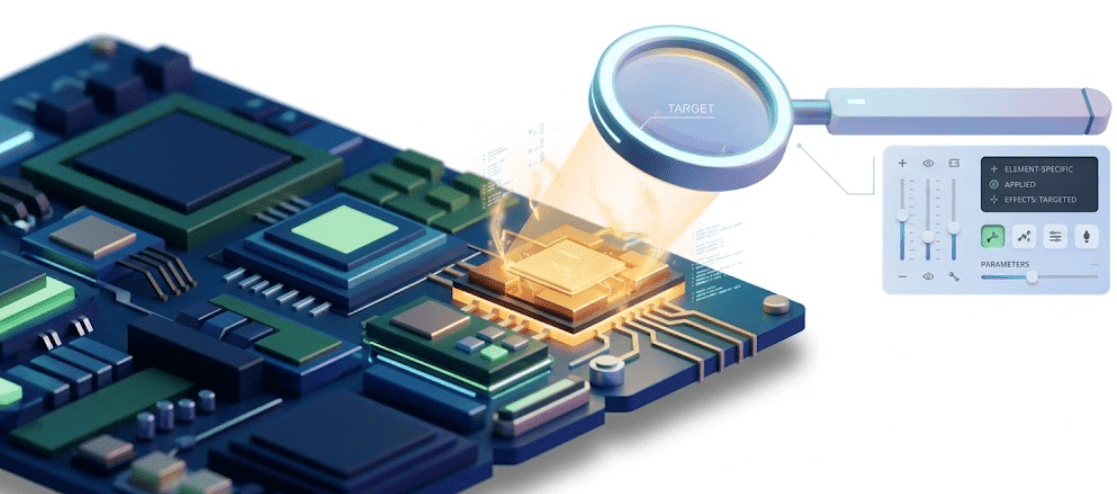
visibilityElement-Specific
Applied only where needed
Does not affect other elements
Features
Works well with dynamic web pages
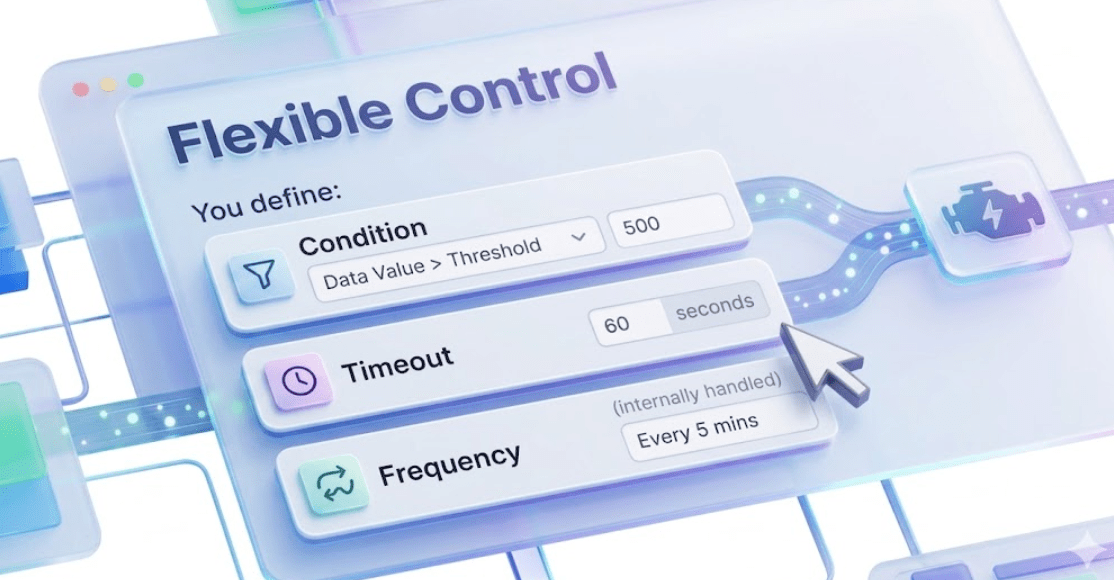
Flexible Control
You define:
conditionLimitations
Common Expected Conditions
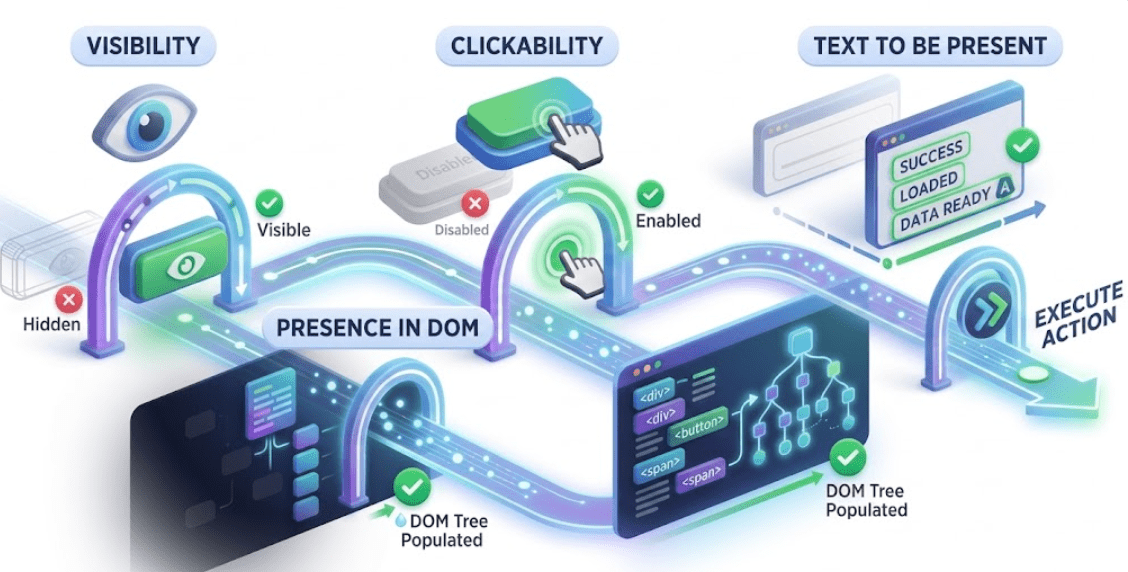
visibilityOfElementLocated
elementToBeClickable
presenceOfElementLocated
textToBePresentInElement
Slightly more code than implicit wait
Needs proper condition selection
Misuse can still cause delays or failures
Fluent Wait is an advanced type of explicit wait in Selenium that allows the WebDriver to wait for a condition with custom polling intervals, timeout duration, and exception handling, giving maximum control over synchronization.
Checks for a condition
How It Works
Waits for a defined polling time if not satisfied
Stops when:
Condition is met
OR timeout occurs
Ignores specific exceptions while waiting
Syntax Example (Java)
Wait<WebDriver> wait = new FluentWait<>(driver)
.withTimeout(Duration.ofSeconds(20))
.pollingEvery(Duration.ofSeconds(2))
.ignoring(NoSuchElementException.class);
wait.until(driver -> driver.findElement(By.id("username")));
Features
You decide how frequently Selenium checks (e.g., every 1s, 2s)
Exception Handling
Only waits for element to appear in DOM
Does NOT check:
visibilityHighly Flexible
Fully customizable wait strategy
Best control over synchronization
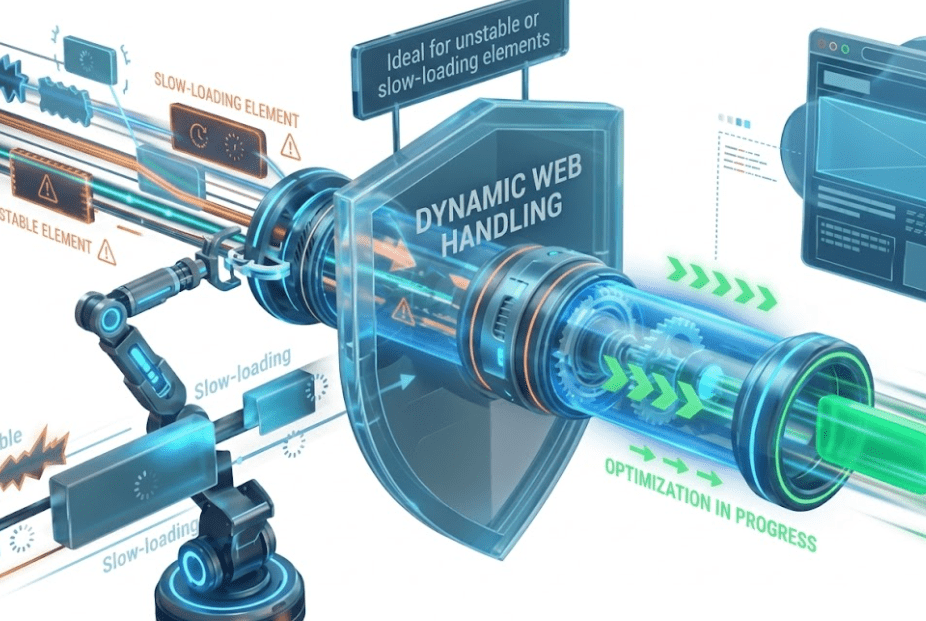
Dynamic Web Handling
Ideal for unstable or slow-loading elements
Limitations
More complex to implement
Requires careful tuning of polling time and timeout
Overuse can make tests slower if misconfigured
Summary
4
3
2
They allow automation scripts to interact with page elements
1
WebElements represent HTML elements on a web page in Selenium.
5
Check element states: displayed, enabled, selected.
Perform actions: click, type, clear, submit.
1
WebElements represent HTML elements on a web page in Selenium.
2
They allow automation scripts to interact with page elements.
3
Selenium provides methods to perform actions like click and type.
4
It also helps retrieve information from elements.
5
WebElements enable verification of element states for testing.
Quiz
Which wait is applied globally to all web elements in Selenium?
A.Explicit Wait
B.Fluent Wait
C.Implicit Wait
D.Dynamic Wait
Quiz
Which wait is applied globally to all web elements in Selenium?
A.Explicit Wait
B.Fluent Wait
D.Dynamic Wait
C.Implicit Wait
Quiz
Which wait is applied globally to all web elements in Selenium?
A.Explicit Wait
B.Fluent Wait
D.Dynamic Wait
C.Implicit Wait
Quiz-Answer
Which method is used to enter text into an input field?
A.type()
B.write()
D.inputText()
C.sendKeys()
By Content ITV