Getting


Based on slides by Mojtaba Shahi Senobari --- Amirehsan Davoodi and Scott Chacon
Git is an open source,
distributed,
version control system
designed for speed and efficiency
Git is an open source,
distributed,
version control system
designed for speed and efficiency
Open Source
Git was created for managing code
contributions to the Linux kernel
Git will always be open,
available for anyone to contribute
Git is an open source,
distributed,
version control system
designed for speed and efficiency
CENTRALIZED VCS
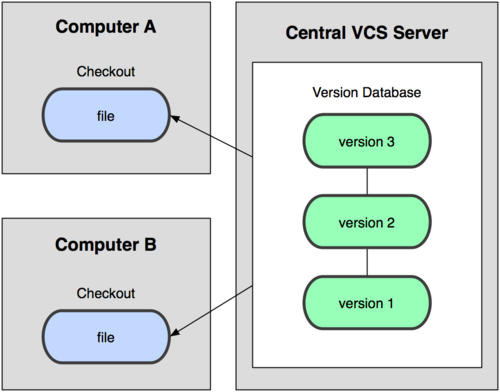
Examples: subversion, perforce, bitkeeper
Distributed VCS
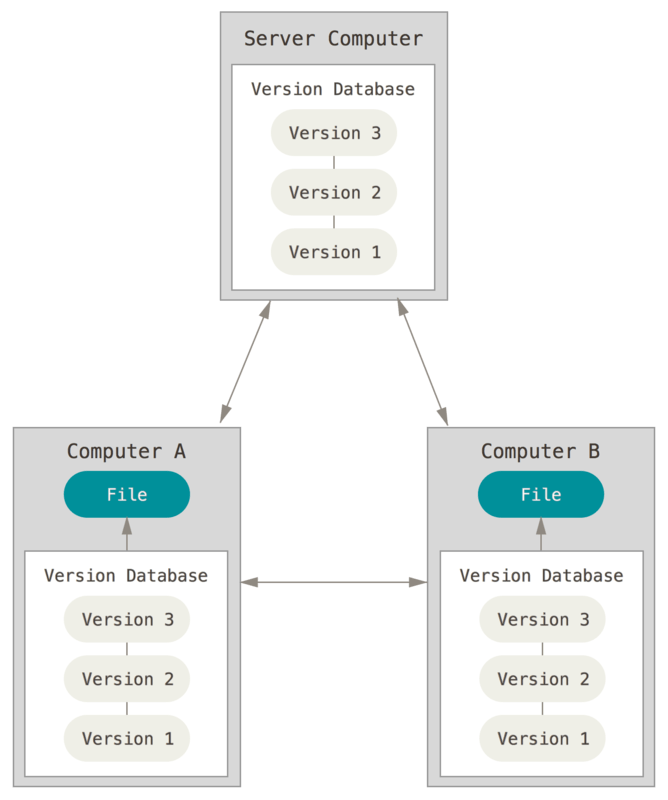
Examples: git, mercurial, bazaar
Since git is distributed...
Every copy is a master
Every copy is a backup
Every copy contains the whole revision history
Everything is fast
Work offline
No Network Needed
Performing a diff
Viewing file history
Committing changes
Merging branches
Obtaining revision history
Creating/Switching branches
Git is an open source,
distributed,
version control system
designed for speed and efficiency
What is Version Control?
the task of keeping a software system consisting of many versions and configurations well organized.
or
Version control is a system that records changes to a file or set of files over time so that you can recall specific versions later. (from git-scm.com)
Why Version Control?
VCSs were built to manage code
as it developed over time...
Turns out to be perfect for
managing translations over time!
For Example
First commit
# 1. The Creation  This is how the beginning of everything happened. God created the universe and everything in it in six days. After God created the earth it was dark and empty, and nothing had been formed in it. But God's Spirit was there over the water.
Second commit
# 1. The Creation  This is how the beginning of everything happened. God created the universe and everything in it in six days. After God created the earth it was dark and empty, and nothing had been formed in it. But God's Spirit was over the water. Added this.
What's different?
Easy, Look at the Diff!
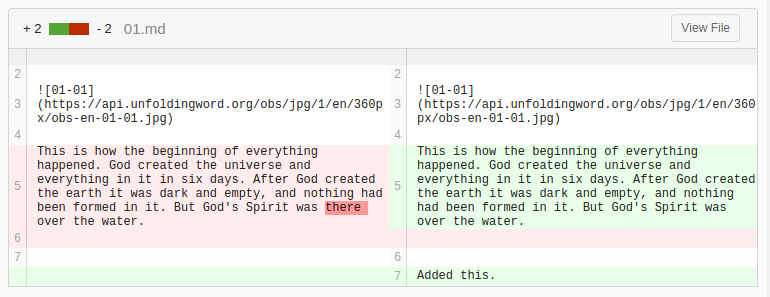
Check it out yourself at
Git Doesn't Delete
In normal usage, git does not delete any data
You can always go back to a previous commit (translation in this case)
Data can only be permanently removed through specialized commands
Git Models Workflows
Git was built generically, to accommodate many different workflows
Turns out that developers and translators want to do the same things:
- Restore old work
- Start working where someone left off
- Work on individual sections and then merge
- Review each other's work
- Tag various points in history (e.g. releases)
- Track work being done (Gogs add-on, Issues)
Git is an open source,
distributed,
version control system
designed for speed and efficiency
Compared to SVN
Git is 3x-7x faster to commit than SVN
Git is 318x faster to perform a diff than SVN
Git is 34x faster to show the log than SVN
Committing and Pushing
Performing a git commit is instant for small commits, no network needed
Performing a git push only sends the compressed changes to the server
Command Line Basics
IDENTITY
$ git config --global user.name "John Doe"
$ git config --global user.email johndoe@example.com
CREATING A REPOSITORY
$ mkdir Testing
$ cd Testing
$ git init
CLONING A REPOSITORY
$ git clone https://git.door43.org/jag3773/Testing.git # HTTPS$ git clone git@git.door43.org:jag3773/Testing.git # SSH
$ git clone https://git.door43.org/jag3773/Testing.git # HTTPS$ git clone git@git.door43.org:jag3773/Testing.git # SSH
Common Commands (1)
ADD NEW FILE
$ git add README.rst
REMOVE FILE
$ git rm file.py
COMMIT CHANGES
$ git commit -am 'First commit'
$ git add README.rst $ git rm file.py $ git commit -am 'First commit'
COMMON COMMANDS (2)
SHOW LOG
$ git log
SHOW COMMITS
$ git show
SHOW DIFFS
$ git diff
$ git log
$ git show
$ git diffUNDOING THINGS
UNMODIFY MODIFIED FILE
$ git checkout -- file.py
$ git checkout -- file.py
REVERT A COMMIT
$ git revert 1776f5
$ git revert 1776f5
Dangerous: Wipe All Local Changes out
$ git reset --hard HEAD
$ git reset --hard HEAD
Remote Commands
Push To remote
$ git push origin branch_name
Fetch & Merge
$ git pull
# or
$ git pull --no-edit origin master
Fetch
$ git fetch origin
Merge
$ git merge origin master
$ git push origin branch_name $ git pull
# or
$ git pull --no-edit origin master$ git fetch origin$ git merge origin master
BRANCHES
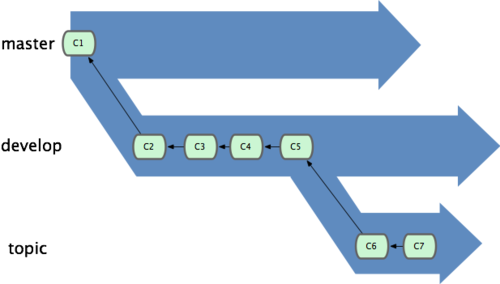
BRANCH MANAGEMENT
Create new Branch
$ git branch iss53
Switch Branch
$ git checkout iss53
Delete Branch
$ git branch -d iss53
Show Branches
$ git branch
     iss53
   * master
$ git branch iss53
$ git checkout iss53
$ git branch -d iss53$ git branch
iss53
* master
Conflict Resolution
(No Counselor Needed)
Usually, git does the right thing and merges happen automatically
Sometimes, there are conflicts that git can't handle by itself, in such a case the user is asked to choose the right one.
Note, git cannot decided which piece of text or code is better from a qualitative standpoint, it can only decided whether there is a conflict when merging
Example Auto-Merge
In this case, the latest commit is the only one that has changed the referenced lines, so it is accepted.
Example Conflict
jesse@jesse /tmp/Testing $ git branch
  conflict
* master
jesse@jesse /tmp/Testing $ git checkout conflict
Switched to branch 'conflict'
Your branch is up-to-date with 'origin/conflict'.
jesse@jesse /tmp/Testing $ git merge master
Auto-merging 01.txt
CONFLICT (content): Merge conflict in 01.txt
Automatic merge failed; fix conflicts and then commit the result.
jesse@jesse /tmp/Testing $ git status -s
UU 01.txt
jesse@jesse /tmp/Testing $ git diff
diff --cc 01.txt
index 44d36fa,e620274..0000000
--- a/01.txt
+++ b/01.txt
@@@ -4,4 -4,4 +4,8 @@@

  This is how the beginning of everything happened. God created the universe and everything in it in six days. After God created the earth it was dark and empty, and nothing had been formed in it. But God's Spirit was there over the water.

++<<<<<<< HEAD
 +This will cause problems.
++=======
+ Supposedly harmless addition...
++>>>>>>> master
Example Fix
Choose the best text, either from the 'conflict' branch or from the 'master' branch and update the file
Commit
Push
It makes more sense when you do it!
tS Uploads
translationStudio uploads to git.door43.org
You can see all the uploads on the https://git.door43.org/explore page
In an upcoming release, tS users will be able to associate their tS device with their Door43 account
This will make it easier to see what's "mine" and what's "yours"
How to Merge tS Uploads?
Find the relevant repos on https://git.door43.org/explore
Fork the "best" one to your account, or create a new repo in your account
Clone them to your computer
Merge the changes
Push to your own repo
Find the Repos
On the Explore page, search for the repos
Repos are named after the language and book of the Bible that was translated, for example: uw-1th-or
Fork the Most Complete One
Identify the repo that has most of the data that you want. If you can't, just pick one, or create a new one.
After forking, consider your fork to be the "master" for this project.
From now on, all of the changes will be merged into your repo.
Clone the Repos
Clone all of the repos for your project
Make a list of them in a file, mylist.
Then clone them all
$ for x in `cat mylist`; do git clone $x; doneTrack A: Copy and Paste
If you don't care to have the tS version history in your master repo, you can copy and paste.
You can use a file manager and copy the respective folders from the tS uploads into your master repo.
Once you have your master correct,
add, commit and push your changes
$ git add .
$ git commit -a
$ git push
Track B: Merge Step 1
If you want to preserve all the history from each tS device in the master repository, then you'll want to merge.
Push from each of the cloned repos in your master repo.
for x in `ls repos`; do cd repos/$xgit checkout -b $x git push ~/master_repo $x done
Track B: Merge Step 2
You now have several branches in your local copy of your master repo.
Now you need to merge each of these into the master branch.
$ git merge -s ours $branch_nameUsing -s ours will keep changes in your current branch
if there is a conflict
Last, push
$ git pushReviewing on Door43
The "new" Door43 is a Git server git.door43.org
The goal is for this to be a back-end for technical users only (you!)
Do not send translators to git.door43.org, they will be confused unless they are also technical
Resources
Door43 Git presentation
By Jesse Griffin
Door43 Git presentation
Git Presentation for Door43