<info 340/>
Interactive React
Joel Ross
Winter 2023
View of the Day
-
Quick Review: Chat Components
-
Review: React Events and State
-
Managing State
-
Working with Forms
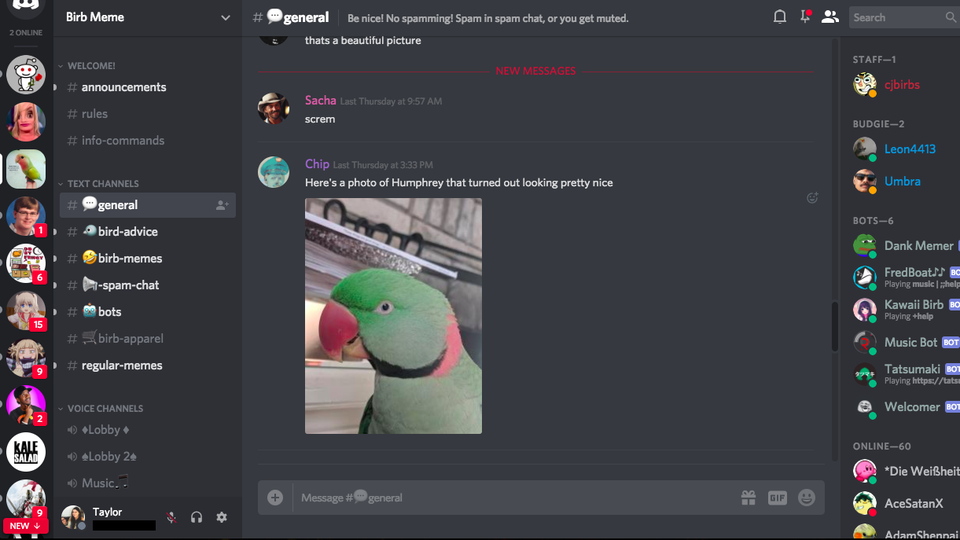
Our chat app so far...
Let's make a chat app!
Conditional Rendering
You can use control logic (if statements) to specify whether or not a component should be rendered.
function ConditionalPanel(props) {
  //assign element to show to variable
  let thingToRender = null; //null element will not render
  if(conditionOne){ //based on props or state
    thingToRender = <OptionA />
  } else if(conditionTwo) {
    thingToRender = <OptionB />
  } else if(conditionThree) {
    return null; //show nothing!
  }

  //keep return statement as simple as possible!
  return (<div>{thingToRender}</div>);
}
function ConditionPanel(props) {
//can use inline expressions via shortcutting. Use with caution
return (
<div>
{conditionOne == true && <OptionA />}
</div>
)
}React Events
We add user interaction in React the same way as with the DOM: by listening for events and executing callback functions when they occur.
function MyButton() {
  //A function that will be called when clicked
  //The name is conventional, but arbitrary.
  //The callback will be passed the DOM event as usual
  const handleClick = function(event) {
    console.log("clicky clicky");
  }

  //make a button with an `onClick` attribute!
  //this "registers" the listener and sets the callback
  return <button onClick={handleClick}>Click me!</button>;
}
special React prop
can only put listeners on HTML
elements, not Components!
function MyButton(props) {
  //A function that will be called when clicked
  //The name is conventional, but arbitrary.
  //The callback will be passed the DOM event as usual
  const handleClick = (event) => {
    console.log("clicky clicky");
  }

  //make a button with an `onClick` attribute!
  //this "registers" the listener and sets the callback
  return <button onClick={handleClick}>Click me!</button>;
}
You add state to a component by using a state hook. The hook defines a "state variable" which will retain its value across Component function calls, as well as a function to update that variable.
Using State Hooks
//import the state hook function `useState()` to define state
import React, { useState } from 'react';

function CountingButton(props) {
  const [count, setCount] = useState(0);


  const handleClick = (event) => {
    setCount(count+1); //update the state to be a new value
                       //and RE-RENDER the Component!
  }

  return (
      <button onClick={handleClick}>Clicked {count} times</button>
  );
}
state variable
update function
initial value for variable
Naming Conventions Matter!
In order to write correct React (that can be understood
and debugged by you and others), you need to follow the naming conventions:
- The argument to a Component function is called props (with an s)
- A "state-setter" function for state variable foo is called setFoo (replacing "foo" with the state variable name)
Changing State
React state is changed asynchronously (for speed). Calling a "state-setter" function will automatically re-render the Component, thus accessing the now-updated state.
function CountingButton(props) {
  const [count, setCount] = useState(3) //initial value of 3

  const handleClick = (event) => {
    setCount(4); //change `count` to 4 AND re-render!
    console.log(count); //will output "3";
                        //state has not changed yet!
  }

  console.log(count); //will have "current" value of state
                      //3 first render, 4 after clicking

  return (
      <button onClick={handleClick}>Clicked {count} times</button>
  );
}
Debugging State
Because state changes are asynchronous, you can only "see" them after the component has re-rendered. Use console logs at the "rendering" step to debug
function CountingButton(props) {
  const [count, setCount] = useState(3) //initial value of 3

  console.log("DEBUG: count", count); //debug! variable here,
                                      //after re-render


  const handleClick = (event) => {
    setCount(count + 1); //incremenet count AND re-render!
    //do not debug variable here!
  }

  return (
      <button onClick={handleClick}>Clicked {count} times</button>
  );
}
Multiple State Variables
Components can (and often do) contain multiple state variables.
//Example from React documentation
function ExampleWithManyStates(props) {
  //Declare multiple state variables!
  const [age, setAge] = useState(42);
  const [fruit, setFruit] = useState('banana');
  const [todos, setTodos] = useState([{ text: 'Learn Hooks' }]);

  //...
}
state variable is an array of objects!
State & Arrays/Objects
State variables will only be updated if a different value is passed to the setter function. For arrays and objects, pass a copy of the element with an updated element or property.
function TodoListWithError(props) {
  //a state value that is an array of objects
  const [todos, setTodos] = useState([{ text: 'Learn Hooks' }]);

  const handleClick = (event) => {
    todos[0].text = "Fix bugs"; //modify the object
                                //but don't make a new one
    setTodos(todos) //This won't work! Not "changing"
  }

  //...
}
function TodoList(props) {
  //a state value that is an array of objects
  const [todos, setTodos] = useState([{ text: 'Learn Hooks' }]);

  const handleClick = (event) => {
    //create a copy of the array using the `map()` function
    const todosCopy = todos.map((todoObject, index) => {
      const objCopy = {...todoObject}; //copy object as well
      if(index == 0) { //transform objects if needed
        objCopy.text = "Fix bugs"
      }
      return objCopy; //return object to go into new array
    })
    setTodos(todosCopy) //This works!
  }

  //...
}
Props vs State
props are for information that doesn’t change from the Component’s perspective, including “initial” data. state is for information that will change, usually due to user interaction (see React FAQ).
-
Is the value passed in from a parent via props? If so, it probably isn’t state.
-
Does the value remain unchanged over time? If so, it definitely isn’t state.
- Can you compute it based on any other state or props in your component? If so, it definitely isn’t state.
props are for information that doesn’t change from the Component’s perspective, including “initial” data. state is for information that will change, usually due to user interaction (see React FAQ).
React Form Inputs
To access the
value in an
<input>, save that value in the
state (and update it
onChange). This is called a controlled form.
use DOM event to refer to which input element
function MyInput(props) {
  const [inputValue, setInputValue] = useState('')

  const handleChange = (event) => {
    let newValue = event.target.value
    setInputValue(newValue);
  }

  return (
    <div>
      <input type="text" onChange={handleChange} value={inputValue} />
      You typed: {value}
    </div>);
  )
}
ALL FORMS MUST BE CONTROLLED
Passing Callbacks
To allow child components to "update" the parent's state, pass them a callback function as a prop.
Best practice: do not pass a state setter function directly.
function App(props) {
  const [data, setData] = useState([]);

  const addItemToData = (newItem) => {
    const newData = [...data, newItem]; //copy via spread
    setData(newData); //update state
  }

  return (
    <FruitButton callback={addItemToData} text={"Apple"} />
    <FruitButton callback={addItemToData} text={"Banana"} />
  )
}

function FruitButton(props) {
  //what to do when clicked
  const handleClick = (event) => {
    //call given callback, passing in given text
    props.callback(props.text);
  }

  return (
    <button onClick={handleClick}>{props.text}</button>
  )
}
Lifting Up State
If multiple components rely on the same
data (variable), you should "lift up" that
state to a shared parent, who can pass the information back down as
props.
ChildA
ChildB
Parent
Has Data
(state)
Needs Data
<ChildA data={data} />
Has Data (prop)
Has Data (prop)
<ChildA data={data} />
Has Data (state)
Action Items!
Action Items!
-
Read/Review Ch 16-17: React & Interactive React
-
Problem Set 07 due Wednesday Feb 22
-
Get it done this week/weekend!
-
-
Project Draft 2 due Friday Feb 24
- Convert Draft 1 into React Components!
-
Add one interactive feature
Next time: more interactive React!
info340wi23-interactive-react
By Joel Ross