Accessible HTML
Joel Ross
Winter 2026
View of the Day
-
Q&A (PollEv)
-
Multiplayer Git & Branching review
-
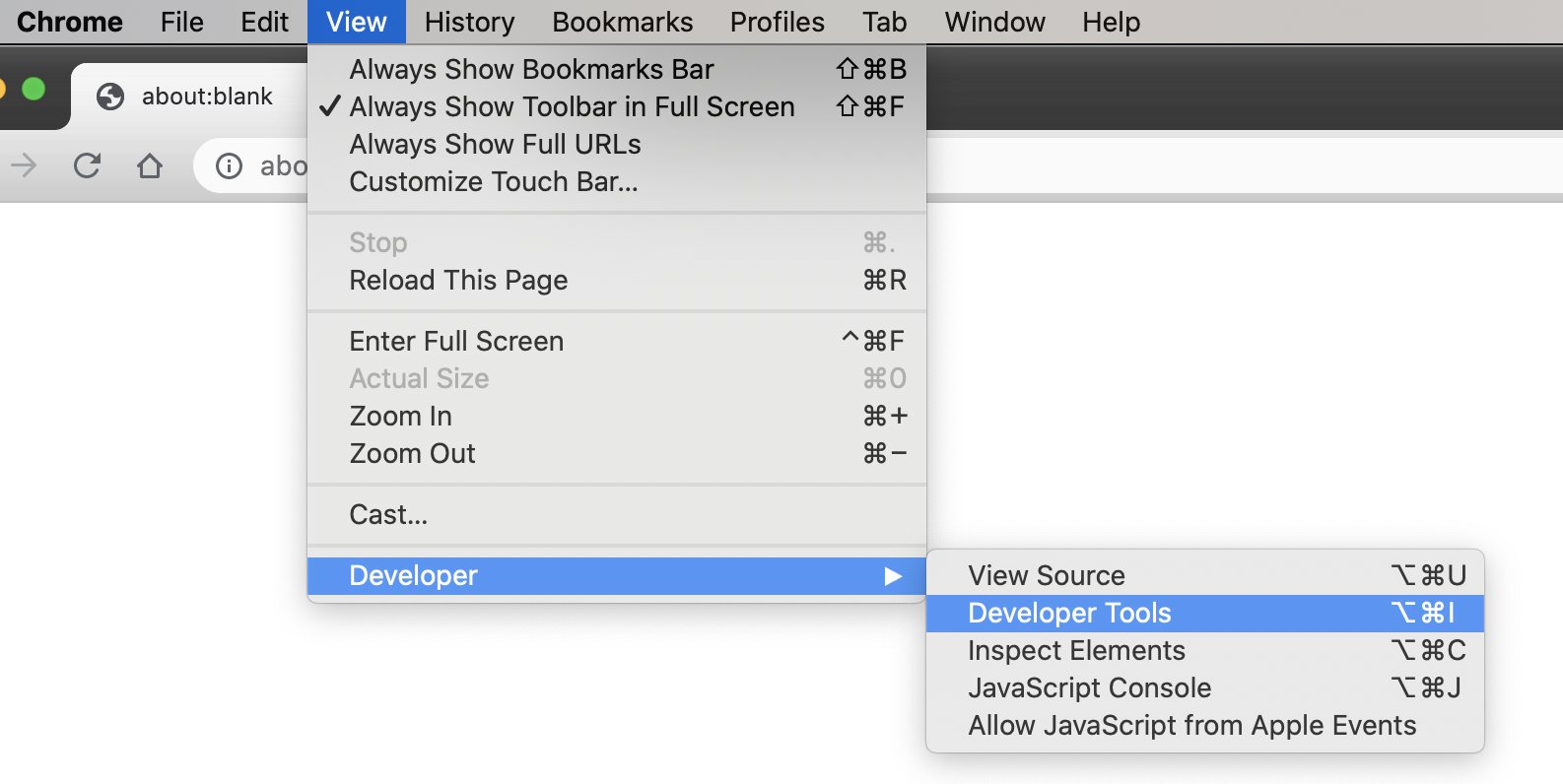
Developer Tools!
-
Semantic and Accessible HTML
-
Activity: Accessibility Auditing (if time)
Questions?
Collaboration
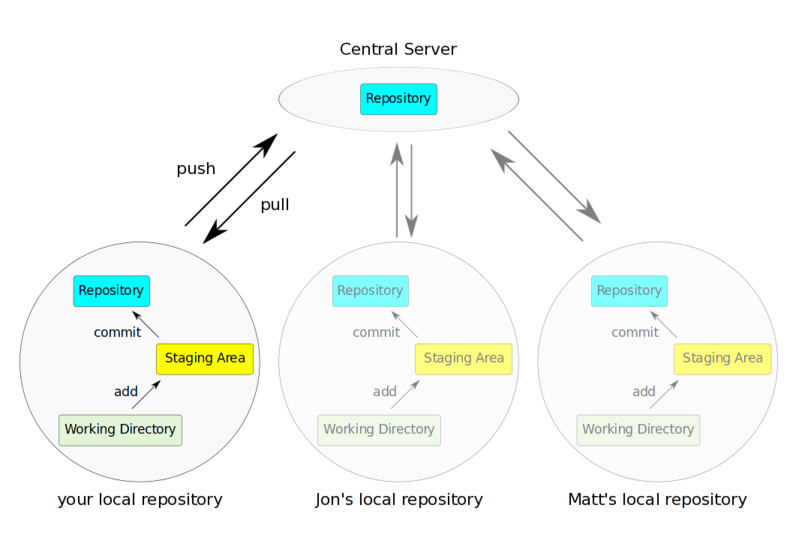
Multiple people's local repositories can be linked to the same remote repository, allowing them to push and pull to the same central location.
Collaboration Demo
-
Partner up with a partner ("Howdy pardn'r")
-
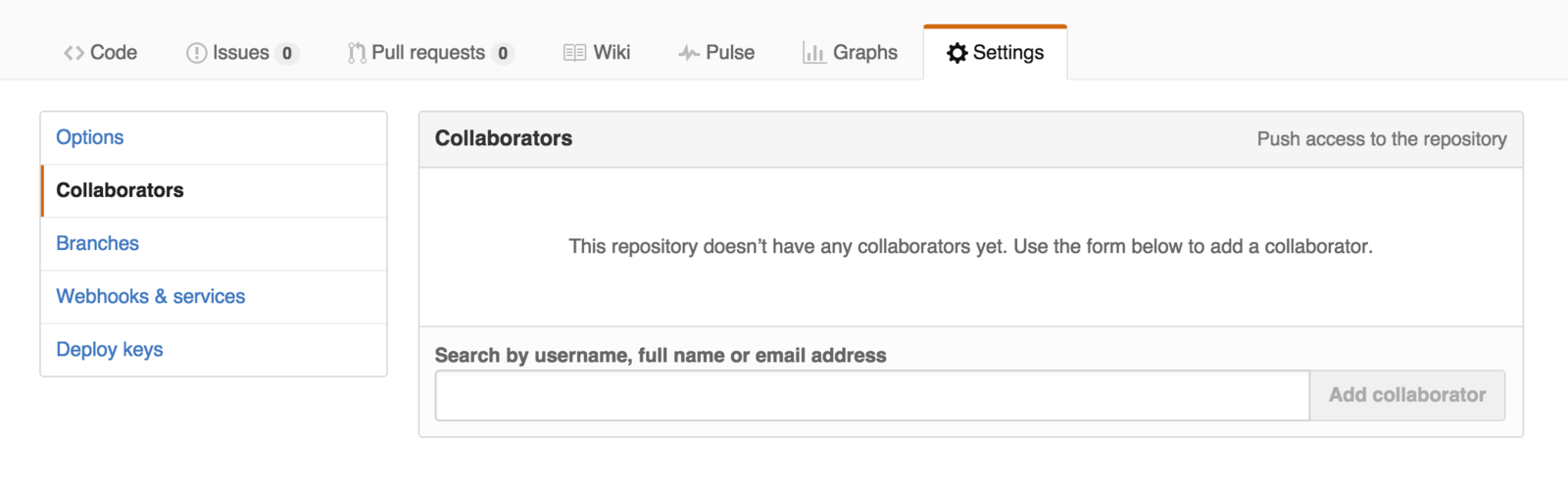
One person should add the other as a collaborator to your
git-practice repo (from last week)
-
The added person will then need to clone their partner's repo on their machine
-
Remember to do this in a different folder!
-
Collaboration Demo
-
Partner: edit the index.html file so it includes a message to your partner (be nice)
-
add and commit your change as usual.
-
-
Me: create a new partner.html file that includes a message to your partner (be nice)
-
add and commit as usual.
-
-
Partner: push their changes to Github
-
Then Me: push their changes to Github
-
What happened?!
-
Collaboration Demo
-
Me: pull to merge in partner's message
-
Confirm the changes are local!
-
-
Me: push my changes to Github
-
Parter: pull in my message and merge
-
Both people should now have up-to-date code!
-
Collaboration Demo II
-
Me: edit the partner.html file so that it has a different message. Change the existing line of code.
-
add and commit your change as usual.
-
-
Partner: edit the partner.html file so that it has a different message. Change the existing line of code.
-
add and commit as usual.
-
-
Partner: push their changes to Github
-
What happened?
-
-
Then Me: push their changes to Github.
But they need to pull first...
git add .
git commit -m "Merge branch 'other'"- Use
git statusto see which files have merge conflicts. Note that files may have more than one!
- Fix the code so that it reflects the "final" version you want.
- Remember to delete the
<<<<<<<and=======and>>>>>>>!!
- Once you're satisfied that the conflicts are all resolved,
addandcommityour changes (the code you "modified" to resolve the conflict):
Resolving Merge Conflicts

You'll be able to practice this more in lab this week!
Clone Lecture Code
All lecture demo code will be stored in on GitHub. Clone the repo to work along with me if you wish (also to reference later!)
Updating Lecture Code
# make sure on main branch for coding
git checkout main

# merge in new starter code (use default msg)
git merge starter --no-edit

# code and enjoy!
Get the starter code from the starter branch, but do all of your work on main.
Development vs Production
# do all your coding on `main`!

# switch to gh-pages ("production" branch)
git checkout gh-pages

# merge the changes from main
git merge main

# push to GitHub to publish
git push origin gh-pages

# switch back to main branch for more coding
# DON'T FORGET THIS STEP!!
git checkout main

# remember to push your souce code
git push origin main
IMPORTANT: The gh-pages branch is your "production" branch. Never make changes on production. All changes should be made on the main branch, and then merged into production gh-pages branch.
Developer Tools
HTML vs. CSS
HTML specifies the semantics.
CSS specifies the appearance.
<!-- HTML -->
<p>This text has <i>emphasis!</i></p>
/* CSS */
em {
font-style: normal;
text-decoration: underline;
}why is this italicized?
change what emphatic text looks like
HTML describes the meaning, not what it looks like!
<!-- HTML -->
<p>This text has <em>emphasis!</em></p>
says nothing about appearance!
Semantic HTML
Use HTML elements that accurately represent the semantic meaning of the page content, regardless of appearance.
Use CSS to style elements (no matter their semantics).
Semantic HTML makes pages accessible
(e.g., to non-sighted users)
ScreenReaders
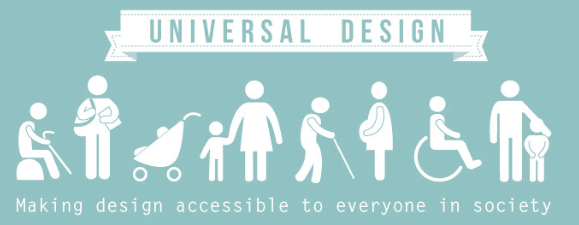
Designing for accessibility benefits everyone, whether or not they have a disability.
Example: Curb Cuts

Making Pages Accessible
Navigable: A screenreader can move around the page easily. Use headings, sectioning elements, etc.
Perceivable: A screenreader can "see"
all elements. Use alt on images,
aria-label on other visual elements, etc.
Accessible Images
Always include the alt attribute on images to support screen readers! This is the easiest and most basic way to make pages more accessible (the "low-hanging fruit").
<!-- Do this! -->
<img src="puppy_picture.jpg" alt="a cute puppy">
ARIA
The Accessible Rich Internet Applications Suite (ARIA) standard specifies additional attributes that can be included in HTML elements in order to provide additional support to screen readers.
For example, the aria-label attribute can be used to give an "alt" to non-image elements.
<div class="green-rect" aria-label="a giant green rectangle">
</div>
Not all elements need ARIA attributes!
No ARIA is better than Bad ARIA
Headings
Heading elements (<h1>, <h2>, etc). Are used for navigation and organization, not to just make text appear larger.
<!-- Don't do this -->
<h2>I want this text to be big</h2>
<!-- Do this -->
<p>I want this text to be big</p>/* use CSS to make things bigger or bolder */
p {
font-size: 1.75em;
font-weight: bold;
}HTML Semantic Outlines
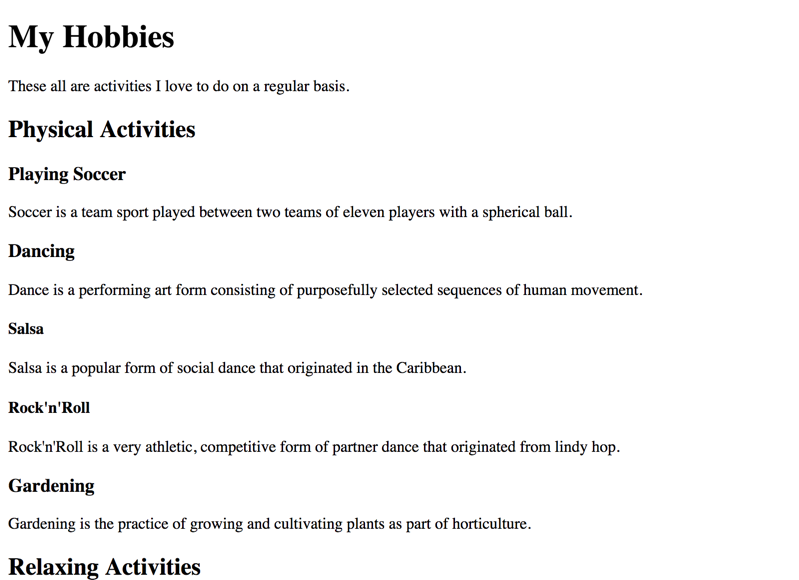
Use headings (h1, h2, etc) to create a "table of contents" for your webpage. DO NOT SKIP LEVELS!
<h1>My Hobbies</h1>
<p>These all are activities I love to do on a regular basis.</p>

  <h2>Physical Activities</h2>

    <h3>Playing Soccer</h3>
    <p>Soccer is a team sport played between two teams of eleven players with a spherical ball.</p>

    <h3>Dancing</h3>
    <p>Dance is a performing art form consisting of purposefully selected sequences of human movement.</p>

      <h4>Salsa</h4>
      <p>Salsa is a popular form of social dance that originated in the Caribbean.</p>

      <h4>Rock'n'Roll</h4>
      <p>Rock'n'Roll is a very athletic, competitive form of partner dance that originated from lindy hop.</p>

    <h3>Gardening</h3>
    <p>Gardening is the practice of growing and cultivating plants as part of horticulture.</p>

  <h2>Relaxing Activities</h2>

    <h3>Watching Movies</h3>
    <p>A film, also called a movie, motion picture, theatrical film, or photoplay, is a series of still images which, when shown on a screen, creates the illusion of moving images due to the phi phenomenon.</p>

    <h3>Meditate</h3>
    <p>Meditation is a practice where an individual operates or trains the mind or induces a mode of consciousness, either to realize some benefit or for the mind to simply acknowledge its content without becoming identified with that content, or as an end in itself.</p>
Non-Semantic Elements
A <div> ("division") element has no semantic or appearance meaning. It is used to "group" elements together e.g., for styling.
<!-- these three paragraphs will all have the same
     "parent" which can be styled on its own -->
<div>
  <p>Lorem ipsum dolor</p>
  <p>sit amet consectetur</p>
  <p>Adipisicing elit</p>
</div>

<!-- these paragraphs are in a different "group" -->
<div>
  <p>Lorem ipsum dolor</p>
  <p>sit amet consectetur</p>
</div>
Non-Semantic Elements
A <div> ("division") element has no semantic or appearance meaning. It is used to "group" elements together e.g., for styling.
<!-- A collection of "cards" on a page -->
<div class="card-group">
  <div class="card">
    <div class="card-header">Featured</div>
    <div class="card-body">
      <h2>Card 1</h2>
      <p>An information card</p>
    </div>
  </div>

  <div class="card">
    <div class="card-body">
      <h2>Card 2</h2>
      <p>Another information card</p>
    </div>
  </div>
</div>
Sectioning Elements
Use sectioning elements in place of <div> elements to give them semantic meaning ("a special div").
| section | "parts" that would appear in the outline of the document. Deserves a heading; can have their own <header> |
| header | A "banner" for the page |
| main | The main content of the page |
| footer | Contact and copyright information |
| nav | A navigation element (can be in the header; can have more than one!) |
| article | A self-contained, republishable section (may be embedded elsewhere). Less common. |
Head, Header, Heading
There are three different HTML elements that all have similar names:
<head> - contains metadata about the page which is not directly displayed. Not part of the <body>
heading (<h1>, <h2>) - providing headings for different sections of your page; used to create an outline
<header> - a semantic sectioning element; acts as the introductory (top) section, often with banner and navigation elements
Course Style Guide
Accessibility Auditing!
You can and should check if web page is accessible
- Use the developer tools to manually check for syntax
- alt attributes, headings, aria labels, etc
- Use an accessibility checking tool
- Lighthouse: https://developer.chrome.com/docs/lighthouse/overview
- WAVE: http://wave.webaim.org/
- Color contrast: https://www.tpgi.com/color-contrast-checker/
- Open in a screenreader and try yourself!
Reporting Problems
UW's Canvas sites have a way to report accessibility problems! And we're trying to catch them all.
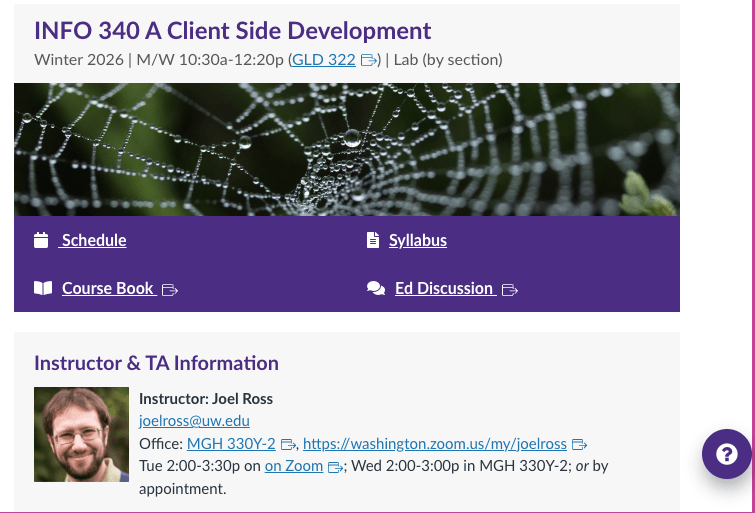
"If you encounter a digital content accessibility issue, find the question mark widget on Canvas, select 'accessibility', and describe the problem you're having."
Action Items!
-
Complete task list for Week 2 (items 1-5)
-
Read: through Chapter 6
-
-
Problem Set 02 due Wednesday
-
(mostly on today's material)
-
Quick turn around! but to give you time since 2 sets due next week.
-
- Project proposals due Friday
Lab: Forming groups, setting up projects
Next: Quiz 1, CSS Selectors
info340wi26-html-accessibility
By Joel Ross