Java 2

Week 10

  • Collaborative GitHub

Hacktoberfest

Project Setup

  • The instructor (aka the maintainer) has a public repository for the Calculators project.
  • Students (aka contributors) must fork the project.
    • A fork is a copy of the maintainer's repository, allowing contributors to make changes.
  • Close any open projects in IntelliJ.
  • In IntelliJ, contributors must click the "Get from VCS" button to clone their forked copy to their computer.
    • Cloning is the process of making a local copy of a project to your local machine.
    • You may get a notification saying you need to install the Java Development Kit (JDK) chosen by the maintainer.

Origin vs Upstream

  • Contributors will open the Terminal in IntelliJ.
  • Enter this command to view the list of remote repositories. Your forked repository will display as "origin".
    git remote -v
    • Origin is a reference to your forked project.
  • Enter this command to specify the upstream repository that will be synced with the fork. Replace the x's with the repo path.
    git remote add upstream https://github.com/mlhaus/xxxx.git
    • Upstream is a reference to the maintainer's project.
  • Enter this command again to confirm that the new upstream repository you've specified.
    git remote -v

Step 1: Create a GitHub Issue

  • On the maintainer's repository, create a new Issue. 
  • Explain a feature you want to add or a bug you want to fix. 
  • Have a discussion with the maintainer to ensure your ideas are harmonious and don't conflict with other's work.

Step 2: Create a New Branch

  • Use the Git > Branches command to create and checkout a new branch called "yourname-contribution1".
  • Or they can enter this command:
    git checkout -b yourname-contribution1

Step 3: Add New Code

  • The work done on a new branch does not affect the main branch.
    • This is particularly useful when developing features or trying out new ideas.
    • When working collaboratively, never work on the main branch!
  • Add new packages and files on the new branch.
    • Create a package called "edu.kirkwood.model.yourlastname". Inside this package, add your model class. 
    • Create a Test class. Inside this class, add your model unit tests.
  • Please do not edit or delete any existing files. Ensure you are not duplicating the work of another developer. These things will later cause merge conflicts, which is a topic for a different lesson.

Step 4: Commit and Push

  • Use the Git menu to commit and push the changes.
    • For now, only add .java files, no .idea files like workspace.xml
    • Make sure the commit message is meaningful and concise.
    • Ensure you are pushing the "yourname-contribution1" branch, not the "main" branch.
  • Or you can enter these commands:
    git add .
    git commit -m 'A meaningful message'

    git push origin yourname-contribution1

Step 5: Make a Pull Request

  • Go to the "origin" GitHub repository (your forked copy).
  • A message will appear in a yellow box saying "yourname-contribution1 had recent pushes".
  • Click the green "Compare & Pull request" button.
  • Scroll down the page and inspect the changes made (green means added, red means deleted).
  • Click the green "Create pull request" button.
  • GitHub will redirect you to the "upstream" GitHub repository (the maintainer's original work).
  • Wait until the maintainer approves and merges the pull request. Remote branches can be deleted after they are merged.

Step 6: Update Main Branch

  •  
  • Update the project by pulling changes from origin.
    • Or you can enter this command:
      git pull origin main
  • All files will be merged into the main branch.
  • You can safely delete the local "yourname-contribution1" branch.

Step 7: Fetch Changes

  • Back in IntelliJ, switch back to the main branch.
    • Or you can enter this command: git checkout main
  • It will appear that the new work is gone. Don't worry, it's on a different branch.
  • Note: If you make any changes to the main branch, you must remove or commit the code before continuing.

  • Use the Git > Fetch command to obtain the change history (branches and commits) from the upstream repo.

    • Or you can enter this command: git fetch upstream

  • When you fetch changes from upstream, all new commits are downloaded and stored as a remote branch.

    • This new data is not integrated into your local files yet.
    • This allows you to check out and review the branch before merging it with your files. 

Step 8: Merge Changes

  • Use the Git > Merge command to merge changes from the upstream main branch into your local main branch.

    • Or you can enter this command:
      git merge upstream/main
  • This syncs your local main branch with the upstream repository without losing your local changes.
  • Your project now contains your work along with the work of others on your team.

Step 9: Push Changes

  • Push changes to the origin repository so everything is up-to-date.
    • Or you can enter this command:
      git push origin main

Repeat Steps 1-9

  • Step 1: Create an issue
  • Step 2: Create a new branch "yourname-contribution2".
  • Step 3: Add new packages and files.
    • This time add your controller classes and unit tests
  • Step 4: Commit (with a meaningful message) and push the new branch.
  • Step 5: Make a pull request. Wait for the maintainer to approve and merge the pull request.
  • Steps 6-8: Go back to the main branch. Fetch and merge (or pull) all changes from other contributors.
  • Step 9: Push the main branch to origin.

Original

Repo

Your

Copy

Local Computer

Fork it

Clone to

set Origin

Set Upstream

Fetch

Changes


Push Changes

Summary

  • Git is a distributed version control system that allows developers to save and retrieve different versions of their work.
  • A maintainer is a person that maintains an open source project.
  • A contributor is a person that contributes to another developer's open source project.
  • Forking is the process of creating a copy of a repository from one user's account to another. This allows contributors to make changes without affecting the maintainer's project.
  • Cloning means making a local copy of a project to your local machine.
  • Origin is the name of the remote alias from your local machine to your forked copy of the project.
  • Upstream is the name of the remote alias from your local machine to the original project.

Summary

  • A branch is a parallel version of a repository. It is contained within the repository, but does not affect the main branch allowing the developer to work freely without disrupting the "live" version.
  • After making changes on a branch and you want those changes to be incorporated in the "live" version, you can create a pull request. The owners/maintainers will review your changes and decide whether to merge them.
  • Developers can merge changes from other developers to the main branch.
  • Git has built-in mechanisms to help resolve potential conflicts. A merge conflict occurs when two developers make changes to the same file.

Summary

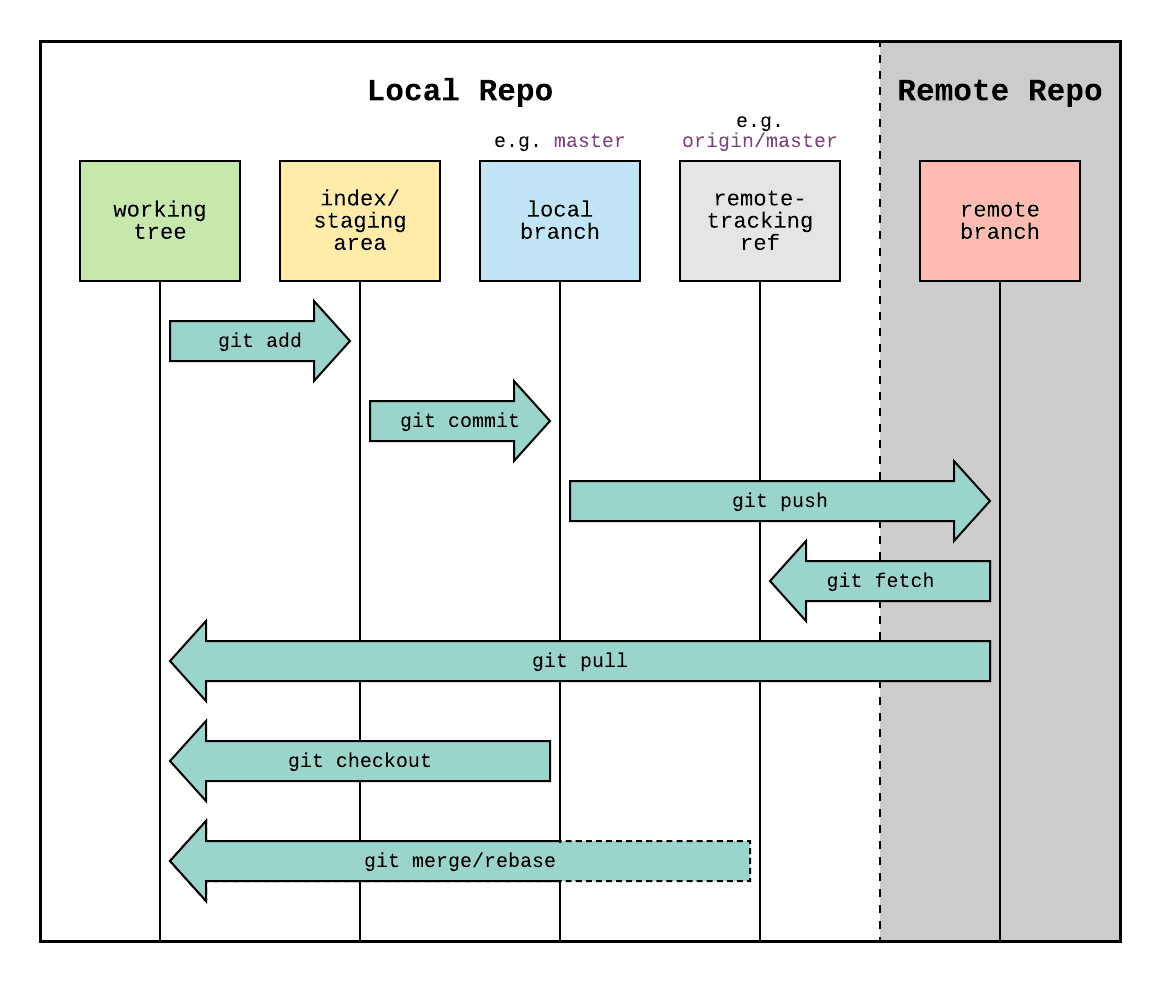
  • Here’s a picture that describes how the Git workflow works.
  • Note: Prior to 2020, master was the default branch name.

Java 2 - Week 10

By Marc Hauschildt

Java 2 - Week 10

  • 112