Programming 101

I'm Fabio.


I started programming for the web 15 years ago.
I studied Computer Science & Kinesiology at the University of Vancouver Island.
Since then I've worked on many web projects, big and small.
I've been teaching web development at Bitmaker for the past two years.
I'm really passionate about technology and the web.
I'm Fabio.
You can email me here:

fabio@bitmakerlabs.com
The Internet
INTRO
INTRO // How The Web Works
A simplified look at a typical web architecture
Client
(Web Browser, Mobile App)
Web Server
Database
Requests
Responses
INTRO // Web Site vs Web App
What's the difference between
Web Sites
and
Web Apps
???????
INTRO // Web Development
The development process can be broken into two areas
FRONT-END WEB DEVELOPMENT
BACK-END WEB DEVELOPMENT
-
How things look to the user
-
Involves: Images, Content, Structure
-
HTML, CSS, & Javascript
-
How things work
-
Involves: "business logic"
-
Ruby, PHP, C++, Java, etc.
_________________________________________________________________________________________
INTRO // Front-End Technologies

HTML
Content
CSS
Presentation
JavaScript
Interactivity
We'll be learning about all three of these this weekend
INTRO
Tools We'll Be Using
INTRO // Tools
Web Browser
We'll be using Google Chrome
It provides many developer-friendly tools ("inspect element")
INTRO // Tools
Coding Environment
We'll be using Cloud9
- It's free
- Provides syntax highlighting, code hinting, auto completion, and a lot more features geared toward writing code
- Word, Pages and any WYSIWYG editor are NOT suitable for code!
INTRO // Goal
By the end of this workshop, our goal is:
- build a basic task list application
- make it look pretty :)
- marks tasks as complete when clicked
- update a count of completed tasks
INTRO
Let's take a look!
HTML
HyperText Markup Language describes the structure of your web document
A language used to describe the content and structure of our documents
HTML
Think of HTML as ....
Let's take a deeper dive into an HTML tag
HTML
A typical HTML tag
HTML
<p>Content</p>The tag above represents a paragraph
A typical HTML tag
HTML
<p>Content</p>This is the opening tag.
It always starts with a tag name ('p' in this case).
HTML tags always start with a < and end with a >
A typical HTML tag
HTML
<p>Content</p>This is the closing tag.
Most (but not all) HTML tags have a closing tag.
Closing tags always start with a forward slash ( / )
followed by the tag name.
A typical HTML tag
HTML
<p>Content</p>This is the content of the tag.
The content appears between the opening and closing tags. This is the content that will appear on your page.
Elements Without Closing Tags
HTML
Some tags don't have closing tags.
Tags such as image do not enclose any content
(in the case of an image, it points to the location of a file) ...
So it doesn't need an opening and closing tag.
<img src="picture.jpg" />
Note: the / at the end is optional
Attributes
HTML
This is an example of an attribute.
They provide further description of the content or purpose of the tag. Attributes are always in the form of key="value"
<a href="http://www.google.ca">
  Google Please!
</a>
Attributes
HTML
Certain attributes may only have use for specific tags.
In the case above, we used "href" which is very specific to the "a" tag. The "src" attribute is needed by the "img" tag. If these attributes were used on a paragraph, they would be ignored.
<a href="http://www.google.ca">
  Google Please!
</a>
<img src="picture.jpg" />Hierarchy In HTML
HTML
<section>
  <p>
    Some text in a paragraph.
    <a href="http://www.cbc.ca">CBC</a>
  </p>
</section>
HTML tags can be nested inside on another.
HTML is represented as a tree. That means you can put tags inside other tags as their content. The outer tag is the parent and the inner tag(s) are the children.
HTML Shell
HTML
<!DOCTYPE html>
<html>
	<head>
		<title></title>
	</head>
	<body>

	</body>
</html>
<head>
HTML
<!DOCTYPE html>
<html>
	<head>
		<title></title>
	</head>
	<body>

	</body>
</html>-
Can be though of as the brain of the document
-
Its properties are not part of the physical layout of the page
-
Holds all of the properties like the document's title as shown here
<body>
HTML
<!DOCTYPE html>
<html>
	<head>
		<title></title>
	</head>
	<body>

	</body>
</html>-
Represents the area from the top left corner of our page, to the bottom right
-
Holds the physical structure of the page, much like our own body
-
All of our work today will be done here!
Add content to the <body>
HTML
We write elements (content wrapped in tags) to the document's body
<!DOCTYPE html>
<html>
	<head>
		<title></title>
	</head>
	<body>
		<p>Content</p>
	</body>
</html>
Common Element Types
HTML
Inline text elements
Text wrappers
Content containers
List containers
<a> <span> <em> <strong>
<p> <h1> to <h6> <blockquote> <li>
<header> <footer> <main> <section> <article> <nav> <aside> <div>
<ul> <ol>
Developer Tools
Your browser has some very powerful built-in tools to help you inspect your web page
Dev Tools
Developer Tools
You can open the developer tools by
- Right-clicking on any element and selecting "Inspect element"
- Pressing the "hamburger" button at the top right corner and selecting More Tools -> Developer Tools
- Pressing the keyboard shortcut Cmd-Option-i (Mac) or Ctrl-Alt-i (Win... I think)
Dev Tools
Let's take a look
CSS
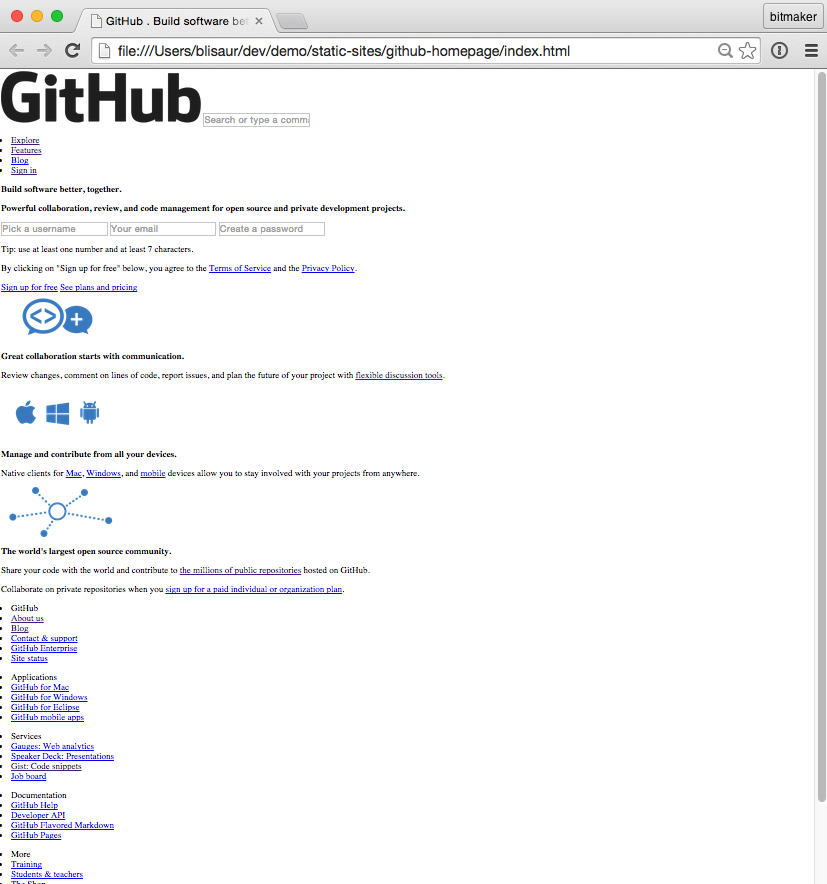
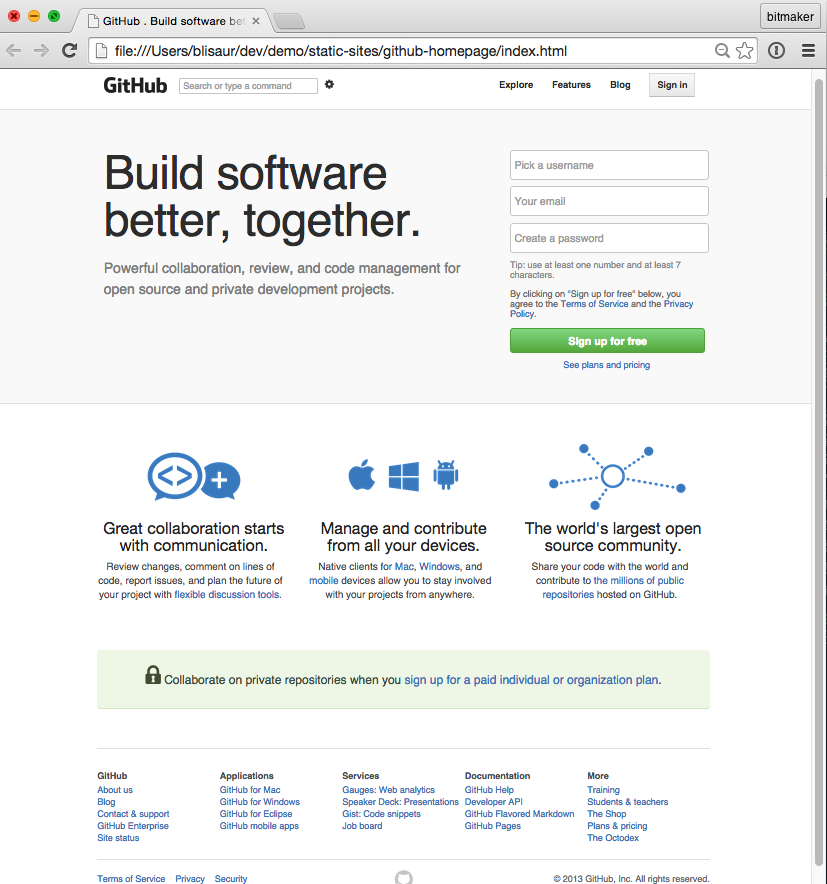
Before
After
Cascading Style Sheets
Rules that specify how your elements should appear in your document
CSS
CSS Syntax
h1 {
    font-size: 16px;
    color: red;
}- CSS Selector
- Declaration block denoted by the opening { and closing }
- A declaration consists of a property and a value, separated by : and ends with ;
CSS
property: value;
p {
    font-size: 16px;
    color: red;
}
Properties:
Values:
Pre-defined terms that will change the way elements look and behave.
Properties are set with values using a colon.
Declaration:
Together, each property-value pair form a declaration
CSS
Selecting an HTML element
article {
    background-color: red;
}
The rule's selector will define which elements in the HTML document will have this rule's declarations applied.
CSS
Selecting an HTML element
p {
    text-align: center;
}
Select the element by its tag name
<p>
    It's morphing time!
</p>
CSS
Selecting an HTML element
.box {
    width: 100px;
    height: 100px;
    background-color: green;
}
We don't just have to select by element type...
Custom rules can be written using the class selector. In order to apply a class, we add a class attribute to our HTML element.
CSS
Applying a class attribute
<div class="box">
    <p>I'm shaped like a box</p>
</div>
This is the class attribute.
A class is a way of grouping similar things together, like how cars and trucks are both automobiles. The class attribute is useful for styling and adding interaction to many elements at once.
CSS
Selecting an HTML element
.highlight {
    background-color: red;
}
<h1 class="highlight">
Hello there!
</h1>Class selectors are denoted through dot ( . ) notation
CSS
Applying an id attribute
<div id="unique">
    <p>I'm the only box like me</p>
</div>
This is the id attribute.
It’s used to uniquely identify an HTML element in a document. You can add this attribute to any tag. It’s useful for styling and adding interaction.
CSS
Selecting an HTML element
#page-title {
    background-color: red;
}
<h1 id="page-title">
Hello there!
</h1>id selectors are denoted through hashtag ( # ) notation
CSS
JavaScript
The dynamic programming language built into every web browser
What's JavaScript used for?
JS
Adds interactivity to your web pages
Check out this fun lightbox example!
JS
JavaScript is available in every browser
JS
JavaScript is NOT Java
This is a common misconception
JS
LET'S OPEN UP OUR CONSOLES
View > Developer > JavaScript Console
MAC
cmd + option + j
WIN
ctrl + shift + j
F12
or
JS
Basic Syntax
var someNumber = 10;- This is an example of a JavaScript statement
- Every statement ends with a semi-colon
JS
Comments
// This is a single line comment- The two forward slashes denote a single line comment
JS
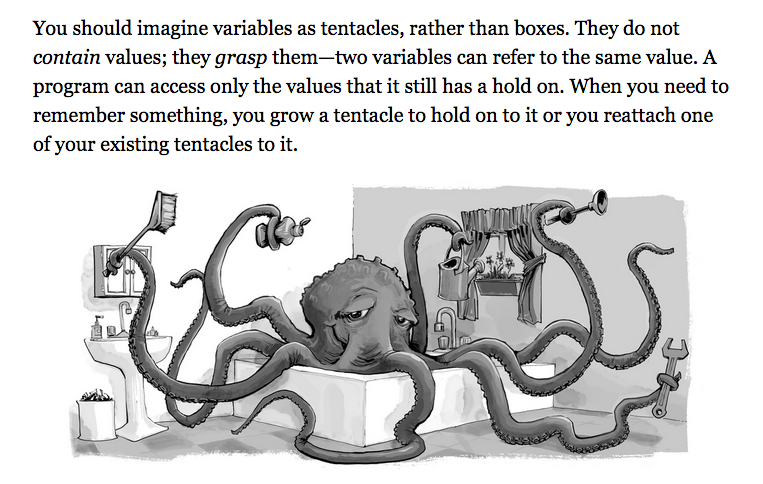
How do you store values?
Values are stored in variables
JS
Variables
JS
Declaring a variable
var someNumber = 5;- var is reserved keyword
JS
- Prefix a statement with ' var ' to declare a variable
- Can change its value at anytime
- Equal sign is the assignment operator
Data Types
- Number
JS
- String
- Boolean
- Object
- Undefined
- Null
There are 6 different types of values:
Let's look at a few data types ...
JS
Number
var someDecimalNumber = 3.1415926;- Values of the number type are numerical values
JS
- Can be a regular integer
- Can be a decimal number
String
var someString = "Some random text here";- Strings are used to represent text
JS
- Defined by enclosing string of text characters in quotes
- Can use " " or ' '
Boolean
        var aTruthyValue = true;
var aFalseyValue = false;- true and false are reserved words
JS
- Similar to the concept of 1 & 0
- true is different from "true"
undefined
        var someUndefinedValue;
var someVariable = undefined;- A variable declared with no value is automatically set as undefined
JS
- undefined is used to denote the absence of a meaningful value
Arrays
var someArray = [45, "bloop", true, null];- Allows you to store a sequence of values
JS
- It's a list of values stored between square brackets, separated by commas
- The values stored in the array can be of any data type
Arrays cont'd
     var someArray = [45, "bloop", true, null];
someArray[1] // returns "bloop"- Arrays are an ordered list of items
JS
- Each element in the array has an index position
- Index positions always start counting at 0
- Syntax: nameOfArray[indexPosition]
Arrays cont'd
     var someArray = [45, "bloop", true, null];
someArray.length // returns 4- To check how long an array is, check its length property
JS
- The length property returns how many elements are stored in the array
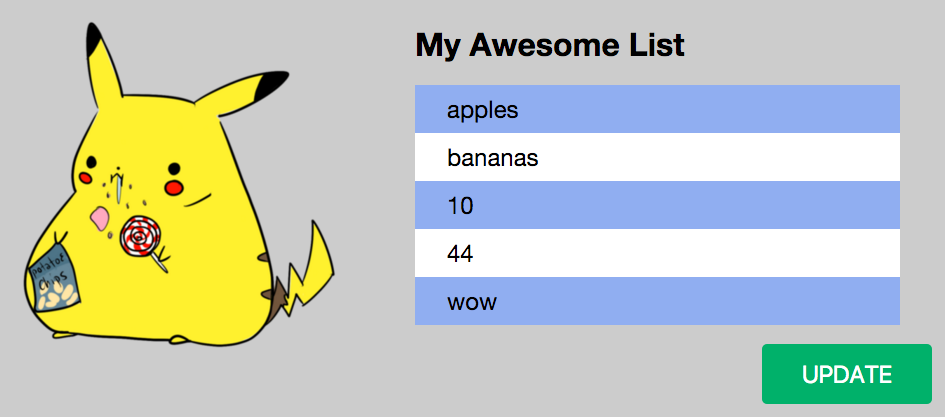
Time to try it yourself!
JS
http://bettymakes.github.io/fed-intro-to-js-variables/
Writing Basic Javascript Programs
JS
alert(''Hello");

console.log("Hello");
Producing Output:
NOTE - In the first example, the alert will only work if the code is being run from within a browser.
Writing Basic Javascript Programs
JS
var monthName = "June";

if (monthName == "June") {
  console.log("It must be summer");
}
Conditional Logic:
Conditional logic involves the use of expressions to evaluate statements that are true or false using operators:
==, <, >, >=, <=, !=
Writing Basic Javascript Programs
JS
var monthName = "July";
if (monthName == "June" || monthName == "July") {
console.log("It must be summer");
}
Conditional Logic:
Expressions can be combined using "OR", which is represented by double pipe characters ||
Writing Basic Javascript Programs
JS
var monthName = "July";
var currentYear = 2016;
if (monthName == "July" && currentYear == 2016) {
console.log("It must be summer of 2016!");
}
Conditional Logic:
Expressions can also be combined using "AND" which is represented by double ampersands &&
Writing Basic Javascript Programs
JS
var monthName = "July";
var currentYear = 2016;
if (monthName == "July" && currentYear == 2016) {
console.log("It must be summer of 2016!");
}
Conditional Logic:
Programming 101 v5.0 - Fabio
By Bitmaker
Programming 101 v5.0 - Fabio
Programming 101 - Two Day Workshop