Workshop
Part 1
Section 1
Graphics
Section 2
Animations
Section 3
Controls
Workshop
Part 2
Section 1
Bitmaps
Section 2
Sprites
Section 3
Sons

pygame.math.Vector2.rotate(float)
pygame.math.Vector2.rotate(float)
pygame.math.Vector2.rotate(float)
pygame.math.Vector2.rotate(float)
Section 1 - Graphics
Classic Coordinate System
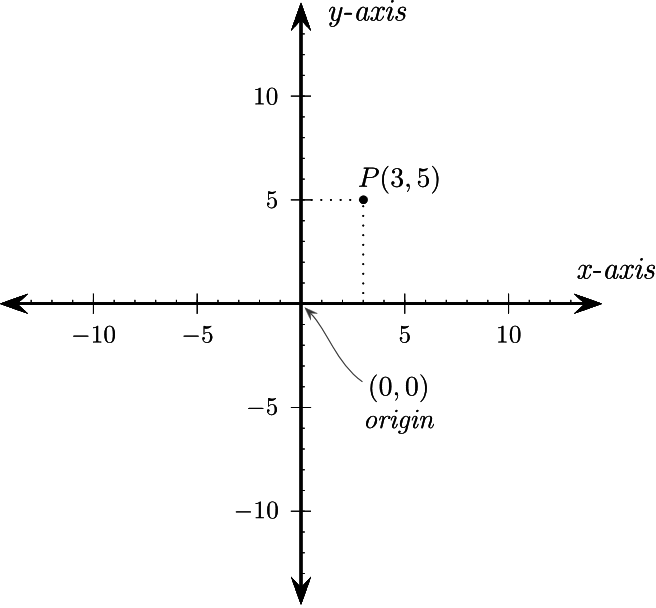
Section 1 - Graphics
Early 80's, terminal only!
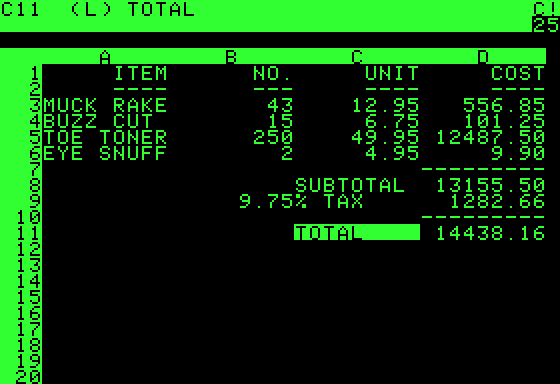
Section 1 - Graphics
ASCII art evolution
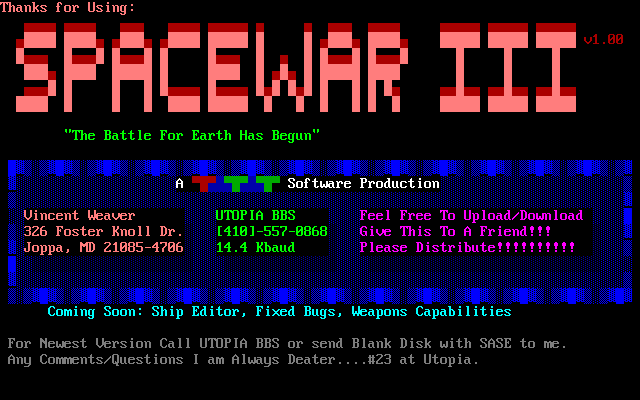
Section 1 - Graphics
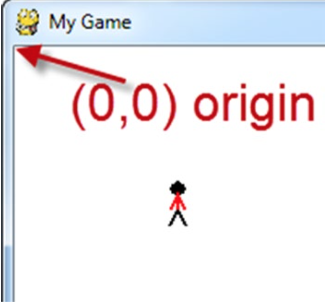
Computer Coordinate System
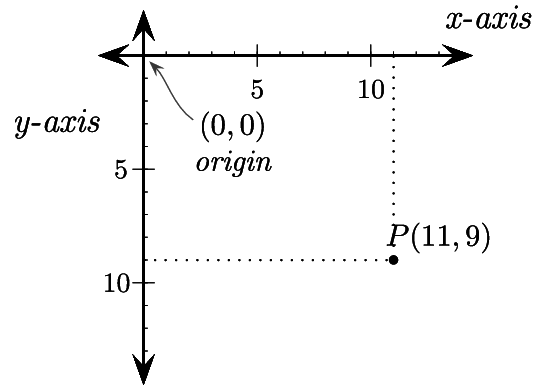
Section 1 - Graphics
Before anything!!
# Import a library of functions called 'pygame'
import pygame


# Initialize the game engine
pygame.init()
Section 1 - Graphics
Does it have any color?
# Define some colors

# RGB
BLACK    = (   0,   0,   0)
WHITE    = ( 255, 255, 255)
GREEN    = (   0, 255,   0)
RED      = ( 255, 0, 0)


# Hex
WHITE    = (0xFF, 0xFF, 0xFF)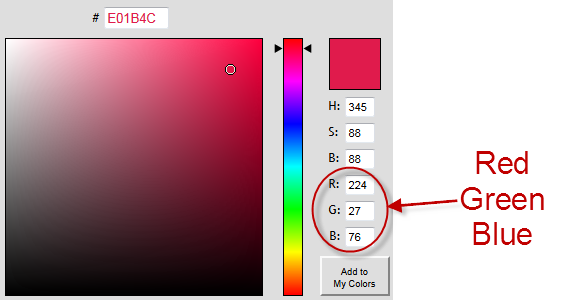
Section 1 - Graphics
Reveal yourself!
# Define the name of the screen
pygame.display.set_caption("Professor Craven's Cool Game")

# Define size and open a screen
size = (700, 500)
screen = pygame.display.set_mode(size)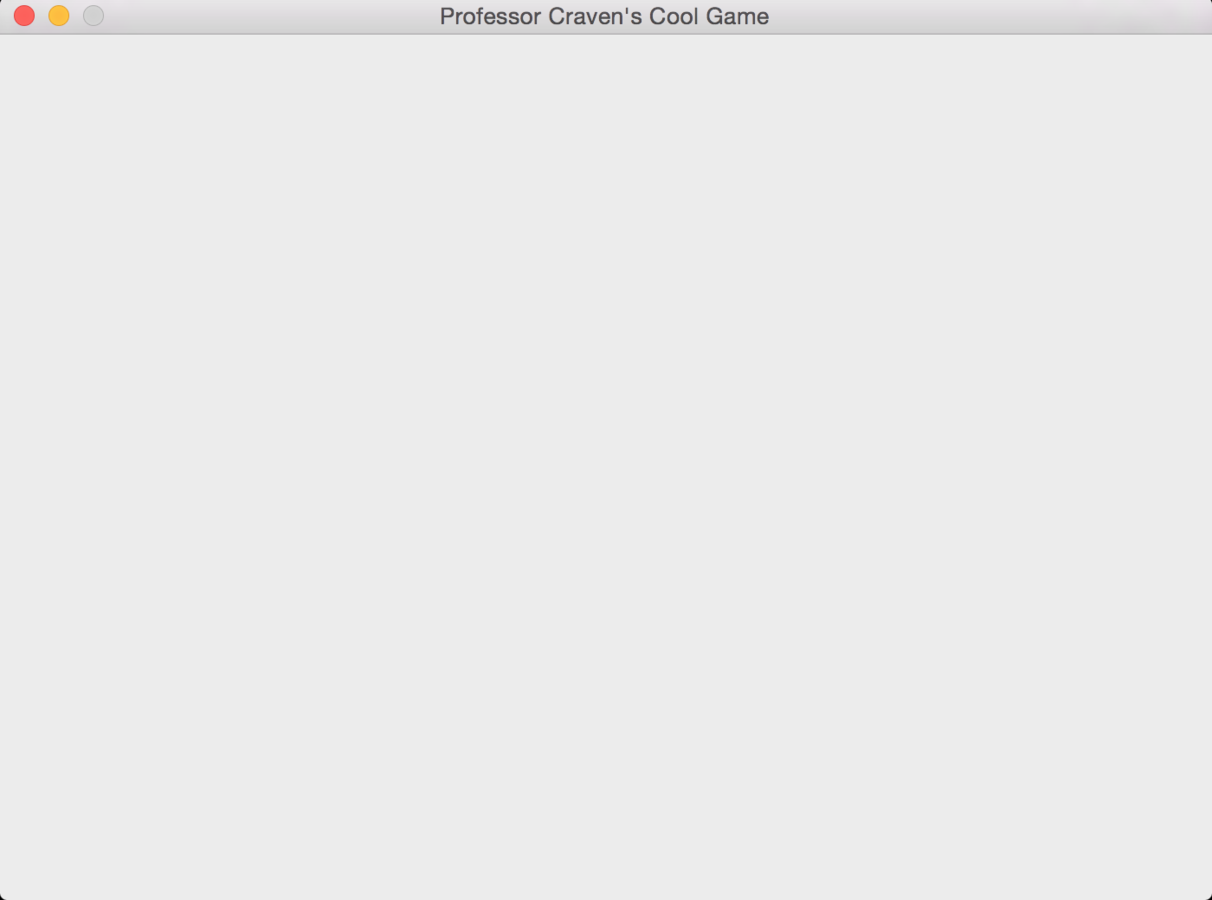
Section 1 - Graphics
But it just closes!!
# Loop until the user clicks the close button.
done = False
# Used to manage how fast the screen updates
clock = pygame.time.Clock()
# -------- Main Program Loop -----------
while not done:
    # --- Main event loop
    for event in pygame.event.get(): # User did something
        if event.type == pygame.QUIT: # If user clicked close
            done = True # Flag that we are done so we exit this loop

  # --- Game logic should go here
    # --- Drawing code should go here
    # First, clear the screen to white. Don't put other drawing commands
    # above this, or they will be erased with this command.
    screen.fill(WHITE)
    # --- Go ahead and update the screen with what we've drawn.
    pygame.display.flip()
    # --- Limit to 60 frames per second
    clock.tick(60)

pygame.quit()
Section 1 - Graphics
pygame.draw
Section 1 - Graphics
pygame.draw.line(Surface, Color, [xi,yi], [xf,yf], Width)
pygame.draw.line(screen, RED, [0,0], [100,100], 2)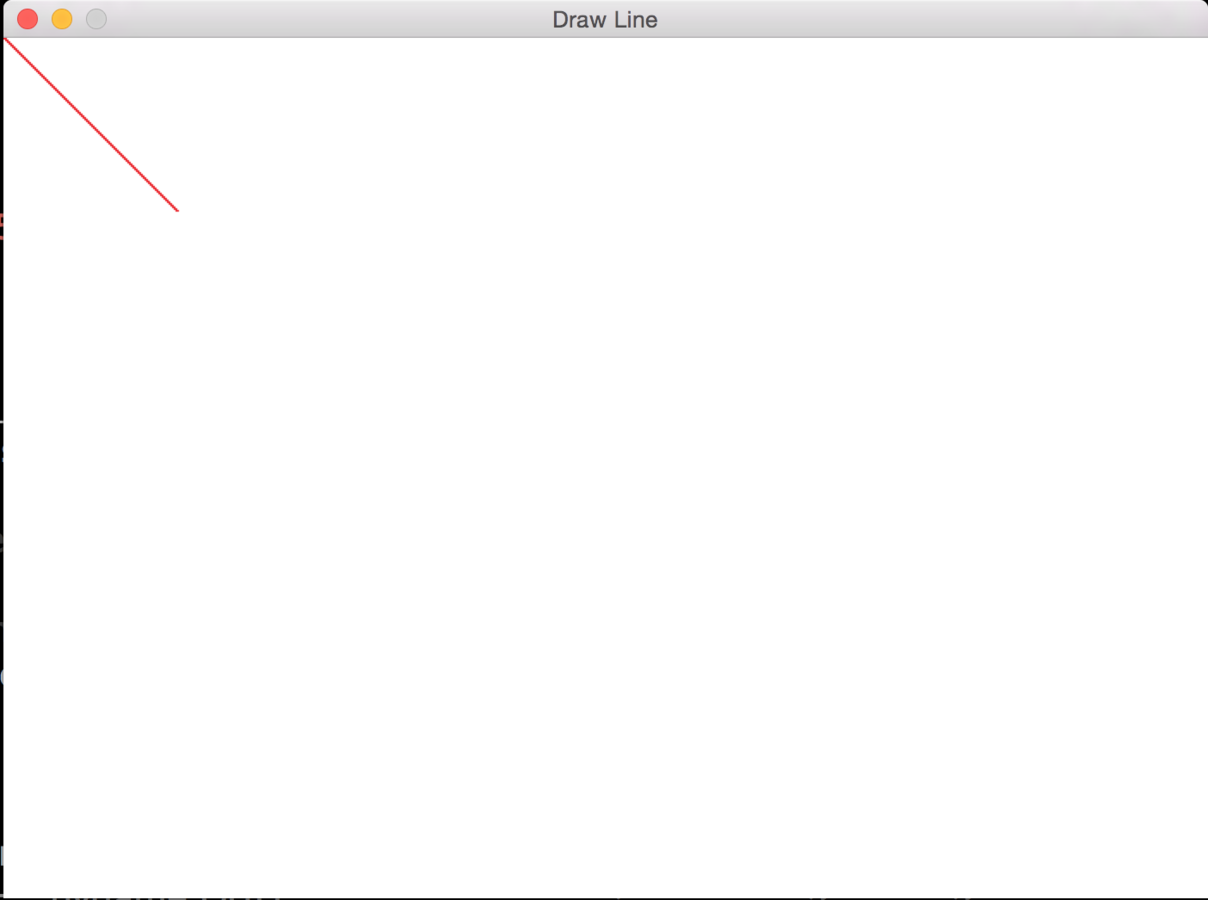
Section 1 - Graphics
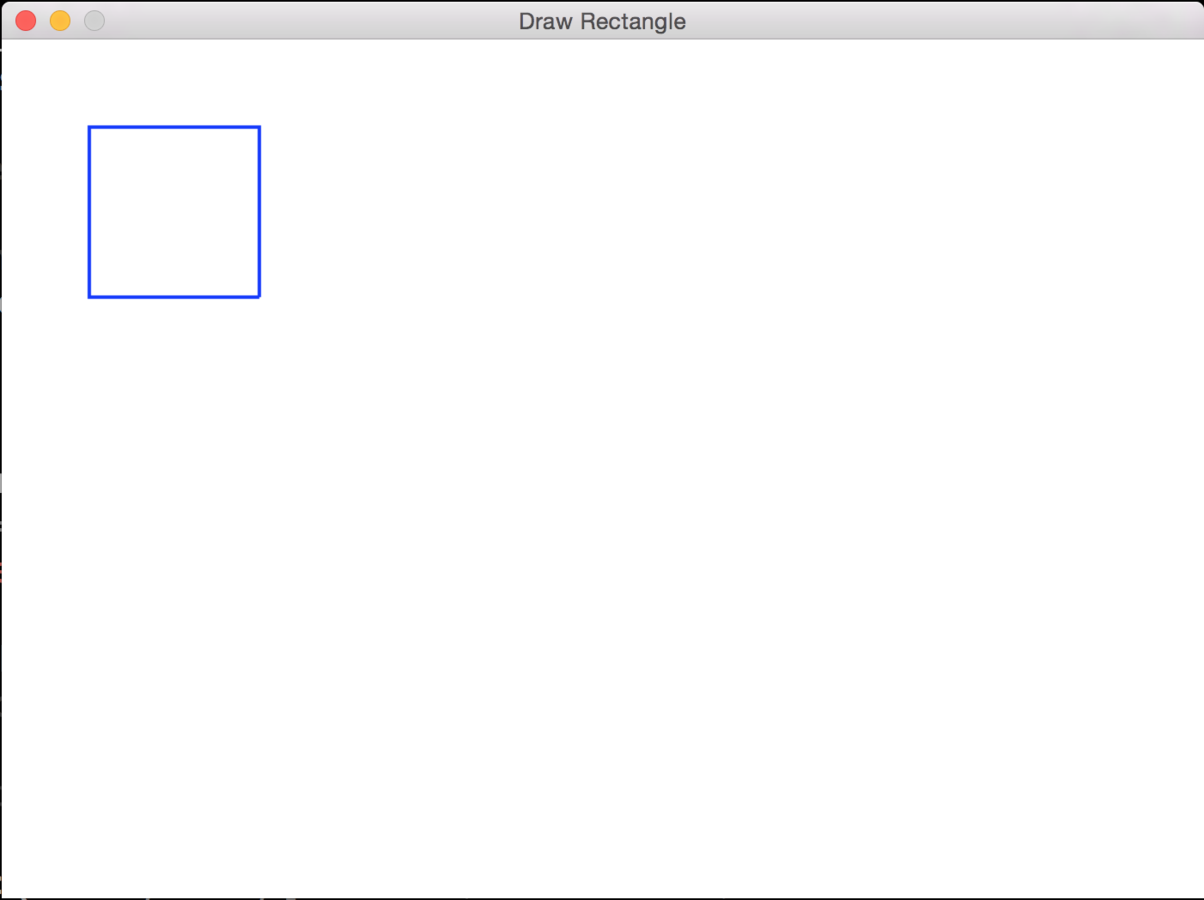
pygame.draw.rect(Surface, Color, [xi, yi, width, height], Width)
pygame.draw.rect(screen, BLUE, [50,50,100,100], 2)
Section 1 - Graphics
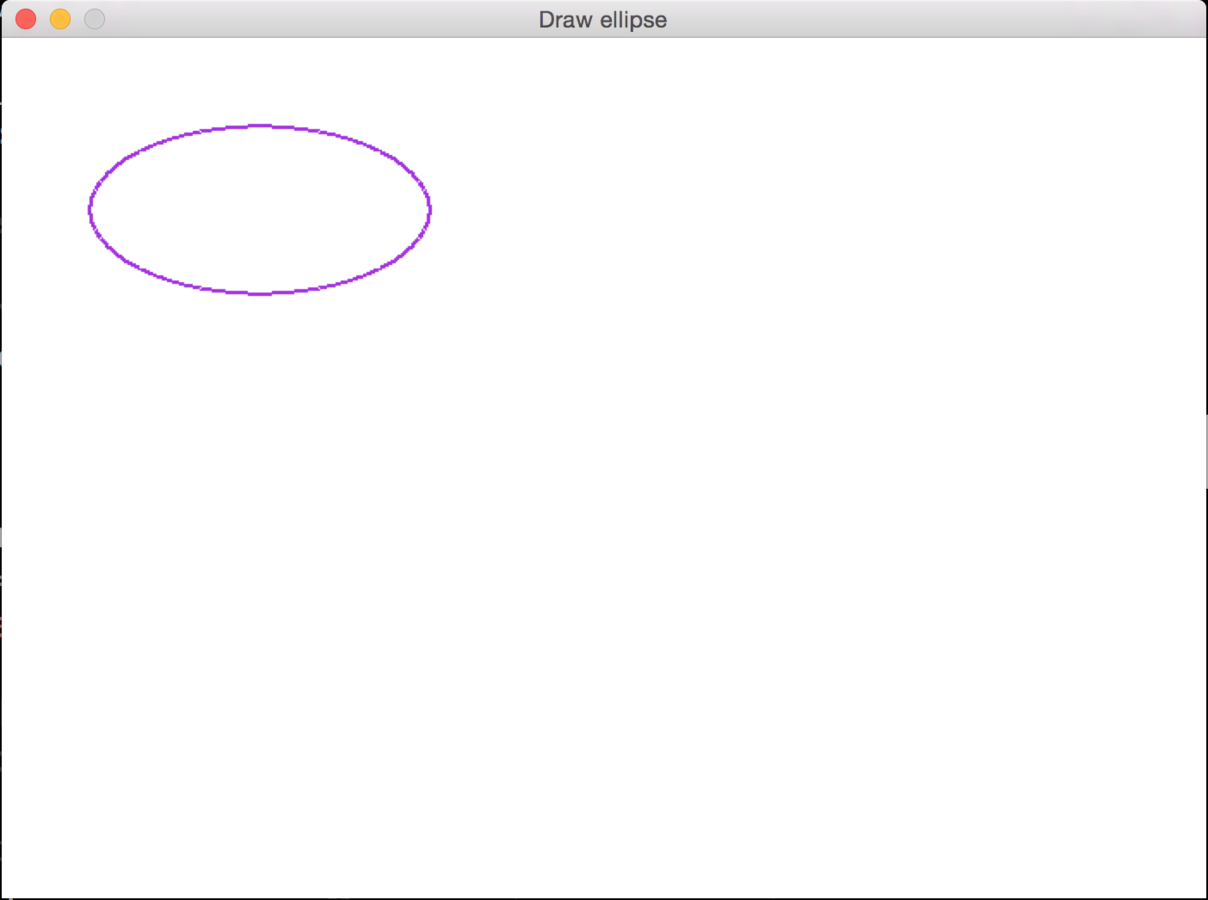
pygame.draw.ellipse(Surface, Color, [xi, yi, width, height], Width)
pygame.draw.ellipse(screen, PURPLE, [50,50,200,100], 2)
Section 1 - Graphics
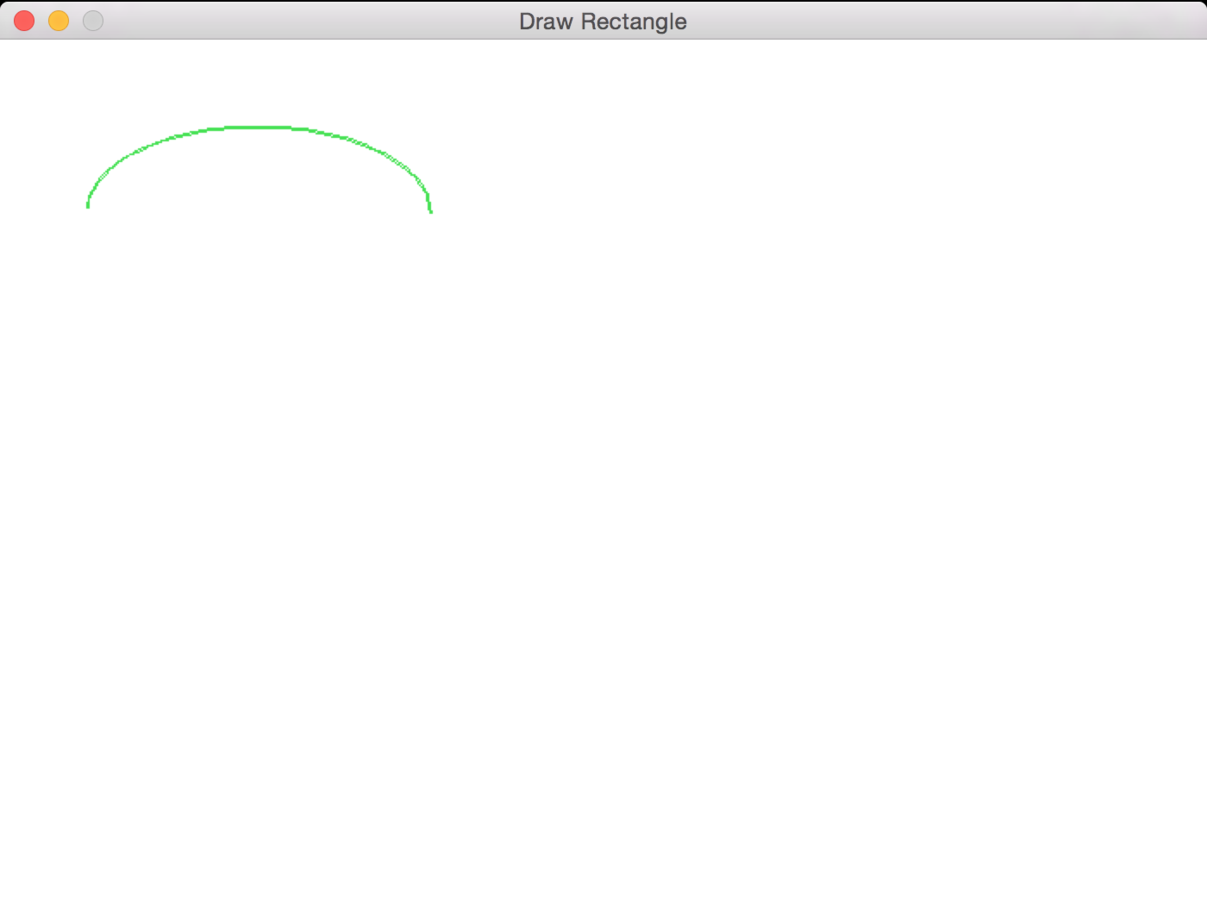
pygame.draw.arc(Surface, Color, [xi, yi, width, height], anglei, anglef, Width)
pygame.draw.arc(screen, GREEN, [50,50,200,100], 0, PI, 2)
Section 1 - Graphics
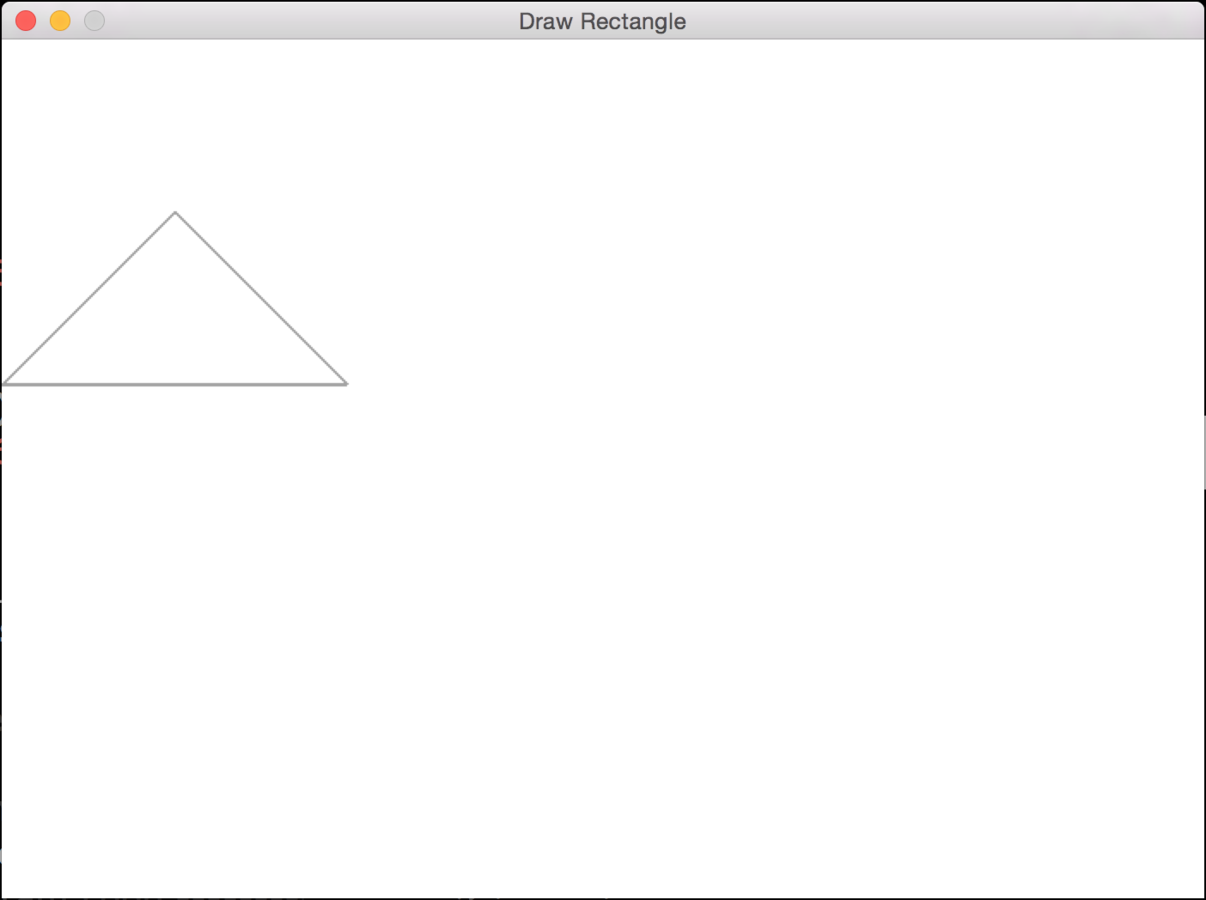
pygame.draw.polygon(Surface, Color,[[xa,ya],[xb,yb],...], Width)
pygame.draw.polygon(screen, GREY, [[100,100],[0,200],[200,200]],2)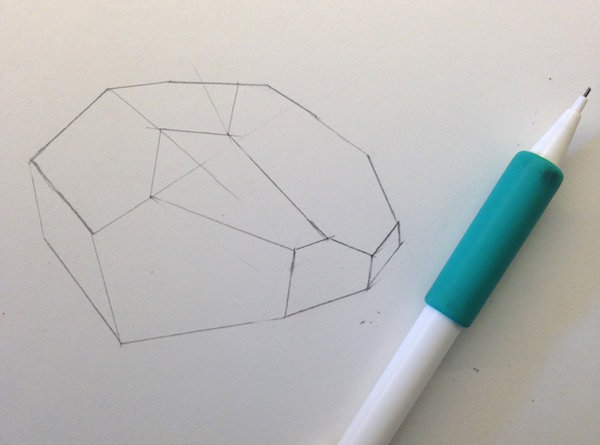
Section 1 - Graphics
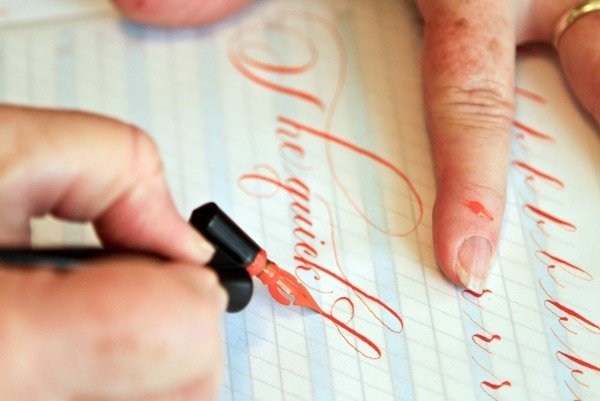
Drawing Text
Section 1 - Graphics
font= pygame.font.SysFont(Font, Size, Bold, Italics)
text = font.render(Text, Aliased, Color)
Select the font
Render the text
screen.blit(text, Size)
Put the image of the text on the screen
10 minutos!
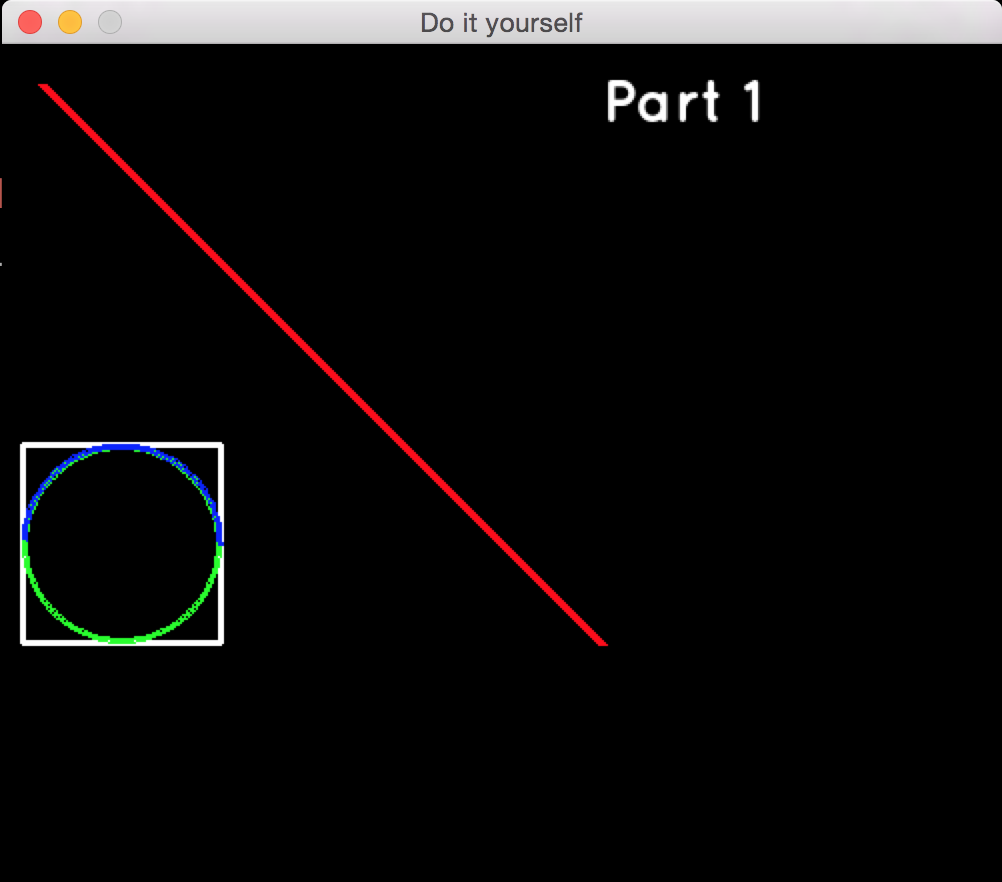
Window
Size [500,500]
Caption "Do it yourself"
Color BLACK
Colors
BLACK = (0,0,0)
WHITE = (255,255,255)
RED = (255,0,0)
GREEN = (0,255,0)
BLUE = (0,0,255)
Text
Font quicksand
FontSize 30
Boolean True
Italic False
Text "Part1"
Color WHITE
Alias TRUE
Position [300,10]
Rectangle / Ellipse
Color White/Green
Position [10, 200]
Width 100
Height 100
Thickness 3
Arc
Color Blue
Position [10, 200]
Width 100
Height 100
From 0
To Pi
Thickness 3
Line
Color Blue
Inicial Position [20, 20]
Final Position [300,300]
Thickness 5
Section 2 - Animations
Section 2 - Animations
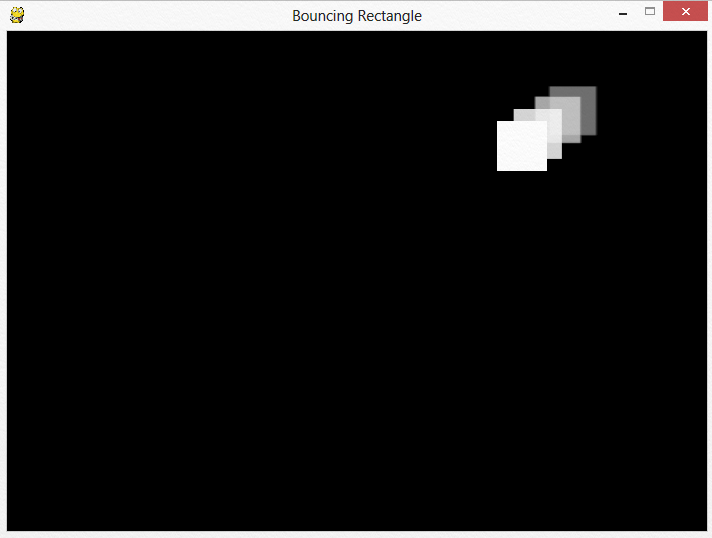
Section 2 - Animations
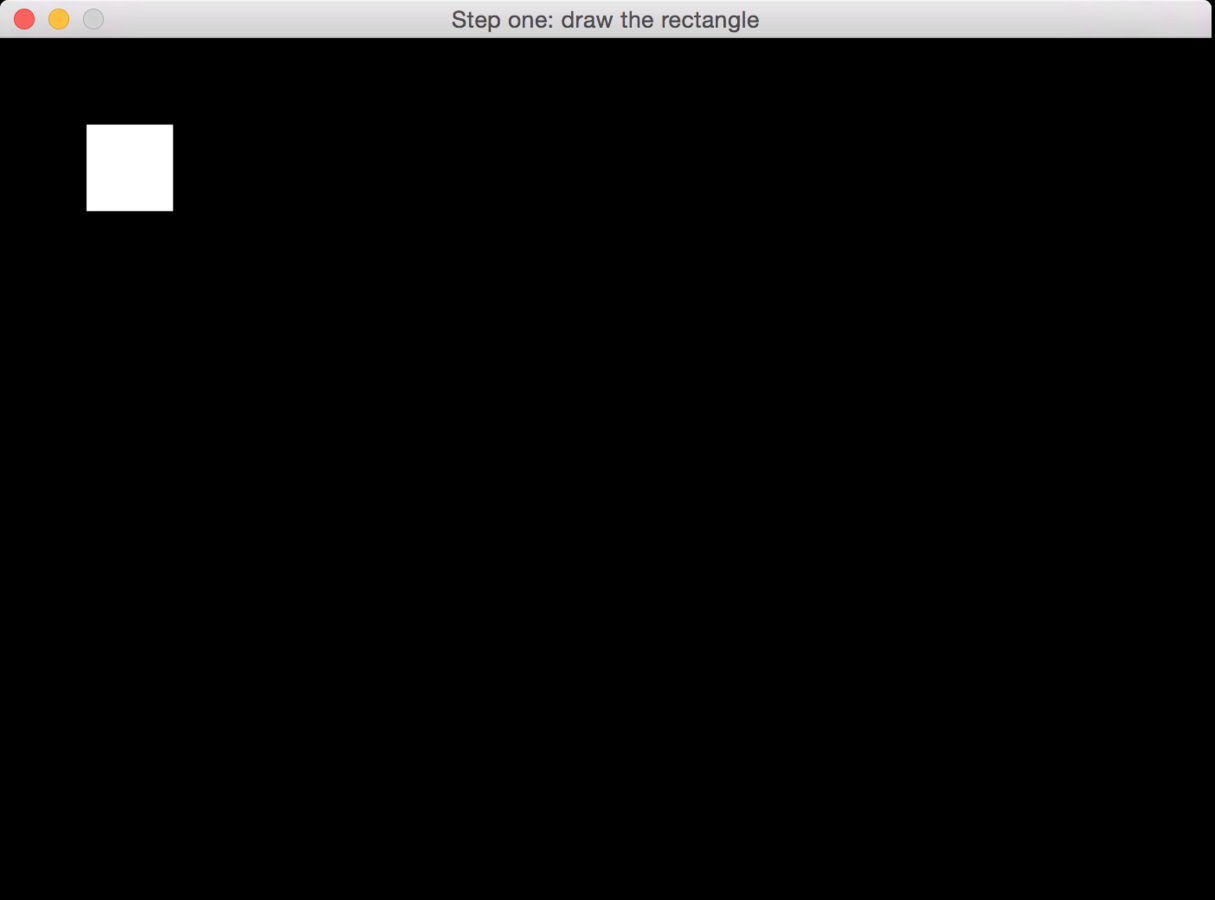
screen.fill(BLACK)
pygame.draw.rect(screen, WHITE ,[50,50,50,50])
Section 2 - Animations
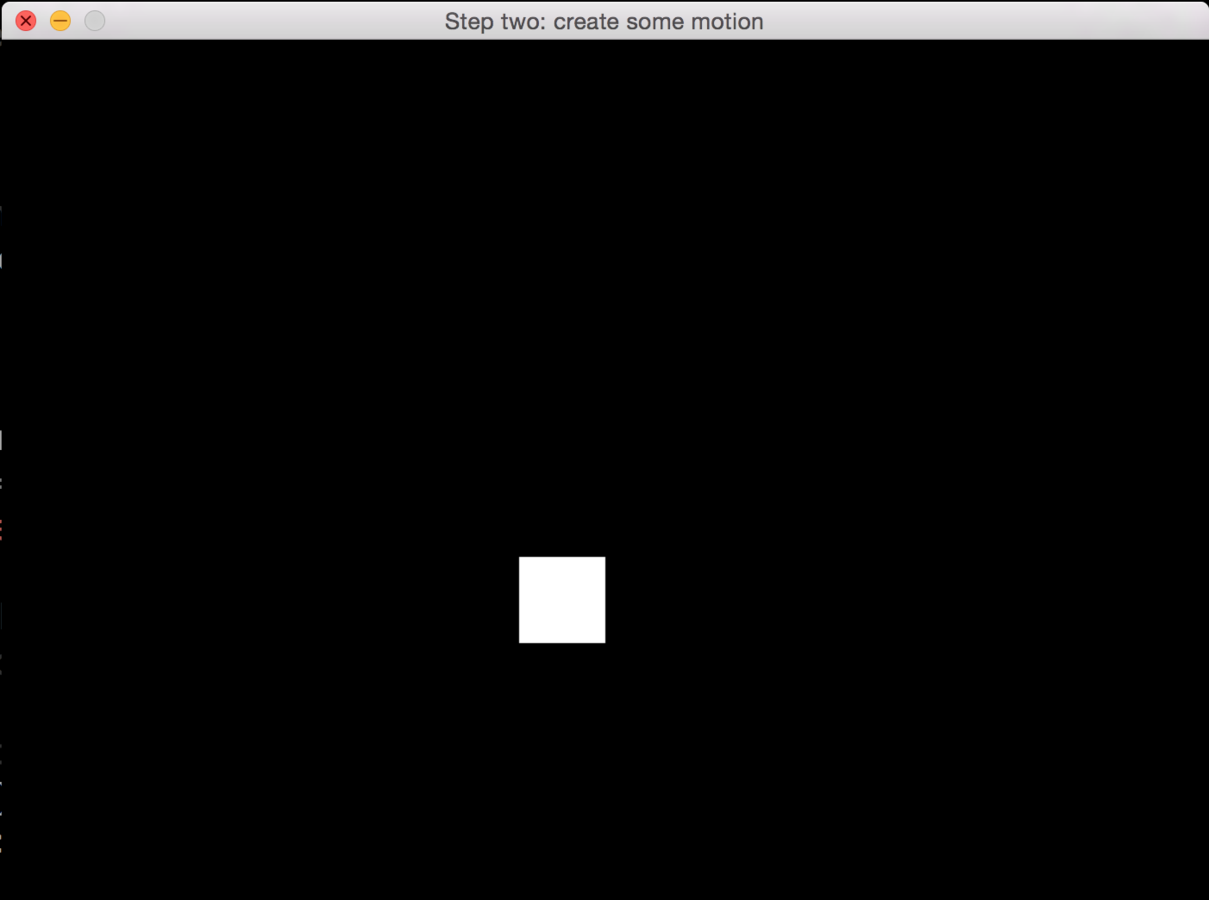
rect_x = 50
pygame.draw.rect(screen, WHITE ,[rect_x,rect_y,50,50])
rect_x += 5, rect_y +=5
Section 2 - Animations
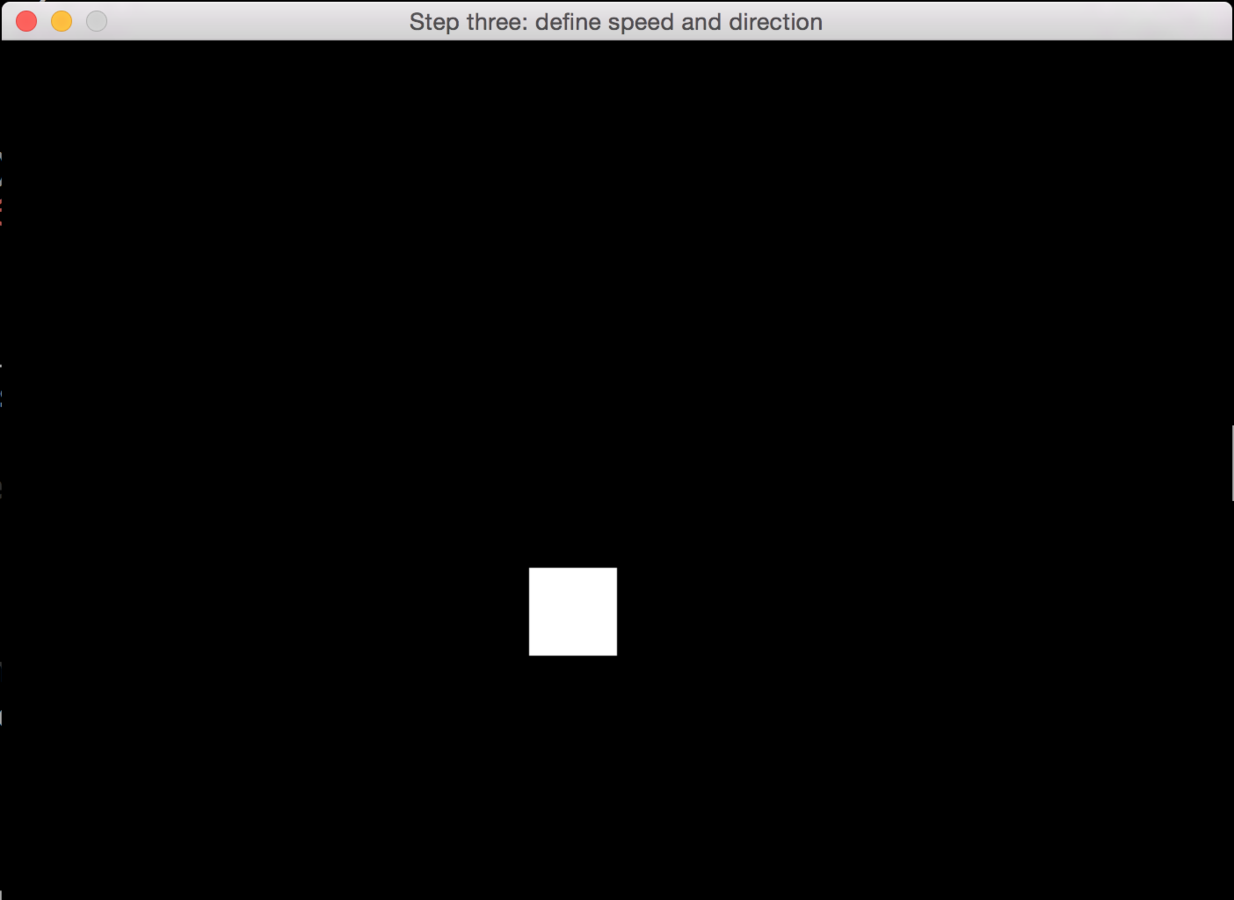
rect_change_x = 5, rect_change_y=5
pygame.draw.rect(screen, WHITE ,[rect_x,rect_y,50,50])
rect_x += rect_change_x, rect_y += rect_change_y
(5,5)
(5,-5)
(-5,-5)
(-5,5)
Section 2 - Animations
if rect_y > 450 or rect_y < 0:
if rect_x > 650 or rect_x < 0:
rect_change_y = rect_change_y * -1
rect_change_x = rect_change_x * -1
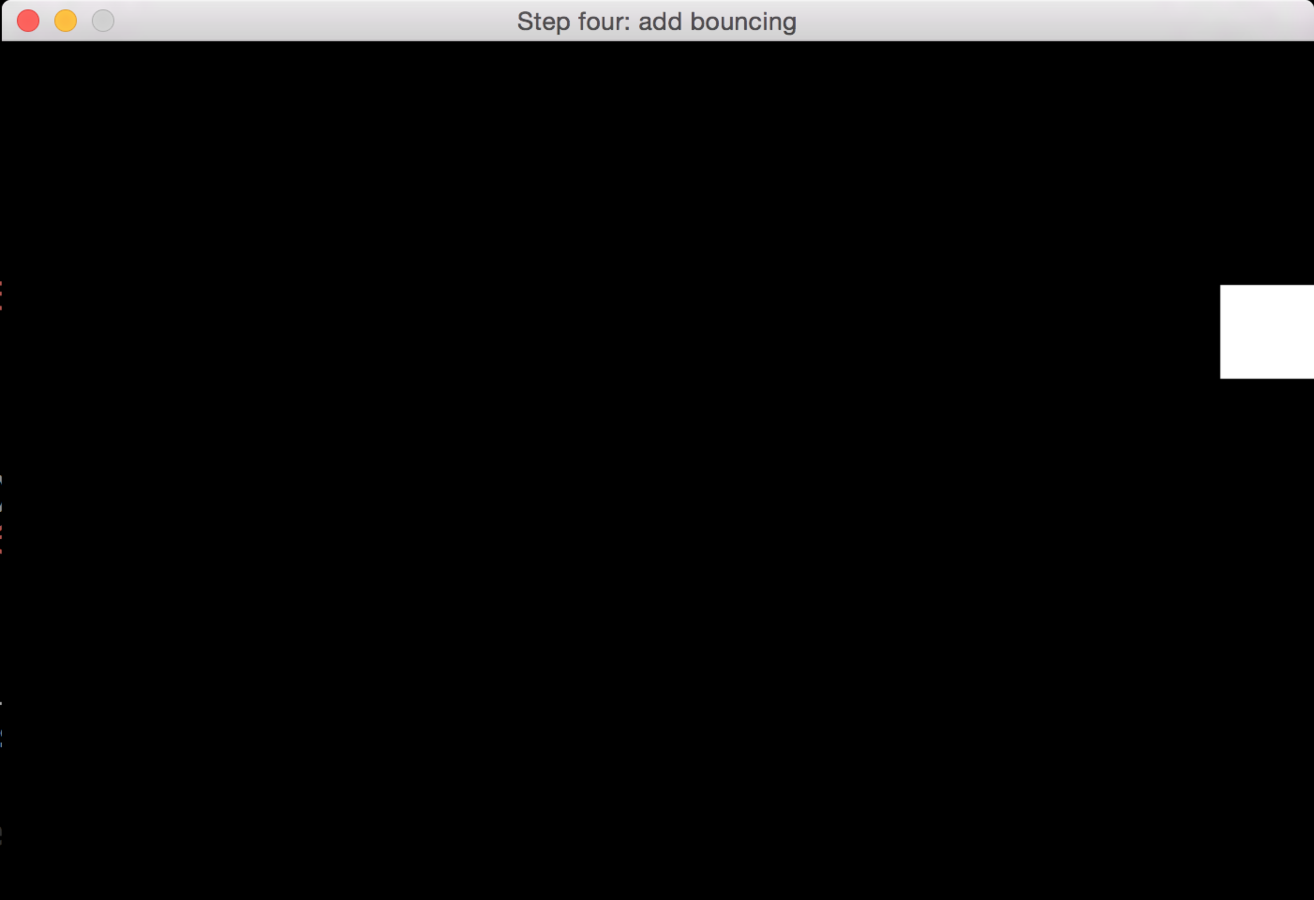
(5,5)
(-5,5)
x = 650
Section 2 - Animations
Section 2 - Animations
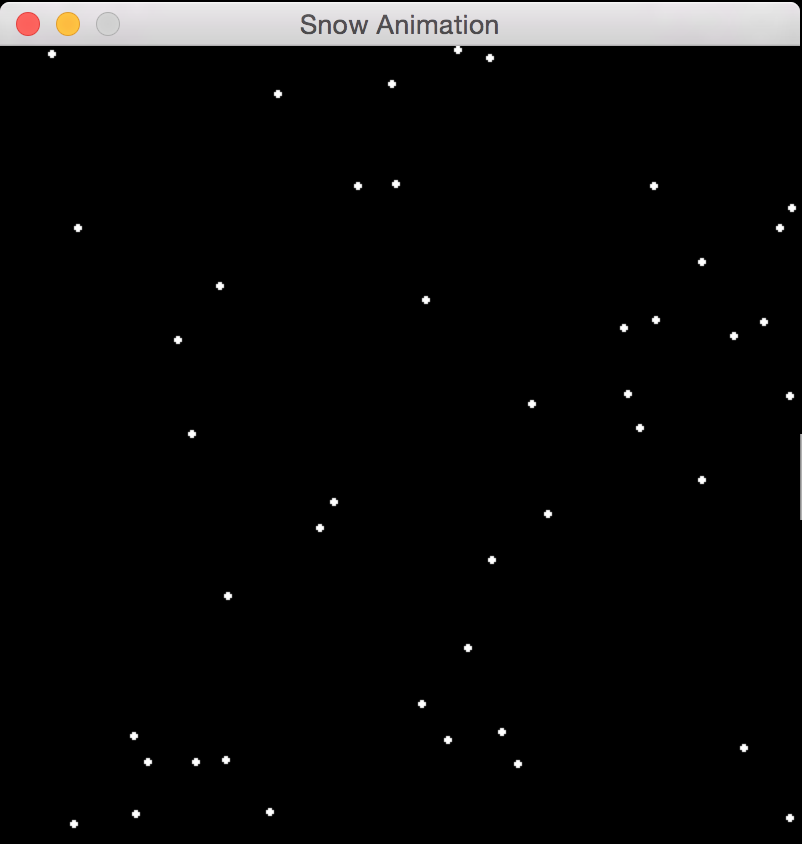
for i in range(50):
x = random.randrange(0,400)
y = random.randrange(0,400)
snow_list.append([x,y])
Section 2 - Animations
for i in range(len(snow_list)):
pygame.draw.circle(screen,WHITE,snow_list[i])
snow_list[i][1] += 1
Section 2 - Animations
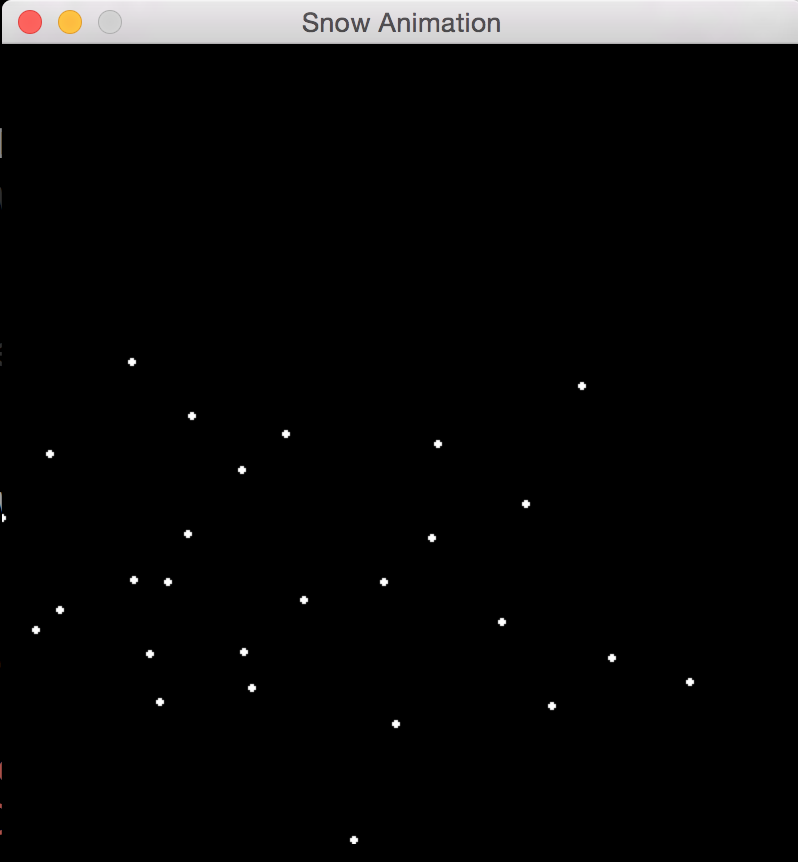
for i in range(len(snow_list)):
pygame.draw.circle(screen,WHITE,snow_list[i])
snow_list[i][1] += 1
if snow_list[i][1] > 400:
y = random.randrange(-50,-10)
snow_list[i][1] = y
x = random.randrange(0,400)
snow_list[i][0] =x
Section 3 - Controls
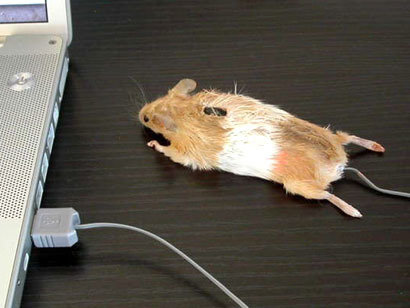
what mouse do you use?
Section 3 - Controls
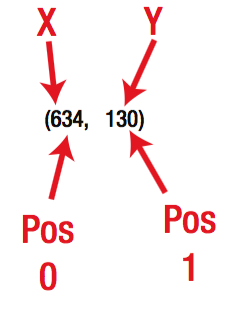
pos = pygame.mouse.get_pos()
Section 3 - Controls
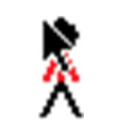
pygame.mouse.set_visible(False)
Section 3 - Controls
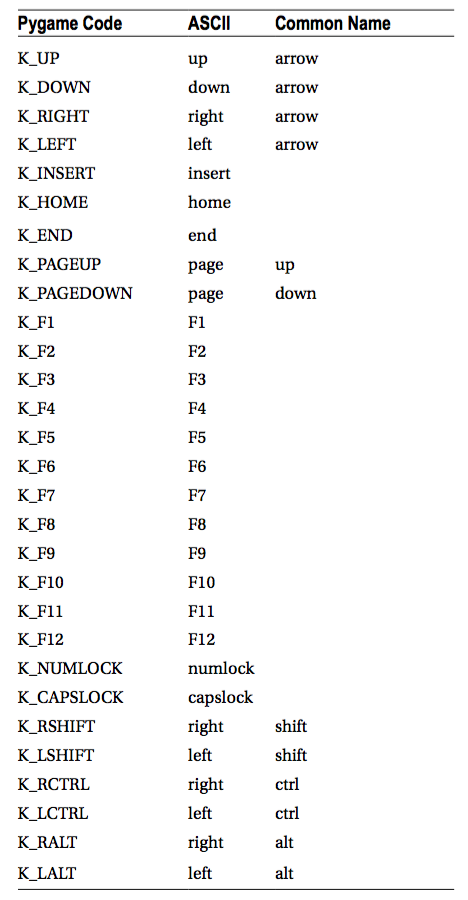
Keyboard!!
Section 3 - Controls
for event in pygame.event.get():
Section 3 - Controls
for event in pygame.event.get():
if event.type == pygame.QUIT:
done = true
elif event.type == pygame.KEYDOWN:
if event.key == pygame.K_LEFT:
x_speed = -3
if event.key == pygame.K_RIGHT:
x_speed = 3
Section 3 - Controls
Section 3 - Controls
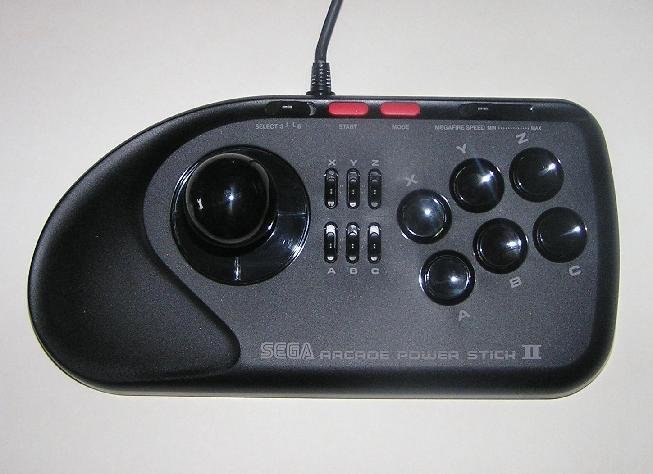
Joystick
Section 3 - Controls
joystick_count = pygame.joystick.get_count()
If joystick_count == 0:
print("ERROR! I didn't find any joystick!")
Section 3 - Controls
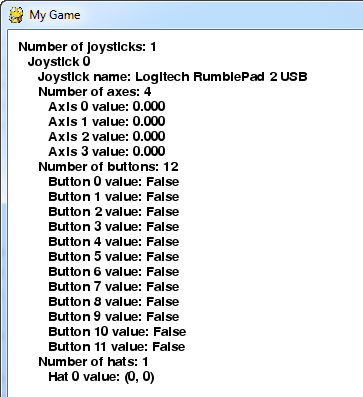
joystick_count = pygame.joystick.get_count()
If joystick_count != 0:
my_joystick = pygame.joystick.Joystick(0)
my_joystick.init()
Section 3 - Controls
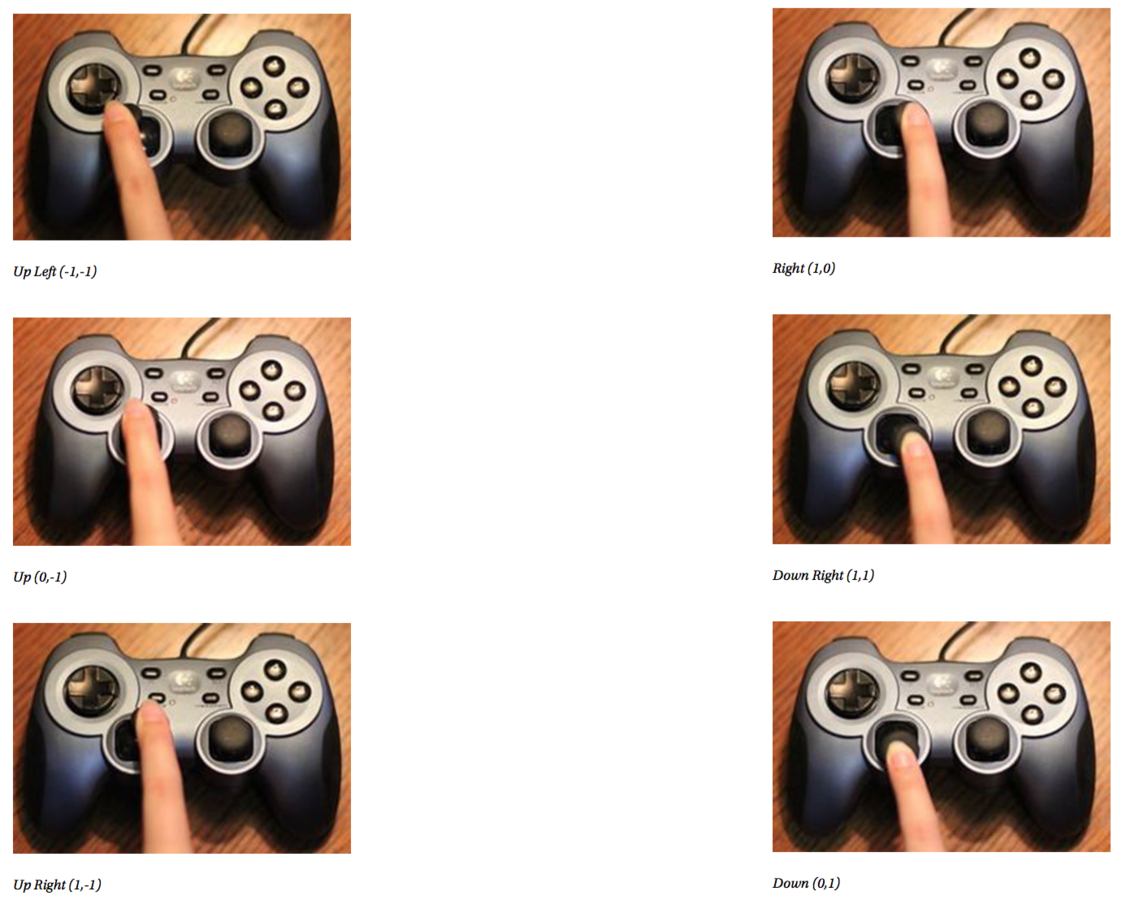
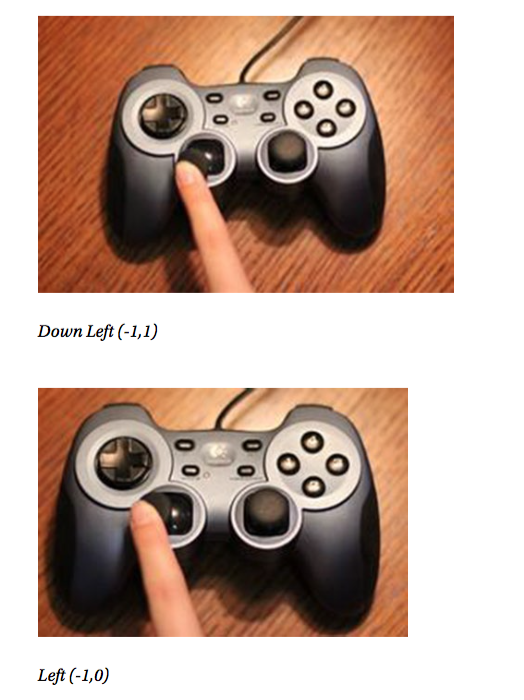
Section 3 - Controls
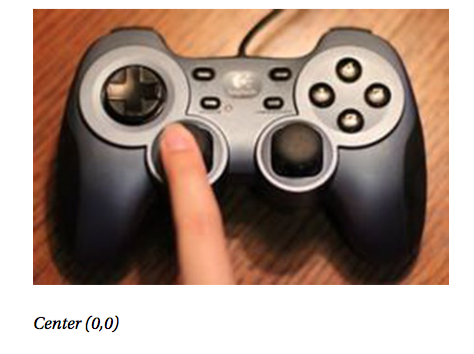
if joystick_count != 0:
horiz_axis_pos = my_joystick.get_axis(0)
vert_axis_pos = my_joystick.get_axis(1)
[ -1,0 .. 1,0 ]
x_coord = x_coord + int(horiz_axis_pos * 10)
y_coord = y_coord + int(vart_axis_pos * 10)
10 minutos
StickMan
StickMan
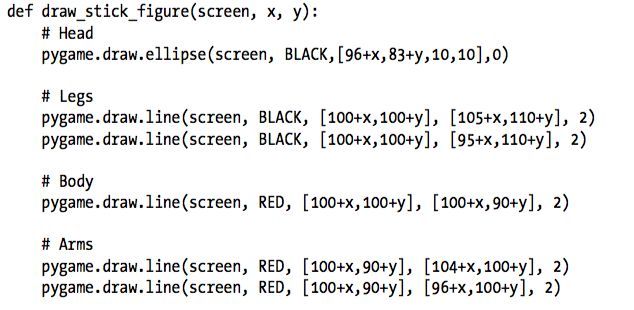
def draw_stick_figure(screen, x, y):
    # Head
    pygame.draw.ellipse(screen, BLACK,[96+x,83+y,10,10],0)
    # Legs
    pygame.draw.line(screen, BLACK, [100+x,100+y], [105+x,110+y], 2)
    pygame.draw.line(screen, BLACK, [100+x,100+y], [95+x,110+y], 2)
    # Body
    pygame.draw.line(screen, RED, [100+x,100+y], [100+x,90+y], 2)
    # Arms
    pygame.draw.line(screen, RED, [100+x,90+y], [104+x,100+y], 2)
    pygame.draw.line(screen, RED, [100+x,90+y], [96+x,100+y], 2)
Workshop Pygame Parte 1 18/02/2016
By Bruno Machado
Workshop Pygame Parte 1 18/02/2016
Apresentação do Workshop de Pygame para os concorrentes do pychallenge de dia 18 de Fevereiro de 2016. Esta apresentação introduz os temas: Gráficos, Animações e Controlos