























Content ITV PRO
This is Itvedant Content department
Learning Outcome
5
Manage file paths during automation testing.
4
Verify successful file uploads through validations.
3
Handle single and multiple file upload scenarios.
2
Upload files using Playwright with Java.
1
Understand the purpose of file uploads in web applications.
Recall
Playwright project setup and browser launch.
Locating web elements using locators.
Performing basic actions such as click(), fill(), and type().
Understanding HTML form controls and input fields.
Working with file paths in Java.
Writing and executing Playwright test scripts.
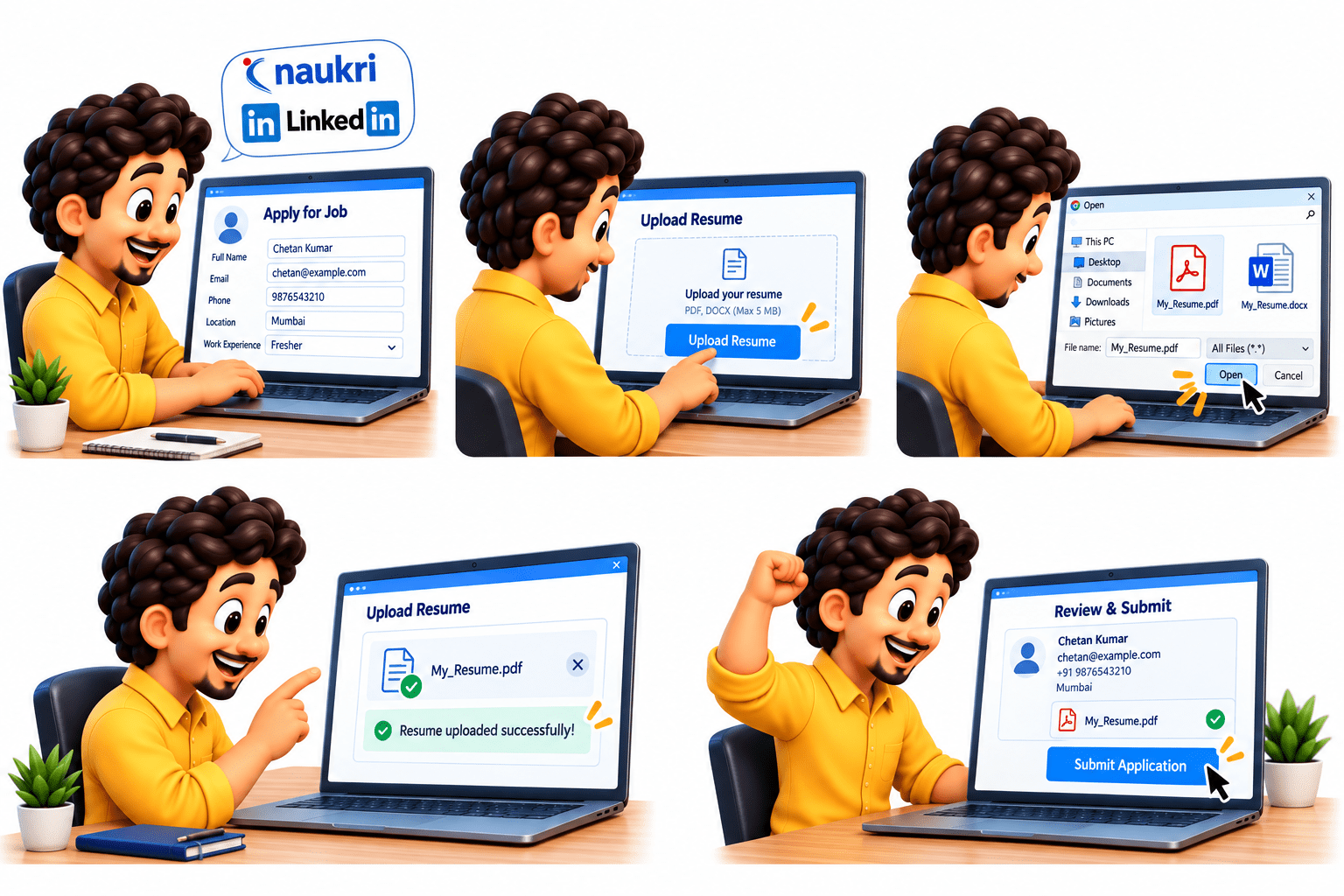
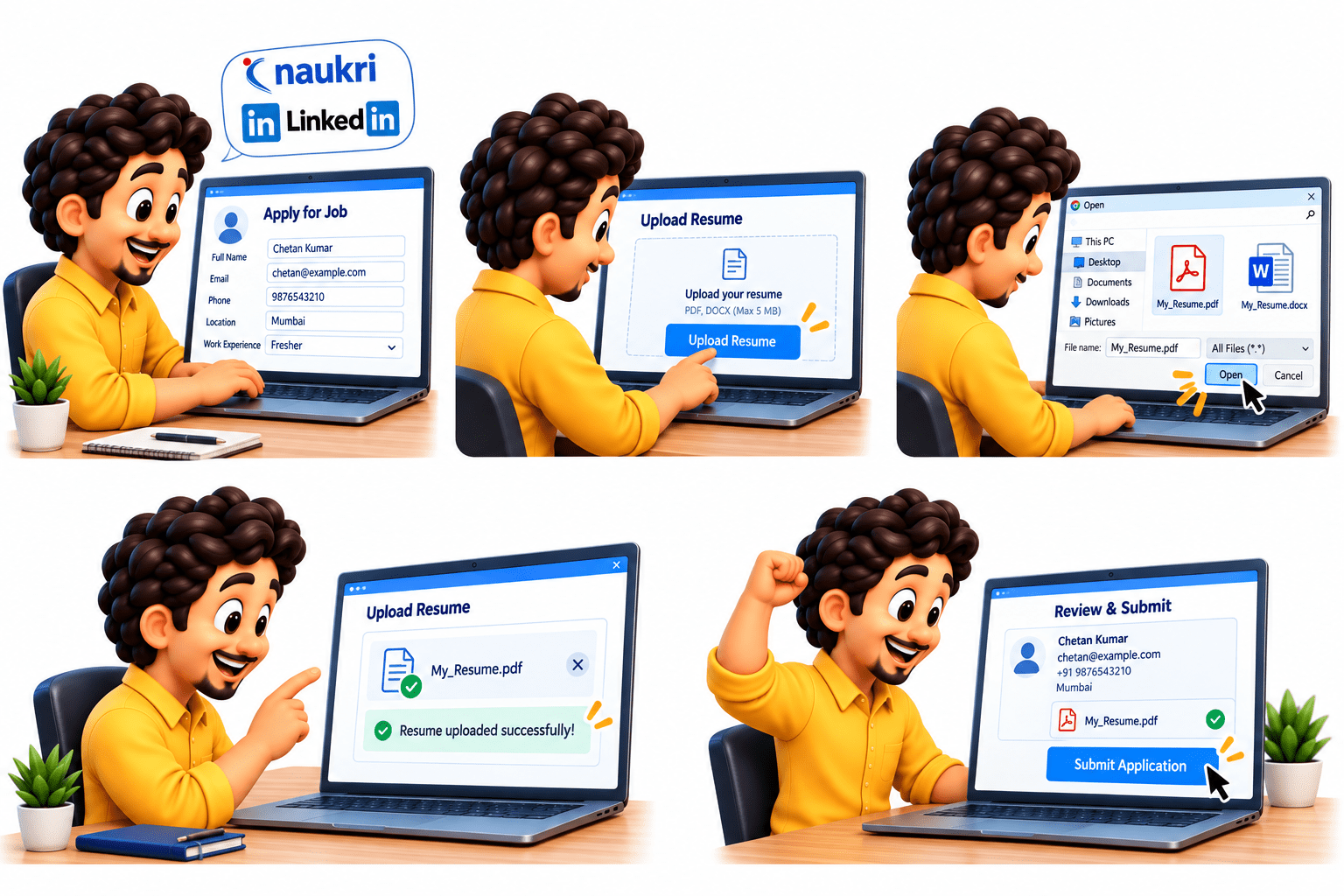
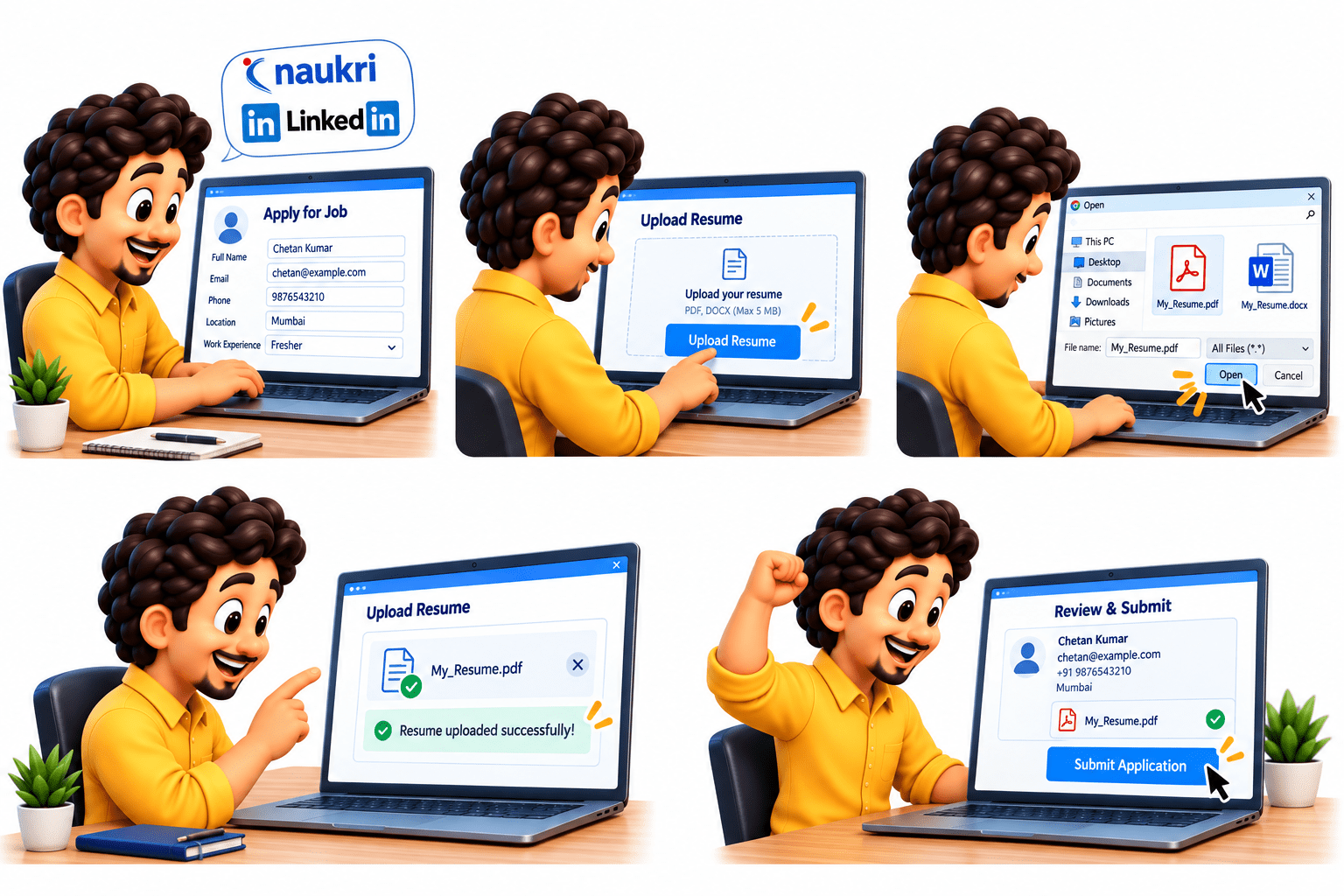
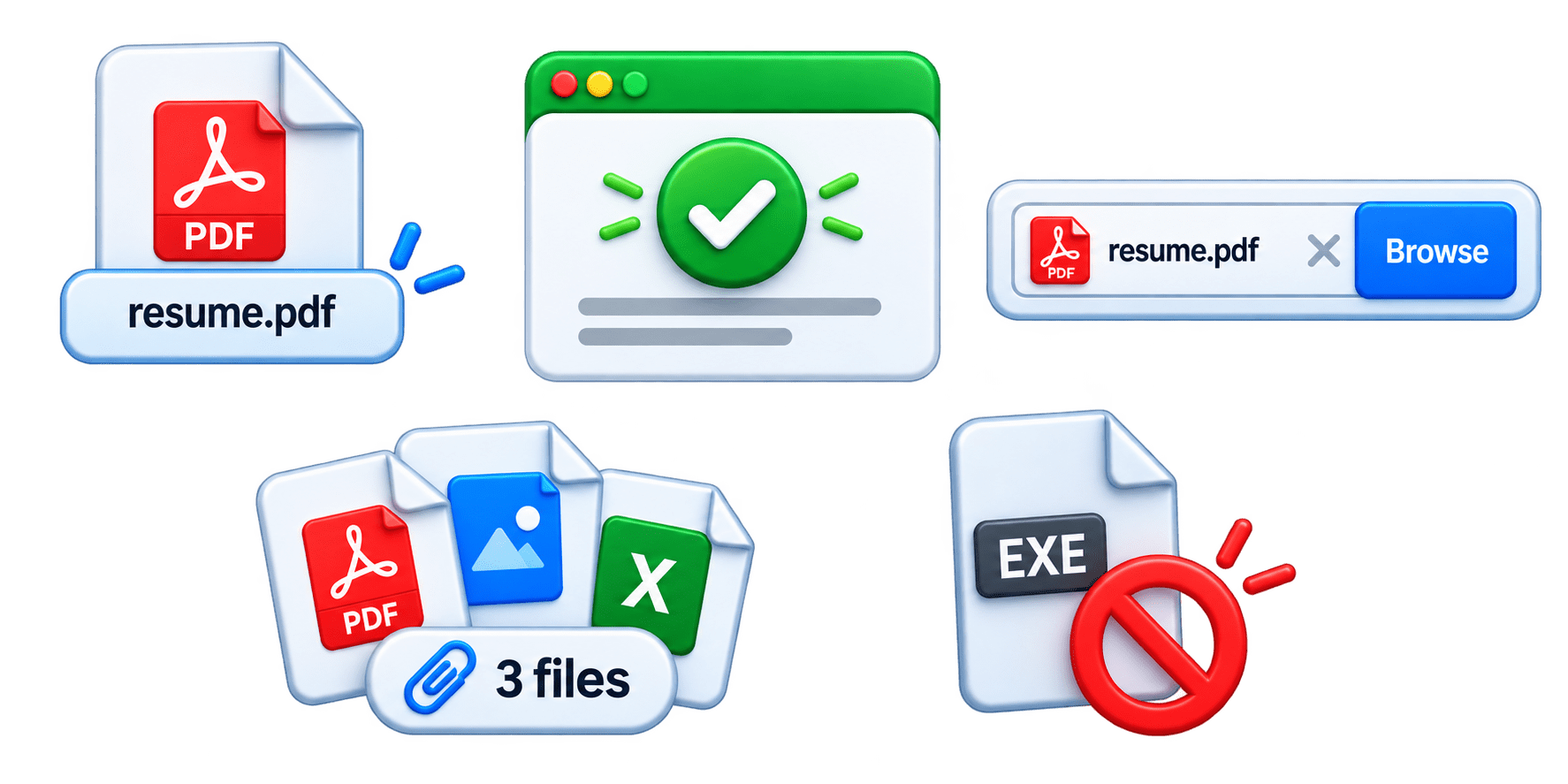
Uploading a Resume on a Job Portal
When applying for a job on websites like Naukri or LinkedIn:
You fill in your personal details.
Click the
"Upload Resume" button.
Select your resume file (PDF/DOCX) from your computer.
The website uploads the file and displays the uploaded resume name.
You submit the application.
In automation testing, Playwright performs the same process automatically by selecting the file and verifying that the resume was uploaded successfully.
Why File Upload Automation Is Required ?
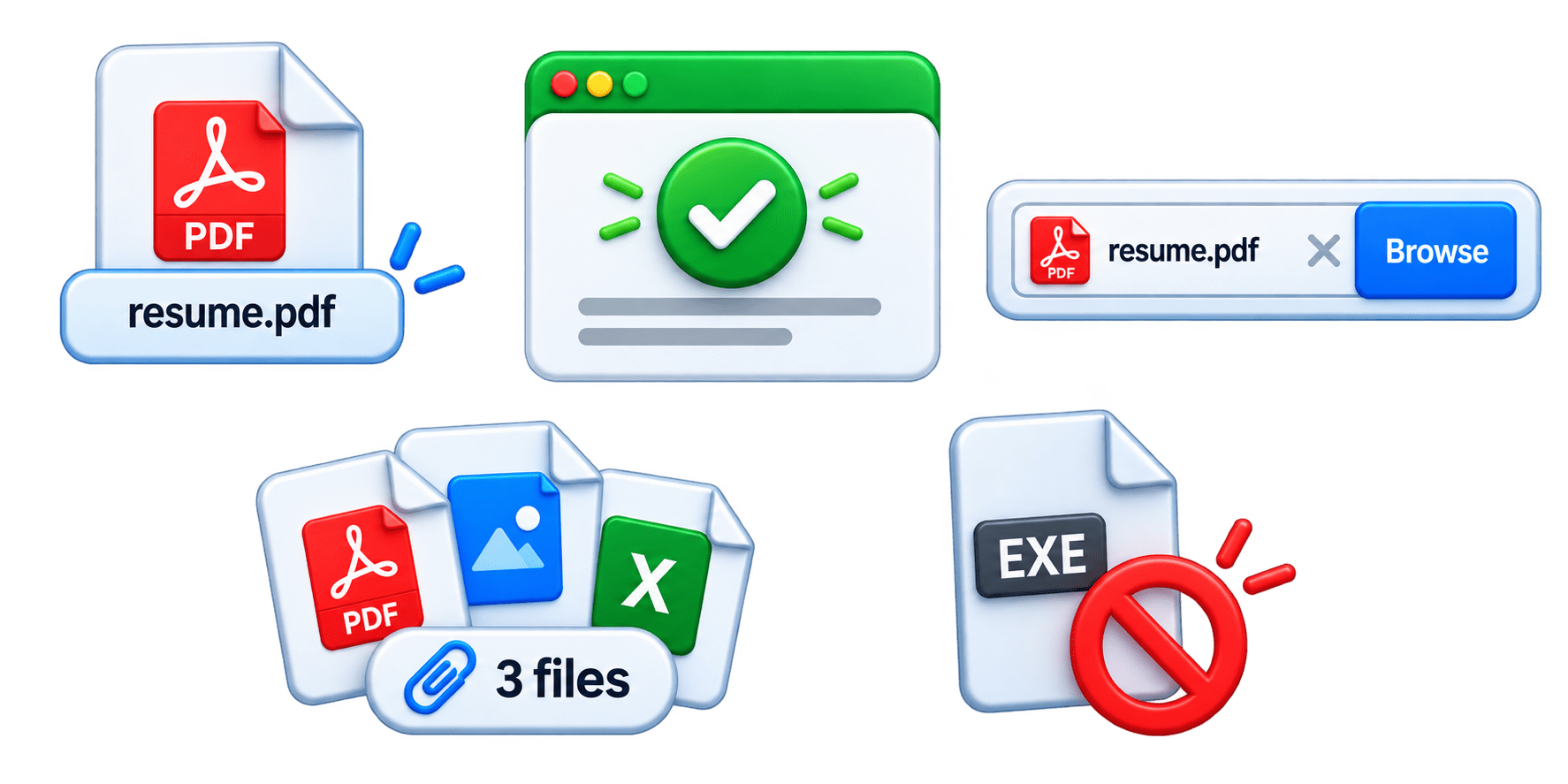
Images and icons
Professional design
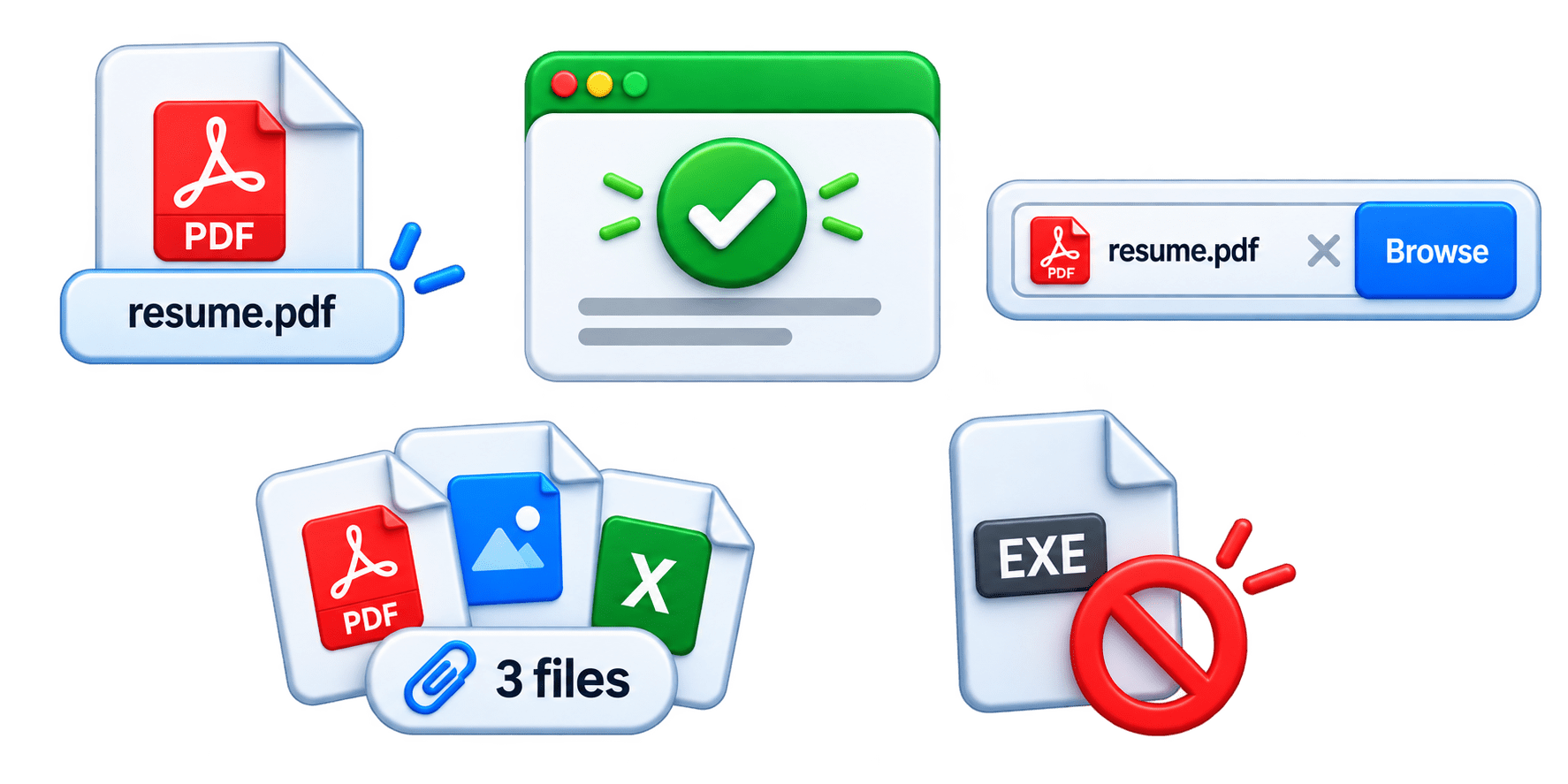
Saves time by automating repetitive file-upload tasks.
Reduces manual effort during testing.
Verifies file upload functionality works correctly.
Tests different file types and sizes automatically.
Why File Upload Automation Is Required ?
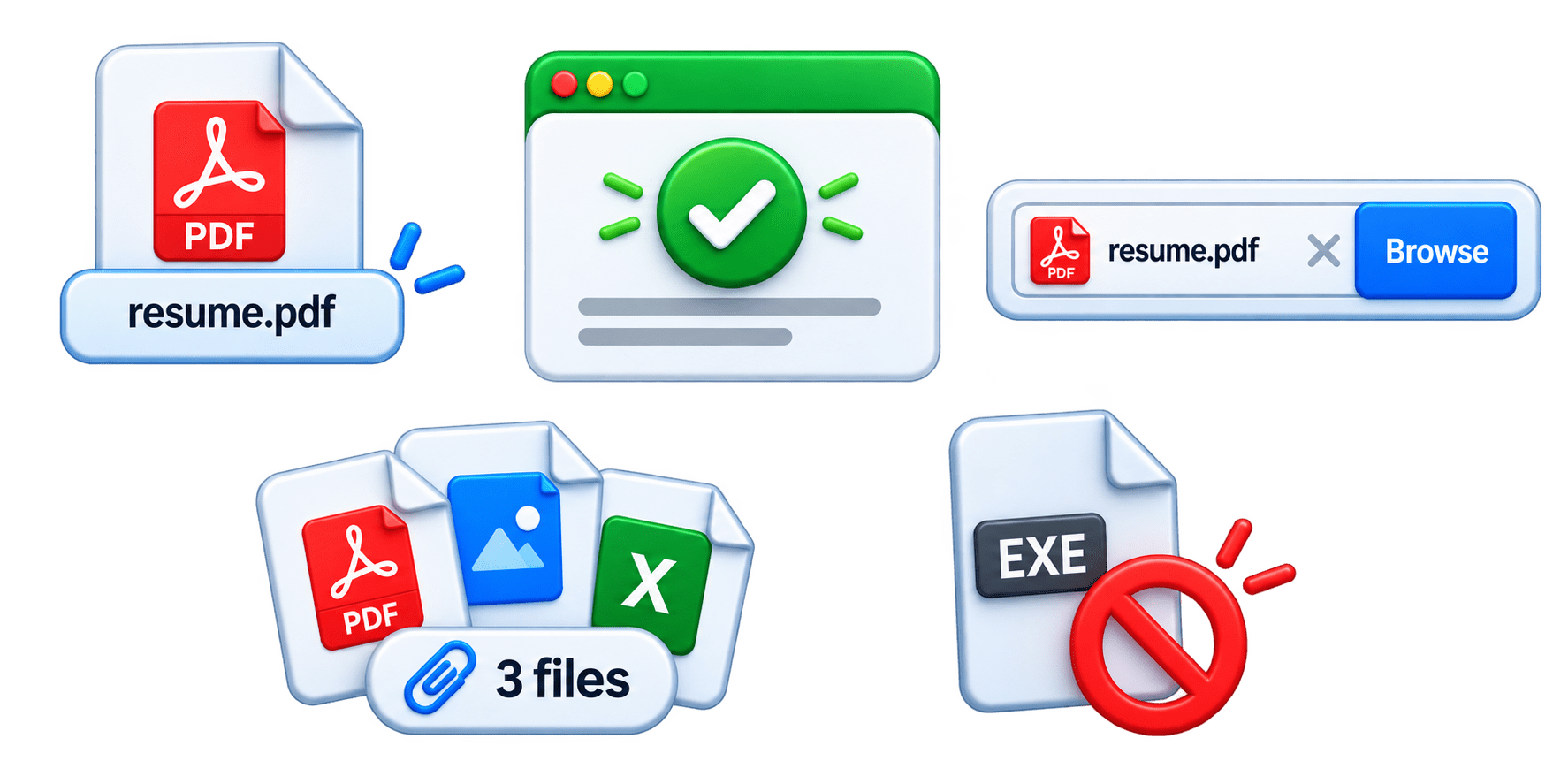
Images and icons
Professional design
Validates error handling for invalid files.
Improves test coverage for end-to-end workflows
Ensures consistent and reliable testing across multiple test runs.
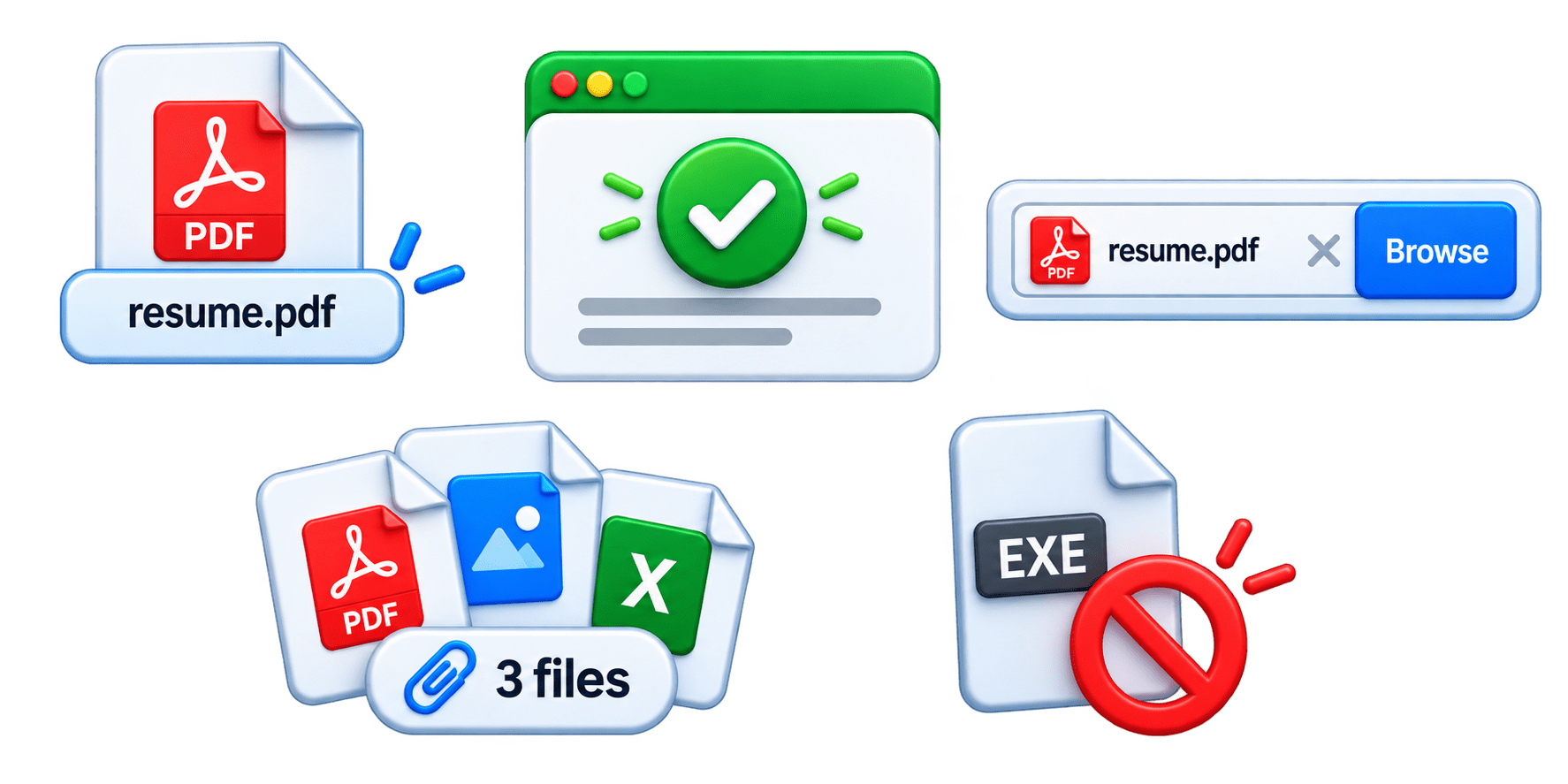
Types of File Upload Scenarios
Single File Upload
Upload one file, such as a resume or profile picture.
Multiple File Upload
Upload multiple files at the same time.
Specific File Type Upload
Upload only allowed formats such as PDF, JPG, or PNG.
Types of File Upload Scenarios
Invalid File Upload
Verify that unsupported file types are rejected.
Large File Upload
Test file-size restrictions and validation messages.
Optional File Upload
Verify that the form works even when no file is uploaded.
Handling File Upload in Playwright
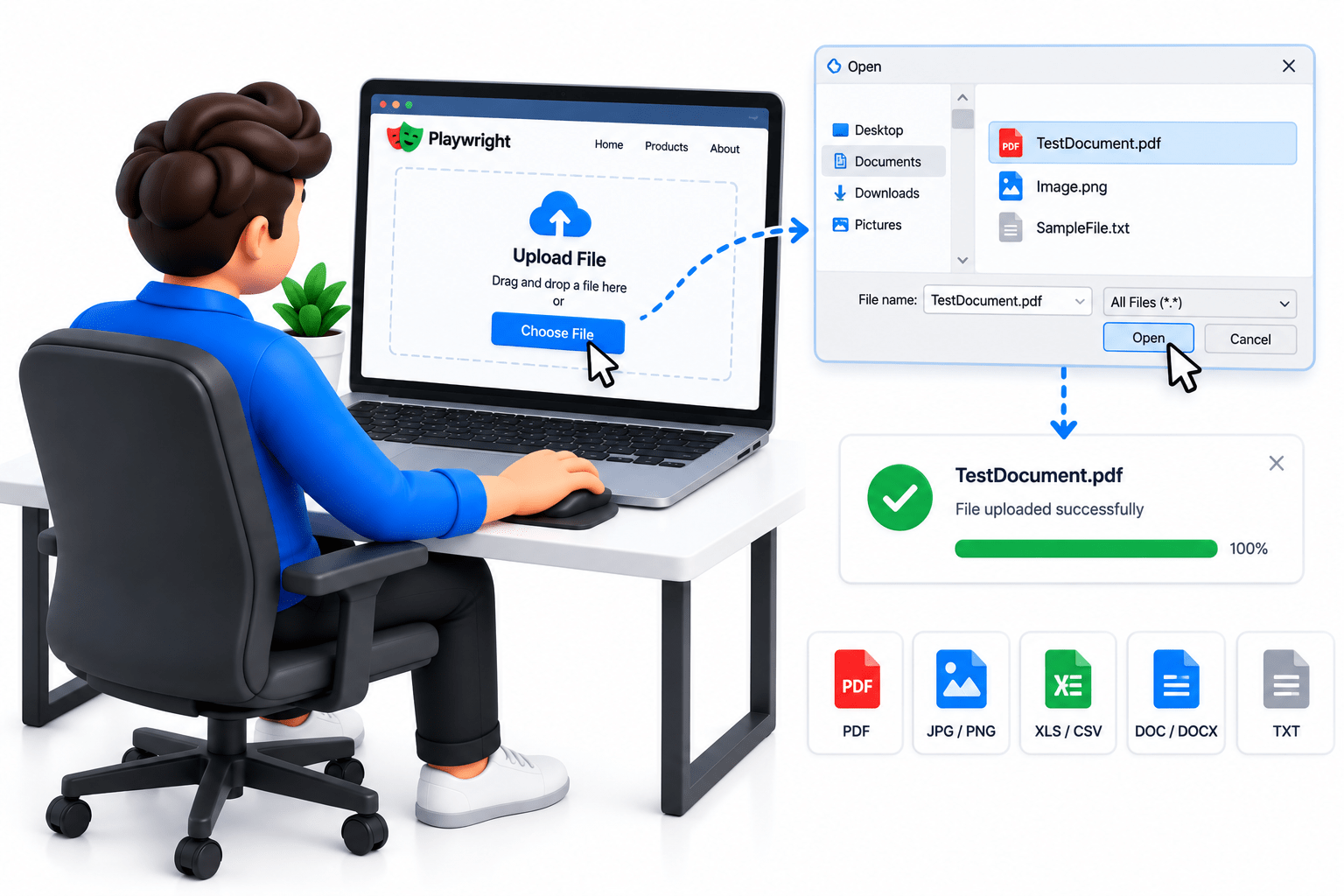
Playwright provides the setInputFiles() method to upload files directly through a file input element.
page.locator("input[type='file']").setInputFiles("C:\\Files\\resume.pdf");Basic Syntax
Locate the file upload element
Provide the file path using setInputFiles().
Playwright automatically selects the file.
Verify that the file was uploaded successfully.
Steps
Handling File Upload in Playwright
@Test
public void uploadFile() {
    page.navigate("https://example.com/upload");

    page.locator("input[type='file']")
        .setInputFiles("C:\\Files\\resume.pdf");

    System.out.println("File uploaded successfully");
}
Example
Note: setInputFiles() is mainly used with an HTML <input type="file"> element.
setInputFiles() directly sets the file to the upload control.
The file path can be absolute or relative.
It works with <input type="file">.
No need to interact with the operating system's file chooser manually.
For multiple files, you can provide multiple file paths.
Key Points
page.locator("#fileUpload").setInputFiles(
    new String[] {
        "C:\\Files\\resume.pdf",
        "C:\\Files\\photo.jpg"
    }
)
Multiple Files
setInputFiles() → Locate file input → Provide file path → File gets selected/uploaded
Validating Uploaded Files
After uploading a file, we should verify that the file was uploaded successfully.
Common validations
Verify the uploaded file name is displayed.
Verify the success message appears.
Verify the file input contains the selected file.
Verify the uploaded file count for multiple uploads.
Verify that invalid file types are rejected.
page.locator("#fileUpload")
    .setInputFiles("C:\\Files\\resume.pdf");

String fileName = page.locator("#fileName").textContent();

System.out.println("Uploaded File: " + fileName);
Example
Using an assertion:
Assert.assertTrue(
    page.locator("#fileName").isVisible(),
    "File was not uploaded successfully"
);
Handling File Paths in Java
String filePath = "C:\\Files\\resume.pdf";

page.locator("#fileUpload").setInputFiles(filePath);
In Java, use \\ for Windows folder separators.
Absolute File Path
Specifies the complete location of the file.
A file path tells Playwright where the file is stored on the computer.
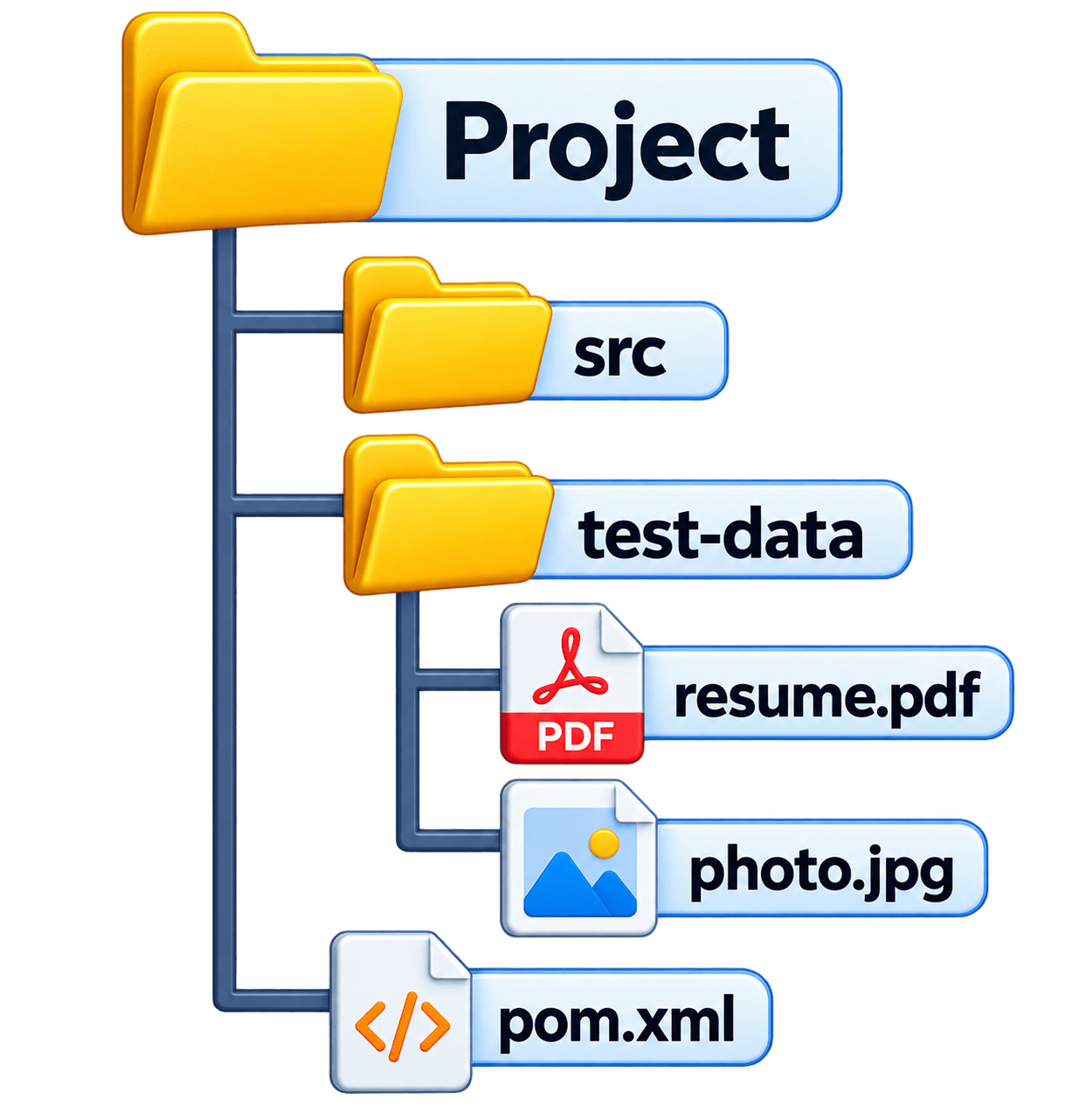
String filePath = "test-data/resume.pdf";

page.locator("#fileUpload").setInputFiles(filePath);
Specifies the complete location of the file.
Absolute File Path
Specifies the complete location of the file.
Absolute File Path
Specifies the file location relative to the project.
Relative File Path
String filePath = Paths.get("test-data", "resume.pdf")
                       .toAbsolutePath()
                       .toString();

page.locator("#fileUpload").setInputFiles(filePath);
Absolute File Path
Specifies the complete location of the file.
For better path handling, Java's Paths can be used:
Using Paths in Java
This makes file-upload tests portable, organized, and easier to maintai
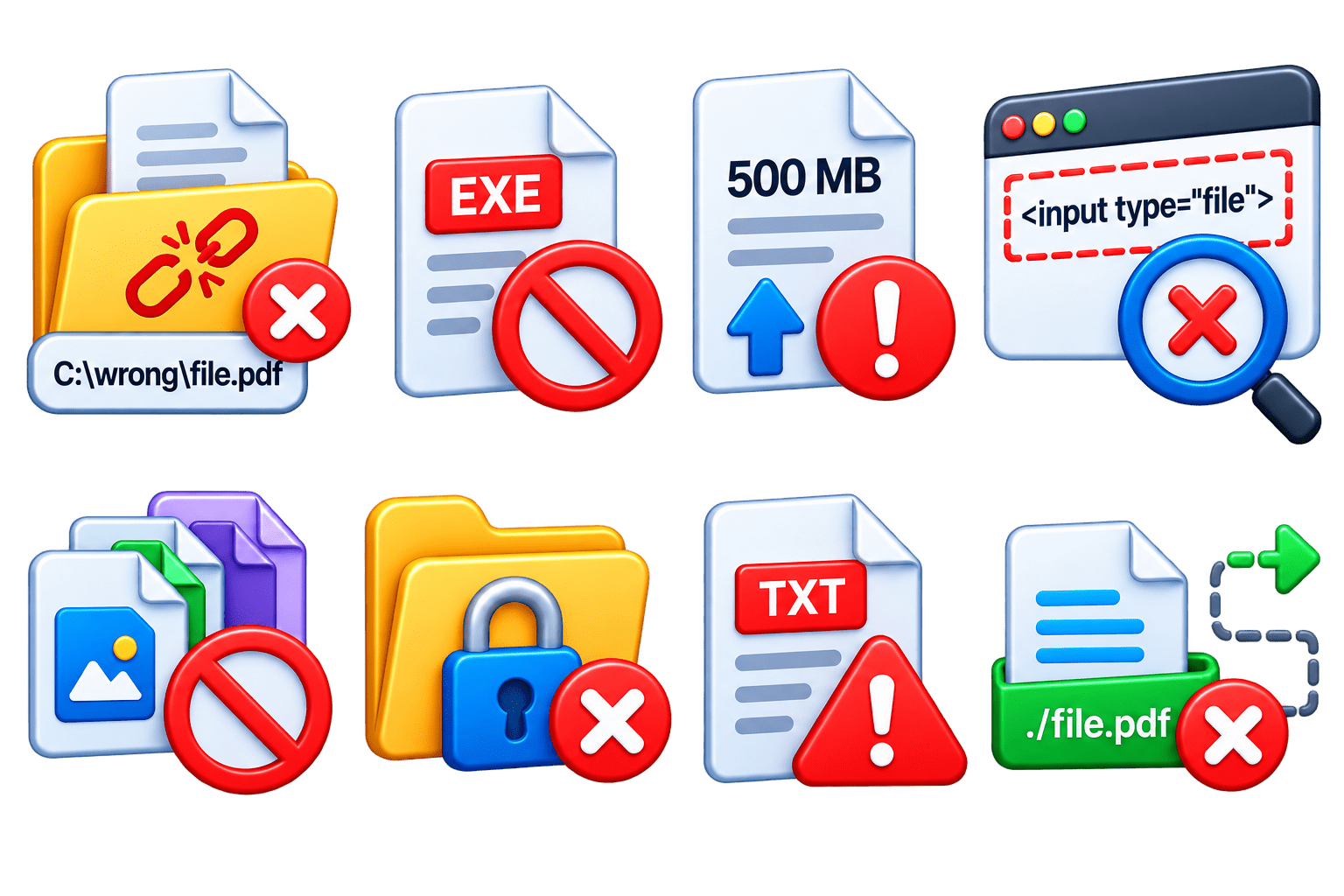
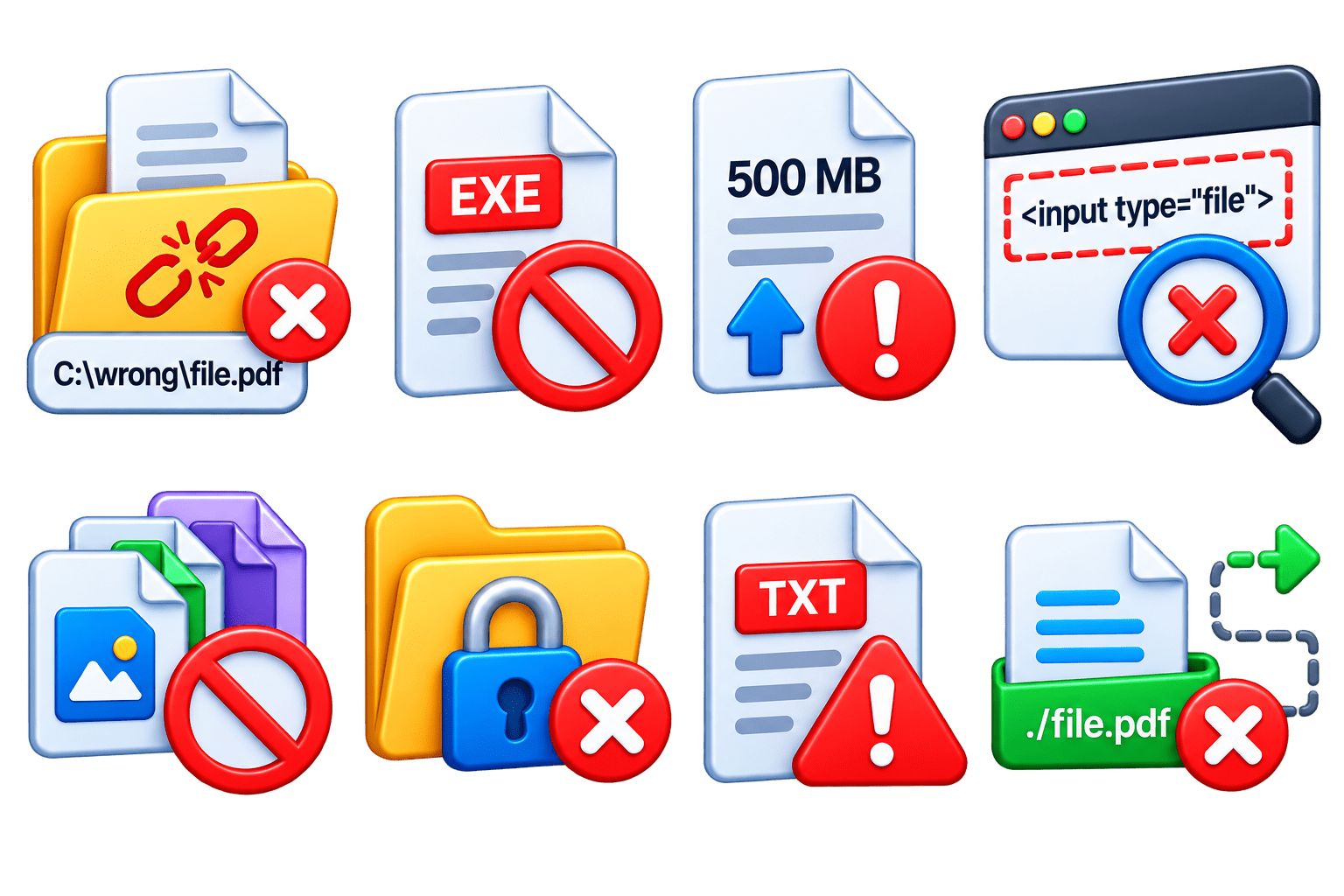
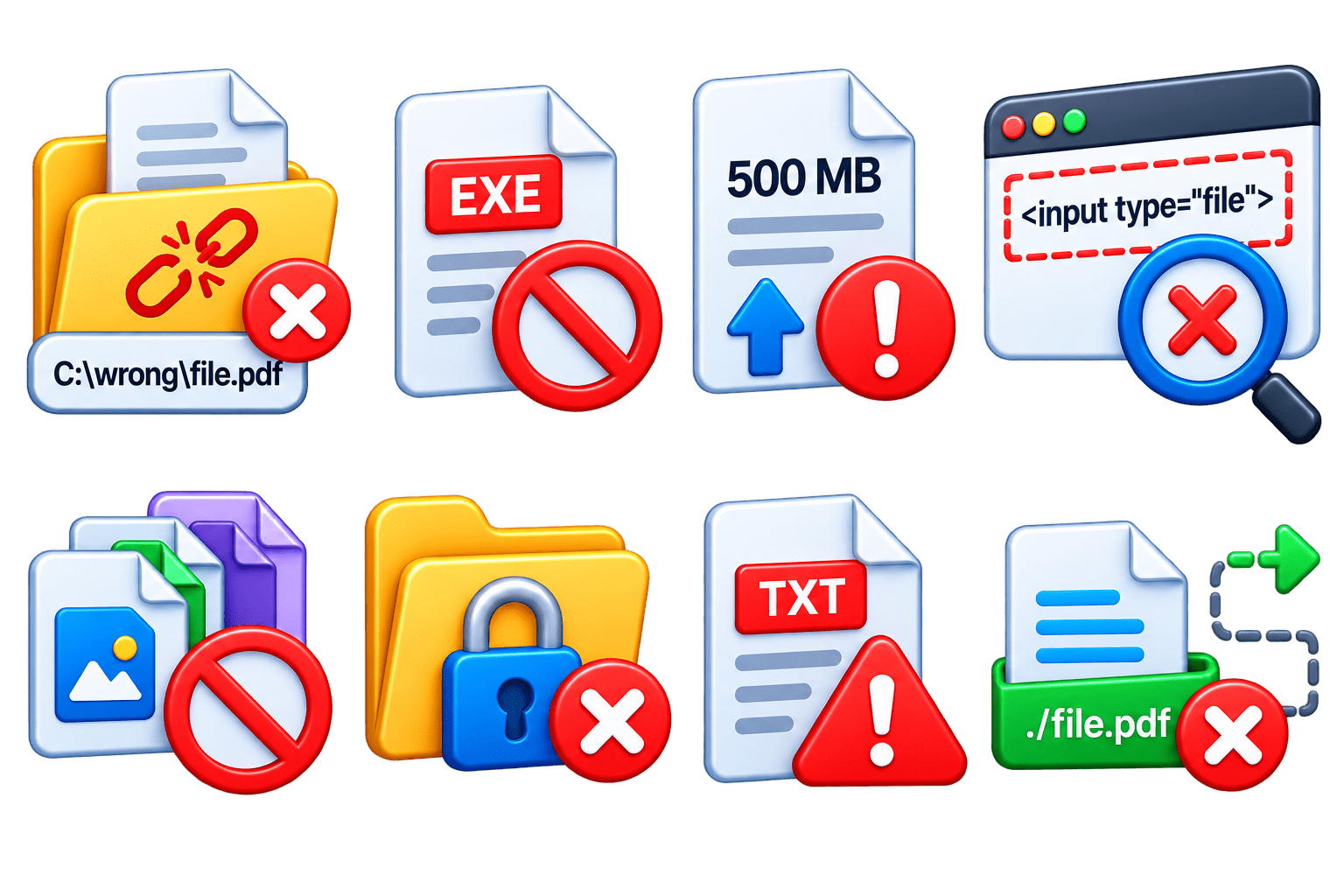
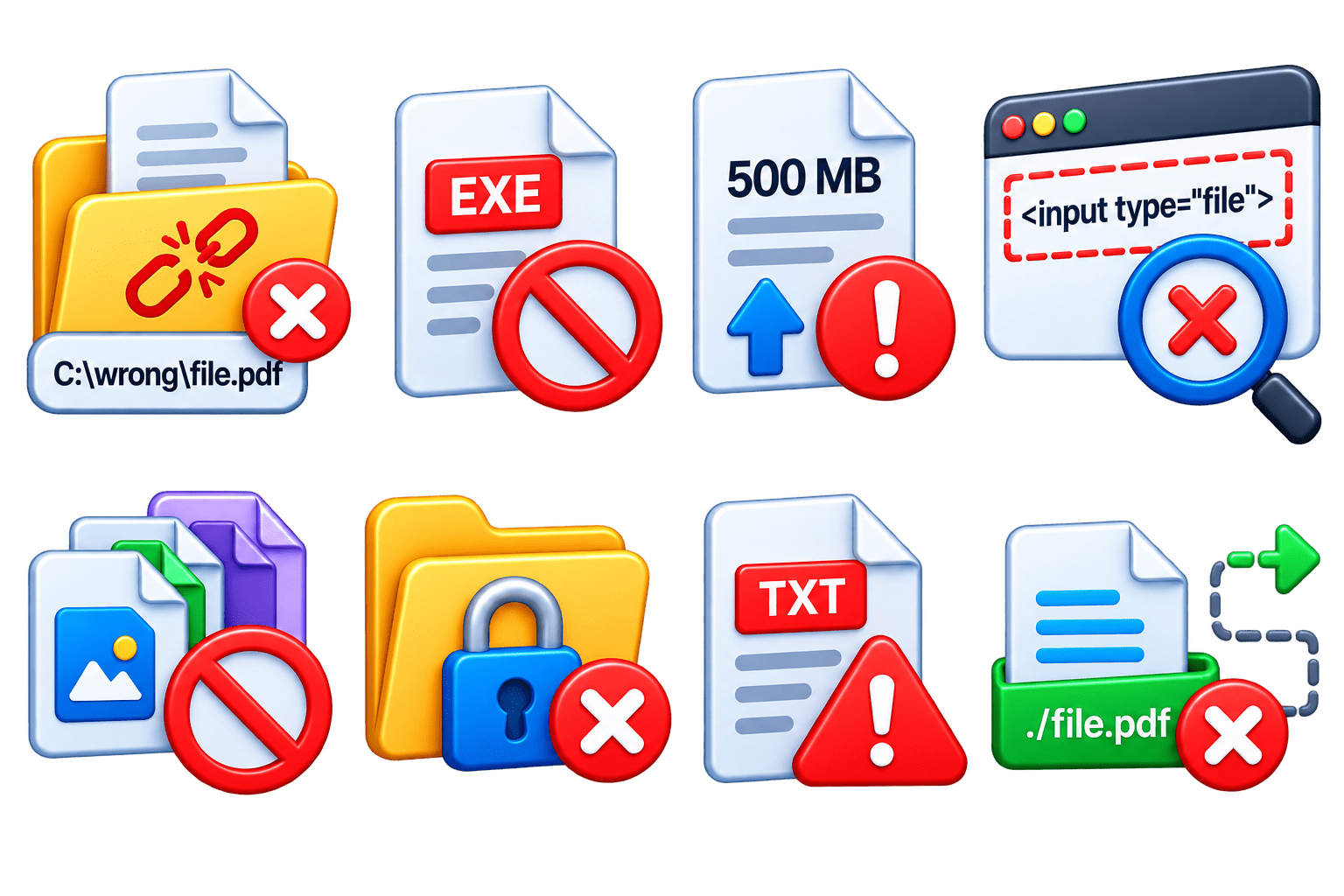
Common File Upload Issues
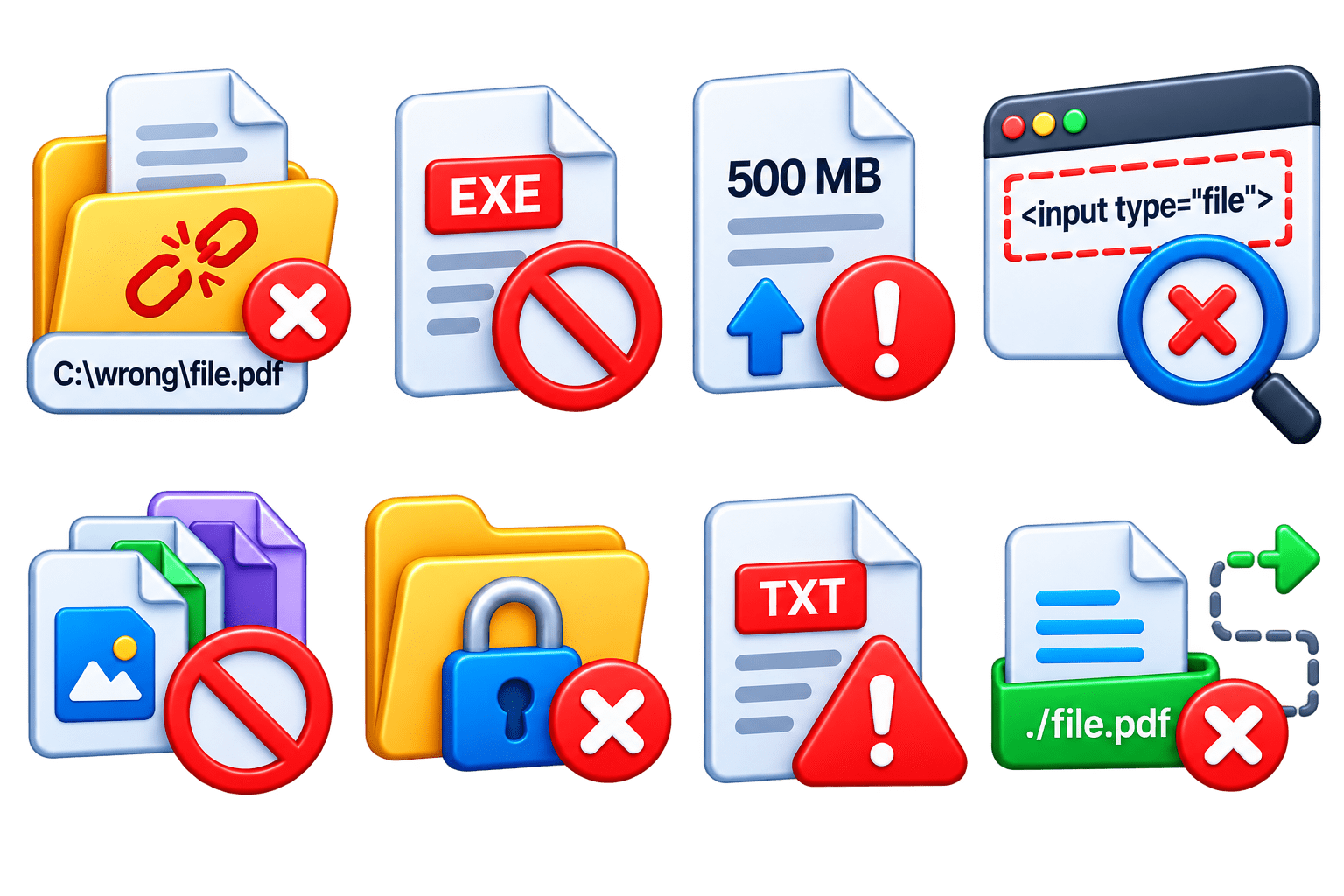
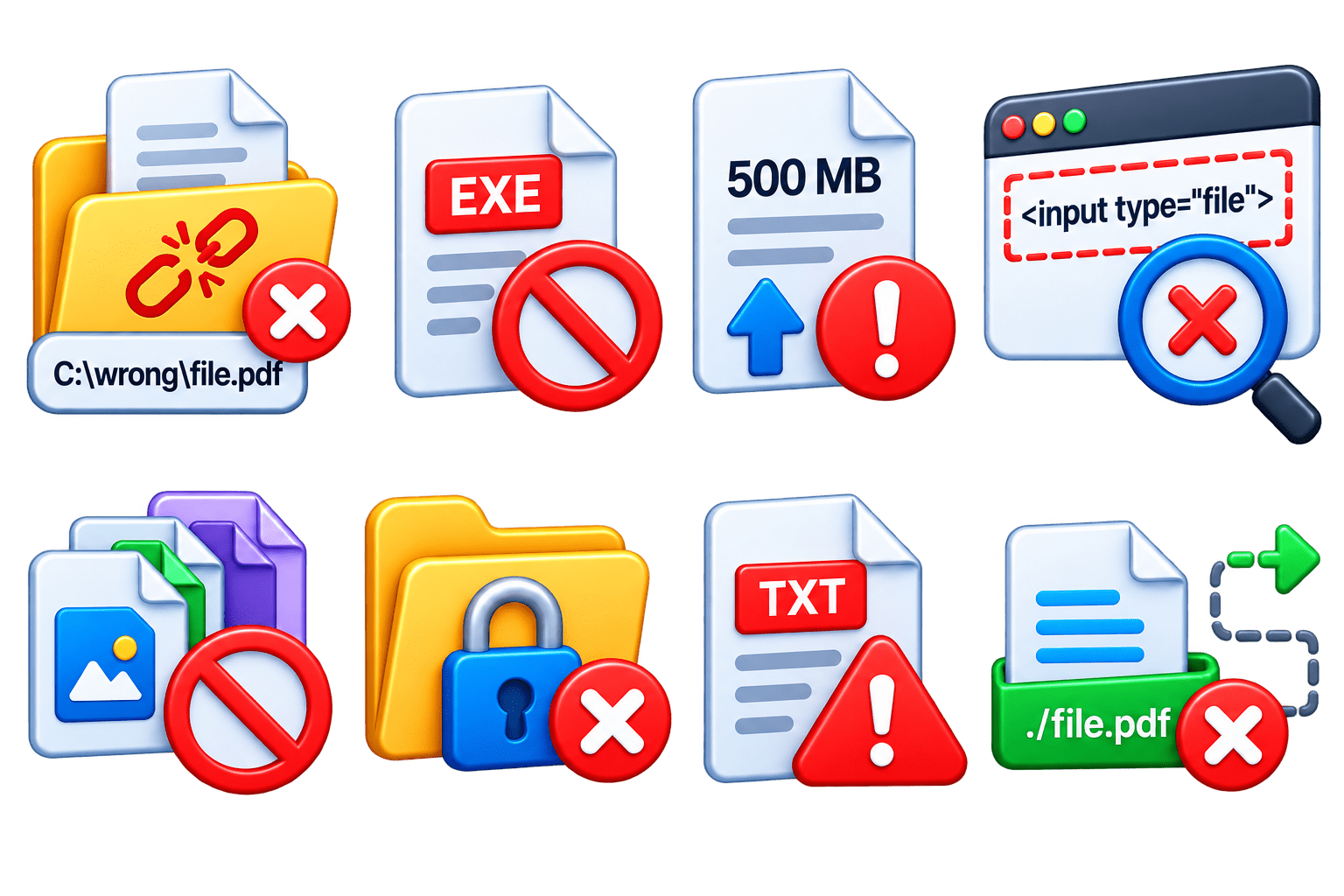
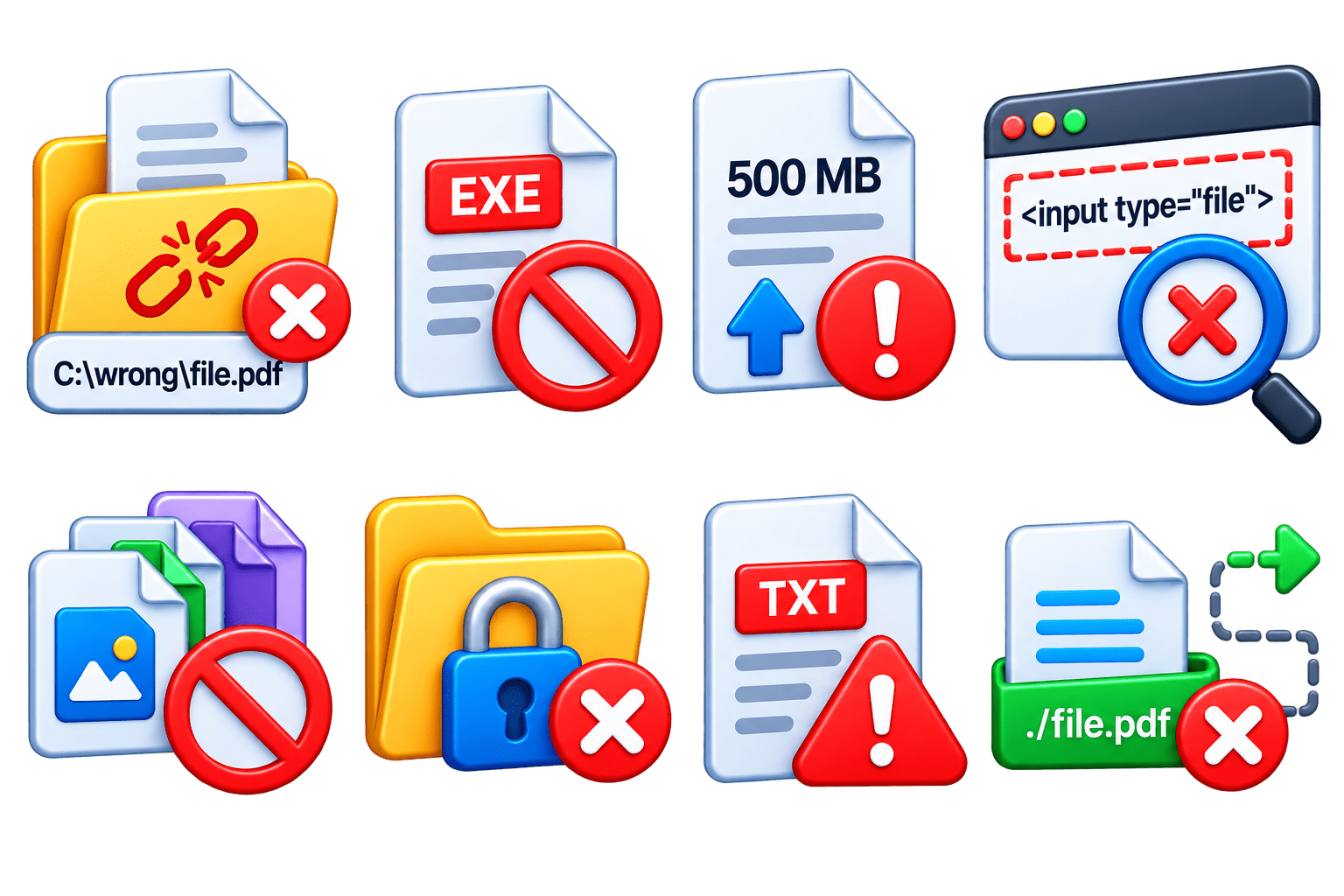
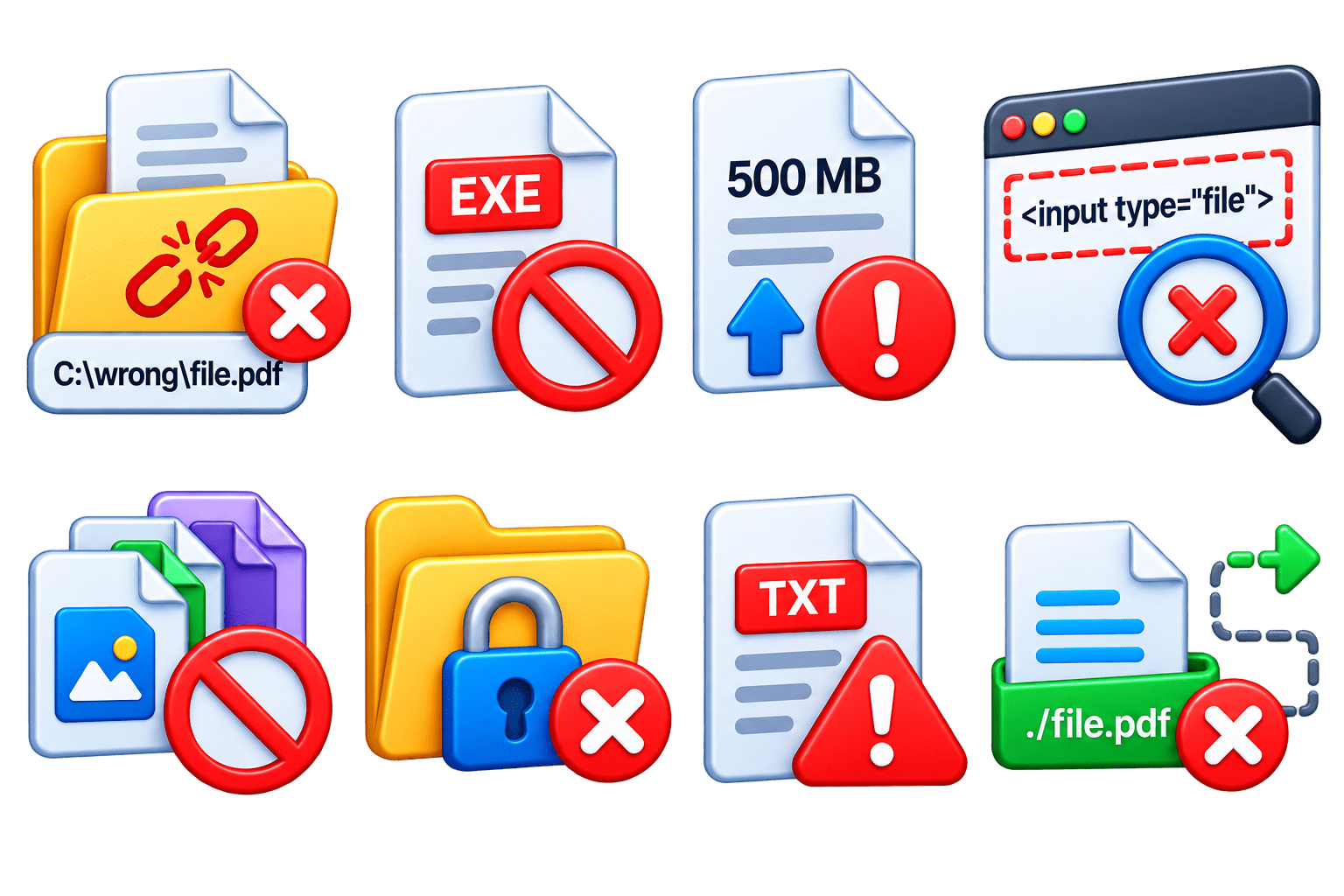
Incorrect file path
The specified file location is wrong or the file does not exist.
Unsupported file type
The application may reject formats such as .exe or other restricted files.
File size limit
Large files may be rejected by the application.
Incorrect locator
Playwright cannot find the <input type="file"> element.
Multiple upload not supported
The input must have the multiple attribute to upload multiple files.
Permission issues
The test may not have access to the required file or folder.
Invalid file format
The application may display an error for an invalid extension or content.
Wrong relative path
The specified file location is wrong or the file does not exist.The test may work on one machine but fail when the project is moved or executed elsewhere.
Practical File Upload Automation
Navigate to Upload Page
page.navigate("https://example.com/upload");Locate the File Upload Element
Locator upload = page.locator("#fileUpload");Upload the File
upload.setInputFiles("C:\\Files\\resume.pdf");Scenario: Automate uploading a resume on a web application.
Verify Upload
Assert.assertTrue(
    page.locator("#uploadedFile").isVisible(),
    "File upload failed"
);
Practical Flow
Open page → Locate upload control → Select file → Upload → Validate result
This practical demonstrates how setInputFiles() can be used in a real Playwright with Java automation test.
@Test
public void uploadResume() {

    page.navigate("https://example.com/upload");

    page.locator("#fileUpload")
        .setInputFiles("C:\\Files\\resume.pdf");

    Assert.assertTrue(
        page.locator("#uploadedFile").isVisible(),
        "File upload failed"
    );

    System.out.println("Resume uploaded successfully");
}
Example
Summary
5
Test file types, sizes, and errors.
4
Validate successful file uploads.
3
Handle file paths easily.
2
Support single and multiple file uploads.
1
Upload files using setInputFiles()
Quiz
Which method is used to upload a file in Playwright?
A. uploadFile()
B. setInputFiles()
C. selectFile()
D. sendFile()
Quiz-Answer
Which method is used to upload a file in Playwright?
A. uploadFile()
B. setInputFiles()
C. selectFile()
D. sendFile()
By Content ITV