


















Content ITV PRO
This is Itvedant Content department
Learning Outcome
5
Use screenshots to validate and troubleshoot automated test execution.
4
Capture screenshots during test failures for debugging.
3
Save screenshots with meaningful file names and paths.
2
Capture screenshots of web pages and specific elements.
1
Understand the purpose of screenshots in Playwright automation.
Recall
Browser, Context & Page → control web pages.
Locators → identify web elements.
Web Actions → click, fill, and select elements.
Assertions → verify expected results.
TestNG → manage test execution.
Java File Paths → handle file locations.
You select the movie, seats, and payment option.
After successful payment, you take a screenshot of the booking confirmation.
Imagine you are booking a movie ticket online.
The screenshot acts as proof that the booking was completed successfully.
If there is any issue later, you can use the screenshot to check what was displayed at that time.
Similarly, in Playwright automation, screenshots capture the current state of the webpage so testers can verify results and investigate failures.
Why Screenshots Are Required ?
Verify the visual state of a webpage during test execution.
Debug test failures by seeing what appeared on the screen.
Capture evidence when a test case fails or an unexpected result occurs.
Validate UI changes such as buttons, messages, forms, and page layouts.
Images and icons
Professional design
Support test reports by attaching screenshots to failed test cases.
Track dynamic issues where the page content changes during execution.
Why Screenshots Are Required ?
Capturing Screenshots in Playwright
Playwright provides the screenshot() method to capture the current state of a webpage during test execution.
page.screenshot(new Page.ScreenshotOptions()
    .setPath(Paths.get("screenshots/homepage.png")));
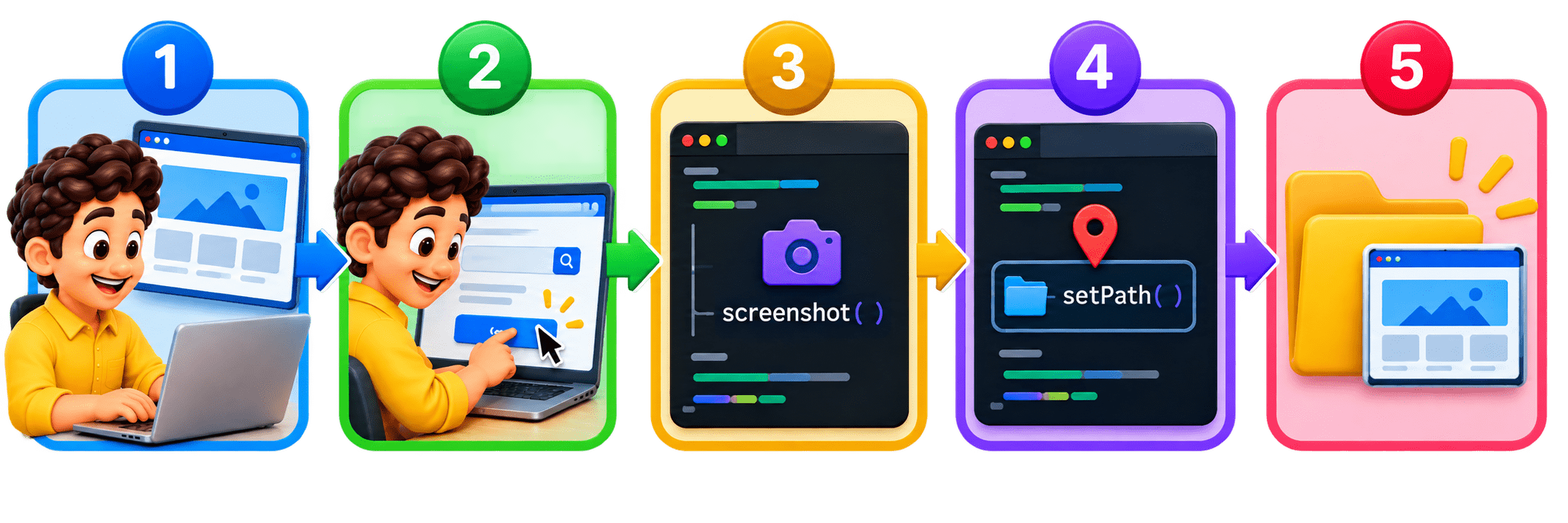
Open the required webpage.
Perform the required test actions.
Call the screenshot() method.
Specify the location and filename using setPath().
Playwright saves the screenshot as an image file.
import com.microsoft.playwright.*;
import java.nio.file.Paths;

public class ScreenshotExample {
    public static void main(String[] args) {
        try (Playwright playwright = Playwright.create()) {
            Browser browser = playwright.chromium().launch(
                new BrowserType.LaunchOptions().setHeadless(false)
            );
            Page page = browser.newPage();
            page.navigate("https://example.com");
            page.screenshot(new Page.ScreenshotOptions()
                .setPath(Paths.get("screenshots/example.png")));
            browser.close();
        }
    }
}
Example
page.screenshot() captures the current page state, while setPath() specifies where the screenshot should be saved.
Types of Screenshots
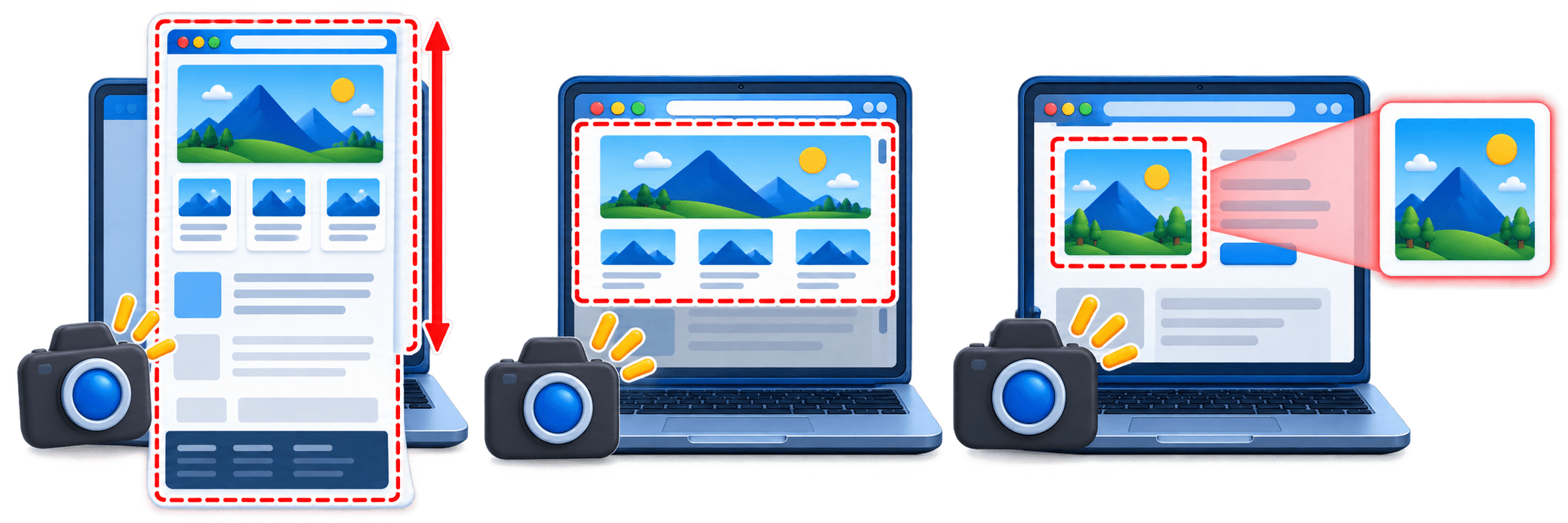
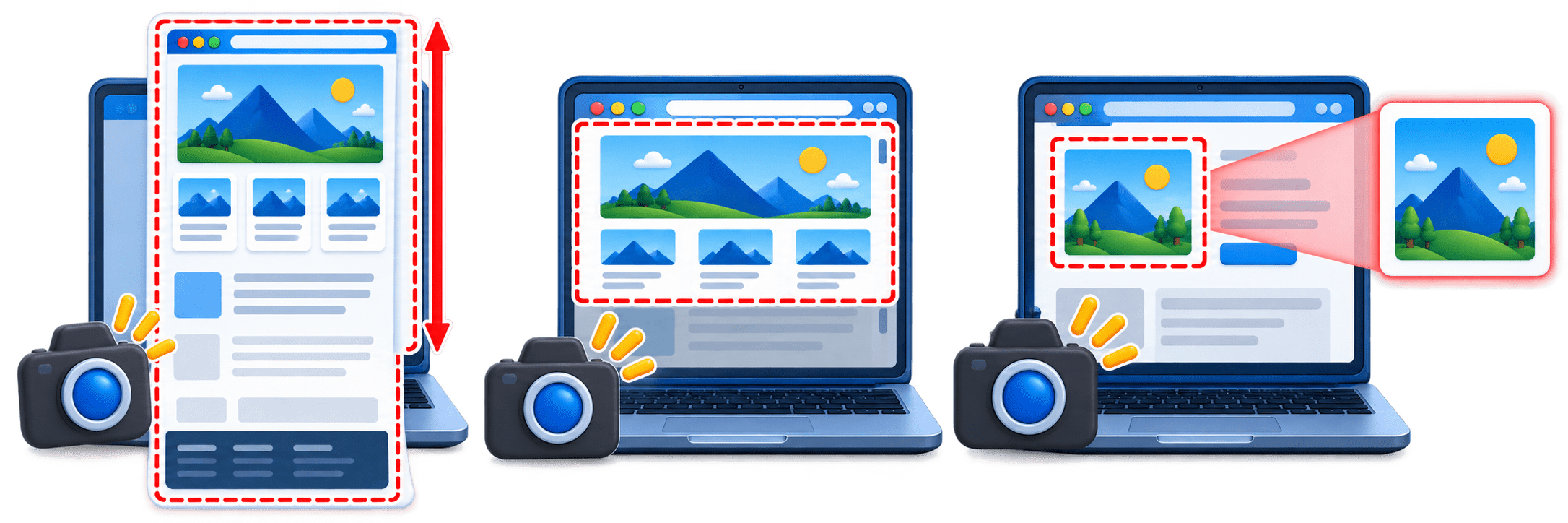
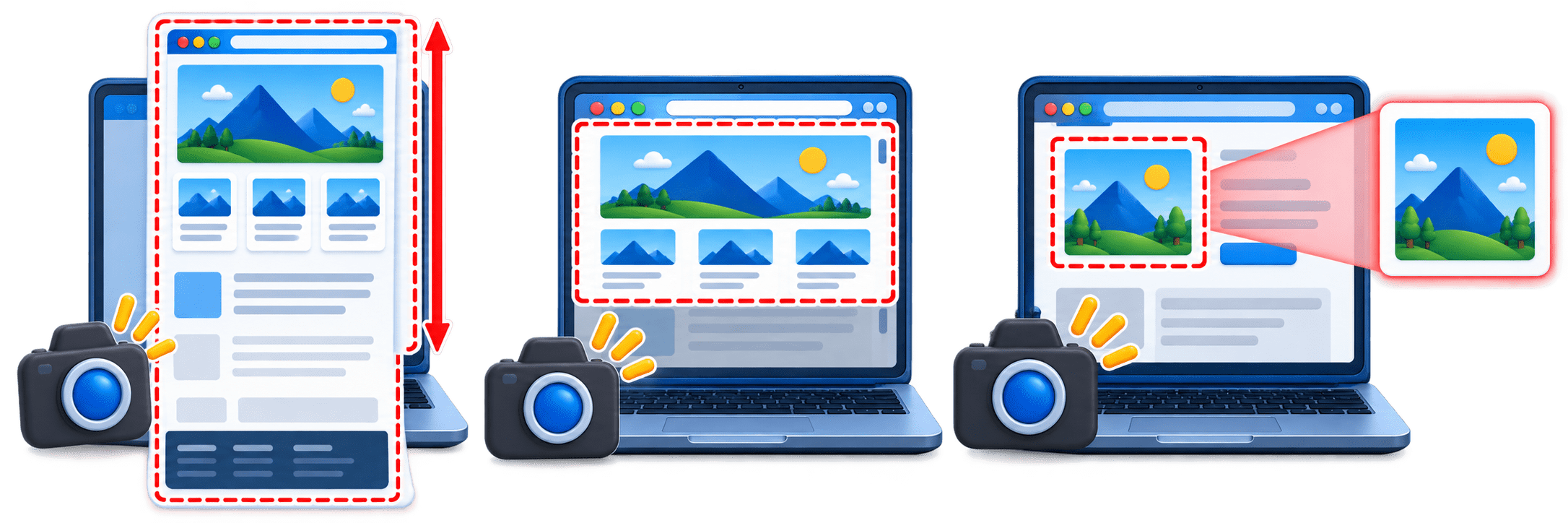
Full Page Screenshot
Captures the complete webpage, including content outside the current viewport.
Useful for documenting the entire page.
Viewport Screenshot
Captures only the currently visible portion of the webpage.
Useful for checking what the user sees on the screen.
Element Screenshot
Captures only a specific web element.
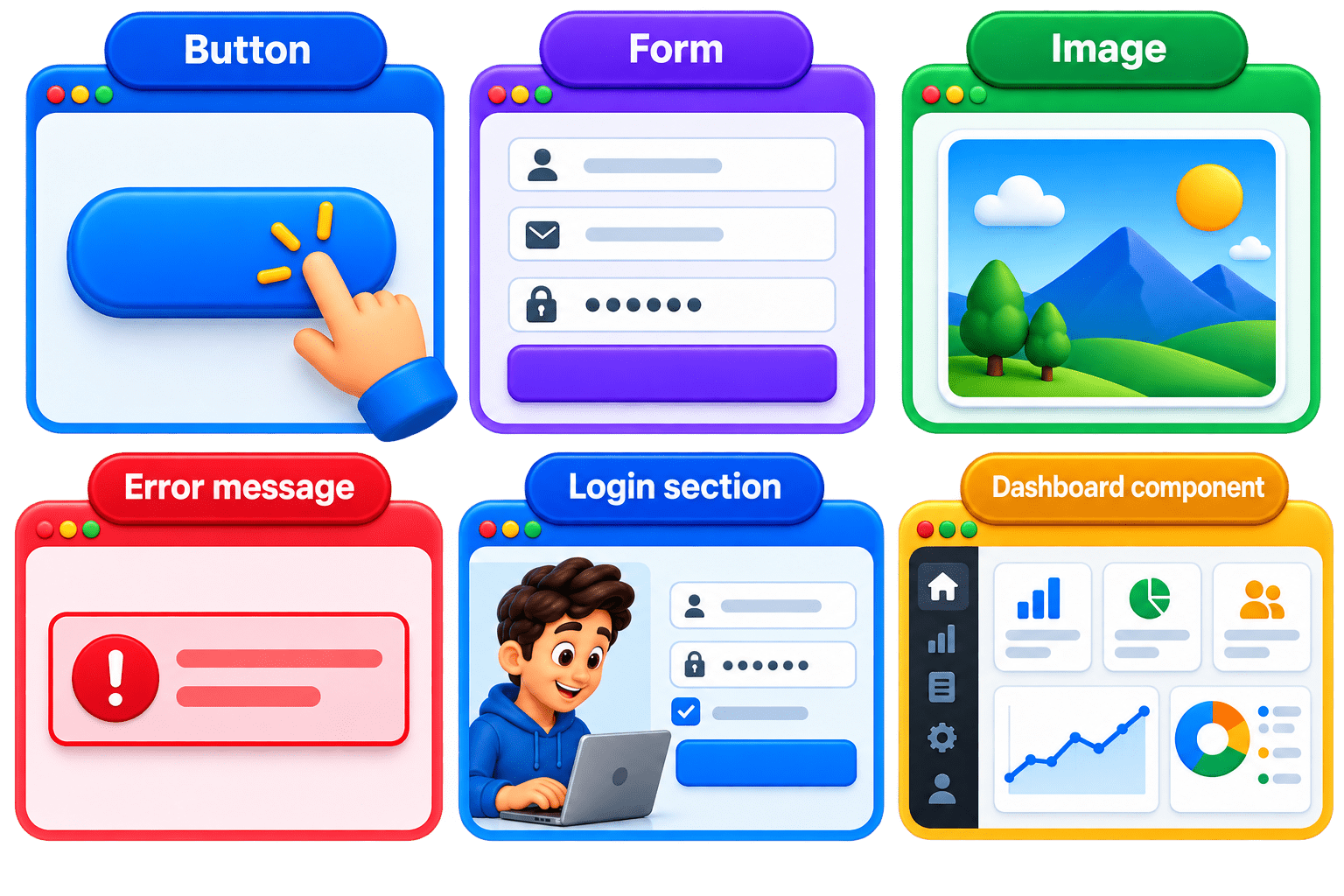
Useful for validating buttons, forms, messages, images, or other UI components.
page.screenshot(new Page.ScreenshotOptions()
    .setPath(Paths.get("fullpage.png"))
    .setFullPage(true));
Example
Element screenshot
page.locator("#loginForm").screenshot(
    new Locator.ScreenshotOptions()
        .setPath(Paths.get("login-form.png"))
);
page.screenshot(new Page.ScreenshotOptions()
    .setPath(Paths.get("viewport.png")));
Viewport screenshot
Full page screenshot
Capturing Screenshots of Web Elements
Playwright allows you to capture a screenshot of a specific web element instead of the entire webpage.
This is useful when you want to verify or document a particular:
page.locator("selector").screenshot(
    new Locator.ScreenshotOptions()
        .setPath(Paths.get("screenshots/element.png"))
);
Syntax
Locator loginButton = page.locator("#loginButton");

loginButton.screenshot(
    new Locator.ScreenshotOptions()
        .setPath(Paths.get("screenshots/login-button.png"))
);
Example
locator()
screenshot()
setPath()
identifies the required element.
captures only that element.
specifies where the screenshot is saved
Use page.screenshot() for the page and locator.screenshot() for a specific element.
Key Points
Saving Screenshots with File Paths
Playwright allows you to specify the location and filename where the screenshot should be saved using the setPath() method.
page.screenshot(new Page.ScreenshotOptions()
    .setPath(Paths.get("screenshots/homepage.png")));
Syntax
import java.nio.file.Paths;
page.navigate("https://example.com");
page.screenshot(new Page.ScreenshotOptions()
    .setPath(Paths.get("screenshots/homepage.png")));
Example
screenshots/
homepage.png
Paths.get()
folder where the screenshot is stored.
name of the screenshot file.
creates the file path in Java
tells Playwright where to save the screenshot.
setPath()
page.screenshot(new Page.ScreenshotOptions()
    .setPath(Paths.get("D:/Playwright/screenshots/homepage.png")));
Using an Absolute Path
The folder should exist before saving the screenshot; otherwise, Playwright may throw a file/path-related error.
Key Points
Screenshot on Test Failure
A screenshot on test failure is used to automatically capture the webpage when a test case fails. It helps testers understand the exact state of the application at the time of failure.
Why It Is Useful?
Helps identify the reason for test failure.
Captures the actual page state during failure.
Makes debugging easier.
Provides visual evidence in test reports.
Reduces the need to reproduce the failure manually.
@AfterMethod
public void tearDown(ITestResult result) {
    if (result.getStatus() == ITestResult.FAILURE) {
        page.screenshot(new Page.ScreenshotOptions()
            .setPath(Paths.get("screenshots/"
                + result.getName() + ".png")));
    }
}
Example with TestNG
@AfterMethod
ITestResult.FAILURE
page.screenshot()
Runs after every test method.
checks whether the test failed.
captures the page.
The screenshot is saved using the
test method name.
Example
Automatically capturing screenshots on failure makes test debugging faster and provides evidence of the failure.
Key Points
If verifyLogin() fails, Playwright can save:
screenshots/verifyLogin.png
Common Screenshot Issue
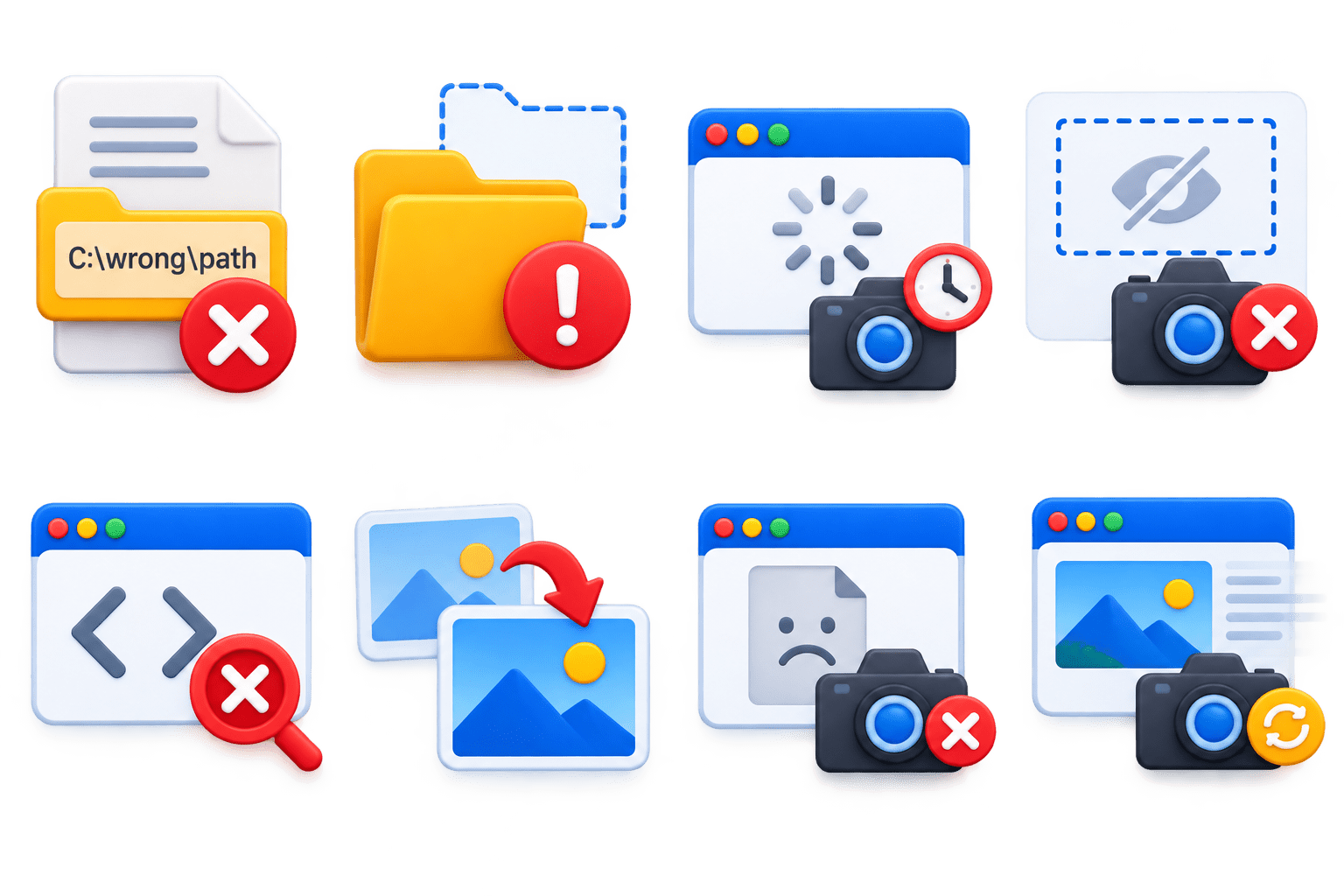
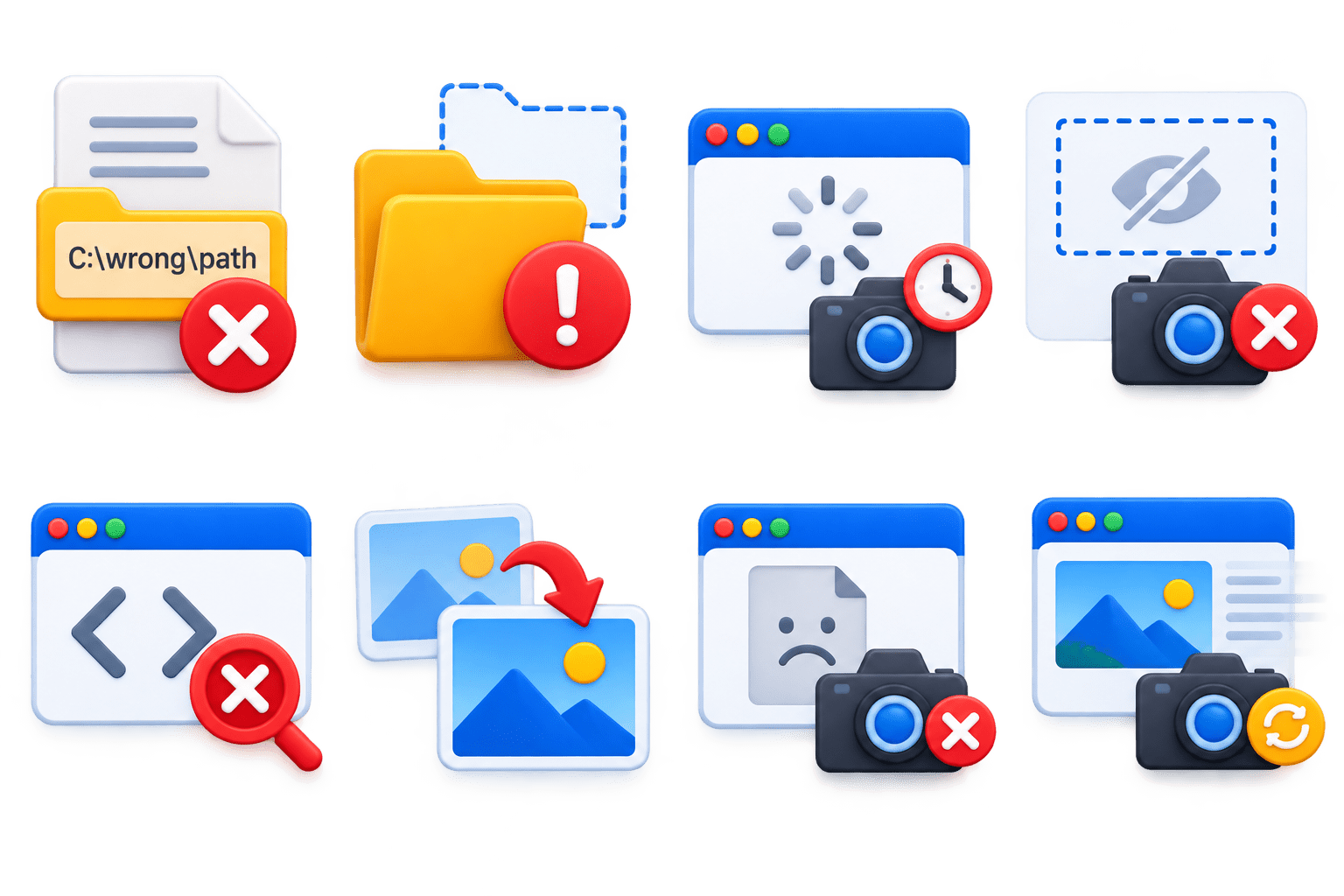
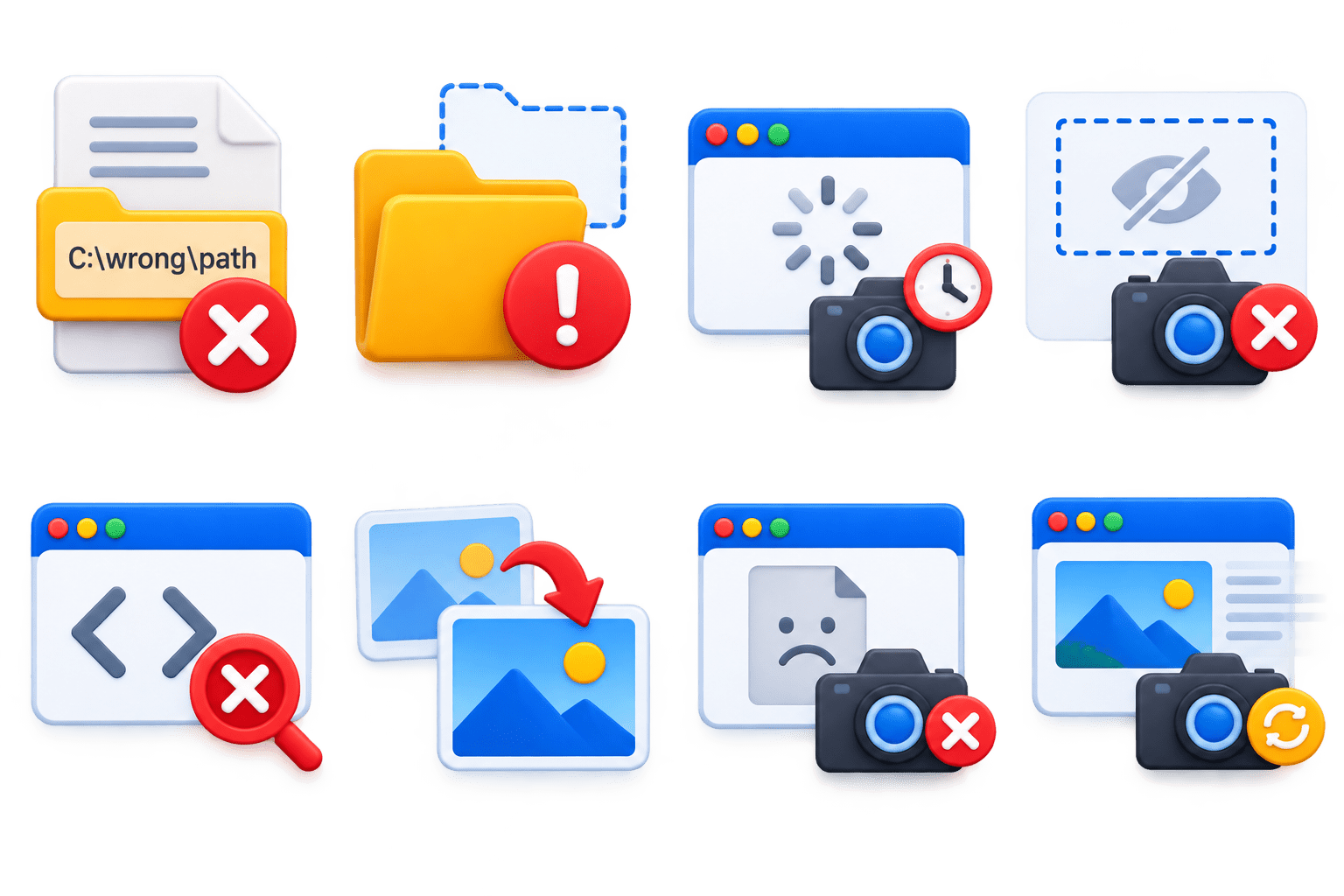
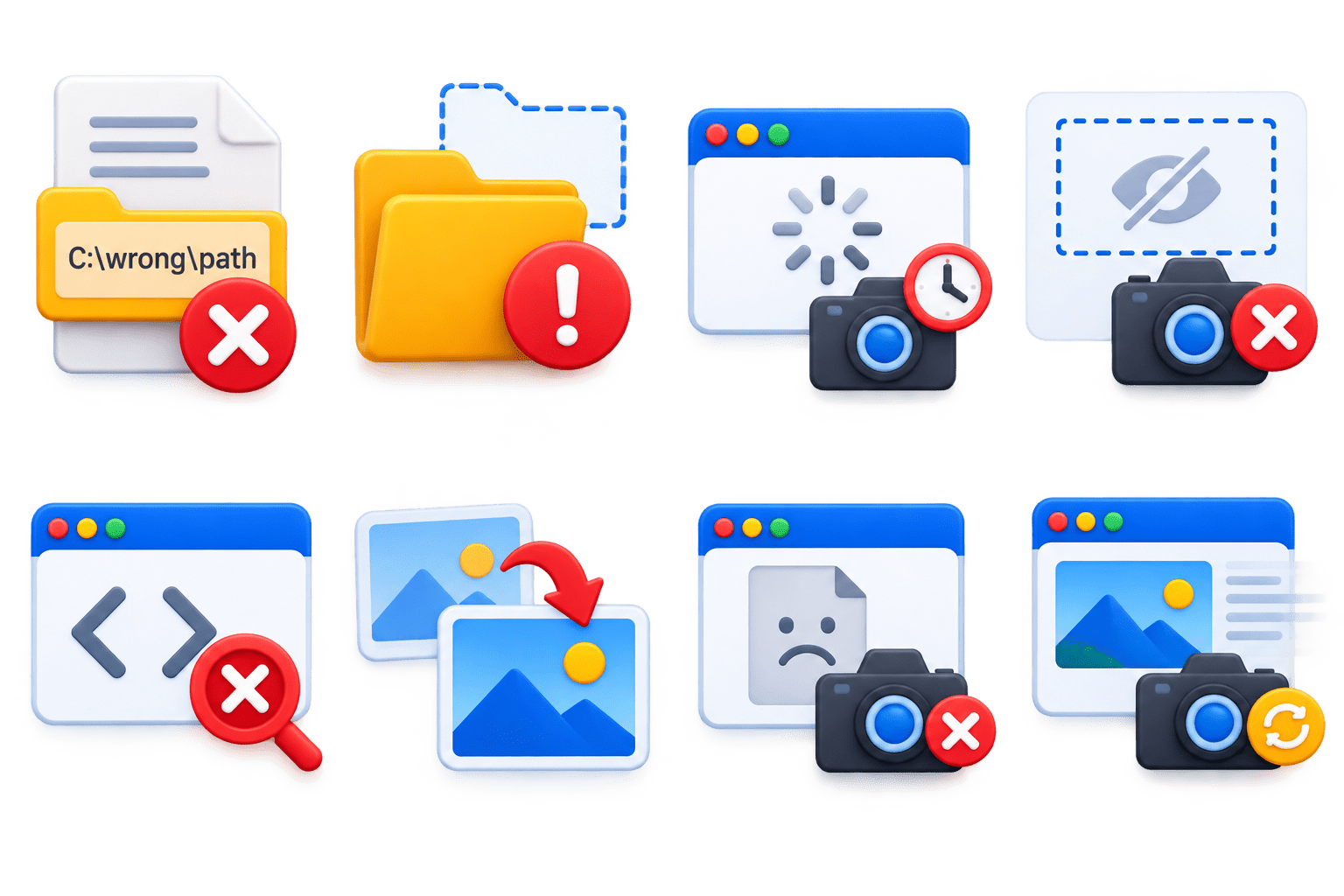
Incorrect File Path
The screenshot may not be saved if the path is invalid.
1
Folder Not Available
The destination folder must exist before saving.
2
Captured Too Early
The screenshot may be taken before the page or element is fully loaded.
3
Element Not Visible
An element screenshot may fail if the element is hidden or not displayed.
4
Wrong Locator
An element screenshot may fail if the element is hidden or not displayed.
5
Screenshot Overwritten
Using the same filename can replace an earlier screenshot.
6
Page Not Available
Screenshot capture may fail if the page object is null or already closed.
7
Dynamic Content
Animations or changing content can result in an inconsistent screenshot.
8
Summary
5
Save images to a specified file path.
4
Capture full pages or specific elements.
3
Help identify test failures.
2
Support visual UI validation.
1
Capture the current webpage state.
Quiz
Which method is used to capture a screenshot of the current page?
A. page.capture()
B. page.screenshot()
C. page.image()
D. page.snapshot()
Quiz-Answer
Which method is used to capture a screenshot of the current page?
A. page.capture()
B. page.screenshot()
C. page.image()
D. page.snapshot()
By Content ITV